To write a PowerShell script to clean temp files, you build an array of known temporary folders, filter the files by last-write date, and delete them with Remove-Item -Recurse -Force while suppressing the errors that locked files produce. It takes about fifteen minutes to build and test one that behaves, and the whole job runs silently once you put it in Task Scheduler.
This guide is written for Windows 10 and Windows 11 with either Windows PowerShell 5.1 or PowerShell 7 (pwsh). Everything below works on both.
The difference between a script that deletes a machine’s worth of files and one that gets abandoned after the first scary error message is small: a minimum-age filter, a dry-run switch, and error handling that keeps going instead of stopping.
Table of Contents
- What You Need
- How to Write a PowerShell Script to Clean Temp Files
- Step-by-Step
- 1. Create the script file and set strict execution behavior
- 2. Add safe target paths and a minimum file age
- 3. Add dry-run reporting before permanent deletion
- 4. Delete older files and handle locked items safely
- 5. Remove empty temporary subdirectories
- 6. Add logging, summary output, and exit codes
- 7. Test with a dry run, then perform a real cleanup
- 8. Schedule the cleanup with Windows Task Scheduler
- Common Mistakes
- Frequently Asked Questions
- Does the script permanently delete temporary files?
- Which PowerShell versions can run the temp-file cleanup script?
- Do I need administrator rights to clean Windows temp files?
- Why does the script skip some temporary files?
- How often should I schedule temporary-file cleanup?
- Can I undo files deleted by the PowerShell cleanup script?
- Conclusion
What You Need
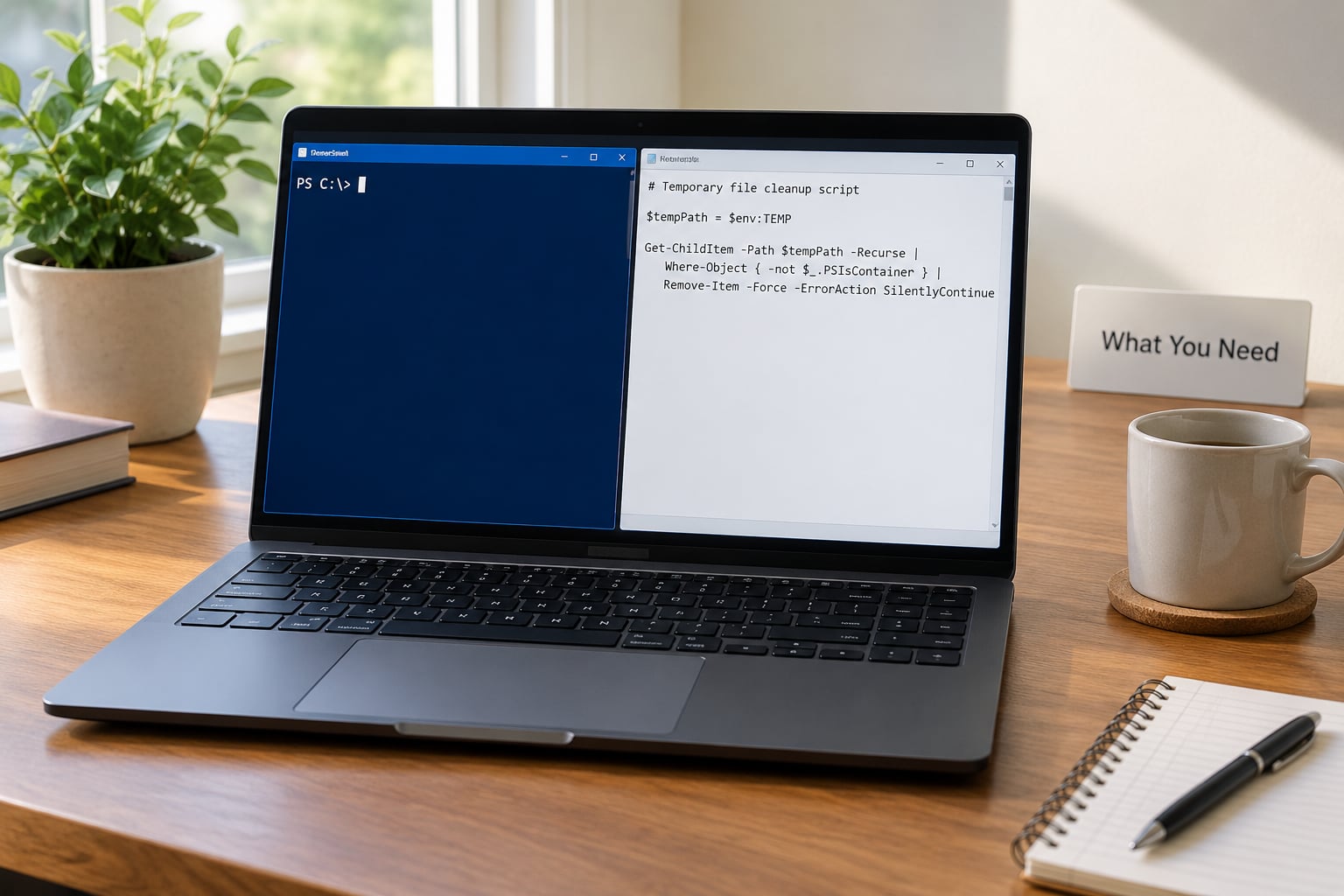
Five things, and only one of them is optional.
- A PowerShell session. Windows PowerShell 5.1 ships with Windows and runs from the Start menu. PowerShell 7 installs separately and gives you
pwsh.exe. Check with$PSVersionTable.PSVersion. - A scope decision. Are you cleaning only the account you are logged in as, or every profile on the machine? The second option changes both the path list and the account you need.
- The target paths. For a single user that is
$env:TEMP,$env:LOCALAPPDATATempandC:WindowsTemp. Do not improvise the rest. - Administrator rights for the system-wide folders. Your own
%TEMP%cleans fine from a normal session.C:WindowsTempand the Windows Update cache do not, and the failures are access-denied errors rather than an obvious message telling you to elevate. - A place to write the log. The full script below writes one run log per execution.
C:ProgramDataTempCleanupis a reasonable default, though any folder the executing account can write to works.
One thing worth knowing before you start: a file that is currently open is locked by the process holding it, and that lock is what produces the “cannot delete because the file is in use” message. It is expected behaviour, not a broken setup.
How to Write a PowerShell Script to Clean Temp Files
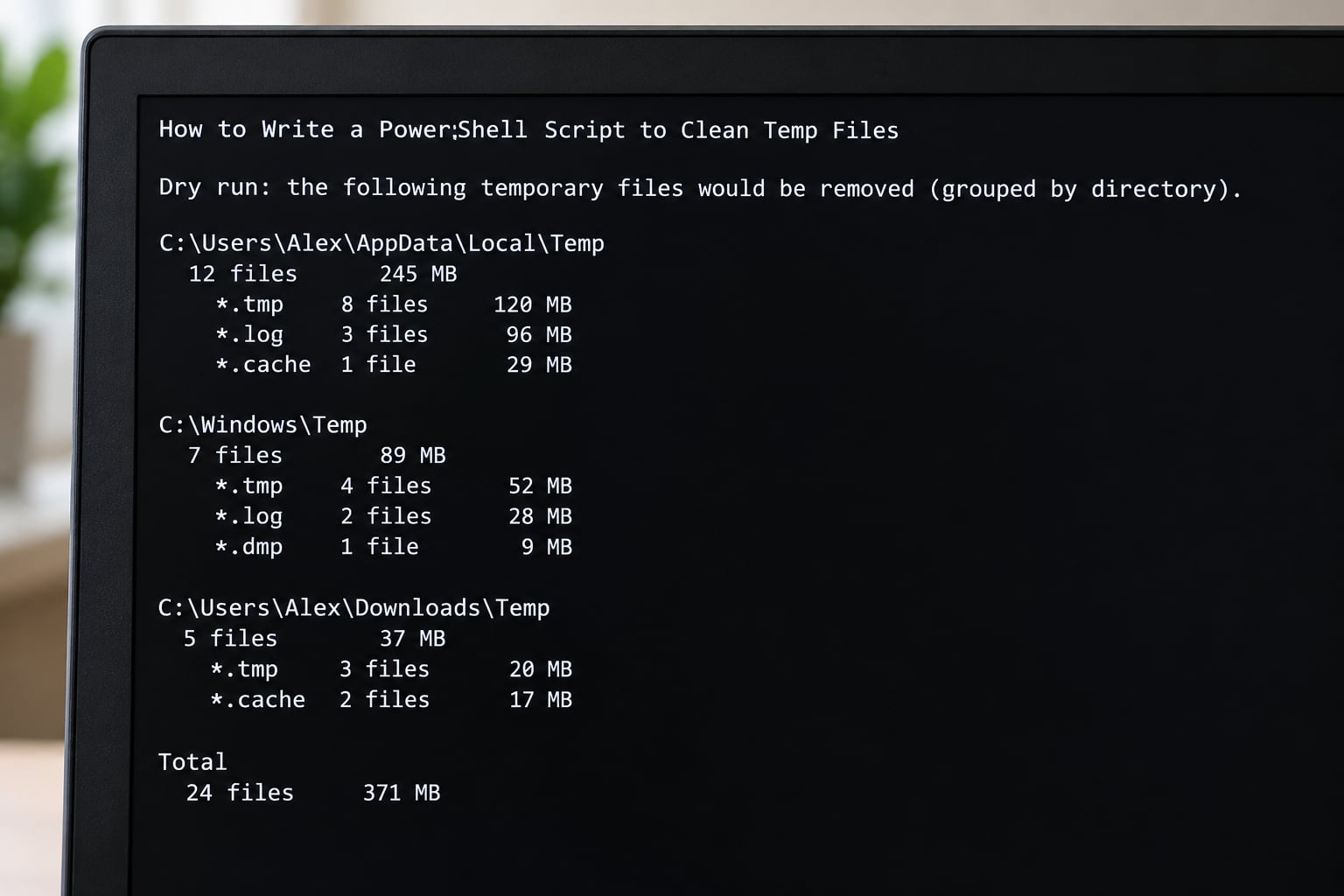
Here is the complete script. It validates its targets, ignores anything modified inside a configurable window, prints what it would do instead of deleting when you pass -DryRun, keeps running when a file is locked, prunes the empty folders left behind, writes a timestamped log, and returns an exit code you can point a scheduler at.
#Requires -Version 5.1
[CmdletBinding()]
param(
    [int]   $MinimumAgeDays   = 7,
    [int]   $LogRetentionDays = 30,
    [string]$LogFolder        = "$env:ProgramDataTempCleanup",
    [switch]$DryRun
)

Set-StrictMode -Version Latest
$ErrorActionPreference = 'Continue'

# --- log file for this run -------------------------------------------------
if (-not (Test-Path -LiteralPath $LogFolder)) {
    New-Item -Path $LogFolder -ItemType Directory -Force | Out-Null
}
$stamp  = Get-Date -Format 'yyyyMMdd-HHmmss'
$logFile = Join-Path $LogFolder "Cleanup-$stamp.log"
Start-Transcript -Path $logFile -Force | Out-Null

# --- validated target list -------------------------------------------------
$targets = @(
    $env:TEMP
    (Join-Path $env:LOCALAPPDATA 'Temp')
    (Join-Path $env:windir  'Temp')
) | Where-Object { $_ -and (Test-Path -LiteralPath $_ -PathType Container) }

if ($targets.Count -eq 0) {
    Write-Warning 'No temp folders were found. Nothing to clean.'
    Stop-Transcript | Out-Null
    exit 2
}

$cutoff     = (Get-Date).AddDays(-$MinimumAgeDays)
$freeBefore = (Get-PSDrive -Name C).Free
$eligible = 0; $deleted = 0; $failed = 0; $freed = 0

foreach ($path in $targets) {
    Write-Host "Scanning $path"

    $files = Get-ChildItem -LiteralPath $path -Recurse -Force -File -ErrorAction SilentlyContinue |
             Where-Object { $_.LastWriteTime -lt $cutoff }

    foreach ($file in $files) {
        $eligible++
        $size = $file.Length

        if ($DryRun) {
            Write-Host ("  would delete {0}  ({1:N1} MB)" -f $file.FullName, ($size / 1MB))
            continue
        }

        try {
            Remove-Item -LiteralPath $file.FullName -Force -ErrorAction Stop
            $deleted++
            $freed  += $size
        }
        catch {
            $failed++
            Write-Verbose ("  skipped (in use or denied): {0}" -f $file.FullName)
        }
    }

    # prune directories that are now empty, deepest first
    if (-not $DryRun) {
        Get-ChildItem -LiteralPath $path -Recurse -Force -Directory -ErrorAction SilentlyContinue |
            Sort-Object { $_.FullName.Length } -Descending |
            ForEach-Object {
                $kids = Get-ChildItem -LiteralPath $_.FullName -Force -ErrorAction SilentlyContinue
                if (-not $kids) {
                    try { Remove-Item -LiteralPath $_.FullName -Force -ErrorAction Stop }
                    catch { Write-Verbose "  kept directory: $($_.FullName)" }
                }
            }
    }
}

$freeAfter = (Get-PSDrive -Name C).Free
Write-Host ("Eligible {0}, deleted {1}, skipped {2}, reclaimed {3:N1} MB" -f $eligible, $deleted, $failed, ($freed / 1MB))
Write-Host ("C: free space {0:N1} GB -> {1:N1} GB" -f ($freeBefore / 1GB), ($freeAfter / 1GB))

Stop-Transcript | Out-Null

# trim old run logs
Get-ChildItem -LiteralPath $LogFolder -Filter 'Cleanup-*.log' -File -ErrorAction SilentlyContinue |
    Where-Object { $_.LastWriteTime -lt (Get-Date).AddDays(-$LogRetentionDays) } |
    Remove-Item -Force -ErrorAction SilentlyContinue

if ($DryRun)    { exit 0 }
if ($failed -gt 0) { exit 1 }
exit 0
Four details do the real work. Get-ChildItem -LiteralPath enumerates rather than builds a wildcard string, so a folder name with a bracket in it cannot turn into a pattern. Where-Object { $_.LastWriteTime -lt $cutoff } is the age filter that keeps anything touched in the last seven days. -ErrorAction SilentlyContinue on the enumeration stops a single unreadable subfolder from aborting the walk. And the try and catch around each delete means a locked file costs you one file, not the whole run.
Step-by-Step
1. Create the script file and set strict execution behavior
Open a normal PowerShell window, create the file, and start from a parameter block instead of hard-coded values. Hard-coded paths and retention periods are the reason cleanup scripts get copied between machines and then wipe the wrong thing.
notepad C:ScriptsClean-Temp.ps1Paste the parameter block from the script above, save as UTF-8, and make sure the file is not saved as Clean-Temp.ps1.txt. Windows Notepad in recent builds no longer appends the extension, but files dragged in from elsewhere still arrive that way and PowerShell will not run them.
2. Add safe target paths and a minimum file age
Explicit beats clever here. Build the array from the three known locations, then filter it through Test-Path -PathType Container so a missing folder is dropped instead of throwing.
$targets = @(
    $env:TEMP
    (Join-Path $env:LOCALAPPDATA 'Temp')
    (Join-Path $env:windir  'Temp')
) | Where-Object { $_ -and (Test-Path -LiteralPath $_ -PathType Container) }
You will see %TEMP% and C:WindowsTemp confused constantly. The first is per user and points somewhere under C:UsersNameAppDataLocalTemp. The second is system-wide, holds installer leftovers from every account, and needs elevation. They are different folders with different permissions.
Set the minimum age to a real number. Seven days is conservative; thirty suits a monthly maintenance run on a machine nobody is sitting at.
3. Add dry-run reporting before permanent deletion
Add the -DryRun switch to the parameter block, then make the delete branch conditional. This is the single step that turns a risky script into a boring one, and it answers the “is it safe to delete C:Temp” question with evidence instead of reassurance.
if ($DryRun) {
    Write-Host ("  would delete {0}  ({1:N1} MB)" -f $file.FullName, ($size / 1MB))
    continue
}
Run it once and read the output. If a path in that list surprises you, stop and find out why before anything gets removed.
4. Delete older files and handle locked items safely
Delete one item at a time with Remove-Item -LiteralPath, wrap it in try and catch, and count what fails. Deleting the whole folder contents in one call produces one error for the entire directory and no idea how much was actually removed.
try {
    Remove-Item -LiteralPath $file.FullName -Force -ErrorAction Stop
    $deleted++
    $freed += $size
}
catch {
    $failed++
    Write-Verbose ("  skipped (in use or denied): {0}" -f $file.FullName)
}
Using -ErrorAction Stop inside the try is deliberate: it turns a would-be silent error into something the catch can count. Without it, the delete quietly does nothing and your summary lies.
5. Remove empty temporary subdirectories
Files go first, folders second, and only folders that are genuinely empty get removed. Sort by path length descending so the deepest directories are cleared before their parents, or the parent will still contain a child and be kept.
Get-ChildItem -LiteralPath $path -Recurse -Force -Directory -ErrorAction SilentlyContinue |
    Sort-Object { $_.FullName.Length } -Descending |
    ForEach-Object {
        if (-not (Get-ChildItem -LiteralPath $_.FullName -Force -ErrorAction SilentlyContinue)) {
            try { Remove-Item -LiteralPath $_.FullName -Force -ErrorAction Stop }
            catch { Write-Verbose "  kept directory: $($_.FullName)" }
        }
    }
The emptiness check is the safety net. A folder that still holds anything keeps its contents and is skipped, so a race where an application writes a file between your scan and your delete cannot cause data loss.
6. Add logging, summary output, and exit codes
Open a transcript at the start with Start-Transcript and close it with Stop-Transcript. Then print a one-line summary: eligible, deleted, skipped, and megabytes reclaimed, plus free space on the volume before and after from Get-PSDrive.
Exit codes make the run visible to anything watching. Return 0 on success, 1 when some files were locked or denied, and 2 when no target folder existed at all, because that last one means the script is pointed at the wrong machine and you want to know about it immediately.
7. Test with a dry run, then perform a real cleanup
Save the script, then run the dry run from an elevated window:
powershell.exe -NoProfile -ExecutionPolicy Bypass -File C:ScriptsClean-Temp.ps1 -DryRunCheck two things in the output and the log: that every path listed is one you expected to see, and that the reclaimed total matches the age you set. If a file from the last day appears, the cutoff is wrong.
Then run it for real, dropping -DryRun:
powershell.exe -NoProfile -ExecutionPolicy Bypass -File C:ScriptsClean-Temp.ps1 -MinimumAgeDays 7
Get-Content C:ProgramDataTempCleanupCleanup-*.log -Tail 20
Open the original temp folder afterwards. Files older than your cutoff should be gone, anything modified recently should still be there, and anything a running application holds open should still be there too. That last one is the correct outcome, not a failure.
8. Schedule the cleanup with Windows Task Scheduler
Task Scheduler runs the task as SYSTEM, so the system-wide folders are reachable without a stored password, but it will not inherit the execution policy of your interactive session. Pass -ExecutionPolicy Bypass in the arguments, or the task fails silently on every run.
$action  = New-ScheduledTaskAction -Execute 'powershell.exe' `
  -Argument '-NoProfile -ExecutionPolicy Bypass -File C:ScriptsClean-Temp.ps1 -MinimumAgeDays 7'
$trigger = New-ScheduledTaskTrigger -Daily -At 3am
$principal = New-ScheduledTaskPrincipal -UserId 'SYSTEM' -RunLevel Highest
Register-ScheduledTask -TaskName 'TempCleanup' -Action $action -Trigger $trigger `
  -Principal $principal -Description 'Remove temp files older than 7 days'
Run that from an elevated PowerShell window. To check it worked, open Task Scheduler, run the task on demand, then look at the History tab, or read the exit code directly:
Start-ScheduledTask -TaskName 'TempCleanup'
(Get-ScheduledTaskInfo -TaskName 'TempCleanup').LastTaskResult
0 means clean, 1 means files were skipped, 2 means the target list was empty. The cmd equivalent is schtasks /Create /TN "TempCleanup" /SC DAILY /ST 03:00 /TR "powershell.exe -NoProfile -ExecutionPolicy Bypass -File C:ScriptsClean-Temp.ps1 -MinimumAgeDays 7" /RU SYSTEM /RL HIGHEST /F if you would rather not use the PowerShell cmdlets.
Common Mistakes
Every one of these has shown up repeatedly on PowerShell forums and Stack Overflow.
- The string is missing the terminator. A script pasted from a web page arrives with curly quotes, and PowerShell cannot parse them. Open the file in Notepad, press Ctrl+H, and replace every smart quote with a straight one.
- Running without elevation. Access-denied errors against
C:WindowsTempmean the session is not elevated, not that the folder is broken. Right-click Windows PowerShell and choose Run as administrator. - Deleting everything with no age check.
Remove-Item "$env:TEMP*" -Recurse -Forcewith noWhere-Objectfilter will happily remove a file an installer is using right now. Always filter byLastWriteTimefirst. - Pointing the script at real data. The Downloads folder is not a temp folder. Neither is anything under Documents, and the Recycle Bin only gets cleared if you explicitly call
Clear-RecycleBin. - Treating a locked file as fatal. A file in use throws, the
catchcounts it, and the loop continues. If your script stops on the first locked file, you are missing the-ErrorAction Stopandcatchpair. - Trusting wildcard-derived paths. Enumerating with
Get-ChildItemand deleting each result by-LiteralPathavoids the bracket-in-the-folder-name problem that wildcard removal hits. - Deleting Prefetch. It is on every popular copy-paste script and it costs you: Windows rebuilds prefetch data on the next boot and startup is slower for a day or so. Leave it alone unless you have a specific reason.
- Storing the script in a folder you clean. Your run logs and the script itself should not live under
%TEMP%. Windows will happily delete the script out from under a running job. - Scheduling without the bypass flag. A task that fails on execution policy reports no error at all in Task Scheduler. Put
-ExecutionPolicy Bypassin the action arguments and checkLastTaskResult. - Walking huge profiles naively. A recursive scan over a large profile can run for many minutes. Keep the target list short, filter with
-Fileduring enumeration, and accept that a first run on a big machine is slow.
Frequently Asked Questions
Does the script permanently delete temporary files?
Yes. The script calls Remove-Item directly, so files bypass the Recycle Bin and cannot be restored from there. That is why the DryRun switch matters: run it once with -DryRun to see every path and size, confirm the list, then run for real. If you want a safety net on a shared machine, add a Copy-Item step to a quarantine folder before the delete.
Which PowerShell versions can run the temp-file cleanup script?
Windows PowerShell 5.1 and PowerShell 7 both run it unchanged. The script uses Get-ChildItem -File, Where-Object, Start-Transcript and Remove-Item, all of which behave the same in both. The #Requires -Version 5.1 line stops anything older. Note that pwsh is a separate install, so if Start does not list PowerShell 7 you need to install it or use powershell.exe.
Do I need administrator rights to clean Windows temp files?
Only for the system-wide locations. Your own %TEMP% and %LOCALAPPDATA%u005cTemp clean fine from a normal session because you own those files. C:u005cWindowsu005cTemp holds leftovers from every account and will return access-denied errors without elevation. A scheduled task running as SYSTEM has full access by default, so the scheduled version needs no stored password.
Why does the script skip some temporary files?
Most skips are locked files. A running application, an antivirus scan or an open File Explorer window holds a handle, and Windows refuses deletion until it releases. Access-denied on a SYSTEM-owned file is the other common reason. Both are counted as skipped and listed in the run log with Write-Verbose. They usually clear on the next run, and the summary line reports how many were skipped.
How often should I schedule temporary-file cleanup?
Daily works well on busy machines, especially servers and terminals where sessions accumulate files. Weekly is plenty for a normal desktop, and it gives you a longer minimum age to work with. Avoid scheduling at logoff or shutdown, since the task may never get to run. Whatever interval you pick, keep the minimum age at or above three days so nothing in active use is targeted.
Can I undo files deleted by the PowerShell cleanup script?
Not normally. Remove-Item deletes permanently rather than sending files to the Recycle Bin, so there is nothing to restore from there. Shadow copies or a previous version may still hold the data on a system restore-enabled machine, but that is a recovery project, not a routine step. The practical protection is the DryRun switch: verify every path before you delete anything.
Conclusion
Save the script, run it once with -DryRun from an elevated window, and read every path in the output before you let it delete anything. Start with a seven-day minimum age, check the log after the first real run, and only then register the scheduled task.