tmux basics for beginners come down to four ideas: start a named session, split it into windows, split those into panes, and press one prefix key before every shortcut. Install it in a minute, and ten minutes later you can leave a build running, close your laptop, and reconnect to the same screen later. That is the whole idea, and the rest is muscle memory.
This guide walks through a working setup from install to a repeatable daily layout, using commands you can type as-is. If you have never opened a terminal multiplexer before, you will be productive by the end of the Step-by-Step section.
Table of Contents
- What You Need
- Step-by-Step
- 1. Start a named session
- 2. Create your first windows
- 3. Split a window into panes
- 4. Detach and come back
- 5. Navigate the interface
- 6. Tidy up when you are done
- How tmux Sessions, Windows, and Panes Differ
- Essential tmux Shortcuts
- Changing the prefix key
- How to Keep Work Running in the Background
- Common Mistakes
- Shortcuts do nothing because the prefix is missing
- The prefix works but one specific key does not
- You cannot find your session
- You split panes until the screen is useless
- You closed something you meant to keep
- The configuration file does not load
- Frequently Asked Questions
- What is tmux and why should I use it?
- How do I install tmux on Linux, macOS, or Windows?
- Why is my tmux prefix key Ctrl+b not working?
- How do I detach from a tmux session and get back to it?
- What is the difference between a tmux session, window, and pane?
- How do I change the tmux prefix key and key bindings?
- Conclusion
What You Need
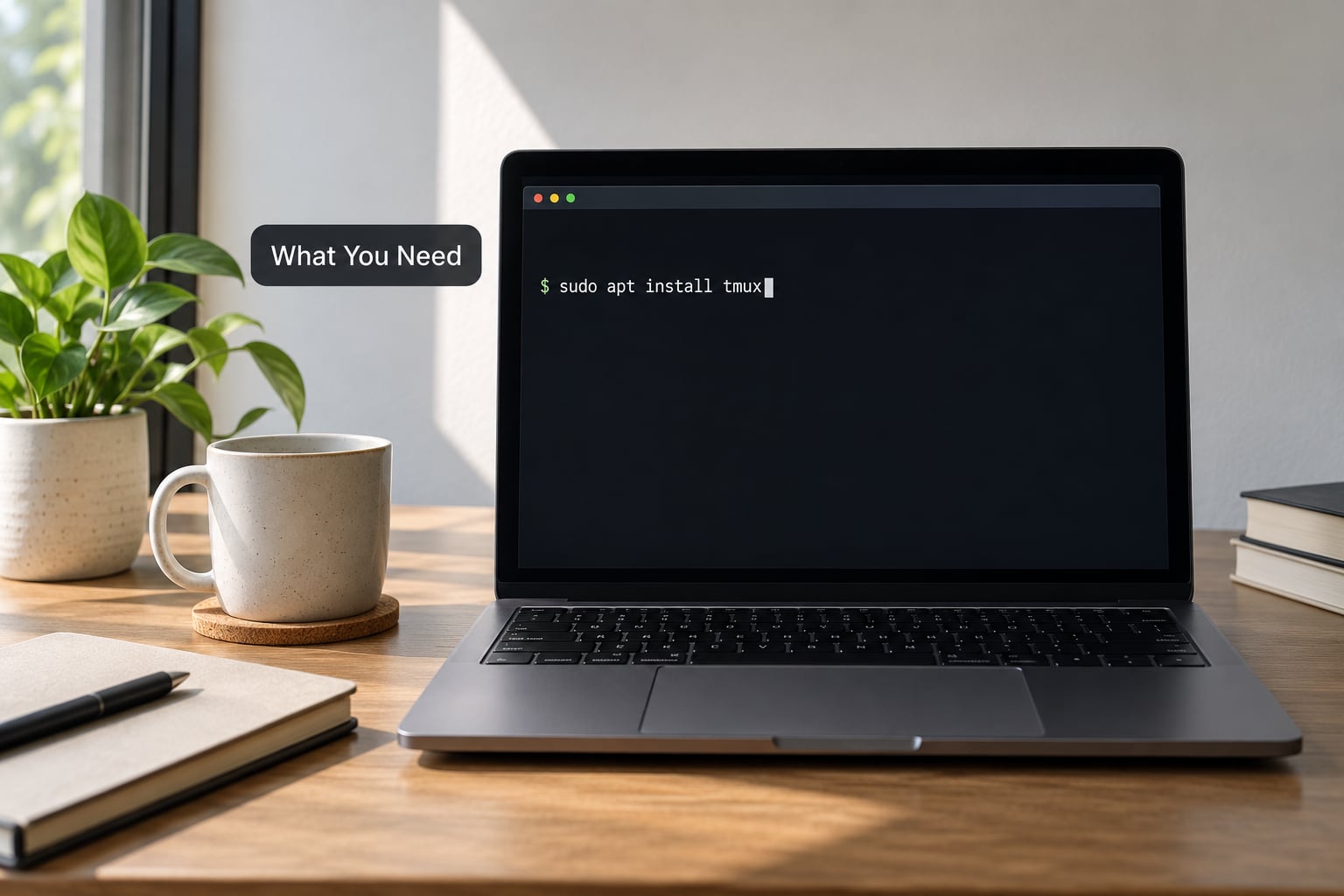
tmux is free software that runs on Linux, macOS, and inside Windows through WSL. You need a terminal you can type into, and that is it. No graphical desktop is required, which is why tmux is the default tool on servers that only give you a command line.
Installing on Debian and Ubuntu:
sudo apt update
sudo apt install tmux
Installing on Fedora, RHEL, and Rocky:
sudo dnf install tmux
Installing on Arch:
sudo pacman -S tmux
Installing on macOS with Homebrew:
brew install tmux
On Windows, install tmux inside the Windows Subsystem for Linux. Open PowerShell, run wsl --install -d Ubuntu, restart, then follow the Ubuntu commands above inside the Linux prompt. Running tmux on the Windows side directly is not a supported setup, and it is not worth the trouble.
Verify it worked with a version check:
tmux -V
A version number means the binary is on your path. If you get command not found, close and reopen the terminal, and if it still fails, check which package manager your system actually uses.
Step-by-Step
Work through these in order. Each step gives you the command and the check that tells you it worked.
1. Start a named session
Run this in a normal terminal window:
tmux new -s work
The screen turns black with a status bar along the bottom, and the session name work appears on the far left. That bar is the confirmation that you are inside tmux now. Typing at the prompt behaves exactly as it did before, so nothing has broken.
2. Create your first windows
Inside the session, press Ctrl+b, release it, then press c. A new window opens and the status bar highlights the second entry. Name the windows so you can find them later with Ctrl+b then , (comma).
From the prompt you can also see everything in the session:
tmux list-windows
3. Split a window into panes
Press Ctrl+b then % to split the current window into two side-by-side panes. Press Ctrl+b then ” to split top and bottom instead. Your cursor lands in the new pane, and the active one is outlined.
Move between panes with the arrow keys after the prefix, or cycle with Ctrl+b then o. Close the pane you are in with Ctrl+b then x, and confirm at the prompt.
4. Detach and come back
Press Ctrl+b then d. Your terminal returns to the ordinary shell and the session keeps running. See the list with:
tmux ls
To go back to the same screen, wherever you are:
tmux attach -t work
5. Navigate the interface
Ctrl+b then n goes to the next window and Ctrl+b then p to the previous one. Number keys jump straight to a window: Ctrl+b then 1 takes you to the first one. The status bar always shows which window and pane are active, so you are never guessing.
6. Tidy up when you are done
Rename a session from inside it with Ctrl+b then $ and typing a new name. Kill a single session from the shell with tmux kill-session -t work, or list everything first with tmux ls to avoid killing the wrong one.
How tmux Sessions, Windows, and Panes Differ
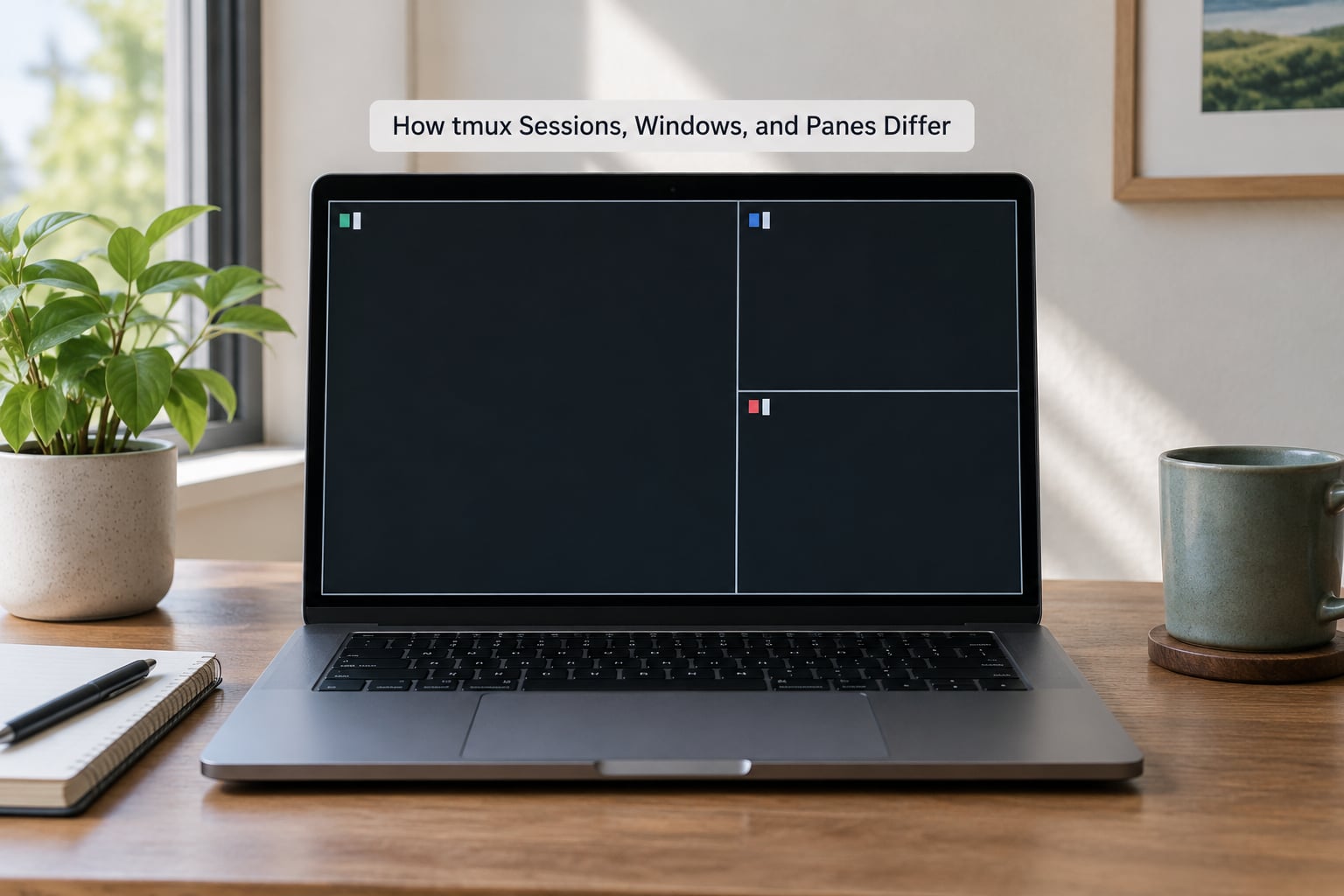
Sessions hold windows, windows hold panes, and a pane is the actual terminal where commands run. Thinking of it as browser tabs stops most of the confusion: a session is like a window with its own address bar, a tmux window is a tab, and a pane is a split view inside that tab.
| Level | What it is | Shortcut to create | Command |
|---|---|---|---|
| Session | A named, persistent workspace that survives disconnects | Ctrl+b then s (choose from list) | tmux new -s name |
| Window | A full-screen tab inside the session | Ctrl+b then c | tmux new-window -t name |
| Pane | A split region inside a window | Ctrl+b then % or “ | tmux split-window |
One example ties it together. You create a session named work, open three windows inside it called editor, server, and logs, then split the server window into two panes so you can watch a request log and a process list side by side. Killing the work session removes all three windows and every pane in them in one command.
Essential tmux Shortcuts
Every shortcut is a two-part chord: press the prefix key first, then the command key. The prefix is Ctrl+b by default. Tap Ctrl+b, let go, then press the second key. Holding both at once does nothing useful, which trips up almost everyone once.
That prefix exists so tmux does not steal keys from your shell and editor. Ctrl+b is the readline shortcut for beginning-of-line in bash, so tmux waits a fraction of a second to see whether you press anything after it before it acts.
| Action | Shortcut |
|---|---|
| Split window vertically (side by side) | Ctrl+b then % |
| Split window horizontally (stacked) | Ctrl+b then “ |
| Close the current pane | Ctrl+b then x |
| Switch to the next pane | Ctrl+b then arrow key |
| Cycle through panes | Ctrl+b then o |
| Zoom a pane to full screen and back | Ctrl+b then z |
| Resize a pane by one cell | Ctrl+b then arrow key (with Alt or Ctrl held) |
| New window | Ctrl+b then c |
| Next and previous window | Ctrl+b then n, or p |
| Rename the current window | Ctrl+b then , |
| Close the current window | Ctrl+b then & |
| Jump to window by number | Ctrl+b then 0 through 9 |
| Detach from the session | Ctrl+b then d |
| Rename the session | Ctrl+b then $ |
| Scroll back through history | Ctrl+b then [ |
Pressing Ctrl+b then : opens command prompt mode, where you type tmux commands by hand. This is where mouse mode lives. Type set -g mouse on, press Enter, and you can select text and scroll with the pointer like any normal terminal. Press q to get back out of scroll mode.
Changing the prefix key
Many people move the prefix to Ctrl+a because it is easier to reach, or away from Ctrl+b because their muscle memory sends it to the shell instead. Settings live in ~/.tmux.conf, a plain text file you create if it does not exist. Add these lines:
unbind C-b
set -g prefix C-a
bind C-a send-prefix
set -g mouse on
set -g history-limit 50000
Reload it in any running session without restarting by typing tmux source-file ~/.tmux.conf at the prompt, or run tmux kill-server and start fresh. The unbind line is what people forget, and without it both keys stay active and you get unpredictable results.
How to Keep Work Running in the Background
The reason tmux survived for two decades is detachment. When you detach, tmux does not stop. The server process keeps every session, every window, and every running program alive on the machine.
That matters most over SSH. If you run a long migration on a remote box, your wifi drops, and the shell dies, the work dies with it. Run the same command inside tmux and the loss of connection changes nothing. You reconnect, run tmux attach, and the output is still on screen.
You do not need a new session for new work. Inside your existing session, use the prefix shortcuts to open a window, or run these from any shell:
tmux new-window -t work -n deploy
tmux new-session -s monitoring
tmux send-keys -t work:deploy "npm test" Enter
That last one is how you start a command in a session that is not attached to your current screen, which is handy for scripts and for kicking off a task in a background window you will check later.
For scripts, a small shell script that creates a named session and runs a command is usually cleaner than nothing at all:
#!/bin/sh
tmux new-session -d -s backup "pg_dump mydb > /tmp/dump.sql"
The -d flag means do not attach, so the job runs quietly and you check on it whenever you like.
Common Mistakes
Nearly every beginner complaint traces back to one of these, and the fixes are quick once you know which one you hit.
Shortcuts do nothing because the prefix is missing
If Ctrl+b then c does not open a window, you probably pressed Ctrl+b and c at the same time instead of one after the other. Release the prefix, then press the command key. Typing slowly fixes this permanently in a couple of days.
Related: some terminal emulators send Ctrl+b to the shell as beginning-of-line instead of to tmux. Check the three layers separately. The terminal emulator receives the keystroke first, then the shell, then tmux, and any one of them can consume it. Restarting tmux after changing a terminal profile is the fastest way to test whether the terminal is the problem.
The prefix works but one specific key does not
Users on Alacritty, iTerm2, macOS Terminal, and Windows Terminal often report that Ctrl+Space never reaches tmux. Those applications treat Ctrl+Space as an input-method toggle and swallow it. Pick a different prefix, such as Ctrl+a or Ctrl+g, and the problem disappears. Bindings that work in one terminal and not another are almost always terminal-level, not tmux-level.
You cannot find your session
Run tmux ls. If the list is empty, tmux has no server running and your session is gone. If it is not empty and your session is missing, you are probably connected to a different machine, a different user account, or a different tmux socket than when you created it.
You split panes until the screen is useless
Four or five panes in one window leaves every one of them too small to read. Stop splitting. Ctrl+b then z zooms the pane you care about to full screen and back again, and closing a pane with Ctrl+b then x is faster than squinting at it. Most working setups use three or four panes, and a wide screen makes a big difference.
You closed something you meant to keep
Ctrl+b then x kills the pane, and Ctrl+b then & closes the whole window. A mis-aimed keypress can take a running server with it, since closing a pane ends the process running in it. Switch to the pane you want to close first, look at the status bar, and confirm the target before pressing anything.
The configuration file does not load
Check the path is exactly ~/.tmux.conf and that each line ends properly. A single stray character can make tmux ignore later lines silently. Source it manually and read the error output rather than guessing.
Habits that prevent nearly all of the above: name your sessions on day one, stay under four panes, use Ctrl+b then z instead of squinting, and run tmux ls before you kill anything.
Frequently Asked Questions
What is tmux and why should I use it?
tmux is a terminal multiplexer: one program that creates, manages, and switches between multiple terminal sessions in a single window. It splits your screen into windows and panes, and it keeps everything running on the server after your connection drops. Most people adopt it after losing a long SSH job to a wifi hiccup.
How do I install tmux on Linux, macOS, or Windows?
On Debian or Ubuntu use sudo apt install tmux, on Fedora or RHEL use sudo dnf install tmux, and on Arch use sudo pacman -S tmux. On macOS run brew install tmux. On Windows, install tmux inside the Windows Subsystem for Linux rather than natively. Run tmux -V afterward to confirm the install worked.
Why is my tmux prefix key Ctrl+b not working?
The most common causes are pressing the prefix and command key at the same time instead of one after the other, or a terminal emulator that intercepts the combination before tmux sees it. Press and release Ctrl+b first, then tap the command key. If a specific key such as Ctrl+Space is swallowed, change the prefix in ~/.tmux.conf to Ctrl+a.
How do I detach from a tmux session and get back to it?
Press Ctrl+b then d to detach, and the session keeps running in the background. To return, run tmux ls to see what exists, then tmux attach -t sessionname, or just tmux attach for the most recent session. This is the workflow that makes tmux useful over SSH.
What is the difference between a tmux session, window, and pane?
A session is a named workspace that survives disconnects. A window is a full-screen tab inside that session, and a pane is a split region inside a window. Browser analogy: the session is the browser window, a tmux window is a tab, and a pane is a split view inside the tab.
How do I change the tmux prefix key and key bindings?
Create or edit ~/.tmux.conf and add unbind C-b, then set -g prefix C-a, then bind C-a send-prefix. Without the unbind line, both prefixes stay active. Add key bindings with the bind command, for example bind r source-file ~/.tmux.conf, and reload the file with tmux source-file ~/.tmux.conf.
Conclusion
Memorize one workflow and it carries you through most days: create a named session with tmux new -s work, detach with Ctrl+b then d, and reattach with tmux attach -t work whenever you need to. Everything else, windows, panes, and the prefix key, sits on top of that habit.
Start with a single session and two or three windows this week. Add panes only when a task genuinely needs a second view, and enable mouse mode in ~/.tmux.conf the same day. That is the whole of tmux basics for beginners, and everything more advanced is built on top of it.