
grep (global regular expression print) searches files and streams for lines matching a pattern and prints those lines. That is the whole job, and it is why grep commands every sysadmin should know sit at the top of the daily toolbox: the same command finds a setting in /etc/ssh/sshd_config, an error in /var/log/syslog, and a stray process in ps aux. Below are 12 of them, written the way you would actually type them on a server, with real paths and copy-pasteable examples.
One thing trips up nearly everyone early on: grep prints matching lines, not matching values. If a log line is error: timeout after 30s, grep prints the whole line. If you want only the value, you have to ask for it, which is what item 9 covers.
Table of Contents
- Grep Commands Every Sysadmin Should Know at a Glance
- 1. Search for a literal string in one file
- 2. Search a directory recursively
- 3. Ignore letter case
- 4. Show only matching file names
- 5. Show line numbers and filenames
- 6. Match whole words
- 7. Search for a regular expression
- Which grep flavor should you reach for first?
- 8. Count matching lines
- 9. Print only the matching part of each line
- 10. Search for lines that do not match
- 11. Limit output or stop after a number of matches
- 12. Combine grep with other system administration commands
- Frequently Asked Questions
- What is the difference between egrep, fgrep, and grep?
- Why does grep return exit code 1 when there are no matches?
- How do I make grep exclude a directory?
- Why does grep say Binary file matches instead of showing the line?
- What does grep -v do?
- Is there anything better than grep?
- Conclusion
Grep Commands Every Sysadmin Should Know at a Glance
Here is the short version of all twelve. The rest of the guide explains when each one earns its place.
| Command | What it does | Example |
|---|---|---|
grep -F "root" file | Searches for a literal string with no regex interpretation | grep -F "PermitRootLogin" /etc/ssh/sshd_config |
grep -r | Searches every file in a directory tree | grep -r "listen 443" /etc/nginx/ |
grep -R | Same, but follows symlinks you would otherwise miss | grep -R "server_name" /etc/nginx/ |
grep -i | Ignores letter case | grep -i "failed password" /var/log/auth.log |
grep -l | Prints only the names of files that matched | grep -rl "SECRET_KEY" /srv/app/ |
grep -L | Prints only the names of files that did not match | grep -rL "PermitRootLogin" /etc/ssh/ |
grep -n | Prefixes each match with its line number | grep -n "port" /etc/ssh/sshd_config |
grep -H | Always prints the filename, even for one file | cat /var/log/*.log | grep -H "oom-killer" |
grep -w | Matches whole words only | grep -w "user" /etc/passwd |
grep -x | Matches whole lines only | grep -x "root" /etc/shadow.d/allow |
grep -E | Extended regular expressions, no backslash escaping | grep -E "^(192|10).0." /var/log/nginx/access.log |
grep -P | Perl-compatible regex: lookarounds and lazy quantifiers | grep -Po "(?<=user=)w+" /var/log/app.log |
grep -c | Counts matching lines | grep -c "ERROR" /var/log/app.log |
grep -o | Prints only the matched portion of the line | grep -oE "[0-9]{1,3}(.[0-9]{1,3}){3}" app.log |
grep -v | Inverts the match, printing only non-matching lines | grep -v "^#" /etc/fstab |
grep -m 5 | Stops after five matches per file | grep -m 5 "sshd" /var/log/auth.log |
grep -A3 -B3 | Adds context lines after and before each match | grep -C 3 "segfault" /var/log/syslog |
grep --exclude-dir | Skips whole directories during a recursive search | grep -rn --exclude-dir=.git "api_key" . |
grep --include | Restricts a recursive search to matching file names | grep -rn --include="*.conf" "timeout" /etc/ |
grep -q | Prints nothing, only sets the exit status | grep -q "SELinux" /etc/selinux/config |
grep -f patterns.txt | Loads patterns from a file, one per line | grep -f bad_ips.txt /var/log/nginx/access.log |
grep -s | Hides permission and missing-file errors | grep -rs "root" /home/ |
1. Search for a literal string in one file
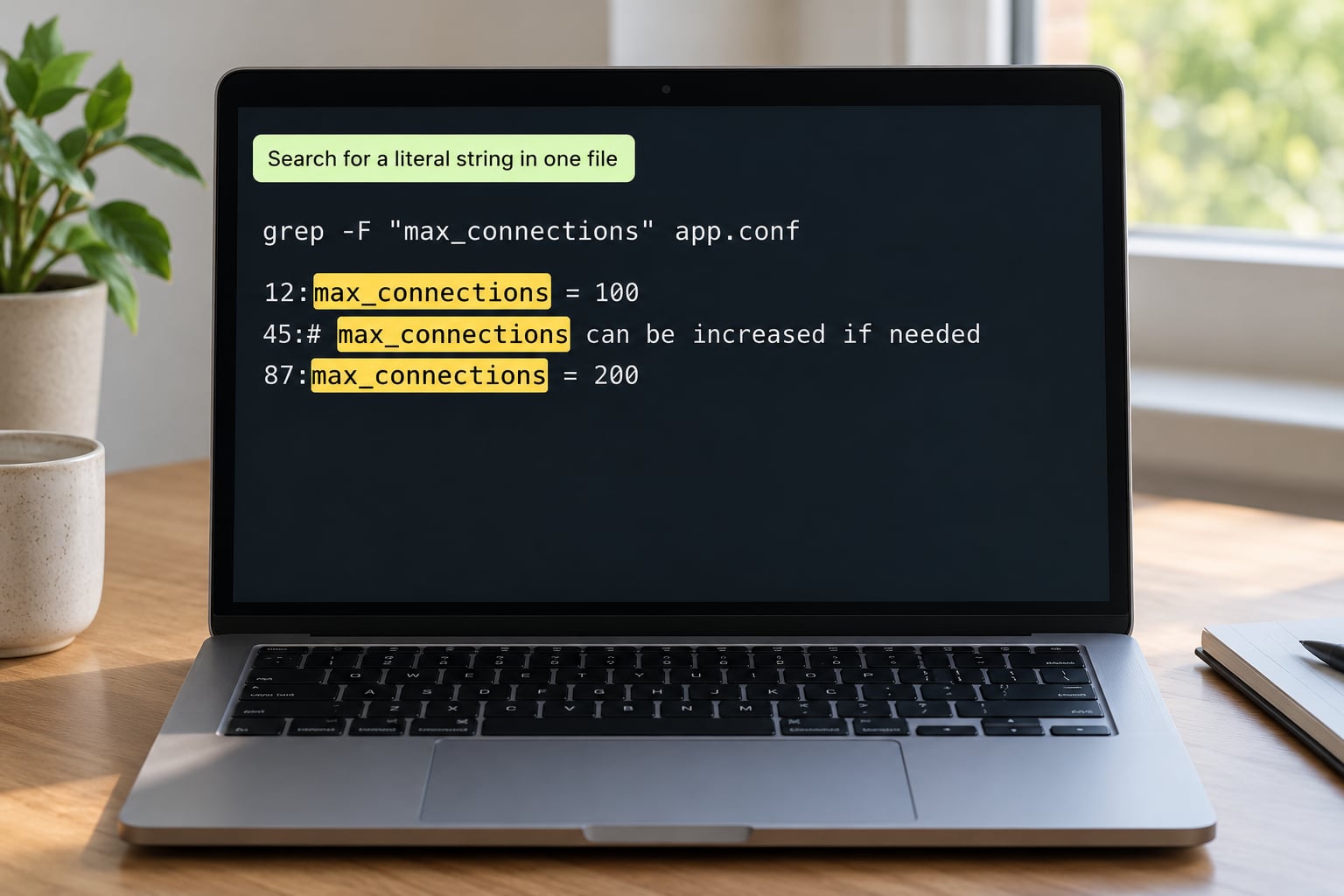
Start here every time. The simplest form takes a pattern and a file, and prints every line containing that pattern.
grep "PermitRootLogin" /etc/ssh/sshd_configIf your string contains characters the shell or grep treats as special, use -F (the long form is --fixed-strings) and grep stops interpreting it as a regex entirely.
grep -F "listen 443 ssl;" /etc/nginx/sites-available/defaultThat habit prevents the classic surprise where a pattern containing * or . returns nothing and you spend ten minutes wondering whether the setting is missing. Always quote patterns in single quotes so the shell cannot expand them before grep ever sees them.
2. Search a directory recursively
To search every file in a directory and all subdirectories, use -r with the directory path. Add --exclude-dir to prune noisy trees and --include to narrow by filename.
grep -r "max_connections" /etc/postgresql/
grep -rn --exclude-dir=.git --exclude-dir=node_modules "api_key" /srv/app/
grep -rn --include="*.conf" "timeout" /etc/
-R is the same as -r except that it follows symlinks. That sounds harmless until you hit a symlink loop and grep fills your screen with recursive directory loop warnings. Stick with -r unless you have a specific reason.
Recursive searches stall when they walk / or a tree with hundreds of thousands of small files. Scope first with --include, prune second with --exclude-dir, and reach for find ... | xargs last.
3. Ignore letter case
Use -i (or --ignore-case) when the text you are hunting for is spelled inconsistently. Services are notoriously bad at this: the same condition appears as ERROR, Error, and error across different releases.
grep -i "connection refused" /var/log/syslog
grep -i "^failed" /var/log/auth.log
Returning nothing from a log search is the most common reason people think grep is broken. If a log is clean, add -i before you go digging through file formats.
4. Show only matching file names
When you are auditing rather than reading, printing full lines wastes your time. -l prints only the name of each file that contained a match, which is what you want for a whole config tree.
grep -rl "AWS_SECRET" /srv/app/
grep -rL "PermitRootLogin" /etc/ssh/
The second one is the more interesting form: -L lists only the files that did not match, which is a fast way to find host configs missing a required directive.
5. Show line numbers and filenames
-n prefixes every match with its line number, which is what makes grep output navigable. Combine it with -H when output comes from a pipe so you know which file each hit came from.
grep -n "PermitRootLogin" /etc/ssh/sshd_config
cat /var/log/*.log | grep -Hn "oom-killer"
Anything passing more than one file gets the filename prefix automatically; a single file does not. -H forces it on, -h forces it off, which is handy inside loops where the prefix gets in the way of further parsing.
6. Match whole words
Searching for user without -w also matches users, superuser, and useradd. -w (or --word-regexp) restricts matches to whole words.
grep -w "user" /etc/passwd
grep -w "nginx" /etc/passwd
For exact line matches, including no extra whitespace, -x does the job. It is the right flag for allowlists and denylists where one stray space would be a security problem.
grep -x "10.0.0.5" /etc/hosts.allow7. Search for a regular expression
Which grep flavor should you reach for first?
Default grep uses basic regular expressions, where ?, +, |, (, and ) are literal unless you backslash them. Extended mode with -E treats them as operators, which is what most people mean when they write a pattern. -P adds Perl features such as lookarounds.
| Dialect | Selected with | When to use it |
|---|---|---|
| BRE (basic) | default, -G | Simple literals and anchors, and scripts that must work on every POSIX grep |
| ERE (extended) | -E, egrep | Alternation, groups, and repetition without backslash noise |
| PCRE | -P | Lookbehind (?<=...), lazy quantifiers *?, non-greedy matching |
| Fixed string | -F, fgrep | Anything with regex metacharacters in it, or a known-untrusted input |
grep -E "^(192|10).[0-9]{1,3}.[0-9]{1,3}.[0-9]{1,3}" /var/log/nginx/access.log
grep -E " (4|5)[0-9]{2} " /var/log/nginx/access.log
grep -Pzo "(?s)BEGIN.*?END" /etc/ssh/sshd_config
Two practical warnings. -P is a GNU extension and does not exist on macOS or BSD grep. And egrep and fgrep still work, but POSIX has deprecated them; use grep -E and grep -F in anything new you write.
8. Count matching lines
-c prints a count instead of the lines, which turns grep into a quick frequency tool.
grep -c "Failed password" /var/log/auth.log
grep -c " 500 " /var/log/nginx/access.log
Here is the gotcha: -c counts matching lines, not occurrences. If one line holds five IPs, it still counts as one. To count every occurrence, pipe through -o first.
grep -o "Failed password" /var/log/auth.log | wc -lSwap in sort | uniq -c | sort -rn and you have a ranked breakdown of which error dominates the log.
9. Print only the matching part of each line
-o (or --only-matching) prints just the matched substring instead of the entire line. This is how you pull structured values out of noisy text.
grep -oE "[0-9]{1,3}(.[0-9]{1,3}){3}" /var/log/nginx/access.log | sort -u
grep -oE "(?<=[)[0-9a-f]{8}-[0-9a-f]{4}-[0-9a-f]{4}-[0-9a-f]{4}-[0-9a-f]{12}" app.log
grep -oE "[0-9]+ms" app.log | sort -t m -k1 -n | tail -5
Pair it with -r and a filename pattern and you can harvest every version string, session ID, or container ID in a directory in one pass.
10. Search for lines that do not match
-v (or --invert-match) prints the lines that fail the pattern. It is a filter, and that is exactly what it is good at.
grep -v "^#" /etc/fstab
grep -v "^$" /var/log/nginx/access.log
ps aux | grep -v grep | grep "nginx"
The third line is the standard way to filter a process list without catching your own search command, which is one of the first things new admins learn and one of the first things they forget.
Inverted matching also finds gaps. Lines that do not contain User= in a unit file, or entries in /etc/passwd without a matching shell in /etc/shells, are exactly the anomalies worth a look.
11. Limit output or stop after a number of matches

On a multi-gigabyte log, printing every match can flood your session. -m (or --max-count) stops after a set number of matches per file, and -q stops at the first one and prints nothing at all.
grep -m 5 "Accepted password" /var/log/auth.log
grep -q "SELinux=enforcing" /etc/selinux/config && echo "hardened"
tail -f /var/log/syslog | grep -m 10 "kernel:"
Use tail -n 5000 before grepping an enormous rotated file; you usually only care about the recent tail, and skipping the read alone can save seconds.
12. Combine grep with other system administration commands
Real sysadmin work is almost never a single command piped into nothing. grep earns its keep as the filter stage between a producer and a summarizer.
# Top talkers by remote address
awk '{print $1}' /var/log/nginx/access.log | sort | uniq -c | sort -rn | head

# Processes by memory
ps aux --sort=-%mem | head -n 10 | grep -v "COMMAND"

# Listening sockets and their processes
ss -tunap | grep -E "LISTEN|:443|:80"

# Live 5xx errors while you reproduce the problem
journalctl -u nginx -f | grep -E " 5[0-9]{2} " --line-buffered

# Keep a filtered copy while still watching
tail -f /var/log/app.log | grep --line-buffered "ERROR" | tee /tmp/errors.log
Three habits prevent most pipeline failures. Quote every pattern in single quotes. Add --line-buffered whenever grep sits after tail -f, or output arrives in 4 KB chunks minutes apart. And redirect with > instead of piping when you do not need the intermediate stage; skipping a process is faster.
For patterns loaded from a file, -f reads one pattern per line, which keeps a long block of IPs or error strings out of your shell history.
grep -f /etc/deny-hosts /var/log/auth.logOn GNU grep versus BSD grep, expect small differences: --color, -P, and -o ordering flags are GNU-only, and recursive symlink handling differs. If a command works on your Ubuntu servers and fails on your Mac, that gap is usually why.
Frequently Asked Questions
What is the difference between egrep, fgrep, and grep?
fgrep is grep -F and matches plain fixed strings, ignoring every regex metacharacter. egrep is grep -E and reads the pattern as an extended regular expression, where alternation, groups, and quantifiers work without backslashes. Plain grep uses basic regular expressions, where characters like plus and question mark are literal unless escaped. POSIX has deprecated the egrep and fgrep names, so prefer grep -E and grep -F in new scripts.
Why does grep return exit code 1 when there are no matches?
Exit status 1 means grep ran successfully and found nothing. Status 0 means at least one line matched, and status 2 means grep hit a real error such as a missing file or a permission denial. Bash scripts that treat any non-zero status as failure fall into the else branch when a search legitimately returns no matches, so check against 0 or use grep -q inside an if statement.
How do I make grep exclude a directory?
Add u002du002dexclude-dir followed by the directory name and add -r for the recursive search. To skip several directories, repeat the flag for each one. You can also exclude by filename with u002du002dexclude, and scope the search positively with u002du002dinclude, such as grep -rn u002du002dinclude=*.conf timeout /etc/. On very large trees, pruning directories is the single biggest speedup available.
Why does grep say Binary file matches instead of showing the line?
grep inspects the first bytes of each file and, when it finds null bytes or invalid encoding for the current locale, treats the file as binary and prints only that notice. Searching compressed files or disk images triggers it. Use -a, or u002du002dtext, to force grep to treat binary content as plain text and print the matching lines. Locale settings such as LC_ALL=C also change how this detection behaves.
What does grep -v do?
grep -v, or u002du002dinvert-match, prints every line that does not match the pattern instead of every line that does. It is a filter rather than a search. Typical uses are dropping comment lines with grep -v ^# on a config file, removing blank lines, and stripping your own grep process out of a ps output. It also finds gaps, since lines missing an expected directive are exactly the anomalies you often want to review.
Is there anything better than grep?
For interactive searching across a large codebase, ripgrep is usually faster because it respects .gitignore and skips hidden files by default, and the silver searcher is similar but narrower. On macOS, ack and ugrep are worth a look. grep remains the right tool for scripts and log triage, because it exists on every Unix machine and needs no install, so most administrators keep both on hand.
Conclusion
If you memorize only one thing from this list of grep commands every sysadmin should know, make it grep -rn with a quoted pattern and an --exclude-dir for the directories you never care about. Everything else in the reference table is a variation you can look up when a command misbehaves.