To find large files in Windows, open File Explorer, click the drive you want, and type size:gigantic in the search box — that filters thousands of files down to the biggest ones in seconds. When File Explorer feels too slow or you want an exact threshold, PowerShell and Command Prompt give you precise, repeatable results.
The whole thing takes about a minute for the File Explorer route. No installs, no third-party utility, nothing to uninstall later.
These steps are current as of 2026 and they work on Windows 11 and Windows 10. Windows 8.1, 8, and 7 use the same File Explorer search operators; only the Settings menu paths differ slightly.
Table of Contents
- What You Need
- Step-by-Step: How to Find Large Files in Windows
- Use File Explorer to Sort by File Size in Windows 11
- Filter Large Files by Size in Windows Search
- Use PowerShell to Find Files Over a Size Limit
- Use Command Prompt to Find Large Files in Windows and Check Free Space
- Common Mistakes When Searching for Big Files
- Safe Cleanup Tips After You Find Them
- Frequently Asked Questions
- What size should I search for first?
- How do I find large files across every drive at once?
- How do I see hidden and system files when searching?
- Is it safe to delete the large files I find?
- Can I find files larger than a specific size with a command?
- Why does File Explorer search take so long or return nothing?
- Conclusion
What You Need
Nothing to buy or install. You need a signed-in Windows account and about two minutes.
File Explorer opens with the Win + E shortcut, which is the fastest way in. Command Prompt and PowerShell need Win + X, then pick either from the menu that slides out.
Most files on your C: drive are visible to a standard account. A few system locations — C:WindowsSystem Volume Information and C:ProgramData — throw “Access is denied” during a search unless the shell is elevated. Right-click the Start button, choose Terminal (Admin) or Windows PowerShell (Admin), and those folders become readable.
Decide your search scope before you start. This PC covers every drive including USB sticks and mapped network shares, but it is the slowest option. Searching a single drive like Local Disk (C:) is faster. Searching one folder is faster still.
One more thing worth turning on first: hidden and system files. The file hiberfil.sys at the root of your C: drive is routinely several gigabytes and is invisible by default. Show them with View > Show > Hidden items in the Windows 11 ribbon, or Folder Options > View > tick “Show hidden files, folders, and drives” on Windows 10.
Step-by-Step: How to Find Large Files in Windows
Use File Explorer to Sort by File Size in Windows 11
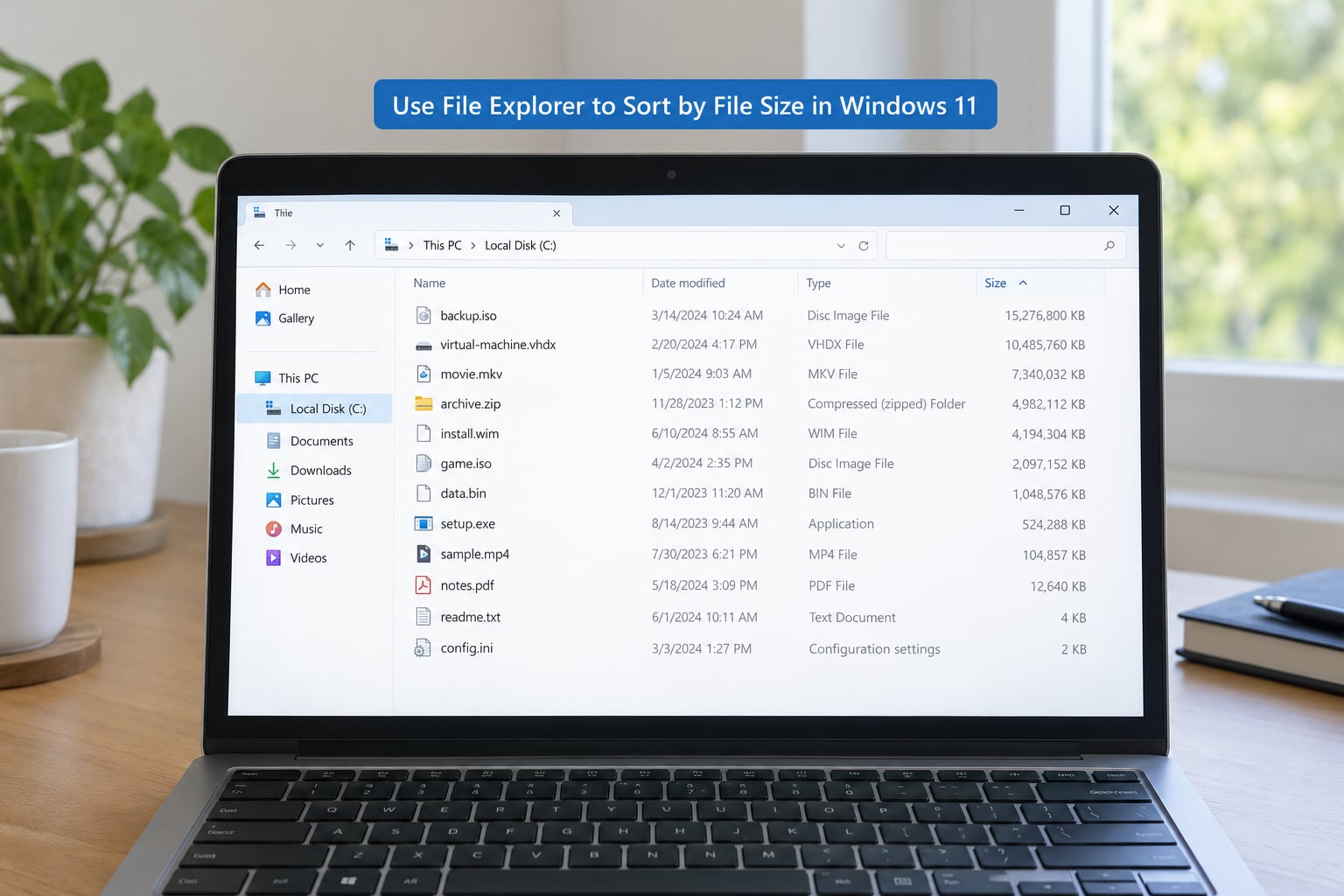
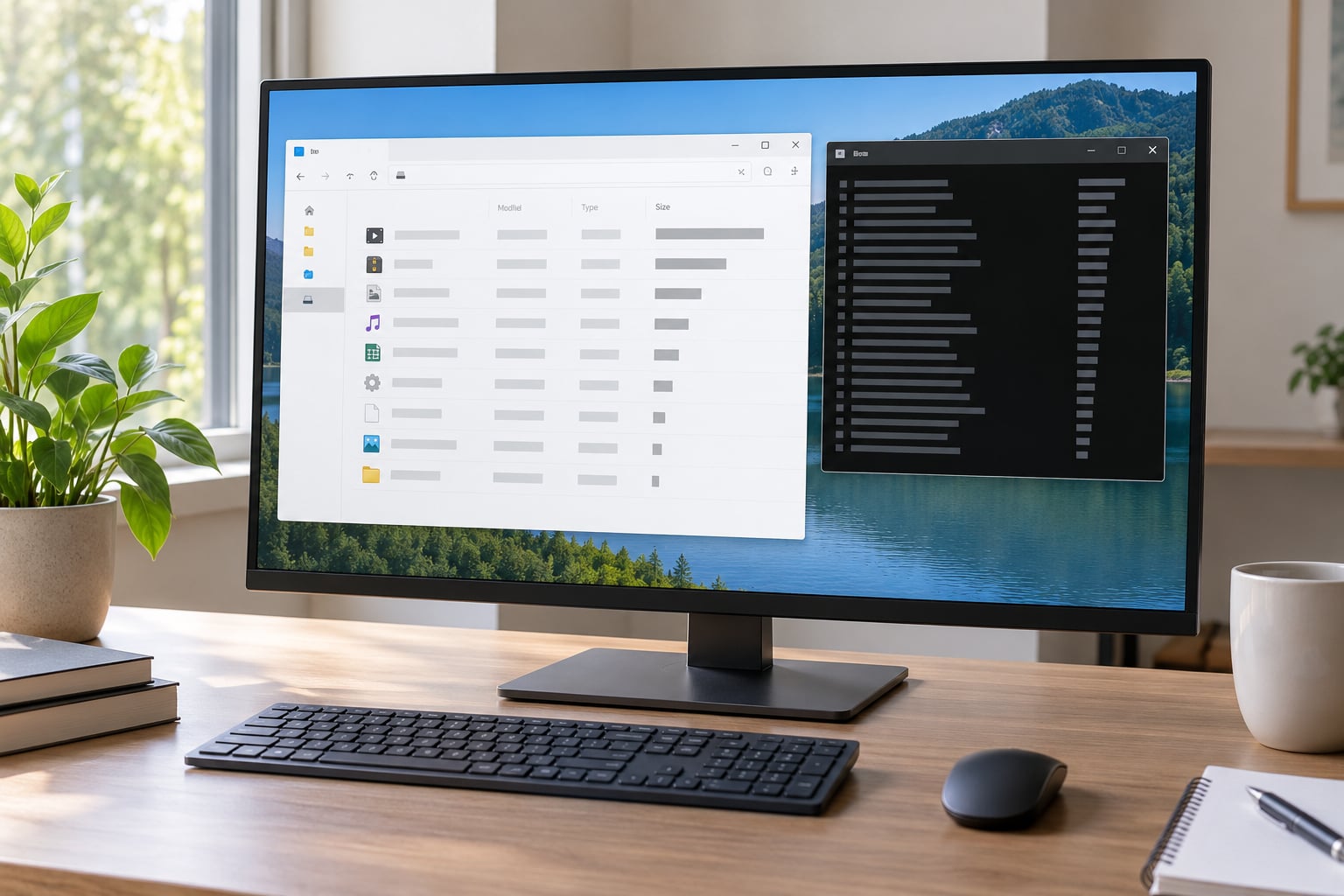
Sorting by size is the fastest way to see the biggest items already sitting in front of you. It only ranks the current folder, so open the drive or folder you actually suspect first.
- Press Win + E to open File Explorer.
- Click
This PCin the left sidebar, then click your drive — usuallyLocal Disk (C:). - Switch to View > Details so each row shows a Size column. (Windows 10: View > Arrange by > Size.)
- Right-click any column header and choose Size, then click the Size header again to sort largest first. A second click flips between ascending and descending.
- Scroll to the top. Those first rows are your biggest single files on that drive.
That worked if the Size column shows numbers sorted from biggest to smallest with the largest at row one.
Watch one detail here. A file’s displayed Size is its logical length — a 4 GB movie. Its Size on disk is what actually consumes space, and it can be larger when Windows stores a file in clusters, or smaller for a compressed or sparse file. Right-click a file, choose Properties, and compare the two figures if the numbers don’t add up.
Filter Large Files by Size in Windows Search
Sorting shows you one folder. Searching with a size operator shows you everything beneath it, recursively. This is the method that answers most people’s question.
- Open the drive or folder you want to search.
- Click the search box at the top right (or press Ctrl + E to jump to it).
- Type
size:giganticand press Enter. - Wait. Searching
This PCon a nearly full mechanical drive can genuinely take several minutes while Windows builds the index.
To pick your own threshold instead of a bucket, type a comparison directly: size:>1GB, size:>500MB, size:>100MB. The greater-than operator takes units of KB, MB, GB, TB and also plain bytes.
Operators combine. kind:video size:Large returns only videos above the Large bucket. ext:iso finds disk images. datemodified:>1/1/2026 narrows by modified date. attributes:hidden surfaces hidden files.
You will see different size bucket definitions quoted online. Here is what the Windows Search filter actually maps to, based on Microsoft’s documented search-filter semantics:
| Size operator | What it matches |
|---|---|
size:empty | 0 bytes |
size:tiny | up to 100 KB |
size:small | 100 KB to 1 MB |
size:medium | 1 MB to 128 MB |
size:large | 128 MB to 1 GB |
size:huge | 1 GB to 4 GB |
size:gigantic | larger than 4 GB |
size:>500MB | anything above your own cutoff |
Some third-party articles map gigantic to anything above 128 MB. That claim is wrong for the documented filter semantics, and it is why people search size:gigantic expecting 200 files and get four. If you want the 128 MB-and-up set, type size:>128MB.
If results come back empty, check that you are searching a drive and not a folder that happens to be empty, and confirm “Hidden items” is on under View.
Use PowerShell to Find Files Over a Size Limit
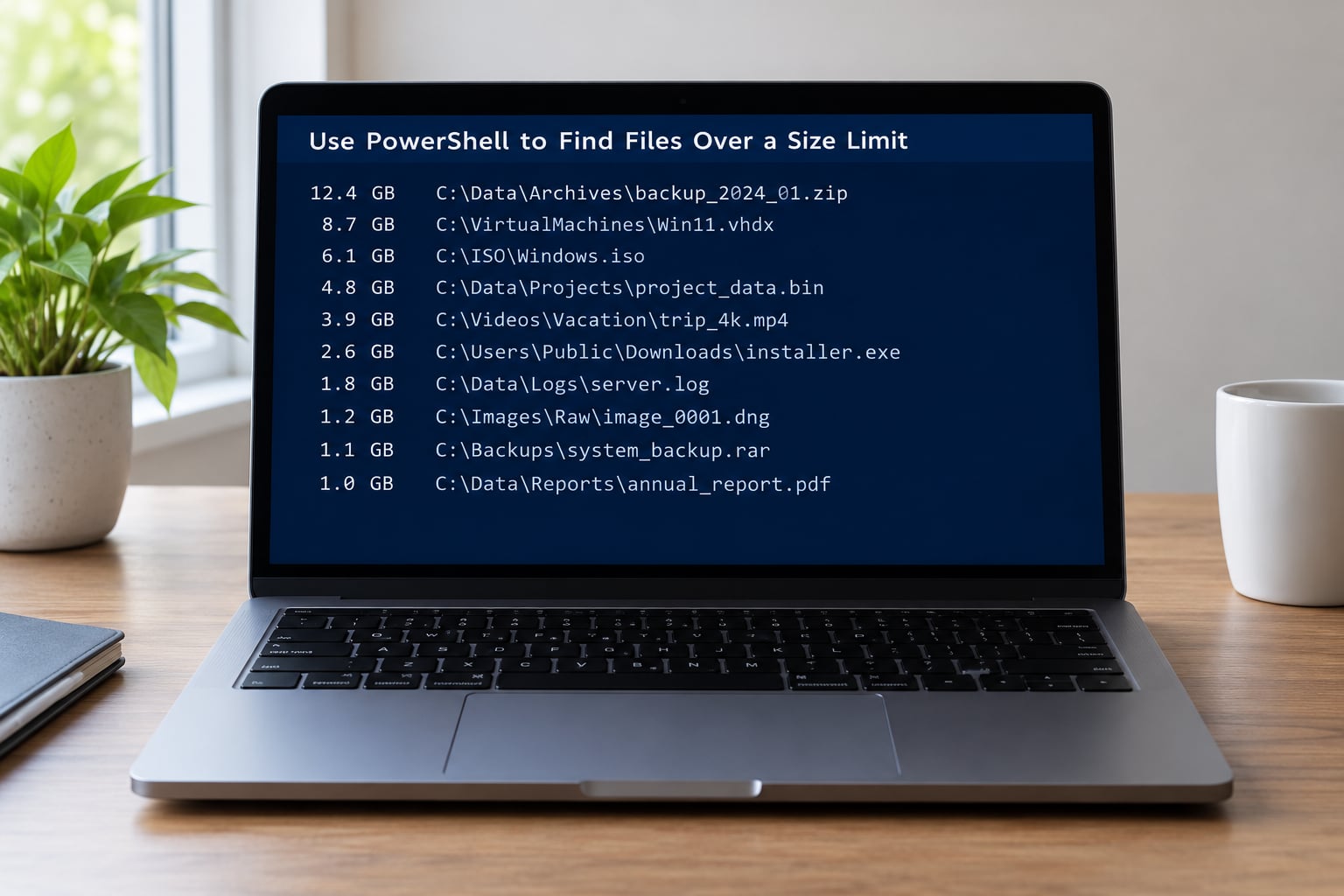
PowerShell is the fastest of these methods once the index warms up, and the only one that gives you an exact byte threshold and a saved output file. Every command here is read-only — it lists, it never deletes.
Top 25 largest files on the C: drive:
Get-ChildItem -Path C: -Recurse -File -ErrorAction SilentlyContinue |
  Sort-Object Length -Descending |
  Select-Object -First 25 FullName, @{Name='GB';Expression={[math]::Round($_.Length/1GB,2)}}
The -ErrorAction SilentlyContinue matters. Without it the scan stops dead the moment it hits a folder it cannot read.
Only files above a threshold you choose:
Get-ChildItem -Path C: -Recurse -File -ErrorAction SilentlyContinue |
  Where-Object { $_.Length -ge 2GB } |
  Sort-Object Length -Descending |
  Select-Object FullName, @{Name='GB';Expression={[math]::Round($_.Length/1GB,2)}}
Change 2GB to whatever you like. PowerShell accepts 500MB, 1GB, 10GB, or a raw byte count.
To keep a copy of the list so you can review it before touching anything:
Get-ChildItem -Path C: -Recurse -File -ErrorAction SilentlyContinue |
  Where-Object { $_.Length -ge 1GB } |
  Sort-Object Length -Descending |
  Select-Object FullName, Length |
  Export-Csv -Path "$env:USERPROFILEDesktoplarge-files.csv" -NoTypeInformation
A CSV that opens in Excel with sortable columns is far easier to audit than a wall of console text. On a slow drive a full C: scan with -Recurse can take 10 minutes or more; narrowing the path to a folder like C:UsersYourName cuts that down sharply.
Use Command Prompt to Find Large Files in Windows and Check Free Space
Before hunting individual files, check whether you even have a single oversized file or a hundred folders each eating a few gigabytes. Command Prompt answers that in one line.
wmic logicaldisk get deviceid,freespace,size
Free space against total size, per drive. If C: has 8 GB free out of 500 GB, you have a distribution problem, not one runaway ISO — point yourself at folder sizes rather than file sizes. (In current Windows 11 builds wmic is deprecated; if it is missing, run Get-PSDrive -PSProvider FileSystem in PowerShell instead.)
To find files above a byte threshold in pure Command Prompt, forfiles is the tool:
forfiles /S /M * /C "cmd /c if @fsize GEQ 1073741824 echo @path"
forfiles /S /M * /C "cmd /c if @fsize GEQ 1073741824 echo @path" > "%USERPROFILE%Desktoplarge-files.txt"
1073741824 is 1 GB in bytes. The numbers are not arbitrary: 1 KB = 1,024 bytes, 1 MB = 1,048,576 bytes, 1 GB = 1,073,741,824 bytes. Use GTR instead of GEQ for strictly greater than. Swap /M * for a pattern like *.mp4 to narrow by type.
forfiles cannot delete, which is a feature rather than a limitation. It hands you a list and makes you go look at each item on purpose.
If you would rather not touch the command line at all, Windows has a built-in cleanup panel: Settings > System > Storage > Temporary files. It lists cache categories with checkboxes and shows how much each one frees. Check the box, confirm, done.
Common Mistakes When Searching for Big Files
You searched one folder and assumed you were done. Sorting by size only ranks what is in the current folder. If the folder is C:UsersYouVideos, a 20 GB file in C:Program Files never appears. Go up one level to the drive root and search or sort there.
Hidden and system files stayed invisible. Turn on View > Show > Hidden items, or use attributes:hidden in the search box. This is where hiberfil.sys, pagefile.sys, and swapfile.sys live — three files that together can be more than 20 GB on a typical laptop.
Access is denied on System Volume Information. That folder holds restore points and holds a real chunk of space. Close File Explorer, open an elevated Terminal (Admin) from Win + X, and rerun the PowerShell command. Do not hand-delete anything inside it.
The search hangs or returns nothing. Indexing is the usual culprit. Scope the search to a single drive, leave it running rather than clicking around, and make sure indexing is not disabled on that drive under Indexing Options. If you need a guaranteed complete answer on a machine where search behaves oddly, the PowerShell -Recurse scan does not depend on the index at all.
Size and Size on disk do not match. Not a bug. Cluster rounding, NTFS compression, and sparse files all create the gap. Compare both values in Properties before you judge what deleting a file will actually free.
You forgot other drives. A 2 TB drive can be just as full as C:. Search each volume separately, including USB drives and mapped network shares. A UNC path like \fileservershared can be passed straight to PowerShell’s -Path.
Safe Cleanup Tips After You Find Them
The search is the easy half. Deciding what to do with a 6 GB .iso you downloaded eleven months ago takes judgment.
Some paths are off limits no matter how large they are:
| Path | What lives there | Verdict |
|---|---|---|
C:Windows | System components, WinSxS component store, servicing data | Never delete manually |
C:Program Files and C:Program Files (x86) | Installed applications | Uninstall instead |
C:ProgramData | Shared app configuration and caches | Leave alone |
System Volume Information | Restore points and shadow copies | Change via System Protection |
$Recycle.Bin | Deleted files awaiting emptying | Safe to empty |
C:UsersYouAppData | Application data, caches, browser profiles | Review case by case |
Two large system files do have legitimate removal paths. hiberfil.sys disappears if you run powercfg /hibernate off as administrator — you lose Hibernate and Fast Startup, and get that disk space back. pagefile.sys is your virtual memory; do not delete it, though you can resize it in Advanced System Settings.
For anything personal, open Properties before deleting and read the file’s path and type. A .psd in your Desktop folder is your artwork. A .psd inside AppDataLocalAdobe is a working file Photoshop will complain about.
Shift + Delete bypasses the Recycle Bin and skips the safety net entirely. Regular delete is nearly always the better choice until you have confirmed a file is not what you think it is.
If a file will not delete, something has it open. Restart, run the deletion in Safe Mode, or use Process Explorer to find the holding process. Freeing up disk space is one of those chores that pays off quietly later, when a Windows Update finally has room to run instead of failing with 0x80070070.
Frequently Asked Questions
What size should I search for first?
Start with size:gigantic in File Explorer. It returns only files above roughly 4 GB, so the result set is short enough to review in a couple of minutes. Once you want a wider net, switch to size:huge or type your own cutoff such as size:u0026gt;500MB.
How do I find large files across every drive at once?
Open This PC in File Explorer rather than a single drive, then search size:gigantic. That searches every indexed volume including USB sticks and mapped network shares, but it is slow on large drives. For a faster sweep, run the PowerShell Get-ChildItem command against each drive letter separately.
How do I see hidden and system files when searching?
Turn on View u0026gt; Show u0026gt; Hidden items in File Explorer, or Folder Options u0026gt; View and tick Show hidden files, folders, and drives on Windows 10. From the search box you can also type attributes:hidden to include hidden files in results. This reveals hiberfil.sys, pagefile.sys and swapfile.sys at the root of C:.
Is it safe to delete the large files I find?
Not automatically. Never hand-delete anything inside C:u005cWindows, C:u005cProgram Files, C:u005cProgramData or System Volume Information, and uninstall programs rather than removing their folders. Personal files are usually safe once you check the path and file type in Properties. Empty the Recycle Bin only after you are sure.
Can I find files larger than a specific size with a command?
Yes. In PowerShell use Get-ChildItem -Recurse -File with Where-Object { $_.Length -ge 2GB } and change 2GB to any threshold. In Command Prompt use forfiles /S /M * /C u0022cmd /c if @fsize GEQ 1073741824 echo @pathu0022, where 1073741824 bytes equals 1 GB. Both commands only list files, they never delete.
Why does File Explorer search take so long or return nothing?
Searching This PC builds or queries the Windows Search index, which crawls every file on every drive. On a nearly full drive it can appear to hang. Scope the search to one drive, let it finish without clicking around, and check that indexing is enabled for that drive in Indexing Options. PowerShell recursion skips the index entirely.
Conclusion
Start in File Explorer: sort the drive you care about by Size, then run size:gigantic from the drive root. That covers most cases in under a minute with nothing installed.
When you need an exact threshold, a saved list, or results from folders the index skips, switch to the PowerShell Get-ChildItem one-liner. Either way, read the path in Properties before deleting, keep the Recycle Bin intact for your first pass, and leave system folders alone.