To write a bash script that runs on startup, you register a shell script with the Linux init system so it fires on every boot without anyone logging in. On a modern system that means writing the script with a #!/bin/bash shebang, marking it executable with chmod +x, creating a systemd unit file whose ExecStart points at the script’s absolute path, then running systemctl daemon-reload and systemctl enable. The whole job takes about ten minutes, and almost every failure you’ll hit comes down to a relative path, a missing execute bit, or a missing daemon reload.
I’ll walk through the systemd route first because it’s the one that survives a reboot on any current Ubuntu, Debian, RHEL, Fedora or Arch box, then cover cron and the older init.d scripts for machines that don’t run systemd at all.
Table of Contents
- What You Need
- Step-by-Step
- Choose the startup method for your Linux system
- Write the Bash script
- Test the script before enabling it
- Run the Bash script on startup with systemd
- Use cron when systemd is unavailable
- Use init.d on legacy Linux systems
- Verify the startup behavior
- Common Mistakes
- Frequently Asked Questions
- What is the difference between running a Bash script at startup and running it on a schedule?
- Should I use systemd or cron to run a Bash script on Linux startup?
- How do I run a Bash script as a specific user at boot?
- Why does my startup Bash script work in the terminal but fail automatically?
- How can I debug a Bash script that runs on startup?
- Do I need to make my startup Bash script executable?
- Conclusion
What You Need
Before you start, you need four things. A Bash-compatible shell, which every mainstream Linux distribution ships with, a text editor, root or sudo access for the system-wide method, and basic knowledge of which init system your machine uses.
Check the init system first. On most machines this single command tells you everything:
ps -p 1 -o comm=If it prints systemd, you’re on the modern path. init means SysVinit and you need the legacy method instead. On macOS, the equivalent is launchd, which is a different system entirely and gets its own section below.
You also need to decide when the script should run, because that changes the method. Work that must happen before anyone logs in — mounting a share, priming a database, starting a container — belongs at boot. Work that needs a desktop session, like launching a window or connecting to a Bluetooth speaker, belongs at login. Mixing those two up is the single most common source of confusion, and it is why a script in .bashrc never fires on a headless server.
Step-by-Step
Choose the startup method for your Linux system
Pick one mechanism and stick with it. Running the same job through both systemd and cron at boot means it executes twice, usually with two sets of half-written output files.
| Method | Runs as | Needs root | Works with no login | Best for |
|---|---|---|---|---|
| systemd system unit | root or a named user | Yes | Yes | Servers, VPS, Raspberry Pi, anything headless |
| systemd user unit | Your user only | No | With linger enabled | Per-user automation you own |
| cron @reboot | The crontab owner | Only for /etc/cron.d | Yes | Quick one-liners and existing cron setups |
| .bashrc / .bash_profile | The logging-in user | No | No | Aliases, prompt tweaks, login-time convenience |
| GUI autostart | The logged-in user | No | No | Desktop apps on GNOME, KDE or XFCE |
| /etc/init.d (SysVinit) | root | Yes | Yes | Legacy systems still on SysVinit |
For a server or a Pi with no monitor attached, systemd wins on every column that matters. It gives you logging, restart-on-failure, ordering against the network, a defined user, and a clean way to turn the thing off later.
Write the Bash script
Most guides skip this half and start at the service file, which is why their examples break. Here’s a script that survives being launched by an init system with no terminal, no profile, and almost no environment:
#!/bin/bash
# Back up the app config to /var/backups at every boot.

set -euo pipefail

export PATH="/usr/local/sbin:/usr/local/bin:/usr/sbin:/usr/bin:/sbin:/bin"
LOG="/var/log/app-backup.log"
CONFIG="/etc/myapp/config.yaml"

{
  echo "--- backup started $(date -Is) ---"
  cp -- "$CONFIG" "/var/backups/config-$(date +%F).yaml"
  echo "backup complete"
} >> "$LOG" 2>&1
Four decisions are doing the work in that block. The shebang tells the kernel which interpreter to use; without it, the system falls back to /bin/sh and any Bash-only syntax breaks. set -euo pipefail stops the script the moment a command fails, a variable is unset, or a pipe member dies, so a half-finished job does not masquerade as a successful one.
Setting PATH by hand matters because systemd and cron hand your script a minimal environment that usually lacks /usr/local/bin. If your script calls docker, rsync or a tool in a version manager, it will not be found at boot even though it works in your terminal.
Absolute paths are non-negotiable. systemd sets the working directory to / by default, so cp config.yaml backup.yaml will fail at boot while working fine when you run it from your home directory. Use cd at the top of the script or set WorkingDirectory= in the unit, but write absolute paths regardless.
Appending output with >> keeps the log growing across boots instead of overwriting the last run. And finish with an explicit exit 0 on success — the exit status is the only signal the init system gets, and an unhandled non-zero code looks exactly like a crash.
For a script that starts a long-running process rather than doing a job and finishing, put a shebang on it, background the process with &, and let the script exit. The unit type then determines whether systemd keeps watching it.
Test the script before enabling it
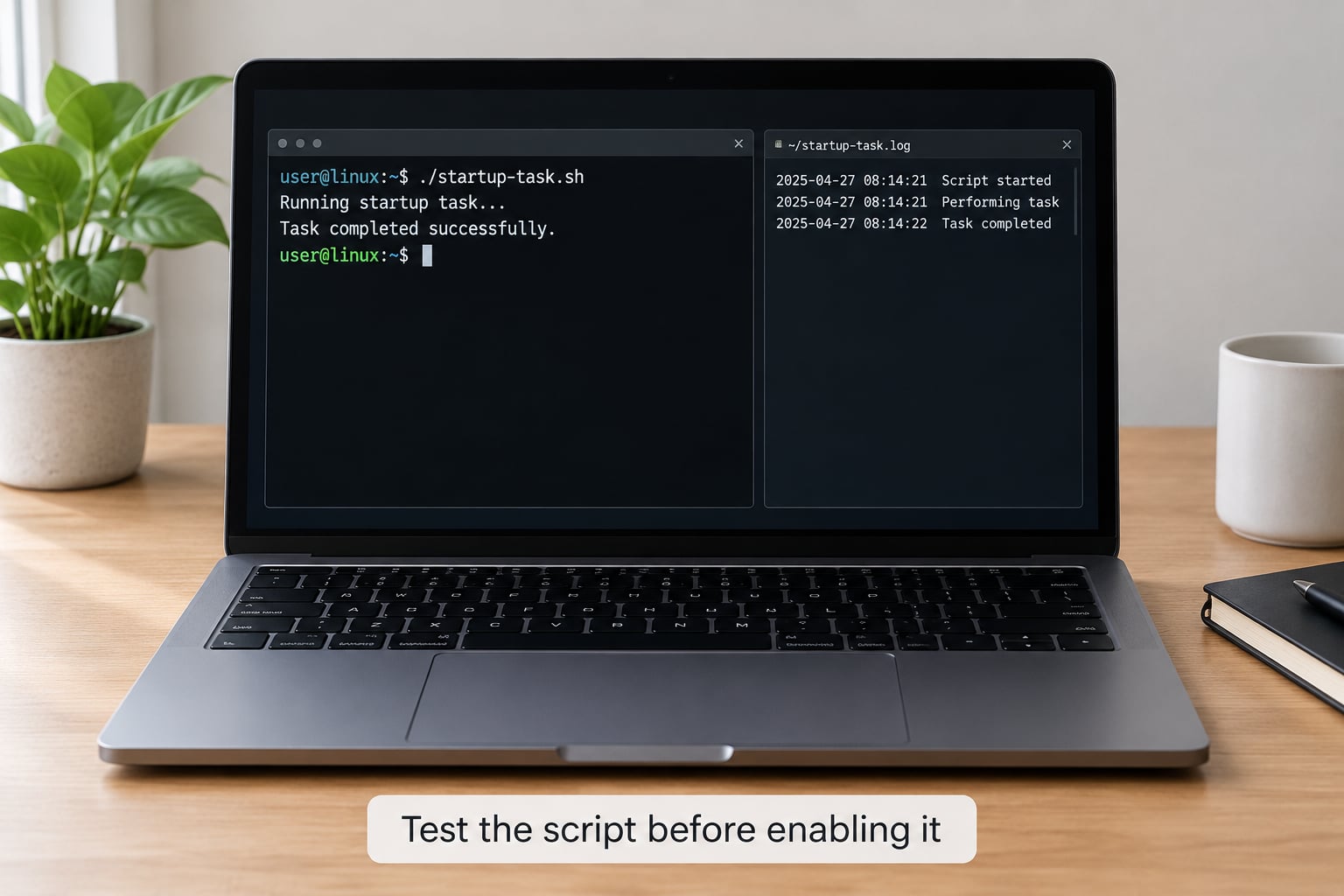
Run it yourself before you hand it to any init system. First a syntax check, which catches unclosed quotes and broken here-docs without executing anything:
bash -n /usr/local/bin/app-backup.shThen make it executable and run it exactly as the service will, with a clean environment and a boring working directory:
chmod +x /usr/local/bin/app-backup.sh
env -i /usr/local/bin/app-backup.sh
echo $?
env -i strips the environment down to almost nothing, which mimics what systemd and cron do. If the script works there and prints 0, your next step is to confirm the log grew:
tail -n 5 /var/log/app-backup.logIf it failed, the cause is almost always one of four things: a relative path, a command that isn’t in PATH, a permission problem on a file or directory, or a dependency that lives in your home directory and can’t be read by the account that will run it.
Run the Bash script on startup with systemd
Create the unit file in /etc/systemd/system/. The name has to end in .service and it has to match the name you use later with systemctl:
sudo nano /etc/systemd/system/app-backup.servicePaste the complete file. Every section matters, including [Install] — people copy fragments that omit it and then wonder why systemctl enable says the unit has no installation config.
[Unit]
Description=Back up myapp config at boot
# Wait for a real network, not just a configured interface.
After=network-online.target
Wants=network-online.target

[Service]
Type=oneshot
User=root
Group=root
WorkingDirectory=/usr/local/bin
ExecStart=/usr/local/bin/app-backup.sh
# Give the job room without letting it hang forever.
TimeoutStartSec=120

[Install]
WantedBy=multi-user.target
Type=oneshot tells systemd the script does a job and exits. Pair it with RemainAfterExit=yes if you want systemctl status to report exited rather than inactive (dead) after a successful run, which reads much better in a log. If your script starts a process and stays in the foreground, use Type=simple and add Restart=on-failure instead.
After=network-online.target is the difference between a job that waits for a working connection and one that starts the instant the network stack exists. Anything that talks to a remote host — a container pulling an image, an app that calls an API, a database-backed service — belongs after network-online.target.
Now register and start it:
sudo systemctl daemon-reload
sudo systemctl enable --now app-backup.service
systemctl status app-backup.service
daemon-reload is what makes systemd re-read the unit directory. Skip it and systemd keeps the old state, which is why a fresh service file so often appears to not exist. enable creates the boot-time link, and --now also starts it immediately so you do not have to reboot to find out whether it works.
To run it as a normal user instead of root, set User= and Group= to that account and make sure the script and every file it touches are readable by that user. Root is rarely the right default for a job that only touches files the user already owns.
For a script that must run without root at all, use a user unit in ~/.config/systemd/user/, then systemctl --user daemon-reload and systemctl --user enable --now app-backup.service. User units stop when you log out unless you run sudo loginctl enable-linger yourusername, which is the piece most guides forget.
Use cron when systemd is unavailable
Cron’s @reboot directive runs a job once when the cron daemon starts, which is close enough to boot for most people. Open your crontab:
crontab -eAdd one line with an absolute path, and redirect both streams to a file or you’ll never see an error:
@reboot /usr/local/bin/app-backup.sh >> /var/log/app-backup.log 2>&1For a system-wide entry, put a file in /etc/cron.d/ instead. Those need an extra user field before the command:
@reboot root /usr/local/bin/app-backup.sh >> /var/log/app-backup.log 2>&1Cron runs jobs with a nearly empty environment and a tiny PATH, which is why cron jobs that work by hand produce no output at boot. Set PATH inside the script itself, exactly as in the example above.
One thing cron is genuinely good at is missed schedules. A job set for 03:00 does not run at all if the machine was powered off, and anacron exists to catch up those windows later. That’s a different problem from startup, but it comes up constantly on laptops and home lab machines.
Use init.d on legacy Linux systems
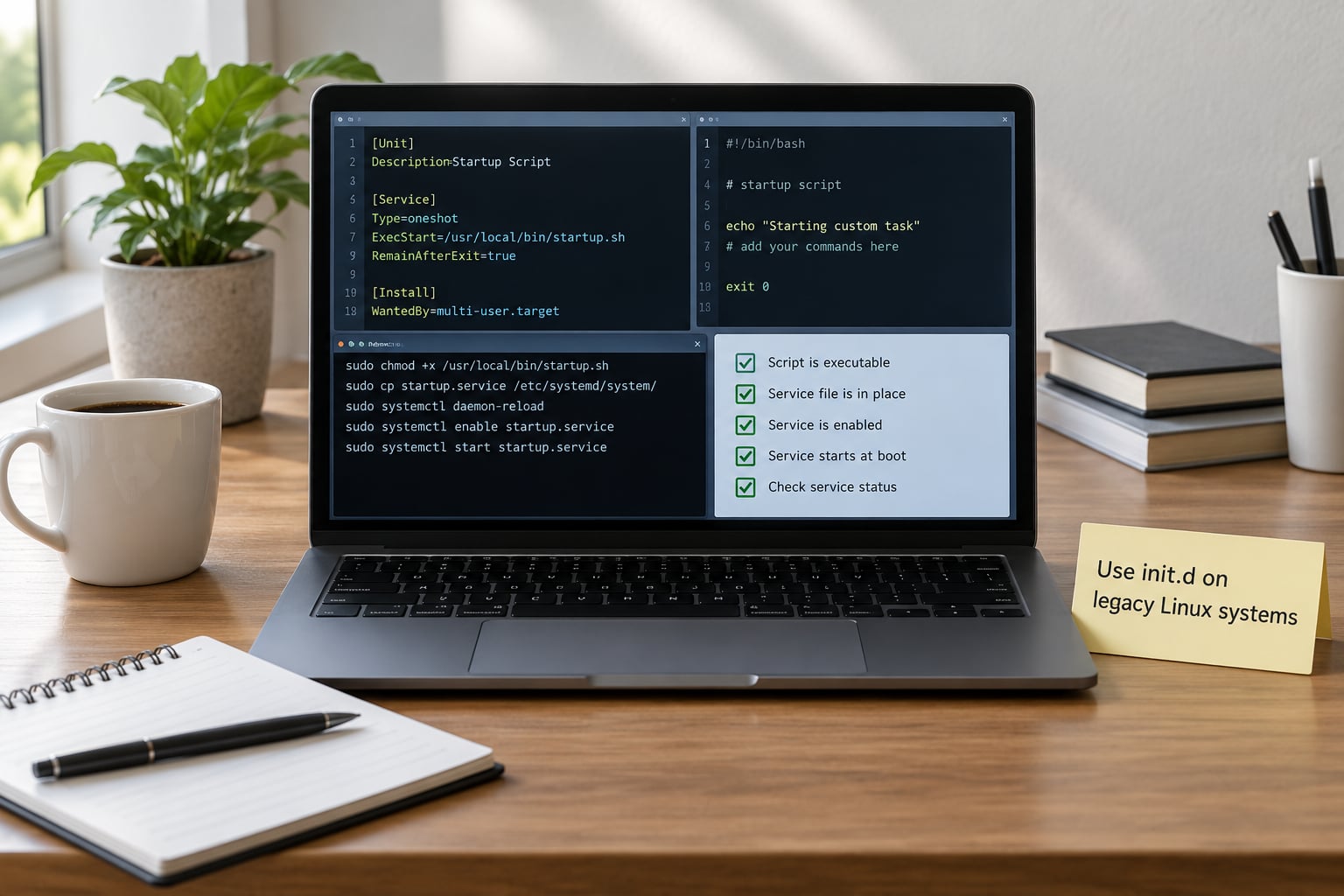
Init scripts still work on older distributions and on appliances that never moved to systemd, though rc.local has been deprecated and is frequently ignored entirely on current systems — a large share of the “my rc.local entry does nothing” threads trace back to advice written before Ubuntu 15.04.
Put the script in /etc/init.d/, give it an LSB header so the start-stop tools know what to call it, and set the permissions:
#!/bin/sh
### BEGIN INIT INFO
# Provides:          app-backup
# Required-Start:    $network $remote_fs
# Required-Stop:     $network $remote_fs
# Default-Start:     2 3 4 5
# Default-Stop:      0 1 6
# Short-Description: Back up myapp config
### END INIT INFO

case "$1" in
  start)
    /usr/local/bin/app-backup.sh
    ;;
  stop)
    ;;
  restart)
    /usr/local/bin/app-backup.sh
    ;;
  status)
    echo "app-backup is a one-shot boot job"
    ;;
  *)
    echo "Usage: $0 {start|stop|restart|status}"
    exit 1
    ;;
esac
exit 0
chmod 755 /etc/init.d/app-backup
sudo /etc/init.d/app-backup start
sudo /etc/init.d/app-backup statusRegister it with the init system’s link tool — sudo update-rc.d app-backup defaults on Debian and Ubuntu, sudo chkconfig --add app-backup on RHEL and CentOS. Without that step the script exists but nothing starts it at boot.
On current systemd machines, update-rc.d generates a compatibility shim, so an init script registered that way still gets started. If systemctl list-unit-files | grep app-backup shows a generated unit, that’s what happened.
Verify the startup behavior
Do not reboot and hope. Check these in order:
systemctl is-enabled app-backup.service   # expect: enabled
systemctl is-active app-backup.service    # expect: active or inactive after a oneshot
systemctl status app-backup.service
journalctl -u app-backup.service --since today
journalctl -u app-backup.service -f       # live tail while restarting it
Read the status output carefully, because the wording confuses people constantly. Active: active (running) means a process is live right now. Active: active (exited) 0 means the job finished successfully and left — with a Type=oneshot unit that is the success state, not a failure. Active: failed with a non-zero code is the real failure, and the last few log lines underneath are usually the reason.
Then confirm the work actually happened. Check the log file’s timestamp, look for the process if it’s a long-running one with ps aux | grep app-backup, and verify the output the script was supposed to produce exists.
Finally, do a controlled reboot and re-run systemctl status and journalctl -u app-backup.service -b once you’re back. The -b flag restricts the journal to the current boot, which is how you confirm the job fired from the boot link rather than from something you started by hand.
Common Mistakes
Permission denied. The file is missing its execute bit. Run chmod +x /usr/local/bin/app-backup.sh and try again. Journal entries show this string verbatim, so it’s the first thing to search for.
Unit not found, or systemd ignores your new file. You edited the unit after running daemon-reload. Every change to a unit file needs a reload, and the filename has to match the name you pass to systemctl exactly, including the .service suffix.
It works in the terminal but not at boot. A relative path, a command outside PATH, or a script sitting in a home directory the service user cannot read. Anyone learning how to write a bash script that runs on startup should test with env -i /path/to/script.sh, because it will usually fail in front of you instead of at 3 a.m.
Status shows inactive (dead) with no error. A Type=oneshot job that ran and exited leaves the unit inactive unless you add RemainAfterExit=yes. This is normal, not a fault.
Wrong user, wrong home directory. With User= set, $HOME points at that user’s home, not root’s, and a script referencing ~/ writes somewhere unexpected. Use absolute paths.
Cron produced no output and no file. The job probably ran and failed, or never ran. Cron sends nothing to your terminal. Redirect to a log, then read it. Also confirm the script has a shebang — cron executes the file directly, and without the interpreter line it does nothing.
GUI programs fail to start from a service. A service has no DISPLAY and no D-Bus session, so a window will not appear. GUI programs belong in an autostart entry or a desktop session file, not in a boot unit.
It runs twice. The same job is registered with both systemd and cron, or a Restart=on-failure unit is looping on a script that always exits non-zero. Check systemctl list-timers and crontab -l.
Nothing was recorded anywhere. The script never wrote a log. Capture output explicitly in the unit with StandardOutput=append:/var/log/app-backup.log, or keep the >> redirection inside the script so you have one place to look.
One security note worth taking seriously: anything that auto-runs at boot widens the attack surface of the machine, because a compromised script executes with elevated privilege on every restart. Keep boot scripts in root-owned directories, avoid running as root unless the job genuinely needs it, and review them occasionally.
When you want it gone, disable and remove in that order: sudo systemctl disable --now app-backup.service, then delete the unit file, then sudo systemctl daemon-reload. For cron, remove the @reboot line with crontab -e. For init.d, sudo update-rc.d app-backup remove followed by deleting the script.
Frequently Asked Questions
What is the difference between running a Bash script at startup and running it on a schedule?
At startup means the script runs once during boot, before or around login, which is what systemd enable or a cron @reboot entry does. A schedule means it runs repeatedly at fixed times while the machine is up, which is what a normal five-field crontab line does. A scheduled job that was missed because the machine was powered off is simply skipped, unless anacron is handling that window.
Should I use systemd or cron to run a Bash script on Linux startup?
Use systemd on any current Linux distribution. It gives you logging through journalctl, restart-on-failure, ordering against the network, a defined user account, and a clean way to disable the job later. Cron is fine for a single simple command and is a good fit on systems where systemd is not running at all.
How do I run a Bash script as a specific user at boot?
Set User= and optionally Group= in the service unit to the account name, then reload and restart the unit. The script and every file it touches must be readable by that user. If you want the job to run as your own account without root, use a user unit in ~/.config/systemd/user/ with systemctl u002du002duser, and add sudo loginctl enable-linger so it keeps running after you log out.
Why does my startup Bash script work in the terminal but fail automatically?
The terminal environment is much richer than the one an init system provides. systemd and cron give your script a minimal PATH, a working directory of / rather than your home folder, and no profile settings, so relative paths and locally installed commands break. Test it the same way the system does with env -i /path/to/script.sh and the failure usually reproduces right there.
How can I debug a Bash script that runs on startup?
Start with systemctl status on the unit, then read the full log with journalctl -u yourservice.service u002du002dsince today, and add -f to follow it live while restarting the unit. If the log is empty, run the script by hand under env -i to strip the environment, check bash -n for syntax errors, and confirm the execute bit with ls -l. For cron, read the log file you redirected output to.
Do I need to make my startup Bash script executable?
Yes, if the init system runs the file directly, which is what ExecStart and a cron @reboot line both do. Without the execute bit you get Permission denied in the journal or a silent cron failure. Run chmod +x on the script. If you would rather invoke the interpreter instead, use ExecStart=/bin/bash /path/to/script.sh, which works even without the bit.
Conclusion
The safest first move is to run your script by hand under a stripped environment, so any path or permission problem surfaces before a reboot does it for you. Then register it once — a systemd unit with a full [Install] section is the right answer on any modern machine — and check systemctl status and journalctl -u after the first boot to confirm it fired. If you got here having written how to write a bash script that runs on startup for a headless server or a home lab Pi, keep the unit file in version control alongside the script; the pair is far easier to recreate from a repo than to reconstruct from memory at the worst possible moment.