A batch file is a plain-text list of command prompt instructions saved as .bat or .cmd and run by cmd.exe. A PowerShell script is a .ps1 file run by PowerShell, which passes structured objects between cmdlets instead of raw text. For compatibility-first shortcuts keep batch. For anything with logic, error handling or data, write PowerShell.
This guide covers Windows PowerShell 5.1, which ships with Windows, and PowerShell 7 or later, the cross-platform version installed as pwsh. The advice applies to both, and I flag where they behave differently.
Table of Contents
- Batch File vs PowerShell Script at a Glance
- What Is a Batch File?
- What Is a PowerShell Script?
- Syntax and Learning Curve
- How the Batch File vs PowerShell Script Choice Affects Execution
- File Operations, Automation, and Administration
- Error Handling, Debugging, and Testability
- Compatibility and Deployment
- Security and Execution Policy
- Performance, Reliability, and Long-Term Maintenance
- When to Use Each Option
- Which Should You Choose?
- Frequently Asked Questions
- Can a batch file run a PowerShell script?
- Why can’t I run my PowerShell script when I double-click it?
- Is a batch file the same as CMD?
- Which is faster, batch or PowerShell?
- Is Microsoft removing batch files?
- Is it worth learning PowerShell if I already know batch?
- Conclusion: Start With the Simplest Tool That Meets the Requirement
Batch File vs PowerShell Script at a Glance
The real difference is not that one is old and one is new. Batch hands each line to the command processor as text, and PowerShell loads a .NET-based engine that understands Windows objects. Here is the short version.
| Criterion | Batch file (.bat or .cmd) | PowerShell script (.ps1) |
|---|---|---|
| File extension | .bat or .cmd | .ps1, plus .psm1 and .psd1 for modules |
| Interpreter | cmd.exe, built into Windows | powershell.exe (5.1) or pwsh.exe (7+) |
| Language type | Shell command list, no real language | Full scripting language with functions, classes and modules |
| Variable syntax | %NAME% or !NAME! with delayed expansion | $Name for locals, $env:NAME for environment variables |
| Data model | Text only | Objects with properties, pipelines, JSON and XML |
| Error handling | Check ERRORLEVEL after each command | try, catch, finally plus terminating and non-terminating errors |
| Control flow | Labels and GOTO, FOR, FOR /F, IF ERRORLEVEL | for, foreach, while, switch, functions, classes |
| Command style | Native executables only | Cmdlets with typed parameters and common verbs |
| Remote administration | Needs PsExec, WinRM or a third-party tool | Invoke-Command and PSRemoting built in |
| Cross-platform | Windows only, no ports anywhere | PowerShell 7 runs on Linux and macOS |
| Execution control | None, runs as soon as it is opened | Execution policy applies, and can be locked by Group Policy |
| Dependencies | None beyond Windows | Windows PowerShell is built in; pwsh must be installed |
| Startup cost | Almost nothing | Noticeable on very small scripts |
| Debugging | @echo on and manual bisecting | Set-PSDebug, -Verbose, -Debug, transcripts, breakpoints |
| Editor support | Plain text, limited highlighting | Tab completion, IntelliSense, comment-based help |
| Typical use | Launchers, legacy installers, logon scripts, tiny repairs | Deployments, reporting, Active Directory, Hyper-V, CI/CD |
If your script is three lines that start a program and quit, batch wins on simplicity. The moment you parse output, branch on more than one condition, or talk to more than one machine, PowerShell is the shorter path to a script that still works next year.
What Is a Batch File?
A batch file is a text file containing command prompt commands, saved with a .bat or .cmd extension. When you double-click it, Windows opens cmd.exe, reads the file, and runs each line in order until the file ends or something calls exit.
That is the entire runtime model. There is no compiler, no object model and no real error handling. Every line is expanded as text before it runs, which is why %PATH% works but complex strings turn into a quoting puzzle.
@echo off
set LOGFILE=%TEMP%backup.log
if not exist "C:Reports" mkdir "C:Reports"
xcopy "C:Data" "C:Reports" /E /Y >> "%LOGFILE%"
if errorlevel 1 (
    echo Copy failed - see %LOGFILE%
    exit /b 1
)
echo Copy finished
Batch files remain genuinely useful. A logon script that maps two drives and starts an old VB6-era installer does not need anything more elaborate, and it will run on a stripped-down Windows image without a dependency conversation.
Batch is also not the same thing as cmd.exe. cmd.exe is the interpreter; the batch file is the text you feed it. That distinction matters when someone asks whether batch is being removed, which I cover below.
What Is a PowerShell Script?
A PowerShell script is a .ps1 file containing PowerShell commands. PowerShell is built on the .NET runtime, so commands output objects rather than columns of text, and those objects can be piped straight into the next command.
$logFile = Join-Path $env:TEMP 'backup.log'
New-Item -ItemType Directory -Path 'C:Reports' -Force | Out-Null
Copy-Item -Path 'C:Data*' -Destination 'C:Reports' -Recurse -Force -Verbose
if ($?) { Write-Host 'Copy finished' } else { Write-Error "Copy failed - see $logFile" }
Note what changed. The directory creation, the copy and the status check are all cmdlets with named parameters, so you are not memorizing a flag table. The -Recurse and -Force flags read as English, which is more than xcopy’s /E /Y ever offered.
Windows PowerShell 5.1 is installed on Windows and only runs on Windows. PowerShell 7, launched with pwsh, is a separate install that runs on Linux and macOS as well, and it is the version to target if your scripts may move off a Windows server.
Syntax and Learning Curve
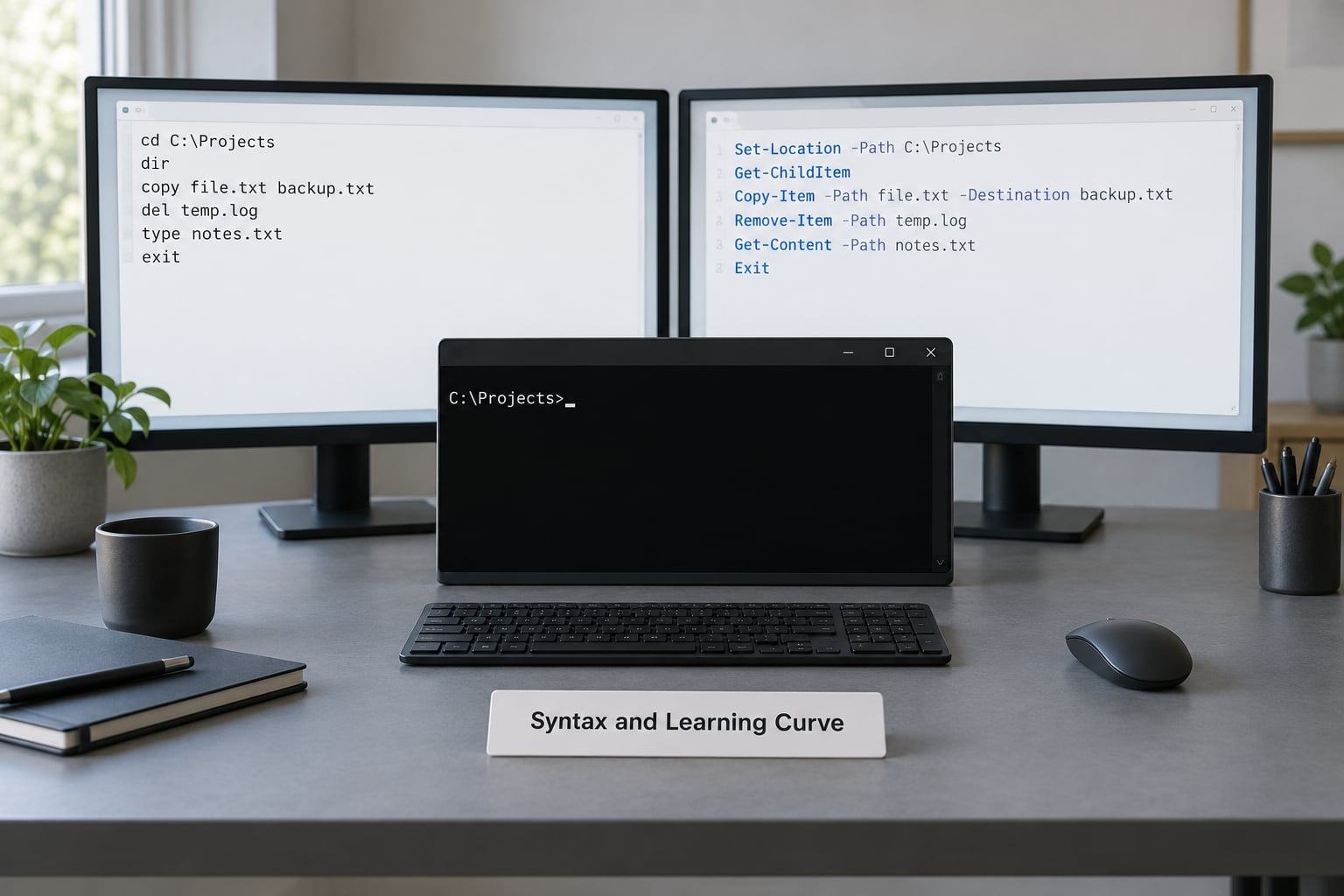
Batch syntax is compact and unforgiving. PowerShell syntax is longer to type but far easier to guess correctly because the naming is consistent.
| Task | Batch | PowerShell |
|---|---|---|
| Set a variable | set NAME=value | $name = ‘value’ |
| Read an environment variable | %USERNAME% | $env:USERNAME |
| Print to screen | echo Hello | Write-Host ‘Hello’ |
| Show the last exit code | echo %ERRORLEVEL% | $LASTEXITCODE |
| Change directory | cd /d C:Temp | Set-Location C:Temp |
| Save and restore the path | pushd / popd | Push-Location / Pop-Location |
| Loop over a list | for %%i in (list) do … | foreach ($i in $list) { } |
| Loop over command output | for /f “tokens=*” %%i in (‘command’) do … | command | ForEach-Object { } |
| Jump to a label | goto :label | No equivalent, use a loop or function |
| Call another script | call other.bat | & .other.ps1 or .other.ps1 |
| Handle an error | if errorlevel 1 … | try { } catch { } |
| Delete a file | del /f /q file.txt | Remove-Item file.txt -Force |
| Create a registry value | reg add … /v Name /t REG_SZ /d data /f | New-ItemProperty -Path HKCU:… -Name Name -Value data |
| Turn on command tracing | @echo on | Set-PSDebug -Trace 1 |
Two entries are worth pausing on. There is no GOTO in PowerShell because jumping backwards is almost always the wrong shape for the problem; a loop or a function does the same job and reads top to bottom. And FOR /F, which is where most batch newcomers get stuck, becomes a pipeline, so the same command that produced the text can be filtered rather than re-parsed.
How the Batch File vs PowerShell Script Choice Affects Execution
Batch parses a line, expands variables, hands the result to a program and waits. Anything that is not a native executable needs a child process, so a loop that calls a command a thousand times starts a thousand processes.
PowerShell loads a runtime first, then parses the whole script before executing it, which means a syntax error is caught before anything changes on the machine. That startup cost is the trade: a small script pays a fixed price, and a large one stops paying it.
Where scripts hit the network, that fixed cost stops mattering. A hundred remote calls dominate everything else, and this is why benchmark numbers comparing batch and PowerShell on a logon script tend to say more about the test than the languages.
File Operations, Automation, and Administration
Routine Windows work is where the choice becomes concrete. Mapping a drive in batch takes one line. In PowerShell it takes one line too, but the mapped drive is an object you can inspect and log, and remapping it to a specific user is a property rather than a registry guess.
REM Batch: map a drive for the current user
net use Z: \fileserverprojects /persistent:no

# PowerShell: same job, with the target captured as an object
New-PSDrive -Name Z -PSProvider FileSystem -Root '\fileserverprojects' -Persist | Format-List Name, Root
Services tell the same story. Batch starts a service with net start and then has no way to confirm it stayed up. PowerShell offers Start-Service, WaitForStatus and Get-Service, so a deployment script can fail loudly instead of reporting success and moving on.
Registry edits are the clearest case for moving. A reg add call cannot check what was already there, and idempotency matters for anything that runs on a hundred machines twice. PowerShell can read the current value first and only write when it differs.
Scheduled work and printers are similar. schtasks and print commands work fine in batch, but registering a task that runs under a service account, with proper logging, is awkward. Register-ScheduledTask and the PrintManagement cmdlets take the guesswork out.
Active Directory is where batch stops being a realistic choice at all. There is no AD cmd in cmd.exe. Group Policy logon scripts, by contrast, often run before PowerShell is reliably available or before policy has settled, which is exactly why plenty of estates still ship a small batch entry point.
Error Handling, Debugging, and Testability
Batch has no error handling in the sense most people mean. A failed command sets ERRORLEVEL and the script keeps going unless you check, so the failure surfaces somewhere else entirely, usually minutes later in a different tool.
| Concern | Batch file | PowerShell script |
|---|---|---|
| Detect failure | if errorlevel 1 after every command | try, catch, finally, and $ErrorActionPreference |
| Error detail | Only an integer code | Structured error records with line numbers and stack |
| Trace execution | @echo on prints every line | Set-PSDebug -Trace 1, or -Verbose per command |
| Continue on failure | Default behaviour, whether wanted or not | Explicit choice via error action preference |
| Clean up on exit | Must repeat cleanup in each exit path | finally block always runs |
| Capture a session | Redirect output by hand | Start-Transcript and Stop-Transcript |
The debugging column is the one experienced admins mention most. @echo on is blunt but it works, and Set-PSDebug -Trace 1 gives you the same visibility. -Verbose on a single cmdlet is narrower and usually more useful, because it tells you what the command decided rather than what the interpreter did.
Testability follows from the same root. A batch file can be run from a command line, but its output is text you cannot assert on cleanly. PowerShell functions return objects, so you can dot-source a script and check that a function produced the expected property values. That is what makes the language usable in a test suite or a CI pipeline.
Compatibility and Deployment
The most common practical question is how to run one engine from the other. Start the PowerShell one from batch, because the argument quoting rules are simple in that direction.
REM Run a .ps1 from a .bat, passing two arguments
powershell.exe -NoProfile -ExecutionPolicy Bypass -File "C:ScriptsReport.ps1" %1 %2
if errorlevel 1 echo Report failed with code %ERRORLEVEL%
Add -NoProfile on any machine where user profiles slow things down or break the script, and -File because it tells PowerShell where the script path ends. Without -File, arguments get parsed as PowerShell commands, which is a confusing failure the first time you hit it.
Going the other way, run batch from PowerShell with the call operator and be deliberate about which mode you want:
cmd.exe /c 'C:Scriptslegacy.bat' arg1   # captures output, no interactivity
& 'C:Scriptslegacy.bat' arg1        # runs in the current session, streams live
For elevation from a batch file, the reliable pattern is to let PowerShell do the self-elevation rather than fighting runas:
powershell.exe -NoProfile -Command "Start-Process cmd -ArgumentList '/c ""%~f0""' -Verb RunAs"For deployment, check the estate before you convert anything. Windows PowerShell 5.1 has shipped since Windows 7, so it is present on almost any machine you will meet, while pwsh is an explicit install. On Windows 7 and 8 machines PowerShell 5.1 is the ceiling, so any script using PowerShell 7 syntax will fail there.
Batch files carry no such dependency. A .bat file dropped on a locked-down machine with no PowerShell, no .NET and no script editor will still run, which is why installers, kiosk images and recovery scripts still use them. Both engines are fine inside Group Policy logon scripts and Task Scheduler, provided the PowerShell side has the execution policy sorted.
Security and Execution Policy
Execution policy is the setting that stops most newcomers. Windows will refuse to run a .ps1 file downloaded from the internet or marked as coming from another machine, and the error message mentions a zone identifier rather than the policy setting you actually need to change.
The scopes matter. Process applies to the current session only. CurrentUser applies to your account and needs no administrator rights. LocalMachine covers the whole machine and does require elevation. Group Policy can override all three, and that override is deliberate.
Get-ExecutionPolicy -List
Set-ExecutionPolicy -Scope CurrentUser -ExecutionPolicy RemoteSigned
RemoteSigned allows local scripts and requires a signature only on downloaded files, which is the sensible middle setting. Unrestricted and Bypass are emergency choices, and Bypass for a single process is the right form when a wrapper script needs to run a known, trusted file.
Execution policy is not a security boundary. Microsoft has said so plainly for years, and a user who can edit a script can bypass it with one argument. Treat it as a guard against accidental double-click execution, not as protection against an attacker.
The real controls sit elsewhere. Constrained Language Mode blocks the .NET and COM types that make PowerShell useful to an attacker, AppLocker or Windows Defender Application Control decides which scripts may run at all, and Antimalware Scan Interface inspects script content as it is parsed. Script block logging records what ran, which is how defenders see an encoded command or a download-and-execute chain that a batch file would have shown in plain sight anyway.
That cuts both ways. Because batch files pass no structured data to a shell, injection bugs are rarer and the code reads plainly in a log. In PowerShell, build arguments with cmdlets such as Start-Process -ArgumentList rather than by concatenating strings, and never pass user input straight into an invocation operator.
Performance, Reliability, and Long-Term Maintenance
The claim that batch is faster is half true. On a script that runs one command, batch wins, because there is no runtime to load. The moment a loop spawns external processes hundreds of times, PowerShell keeps them in-process and usually pulls ahead.
On anything that waits on a disk or a network, language choice barely registers. Both engines are I/O-bound, so a script doing a hundred registry writes over a remote session takes as long as the round trips take, whichever language issued them.
Reliability is where the difference is real rather than measurable in seconds. A batch script has no way to guarantee cleanup runs, no way to know which command failed without checking every line, and no way to abort cleanly. PowerShell’s finally blocks and structured exceptions remove whole categories of half-finished state.
Maintenance is the argument that ends most debates. A working batch file that nobody wants to touch can stay exactly as it is, at zero risk. A batch file that needs changing is expensive, because nobody can recall what ERRORLEVEL 3 meant and the original author left years ago. Rewriting it in PowerShell while you are already in there is nearly free, which is the rule of thumb the community has settled on.
Anyone maintaining a large legacy estate should score scripts before rewriting them. Line count, number of external commands, and how badly a failure would hurt tell you which files deserve attention, and the rest can keep running untouched for years.
When to Use Each Option
Choose a batch file when the job is a launcher. If it starts a program, sets a working directory and exits, batch is the entire requirement, and a PowerShell script would only add a policy question to your troubleshooting.
Choose batch for legacy installers and vendor tools that ship their own .bat entry point, for logon scripts on estates with locked-down machines, and for anything that must run on a stripped Windows image with no PowerShell present.
Choose batch when a script is short, works, and nobody has complained about it. Replacing a working twelve-line logon script with a PowerShell rewrite is churn, and churn is what breaks estates.
Choose PowerShell when you need conditional logic beyond a single IF ERRORLEVEL. Once there are loops inside loops, variables holding structured values, or a decision tree, PowerShell is shorter and safer.
Choose PowerShell when you need data. Reading JSON from an API, converting XML to objects, or exporting a formatted report is a few lines in PowerShell and a small program in batch.
Choose PowerShell for remote administration, reusable functions, CI/CD integration, cloud and Hyper-V management, and any script another person will have to maintain.
Use both together when deployment tooling still expects a .bat entry point. A small batch wrapper that calls a .ps1 with a checked argument list gives old systems a familiar front door while the logic lives somewhere maintainable.
Which Should You Choose?
Match the engine to the complexity of the job and the constraints of the target machine, not to a general preference.
| If the task is… | Use | Reason |
|---|---|---|
| Starting a program or installer | Batch | Nothing else is needed |
| A vendor tool with its own .bat | Batch | You would only be wrapping it |
| Running on a machine without PowerShell | Batch | No dependency, no policy |
| Anything longer than about 30 lines | PowerShell | Maintainability |
| Parsing JSON, XML or CSV | PowerShell | Native cmdlets |
| Managing services with confirmation | PowerShell | WaitForStatus and objects |
| Remote or multi-machine work | PowerShell | Remoting is built in |
| Needing try, catch and cleanup | PowerShell | Native error handling |
| Group Policy logon script | Either | Batch often runs earlier and more reliably |
| Scripts that must also run on Linux | PowerShell 7 | Only the newer version is cross-platform |
The summary: batch files are the compatibility-first option, and PowerShell is the default for anything new. That is the honest recommendation, and it is also the one the sysadmin community has landed on after years of arguing about it.
Frequently Asked Questions
Can a batch file run a PowerShell script?
Yes, and it is a common deployment pattern. From a .bat file, run powershell.exe -NoProfile -ExecutionPolicy Bypass -File u0022C:u005cScriptsu005cReport.ps1u0022 %1 to call the script and pass an argument through. Use -File so PowerShell knows where the script path ends. Check the result with if errorlevel 1 if the batch file needs to react to failure.
Why can’t I run my PowerShell script when I double-click it?
Three causes cover most cases. The file came from the internet, so Windows marks it with a zone identifier. The execution policy is Restricted, so no unsigned script will run at all. Or the file association opens it in an editor, which is what Notepad does by default. Right-click, choose Run with PowerShell, and check Get-ExecutionPolicy -List to see which scope is set.
Is a batch file the same as CMD?
No. CMD, or cmd.exe, is the command interpreter that Windows includes. A batch file is a text file of commands that you feed to that interpreter, saved with a .bat or .cmd extension. You can type commands straight into cmd.exe without ever writing a file, but once you save the list to disk and run it as one unit, that file is a batch script.
Which is faster, batch or PowerShell?
Batch, for a script that runs a handful of commands, because there is no runtime startup to pay for. PowerShell catches up and often passes batch once a loop launches external commands many times, since those stay inside one process. For anything touching a disk or a network, both engines are waiting on I/O and the language barely matters to the elapsed time.
Is Microsoft removing batch files?
No, and there is no deprecation notice for cmd.exe or the .bat format. Windows still ships the command processor and it is still the most reliable way to run a short command sequence on a machine that might not have PowerShell installed. The pressure to move on comes from what batch cannot do, not from Microsoft retiring it.
Is it worth learning PowerShell if I already know batch?
It depends on what you automate. If your scripts map drives, start installers and set a registry value, batch knowledge is enough and stays useful. If you report on servers, touch Active Directory, call APIs or maintain anything longer than a screen, PowerShell pays back the learning time quickly. Learn it when your work outgrows the language.
Conclusion: Start With the Simplest Tool That Meets the Requirement
Use a batch file for a small, compatibility-sensitive command sequence, and choose PowerShell for anything new that involves logic, objects, error handling, remoting or ongoing maintenance. The deciding factor is rarely speed, because on real administrative work both engines spend their time waiting on the machine.
Before you convert an existing batch file, check which Windows versions the script runs on, whether PowerShell 5.1 is present on all of them, and who will test the replacement. A working script nobody wants to touch does not need rewriting. A script you have to change is cheaper to rewrite in PowerShell than to keep patching in batch.