Yes, cleaning up disk space on Windows is safe, and the built-in tools are the safest way to do it. Disk Cleanup, Cleanup recommendations and Storage Sense only remove files Windows itself has flagged as temporary, and every one of them asks you to review a checkbox list before anything is deleted. The risk is not in those tools. The risk is in the manual deletion that happens afterward, when someone decides a 12GB folder called WinSxS looks like garbage.
This guide covers Windows 10 and Windows 11, and every step says which version it applies to, because the menus genuinely differ. Budget about 30 minutes for the first pass. You will need administrator rights for the Disk Cleanup system-file pass, and roughly 15GB of free space afterwards for Windows to keep working comfortably.
If you just want the short version, here is the whole routine in order.
- Open Settings, go to System, then Storage, and write down which drive is low and what the category sizes say.
- Run a disk space analyzer such as WizTree or TreeSize as Administrator so you can see which folders hold the space before you delete anything.
- Open Disk Cleanup from the drive context menu, tick the ordinary temporary categories, then click Clean up system files and run a second pass.
- In Windows 11, use Settings, System, Storage, Cleanup recommendations. On Windows 10, use Disk Cleanup directly.
- Sort Settings, Apps, Installed apps by size and uninstall the ones you stopped using properly through the uninstaller.
- Sort Downloads, Desktop and Documents by size, and move large video, photo and archive files to an external drive or cloud storage.
- Empty the Recycle Bin only after you confirm nothing important is in it.
- Turn on Storage Sense and set the frequency to only run when free space is low.
Work down that list in order and stop as soon as you have the headroom you need. Steps two and six usually do the heavy lifting, because on most machines the space is not in Windows at all. It is in a game library, a video project folder, or a Temp directory that filled up after a failed install.
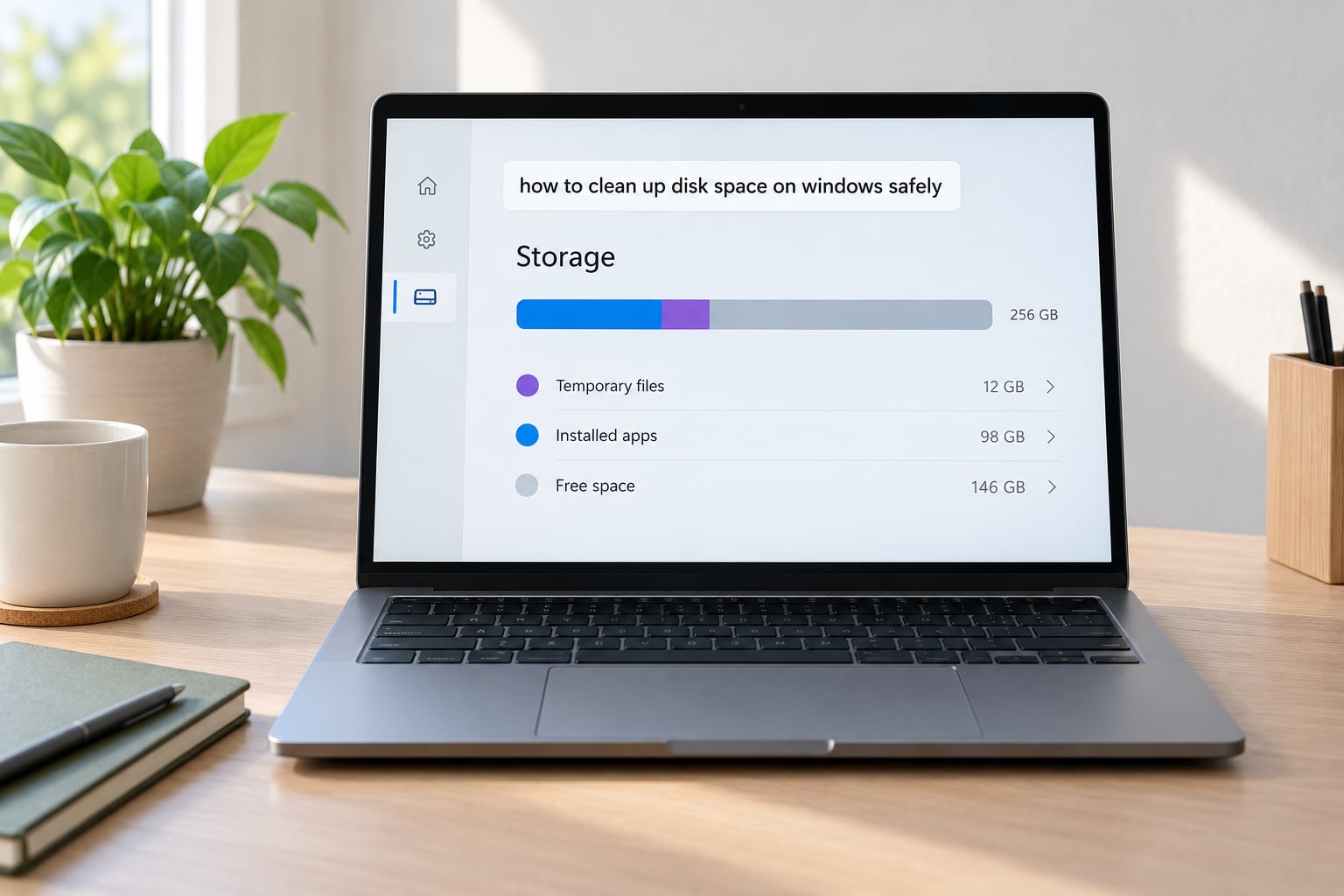
Table of Contents
- What You Need
- How to Clean Up Disk Space on Windows Safely
- Check your current disk usage before deleting anything
- Run Disk Cleanup, including the system files pass
- Use Storage Sense to stop the disk refilling
- Remove installed apps you no longer use
- Move large personal files off the system drive
- Empty the Recycle Bin only after you have checked it
- What is safe to delete, and what will break Windows
- Common mistakes that cost people their data
- Build a routine to clean up disk space every month
- Frequently Asked Questions
- Is Windows Disk Cleanup safe to use?
- Why is Disk Cleanup only freeing a few hundred MB, or doing nothing?
- Does Windows 11 have a Disk Cleanup tool?
- How much disk space can I realistically get back?
- What is the best free disk cleaner?
- Can chkdsk fix 100% disk usage?
- Conclusion
What You Need
You need a Windows 10 or Windows 11 machine and about 30 minutes. That is genuinely the whole list. No third-party cleaner is required, and I would skip them.
Administrator access matters for one step. Cleaning up system files, which is where the Windows Update leftovers and the previous installation live, needs elevation. Right-click the Start button, choose Terminal (Admin) or Command Prompt (Admin), and run the commands from there if a prompt asks. On a work or school machine you may not have this, and that is fine. Skip the system-file pass and use the user-level steps.
Before you delete anything, take two precautions. First, confirm your important files exist somewhere you trust. OneDrive, Google Drive, or an external drive, not the same disk you are about to clean. Second, note your current free space in Settings, System, Storage. You need that number afterwards to tell whether the cleanup actually worked.
If you have never backed up, this is the moment to fix that. Deleting the wrong folder is annoying. Losing a photo archive is not.
How to Clean Up Disk Space on Windows Safely
Check your current disk usage before deleting anything
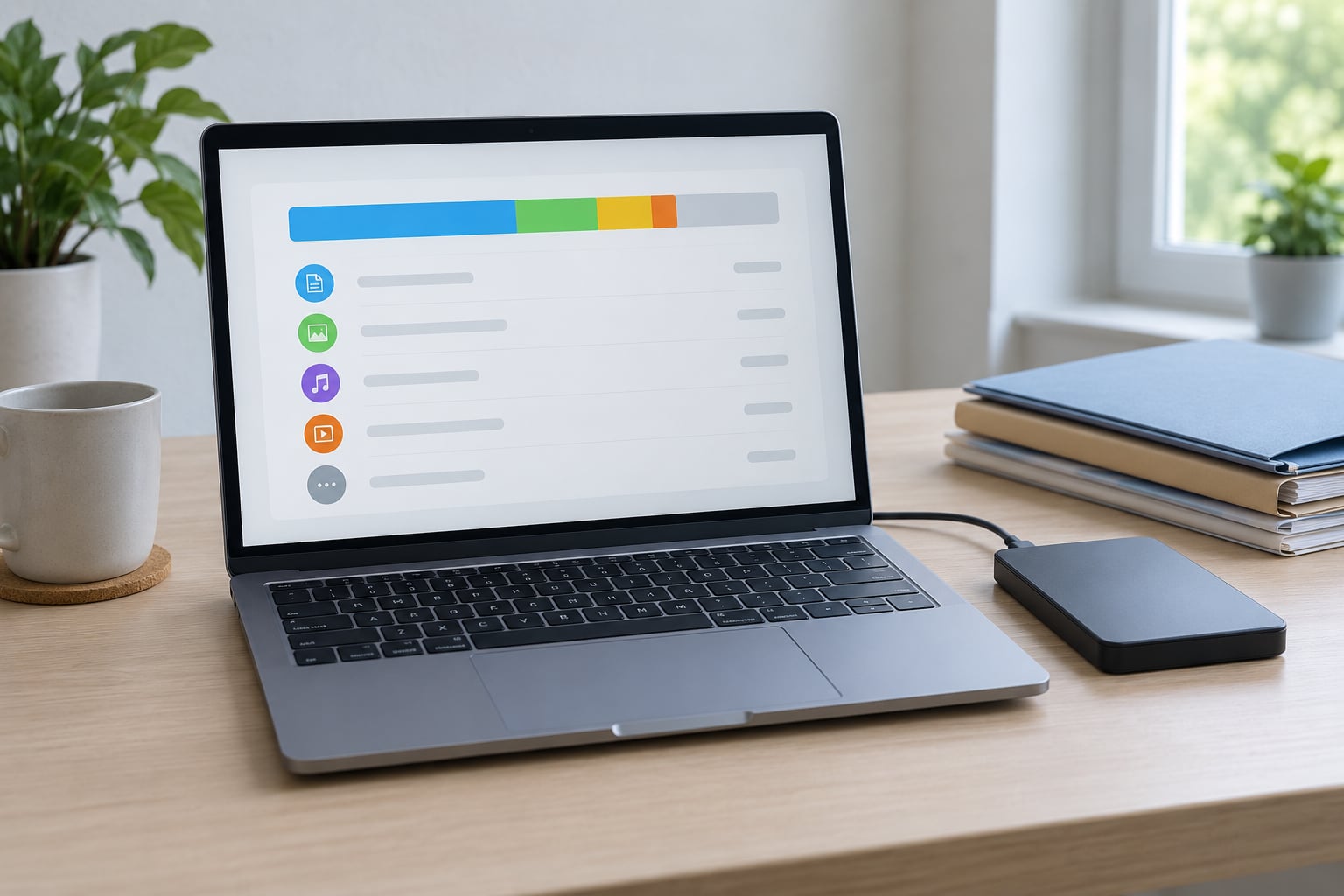
Start in Settings, System, Storage. Windows 11 shows a capacity bar at the top with a C: drive entry; Windows 10 shows the same page with a slightly different layout. Either way you get a list of what is consuming space, and the useful part is the App, reports, pictures and other categories with their sizes next to them.
Write the number down. A drive sitting at 92% used is where update failures and the Low Disk Space error start showing up. Windows wants roughly 10 to 15% of the volume available to work with.
You will also want to know which folders are the culprits, and Windows will not tell you that. This is where a disk space analyzer earns its place. WizTree and TreeSize both read the drive’s file table directly, so they finish in seconds and sort folders by size. Run whichever one you prefer as Administrator and scan C:. Expect the answer to be a user profile folder, not Windows.
On a fresh Windows 11 install with drivers and a few libraries, users on the Windows 11 community forums report the OS itself sits near 10GB. Your personal files and installed apps are normally several times that.
Run Disk Cleanup, including the system files pass
Disk Cleanup is the built-in utility that scans your drive and sorts deletable items into categories. You review the list, tick what you want gone, and Windows removes it. Start it from Windows Search by typing Disk Cleanup, or right-click a drive in File Explorer and choose Clean up.
Pick the drive, then work through the list. The safe everyday items are Temporary files, Thumbnail cache, Delivery Optimization Files, and Windows Update Cleanup. Windows Error Reporting and DirectX Shader Cache are also fine. Downloads is off by default, and you should leave it that way until you have checked its contents.
Then do the part most people skip. Click Clean up system files at the bottom, accept the administrator prompt, and a second list appears with categories the first one did not show: Windows.old for a previous installation, System and memory dump files, Device driver packages, and Previous Windows installation(s).
That second pass is where the real space is. Crash dump files in particular can be enormous, and there are real cases of a machine carrying 400GB of them without the owner noticing anything other than slowness. Select everything except Downloads here too, read the total at the bottom, then click OK. If the number looks wrong to you, deselect that category and run the cleanup again without it.
Below the file list, More Options handles system restore points. It shows how much space shadow copies are using, and you can delete all but the most recent one. Keep at least a couple of restore points. They are your safety net if a driver update goes wrong.
Use Storage Sense to stop the disk refilling
Storage Sense is the built-in scheduler that deletes temporary files and empties the Recycle Bin automatically. It is a single toggle in Windows 10 and a fuller set of options in Windows 11, and it is the reason a cleaned drive stays clean.
In Windows 10, go to Settings, System, Storage and flip Storage Sense on. In Windows 11, the same page has a Storage Sense entry with an Edit in Storage Sense link that opens the options. You get a frequency dropdown, a delete-temporary-files section, a Downloads section, and an automatic empty Recycle Bin option.
Here is the safety part nobody mentions. If you set a recurring frequency and you are also on the automatic Downloads cleanup, Storage Sense will delete files in your Downloads folder on a schedule. If you use Downloads as a staging area for installers and archives, that catches people out. The safest configuration, and the one the community consistently recommends, is frequency set to During low free disk space, temporary files set to delete files my apps are not using, Downloads left off, and Recycle Bin set to 30 days rather than 1 day.
Those settings mean Windows only acts when space is actually tight, and never touches a personal folder on a timer.
Remove installed apps you no longer use
Settings, Apps, Installed apps lists everything on the machine, and the Size column can be sorted largest first. This is the fastest way to spot a 60GB game or a design suite you installed for one project two years ago.
Uninstall through Settings or through the app’s own uninstaller, never by deleting the program folder. Deleting the folder leaves registry entries, service registrations and scheduled tasks behind, and the app will still think it is installed. That is the single most common way people break a Windows machine while trying to free space.
Windows 11 also has a built-in list of the heaviest apps under Settings, Apps, Advanced app settings, Installed apps, and the Apps list in the Storage page itself, which flags apps you have not opened in a while. Sort by last used date before uninstalling anything you are unsure about.
Windows 10 users can reach the same list through Control Panel, Programs, Programs and Features. It shows install dates, which is a good enough proxy for whether you still need something.
Move large personal files off the system drive
This is where most of the reclaimable space actually is, and it is the safest cleanup of all because nothing is destroyed. Open Downloads, Desktop, Documents and Videos, sort each by size, and work down the list.
Installers, disk images, project exports, and old video or photo libraries move to an external drive or cloud storage. Cut and paste, then open the source folder and confirm the files are gone from it before you empty anything. If you use OneDrive, right-click a folder and choose Free up space. Files On-Demand keeps the folder visible in File Explorer while holding the actual data on Microsoft’s servers until you open it.
Two habits keep this from recurring. Redirect your Downloads folder to a different drive, and set where new content is saved under Settings, System, Storage, Advanced storage settings, so new documents, photos and videos land on a drive with room.
Empty the Recycle Bin only after you have checked it
Emptying the Recycle Bin is irreversible, so look at it first. Double-click the icon on the desktop and scan the list for anything you deleted by mistake. Right-click an item to restore it to where it came from.
When you are satisfied, right-click the Recycle Bin and choose Empty Recycle Bin. Then go back to Settings, System, Storage and compare the free space figure with the one you wrote down at the start.
If the number barely moved, the space was never in the categories you cleaned. Go back to the disk space analyzer and sort the C: drive by size again, looking specifically inside your user profile folder.
What is safe to delete, and what will break Windows
This is the part every other guide skips. Windows can rebuild most caches, and a handful of folders will stop the machine booting if you remove them by hand.
| Item | Verdict | Reason |
|---|---|---|
| Temporary files, thumbnail cache, DirectX Shader Cache, Windows Error Reporting | Safe through Disk Cleanup | Regenerated on demand; nothing depends on them persisting |
| Windows Update Cleanup | Safe through Disk Cleanup | Old update payload; you cannot roll back to those updates afterwards |
| Windows.old | Safe, irreversible | Removes the ability to roll back to your previous Windows version |
| System and memory dump files | Safe unless debugging a crash | Large, and useless once the crash is not being investigated |
| Downloads folder contents | Check first, then safe | Installers and documents sit here, not junk |
| C:WindowsWinSxS | Never delete by hand | Component store; manual removal breaks servicing and updates |
| C:WindowsSystem32 | Never delete | Core system libraries; removal prevents Windows from booting |
| C:WindowsInstaller | Never delete | Cached installers needed to repair or update installed programs |
| C:ProgramData | Never delete wholesale | Holds application data for every installed program |
| Driver store (DriverStoreFileRepository) | Never delete | Windows restores drivers from here; deleting breaks device updates |
| hiberfil.sys | Only by disabling hibernation | Use powercfg /hibernate off in an admin terminal, not manual deletion |
| pagefile.sys | Leave it alone | Moving or deleting it affects virtual memory and crash dumps |
One more worth naming. Registry cleaners and aggressive debloat tools that strip services and scheduled tasks in bulk cause far more problems than the disk space they recover. If a folder is large and you do not recognise it, move it to a USB drive and test for a week rather than deleting it.
Common mistakes that cost people their data
The first mistake is emptying the Recycle Bin before checking it, which turns a recoverable mistake into a permanent one. The second is deleting a program folder instead of running the uninstaller, which leaves Windows with a half-removed app and an entry in Apps that will not uninstall cleanly.
The third is running Disk Cleanup once and giving up. A first pass frequently reports only a few hundred megabytes, because the categories with real weight only appear after Clean up system files. Run it twice.
The fourth is mistaking restore points and hiberfil.sys for ordinary temporary files. Hibernation on a machine with 16GB of RAM can reserve a large chunk of the drive in a single hidden file, and if you do not use hibernation, turning it off with powercfg /hibernate off in an administrator terminal frees that space permanently. It also disables Fast Startup, so your boot times will be slightly slower.
The fifth is setting Storage Sense to a fixed weekly schedule with Downloads cleanup enabled, then forgetting it. That combination quietly removes downloaded installers and documents.
Build a routine to clean up disk space every month
A ten-minute monthly pass beats a three-hour rescue. Check Settings, System, Storage and note the free percentage. Run Storage Sense if it is configured for low-free-space cleanup, or run Disk Cleanup manually if you prefer to see every checkbox. Spend a few minutes in Downloads and Desktop moving large files off the drive. Check Installed apps for anything new and heavy, and uninstall it properly while you still remember what it was.
Set the drive alarm so you notice at 85% rather than 95%. On Windows you can run disk cleanup on a schedule with a saved cleanmgr profile: run cleanmgr /sageset:1, tick the categories you want, then call cleanmgr /sagerun:1 from Task Scheduler to reuse that exact list unattended. Administrators can also run DISM /Online /Cleanup-Image /StartComponentCleanup to reclaim component store space properly, rather than deleting WinSxS by hand.
Those two commands are the scripted version of what the GUI already does, and they are worth learning if you manage more than a handful of machines.
Frequently Asked Questions
Is Windows Disk Cleanup safe to use?
Yes. Disk Cleanup only removes categories Windows has already identified as temporary or obsolete, and it shows you every item with its size before anything is removed. Ticking Downloads is the only real risk, since that folder holds your own files. Leave it unticked, review the system-file list carefully, and keep a couple of system restore points so you can undo a bad session.
Why is Disk Cleanup only freeing a few hundred MB, or doing nothing?
You probably did not run the second pass. Click Clean up system files at the bottom of the Disk Cleanup window and accept the administrator prompt, because that is where Windows Update Cleanup, Windows.old, dump files and driver packages appear. If it still reports almost nothing, you are probably low on space on a nearly full drive, or the Temp folder is held open by a running app. Restart and run it as administrator.
Does Windows 11 have a Disk Cleanup tool?
Yes, both. Windows 11 adds Settings, System, Storage, Cleanup recommendations, which lists suggested items in plain language instead of a checkbox tree. The classic Disk Cleanup utility is still installed in Windows 11 and still does more, because it exposes the system file categories and the More Options tab for restore points. On Windows 10, Cleanup recommendations does not exist and Disk Cleanup is your only built-in tool.
How much disk space can I realistically get back?
On a typical laptop, Disk Cleanup’s first pass returns a few hundred megabytes, while the Clean up system files pass often returns several gigabytes from Windows Update leftovers and a previous installation. Uninstalling two or three unused games regularly frees 50GB or more. Moving a personal video library to an external drive can return tens of gigabytes. Hibernate file removal returns something close to your installed RAM size.
What is the best free disk cleaner?
The built-in tools win on safety: Disk Cleanup for a one-off deep clean, Storage Sense for keeping it clean automatically, and the Storage settings page for uninstalling apps. For finding what is using space, a disk space analyzer such as WizTree or TreeSize reads the drive file table in seconds and is far more useful than any cleaner. Avoid registry cleaners and bulk debloat tools, which recover little space and routinely break Windows.
Can chkdsk fix 100% disk usage?
No. chkdsk is a file system repair tool, not a cleanup tool, and it never frees space. A drive showing 100% usage in Task Manager is almost always normal background activity writing temporary files, not a fault. If your drive is genuinely full, use the Storage settings page and Disk Cleanup. Run chkdsk only when Windows reports file system errors or a drive is behaving strangely.
Conclusion
Start with the safe, built-in path and nothing gets lost. Open Settings, System, Storage and find out which drive is low and what is using it. Run Disk Cleanup and then run it again with Clean up system files, where most of the reclaimable space is hiding. Uninstall unused apps through Windows rather than deleting folders, and move large personal files to an external drive or cloud storage instead of removing them.
Check the Recycle Bin before you empty it, compare your free space against the number you wrote down at the start, and leave WinSxS, System32, the Installer cache and the driver store alone. Finally, turn on Storage Sense with the frequency set to only run when free space is low and Downloads cleanup switched off. That is the whole job, and it takes ten minutes a month.