
If you already live in a terminal, PowerShell basics for Linux users come down to one idea: it is the same shell you know, except commands hand you structured data instead of text. You can install it on Ubuntu, Debian, Fedora, Rocky, Arch or Alpine in a couple of minutes, run ls, cd and cat exactly as you always have, and start using the real cmdlets when the extra structure pays off. Updated for October 2026.
The honest version: most Linux work should stay in bash. PowerShell earns its place when you also touch Windows systems, Azure, or Windows nodes in Ansible, and you want one scripting language instead of two. The rest of this guide covers the install, the syntax, the pipeline, and the places where a bash habit quietly breaks.
Table of Contents
- What Is PowerShell and Why Linux Users Should Learn It?
- How Do You Install PowerShell on Linux?
- PowerShell Basics for Linux Users: Commands and Syntax
- How Do You Manage Files, Directories, and Processes?
- How Does PowerShell Piping Work?
- How Do You Write a Basic PowerShell Script?
- What Are the Main PowerShell Differences from Bash?
- Which PowerShell Commands Should You Learn First?
- Frequently Asked Questions
- Can I run Linux commands in PowerShell?
- Which is better, Bash or PowerShell?
- Is Bash still useful if I learn PowerShell?
- Why isn’t PowerShell recognizing my SSH keys?
- Is PowerShell ISE going away?
- What can hackers do with PowerShell?
- Conclusion
What Is PowerShell and Why Linux Users Should Learn It?
PowerShell is a command shell and scripting language built on .NET, and on Linux it runs as the pwsh executable. Every command produces .NET objects rather than a stream of characters, which is the single fact that explains almost every difference you will run into.
Bash hands text to the next command. That is why you learned awk, sed and grep to chop that text into shape. PowerShell hands objects, so the next command can read a named property instead of guessing at column positions.
# bash: guess at columns
ps aux | grep nginx | awk '{print $2}'
# PowerShell: read a named property
Get-Process nginx | Select-Object Id, ProcessName
That difference is genuinely useful for structured data like processes, files, services, Active Directory objects and JSON from an API. It is not a reason to rewrite working shell scripts.
So why do Linux administrators bother? Four reasons come up in practice. First, one script language for both operating systems means less to maintain when a fleet is mixed. Second, Windows administration over SSH from a Linux workstation, including domain and Active Directory work, is far less painful in PowerShell than in bash. Third, the object pipeline handles JSON and tabular data without pulling in jq. Fourth, tooling around cloud administration and configuration management assumes PowerShell exists on both ends.
What you do not get: faster startup, fewer processes, or a replacement for systemd. PowerShell is an addition to a Linux box, not an upgrade to it.
How Do You Install PowerShell on Linux?

Installation on Ubuntu and Debian comes from a Microsoft package repository rather than the default Ubuntu archive. You add the repository, install powershell, and confirm it with pwsh --version.
# Ubuntu and Debian
sudo apt-get update
sudo apt-get install -y wget apt-transport-https software-properties-common
source /etc/os-release
sudo wget -q https://packages.microsoft.com/config/${ID}/packages-microsoft-prod.deb -O /tmp/packages-microsoft-prod.deb
sudo dpkg -i /tmp/packages-microsoft-prod.deb
rm /tmp/packages-microsoft-prod.deb
sudo apt-get update
sudo apt-get install -y powershell
RHEL, Fedora, Rocky and Alma get the same treatment through dnf, with the repository package pulled from the matching release stream.
# RHEL, Fedora, Rocky, Alma
sudo dnf install -y dnf-plugins-core
sudo dnf config-manager --add-repo https://packages.microsoft.com/config/rhel/9/packages-microsoft-prod.rpm
sudo dnf install -y powershell
Two other routes work on most distributions. Snap gives you a self-updating install with no root-level repository changes.
# snap, any distro with snapd
sudo snap install powershell --classic
The tarball route is the fallback when your package manager is awkward or you are on a minimal image. Download the release archive for your architecture from the PowerShell GitHub releases page, extract it, and place the pwsh binary somewhere on your PATH.
# manual tarball install
wget https://github.com/PowerShell/PowerShell/releases/latest/download/powershell-${VERSION}-linux-x64.tar.gz
mkdir -p /opt/microsoft/powershell/7
tar zxf powershell-*.tar.gz -C /opt/microsoft/powershell/7
chmod +x /opt/microsoft/powershell/7/pwsh
ln -s /opt/microsoft/powershell/7/pwsh /usr/bin/pwsh
Arch users install from the AUR package, and Alpine users add the community repository that carries powershell. Neither is covered by the Microsoft documentation, which is a fair complaint.
Verify the install before you write anything. pwsh --version prints the version, and $PSVersionTable inside a session gives you the full picture, including the PSEdition value that separates modern cross-platform PowerShell from the Windows-only one.
pwsh
$PSVersionTable.PSVersion
$PSVersionTable.PSEdition
One naming trap while you are here. Three things get called PowerShell. Windows PowerShell 5.1 is the built-in Windows shell, the executable is powershell.exe, the edition says Desktop, and Microsoft does not ship it for Linux. PowerShell 7, sometimes called PowerShell Core, is the cross-platform version on .NET, the executable is pwsh, and the edition says Core. The original PowerShell 6 previews are unsupported; install 7 or later. Scripts built for 5.1 may still hit behaviour differences on 7, most famously that the curl and wget aliases no longer exist.
PowerShell Basics for Linux Users: Commands and Syntax
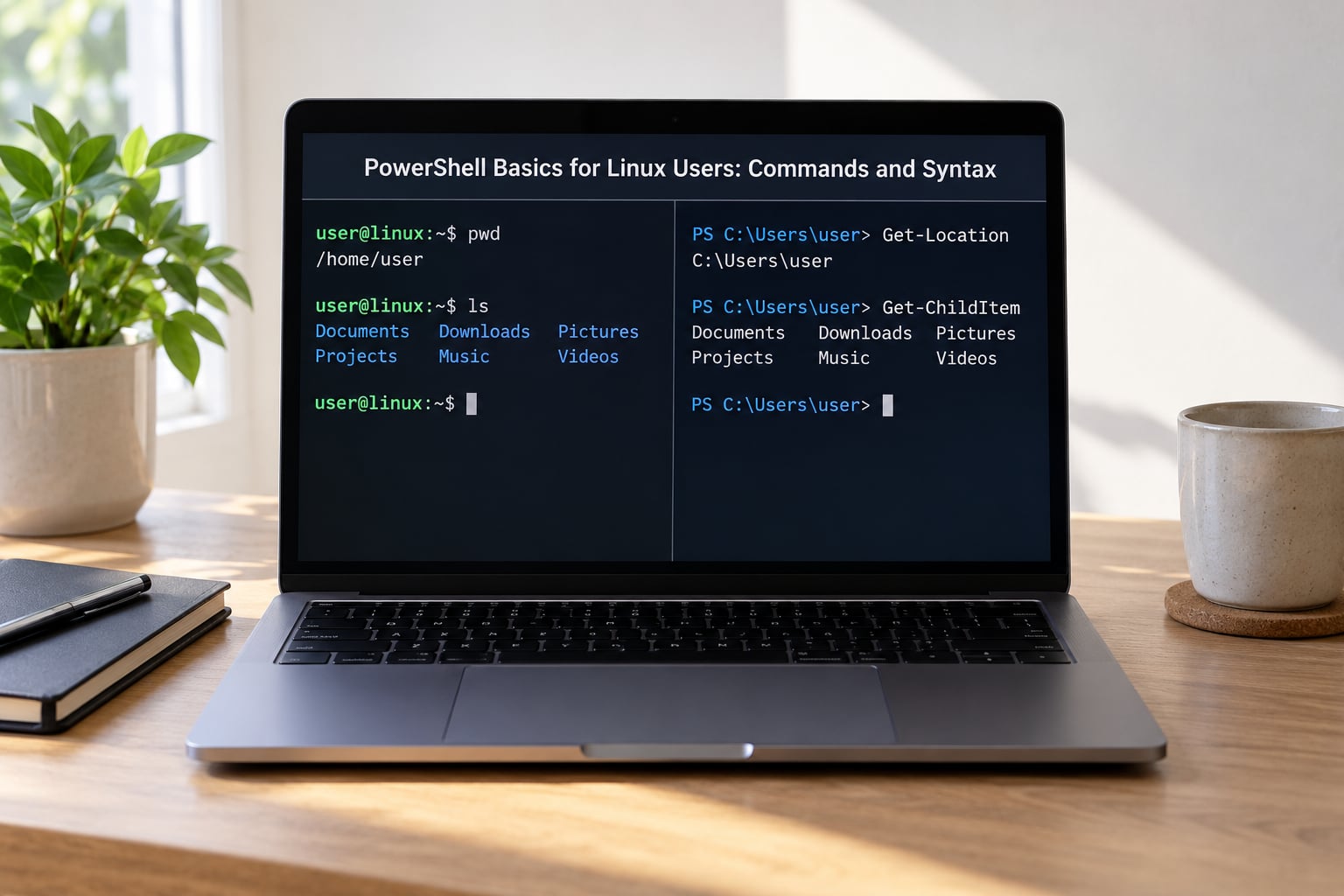
Cmdlets follow a Verb-Noun naming convention: Get-ChildItem, Set-Location, Remove-Item. The verb says what happens, the noun says what it happens to, and that is enough to guess most commands you have never seen before.
Underneath sits an alias layer, which is why ls, cd, cat, cp, mv and rm feel familiar. The aliases work on Linux because they are defined inside PowerShell, not because it is shelling out to your coreutils. That distinction bites later, for example because PowerShell has no built-in grep alias, so typing grep runs the native Linux binary and Select-String is the built-in equivalent.
Discovering commands beats memorising them. These three do most of the teaching work.
Get-Command *process*            # find commands by name
Get-Command -Noun ChildItem      # narrow by noun
Get-Help Get-ChildItem -Examples # real usage examples
Get-Help about_Quoting_Rules     # conceptual help topics
Get-Command curl                 # is this an alias, a cmdlet, or a native binary?
Inspecting an object is the other half of the habit. Get-Member lists every property and method on whatever you just produced, which is how you find the property name you need for a filter.
Get-Process | Get-Member
Get-ChildItem /etc | Get-Member
Variables work differently from bash. A PowerShell variable carries a sigil, and a plain one has no scope marker at all.
$name = 'web-01'                 # plain variable
$env:HOME                        # environment variable, read
$env:PATH = '/opt/bin:' + $env:PATH
const $max = 10                  # a constant you cannot accidentally overwrite
Strings need one extra habit. In bash you reach for single quotes to keep $ literal; in PowerShell both quote types expand variables, and single quotes are what you use to stop that.
$name = 'web-01'
"host is $name"                  # double quotes expand
'host is $name'                  # single quotes stay literal
To escape a character instead, use a backtick, which is the opposite of the backslash you would use in bash.
Write-Output "line one`nline two" # backtick-n is a newline
Comments start with # and run to the end of the line, same as bash. A <# block comment can span multiple lines.
Paths and file system roots are the last adjustment. PowerShell keeps a FileSystem provider and exposes roots as drives, and on Linux the whole tree hangs off /.
Get-Location                    # where am I
Get-PSDrive -PSProvider FileSystem
Get-PSDrive FileSystem           # usage for the root filesystem
New-PSDrive -Name pkg -PSProvider FileSystem -Root /var/log
Set-Location /etc
Join-Path /var 'log/syslog'      # build a path without string surgery
Resolve-Path ~/.ssh              # expand a user-relative path
Test-Path /etc/hosts             # does it exist
Finally, case sensitivity catches nearly everyone once. PowerShell commands and parameters are case-insensitive, but the Linux file system is not. Get-Content /etc/Hosts succeeds on Windows and fails on Linux, and a mistyped native command name will not be corrected for you.
How Do You Manage Files, Directories, and Processes?
Everyday file work maps cleanly, and the parameters carry the flags you would normally type.
Get-ChildItem /var/log                 # ls
Get-ChildItem /var/log -Force          # ls -la
Get-ChildItem /var/log -Recurse        # ls -R
Get-Content /var/log/syslog            # cat
Get-Content /var/log/syslog -Tail 50   # tail -n 50
Get-Content /var/log/syslog -Head 20 -Wait   # head, then follow like tail -f
New-Item -ItemType Directory -Path /tmp/out
New-Item -ItemType File -Path /tmp/out/note.txt    # touch
Copy-Item a.txt b.txt                  # cp
Copy-Item src -Recurse -Destination /tmp   # cp -r
Move-Item a.txt b.txt                  # mv
Rename-Item b.txt c.txt
Remove-Item old.log -Force            # rm -f
Remove-Item /tmp/scratch -Recurse -Force   # rm -rf
Searching is where the object model starts to pay for itself.
# grep -r "connection refused" /var/log
Get-ChildItem /var/log -Recurse -File | Select-String -Pattern 'connection refused'

# find /var/log -name "*.log"
Get-ChildItem /var/log -Recurse -Filter '*.log'

# which ssh
Get-Command ssh
Permissions and ownership are the gap most crosswalk guides skip. The Linux file system permission bits live in the ACL, so Get-Acl is the answer to ls -l for ownership and mode.
Get-Acl /etc/ssh/sshd_config | Format-List
(Get-Acl /etc/hosts).Owner
Set-Acl -Path /etc/hosts -AclObject (Get-Acl /etc/hosts)
chmod 640 /etc/hosts                 # native binaries still work
chown deploy:deploy /srv/app/config
Most Linux operators do not rewrite permissions in PowerShell. The practical move is to read the ACL when you need to understand a file, and call chmod and chown when you need to change one.
Processes and services behave the same way. Get-Process replaces ps aux, Stop-Process replaces kill, and Get-Service covers the read-only half of systemctl status on systems running systemd.
Get-Process
Get-Process -Name nginx
Get-Process | Sort-Object CPU -Descending | Select-Object -First 10
Stop-Process -Id 4321
Stop-Process -Name worker -Force
Get-Service sshd
Get-Service | Where-Object Status -eq 'Running'
For anything that starts, restarts, enables or inspects a unit, systemctl remains the better tool on Linux. Get-Service reads state; it does not manage the unit lifecycle.
How Does PowerShell Piping Work?
The pipe character means the same thing in both shells, but what travels through it is different. In bash it carries a text stream, and each program re-parses it. In PowerShell each cmdlet consumes objects from the previous one and emits objects, so nothing has to guess at column positions.
Get-Process | Where-Object CPU -gt 50 | Select-Object Id, ProcessName, CPU
Get-ChildItem /var/log -File | Sort-Object Length -Descending | Select-Object -First 5
Get-Content /var/log/syslog | Select-String -Pattern 'sshd' -Context 2, 2
Get-ChildItem /srv | Measure-Object -Property Length -Sum
Where-Object filters, Select-Object projects and reshapes, Sort-Object orders, Measure-Object counts and sums, and Group-Object buckets. Adding Format-Table or Format-List at the end controls the display without destroying the objects upstream.
Get-Process | Select-Object -First 3 Name, Id | Format-Table
Get-Process | Select-Object -First 3 Name, Id | ConvertTo-Json
Get-Process | Select-Object Name, Id | Export-Csv -NoTypeInformation processes.csv
Get-Content app.log -Wait | Select-String 'ERROR' | Tee-Object errors.log
That ConvertTo-Json line is the one that most often replaces an awk pipeline. Structured output goes straight to a variable or an API body, with no fragile text slicing.
Native Linux binaries still work in the middle of a pipeline, and the conversion happens automatically. Objects leaving PowerShell for a native command get rendered as text, and text coming back in is treated as strings.
Get-Process | Where-Object ProcessName -eq 'nginx' | & /usr/bin/wc -l
Get-ChildItem -Recurse -File | & grep -i 'error'
pwsh -NoProfile -Command "Get-Service" | & systemctl --no-pager status
Two behaviours surprise people coming from bash. PowerShell does not stop a pipeline when one cmdlet writes an error, so add -ErrorAction Stop or -ErrorAction SilentlyContinue where it matters. And exit status is split: $? reflects the last cmdlet, while $LASTEXITCODE holds the exit code of the last native program you ran.
$ErrorActionPreference = 'Stop'
try { Get-Content /etc/shadow } catch { Write-Output "read failed: $_$; use sudo" }
ssh -o BatchMode=yes host 'true'
if ($LASTEXITCODE -ne 0) { Write-Output 'ssh failed' }
How Do You Write a Basic PowerShell Script?
A script is a text file with a .ps1 extension. This one takes parameters, filters files, and prints a result, and it runs unchanged on Linux or Windows.
#!/usr/bin/env pwsh
param(
    [Parameter(Mandatory = $false)]
    [string]$Path = '.',

    [int]$Top = 5,

    [switch]$Human
)

if (-not (Test-Path $Path)) {
    Write-Error "$Path does not exist"
    exit 1
}

$files = Get-ChildItem -Path $Path -File -Recurse

if ($Human) {
    $files = Where-Object { $_.Length -gt 1MB }
}

$files |
    Sort-Object Length -Descending |
    Select-Object -First $Top Name,
        @{Name = 'SizeMB'; Expression = { [math]::Round($_.Length / 1MB, 1) } },
        LastWriteTime
Note the param() block at the top, the [switch] for a boolean flag, and the calculated property in Select-Object, which is how you add a column on the fly. -Recurse replaces find and foreach replaces a shell loop.
Running it takes one of two forms, and both work on Linux.
./largest-files.ps1 -Path /var/log -Top 10 -Human
pwsh -NoProfile -File ./largest-files.ps1 -Path /var/log
Use the pwsh form in cron jobs and CI, where -NoProfile keeps your profile script from slowing startup or changing the environment underneath you. The direct ./ form needs the file to be executable and a shebang line, exactly like a bash script.
chmod +x largest-files.ps1
If a script downloaded from somewhere fails with strange parse errors, check the line endings first. Files edited on Windows can end up with carriage returns that PowerShell on Linux chokes on.
file largest-files.ps1          # look for CRLF
sed -i 's/r$//' largest-files.ps1
Here is the same log cleanup task you would write in bash, translated line by line.
#!/usr/bin/env bash
LOGDIR=/var/log/myapp
for f in $(ls -1t "$LOGDIR"/*.log); do
  if [ $(stat -c %s "$f") -gt 104857600 ]; then
    gzip "$f"
  fi
done
#!/usr/bin/env pwsh
param(
    [string]$LogDir = '/var/log/myapp',
    [int64]$MaxBytes = 104857600
)

Get-ChildItem -Path $LogDir -Filter '*.log' -File |
    Where-Object { $_.Length -gt $MaxBytes } |
    ForEach-Object { & gzip $_.FullName }
The bash version builds a list with ls, loops over it, and shells out to stat for every file. The PowerShell version never materialises a filename list: the pipeline streams file objects, each one already carrying its Length as a property, and ForEach-Object runs gzip on it. Same result, no parsing.
One habit worth building early: use full cmdlet names inside scripts even though the aliases work. Aliases are fine at a prompt and are repeatedly flagged as a maintenance problem in the PowerShell community, because the script stops reading as shell.
What Are the Main PowerShell Differences from Bash?
Here is the crosswalk I keep open in a second terminal. The middle column is what you can type; the right column is what belongs in a script.
| Task in bash | Short form in PowerShell | Cmdlet to write in scripts |
|---|---|---|
| ls -la | dir, gci, ls | Get-ChildItem -Force |
| ls -R | gci -r | Get-ChildItem -Recurse |
| cd /path | cd, chdir | Set-Location |
| pwd | pwd, gl | Get-Location |
| cat file | cat, gc, type | Get-Content |
| head -n 20 | gc -Head 20 | Get-Content -Head 20 |
| tail -f | gc -Tail 20 -Wait | Get-Content -Tail 20 -Wait |
| cp / cp -r | cp, cpi, copy | Copy-Item, Copy-Item -Recurse |
| mv / rename | mv, move, ren | Move-Item, Rename-Item |
| rm -rf | rm, ri, del, rd | Remove-Item -Recurse -Force |
| mkdir -p | md, ni | New-Item -ItemType Directory -Force |
| touch | ni | New-Item -ItemType File |
| grep -i “err” file | no built-in alias | Select-String -Pattern ‘err’ |
| find . -name “*.log” | gci -r -Filter | Get-ChildItem -Recurse -Filter ‘*.log’ |
| which ssh | none | Get-Command ssh |
| man ls | man, help | Get-Help Get-ChildItem -Examples |
| history | history | Get-History |
| clear | cls, clear | Clear-Host |
| echo | echo, Write-Host | Write-Output |
| export VAR=1 | none | $env:VAR = ‘1’ |
| env | none | Get-ChildItem Env: |
| ps aux | ps, gps | Get-Process |
| kill 1234 | none | Stop-Process -Id 1234 |
| systemctl status sshd | none | Get-Service sshd |
| chmod 640 file | none | chmod 640 file (native) |
| ls -l ownership | none | Get-Acl file |
| ls -lh | none | Get-ChildItem |
| df -h | none | Get-PSDrive -PSProvider FileSystem |
| du -sh dir | none | Get-ChildItem dir -Recurse | Measure-Object Length -Sum |
| wc -l | none | Get-Content file | Measure-Object -Line |
| sort / uniq | sort, gu | Sort-Object, Get-Unique |
| tail -n 50 app.log | gc app.log -Tail 50 | Get-Content app.log -Tail 50 |
| tee | tee | Tee-Object |
| sleep 5 | sleep | Start-Sleep -Seconds 5 |
| date | date | Get-Date |
| curl url | curl (native on 7) | Invoke-WebRequest url |
| ping host | ping (native) | Test-Connection host -Count 4 |
| ssh, scp, tar | none | use the native binaries unchanged |
| for i in 1 2 3 | foreach | ForEach-Object, foreach loop |
| echo $? | none | $? and $LASTEXITCODE |
Some of those rows deserve a sentence. curl is a genuine trap: in Windows PowerShell 5.1 it is an alias for Invoke-WebRequest, in PowerShell 7 the alias is gone and you get the native curl binary, so a script that behaves differently after you upgrade is usually this. ping is the reverse case, a native binary on Linux with a Test-Connection cmdlet for structured results. And ssh, scp and tar need no PowerShell equivalent at all; the Linux versions are right there.
| Bash syntax | PowerShell equivalent |
|---|---|
| VAR=value | $env:VAR = ‘value’ |
| $VAR | $env:VAR |
| export VAR=v | $env:VAR = ‘v’ |
| if [ -f f ]; then | if (Test-Path f) { } |
| for f in *.log; do | foreach ($f in Get-ChildItem *.log) { } |
| cmd | grep x | cmd | Select-String ‘x’ |
| cmd > out.txt | cmd | Out-File out.txt (or >) |
| cmd 2>> err.log | cmd 2>> err.log |
| echo “escaped ” quote” | Write-Output “escaped `” quote” |
| chmod +x s.sh | chmod +x s.ps1 |
| sudo apt install x | sudo apt install x, then run pwsh |
| apt, dnf, pacman | unchanged, these are separate tools |
| shebang #!/bin/bash | shebang #!/usr/bin/env pwsh |
Now the part that trips up almost everyone: what does not exist on Linux. A large slice of the cmdlet library targets Windows internals, and no amount of installation will bring them to a Linux host.
| Windows-only cmdlet | What it does on Windows | Linux substitute |
|---|---|---|
| Get-WmiObject | Query WMI | Get-CimInstance where supported, or /proc and /sys |
| Get-EventLog | Read Windows Event Log | journalctl, or Get-Content on /var/log files |
| Get-WinEvent | Query event logs with filters | journalctl -u unit |
| Get-WindowsFeature | List Windows roles | dpkg -l, rpm -qa, apk info |
| Get-HotFix | List installed patches | dnf updateinfo, apt list –upgradable |
| Get-ItemProperty HKLM:… | Read the registry | read the file the config actually lives in |
| New-Object -ComObject | Instantiate a COM component | none; use the Linux tool for the job |
| Start-Process -Verb RunAs | Launch elevated via UAC | sudo, or launch pwsh with sudo |
Two Windows error strings show up in forum threads constantly, so it is worth translating them. “That can only be run locally” and “This can’t be executed locally” come from cmdlets that need a Windows API or a local protocol handler; on Linux the answer is usually a native command instead. “-Wait can only be used by Process running with Administrative privileges” comes from Start-Process -Wait combined with credential handling on Windows, and it is not something you will hit on Linux. Elevation on Linux stays exactly where you left it: sudo.
# the Linux pattern, unchanged inside pwsh
sudo pwsh
sudo pwsh -File ./deploy.ps1
PowerShell does not elevate anything by itself. Running pwsh as your user gives you your user’s permissions, and anything inside it runs with those same permissions unless you prefix the whole thing with sudo.
Execution policy is the other thing to get out of your head. It is a Windows download-and-run safety feature that governs which .ps1 files may run. It is not a security boundary, and on non-Windows platforms it is not enforced in the same way, so the error about a script being blocked by policy is something Windows users hit and Linux users mostly read about.
Interop runs both directions without ceremony. From pwsh, call bash directly when a shell tool is simply better.
bash -c 'journalctl -u nginx --since "1 hour ago" | tail -20'
bash -lc 'source ~/venv/bin/activate && python manage.py migrate'
From bash, call pwsh when a task is genuinely PowerShell work. That is the normal way a Linux admin drives a Windows host over SSH from a Linux workstation.
pwsh -NoProfile -Command "Get-Service -Name Spooler"
pwsh -NoProfile -File ./collect-inventory.ps1 -Target 10.0.0.0/24
PowerShell 7 also supports SSH-based remoting, so a Linux host can open a session against another machine that has pwsh installed, Windows or Linux.
Enter-PSSession -HostName web-01 -UserName deploy
Invoke-Command -HostName web-01 -ScriptBlock { Get-Service sshd }
Remote use over SSH has rough edges worth knowing: password prompts do not play well with automation, and any command needing sudo inside a remote block will hang waiting for a password that never arrives. Configure key-based authentication and least-privilege sudo rules for the service account before you lean on this.
Which PowerShell Commands Should You Learn First?
There is no point learning four hundred cmdlets. Learn the ones below, in this order, because each one makes the next one easier to find.
Get-Command is the first one. It tells you whether a name is a cmdlet, a function, an alias or a native binary, and it searches by pattern. Get-Command -Noun Process is a fast way to see everything that touches processes.
Get-Help is the documentation. Every cmdlet has a help page, and -Examples shows working snippets that are usually more current than any blog post, including this one. Get-Help about_Operators and similar topics cover the language itself.
Get-Member teaches you the object model by dumping every property on an object. Stuck on a filter? Run Get-Process | Get-Member and read the property list instead of guessing names.
Get-ChildItem and Get-Content cover most of what you do on a filesystem. Learn -Force, -Recurse, -Filter and -Tail up front, because they are the parameters you will reach for daily.
Where-Object, Select-Object and Sort-Object are the pipeline filter. Measure-Object gives you counts and sums, and Group-Object buckets results when you want a summary rather than a list.
Format-Table, Format-List and ConvertTo-Json are display choices. When output goes into a variable or a file, skip the format command and the objects stay intact.
Get-Process and Stop-Process cover the process side, with Get-Service for a read-only view of systemd units. Add Get-Location, Set-Location, Test-Path, Join-Path and Resolve-Path for path handling that does not rely on string concatenation.
Get-History and the PSReadLine history file cover recall. Get-History shows the current session only, and PSReadLine writes a persistent history you can read at (Get-PSReadLineOption).HistorySavePath and reuse with Invoke-History.
Test-Connection and Invoke-WebRequest cover the network. Reach for the native ssh, scp and curl binaries when you need features, not just results; the cmdlets give you structured objects, the binaries give you every flag you already know.
Frequently Asked Questions
Can I run Linux commands in PowerShell?
Yes. Every native binary is callable from a pwsh session with no wrapper, so ssh, scp, tar, grep, awk, git and systemctl all work as usual. You can also drop a whole shell in with bash -c ‘command’, or bash -lc to pick up your login profile. The reverse works too: run pwsh -Command or pwsh -File from bash. Note that aliases such as ls shadow the Linux binary of the same name, so call the real one explicitly with the call operator, for example u0026amp; /bin/ls.
Which is better, Bash or PowerShell?
Neither, and the choice depends on what you administer. Bash is the better tool for a Linux-only fleet: it starts faster, matches every tutorial and script on the internet, and systemd integration is native. PowerShell wins when the same task has to run on Windows and Linux, when you need structured output from processes, files and JSON, or when you manage Windows hosts from a Linux workstation over SSH.
Is Bash still useful if I learn PowerShell?
Completely. On a Linux server, bash is what starts your session, what your cron jobs run, and what most documentation assumes. PowerShell is a second shell you install alongside it, not a replacement. Experienced operators treat them as complementary: bash for anything local and Linux-native, PowerShell for cross-platform automation and Windows targets.
Why isn’t PowerShell recognizing my SSH keys?
Three usual causes. First, PowerShell inherits your environment from the shell that launched it, so if you started pwsh before your keys were readable, it stays that way: start a fresh session after fixing permissions with chmod 700 on your .ssh directory and chmod 600 on the private key. Second, the key path may contain a variable PowerShell tries to expand, so quote it or use single quotes. Third, an alias may be shadowing ssh, so check with Get-Command ssh.
Is PowerShell ISE going away?
Yes, effectively. The built-in Windows PowerShell ISE is no longer developed, and it was never part of PowerShell 7 on Linux. The replacement is Visual Studio Code with the PowerShell extension, which works identically on Linux and Windows and gives you a real debugger plus script analysis. On a headless Linux box, just use a terminal with PSReadLine.
What can hackers do with PowerShell?
Because it ships with Windows and is a full scripting language, attackers use it to download and run payloads in memory, touch every file the logged-in user can reach, and blend into normal administrative activity. That is exactly why endpoint tooling flags encoded or obfuscated PowerShell commands. Defend by restricting script execution, logging script block text centrally, and treating an unexpected pwsh.exe process on a server as an incident rather than routine admin work.
Conclusion
Four steps, in order. Install pwsh from the Microsoft repository for your distribution and confirm it with $PSVersionTable. Then run one honest comparison: Get-Process | Select-Object Id, ProcessName against ps aux, and notice you just read columns instead of guessing at them. Next, put a real task through the pipeline with Where-Object and Sort-Object and export the result with Export-Csv or ConvertTo-Json. Finally, translate one small bash script you already own and run it with pwsh -File.
Keep bash as your default login shell on Linux, and reach for PowerShell when the job crosses into Windows or when the data coming back is structured enough to be worth the new model.