A cron job that is not running is almost never broken cron. It is running fine, it just fires your command in a stripped-down shell with a minimal PATH, no profile, no login session, and no error output unless you asked for it. In most cases the fix takes under ten minutes once you know the order to check things.
This guide is the order I work through it myself: confirm the schedule exists, confirm the daemon is up, run the command by hand as the cron user, and only then compare the environment cron gives you with the one your terminal gives you. Every command below is copy-pasteable and works on Debian, Ubuntu and RHEL-family systems unless I say otherwise.
Table of Contents
- What You Need
- Step-by-Step: How to Debug a Cron Job That Is Not Running
- 1. Confirm the cron job is installed and the cron service is running
- 2. Check the schedule and command syntax
- 3. Run the cron command manually as the cron user
- 4. Use absolute paths and a controlled environment when the job works by hand but not on schedule
- 5. Verify permissions and file execution
- 6. Capture cron output and prove the job executed
- 7. Test the fix at the next scheduled run and document it
- Common Mistakes
- Frequently Asked Questions
- How do I check if a cron job is running?
- Why does my cron job work manually but not on schedule?
- How do I manually trigger a cron job?
- Why is cron not executing my script?
- How do I see cron job logs?
- Why isn’t crontab working after I edit it?
- Conclusion
What You Need
Before changing anything, you want visibility into four things: the schedule, the service, the script, and the user account that owns the job. Without those, you are guessing.
- Shell access to the machine, plus the ability to
suorsudoto the account that owns the crontab. Crontabs are per user, so being root does not show you another user’s schedule by default. - The crontab itself, viewable with
crontab -lfor the current user andcrontab -u deploy -lfor someone else. You also need to know whether the job was added to a user crontab, to/etc/crontab, or to a drop-in file in/etc/cron.d/. - Service status for cron, which is
cronon Debian and Ubuntu andcrondon RHEL, Rocky Alma and Fedora. - Log access, either through
journalctlor through/var/log/syslogor/var/log/cron, plus write access somewhere the job can drop its own output. - The script path and its interpreter, plus any client binary it calls, such as
mysqldump,tarorrsync. Knowing where those binaries actually live is what makes the PATH problem obvious. - Who is allowed to use cron: check
/etc/cron.allowand/etc/cron.denyifcrontab -erefuses to open for a particular user. - The system timezone and whether daylight saving applies, since cron follows local time and DST can shift or skip a run.
If you manage more than one node, add the job’s intended owner to that list. A crontab only exists where you typed it, and a job scheduled on three app servers runs three times unless you coordinate it.
Step-by-Step: How to Debug a Cron Job That Is Not Running
1. Confirm the cron job is installed and the cron service is running
Start by proving the schedule exists in the place you think it does. An empty crontab -l means the job was never saved, saved for a different user, or saved in a file cron is not reading.
# the current user's crontab
crontab -l

# another user's crontab (needs root)
crontab -u deploy -l

# system-wide schedules
cat /etc/crontab
ls -l /etc/cron.d/ /etc/cron.hourly/ /etc/cron.daily/

# any crontab file that ends without a trailing newline
tail -c1 /etc/crontab | od -c | head -2
That last command matters more than it looks. If the final line has no newline character, cron silently ignores that last entry. It is one of the most common reasons crontab -l shows a job that simply never fires.
Then check the daemon. This is how to debug a cron job that is not running when the service itself was never started, which happens often after a container restart or a package reinstall.
# Debian, Ubuntu
systemctl status cron
sudo systemctl enable --now cron

# RHEL, Rocky, Alma, Fedora
systemctl status crond
sudo systemctl enable --now crond

# did the daemon actually fire the job?
journalctl -u cron --since "today" | grep CRON
journalctl -u crond --since "today" | grep CRON

# distributions without journalctl
grep CRON /var/log/syslog | tail -30
If you see the daemon starting the job in the log, cron is doing its job and the failure is inside your command or script. If you see nothing, the schedule is not being parsed, the entry is malformed, or the job belongs to a different user. A silent log with no CRON lines is the fastest way to tell those two worlds apart.
2. Check the schedule and command syntax
A cron entry is five time fields followed by the command, plus a user field in /etc/crontab and in /etc/cron.d/ files. Read the fields left to right and check for the usual mistakes.
# user crontab: minute hour day-of-month month day-of-week command
*/5 * * * * /usr/local/bin/backup.sh

# /etc/crontab and /etc/cron.d/: six fields, user included
*/5 * * * * deploy /usr/local/bin/backup.sh

# special strings
@reboot /usr/local/bin/bootstrap.sh
@daily /usr/local/bin/rotate.sh
Things that break a schedule without any error message: using a month name when the field expects a number, writing day-of-month and day-of-week both as * which makes cron treat it as OR rather than AND, using a time that already passed today so you wait 24 hours for proof, and forgetting that cron uses the system timezone.
timedatectl
# or
date; cat /etc/timezone
If the schedule fires at 03:00 but your server runs UTC while you are reading logs in a local timezone, the job ran and you misread it. Checking the system clock before suspecting the schedule saves an hour of digging.
3. Run the cron command manually as the cron user
This is the single most useful test in the whole process. If the command fails when you run it as the cron user, the problem is not scheduling at all.
# as root, running the job exactly as the owning user
su - deploy -c '/usr/local/bin/backup.sh'

# or, without a login shell
sudo -u deploy /usr/local/bin/backup.sh

# capture both streams so nothing is hidden
su - deploy -c '/usr/local/bin/backup.sh > /tmp/manual-run.log 2>&1'
echo "exit code: $?"
cat /tmp/manual-run.log
Note the difference between su - deploy and sudo -u deploy. The first gives a login shell with the user’s profile loaded, which masks environment problems. The second is closer to what cron does, because cron starts a non-interactive shell without reading .bashrc.
If the command succeeds there, you know the script and its permissions are fine. The remaining suspects are the environment, the schedule, and the account. If it fails, the error message you just captured is your answer, and the rest of the steps tell you which assumption broke.
4. Use absolute paths and a controlled environment when the job works by hand but not on schedule
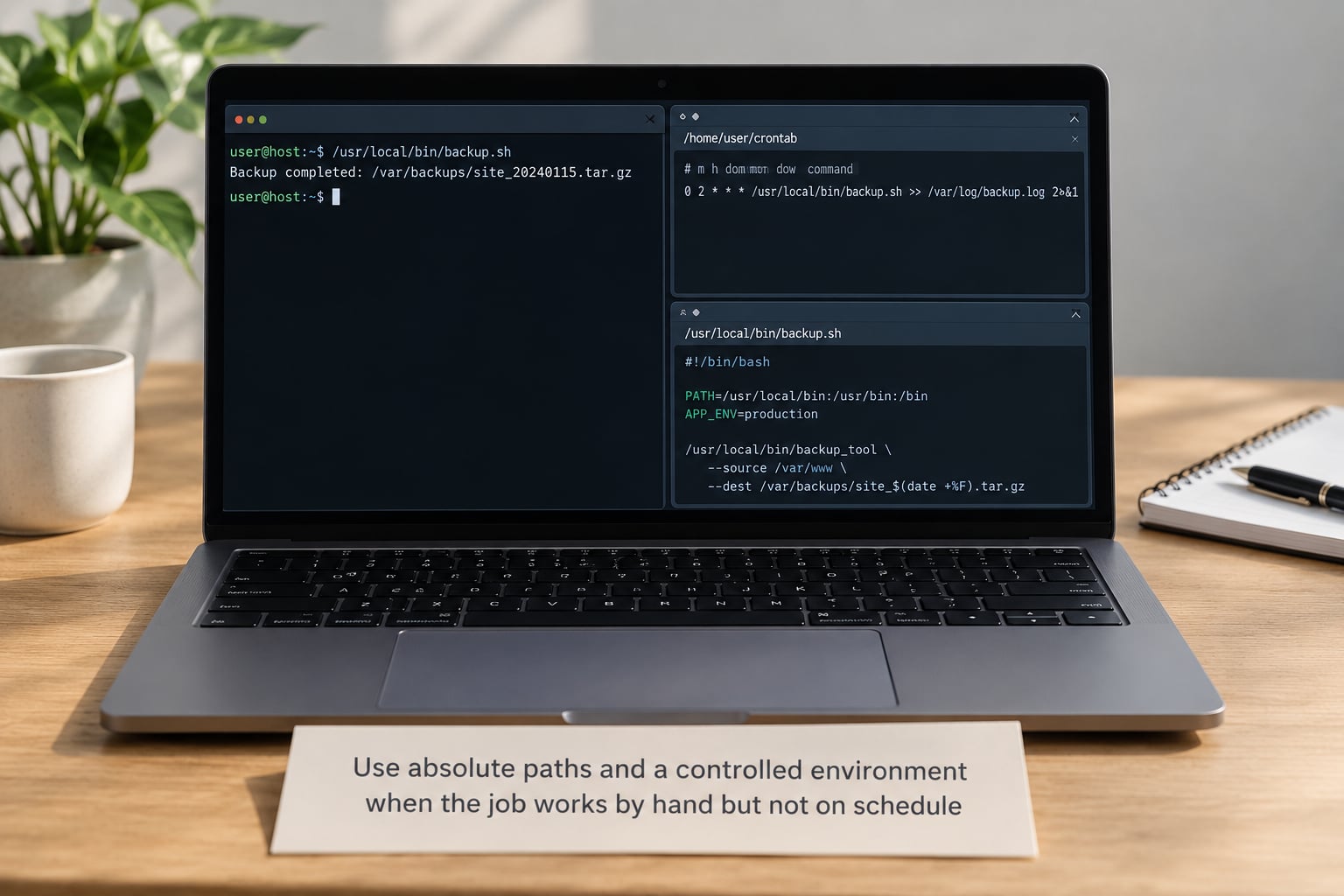
This is where most stalled investigations end. Cron runs your command with a near-empty environment: SHELL set to /bin/sh, HOME set to the user’s home, and a short PATH that usually does not include anything you installed under /usr/local or a version manager. Your terminal inherits all of that from your login session, which is why the same command works in one place and fails in the other.
Capture what cron actually sees by running a one-minute probe job that dumps the environment to a file.
* * * * * /usr/bin/env > /tmp/cron-env.txt 2>&1

# or set the environment explicitly inside the crontab
SHELL=/bin/bash
PATH=/usr/local/sbin:/usr/local/bin:/usr/sbin:/usr/bin:/sbin:/bin
MAILTO=""

* * * * * /usr/local/bin/backup.sh >> /var/log/cron.log 2>&1
Once you have /tmp/cron-env.txt, diff it against your interactive environment and the differences are your bug. Then replicate cron’s conditions locally so you can reproduce failures on demand.
env -i SHELL=/bin/sh
  PATH=/usr/local/sbin:/usr/local/bin:/usr/sbin:/usr/bin:/sbin:/bin
  HOME=/home/deploy
  /bin/sh -c '/usr/local/bin/backup.sh'
Three fixes solve most of these cases. Use the absolute path for the script and for every binary the script calls, including anything inside the script itself. Set PATH explicitly at the top of the crontab or inside a wrapper. And set the working directory, because cron starts in the user’s home directory rather than wherever you happened to be when you tested it, which is why a script writing backup.tar ends up in /home/deploy instead of /var/backups.
A wrapper script is the maintainable version of all three. It gives you one place to set the environment, one place to log, and one place to prevent overlapping runs.
#!/bin/bash
set -euo pipefail

export PATH="/usr/local/sbin:/usr/local/bin:/usr/sbin:/usr/bin:/sbin:/bin"
cd /var/backups

LOG=/var/log/backup-job.log
exec >>"${LOG}" 2>&1

echo "[$(date -Is)] starting backup"
logger -t backup-job "backup started"

# skip instead of queueing if the last run is still going
exec 9>/var/lock/backup.lock
flock -n 9 || { echo "already running, exiting"; exit 0; }

/usr/bin/tar -czf "backup-$(date +%F).tar.gz" /srv/data
echo "[$(date -Is)] backup complete"
Change the interpreter line if the box does not have bash, set the file mode with chmod +x, and you have a job that behaves the same whether a human or cron starts it. Wrapping this way also means the entry in your crontab is one short line, which makes the schedule easy to read months later.
5. Verify permissions and file execution
Permission failures produce different messages depending on where they hit: cron mails the job owner, systemd logs it, and a job with no output configured may show nothing at all.
# is the script executable by the owner of the crontab?
ls -l /usr/local/bin/backup.sh

# can that user execute it?
sudo -u deploy test -x /usr/local/bin/backup.sh && echo executable || echo not executable

# can it write where it writes?
sudo -u deploy test -w /var/backups && echo writable || echo not writable

# on SELinux systems, check the context
ls -Z /usr/local/bin/backup.sh
getenforce
sudo ausearch -m avc -ts recent | tail -20
Two details catch people out. Scripts in /etc/cron.d/ must be owned by root and must not be group or world writable, or cron refuses to run them and logs a permissions complaint. And a script invoked without a shebang, or invoked as sh script.sh when it is written for bash, fails in ways that look like syntax errors from a different program.
If your user is not allowed to use cron at all, crontab -e just exits without a useful message. Check /etc/cron.deny for a username, or an ALL entry in /etc/cron.allow.
6. Capture cron output and prove the job executed
Silent failure is the default. Cron writes stdout and stderr to the owning user’s mail, and on a server with no local mail daemon that mail goes nowhere. Redirect both streams to a log you control and the mystery ends.
* * * * * /usr/local/bin/backup.sh >> /var/log/cron.log 2>&1

# follow it live while you wait for the next run
tail -f /var/log/cron.log

# or send to syslog, where systemd already collects it
* * * * * /usr/local/bin/backup.sh | logger -t backup-job
Add a timestamped marker file when you need proof that the job started even if it produced no output, such as a report job that legitimately writes nothing.
* * * * * /usr/local/bin/backup.sh; date -Is > /var/lib/joblastrunThen check freshness rather than presence, because a stale file is worse than a missing one:
find /var/lib/joblastrun -mmin +30 -print
# exits 0 and prints nothing when the job ran within the last 30 minutes
Remember that a script whose output sits in a pipe is buffered. On the next run, add stdbuf -oL around the noisy command or use python -u style unbuffered flags if you need the log to fill in real time. Redirecting alone does not disable buffering inside the program.
7. Test the fix at the next scheduled run and document it
Do not sit through a 24-hour schedule to test a change. Add a temporary entry that fires every minute with the same wrapper and the same environment, confirm it succeeds, then delete it.
# temporary, remove after the test
* * * * * /usr/local/bin/backup-wrapper.sh >> /var/log/cron-test.log 2>&1

crontab -e   # delete the test line when done
Then write down four things while the details are fresh: the exact command, the exact schedule and timezone, where the output is logged, and how to roll the change back. Schedules are team knowledge held by one person, and a note in the runbook ends the next phone call.
For anything new you are building, consider a systemd timer instead of cron. You get structured logs through journalctl -u, exit codes, dependency ordering, and a catch-up mechanism after downtime that cron simply does not have.
# /etc/systemd/system/backup.service
[Unit]
Description=Nightly backup

[Service]
Type=oneshot
ExecStart=/usr/local/bin/backup-wrapper.sh

# /etc/systemd/system/backup.timer
[Unit]
Description=Run backup nightly

[Timer]
OnCalendar=*-*-* 02:00:00
Persistent=true

[Install]
WantedBy=timers.target
Run systemctl daemon-reload, then systemctl enable --now backup.timer, and check systemctl list-timers. Persistent=true is the part worth remembering: if the machine was off at 02:00, the timer runs the job on the next boot instead of skipping the day.
Common Mistakes
Most of these have a fixed fix once you recognise the symptom. The fastest way to identify yours is to match it against the list.
- Command not found, works in terminal. The cron PATH is minimal. Use absolute paths, set PATH explicitly at the top of the crontab, or export it inside a wrapper script.
- Script runs but writes to the wrong place. Cron starts in the user’s home directory. Add
cd /var/backupsat the top of the script rather than relying on where you tested it from. - Only the last crontab line is ignored. The file is missing its final newline. Add one and re-check with
tail -c1. - Weird behaviour when a date format is used. A percent sign is special in crontab. Write
date +%Hinstead ofdate +%H, or the line truncates and cron tries to run the tail as a command. - Nothing at all appears in the logs. Output went to mail that nobody reads. Add
>> /var/log/cron.log 2>&1to the command. - No CRON lines in syslog or journalctl. The schedule is malformed, the file is unreadable, the daemon is stopped, or the job lives in a different user’s crontab than the one you are reading.
- Works as root, fails as a user. Permissions, group membership, or SELinux context. Confirm with
ls -Zandsudo -u deploy test -x /path/to/script. - Runs longer than the gap between runs and piles up. Add a lock with
flock -nso the new run exits instead of stacking. - Log stays empty even after redirecting. Output buffering inside the program. Wrap the command with
stdbuf -oL. - Fails only on Sundays at 02:00 during a DST change. Cron follows local time, so that hour may not exist or may happen twice. Use a systemd timer with
OnCalendar, or move the job out of the transition window. - Ignored entry in
/etc/cron.d/. The file must be root-owned and not group or world writable, and the line must include the user field. - Jobs work on laptops and desktops only sometimes. A sleeping machine misses its slot. Use
anacron, which catches up after the machine is back on. - Everything broke after a restore or migration. Reinstalling the host can leave crontabs behind on disk while the daemon is disabled. Re-enable cron and re-save each crontab with
crontabso the runtime copy matches. This pattern shows up repeatedly on NAS platforms and containerised apps, where the schedule is stored in a database or config file rather than a plain crontab. - Job runs on every node at once. Several machines hold the same crontab. Add a leader check, or schedule the job on one host and let the others pull the result.
Two habits prevent most of the above. Run every new job once under env -i with cron’s environment before it goes into production, and log output from the first day rather than adding logging after the first silent failure.
Frequently Asked Questions
How do I check if a cron job is running?
Use systemctl status cron on Debian and Ubuntu or systemctl status crond on RHEL-family systems, then check the log for a CRON entry at the scheduled time with journalctl -u cron or grep CRON /var/log/syslog. If a CRON line appears at the right minute, the daemon fired the job and the failure is inside the command or script. If nothing appears, the schedule is not being parsed or you are reading the wrong user’s crontab.
Why does my cron job work manually but not on schedule?
Because cron does not load your login environment. It runs commands with a non-interactive shell, a short PATH, and your home directory as the working directory, so a command that relies on something in your profile or on a binary in a custom path fails silently. Fix it with absolute paths, an explicit PATH at the top of the crontab, an explicit cd to the working directory, and output redirected to a log with 2u0026gt;u0026amp;1.
How do I manually trigger a cron job?
Copy the command out of crontab -l and run it as the user that owns the crontab, using su – username -c ‘command’ or sudo -u username command. Add output redirection so you can see the result: sudo -u deploy /usr/local/bin/backup.sh u0026gt; /tmp/run.log 2u0026gt;u0026amp;1. Run it again with env -i and a minimal PATH if you want to reproduce cron’s environment rather than your own.
Why is cron not executing my script?
Check four things in order: the shebang line and the executable bit, absolute paths for the script and every binary it calls, the output redirected to a log so errors are visible, and the permissions of the user running the crontab. On SELinux systems also check the file context with ls -Z. Cron runs as the crontab owner, not as root, so anything readable by root alone will fail.
How do I see cron job logs?
Redirect the job’s output yourself by appending u0026gt;u0026gt; /var/log/cron.log 2u0026gt;u0026amp;1 to the command in the crontab, then read it with tail -f. Alternatively pipe the output to logger -t your-tag so it lands in the system journal and you can query it with journalctl -t your-tag. Cron’s own activity, separate from your job’s output, appears in journalctl -u cron or in the CRON lines of /var/log/syslog.
Why isn’t crontab working after I edit it?
Three causes cover most cases. The file may be missing its final newline, which makes cron ignore the last entry. Your user may be blocked by /etc/cron.deny or by an ALL entry in /etc/cron.allow, in which case crontab -e exits with no explanation. If the job lives in /etc/cron.d/, remember it needs a user field and the file must be owned by root and not group or world writable.
Conclusion
Start with the schedule and the daemon: confirm the job exists in the right crontab with crontab -l, confirm cron is running with systemctl status cron, and look for a CRON line in journalctl -u cron at the scheduled minute. That single check splits the problem in half.
If the daemon fired the job, run the same command by hand as the cron user with output captured, then compare environments using a one-minute env dump and an env -i reproduction. Add absolute paths, an explicit PATH, a working directory and a log file, wrap it in a script with set -euo pipefail and flock, and test with a temporary every-minute entry instead of waiting for tomorrow. If the schedule never fires at all, the crontab file itself is malformed, blocked, or owned by an account you did not check.