
APT is the native package manager of Debian and Ubuntu, and it installs .deb files from repositories built to match your exact release. Snap is Canonical’s self-updating format that works across distributions, and Flatpak is a community-run sandboxed format that ships apps through Flathub. Most Linux desktops end up using all three at once, and that is not a mistake.
So which one should you reach for? The honest answer depends on the software. For anything the distribution ships — a compiler, a browser, a server daemon — APT is the shortest path and the one your release was tested with. For a desktop app that lags behind your release or only exists for a commercial vendor, Flatpak from Flathub is usually the tidier option. Snap fills a similar gap on some apps, with automatic background refreshes that you control only partially.
I’ve installed the same handful of applications through each of the three systems more times than I can count, and the difference only becomes obvious at the edges: when a release upgrade breaks a library, when a Snap app restarts itself mid-session, or when a Flatpak asks for camera access. Below is how each system actually works, what it costs you, and where each one genuinely wins.
Table of Contents
- APT vs Snap vs Flatpak at a Glance
- What Are APT, Snap and Flatpak?
- APT is a package manager for .deb packages
- Snap is Canonical’s cross-distribution format
- Flatpak is a distribution-independent sandbox
- APT vs Snap vs Flatpak by the numbers
- How Installation and Updates Work
- Security: Which Format Has the Strongest Isolation?
- Updates, Control and Rollback
- App Availability and Distribution Compatibility
- Performance, Disk Usage and Offline Use
- Desktop and Server Tradeoffs
- Which Should You Choose?
- Frequently Asked Questions
- Is APT obsolete compared with Snap and Flatpak?
- Do Snap or Flatpak replace APT on Ubuntu?
- Is Snap or Flatpak more secure than APT?
- Which package format uses the least disk space?
- How do I install packages with APT, Snap and Flatpak on Ubuntu?
- What to Do First
APT vs Snap vs Flatpak at a Glance
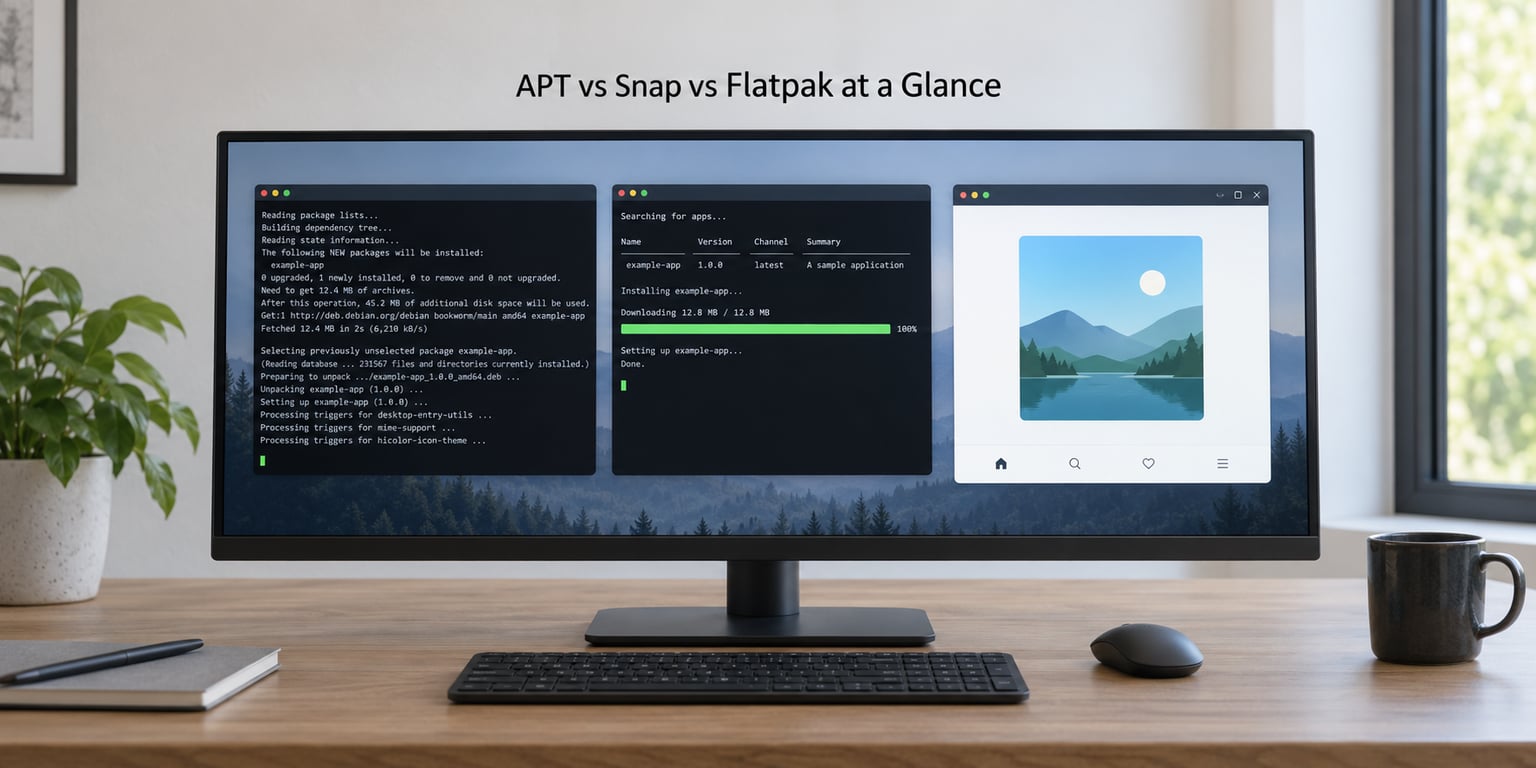
| Criterion | APT (.deb) | Snap | Flatpak |
|---|---|---|---|
| Package source | Distribution repositories, plus PPAs or vendor APT repositories | Snap Store, operated by Canonical | Flathub and other configured remotes |
| Distribution scope | One distribution, usually one release series | Most major desktop distributions | Nearly any distribution with Flatpak installed |
| Security model | GPG-signed packages, full system privileges | Signed packages plus confinement and seccomp filters | Signed packages plus a bubblewrap sandbox and portals |
| Who updates apps | Your distribution, when you run an upgrade | The Snap Store daemon, usually on its own schedule | You, unless the desktop client or updates service runs |
| Disk footprint | Smallest, libraries shared across every package | Larger, most dependencies bundled per snap | Medium, shared runtimes cut duplication |
| Network required | Yes for install and upgrade, no after | Yes, including automatic refreshes | Yes for first install, optional after |
| Offline installation | Download .deb files with dependencies ahead of time | Possible, but the store is normally involved | Good, install from a local .flatpak file |
| Desktop integration | Native menus, themes, codecs and drivers | Through declared interfaces | Through portals, with some rough edges |
| Server and container suitability | Best fit | Poor fit for daemons | Poor fit, overhead rarely pays off |
| Best for | System tools, libraries, servers | Users who want automatic updates | Desktop users who value isolation |
What Are APT, Snap and Flatpak?
Here is the distinction most tutorials skip. A package format is a file format, a package manager is the tool that installs it, and a store or repository is where the files come from. The three systems differ at all three layers, which is why they can sit on the same machine without colliding.
APT is a package manager for .deb packages
A .deb file is an archive containing the program, a manifest of file paths, and a dependency list. APT is the tool that downloads those files from your distribution’s repositories, checks the dependency list, and installs everything in the right order. Underneath it sits dpkg, which does the actual unpacking.
That gives you three commands people constantly mix up. dpkg -i installs one local file and refuses to fix missing dependencies. apt-get is the original scripting-friendly interface, with stable output and no progress bars. apt is the human-facing version with colour and warnings, and it has largely replaced apt-get in documentation and by habit.
Repositories are the reason APT feels safe and also the reason it can surprise you. Every package in them was tested against the other packages in the same repository, so the mix works as a set. Add enough third-party repositories and a distribution upgrade can break your system in ways that are tedious to untangle.
Snap is Canonical’s cross-distribution format
A snap is a read-only squashfs image containing the application and, in most cases, every library it needs. The snapd daemon on your system installs, refreshes and starts them. Packages are built with Snapcraft and distributed through the Snap Store.
Two pieces of Snap vocabulary trip up newcomers. The base snap is a minimal userland such as core22 that snaps build on, the way a virtual machine image underpins a container. The snap itself is the application package. Snap also applies confinement, restricting what an app can reach, along with seccomp filtering and AppArmor rules.
Flatpak is a distribution-independent sandbox
Flatpak packages contain the application code but not the base system libraries. Those live in a shared runtime — freedesktop, GNOME or KDE — installed once and reused by every app that needs it. Flathub is the community repository and the closest thing the Linux desktop has to a universal app store.
Sandboxing comes from bubblewrap, which builds a namespace around the app using kernel features such as unprivileged user namespaces. Access to the camera, screen, files or removable media goes through portals, small brokered interfaces rather than raw device access. Flatpak can also pull remotes from any server you add, so a vendor can distribute directly instead of going through a central store.
APT vs Snap vs Flatpak by the numbers
Numbers in this space are heavily dependent on the app, the release and the hardware, so treat these as orders of magnitude rather than benchmarks. Startup cost for a native .deb is near zero because the libraries are already mapped into memory. A Snap usually mounts its squashfs and starts a confined process, adding tens to a few hundred milliseconds. A Flatpak mounts the runtime and enters a namespace, costing something similar and occasionally more when the runtime is cold.
Duplicate runtime storage is where the formats separate most clearly. APT shares one copy of each library across the whole system. Snap bundles dependencies per package, so ten snaps can carry ten copies of a C library. Flatpak shares runtimes across apps built against the same runtime version, which is a middle ground that degrades as more runtime versions accumulate.
| Measure | APT | Snap | Flatpak |
|---|---|---|---|
| Startup overhead per app | Minimal | Noticeable on older hardware | Noticeable, varies by app |
| Duplicated library storage | None by design | Common | Per runtime version |
| Background update behaviour | None unless configured | Automatic refresh on a schedule | None unless an update service runs |
| Privilege boundary | Full root access as installed | Confinement with declared interfaces | Namespace sandbox with portals |
| Rollback support | Downgrade from repository versions | Channel pinning and revert | Previous commit install |
| Depends on a repository being reachable | Yes, for new installs | Yes, for refreshes | Only when you update |
How Installation and Updates Work
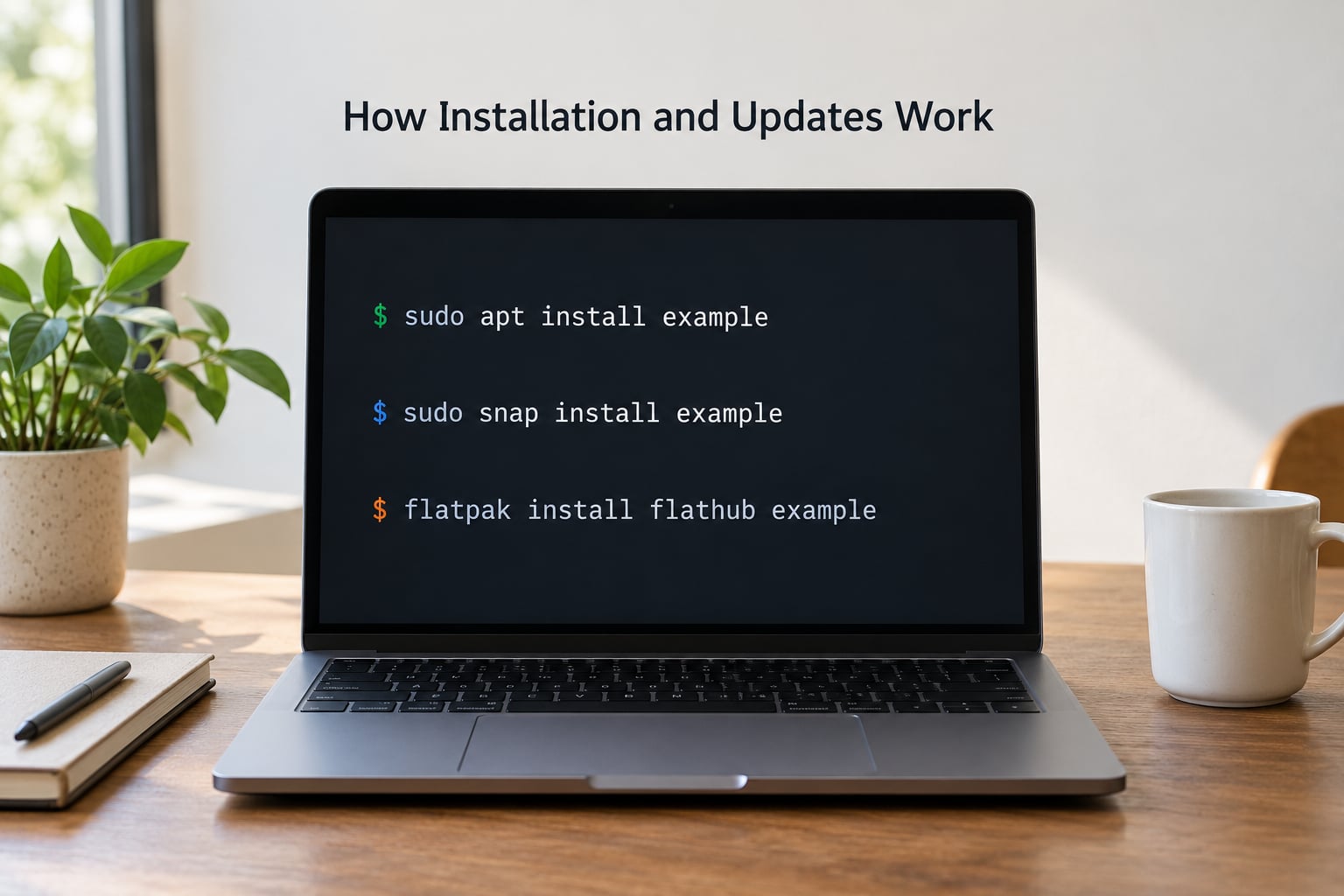
All three install with one command, and all three remove with one command. The differences show up in what happens after installation, not in the act itself. These examples assume a current Ubuntu or Debian system; command names and repository handling shift a little between releases, so check your release notes if a snippet errors.
# APT: refresh the package lists, then install
sudo apt update
sudo apt install vlc
sudo apt upgrade

# Snap: install from the store, refresh everything, remove
sudo snap install vlc
sudo snap refresh --all
sudo snap remove vlc
# Flatpak: add Flathub once, then install, update and remove
flatpak remote-add --if-not-exists flathub https://dl.flathub.org/repo/flathub.flatpakrepo
flatpak install flathub org.videolan.VLC
flatpak update
flatpak uninstall org.videolan.VLCTo see what a Flatpak is actually allowed to do, ask it directly rather than guessing from the prompt you saw:
flatpak permission-show
flatpak info --show-permissions org.mozilla.firefox
flatpak list --columns=application,size
On Ubuntu, the App Center shipped in recent releases presents Snap packages by default, which has surprised a lot of people who searched for an application and did not find it. The .deb and Flathub options are still there; installing the gnome-software-plugin-flatpak package restores the Flatpak entries in most desktop environments.
Availability also depends on the distribution, which is why advice copied from Ubuntu often fails elsewhere:
| Distribution | APT or equivalent | Snap | Flatpak |
|---|---|---|---|
| Ubuntu | Default, primary | Preinstalled | Available, needs adding |
| Debian | Default, primary | Available as a package | Available as a package |
| Linux Mint | Default, primary | Blocked by default, can be enabled | Preinstalled and integrated |
| Fedora | No, uses dnf | Available as a package | Enabled by default |
| Arch and Manjaro | No, uses pacman | Available as a package | Available as a package |
Security: Which Format Has the Strongest Isolation?
Flatpak has the strongest isolation by design, and Snap sits between it and APT. APT’s protection is signing: repository packages are GPG-signed, so you know they came from your distribution, but once installed a program runs with the privileges of the installing user and can touch most of the system.
Snap adds confinement on top of signing. Each snap declares interfaces such as network, home or removable-media, and the ones it requests become visible in Snap Store listings. A snap that asks for the system-observe interface deserves a pause.
Flatpak isolates through namespaces rather than an allowlist of capabilities. The app cannot see the rest of your filesystem unless it asks a portal, and portals broker one narrow action at a time. That is a real boundary, but not a magical one: sandbox escapes in the underlying kernel primitives have been found before, and a vulnerable runtime affects every app built against it until it is patched.
Sandboxing also costs convenience. A confined app may struggle with external drives, proprietary codecs, system themes or drivers that live outside the sandbox. Plenty of people conclude that a signed APT package from a trusted repository is a better security trade than a sandboxed app that cannot see your hardware. Neither model removes the need to keep updating.
Updates, Control and Rollback
This is where the formats diverge most sharply in daily use. APT updates when you tell it to, and what it does is scoped: sudo apt upgrade touches packages you installed, while sudo apt full-upgrade also removes packages that conflict. You can pin a version in /etc/apt/preferences.d/ or hold a package with apt-mark hold.
Snap updates whether you ask or not. The snapd daemon refreshes automatically, with changes staged over a deferral window so a restart applies them rather than pulling the rug mid-task. You can stop a specific snap updating, or all of them:
snap refresh --hold=forever vlc
snap refresh --time=10:00 vlc
snap set system refresh.hold=true
Rollback is straightforward too. Every refresh keeps the previous revision, and snap revert vlc puts it back, which is the single most useful Snap command on a machine where something regressed.
Flatpak sits between the two. Nothing updates unless you run flatpak update or a desktop update service does it for you, so updates are opt-in by default. Previous commits remain available, and you can install a specific one with flatpak install --reinstall flathub app//version. A long-lived machine that you update rarely will drift behind on security fixes, so schedule it rather than ignoring it.
flatpak update
flatpak update --app org.mozilla.firefox
flatpak list --updates
flatpak uninstall --unused
For servers and managed fleets, the pattern that scales is the APT one. Updates happen in a window you schedule, on machines you control, with pinning when a rollback matters. Snap’s convenience makes sense on a personal desktop and turns into an audit problem on forty servers.
App Availability and Distribution Compatibility
APT offers the deepest native integration because it is the format the distribution itself is built from. The cost is a strict release boundary: a .deb built for one release often refuses to install on another, so the version you want may simply not exist for your release yet or may have been dropped.
Snap removes that boundary by shipping one build per base snap that runs on many distributions. The catch is store dependence. A Snap exists only if its publisher uploaded one, and listings vary by channel and region, so the same application name can produce different results on different machines.
Flatpak spreads its risk differently. Apps are built against a shared runtime rather than a distribution, so Flathub can serve one build to nearly any desktop. Vendors can also push their own remote, which is how some software ships outside both major stores. The trade-off is that Flathub is community-curated, so quality and signing practice vary by publisher.
The practical result: if an application matters to you and only exists in one of these formats, that is a strong enough reason to install the tooling for it, rather than a sign you picked the wrong format.
Performance, Disk Usage and Offline Use
APT is the cheapest on disk and the fastest to start, because libraries are shared across the whole system and already in the page cache. If you are on a small SSD, a 4 GB RAM laptop or a machine with limited bandwidth, native packages leave the most headroom.
Snap spends disk to buy independence. Each snap carries its own dependencies, so the store can serve a self-contained package to any distribution. Expect noticeably larger downloads than a .deb for the same application, and a first launch that is slower while the squashfs is mounted and the app’s caches fill. Later launches are usually better once the cache is warm.
Flatpak spends disk on shared runtimes instead. Ten apps built against the same runtime share it once, which is why Flatpak usually beats Snap on total footprint for a given app set. The catch is that a new runtime version is a full extra copy, and outdated runtimes linger until you remove unused data with flatpak uninstall --unused.
Offline work needs one clarification per format. A .deb can be downloaded with dependencies on a connected machine and copied across. A snap can be downloaded with snap download and installed from the file. A Flatpak is installed from a local file with flatpak install --bundle, and its runtime must already be present or bundled alongside. Air-gapped machines are workable in all three, but only if you plan the transfer.
Desktop and Server Tradeoffs
Native APT packages sit inside your desktop. They use your themes, honour your icon settings, find your codecs, load your kernel modules and appear in your menu exactly as the distribution intended. That invisible integration is the hardest thing for a sandboxed format to replicate, and it is the reason .deb apps usually feel more at home on the desktop.
Snap apps integrate through declared interfaces, which is why some hardware access works and other things need a workaround. Flatpak uses portals, which produce better prompts and a cleaner permission story, but occasionally a blocked port makes an app feel second-rate. Both formats also fight duplicate menu entries when you have the same application installed twice, once natively and once sandboxed. Pick one per app.
Servers and containers want the opposite profile. A daemon needs to bind to low ports, manage system units, read configuration outside its own directory and start at boot. APT installs into the filesystem where systemd expects it. Snap confinement and Flatpak’s namespace add nothing a web server needs, and both make a minimal container image larger for no operational gain. Use APT on servers.
Which Should You Choose?
Choose APT when you are installing compilers, drivers, kernels, system utilities, servers or anything else the distribution ships. It is tested as part of a set, it is the smallest on disk, and it is the format that survives a release upgrade cleanly.
Choose Flatpak when you want a current version of a desktop application without waiting for your release, or when you want an untrusted application to run with limited reach into your files. Flathub is large enough that most people find what they need there first.
Choose Snap when the specific application you need ships as a Snap, or when automatic background refreshes appeal to you and you are comfortable holding a specific version when one breaks.
A mixed policy is completely normal and usually right:
- System components, libraries and server software through APT.
- Desktop applications through Flathub when the native version lags behind.
- Snap selectively, for applications only published there, with refresh holds where stability matters.
- One format per application, never two, to avoid duplicate menu entries and split settings.
If you decide you want less of one format, the opt-out is straightforward. Hold or disable automatic refreshes, stop the daemon after, and remove the packages. Removing the snapd service on Ubuntu is more involved than the commands suggest, so check what depends on it first. Nothing here requires you to uninstall a whole format.
Frequently Asked Questions
Is APT obsolete compared with Snap and Flatpak?
No. APT is the native package manager of Debian and Ubuntu and remains the only sensible way to install system components, drivers, compilers and servers. Snap and Flatpak were built for desktop applications, not to replace the distribution’s own tooling. The practical result is that all three coexist on most desktops in 2026, and none of them is going away.
Do Snap or Flatpak replace APT on Ubuntu?
They do not, and they are not trying to. APT handles everything the distribution ships, including the kernel, the init system and libraries that sandboxed apps themselves depend on. Snap and Flatpak add an alternative channel for desktop applications that need newer versions or come from a commercial publisher. Think of them as a second path for apps, not a replacement for the base system.
Is Snap or Flatpak more secure than APT?
Flatpak has the strongest isolation, Snap is in the middle, and APT relies on package signing plus system permissions. Flatpak isolates apps in namespaces and brokers sensitive access through portals, while Snap applies confinement and interface rules. APT packages are signed and verified, but run with broad user privileges. Sandboxing is a real gain, not a guarantee, and none of the three removes the need to patch regularly.
Which package format uses the least disk space?
APT uses the least, almost always, because every package shares one copy of each system library. Snap uses more, since most snaps bundle their own dependencies per application. Flatpak falls in between because apps share a common runtime, though every extra runtime version adds a full copy. On a small SSD, choose native packages whenever they exist.
How do I install packages with APT, Snap and Flatpak on Ubuntu?
All three are ready to use on a current Ubuntu install. Update your package lists and install with sudo apt install. Install Snap with sudo snap install followed by the app name. For Flatpak, add Flathub once with flatpak remote-add –if-not-exists flathub, then run flatpak install flathub followed by the app identifier. Update with apt upgrade, snap refresh –all and flatpak update.
What to Do First
Leave APT in charge of your operating system. It already is, and nothing about Snap or Flatpak changes that.
For desktop applications, add Flathub and check there before reaching for a Snap. You will usually find a current version, sandboxed and isolated from the rest of your system. If an application only exists as a Snap, install it that way, then hold the refresh on anything you depend on day to day.
Run one application through one format at a time, check flatpak uninstall --unused every few months, and stop thinking about it. The formats only conflict when you install the same app twice.