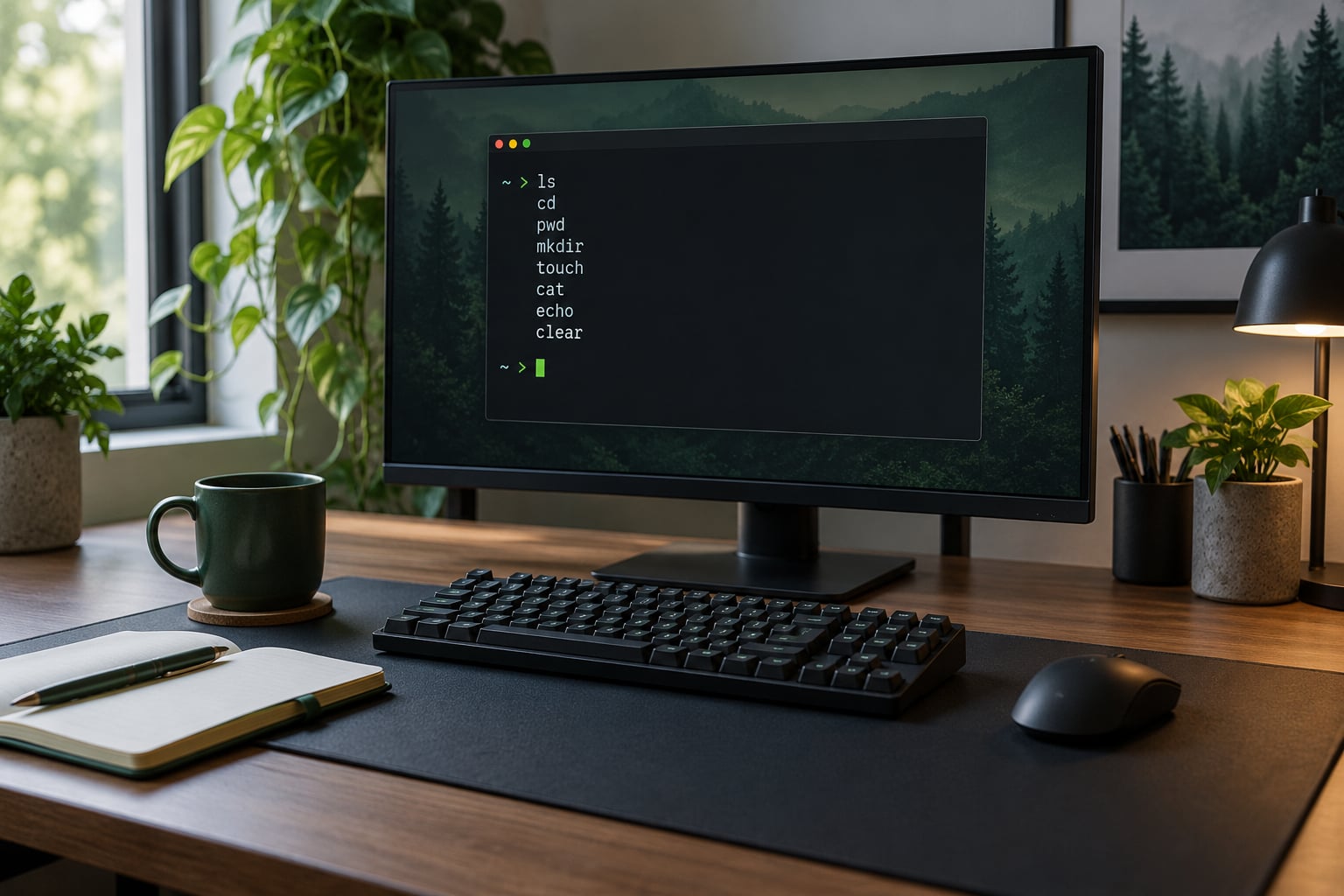
A shell alias is a shortcut that stands in for a longer command. You create one with alias name='command' and make it permanent by adding it to your shell’s startup file, usually ~/.bashrc or ~/.zshrc. The shell rewrites the alias into the real command before running it, so ll becomes ls -alh.
That rewriting only happens in interactive shells. It is why an alias works fine at your prompt and then vanishes inside a script, a Makefile, a cron job or an ssh host 'command'. Once you know where the boundary sits, shell aliases that save time are almost free to add and trivial to undo.
What follows is the twelve I would keep. I favour short names, because the whole point is to stop typing, and I favour one alias per habit rather than a stack of overlapping helpers. Add them a few at a time and keep the ones you actually reach for.
Table of Contents
- Shell Aliases That Save Time at a Glance
- 1. List Directory Contents with Details Using ll
- Why a copied ll line breaks on macOS
- 2. Include Dotfiles with la
- 3. List Files by Modification Time with lt
- 4. Move Up Several Directories with ..
- 5. Return to the Previous Working Directory with cw
- 6. Check Git Status with gs
- 7. View the Current Branch with gb
- 8. Review Local Git Changes with gd
- 9. Copy a Git Commit Hash with gh
- 10. Check Docker Containers with dps
- 11. Rebuild a Docker Compose Service with dcu
- 12. Search Command History with hq
- Where shell aliases that save time stop working
- Frequently Asked Questions
- Where should I put shell aliases that save time?
- Are aliases the same as shell functions?
- Why does my alias not work in a non-interactive shell?
- How can I make the same aliases work in Bash and Zsh?
- Should I use aliases in scripts?
- How do I temporarily disable or inspect an alias?
- Conclusion
Shell Aliases That Save Time at a Glance
The table lists each alias, what it is for, what it expands to and where it behaves as written. Check the last column before you paste a line into a shared dotfiles file, because macOS ships BSD userland tools and some of the GNU flags simply do not exist there.
| Alias | What it does | Expands to | Works as written on |
|---|---|---|---|
ll | Long listing with sizes and types | ls -alh | GNU/Linux; on macOS use ls -alhG |
la | Everything, including dotfiles | ls -alhA | GNU/Linux and BSD |
lt | Sorted by modification time | ls -alhtr | GNU/Linux and BSD |
.. | Up one directory | cd .. | bash, zsh, fish with alias |
cw | Back to the previous directory | cd - | bash, zsh, fish |
gs | Compact Git status | git status -sb | Any Git version |
gb | Current branch name | git branch --show-current | Git 2.22 and newer |
gd | Unstaged changes | git diff | Any Git version |
gh | Copies the HEAD hash to the clipboard | git rev-parse HEAD | ... | Needs xclip or pbcopy |
dps | Running containers | docker ps | Any host with the Docker CLI |
dcu | Rebuild and start one Compose service | docker compose up -d --build | Compose v2 |
hq | Filter command history | history | grep -i | bash and zsh; output differs |
1. List Directory Contents with Details Using ll
Typing ls -alh by hand every time is pure friction. ll replaces it with two characters and gives you the same output.
alias ll='ls -alh'That saves about nine keystrokes per call, and you will call it twenty times a day without thinking. Where the behaviour differs is in the flags, not the alias.
Why a copied ll line breaks on macOS
macOS ships BSD ls, which has no --color=auto and no human-readable -h on older releases, and its default profile already defines ll and la. Plenty of published dotfiles use flags that simply do not exist there, which is the first reason a pasted line ends in illegal option. Guard it instead of assuming:
if [ "${OSTYPE:0:6}" = "darwin" ]; then
  alias ll='ls -alhG'
else
  alias ll='ls -alh --color=auto'
fi
Run type ll before you define it. If your shell already ships one, yours is the better default and you can skip this entry entirely.
2. Include Dotfiles with la
ls hides entries that start with a dot, which is exactly where .env, .git and .config live. la shows everything, and you reach for it every time you are poking at a config directory.
alias la='ls -alhA'The -A flag is the one to notice. It prints dotfiles except . and .., which keeps the listing readable while still surfacing hidden entries.
Pair it with ll and the difference between the two aliases becomes muscle memory: ll for skimming, la when hidden files are the point.
3. List Files by Modification Time with lt
When something broke twenty minutes ago, the file you want is almost always the newest one. lt sorts by modification time, oldest first, so the changed file lands at the bottom of the list.
alias lt='ls -alhtr'It saves roughly ten keystrokes and a slow mental scan. For anything recursive, though, reach past ls entirely:
find . -type f -mmin -30 -not -path '*/.git/*'ls does not recurse, so lt stays a shallow tool. Use find when the file is somewhere below the current directory.
4. Move Up Several Directories with ..
Climbing out of a deep tree usually means typing cd ../../.. and miscounting the dots. .. does one level with two keystrokes.
alias ..='cd ..'People also try ... and .... for two and three levels. It feels clever and then it bites you in a project where the depth is not what you assumed. Keep it fixed at one level and let cd ../.. handle the rest.
One line, no arguments, no surprises. It is the alias I would add first if I only added one.
5. Return to the Previous Working Directory with cw
Bash and zsh already remember where you were: cd - jumps back to the previous directory. cw makes that memorable and adds nothing to the shell’s state.
alias cw='cd -'Picture two working directories you swap between all day, say ~/src/api and ~/src/api/tests. cw moves you between them in three keystrokes, and it prints the destination so you always know where you landed.
Because it is a thin wrapper over cd -, there is no new directory variable to manage or unset. That is the argument for keeping navigation aliases as aliases and nothing more elaborate.
6. Check Git Status with gs
git status is fifteen characters plus a subcommand that breaks your fingers, and it is the single most repeated command in most repositories. gs is the highest-value alias on this list.
alias gs='git status -sb'The -s flag is --short: one line per change, staged and unstaged in separate columns, so a ten-file diff reads as ten short rows instead of a scrolling block. The -b flag adds the current branch at the top.
If you want the changes and the branch in a single call, add a second one rather than lengthening this alias:
alias gst='git status -sb && git branch --show-current'Short aliases also keep the flag order readable. A long one becomes a puzzle every time you come back to it after lunch.
7. View the Current Branch with gb
The branch name turns up in scripts, prompts and copy-pasted commands. gb prints it and nothing else, which makes it easy to read in a pipeline.
alias gb='git branch --show-current'--show-current arrived in Git 2.22, so on older installs fall back to the piped form:
alias gb='git branch --list | grep "^*" | cut -d" " -f2'Use it at the prompt, but do not build it into a script. Aliases are not expanded there, and even if you force expansion the piped version depends on output formatting that Git has changed before and may change again. Scripts should call git branch --show-current directly.
8. Review Local Git Changes with gd
Reviewing a diff before committing happens dozens of times a session, and retyping git diff plus flags each time is the exact habit aliases are meant to kill.
alias gd='git diff'
alias gds='git diff --staged'
The split matters more than it looks. gd shows what is unstaged, the edits you have made but not staged. gds shows what is staged, the edits queued for the next commit. Two separate reviews, two separate mental states, and mixing them up is how a half-finished change ships.
For a compact summary before staging anything, git status -sb via gs gives you the same picture in one line per file.
9. Copy a Git Commit Hash with gh
Pasting a commit hash into a ticket or a chat window means selecting 40 characters with the mouse every single time. An alias can put it on the clipboard instead.
if [ "${OSTYPE:0:6}" = "darwin" ]; then
  alias gh='git rev-parse HEAD | tr -d "n" | pbcopy'
else
  alias gh='git rev-parse HEAD | tr -d "n" | xclip -selection clipboard'
fi
The clipboard command is the whole difference between platforms: macOS has pbcopy, Linux needs xclip or xsel installed. tr -d "n" strips the trailing newline that git rev-parse adds, so pasting into a form does not carry a stray return.
One warning before you add it: gh is also the GitHub CLI command. If that tool is installed, your alias shadows it and every script that calls gh pr list quietly breaks. Run type -a gh first, and if you see a real binary, name it gch instead.
Keep it interactive. In an automated context, write the command out rather than relying on an alias and a clipboard that nobody is watching.
10. Check Docker Containers with dps
docker ps shows running containers with their ports and status, which is the first thing you want after any restart or rebuild.
alias dps='docker ps'
alias dpsa='docker ps -a'
dps covers live containers. dpsa adds stopped ones, and stopped containers are usually where the interesting exit codes are. A -a alias costs nothing and saves a second command every time you debug a container that exited overnight.
Two prerequisites: the Docker CLI on your PATH, and permission to talk to the daemon. If docker ps returns a permission error for a non-root user, the fix belongs in the Docker group membership or the socket permission on the daemon, not in the alias.
11. Rebuild a Docker Compose Service with dcu
Rebuilding one Compose service after a Dockerfile or dependency change means a long command with several flags, typed in the project directory every time. Two aliases cover most of it.
alias dcu='docker compose up -d --build'
alias dcd='docker compose down'
--build forces Compose to rebuild the image rather than reuse a cached layer, and -d detaches so the command returns instead of streaming logs. Append the service name when you only want one container, for example dcu api, because extra arguments pass through to the underlying command.
Run it from the directory holding the Compose file. Compose searches upward from your current directory for compose.yaml or docker-compose.yml, so from the wrong place it either fails or quietly operates on a different project. If your machine still runs Compose v1, the older docker-compose binary takes the same flags with a hyphen.
12. Search Command History with hq
You know you ran it, you cannot remember the exact syntax, and scrolling with the arrow keys is slower than asking history. hq filters it for you.
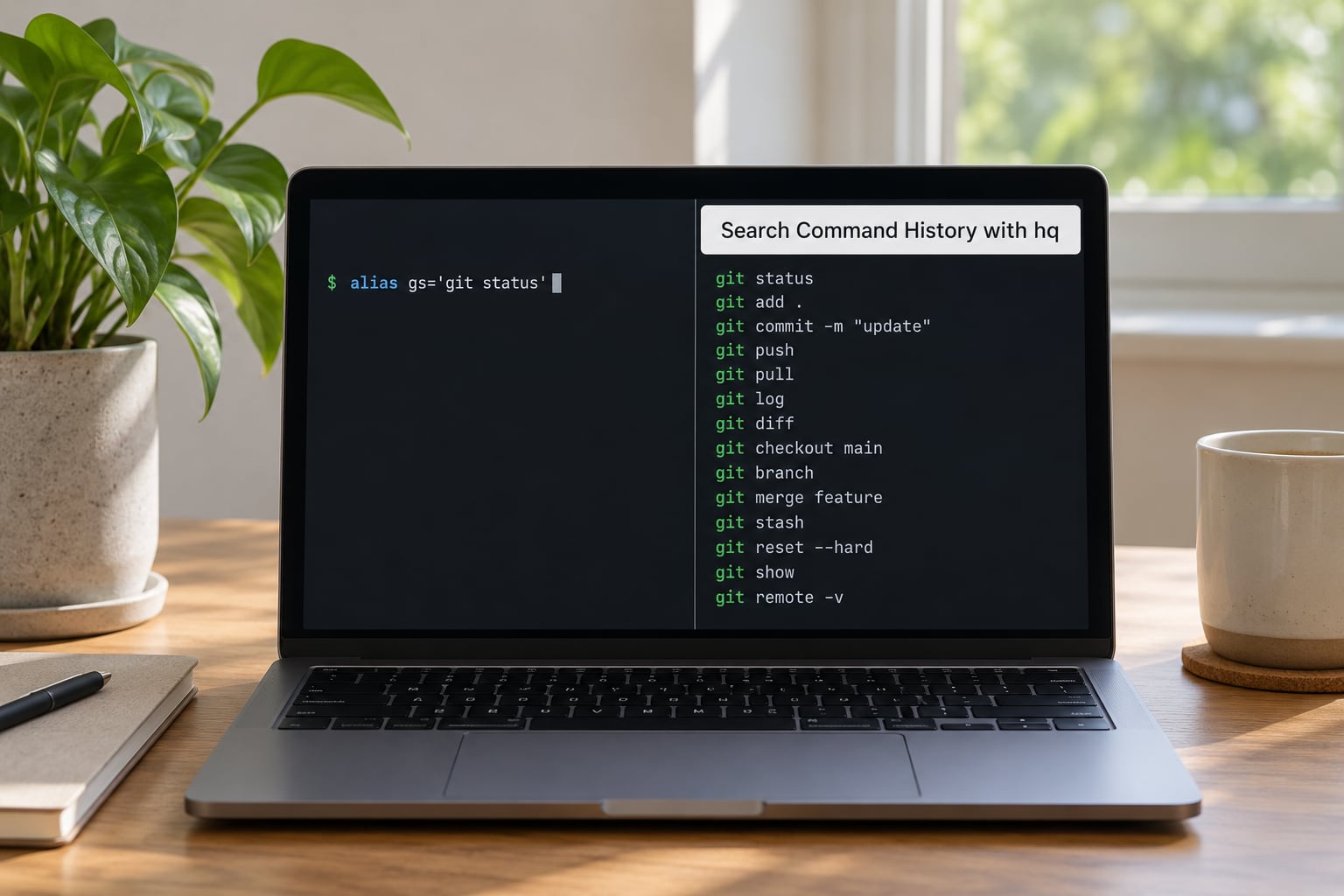
alias hq='history | grep -i'You type hq compose and get every Compose command you have run in this session. Append flags to narrow further, for example hq git log. The fallback is plain history | grep -i compose, which works even where the alias does not, and it is the version to use inside scripts.
History output is not identical across shells. Bash numbers each entry and includes the timestamp, so a grep on the number gives different results than a grep on the text. Zsh shares one history across open tabs and can be configured to include timestamps on every line, which changes what a pattern matches. Filters that work on your laptop can return nothing on a server, so grep for the command text rather than the entry number.
Where shell aliases that save time stop working
Aliases are expanded by the shell when it reads your prompt, and only in an interactive session. A #!/bin/bash script, a Makefile recipe, a cron job, a CI runner step and ssh host 'git status' all read commands in non-interactive mode, where your .bashrc is not even sourced. The alias silently turns into “command not found” or, worse, into the real command with your flags missing.
Adding shopt -s expand_aliases at the top of a script does turn expansion on, and it is the fix people reach for. Be careful with it: expansion then happens before quoting is applied, so an alias that wraps a variable in quotes can split its arguments in ways that are tedious to debug. Where a command has to work everywhere, write it out, or put the logic in a function and call the function by name.
Most people hit this once, lose an afternoon to it, and go back to typing the full command inside scripts. That is not a failure of the alias; it is the alias doing exactly what it was designed to do, which is save your time at the prompt.
Frequently Asked Questions
Where should I put shell aliases that save time?
Put them in your shell’s interactive startup file: ~/.bashrc for bash, ~/.zshrc for zsh, ~/.config/fish/config.fish for fish, or ~/.cshrc for csh and tcsh. Run source ~/.bashrc afterwards to load them without reopening the terminal. On macOS, bash also reads ~/.bash_profile for login shells, so a line added only there may be missing from a new Terminal window.
Are aliases the same as shell functions?
No. An alias is a plain text substitution: the shell swaps the name for the command string and then parses the result. A shell function is a named block of commands with its own arguments, so it can contain logic, loops and conditionals. Use an alias for a shorthand with fixed flags, and a function when you need parameters, branching, or a name containing spaces.
Why does my alias not work in a non-interactive shell?
Aliases are only expanded when an interactive shell reads your prompt. Scripts, Makefile recipes, cron jobs, CI steps and ssh host ‘command’ all run non-interactively, and most of them never source your startup file at all. Write the full command in those places, or move the logic into a shell function, which is defined by the shell itself rather than by alias expansion.
How can I make the same aliases work in Bash and Zsh?
Keep them in a separate file, for example ~/.aliases, and source it from both startup files with an if [ -f ~/.aliases ]; then . ~/.aliases; fi line. Edit that one file and both shells pick up the change after you reload. Version it in a dotfiles repository and symlink it on each machine, so a new laptop is a clone away.
Should I use aliases in scripts?
Generally no. Aliases do not exist in the non-interactive contexts where scripts run, so they add a dependency you cannot rely on. If you must expand them, shopt -s expand_aliases works but applies expansion before quoting, which can split arguments unexpectedly. Full commands or shell functions are more predictable in anything you intend other people to run.
How do I temporarily disable or inspect an alias?
Run type name to see whether a name is an alias, a function or a real binary, and use command -v name for a quick existence check. To disable one for the current session, run unalias name; that removes it until your next shell. To get the original command back for one use, prefix it with a backslash, for example ls -alh.
Conclusion
Start with four: .., ll, gs and dps. Add them to the startup file for the shell you actually use, run type on each one to confirm there is no clash, and reload with source ~/.bashrc or source ~/.zshrc.
Use them for a week, then read your history and keep only the ones you reached for. Most people end up with fewer than a dozen, which is exactly the point. The rest of the twelve are there when you feel the repetition, and removing one later is a single unalias away.