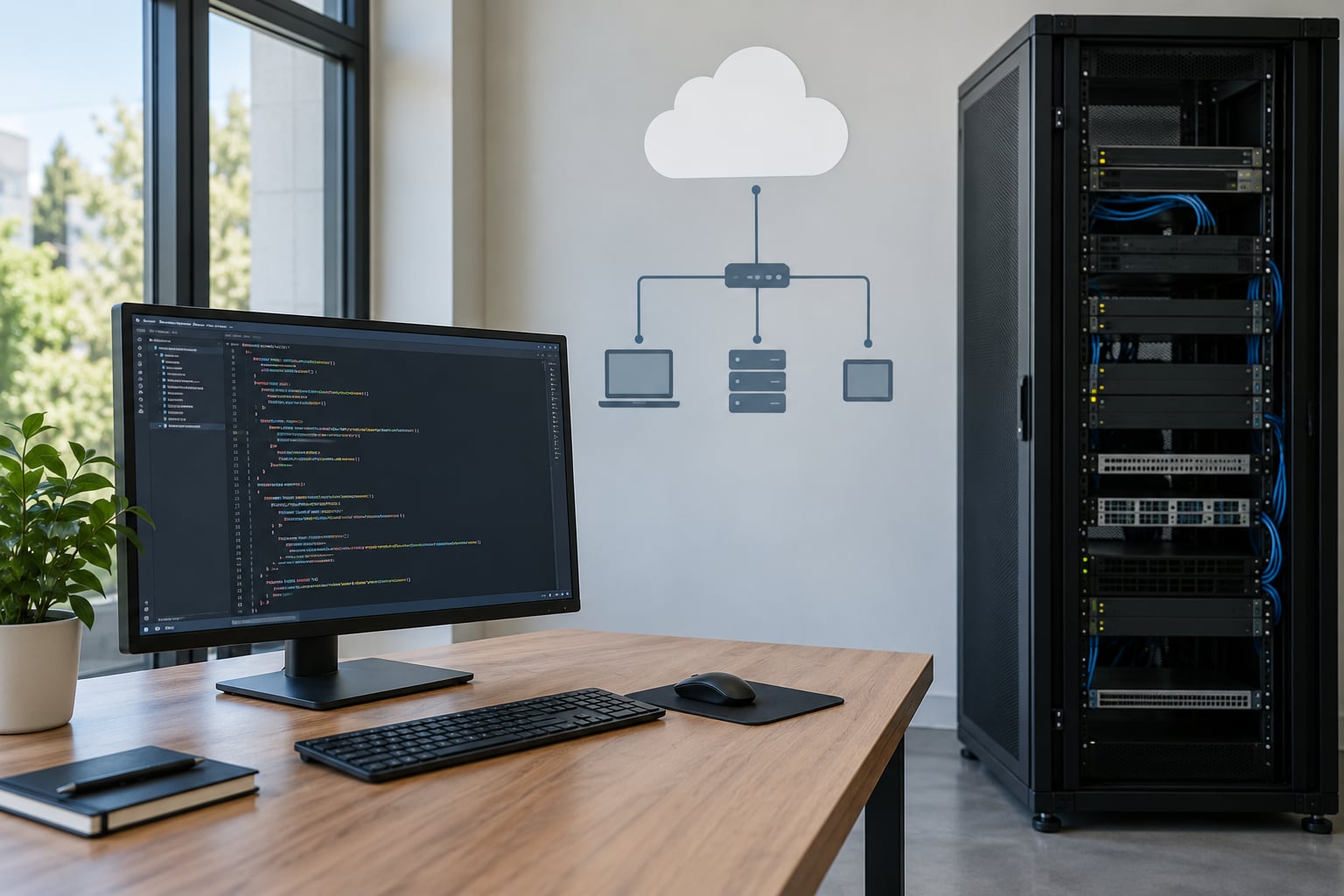
To use VS Code Remote Development, install the Remote Development extension pack, pick the connection type that matches your target (SSH server, dev container, WSL distribution, or Codespace), then connect and open a folder on that remote machine. VS Code puts a small server on the far end and runs your editor UI locally while your code, terminal, extensions and debugger run remotely.
Set aside about 15 minutes for the first connection, mostly spent waiting on downloads. Nothing destructive happens on the remote box, but it is worth knowing what actually gets installed there before you point this at a production server.
Table of Contents
- What You Need
- Step-by-Step: How to Use VS Code Remote Development
- 1. Install the Remote Development Extension
- 2. Choose the Correct Remote Target
- 3. Connect to a Remote Server or Container
- 4. Open a Folder and Work Remotely
- 5. Manage Ports, Extensions, and Settings
- Migrating from local-only development
- Common Mistakes and Fixes
- Frequently Asked Questions
- Can I use my local files when connected to a remote host?
- How do file permissions work on a remote server?
- Can I make a slow remote connection faster?
- How do I disconnect safely and clean up the remote host?
- Does VS Code Remote Development work on a Raspberry Pi?
- Should I use Remote-SSH or Dev Containers for a team?
- Conclusion
What You Need
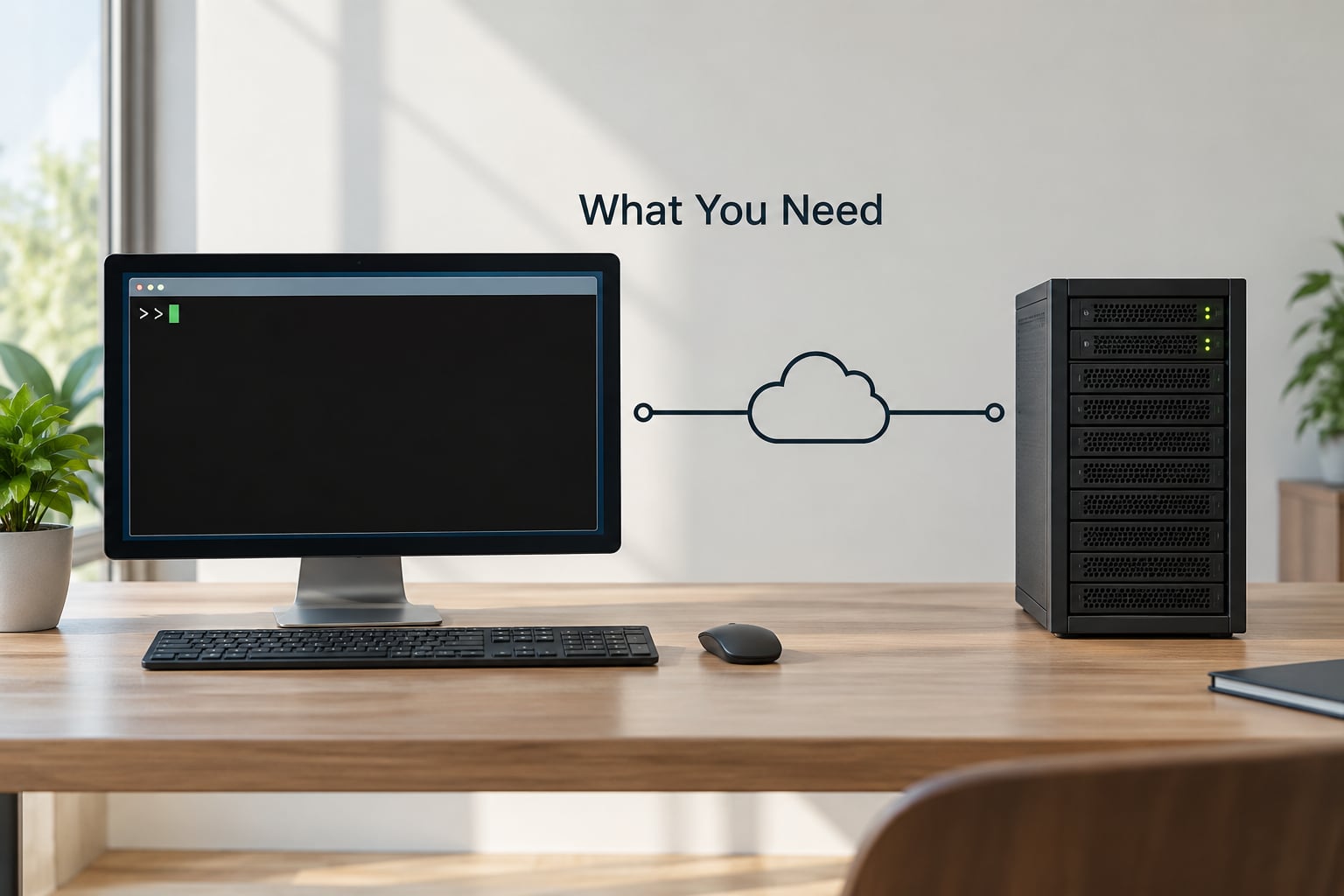
Here is the honest list. You need a local VS Code install on a desktop operating system, plus one reachable remote target and a way to authenticate to it.
- Local machine: Windows 10 or 11, Windows Server 2016 or 2019 (build 1803 or later), or macOS 10.14 Mojave and newer.
- Remote host, if using SSH: an OpenSSH-compatible server on x86_64 Debian 8+, Ubuntu 16.04+, CentOS or RHEL 7+, or an ARM machine running ARMv7l (AArch32) or ARMv8l (AArch64) such as a Raspberry Pi 4.
- Remote host library baseline: glibc 2.17 or later, libstdc++ 3.4.18 or later, and kernel 3.10 or later.
- For containers: Docker Desktop, or Docker CE/EE 18.06+ with Docker Compose 1.21+.
- For WSL: WSL 2, which needs virtualization enabled in firmware or BIOS.
- For Codespaces: a GitHub account and the GitHub CLI or a browser.
- Shell access on the target. SFTP-only platforms will not work, by design. There is no file-sync mode in VS Code Remote Development.
Administrator permissions help but are not always required. A normal SSH user with a home directory and roughly 500 MB of free disk space is enough for the VS Code Server payload, which is worth mentioning because people expect a light SFTP-style tool and find a full server sitting in ~/.vscode-server instead.
Step-by-Step: How to Use VS Code Remote Development
1. Install the Remote Development Extension
Open the Extensions view with Ctrl+Shift+X (or Cmd+Shift+X on macOS), search for Remote Development by Microsoft, and install the pack. It bundles Remote – SSH, Dev Containers, WSL and Remote – Tunnels.
You can also install from the terminal in one line, which is faster on a fresh machine:
code --install-extension ms-vscode-remote.remote-ssh
code --install-extension ms-vscode-remote.remote-containers
code --install-extension ms-vscode-remote.remote-wsl
code --install-extension ms-vscode-remote.remote-tunnels
Verification point: the extension should appear in your Extensions list marked as enabled in the Local – Installed group. If you installed several of these at once, you can end up with overlapping editors competing for the same command, so pick one target and keep it to a single remote extension for now.
2. Choose the Correct Remote Target
Each mode installs the same underlying VS Code Server, but the credentials, isolation and setup differ. Pick based on where the code should live and who needs it to work the same way.
| Mode | Best for | Credentials | Setup effort |
|---|---|---|---|
| Remote – SSH | Existing Linux servers, home labs, cloud VMs | SSH key or password | Low |
| Dev Containers | Reproducible team environments | Docker access | Medium |
| WSL | Linux tooling from a Windows laptop | Your Windows account | Low |
| Remote – Tunnels | Hosts you cannot configure or reach directly | GitHub or Microsoft account sign-in | Low |
| Codespaces | Hosted cloud environments per branch | GitHub account | Low |
After connecting, the editor looks familiar but behaves differently. The window title shows [SSH: host], [Container], [WSL: distro] or [Codespaces], and the status bar indicator changes color to tell you which one is active.
3. Connect to a Remote Server or Container
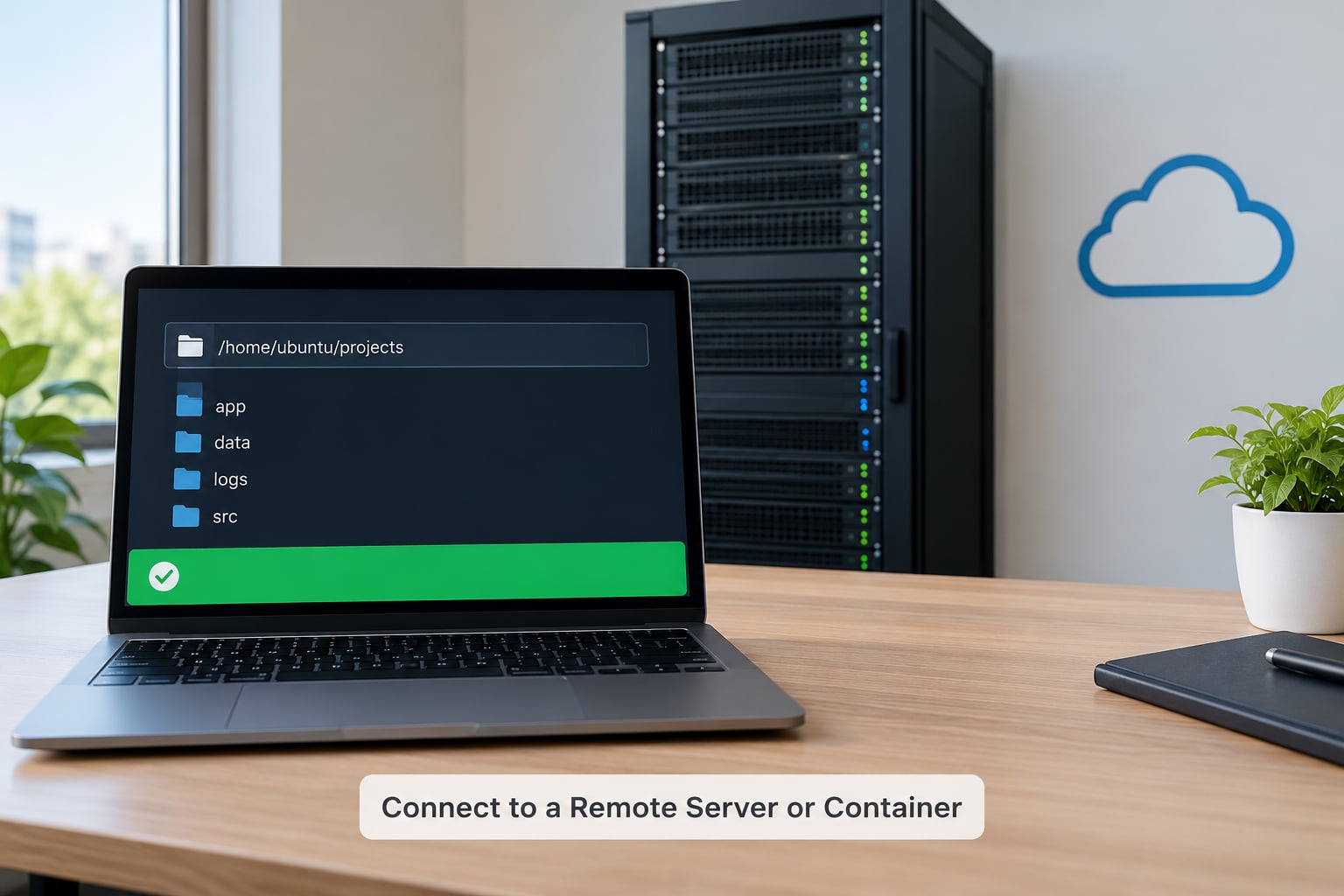
For SSH, the fastest route is a key plus a config file so you are never typing a password. Generate a key, copy it to the server, then name the host in ~/.ssh/config:
ssh-keygen -t ed25519 -C "[email protected]"
ssh-copy-id [email protected]

Host devbox
    HostName 192.168.1.50
    User yourname
    IdentityFile ~/.ssh/id_ed25519
    ServerAliveInterval 30
    ServerAliveCountMax 6
Then run Remote-SSH: Connect to Host from the Command Palette (Ctrl+Shift+P) and pick devbox. Verification point: VS Code briefly shows an “Installing VS Code Server” progress bar, then the window title gains the [SSH: devbox] tag. If it asks for a password every session, key auth did not take, so check that the public key sits in ~/.ssh/authorized_keys on the remote side.
For containers, install Docker Desktop first, then run Dev Containers: Reopen in Container from the palette inside an existing folder. VS Code looks for a .devcontainer/devcontainer.json and builds from it. If no file exists, it offers to generate a starter one.
{
  "name": "app-dev",
  "image": "mcr.microsoft.com/devcontainers/python:3.11",
  "forwardPorts": [8000],
  "appPort": [8000],
  "customizations": {
    "vscode": {
      "extensions": ["ms-python.python"],
      "settings": {"python.defaultInterpreterPath": "/usr/bin/python3"}
    }
  }
}
For WSL, run WSL: Connect to WSL and pick your distribution from the list, or run wsl in a terminal first so the distro is initialized. For tunnels, run Remote Tunnels: Open a Tunnel, sign in, and the current machine becomes reachable without inbound SSH.
4. Open a Folder and Work Remotely
Use File: Open Folder and pick a path on the remote machine. The picker shows remote paths, not your local disk, which is the first sign that you are working remotely.
On first open, VS Code installs the server, then any extensions marked to run on the remote host. Verification point: open the integrated terminal with Ctrl+`` and run hostname or pwd. If it prints your server name and a remote path, the shell, and therefore the work, is executing on the remote machine. Run uname -a to see the remote kernel and architecture.
You can stack these: SSH into a host, then reopen in a container, and the container inherits the SSH connection underneath.
5. Manage Ports, Extensions, and Settings
Ports detected from forwardPorts, appPort or live process scanning appear in the Ports panel in the bottom panel. Click one to open it in a local browser, and the forwarded address stays reachable only on your machine unless you mark the port public.
Extensions come in two flavors: those marked workspace run on the remote, and UI-only extensions run locally. The Extensions view shows which is which with an SSH or WSL label on the install button. A Python linter or a Rust analyzer belongs on the remote; a theme or a markdown previewer belongs locally.
Settings have three scopes. User settings apply on whatever machine you connect from, workspace settings live in .vscode/settings.json and travel with the repo, and remote settings apply only to the machine at the far end. Auto-install remote extensions with remote.SSH.defaultExtensions and pin container features with dev.containers.defaultFeatures.
Remote debugging behaves like local debugging: your launch.json references a name or a port, the debugger adapter runs on the remote machine, and breakpoints hit the remote processes. Just make sure the interpreter or SDK path in the debug config points at the remote path, not your laptop's.
Migrating from local-only development
If you have never worked this way, do it in stages. Commit your local changes first, since remote workflows make branching mistakes more expensive.
- Connect to one host and open the same repo you have locally.
- Move your user settings into a profile, or turn on Settings Sync, so you are not retyping them per machine.
- Check which extensions moved to the remote and install the UI ones locally.
- Forward your dev server port and confirm the app loads in a local browser.
- Run one debug session and set a breakpoint before you move any more work over.
Common Mistakes and Fixes
Almost every failure comes down to authentication, an unsupported host, or a mismatch between where you think you are and where you actually are.
| Error | Cause | Fix |
|---|---|---|
| Permission denied (publickey) | Key not installed or wrong user | Copy the public key to ~/.ssh/authorized_keys, confirm permissions are 600 |
| Connection timed out | Firewall or idle timeout dropping the socket | Add ServerAliveInterval 30 to your host entry |
| Remote host does not meet the prerequisites for running VS Code Server | glibc, libstdc++ or kernel too old | Upgrade the distro, or use Dev Containers or Tunnels instead |
| VS Code Server failed to start | Minimal distro missing libraries, common on Void Linux and other slim systems | Install glibc and libstdc++ packages, or use a container |
| Server process has died / exit code 1 | Out of memory on the remote host | Free RAM or move to a larger host; 2 GB is a practical floor |
| Port already in use | Another process holds the forwarded port | Change the port in forwardPorts or stop the local process |
| File opens on the wrong machine | You re-opened a local copy after disconnecting | Check the status bar indicator and window title before editing |
| Debugger attached to local path | Launch config references a local program path | Point program at the remote path in launch.json |
A few expectations are worth setting straight. Password authentication is not saved, so you type it every time, which is the strongest argument for keys. GUI run and debug buttons can disappear for cross-OS toolchains, which several people on r/FlutterDev ran into when driving a Windows machine from a Mac; a remote target with a different desktop stack will not launch native GUIs. And the .vscode-server folder accumulates, so remove it on a host you are done with.
On slow links, keep the source on the remote machine rather than mounting it locally with SSHFS or rsync. Remote editing is far faster than file sync over a thin connection.
Frequently Asked Questions
Can I use my local files when connected to a remote host?
Yes. With Remote-SSH you can open local folders alongside remote ones, and the editor keeps them as separate windows. But a folder you opened locally keeps running its terminal, extensions and debugger on your own machine, which is a common source of confusion. Check the window title for the SSH tag to know which side you are on.
How do file permissions work on a remote server?
Everything runs as the SSH user you connect as. Files you create in the remote workspace belong to that account, and sudo inside the integrated terminal may prompt for a password you do not normally type locally. Pick a user with the group and sudo rights your build needs before connecting rather than debugging permission errors later.
Can I make a slow remote connection faster?
Keep the repository on the remote machine, disable file watching on large trees with files.watcherExclude, and reduce the number of remote extensions. A jump host or a wired connection helps more than any editor setting. Mounting the remote folder locally with SSHFS usually makes things slower, not faster.
How do I disconnect safely and clean up the remote host?
Use Remote-SSH: Kill VS Code Server on Host from the Command Palette, or close the remote window and run the kill command on the host. To reclaim disk space, delete the .vscode-server folder in your remote home directory. Reinstalling later is automatic and takes a couple of minutes.
Does VS Code Remote Development work on a Raspberry Pi?
Yes, on ARM machines that meet the prerequisites, including ARMv8l (AArch64) hardware such as Raspberry Pi 4 hardware running a supported distro. Some extensions ship x86 native binaries and fail to load, so install the arm64 build of each extension or swap it for a pure JavaScript alternative.
Should I use Remote-SSH or Dev Containers for a team?
Use Dev Containers when the goal is that every teammate gets an identical toolchain, since devcontainer.json is committed to the repo. Use Remote-SSH when you need to work on machines that already exist and change often, such as staging or customer hardware. Teams often layer both: SSH into a host, then reopen in a container.
Conclusion
Start by installing the Remote Development extension pack and connecting to one low-stakes host with Remote-SSH. Generate a key, add a host entry with ServerAliveInterval, and open a folder you already know.
Confirm you are really remote by running hostname in the integrated terminal and watching the status bar indicator turn to the remote color. Once that check passes, moving builds, debugging and ports over is straightforward. Pick the mode that matches where your code lives: SSH for existing servers, Dev Containers for team consistency, WSL for Linux work from Windows, Tunnels for hosts you cannot configure.