Vim is a free, keyboard-driven terminal text editor, and vim basics for beginners come down to three modes, about twenty commands, and the habit of pressing Escape before doing anything. Most people are productive inside a week of casual editing, and comfortable after the usual two-week adjustment where your hands catch up to your intent. This guide walks through that first week without a single plugin or config file to install.
I have watched a lot of people bounce off Vim in the first ten minutes because they could not get out of it. That is a solvable problem, and it is the reason this guide leads with saving and quitting rather than with clever motions. By the end you will be opening a file, changing text, searching a document and closing the file without losing any of it.
Table of Contents
- What Is Vim and Why Should Beginners Learn It?
- Where you will find Vim already installed
- Is Vim harder to learn than it looks?
- Should you start with Nano instead?
- Vim Basics for Beginners: Modes and the Command Line
- How to tell which mode you are in
- The five commands that matter most
- How do you open, edit, and save a file in Vim?
- Step 1: open the file
- Step 2: start typing
- Step 3: stop typing
- Step 4: save
- Step 5: quit
- Step 6: do both at once
- How do you exit Vim without saving?
- Essential Vim Navigation Commands
- Counts let you multiply any motion
- How do you change, delete, copy, and paste text?
- Entering text without ruining the file
- Deleting and changing
- Copying is called yanking, and pasting is called putting
- Undoing a mistake
- How do you search and replace text in Vim?
- Replacing text across a whole file
- Common Vim Mistakes and How to Fix Them
- You typed garbage into the file
- E37: No write since last change
- Ctrl-C and Ctrl-V do not copy and paste
- You quit and lost the whole file
- You feel like you are drowning in commands
- Your first .vimrc, once you can move around
- Frequently Asked Questions
- Can I exit Vim without saving changes?
- How hard is Vim to learn for a complete beginner?
- Why do people prefer Vim over Nano?
- What does E37 No write since last change mean?
- How do I copy and paste a line in Vim?
- Is Vim worth learning if I use VS Code or an IDE?
What Is Vim and Why Should Beginners Learn It?
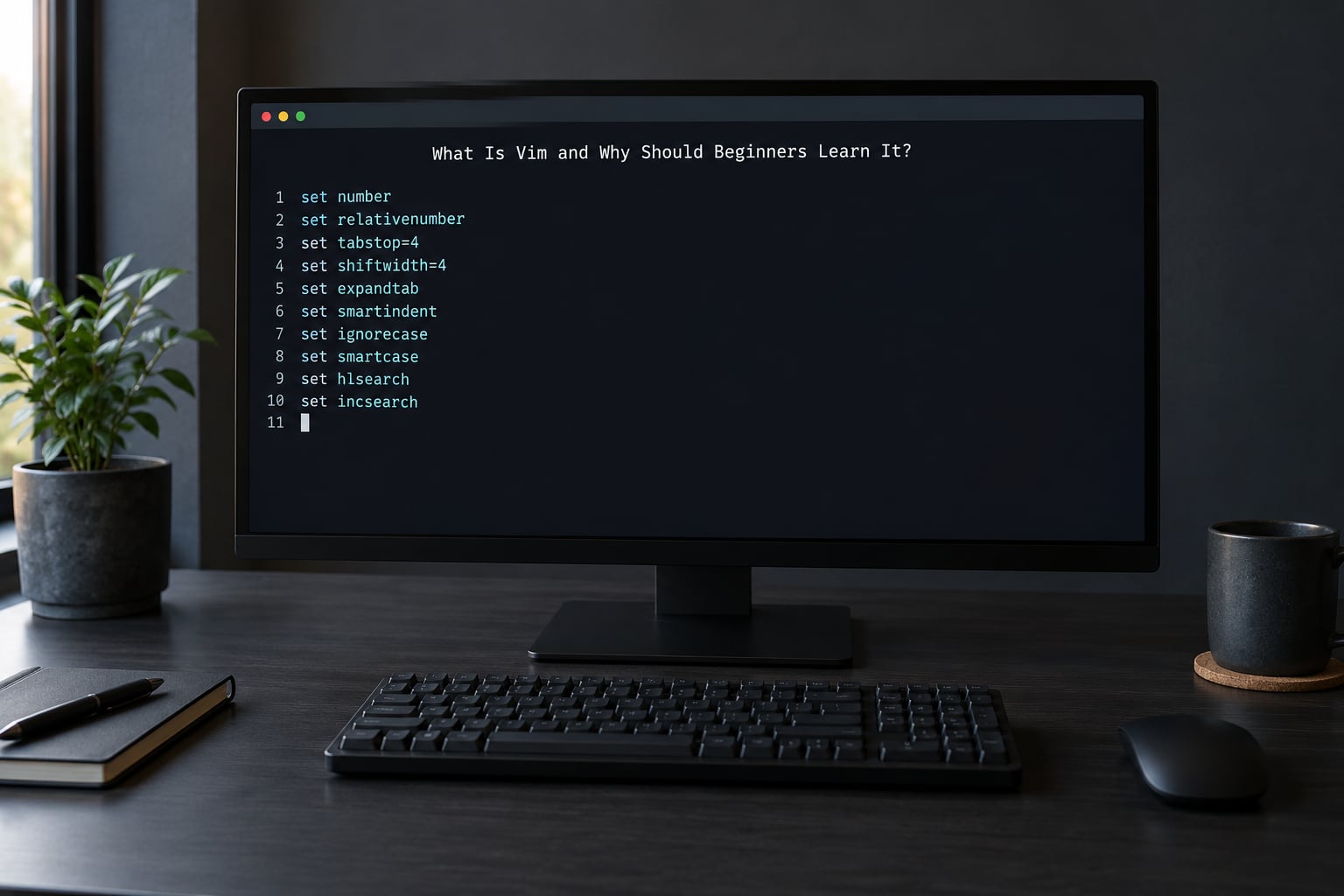
Vim stands for Vi IMproved. It grew out of the vi editor written for Unix in the 1970s, and the reason so many people meet it is simple: it is already on the machine. It ships with almost every Linux distribution, it is on macOS, it is built into Windows Subsystem for Linux, and it is the only editor you can count on being present on that remote server you just got credentials for. If your job touches a terminal, Vim is not an optional skill.
It is also genuinely good at the thing editors do. There is no mouse dependency, no window chrome, no plugin loading on startup. It opens instantly on a machine with 2 GB of RAM, it runs over a slow SSH link without stuttering, and it handles a 50,000-line file without complaint.
Where you will find Vim already installed
Type vim --version and press Enter. If you get a wall of text with “VIM – Vi IMproved” near the top, you already have it. That check is worth doing before anything else because a surprising number of people spend twenty minutes fighting with a missing install rather than an unfamiliar editor.
If the command is not found, here is the short version per platform:
- Debian or Ubuntu:
sudo apt update && sudo apt install vim - Fedora or RHEL:
sudo dnf install vim - Arch:
sudo pacman -S vim - macOS via Homebrew:
brew install vim - Windows: install WSL with
wsl --installin an administrator PowerShell window, restart, then install Vim inside your Linux distribution withapt install vim
There is also a graphical build called gVim on Linux and gVim on Windows, which gives you a menu bar. It is a reasonable way to start if the terminal window itself is the barrier, though the keystrokes are identical either way.
Is Vim harder to learn than it looks?
It looks harder than it is, mostly because the interface never tells you what mode you are in and the keys do not match a normal editor. Pressing j in a normal text editor types the letter j; in Vim it moves the cursor down. That mismatch is the whole learning curve, and it is a habit problem rather than a skill problem. Two weeks of daily twenty-minute sessions gets most people to the point where motions feel automatic.
The honest caveat: if you edit text in a GUI application for a living and never touch a server, Vim may not repay the investment. If you do system administration, DevOps, shell scripting, or you SSH into machines for a living, the payback is immediate because you have no other option waiting for you there.
Should you start with Nano instead?
Nano is a fair first editor and this comes up constantly in beginner threads on r/linux4noobs. Here is the honest comparison rather than a religious answer:
| Criterion | Nano | Vim |
|---|---|---|
| Time to first successful edit | About 10 seconds | About 10 minutes |
| Keyboard shortcuts to memorise | Almost none, they are shown on screen | Twenty or so cover most work |
| Available on a remote server | Usually, but not always | Always on any Unix-like machine |
| Editing speed once learned | Fine | Fastest for text-heavy, precise work |
| Undo behaviour | Standard, obvious | Standard, once you find the right key |
| Transferable to other tools | No | Yes, Vim keybindings plugins exist in most IDEs |
My suggestion is to spend one session with Nano so you know it exists, then learn Vim properly. Learning two editors at once is how people get confused about which one they are using. If you are on Windows with no plan to install WSL, Nano or Notepad will serve you better in the short term.
Vim Basics for Beginners: Modes and the Command Line
Everything strange about Vim comes from one design decision: Vim is a modal editor, so the meaning of a key depends on the mode you are in. In Insert mode, letters type letters. In Normal mode, letters are commands. Once that clicks, the rest is memorisation rather than logic.
| Mode | What it is for | How to enter | How to leave |
|---|---|---|---|
| Normal | Moving the cursor, deleting, saving, running commands | Press Escape at any time | Press i, a, o, v or : |
| Insert | Typing literal text into the file | Press i, a, I, A, o or O | Press Escape |
| Visual | Selecting text so a command applies to the selection | Press v, V or Ctrl-v in Normal mode | Press Escape |
| Command-line | File operations, search, replace, settings | Press : or / in Normal mode | Press Enter to run, Escape to cancel |
How to tell which mode you are in
Look at the bottom-left corner of the screen. In Insert mode Vim shows -- INSERT --. In Visual mode it shows -- VISUAL -- or -- VISUAL LINE --. In Command-line mode your cursor jumps to the bottom of the screen after a :. When nothing is shown, you are in Normal mode, which is where you spend most of your time.
There is a setting that makes this explicit. Turn it on with :set showmode and Vim will always tell you what it thinks you are doing.
The five commands that matter most
i— start typing before the cursora— start typing after the cursoro— open a new line below and start typing thereEsc— return to Normal mode from anywhere:— open the command line, which is where save and quit live
Practise those five on a scratch file until they feel automatic. Every beginner problem I have watched start with someone typing Normal mode commands into a file because they forgot Escape, so build the reflex early and press it twice without shame.
How do you open, edit, and save a file in Vim?
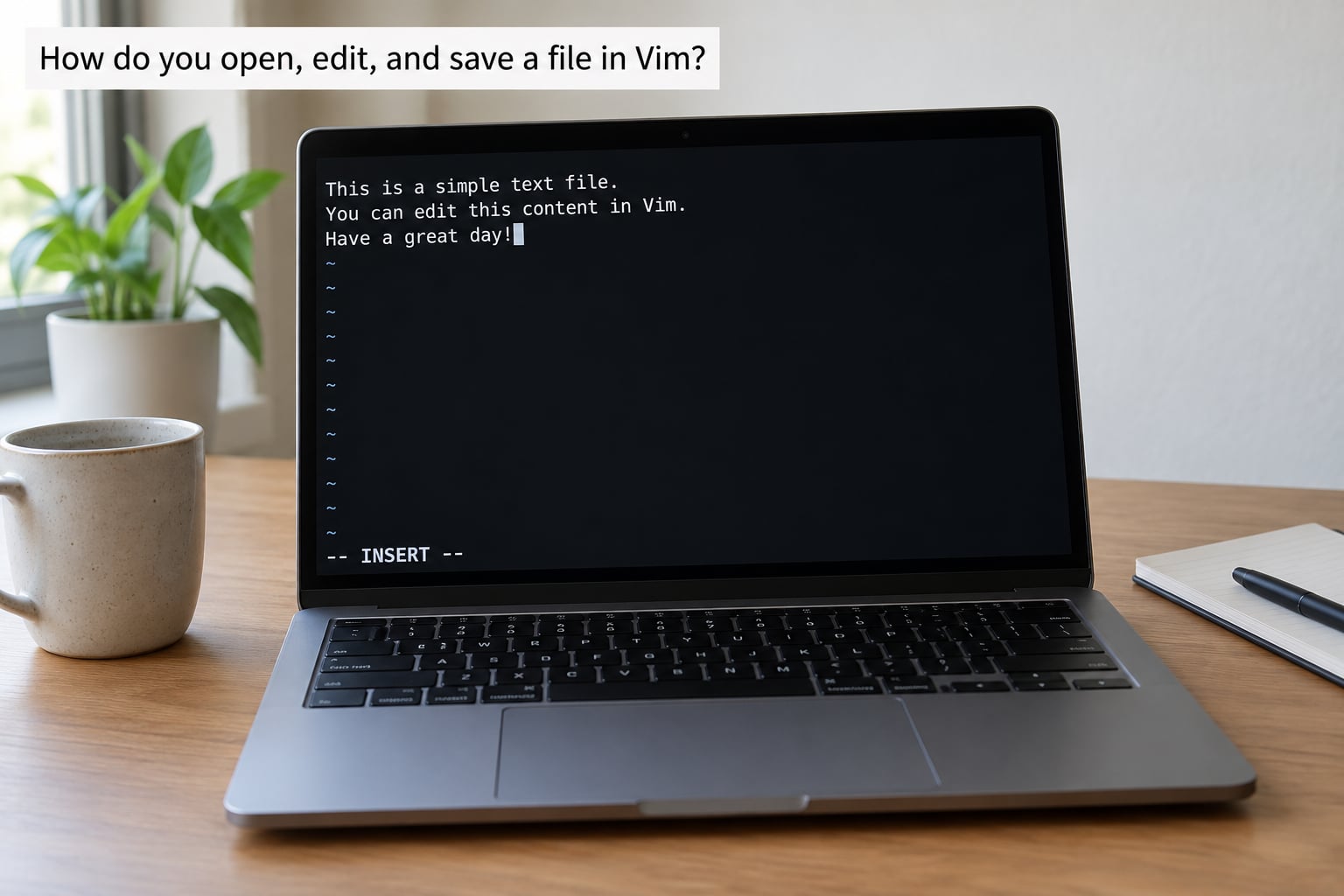
You start Vim by typing vim followed by a filename. If the file exists, Vim opens it; if it does not, Vim waits for you to write it. Nothing is created on disk until you save, so a file you never wrote simply does not exist.
Here is a complete first session in six steps. Make a practice file first so there is nothing to lose: run touch practice.txt, then vim practice.txt.
Step 1: open the file
Run vim practice.txt in your terminal. The cursor sits at the top of an empty buffer. On a file that already has content you would see line numbers only if you have enabled them, which we will do later.
Step 2: start typing
Press i. The -- INSERT -- indicator appears at the bottom left. Now type anything you like. Whatever you type goes into the file exactly as typed, with no autocorrect.
Step 3: stop typing
Press Esc. The indicator disappears and you are back in Normal mode. If you started a line with o, you are already on a fresh empty line, ready for the next command.
Step 4: save
Press :, then type w, then Enter. The :w command writes the buffer to the file. For a brand new file it is written to the exact name you gave Vim when you opened it.
Step 5: quit
Press : then q then Enter. You are back at your shell prompt. If you made changes after your last save, Vim refuses and shows E37: No write since last change, which is not an error but a guard rail.
Step 6: do both at once
Most of the time you want a single command. Press :, type wq, press Enter. You will build this reflex so fast that you will barely think about it.
How do you exit Vim without saving?
Press : to open the command line, type q!, and press Enter. The exclamation mark means force, so Vim discards every unsaved change and drops you back at your shell prompt. The identical command works in vi, so anyone telling you to type :q! while you are in plain vi is giving you correct advice.
| Command | What it does |
|---|---|
:q | Quit, but only if there are no unsaved changes |
:q! | Quit and throw away all unsaved changes |
:wq | Write the file, then quit |
:x | Write only if changed, then quit |
ZZ | Save and quit, typed in Normal mode without the colon |
ZQ | Quit without saving, typed in Normal mode |
:qa! | Quit all open files and discard changes in every one of them |
That E37 message appears because Vim treats a silent data loss as worse than an extra keystroke. Once you know it is a safety feature rather than a broken install, it stops being scary.
Essential Vim Navigation Commands
In Normal mode the arrow keys work, but your hand never leaves the home row. The four keys that replace them are h left, j down, k up and l right. They sit under your right hand exactly where you would expect.
| Command | Where it moves you |
|---|---|
h j k l | Left, down, up, right by one character |
0 | Start of the current line |
^ | First non-blank character on the line |
$ | End of the line |
w | Start of the next word |
b | Start of the previous word |
e | End of the current word |
gg | First line of the file |
G | Last line of the file |
Ctrl-d / Ctrl-u | Down or up half a screen |
:42 | Line 42, with any number you like |
% | Matching bracket, useful in code |
f | Forward to the next occurrence of that character |
Counts let you multiply any motion
Type a number before a key and Vim repeats it. 5j moves down five lines, 10 followed by l moves ten characters right, and 20G jumps to line 20. Counts work in front of motions and in front of editing commands, which means most of the command vocabulary you will ever need is really just one command plus a count.
Split the screen so you have a place to practise. Run :vsplit for side-by-side windows or :split for top and bottom, then Ctrl-w followed by w to hop between them. Close a window with :q while the cursor is inside it.
How do you change, delete, copy, and paste text?
The thing that makes Vim editing fast is that almost every editing command is an operator plus a motion. d is the delete operator, c is the change operator, y is the yank operator. Put any motion after it and you get a new command: dd deletes a line, dw deletes a word, d$ deletes to the end of the line, cw changes a word. Once you see that grammar, the command list stops being a list and starts being a system.
Entering text without ruining the file
In Normal mode, i inserts before the cursor, a inserts after it, I jumps to the first non-blank character and inserts, and A jumps to the end of the line and inserts. o and O open a new line below or above and put you straight into Insert mode. Every one of these returns you to Normal mode when you press Escape.
Deleting and changing
x— delete the character under the cursordd— delete the whole linedw— delete from the cursor to the start of the next wordD— delete from the cursor to the end of the linecc— change the whole line, leaving you in Insert modeC— change from the cursor to the end of the lineciw— change the word under the cursor, a very common one once you have muscle memory for itr— replace a single character and stay in Normal mode
Copying is called yanking, and pasting is called putting
Vim does not use the system clipboard for most of its work, which surprises people. yy yanks the current line, yw yanks a word, and y$ yanks to the end of the line. Paste with p after the line or character, and P before it. Select a block with v, press y to yank the selection, and you have copied exactly what you highlighted.
Yanked text lands in a register, which is Vim’s clipboard. The unnamed one always holds your last yank or delete, so a delete followed by p is also a working cut-and-paste. Named registers let you park several snippets at once: "ayy yanks a line into register a and "ap pastes it back later.
Undoing a mistake
Press u to undo. Keep pressing it to walk backwards through your changes. Ctrl-r redoes what you just undid, which is what you reach for when you undo one change too many. And . repeats the last change you made, so fixing the same mistake on the next twenty similar lines takes one keystroke after the first fix.
How do you search and replace text in Vim?
Press / and type what you are looking for, then Enter. Vim jumps to the first match as you type. Press n for the next match and N to move back the other way. ? searches backwards from the cursor, and * finds the word under the cursor without you typing it at all.
Clear the highlight with :noh. Match capitalisation with /thec, or force case sensitivity with /theC. Special characters have their own rules: . matches any single character, * matches any number of characters, and ^ anchors to the start of a line.
Replacing text across a whole file
Press : and type %s/old/new/g, then Enter. The parts are: % for every line in the file, s for substitute, the text you are finding, the text you want, and g to replace every occurrence on each line instead of just the first.
Add a c at the end and you get a confirmation prompt on every match, where you type y to replace it or n to skip. I use this version by default now. On a file with 400 occurrences, :%s/old/new/gc lets you see each one and press a to replace all remaining matches once you trust the pattern.
If a replace goes wrong, u undoes the whole substitution as a single step rather than one match at a time. Getting that wrong and pressing u 400 times is a rite of passage everyone passes through once.
Common Vim Mistakes and How to Fix Them
You typed garbage into the file
This is what happens when you pressed i and kept typing hjkl or dd into the document. Press Esc first, then u repeatedly until the garbage is gone, then :q! to discard whatever remains if it is a scratch file. If the undo does not catch everything, the swap file usually can: reopen with vim -r practice.txt and follow the recovery prompts.
E37: No write since last change
Not a bug. You asked Vim to quit a modified buffer and it is asking you to confirm you meant it. Either :w to save first or :q! to leave without saving. Beginners read this as “Vim is broken”, which is why it shows up in nearly every beginner thread I have read.
Ctrl-C and Ctrl-V do not copy and paste
Inside a terminal, Ctrl-C sends an interrupt to the shell and Ctrl-V quotes the next character, so pasting often comes out wrong or literal. In Vim itself, copy is y and paste is p. If you want to move text between your desktop clipboard and Vim, use "+y to yank to the system clipboard and "+p to paste from it, which works in terminals that support it.
You quit and lost the whole file
Pressing :q! on a file you had not saved is the one genuinely unrecoverable mistake. The fix, before it happens, is :set directory=.,/tmp in your config, which keeps swap files beside your documents. After it happens, run ls -a in the file’s directory and look for a .practice.txt.swp file, then open it with vim -r practice.txt. With a default install the swap file also goes to /tmp.
You feel like you are drowning in commands
Stop trying to memorise the manual. Run vimtutor in your terminal for a 20 to 30 minute interactive lesson, and use :help inside Vim whenever you are stuck. The most upvoted beginner threads on r/vim all point the same direction: use the built-in tutorial first, keep a cheat sheet visible, and add commands only when you hit a real need for one.
Your first .vimrc, once you can move around
Once the basics are automatic, create a file called .vimrc in your home directory. Six lines will cover most of what a beginner notices:
set number
set relativenumber
set autoindent
set expandtab
set tabstop=4
set hlsearch
Line numbers show where you are, relative numbers show the distance to nearby lines, and the indent settings stop Vim from pasting shell scripts with the wrong spacing. Add :colorscheme desert or any other built-in scheme if you want less glare. Reload the file with :source ~/.vimrc without restarting.
Frequently Asked Questions
Can I exit Vim without saving changes?
Yes. Press Escape to make sure you are in Normal mode, press : to open the command line, type q! and press Enter. The exclamation mark forces Vim to quit and discard every unsaved change. This is the command to reach for when you opened the wrong file or accidentally started editing something you did not mean to touch. If you only want to quit files that have no changes, use :qa! instead.
How hard is Vim to learn for a complete beginner?
Most people edit real files productively within a week of casual twenty-minute sessions and feel genuinely fluent after about two weeks. The difficulty is unfamiliarity rather than complexity. A dozen commands cover most day-to-day editing, and Vim rewards you with a single undo key and a command grammar that combines instead of multiplying. The main risk is giving up in the first ten minutes, which is why practising on a scratch file matters.
Why do people prefer Vim over Nano?
Vim wins once you are past the first week because editing is built from operators plus motions, so commands combine instead of piling up. It is also the only editor guaranteed on a remote Unix server, it opens instantly on modest hardware and slow SSH links, and its keystrokes are available inside most modern IDEs through plugins. Nano is easier to start with and shows its shortcuts on screen, which is why it makes a reasonable first editor.
What does E37 No write since last change mean?
It means you asked Vim to quit a file you had modified since the last save, and it is asking you to confirm. Nothing is broken. Type :w and press Enter to save and stay, :wq to save and quit, or :q! to quit and throw the changes away. Vim blocks the exit on purpose because silently discarding a buffer is the one mistake a text editor should never make on your behalf.
How do I copy and paste a line in Vim?
In Normal mode press yy to yank the entire current line, then p to paste it below the cursor or P to paste it above. For several lines, use 3yy to yank three. To copy precisely what you highlighted, press v, move the cursor to extend the selection, then y. Vim calls copying yanking and pasting putting, and the last yank sits in the unnamed register so a delete followed by p also works as a cut and paste.
Is Vim worth learning if I use VS Code or an IDE?
Yes, because Vim keybindings are available as plugins in VS Code, JetBrains and most other editors, so the motions you practise transfer directly to the editor you already use. Plenty of developers keep an IDE for autocomplete and debugging while editing with Vim commands inside it. If you never touch a terminal, the payoff is smaller, but the keybindings cost you one plugin and about a week to get comfortable.
Start with a scratch file today. Learn i, Esc, :wq, dd, u and /, and get out of Vim basics for beginners territory within a week by touching those commands every day for twenty minutes.