
A self hosted Git server is just a machine you control that hosts bare Git repositories, and you reach them over SSH the same way you reach any other Linux box. How to set up a self hosted git server with SSH access comes down to three things done properly: a bare repository, a key per developer, and ownership that matches the account pushing. Set it up on Ubuntu 24.04 LTS and you can push and pull code without GitHub, GitLab, or anyone else’s uptime. The whole thing takes about 20 minutes if you already have a server, and the hardest part is permissions, not Git.
This guide covers the no-web-UI path: bare repositories, per-developer SSH keys, and a backup you have actually restored from. It is the right choice for one person syncing a repo across three laptops, or a small private team that does not need pull requests and an issue tracker. If you want a browser interface with code review and CI, add Gitea on top of the same bare repos later and nothing you do here is wasted.
Two things matter before you start. SSH already encrypts your traffic, so you do not need TLS certificates for Git traffic itself, and a bare repository has no working copy on the server, which is exactly why it belongs there.
Table of Contents
- What You Need
- Step-by-Step: Set Up a Self Hosted Git Server
- 1. Prepare the Ubuntu Server
- 2. Create the Repository Directory and Bare Repository
- 3. Add SSH Access for Developers
- 4. Clone, Commit, and Push a Test Project
- 5. Add Basic Server Maintenance and Backups
- Common Mistakes
- Frequently Asked Questions
- Do I need HTTPS for a self-hosted Git server?
- What is a bare Git repository?
- How do I give multiple developers access to one repository?
- Can I move from a bare SSH repo to Gitea or GitLab later?
- How do I back up a self-hosted Git server and prove the restore works?
- Do I need a public IP address to reach my Git server?
- What to Do First: Push One Repository, Then Automate Backups
What You Need
- An Ubuntu 24.04 LTS server or VM with a public IP address or a reachable address on your private network. A 1 vCPU box with 512 MB of RAM and 10 GB of disk is plenty for bare repos, and a Raspberry Pi 4 handles small repositories comfortably.
- A non-root account with sudo. You will not run Git commands as root, and the SSH keys you add should belong to a dedicated account, not your admin one.
- OpenSSH server access. Package
openssh-serveris installed by default on Ubuntu server images, but cloud images occasionally ship with it disabled. - Git on the server and on every client. Client machines need Git for Windows, the Xcode command line tools on macOS, or the distro package on Linux.
- A stable address: a DNS name is nicer than a raw IP because you can change the machine later without rewriting every remote URL.
- Storage headroom. A bare repo is roughly the size of a full checkout with no working files. Plan for at least twice your current working tree size plus backups.
The distinction that trips up beginners is bare versus non-bare. A normal git init creates a working directory with a .git folder and checked-out files, which is what you want on your laptop. A bare repository has no working tree at all, only the Git object database and refs, and that is the correct format for a central server because the server never needs to edit or compile anything.
Step-by-Step: Set Up a Self Hosted Git Server
1. Prepare the Ubuntu Server

Update the package lists, install Git and the SSH server, then confirm the service is running. Commands marked sudo need admin rights; everything after that runs as your regular account.
sudo apt update && sudo apt -y upgrade
sudo apt install -y git openssh-server
sudo systemctl enable --now ssh
systemctl status ssh --no-pager
You want active (running) in that status output. If the service refuses to start, run sudo sshd -t to see the config parse error, since a bad sshd_config line is the usual cause.
Note the server address you will connect to, then create a dedicated account that owns the repositories:
hostname -I
sudo adduser --disabled-password --gecos "" gitadmin
sudo usermod -aG sudo gitadmin
Give gitadmin a password with sudo passwd gitadmin so you can switch to it with su - gitadmin, or copy your own public key into /home/gitadmin/.ssh/authorized_keys. Either way, keep your everyday admin login separate from the account that owns repository data.
2. Create the Repository Directory and Bare Repository
Repositories live under /srv/git, which follows the Filesystem Hierarchy Standard and keeps version-controlled data out of home directories. Switch to the dedicated account first so every file it creates is owned correctly from the start.
su - gitadmin
sudo mkdir -p /srv/git
sudo chown gitadmin:gitadmin /srv/git
cd /srv/git
git init --bare my-project.git
The output ends with lines for HEAD, branches, hooks, and config. That directory listing is your proof the bare repo exists.
For a team sharing repositories, set the group writable bit on the shared repo so members of a Unix group can both read and push:
git -C /srv/git/my-project.git config core.sharedRepository group
sudo usermod -aG developers gitadmin
chmod -R g+rwX /srv/git/my-project.git
If you want an account that can only run Git operations and nothing else, point its shell at git-shell:
sudo usermod -s /usr/bin/git-shell gitservicegit-shell rejects logins that are not Git commands, so an attacker with a valid key cannot read files or run a shell on the box. Test the result with sudo -u gitservice git-shell -c "ls", which should report fatal: Interactive git shell is not enabled.
3. Add SSH Access for Developers
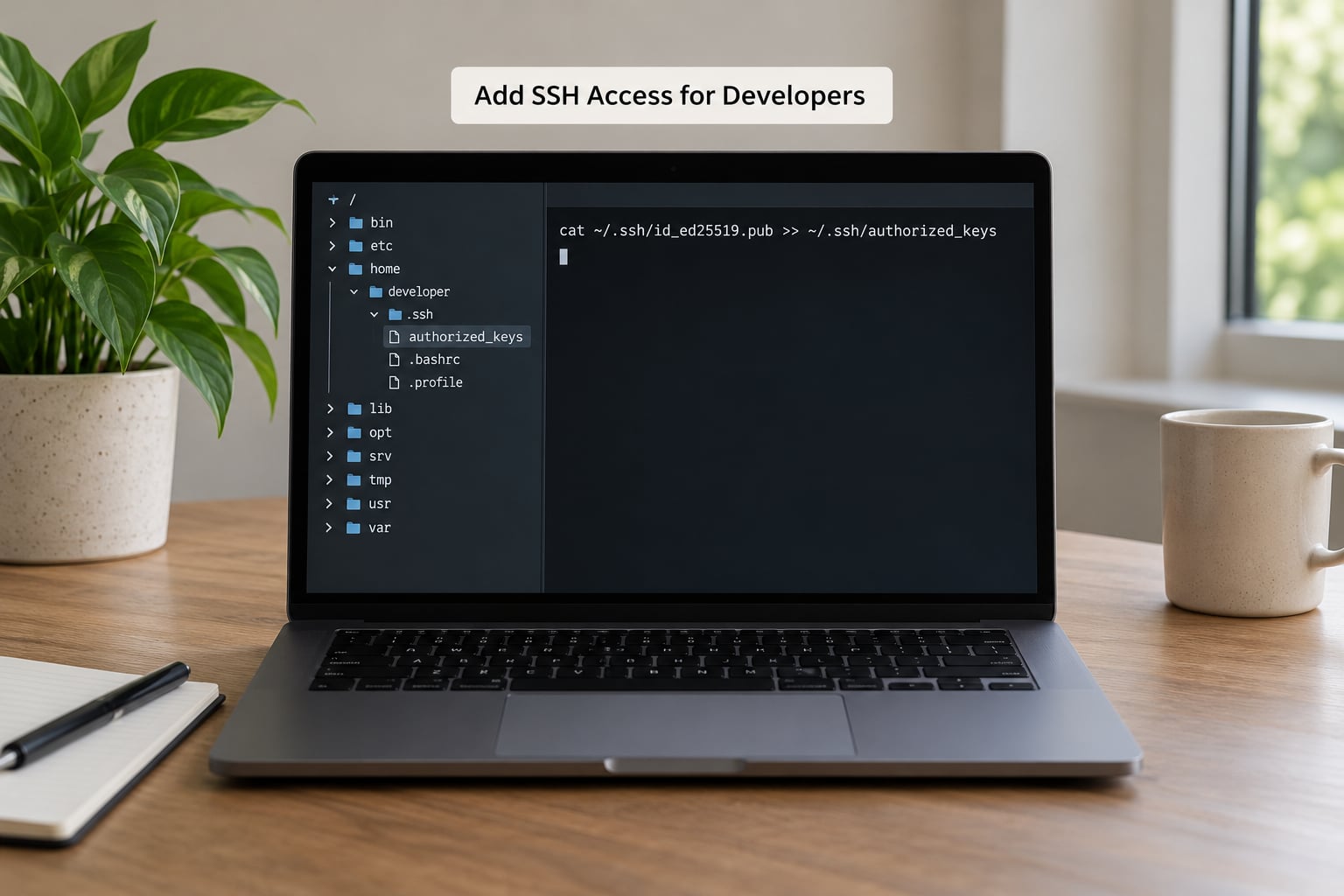
Password logins over SSH get guessed constantly, so use key-only authentication. Each developer generates a key pair on their own machine, and only the public half goes on the server.
ssh-keygen -t ed25519 -C "sam@laptop" -f ~/.ssh/id_ed25519The private key never leaves the developer’s laptop. On the server, create the authorized_keys file with the right ownership, because a wrong owner is the number one cause of rejected keys:
sudo install -d -m 700 -o gitadmin -g gitadmin /home/gitadmin/.ssh
sudo touch /home/gitadmin/.ssh/authorized_keys
sudo chmod 600 /home/gitadmin/.ssh/authorized_keys
sudo chown gitadmin:gitadmin /home/gitadmin/.ssh/authorized_keys
echo "ssh-ed25519 AAAAC3... sam@laptop" | sudo tee -a /home/gitadmin/.ssh/authorized_keys
To give one developer access to a single repository instead of everything, add a forced command to their key line in authorized_keys:
command="git -C /srv/git/my-project.git shell -c "$SSH_ORIGINAL_COMMAND"" ssh-ed25519 AAAAC3... sam@laptopThat key can now touch one repo and nothing else. Verify from the client machine with ssh -T gitadmin@your-server, which should greet you by username or refuse interactive commands, then run git ls-remote ssh://gitadmin@your-server/srv/git/my-project.git to confirm Git itself is reachable.
4. Clone, Commit, and Push a Test Project
Test with a throwaway project before you move anything real. On the client machine:
git clone ssh://gitadmin@your-server/srv/git/my-project.git my-project
cd my-project
echo "# my-project" > README.md
git add README.md
git -c user.name="Sam" -c user.email="[email protected]" commit -m "Add README"
git push origin HEAD:main
If user.name and user.email are unset globally, Git refuses the commit with Please tell me who you are. Setting them once with git config --global user.name and git config --global user.email avoids repeating the flags.
A successful push ends with a line like To ssh://your-server/srv/git/my-project.git followed by main -> main. Confirm it from the server side with git -C /srv/git/my-project.git log --oneline -n 3 and git -C /srv/git/my-project.git branch.
One thing to know about bare repos: git clone checks out the default branch, and if the repo is still empty, Git warns that you appear to have cloned an empty repository. That is expected on the very first push, not an error.
On Windows, the same commands work in Git Bash, and Visual Studio picks up the SSH agent in %USERPROFILE%.ssh automatically once you point it at the cloned folder. If Visual Studio keeps prompting, run git config --global core.sshCommand "C:/Windows/System32/OpenSSH/ssh.exe" so it stops falling back to its own bundled client.
5. Add Basic Server Maintenance and Backups
A bare repo is just a directory, so a plain archive is a complete backup. Run it as the owning account so the files are readable:
sudo -u gitadmin tar -czf /var/backups/my-project-$(date +%F).tar.gz -C /srv/git my-project.git
ls -lh /var/backups/my-project-$(date +%F).tar.gz
Then prove the restore works, because a backup you have never unpacked is a guess. Restore into a scratch directory and compare object counts:
mkdir -p /tmp/restore-test
tar -xzf /var/backups/my-project-$(date +%F).tar.gz -C /tmp/restore-test
git -C /tmp/restore-test/my-project.git fsck --no-progress
git -C /tmp/restore-test/my-project.git rev-list --all | wc -l
git fsck returning no errors means the object database is intact. Schedule the archive daily with a root cron entry:
sudo crontab -e
15 2 * * * root sudo -u gitadmin tar -czf /var/backups/git-$(date +%F).tar.gz -C /srv/git --exclude='*.lfs' .
Two other maintenance habits pay for themselves. Run git -C /srv/git/my-project.git gc --prune=now monthly to compact loose objects, and keep an eye on space with df -h /srv and du -sh /srv/git/*. Enable unattended security upgrades with sudo apt install -y unattended-upgrades and run sudo systemctl enable --now unattended-upgrades.
If you host more than one repo, a cron loop beats repeating yourself:
15 2 * * * root for r in /srv/git/*.git; do sudo -u gitadmin git -C "$r" gc --quiet; doneKeep at least one copy somewhere off that machine. A backup sitting on the same disk protects you from a bad commit, not from a failed drive or a mistaken rm -rf.
Common Mistakes
Almost every failure in this setup has an exact error string. Find the line in the output and run the verification command to confirm the fix landed.
| Error | Cause | Fix and verification |
|---|---|---|
fatal: Permission denied (publickey) | Key not in authorized_keys, or file and directory permissions too open | chmod 700 ~/.ssh && chmod 600 ~/.ssh/authorized_keys, then ssh -vT user@host and read which key was offered |
fatal: Could not read from remote repository | Wrong path or URL, or a forced command pointing at a missing repo | git ls-remote ssh://user@host/exact/path.git and compare the path to ls /srv/git |
detected dubious ownership in repository | Repo owned by a different UID than the account running Git, common after a restore or move | sudo chown -R gitadmin:gitadmin /srv/git, or git config --global --add safe.directory /srv/git/my-project.git |
error: failed to push some refs with non-fast-forward | Someone else pushed first and your local branch is behind | git pull --rebase origin main && git push origin main |
remote: error: refusing to update checked out branch | Pushing to a non-bare repository that has a working tree with changes | Push to the bare repo, or run git config receive.denyCurrentBranch ignore if you truly need it |
conq: repository not found | Repo created under root while git-shell runs as the git user, so permissions block it | sudo chown -R gitadmin:gitadmin /srv/git then sudo -u gitservice git ls-remote /srv/git |
sshd: no hostkeys available or service will not start | Bad sshd_config edit | sudo sshd -t for the exact line, fix it, then sudo systemctl restart ssh |
| Push succeeds but nobody else can read the repo | Shared repo missing the group bit, or a developer missing from the group | git -C repo config core.sharedRepository group, chmod -R g+rwX repo, then id developername |
| Disk fills up over months | No garbage collection, and no .git pruning in old clones | df -h /srv, then git gc --prune=now per repo and delete stale clones |
Two habits prevent most of this. Run sudo sshd -t before every SSH config reload, and check sudo -u gitadmin test -r /srv/git/repo.git/config && echo ok after any ownership change.
Frequently Asked Questions
Do I need HTTPS for a self-hosted Git server?
No, not for Git traffic over SSH. SSH encrypts everything between your client and the server, so bare repositories need only port 22 and key-only authentication. HTTPS becomes necessary the moment you add a web interface like Gitea, because browsers, login forms, and webhooks expect TLS. If you publish that UI, put it behind Nginx or Caddy with a real certificate.
What is a bare Git repository?
A bare repository is a repository with no working tree. It contains the object database and refs but no checked-out files, which is why a central server stores bare repos: there is nothing to edit, build, or accidentally commit on the server. You create one with git init u002du002dbare, and developers clone and push against it directly.
How do I give multiple developers access to one repository?
Create one Unix account per developer and put each public key in that account’s authorized_keys file. For shared write access, use core.sharedRepository group, add each account to a developers group, and run chmod -R g+rwX on the repo. To limit someone to a single repository, add a command= prefix to their key line in authorized_keys that pins git to that path.
Can I move from a bare SSH repo to Gitea or GitLab later?
Yes, and nothing you set up here is wasted. Install the forge, create a repository with the same name, then push the existing bare repo into it with git push u002du002dmirror. Gitea and GitLab both read plain Git repositories, so history, branches, and tags carry over unchanged. Keep the bare repos and the SSH keys until you have verified the new server end to end.
How do I back up a self-hosted Git server and prove the restore works?
Archive the repository directory rather than cloning it, because a bare repo holds every branch and tag in one place. Use tar -czf under a daily cron entry, then restore into a scratch directory and run git fsck on the result. If fsck reports no errors and rev-list u002du002dall returns the expected commit count, the backup is good. Keep one copy on separate hardware.
Do I need a public IP address to reach my Git server?
No. A Git server only has to be reachable from the machines that use it. Behind a home router, forward port 22 or run the server and clients on the same LAN. Without port forwarding, a mesh VPN such as Tailscale or WireGuard gives every device a private address and removes the server from the public internet entirely, which is the safer default for a home lab.
What to Do First: Push One Repository, Then Automate Backups
If you are starting from nothing today, install Git and OpenSSH on one Ubuntu box, create a bare repository under /srv/git, add your own public key, and push a throwaway file to it. That single round trip proves the SSH path, the path spelling, and the ownership model in about five minutes, and it is the step most tutorials skip.
Once that push lands, add the nightly archive and run one restore drill before 2026 ends. Everything past that, per-developer keys, group permissions, hooks, or a web interface, is an addition rather than a rewrite.