To schedule a Python script to run daily, register it with the scheduler your operating system already ships with: cron or a systemd timer on Linux, launchd on macOS, and Task Scheduler (or schtasks.exe) on Windows. If you would rather keep everything in Python, the schedule library polls the job inside a long-running process. Every route needs the same two things: an absolute path to your script and an absolute path to the interpreter you want it to use.
- Linux: edit your user crontab with
crontab -e, or define a systemd service and timer pair. - macOS: install a launch agent plist in
~/Library/LaunchAgents/and load it withlaunchctl. - Windows: create a task in Task Scheduler with a Daily trigger, or run one
schtasks.exe /createcommand. - Any OS, Python only: loop with the schedule library and call
run_pending()once a minute.
The setup takes about five minutes per platform. Almost every “my scheduled script does nothing” report I have seen traces back to a relative path or a different Python than the one you use in your terminal, so both sections below come back to those two details more than once.
Table of Contents
- What You Need to Schedule a Python Script to Run Daily
- Step-by-Step: How to Schedule a Python Script to Run Daily
- Choose a Scheduler for Your Operating System
- How to Schedule the Script on Linux With Cron
- How to Schedule the Script on Linux With a Systemd Timer
- How to Schedule the Script on Windows With Task Scheduler
- How to Schedule the Script on macOS With launchd
- Run the Script From Any Directory
- Verify the Daily Execution
- Common Mistakes
- Tips for Reliable Scheduled Scripts
- Frequently Asked Questions
- Does Python have a built-in scheduler?
- What is the best scheduler for Python?
- How do I schedule a Python script to run daily without Task Scheduler?
- Why does my Python script run manually but not on schedule?
- Can a scheduled Python script run when I am logged out?
- What happens if my computer is off when the daily job is due?
- Conclusion
What You Need to Schedule a Python Script to Run Daily
Four things, and you probably have three of them already.
- The script itself, with an absolute path. Type
pwdwhere the script lives and write the full path into every scheduler entry. Schedulers do not have a current directory in the sense your terminal does. - The interpreter, also by absolute path. Run
which python3on Linux and macOS, orwhere pythonin a Windows command prompt. Inside a virtual environment this points at something like/home/you/projects/.venv/bin/python. - The scheduler for your OS. cron, systemd, launchd, or Task Scheduler. All four run jobs as background processes detached from any terminal, so you can close the window afterwards.
- A place for output to land. Anything printed to stdout disappears without a trace under most schedulers, so redirect it to a log file from day one.
Permissions matter more than people expect. A job registered in your user crontab runs as you, with no sudo and no access to files owned by root. A systemd system unit runs as root unless you set User=. On Windows, “Run whether user is logged on or not” stores the password for that account unless you tick “Run with highest privileges” and pick a stored account.
One more thing to check before you start: run the script manually with the exact command you plan to give the scheduler. If /home/you/venv/bin/python /home/you/scripts/report.py fails in your terminal, it will fail at 9:00 AM too, and you will have wasted a day waiting for a run that was never going to happen.
Step-by-Step: How to Schedule a Python Script to Run Daily
Choose a Scheduler for Your Operating System
Use the scheduler that came with the machine. Reaching for a Python library when cron already does the job adds a process you now have to keep alive.
| Scheduler | OS | Machine must be on | User must be logged in | Restarts after a crash | Best for |
|---|---|---|---|---|---|
| cron | Linux, macOS (legacy) | Yes | No | No | Simple daily or hourly jobs |
| systemd timer | Linux with systemd | Yes | No | Configurable | Logging, catch-up runs, retry on failure |
| launchd | macOS | Yes | No | Yes | Anything on a Mac |
| Task Scheduler | Windows | Yes | No, if configured | Configurable | Windows desktops and servers |
| schtasks.exe | Windows | Yes | No, with /RU | Configurable | Provisioning and CI |
| schedule library | Any | Yes | Yes, process must stay up | No, needs a supervisor | Several jobs sharing one process |
| APScheduler | Any | Yes | Yes | No | Persistence, retries, many jobs |
If the machine is not always powered on, skip to the cloud options near the end. That is the single most common reason people feel stuck, and none of the local schedulers can fix it.
How to Schedule the Script on Linux With Cron
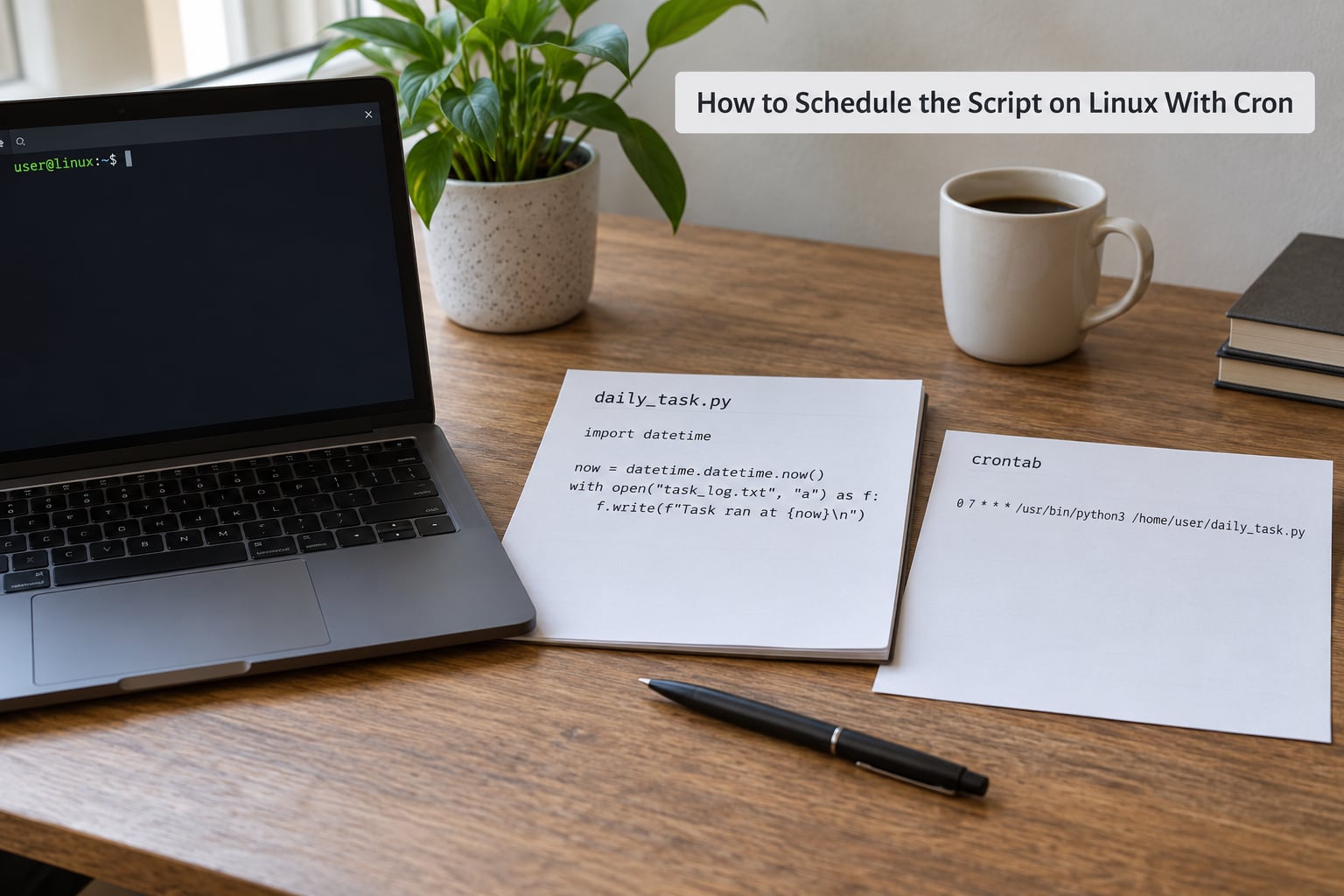
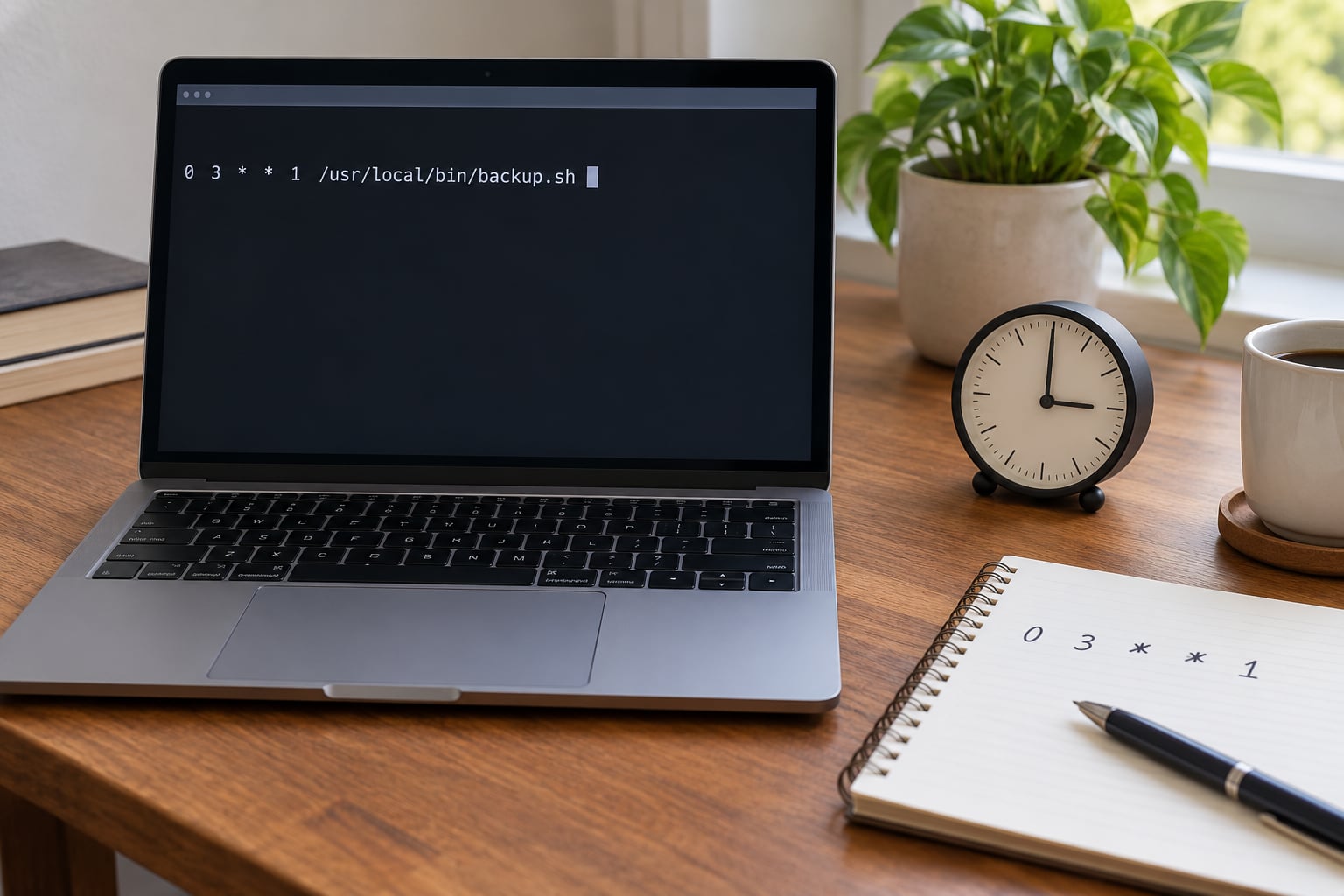
Cron runs every job at a matching moment, which is why the entry is a timestamp rather than an interval. Open your crontab with crontab -e and add one line:
0 9 * * * /home/you/venv/bin/python /home/you/scripts/report.py >> /home/you/logs/report.log 2>&1Those five fields before the command are minute, hour, day of month, month, day of week. 0 9 * * * means minute 0 of the 9 AM hour, on every day of every month.
| Field | Range | Example | Meaning |
|---|---|---|---|
| Minute | 0-59 | 0 | Minute 0, on the hour |
| Hour | 0-23 | 9 | 9 AM (add 12 for a midnight entry in a 12-hour clock) |
| Day of month | 1-31 | * | Every day |
| Month | 1-12 or JAN-DEC | * | Every month |
| Day of week | 0-6 or SUN-SAT | * | Every weekday (0 is Sunday) |
A few practical bits. >> appends to the log instead of erasing it, and 2>&1 folds error output into the same file so tracebacks show up too. Cron gives you a minimal environment, so python alone often fails; the absolute interpreter path avoids the problem entirely.
Confirm the entry is there with crontab -l, then check whether the daemon is alive with systemctl status cron (Debian, Ubuntu) or systemctl status crond (RHEL, Fedora). On most systemd distributions the journal keeps the lines: journalctl -u cron --since today. If your system logs to files instead, grep CRON /var/log/syslog shows the same thing.
Add MAILTO="" on the first line if you would rather not get a mail per job, and remember that a missed run while the machine was off is simply gone. On Debian-family systems anacron exists as a catch-up wrapper for exactly that case.
How to Schedule the Script on Linux With a Systemd Timer
Systemd timers give you logging through the journal, an exit-code-aware service, and a catch-up flag cron does not have. You write two files: a service that runs the command, and a timer that decides when to start it.
# /etc/systemd/system/report.service
[Unit]
Description=Daily Python report

[Service]
Type=oneshot
User=you
WorkingDirectory=/home/you/scripts
ExecStart=/home/you/venv/bin/python /home/you/scripts/report.py
# /etc/systemd/system/report.timer
[Unit]
Description=Run the report daily at 09:00

[Timer]
OnCalendar=*-*-* 09:00:00
Persistent=true

[Install]
WantedBy=timers.target
OnCalendar=*-*-* 09:00:00 is the calendar form of the daily-at-nine trigger. Persistent=true means that if the machine was off at 09:00, systemd runs the job once at the next boot instead of dropping it.
Activate it with sudo systemctl daemon-reload, then sudo systemctl enable --now report.timer. Two commands tell you whether it worked: systemctl list-timers report.timer prints the next run time, and journalctl -u report.service --since today prints whatever the script wrote.
How to Schedule the Script on Windows With Task Scheduler
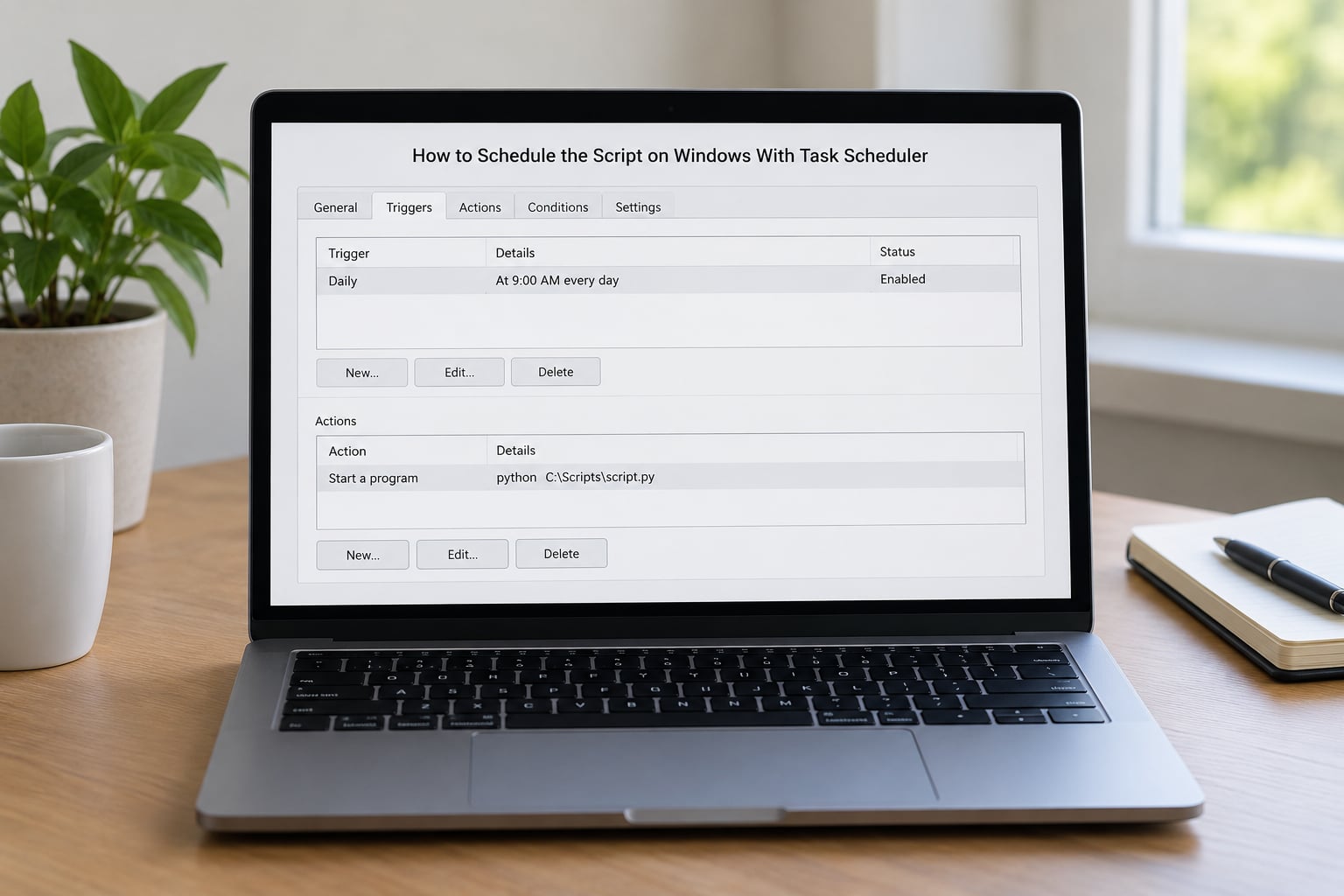
Task Scheduler is the Windows answer, and the two settings people miss are the trigger time and the login requirement. Open it from the Start menu search for Task Scheduler, then in the Actions pane choose Create Task (not the Basic version, which hides the settings you need).
- On the General tab, under “Run whether user is logged on or not”, choose “Run whether user is logged on or not”. This is the setting the forum posts keep circling. Leave “Run with highest privileges” unchecked unless your script genuinely needs administrator rights.
- Set “Start in” to the folder that holds your script. Windows uses C:WindowsSystem32 as the working directory otherwise, and any relative path in your code will resolve somewhere unexpected.
- On the Triggers tab, click New, choose “Daily”, pick a start time such as 9:00 AM, and leave the recurrence at one day.
- On the Actions tab, choose “Start a program”. Program or script: the full path to python.exe, for example C:UsersyouvenvScriptspython.exe. Add arguments: the full script path. If either path contains spaces, wrap that field in double quotes.
- Leave “Start the task” on “On demand” and click OK.
The same thing from a command prompt, useful on a machine with no GUI session:
schtasks /create /tn "DailyReport" /tr "C:UsersyouvenvScriptspython.exe C:Usersyouscriptsreport.py" /sc daily /st 09:00 /ru "%USERNAME%" /rp * /f/sc daily sets the schedule type, /st 09:00 the start time, and /ru with /rp * prompts for the password so the task runs without an interactive session. To see whether a run actually happened, open Task Scheduler, select the task, and read the “Last Run Result” field on the General tab: 0x0 means the process exited successfully, and anything else carries a code you can look up. The History tab shows every start, end, and result code since the task was created.
How to Schedule the Script on macOS With launchd
Cron still exists on macOS, but it asks for full disk access on recent versions and Apple has deprecated it in favour of launchd. Use a launch agent, which runs per logged-in user, and write it as an XML plist.
<?xml version="1.0" encoding="UTF-8"?>
<!DOCTYPE plist PUBLIC "-//Apple//DTD PLIST 1.0//EN" "http://www.apple.com/DTDs/PropertyList-1.0.dtd">
<plist version="1.0">
<dict>
  <key>Label</key><string>com.example.dailyreport</string>
  <key>ProgramArguments</key>
  <array>
    <string>/Users/you/venv/bin/python</string>
    <string>/Users/you/scripts/report.py</string>
  </array>
  <key>StartCalendarInterval</key>
  <dict>
    <key>Hour</key><integer>9</integer>
    <key>Minute</key><integer>0</integer>
  </dict>
  <key>WorkingDirectory</key><string>/Users/you/scripts</string>
  <key>StandardOutPath</key><string>/Users/you/logs/report.log</string>
  <key>StandardErrorPath</key><string>/Users/you/logs/report.err.log</string>
</dict>
</plist>
Save it as ~/Library/LaunchAgents/com.example.dailyreport.plist, escaping the angle brackets as shown above. StartCalendarInterval is the launchd equivalent of the cron trigger: set Hour and Minute for a daily job, add a Day key for a weekly one, and leave out the keys you want to wildcard.
Load it with launchctl load ~/Library/LaunchAgents/com.example.dailyreport.plist, list what is loaded with launchctl list | grep dailyreport, and start it right now with launchctl start com.example.dailyreport so you do not have to wait until morning to find out. The two log paths in the plist are where launchd sends output. Unload it with launchctl unload using the same path.
Run the Script From Any Directory
A scheduled job starts with no idea where you were standing when you set it up, so it will look for files in a place you did not choose. Four habits remove the whole class of problem.
First, pass the script as an absolute path in the command, as every example above does. Second, tell the scheduler the working directory: WorkingDirectory= in a systemd unit, WorkingDirectory in the plist, “Start in” in Task Scheduler, and cd /home/you/scripts && before the command in a cron line if nothing else is available.
Third, use sys.executable when you spawn a child Python process, so the child inherits the same interpreter instead of whatever python resolves to under the scheduler. Fourth, pass every path as a command-line argument or read it from a config file rather than hardcoding it, so the script works the same in a terminal and under the scheduler.
Verify the Daily Execution
Do not wait for tomorrow to find out whether the entry works. Run the exact command line first, by hand, as the same user the scheduler uses. If it completes and prints something, the scheduling layer is the only thing left to prove.
Then redirect output to a file as shown in the cron example, wait for the next scheduled moment, and check:
- cron:
tail -20 /home/you/logs/report.logandjournalctl -u cron --since today - systemd:
systemctl status report.serviceandjournalctl -u report.service -n 50 - launchd: read the StandardOutPath and StandardErrorPath files you set in the plist
- Windows: the “Last Run Result” on the General tab and the History tab
For a one-off test, run the job immediately. systemd uses sudo systemctl start report.service, launchd uses launchctl start, Windows uses schtasks /run /tn "DailyReport", and cron has no trigger button, so temporarily set the schedule to * * * * * for a minute, watch the log, then put the real time back.
Common Mistakes
Almost all of these come from the same three assumptions: that the scheduler sees your shell environment, your current directory, and your output.
| Symptom | Likely cause | Fix |
|---|---|---|
| Nothing happens at all, no log entry | The job is not running in the interactive session, or the Task Scheduler default is “only when user is logged on” | Set “Run whether user is logged on or not”, or supply /RU on schtasks |
| “python: command not found” in the log | Cron and Task Scheduler have a much smaller PATH than your terminal | Use the absolute interpreter path from which python3 or where python |
| FileNotFoundError for a data file | Relative path resolved against System32 or / | Set the working directory, or pass absolute paths as arguments |
| ModuleNotFoundError for a package you installed | The scheduler ran the system Python, not your virtual environment | Point the command at .venv/bin/python (Linux, macOS) or venvScriptspython.exe (Windows) |
| Script runs but you see nothing | Output was never redirected anywhere | Add >> logfile 2>&1, or set the plist log paths |
| It runs twice in the morning | The job exists in two places, such as a crontab and a systemd timer, or a stale python script.py loop is still alive | List timers and crontabs, and stop the leftover process |
| Runs at the wrong hour after a DST change | cron uses local time, which shifts | Use a systemd timer with an explicit timezone in OnCalendar, or schedule in UTC |
| Missed while the machine was off | Cron does not backfill | Use a systemd timer with Persistent=true, or anacron |
| Permission denied writing a file | The job runs as your user, not root | Fix ownership of the output path, or set User= in the unit file |
| Long-running schedule loop dies after a reboot | The polling process had no supervisor | Keep it under systemd with Restart=always, or move the job to cron |
Tips for Reliable Scheduled Scripts
Log to a file from the first run, using the logging module rather than print, and include a timestamp and the job name in each line. When something fails three weeks later, the log is the only thing that tells you why.
Exit with a non-zero status when the work fails. Windows shows it as Last Run Result, Linux surfaces it in systemctl status, and a monitoring hook can turn a non-zero code into an email or a message before you notice three missed days.
Make the script safe to run twice. A daily backup that appends, or a sync that re-sends everything, causes damage the second time a timer fires twice. Write to a temp file and move it into place, or check whether today’s marker already exists before starting.
Set PYTHONUNBUFFERED=1 in the job environment so writes reach the log file immediately instead of sitting in a buffer until the process exits. In a systemd unit that is an Environment= line; in cron it is a line of PYTHONUNBUFFERED=1 at the top of the crontab.
Keep credentials out of the file. Read API keys from environment variables or a dotenv file loaded at runtime, and if the job runs as root on Linux, remember that root’s environment is not yours.
For anything beyond a single daily job, a polling loop is a step backwards. Celery Beat with a broker, APScheduler with a persistent job store, Prefect, or Airflow all give you retries, a web view of past runs, and alerting. Move up that ladder when one daily script becomes five.
Frequently Asked Questions
Does Python have a built-in scheduler?
No. Python ships no scheduler in its standard library, which is why nearly every guide starts with cron, systemd, launchd, or Task Scheduler. Two third-party packages fill the gap: schedule, which you poll from a loop with run_pending(), and APScheduler, which stores jobs in memory or a database. Both need a process that stays alive, so something like systemd has to keep it running.
What is the best scheduler for Python?
Use the scheduler built into your operating system. Cron on Linux, launchd on macOS, and Task Scheduler on Windows all survive reboots, run without a logged-in session, and keep a history of runs. Reach for the schedule library only when several jobs share one long-running process, and move to APScheduler or Airflow when you need retries and a UI.
How do I schedule a Python script to run daily without Task Scheduler?
On Linux, add a line to crontab -e using the five-field syntax, for example 0 9 * * * /path/to/python /path/to/script.py. On macOS, install a launch agent plist with a StartCalendarInterval block. In Python itself, run schedule.every().day.at(’09:00′).do(job) inside a loop that calls run_pending() every minute, and keep that loop alive with systemd or nohup.
Why does my Python script run manually but not on schedule?
The scheduler environment is smaller than your shell. It usually means PATH does not resolve python, the working directory is not your project folder, or the virtual environment interpreter is not the one you invoked by hand. Run the exact command the scheduler will run, by hand, using the absolute interpreter path, and redirect output to a file so you can see the real error.
Can a scheduled Python script run when I am logged out?
Yes, as long as you tell it to. In Task Scheduler set Run whether user is logged on or not, and supply a password or stored account, or the job is skipped silently when you log off. On Linux and macOS the scheduler already runs jobs independently of your session, though a systemd unit may need an explicit User= to run as a named account.
What happens if my computer is off when the daily job is due?
With cron, the run is simply lost, since nothing is queued while the machine is down. A systemd timer with Persistent=true catches up once at the next boot instead. If the machine is rarely on, move the job to somewhere that always is: a small VPS, a Raspberry Pi, a NAS, or a hosted runner such as GitHub Actions with a cron trigger.
Conclusion
Start by running your script manually with the absolute path to the exact interpreter you want the scheduler to use. Then register it with the scheduler your operating system already has: a crontab entry on Linux, a systemd timer if you want catch-up runs and journal logging, a launch agent on macOS, or a Task Scheduler job with “Run whether user is logged on or not” ticked on Windows. Redirect output to a log file, trigger the job once by hand to prove it, and only then trust the daily schedule.