You should not expose RDP to the internet, because an open port 3389 listener is a permanent, automatically discovered entry point that needs no software exploit to abuse. Attackers find it, spray it with passwords, and walk in. The fix is not a better password. The fix is removing RDP from the public attack surface.
That answer frustrates people who forwarded 3389 on a home router three years ago and never saw anything happen. I get it, and I will address that objection directly further down, because it deserves a factual answer rather than hand-waving.
Below is what exposure actually means, how the attack pipeline works end to end, which mitigations genuinely help and which only narrow the aperture, and what experienced Windows administrators put in place instead. No product is being promoted here. This is the argument I make to teams that ask me to sign off on a public RDP host.
Table of Contents
- What Happens When RDP Is Exposed to the Internet?
- Why You Should Not Expose RDP to the Internet
- How Attackers Discover and Target RDP
- What Are the Main Risks of Public RDP?
- Does a Strong Password Make Public RDP Acceptable?
- What Is Safer than Exposing RDP Directly?
- How Do You Restrict RDP without Making It Inaccessible?
- What Should an Organization Do First?
- Frequently Asked Questions
- Is it safe to expose RDP to the internet with MFA?
- Can I use port forwarding to make RDP safer?
- Should RDP be enabled on a Windows Server used by remote administrators?
- Is a VPN automatically safe once RDP is available through it?
- How can I tell whether my RDP server is exposed to the internet?
- What is the safest way to provide RDP access to remote employees?
- Conclusion: Remove RDP from the Public Attack Surface
What Happens When RDP Is Exposed to the Internet?
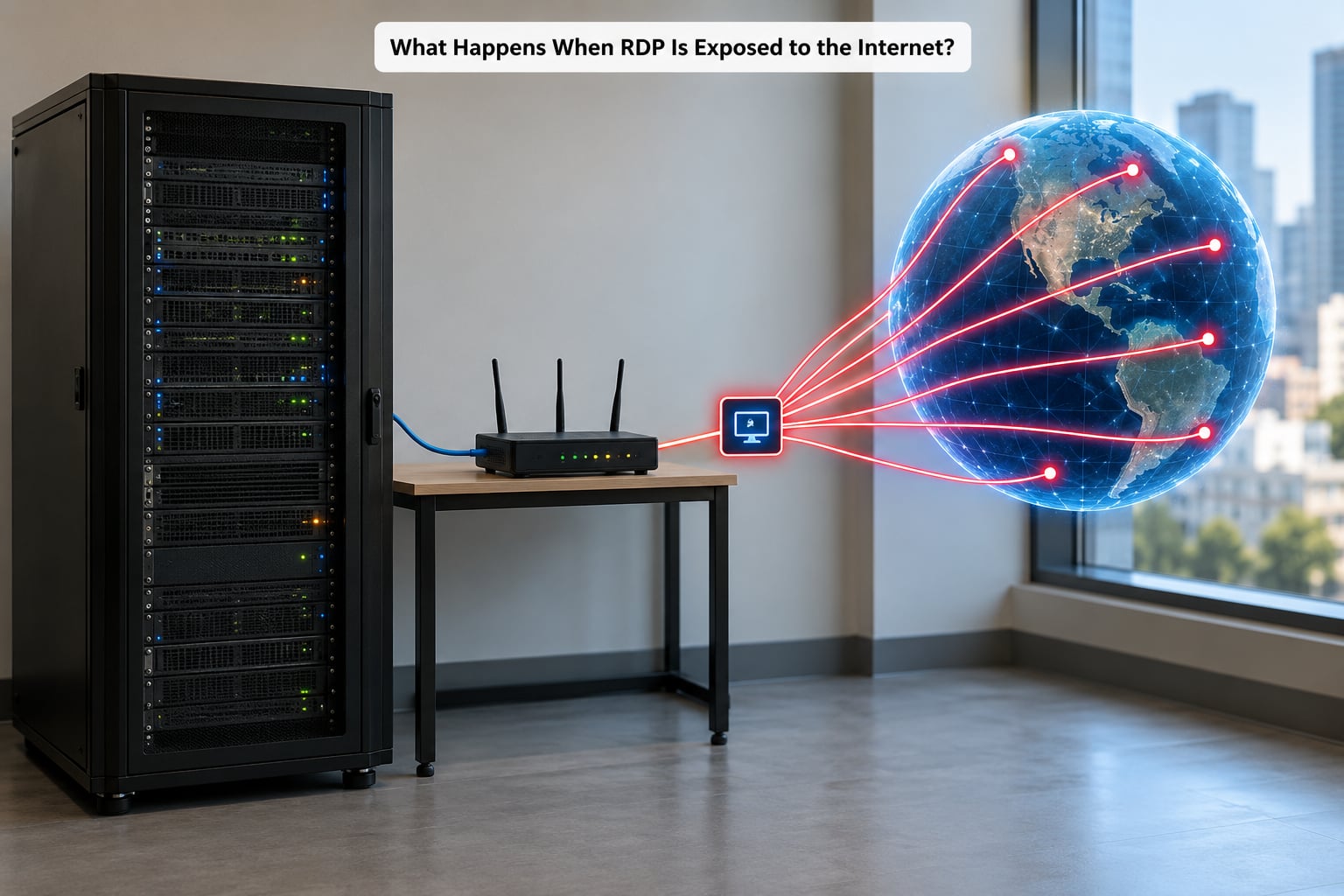
Exposing RDP to the internet means leaving the Remote Desktop Protocol listener reachable from any address on the public internet, usually by a port-forward on a router or an inbound firewall rule on a cloud host. From that moment the machine is a named, listed, permanently available target.
Internet-wide indexers such as Shodan and Censys catalogue open RDP endpoints continuously, and their counts have sat in the millions of hosts for years. Nothing about your host is hidden. An attacker does not need to find you, which is why the bar for attacking yours is so low.
Why You Should Not Expose RDP to the Internet
Direct public RDP concentrates every valuable entry point onto a single, well-known port, on a protocol that is one of the most heavily automated attack targets in existence. The specific reasons:
- It is permanently discoverable. Scanner infrastructure indexes your host within minutes of the rule going live, and that listing feeds credential-spraying and exploitation bots continuously.
- You have published a login form. The service only needs a guessable or reused password. No vulnerability, no malware, no phishing click required.
- The credentials are already for sale. Combinations of corporate usernames and passwords harvested elsewhere are sold and resold in bulk, and credential stuffing against a known username format needs no intelligence at all.
- Unpatched RDP flaws get wormed. Pre-authentication remote code execution bugs have turned a single exposed host into a self-spreading problem in a matter of hours.
- One login becomes many. A stolen or shared administrator session is a lateral movement ticket into file shares, databases, hypervisors and domain controllers.
- The blast radius is your whole estate. A workstation host with cached domain credentials and administrative shares can hand an attacker an entire environment.
- Compliance regimes treat it as a finding. Healthcare, finance, government and education environments get targeted first, and an internet-facing RDP listener is a routine audit exception.
None of this means every exposed machine gets owned. It means the outcome depends on an attacker running out of patience before you patch something.
How Attackers Discover and Target RDP
The path from “open port” to “encrypted files” is repetitive enough to describe as a sequence:
- Discovery. Mass internet scanning finds open TCP and UDP 3389 listeners. Public IP space is swept repeatedly, so a rule that is up for ten minutes still gets found.
- Fingerprinting. Banner grabs identify the Windows build, whether Network Level Authentication is on, and which services sit behind the same address.
- Username enumeration. Kerberos, SMB and RDP responses leak account naming patterns, which is why conventional account names for admins make life easier for the other side.
- Password attacks. Credential stuffing runs known username and password pairs, then switches to password spraying a small common-password list across many accounts to stay under lockout thresholds.
- Stolen credential use. Pairs harvested from previous breaches, infostealer logs sold on criminal forums and dark web RDP marketplaces get tested against the discovered endpoint.
- Vulnerability probing. Automated tooling fingerprints versions and tests for known flaws, aiming at a pre-authentication remote code execution bug where one exists.
- Persistence and movement. Once a session exists, the attacker creates persistence, harvests local credentials, maps the network and deploys ransomware or exfiltrates data.
Step five deserves emphasis. A machine is not attacked because someone guessed your password. It is often attacked because your password was already somewhere else.
What Are the Main Risks of Public RDP?
Here is the practical risk breakdown, with what each one looks like in the wild and a proportionate defence.
| Risk | What it looks like in practice | Proportionate defence |
|---|---|---|
| Brute force and password spraying | Thousands of failed logons followed by one success; event log 4625 spikes on the host | Remove public exposure, enforce lockout and long unique passwords, add MFA at a gateway |
| Reused or breached credentials | A single successful logon with a password the user set years ago on another service | Credential hygiene, unique local admin accounts, conditional access |
| Unpatched vulnerabilities | Compromise with no authentication at all, sometimes spreading on its own | Monthly patching cadence, remove the listener, segment the host |
| Malicious logon types | Type 3 network logons arriving from addresses the user never works from | Logon type monitoring, alert on type 10 and unusual type 3 sources |
| Session hijacking and AiTM phishing | Relayed authentication producing a session token an attacker reuses, bypassing MFA | Phishing-resistant MFA, short sessions, conditional access on device posture |
| Malware delivery | An installer or script launched immediately after a successful logon | Application control, script blocking, Defender for Endpoint or equivalent |
| Lateral movement | Traffic from the RDP host to file servers, management ports and domain controllers | Unique local admin accounts, tiered administration, network segmentation and a DMZ for jump hosts |
| Operational disruption | Encryption or wipe of the host, plus hours of downtime and an incident investigation | Tested offline backups, segmentation, a documented recovery path |
The published CVE record explains the unpatched row. Several Remote Desktop Protocol flaws reached wide deployment, and network scanning tools made exploitation trivial for anyone motivated to try.
| CVE | Year | Impact |
|---|---|---|
| CVE-2019-0708 (BlueKeep) | 2019 | Pre-authentication remote code execution in the RDP service, widely described as wormable |
| CVE-2020-0609 / CVE-2020-0610 | 2020 | Elevation of privilege and a man-in-the-middle weakness in the Windows RDP stack |
| CVE-2021-34535 | 2021 | Pre-authentication remote code execution in Remote Desktop Services |
| CVE-2022-22015 | 2022 | Information disclosure affecting Remote Desktop Services |
| CVE-2024-43533 | 2024 | Remote code execution in the Windows RDP client via a crafted connection, requiring user interaction |
None of these require an unusual configuration. A patched host blocks them, an unpatched exposed host does not.
Does a Strong Password Make Public RDP Acceptable?
No. A strong password meaningfully reduces one attack, and leaves every other one untouched. This is the part teams get wrong, so I will name the gap for each standard defence.
Long passwords and account lockout. Better than a weak password, and still the weakest layer here. Lockout can itself be weaponised, and rule-based lockout does nothing against a spray that keeps the count per account under the threshold.
Multi-factor authentication. Genuinely useful, and it stops the great majority of password-spraying success. It is not the end of the story: adversary-in-the-middle phishing kits relay the whole session including the second factor, which is why phishing-resistant methods matter more than any single checkbox.
Firewall rules and IP allowlisting. Effective for a stable office IP and nearly useless for a home connection on a dynamic address, which is exactly the reader who ends up forwarding the port instead.
Network Level Authentication. Requiring authentication before the session is established shuts down a whole category of unauthenticated exploitation and is a sensible default. It protects the handshake, not the credentials.
Changing the RDP port from 3389. This reduces background noise. It is security by obscurity, not a control: mass scanners cover the whole port range, and the tool that found your endpoint on 3389 will find it on 33890.
A VPN in front of RDP. A strong option, and the standard advice. It still concentrates RDP behind one exposed service, so the VPN gateway itself becomes the single high-value target and needs MFA, patching and monitoring.
Strong encryption. RDP traffic is encrypted in transit, which is not the problem here. The problem is who is allowed to complete the handshake at all.
The pattern is consistent. Every one of these reduces how many automated attempts get through. None of them removes the service from a list that strangers can see.
What Is Safer than Exposing RDP Directly?
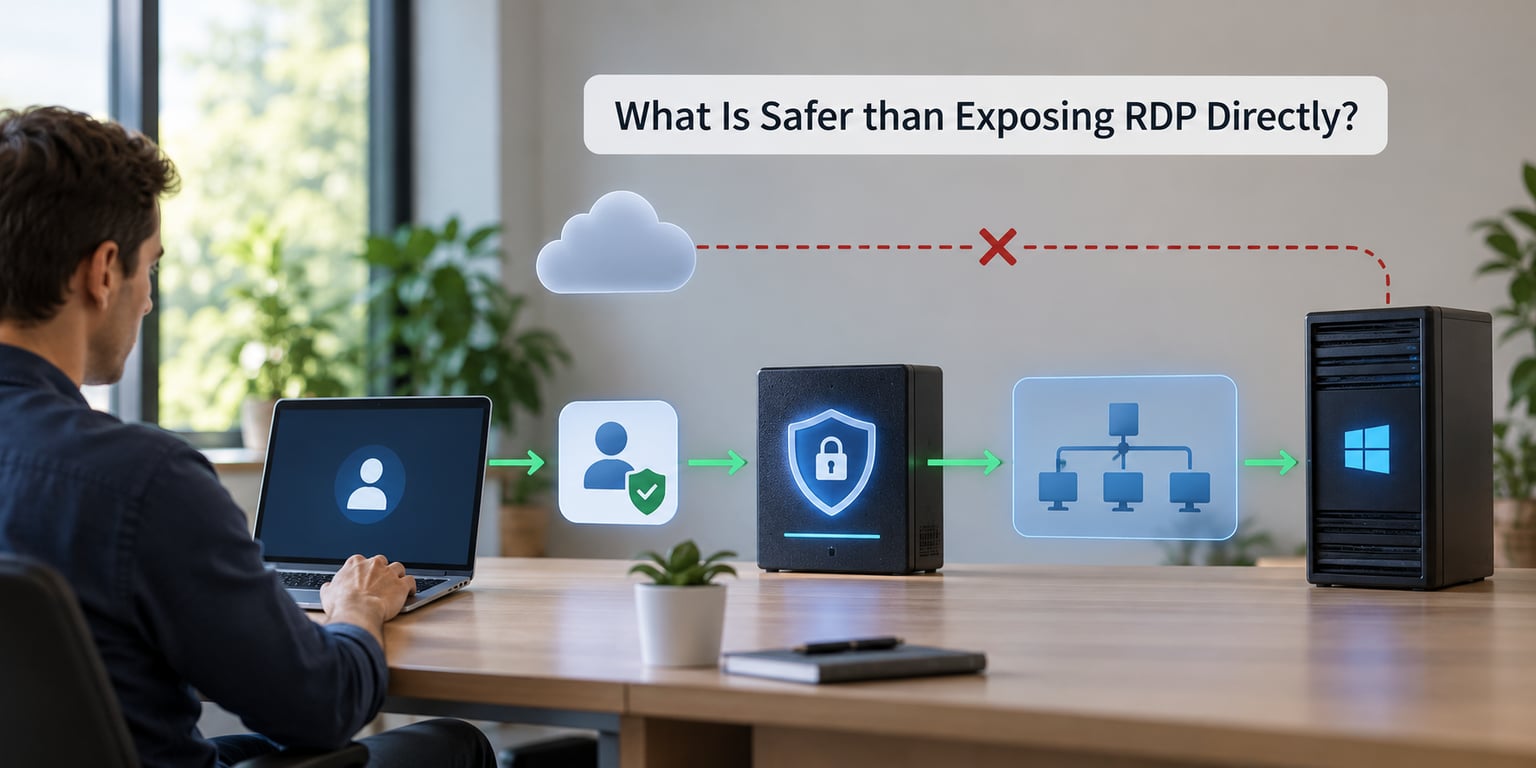
Safer access keeps the RDP listener on a private network and puts an authenticated layer in front of it, so no public address ever points at the port itself. The options, in rough order of how much they reduce exposure.
VPN (WireGuard, IPsec, or a managed client). A user connects to the VPN, receives an address on the private network, then opens RDP. The RDP port is never reachable from the internet. This is the default recommendation for most teams.
Overlay networks with no inbound ports. Peer-to-peer mesh tools build a private network over outbound connections, so the machine accepts no unsolicited traffic at all. This solves the dynamic home IP problem that pushes people toward port forwarding in the first place.
Identity-aware proxy and zero-trust access. Access is published as an application, and every session is evaluated against user identity, device health and location before it reaches the host. RDP never has a listening port on a public interface.
RD Gateway with RemoteApp. Publish individual applications through a hardened gateway rather than full desktop access, with per-user policy. Useful for software that genuinely needs a Windows session.
Bastion or jump host. A hardened host inside the network is the only thing administrators can reach directly, and it records sessions. Nothing else needs a public RDP rule.
SSH tunnel. If you already run a Linux host or VPS, this is the fastest fix and the one practitioners hand each other. Forward a local port to the Windows machine over SSH, then point the RDP client at localhost:
ssh -L 13389:windows-pc:3389 username@your-vps-hostOn Windows 10 and 11 the client has OpenSSH built in, so the same command works in PowerShell. Keep the session open and connect to localhost:13389 from the Remote Desktop client. No port is exposed, and the SSH host is the only public entry point.
Here is how the common options compare.
| Option | Public exposure | Authentication | Works with a dynamic IP | Operational complexity |
|---|---|---|---|---|
| Internet-facing RDP | Full, port 3389 indexed | Password, optionally MFA | Yes, which is the problem | Lowest to set up, highest to defend |
| VPN then RDP | Gateway only | VPN credentials plus MFA, then RDP | Yes | Moderate, gateway is a crown jewel |
| Overlay network | None, outbound only | Device keys plus user identity | Yes | Low, minimal firewall work |
| Identity-aware proxy | None, application published | Identity, device posture, MFA | Yes | Higher, needs a policy design |
| RD Gateway with RemoteApp | Gateway only | Per-user policy, MFA | Yes, with a published endpoint | Moderate to high |
| SSH tunnel | SSH port only | SSH keys | Yes | Low, one command per session |
For a home lab or a single self-hosted Windows VM, the overlay network or the SSH tunnel is usually the right answer in under an hour.
How Do You Restrict RDP without Making It Inaccessible?
The goal is to shrink who can reach the listener, and to keep a tested way back in. Work through this on Windows Server and on Windows 11.
1. Inventory every direct path first. Check the Windows Firewall rules for Remote Desktop, cloud provider security groups, and any router port-forward that targets 3389. Do not change anything until you know the full list, because a lockout here is a real outage.
2. Confirm a recovery path before you cut anything. Know how you would get back in if the rule is wrong: an on-site console, a provider’s serial console, IPMI, or a second administrator session you can already reach. Test it while the current path still works.
3. Remove public rules. Delete the inbound rule that allows Remote Desktop from any profile or any remote address, then replace it with a rule scoped to a specific private subnet, a VPN address range, or a named location. A scoped rule looks like this, adapted to your address range:
New-NetFirewallRule -DisplayName "RDP - VPN subnet only" -Direction Inbound -Protocol TCP -LocalPort 3389 -RemoteAddress 10.8.0.0/24 -Action Allow4. Force Network Level Authentication and require MFA upstream. Confirm that Require computers to use Network Level Authentication is on, and put the second factor on the VPN or gateway, where it applies before any session exists.
5. Disable legacy transports you do not need. Turn off Remote Desktop Assistance and shadowing if nobody uses them, and consider blocking UDP 3389 where it is not required, since the service will fall back to TCP.
6. Patch on a schedule, not on an incident. Monthly updates close the CVE column above. If the host cannot keep a patch cadence, that is an argument for moving the workload, not for exposing it longer.
7. Move the host to a DMZ segment if it must face any external path. A jump host in a DMZ that forwards sessions to internal systems keeps the RDP listener off the trusted network entirely.
8. Log and alert. Alert on event 4625 spikes, on type 10 logons from unfamiliar addresses, and on Terminal Services 1149 authentication events. A public RDP host with no log review is an open door nobody is watching.
What Should an Organization Do First?
If a team asked me for the first week of work, this is the order I would give them.
- Discover the exposure. Search firewall rules, cloud security groups, and router configurations for 3389. Then verify from outside: run
Test-NetConnection your-host -Port 3389from a machine on a different network, and search your public address on an internet indexer such as Shodan or Censys. - Rank what you found. Anything reachable with a known public IP goes first. Home lab and self-hosted VMs are next, because the owners are least likely to be watching.
- Hunt for signs of past access. Review 4624 logons with type 10 and type 3, 4625 spikes, 1149 events, and any new or modified local administrator accounts. Check for unfamiliar scheduled tasks, services, and startup entries.
- Cut the listener. Remove the public rule. Keep a documented, tested recovery path so you cannot be locked out mid-change.
- Deploy the access layer. Stand up a VPN, an overlay network, or an identity-aware proxy, and publish RDP only behind it.
- Rotate credentials. Change local and domain admin passwords that were usable on exposed hosts, invalidate active sessions, and review anything that host could reach.
- Turn on monitoring and backup verification. Log collection with alerts on the events above, and an offline or immutable backup you have actually restored from once.
- Migrate away deliberately. Move remaining hosts to private addressing or overlay networking on a staged schedule rather than an emergency weekend.
One item on that list deserves a sentence of its own. Step three is not paranoia. If a host was publicly reachable and the logs still exist, the logs are the only place a past intrusion shows up.
Frequently Asked Questions
Is it safe to expose RDP to the internet with MFA?
MFA raises the bar significantly, and it stops most password-spraying success. It does not remove the exposure. The endpoint stays listed in internet scans, pre-authentication patching gaps stay reachable, and relay-style phishing kits can defeat the second factor entirely. MFA is a layer to use behind a VPN or gateway, not a substitute for one.
Can I use port forwarding to make RDP safer?
Port forwarding on a home router is the exact mechanism that exposes RDP to the internet, so it does not make anything safer. Moving from port 3389 to another number only cuts background scanning noise while leaving the host fully discoverable. If you need remote access to a self-hosted Windows machine, use an overlay network or an SSH tunnel, both of which need no forwarded port at all.
Should RDP be enabled on a Windows Server used by remote administrators?
Usually not on the public interface. Keep Remote Desktop enabled if administrators need it, but bind the listener to the private network and reach it through a VPN, bastion host, or gateway. If the server is only reachable through that protected path, the service is doing its job. If it answers on a routable internet address, that is the configuration worth fixing first.
Is a VPN automatically safe once RDP is available through it?
No, but it is a large improvement. With a VPN, the RDP port is no longer indexed by internet scanners and only authenticated tunnel users can reach it. The gateway then becomes the highest-value target on the network, so it still needs MFA, timely patching, log monitoring, and a limited user base. That is a normal, manageable security posture rather than an open door.
How can I tell whether my RDP server is exposed to the internet?
Check three things. First, search the Windows Firewall rules and any cloud security group for inbound rules on 3389. Second, test from an external network with Test-NetConnection your-host -Port 3389, where a successful result means it is reachable. Third, look up your public IP address on an internet indexer such as Shodan or Censys, which will show a listing if the service is discoverable.
What is the safest way to provide RDP access to remote employees?
Publish the remote desktop through an access layer rather than the machine itself. In practice that means a VPN with MFA, an overlay network with no inbound ports, an identity-aware proxy, or RD Gateway with RemoteApp. The session then requires an authenticated user and a compliant device, and the RDP port stays on a private network where no indexer can see it.
Conclusion: Remove RDP from the Public Attack Surface
Why you should not expose RDP to the internet comes down to one line: the listener is published, permanent, and needs only a password, and that is precisely the setup automated criminal operations look for. Stronger passwords, MFA and a changed port all help, and none of them take the host off the list.
Start by identifying every internet-exposed RDP endpoint, including the home router and the self-hosted VM you forgot about. Then move access behind a VPN, zero-trust access, a protected gateway, or a bastion host, and confirm that you still have a tested recovery path. If a shortcut is needed today, an SSH tunnel gets you there in a single command.
And if you have already been exposed, review the log events. That is the one step people skip, and it is the only one that tells you whether the question is still hypothetical.