To encrypt a drive with BitLocker on Windows 10 or 11, open Manage BitLocker, click Turn on BitLocker next to the drive, choose how the drive unlocks, save the 48-digit recovery key somewhere outside the drive, pick the encryption scope, and start encryption. It takes about five minutes to set up and anything from a few minutes to a few hours of background work.
BitLocker is the full-volume encryption built into Windows. It scrambles the whole drive at rest with AES, so a stolen laptop or a tossed-away SSD is unreadable without the key. Two things decide which method you follow: your Windows edition, and whether the target is the drive Windows boots from or a USB stick you carry around.
Table of Contents
- The Seven Steps in Short
- What You Need Before You Start
- Step-by-Step: How to Encrypt a Drive with BitLocker
- How to encrypt the Windows system drive
- How to encrypt a USB drive or secondary drive with BitLocker To Go
- How to verify BitLocker is working
- Common BitLocker mistakes and how to fix them
- How to recover access if the BitLocker recovery key is lost
- How to turn BitLocker off or decrypt a drive
- Frequently Asked Questions
- Does BitLocker encrypt my data if I lose the recovery key?
- Can I use BitLocker on a Windows 10 or Windows 11 laptop without TPM?
- Should I choose a startup password or let the TPM unlock BitLocker automatically?
- Will encrypting a drive with BitLocker slow down my computer?
- Does BitLocker encrypt a USB drive or only the Windows system drive?
- Can I turn BitLocker off without losing the files on the drive?
The Seven Steps in Short
- Confirm your Windows edition is Pro, Enterprise or Education.
- Check the TPM is present and switched on in firmware.
- Open Manage BitLocker from the Start menu or Control Panel.
- Click Turn on BitLocker under the drive you want.
- Choose the unlock method: TPM, TPM plus PIN, or a startup password.
- Save the 48-digit recovery key to a file, a USB stick, or your Microsoft account.
- Pick the encryption scope, run the system check, and click Start encrypting.
Two details catch most people out. First, the recovery key is the only way back in if the TPM ever refuses to unseal the key, so treat saving it as part of the encryption, not a chore for later. Second, you can cancel the wizard right up until you click Start encrypting, and nothing changes on the drive.
What You Need Before You Start
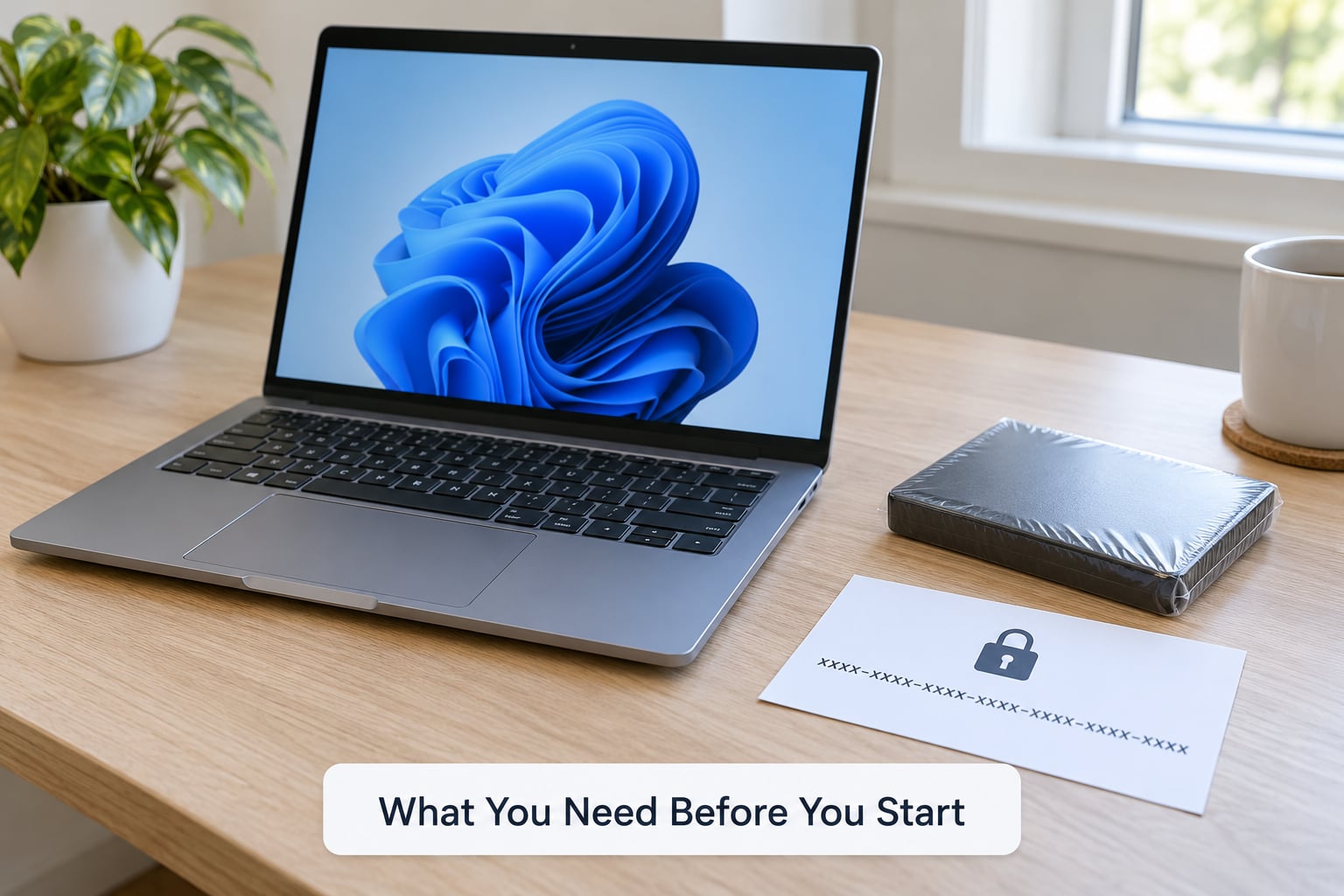
Five things have to line up. Miss one and the Turn on BitLocker button is greyed out, or the wizard fails at the compatibility check.
| Requirement | What it actually means | If you do not have it |
|---|---|---|
| Windows Pro, Enterprise or Education | BitLocker is not exposed in Windows Home. Home machines often show a different feature called Device Encryption instead. | Upgrade the edition, or use Device Encryption on Home hardware that supports it. |
| TPM 1.2 or 2.0 | A small chip on the motherboard that stores the key the drive uses. UEFI machines usually have TPM 2.0; legacy BIOS machines may have TPM 1.2. | Check Device Manager under Security devices. If it is greyed out, enable it in BIOS/UEFI firmware, or plan on a startup password. |
| Administrator rights | Enabling BitLocker changes how the whole volume is stored. | Run Settings or Control Panel as an administrator. |
| NTFS on the drive Windows boots from | The operating system volume must be NTFS. Data and removable drives can be FAT32 or exFAT. | Convert the volume to NTFS first, which means backing it up. |
| A real backup, somewhere else | Encryption touches every sector, and a hardware failure mid-process is a bad day. | Copy your files to an external drive or cloud storage before you start. |
Check the TPM before you plan anything else, because it decides your unlock method. Windows will happily encrypt without a TPM if you choose a startup password instead, but then you type a PIN at every boot. On firmware where the TPM is present but disabled, a single setting in BIOS/UEFI changes everything.
On Windows Home, the Turn on BitLocker option simply does not exist. What Home does offer on qualifying hardware is Device Encryption, which is the same encryption under a simpler interface, unlocked automatically by the same TPM, with a recovery key stored to your Microsoft account. It is a reasonable stand-in for a home laptop, and it is the reason some Home users report a drive being encrypted without a key they ever handled.
For a system drive, leave a few hundred megabytes free on the EFI system partition. That small FAT32 partition holds the encryption metadata, and a nearly full disk is a common reason the wizard refuses to start.
Step-by-Step: How to Encrypt a Drive with BitLocker
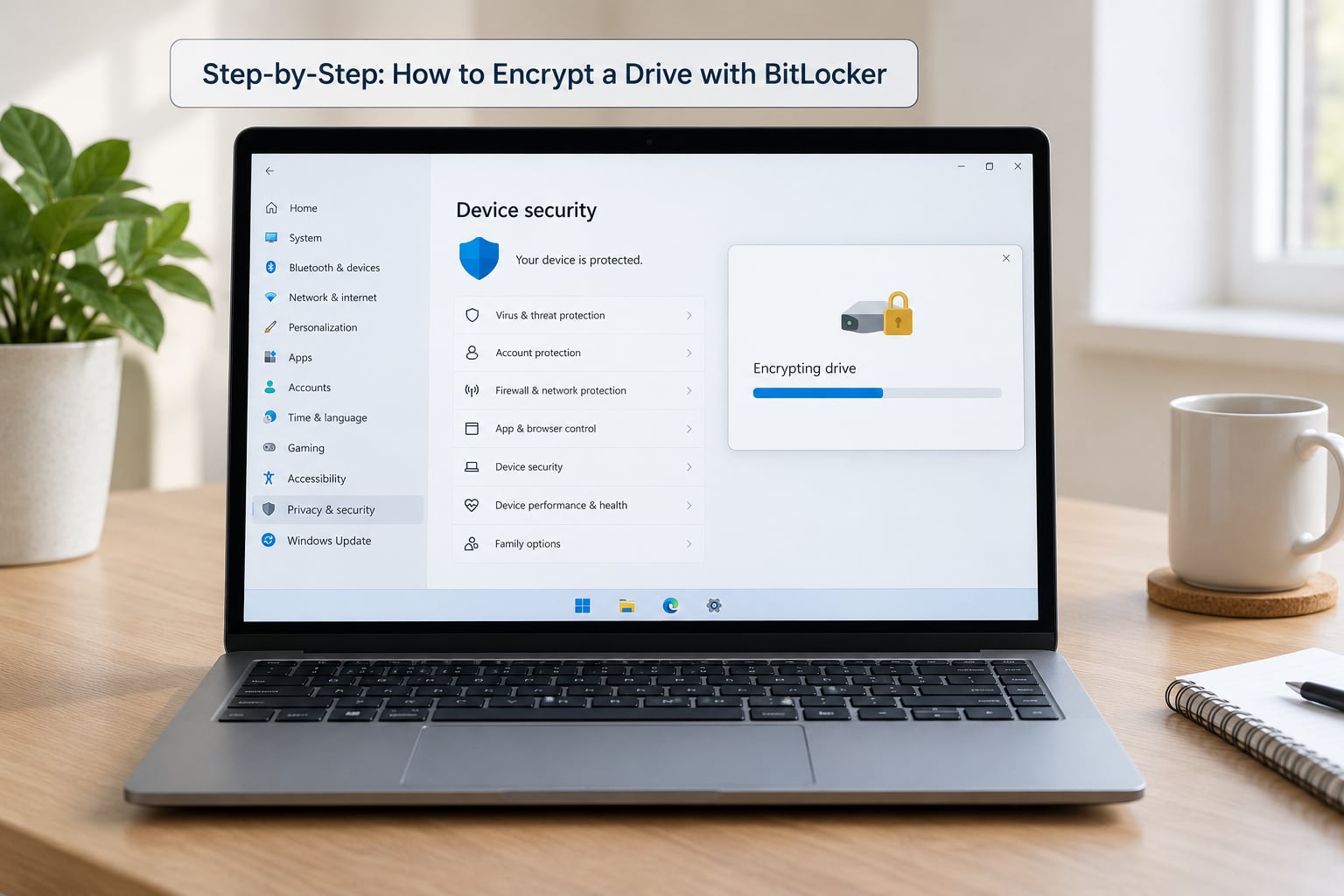
How to encrypt the Windows system drive
There are three ways into the same page, and all of them end at the same wizard. Type Manage BitLocker in the Start menu, open Control Panel then System and Security then BitLocker Drive Encryption, or right-click a drive in File Explorer and choose Turn on BitLocker (this last one is missing on some removable drives).
- Under Operating system drive, click Turn on BitLocker. You need administrator rights and a moment while Windows checks compatibility.
- Choose how to unlock the drive. This is the only choice that really matters, so pick deliberately.
- Back up the recovery key now. Choose Microsoft account, Save to a file, Save to a removable device, or Print the recovery key.
- Pick the encryption scope: Encrypt used disk space only, or Encrypt entire drive.
- Choose the encryption mode: XTS-AES is the default and the right answer on anything modern.
- Confirm Create the recovery key if you kept it, then click Start encrypting.
- Leave the PC plugged in. You can keep working while it runs.
The unlock method decision comes down to how much friction you want at boot.
| Unlock method | What happens at boot | Good fit for |
|---|---|---|
| Unlock automatically using the TPM | Nothing to type. The TPM unseals the key only when the boot measurements match. | Desktops and most laptops. |
| Unlock automatically using the TPM, only on this device (TPM plus PIN) | You type a PIN before Windows starts. Losing the PIN means using the recovery key. | Laptops that travel, where a stolen machine should not boot just because the TPM says yes. |
| Require a startup password only | A password prompt appears on every boot. No TPM needed. | Machines with no TPM, or a second unlock method kept as a backup. |
| Use a smart card | Card plus PIN at boot. | Work environments with card readers already in place. |
Encryption on the system drive typically takes a few minutes on a fast SSD with little data and a few hours on a slow drive with a lot of it. Users on TenForums report a few hours for a 232 GB laptop holding around 190 GB of data. You can shut down, restart, or let it sit; the volume is not readable in the meantime, and the process picks up where it left off. A power cut is not a disaster, but finish it before you go travelling.
On 128-bit versus 256-bit AES: 128-bit is the Windows default and nobody has cracked it. Choose 256-bit if you are handling material that outlives a decade or your policy demands it, and expect a small speed cost on CPUs without hardware support for AES-256.
How to encrypt a USB drive or secondary drive with BitLocker To Go
Removable and secondary drives use BitLocker To Go, the same engine with a different unlock flow. In File Explorer, right-click the drive and choose Turn on BitLocker, or open Manage BitLocker and click Turn on BitLocker under Removable drives.
- Insert the drive and confirm the volume is FAT32 or exFAT for a USB stick, or NTFS if you want to use it on both Windows and Mac.
- Click Turn on BitLocker, then Set a password to unlock the drive. This one requires a password; there is no TPM involved.
- Save the recovery key to a different location than the drive itself.
- Keep the defaults for encryption mode and strength.
- Choose Encrypt used disk space only, or Encrypt entire drive if the stick may be handed to someone else later.
- Click Start encrypting, and eject it when the status reads Protection On.
Two things people conflate. BitLocker To Go is not a format: a factory-fresh exFAT stick shows a drive letter and an open file picker, and the file structure stays visible to anyone who plugs it in. It only asks for a password because the volume is scrambled, not because a bit was flipped.
For a second internal data drive, use the same Manage BitLocker page and pick a method that suits a drive that stays inside the case. TPM plus PIN works there, and Windows will usually auto-unlock an internal data volume once the system drive has unlocked.
A second internal drive does not need NTFS, and it does not need the EFI system partition. That constraint only applies to the volume Windows boots from.
How to verify BitLocker is working
Three checks, from quickest to most informative. In File Explorer, look at the drive in This PC: an encrypted volume shows a small padlock on the icon, and double-clicking asks for a password. In Manage BitLocker, the volume lists Protection On, and the percentage next to it reads 100 percent Encrypted with a dash in the Key Protection column once it settles.
Windows Security gives the same information for the system drive under Device security, Device performance and health, Storage, and Device encryption. If the page says this device does not support device encryption, BitLocker is not protecting it.
The command line is the honest one. Open Command Prompt or PowerShell as an administrator and run:
manage-bde -status C:
That prints Conversion Status, Percentage Encrypted, Protection Status, Lock Status, and the list of key protectors. Protection Status reading Protection Enabled is what you want. To see the key material, run manage-bde -protectors -get C:. In PowerShell, Get-BitLockerVolume lists every encrypted volume on the machine in one table.
Interpret the fields like this. Encryption in progress shows a percentage below 100. Suspended shows a protection status of Protection Off with a reason recorded, and that state survives reboots until you resume it. If a volume says BitLocker is enabled but the key protection column is empty, the key was never escrowed anywhere, which is the situation to fix first.
Common BitLocker mistakes and how to fix them
Almost every BitLocker problem on a forum is one of these, and most of them show up as a recovery prompt that looks completely random.
| Symptom | Cause | Fix |
|---|---|---|
| Recovery key demanded at every boot | TPM cannot validate the boot state, often after a firmware or hardware change | Enter the recovery key once, then suspend protection before the next BIOS update or hardware swap, and resume afterwards |
| Recovery prompt right after a Windows update | An update changed the measured boot state, and some builds have shipped bugs that trigger this | Enter the key, then update to the fixed build; keep the key saved so this costs you thirty seconds |
| This device cannot use a TPM | The TPM is missing, disabled in firmware, or blocked by policy | Enable it in BIOS/UEFI, or set Computer Configuration, Administrative Templates, Windows Components, BitLocker Drive Encryption, Require additional authentication at startup to allow computers without a TPM, then choose a startup password |
| Recovery key entered at the blue screen is rejected | Digits transcribed in the wrong order, or the key belongs to another drive | Type it from the printed copy or saved file in blocks of eight, and check the key ID against the one shown on screen |
| Encryption stuck at a percentage for hours | Heavy disk activity, a nearly full drive, or firmware storage issues | Leave the PC on and plugged in overnight; if it never moves, check the drive’s health in Disk Management before retrying |
| Files gone after a hardware swap | Assumes encryption applied to the backup too | Decrypt the original drive first, or restore from a decrypted copy; a BitLocker-encrypted backup is only readable on a machine that can unlock it |
| No BitLocker option on a USB drive | The drive is formatted as exFAT on a system where the context menu entry is hidden, or the policy is off | Open Manage BitLocker instead, and use the Removable drives section |
| Nothing happens after setting it up | The wizard was cancelled before Start encrypting | Nothing to undo. The drive was never encrypted, so just run the wizard again |
The one mistake that cannot be undone is losing the recovery key. r/sysadmin threads are full of it, and the answer is consistently the same: there is no bypass, and the usual result is a reinstalled operating system and lost data.
How to recover access if the BitLocker recovery key is lost
Start with where you saved it. If you chose Microsoft account, sign in at the Microsoft account site and open the BitLocker recovery key page, which lists every device with keys stored there. If you saved a file, look for a text file named after the drive with the key and its ID. A printed copy lives in whatever you filed paperwork in.
If the machine is joined to Active Directory, Azure Active Directory, or Microsoft Entra ID, ask your administrator for the device’s BitLocker recovery key. Information rights management or key escrow policy determines whether it was ever uploaded, and unmanaged devices frequently have no key on file.
Windows password reset tools do not help here. A locked drive is decrypted by the TPM or the recovery key, and nothing in Windows will hand either one over because someone proved they know your account password. That is the point of the feature. Users with second-hand machines find this out the hard way: if the previous owner enabled BitLocker in TPM-only mode and the TPM accepted the machine, recovery without that key is not available.
One more case worth knowing. If encryption was enabled but never finished, or was never activated, the recovery key may not have been escrowed anywhere at all. The forensic community runs into this on secondhand drives, and the answer there is the same: without the key, the data is not recoverable.
How to turn BitLocker off or decrypt a drive
Decrypting means taking the drive back to plain, readable storage. Suspending is different: it turns protection off temporarily and leaves the data encrypted. Use Suspend protection before a BIOS update, a motherboard change, or a GPU swap, and use Decrypt when you want the encryption gone.
- Open Manage BitLocker.
- Find the volume and click Turn off BitLocker, or click Suspend protection.
- For suspend, choose whether to require a recovery key at the next boot. A shorter suspension is less exposure.
- For decryption, confirm and wait. The clock matches the original encryption: minutes on a fast SSD, hours on a full spinning disk.
- Resume protection once the hardware change is done, so the drive is protected again.
Decryption does not instantly erase anything. The drive simply gets re-written in the clear, and on an SSD with TRIM the old encrypted blocks become very hard to recover, while on a hard drive you should assume the old data is still recoverable until the drive is destroyed.
Before you reinstall Windows, hand the machine to somebody else, or donate it, decrypt the drive and wait for the status to read Protection Off. Windows setup will not install onto a BitLocker-encrypted volume, and the installer has no way to ask you for a key it does not know how to use.
Frequently Asked Questions
Does BitLocker encrypt my data if I lose the recovery key?
No. BitLocker encrypts the drive either way, and the recovery key is what lets Windows decrypt it when the TPM will not. Lose the key on a machine where the TPM has validated and you are locked out; there is no password reset bypass. Save the key to your Microsoft account, a file on a separate drive, a USB stick, and a printed copy in a safe place before you start.
Can I use BitLocker on a Windows 10 or Windows 11 laptop without TPM?
Yes, by choosing a startup password as the unlock method instead of the TPM. Some firmware also has the TPM present but switched off, in which case turning it on in BIOS/UEFI restores the automatic option. If a policy error says the device cannot use a TPM, an administrator can allow it under the Require additional authentication at startup Group Policy setting.
Should I choose a startup password or let the TPM unlock BitLocker automatically?
On a desktop that never leaves the house, let the TPM do it, since there is nothing to type. On a laptop that travels, use TPM plus PIN: the TPM releases the key only if the boot state is unchanged, and the PIN stops anyone who lifts the machine. Keep a startup password protector as a second protector rather than replacing the TPM.
Will encrypting a drive with BitLocker slow down my computer?
Barely, on any machine with hardware AES support, which is every CPU made in the last decade. BitLocker does add a small overhead per read and write, and 256-bit AES costs more than the 128-bit default on hardware without AES-256 acceleration. If your storage is slow, the perceived slowdown comes from the drive, not the encryption.
Does BitLocker encrypt a USB drive or only the Windows system drive?
Both. Any removable or secondary drive can be encrypted with BitLocker To Go, which is the same AES engine with a password instead of a TPM. Right-click the drive in File Explorer and choose Turn on BitLocker, or use the Removable drives section of Manage BitLocker. Save the recovery key somewhere other than the drive you are encrypting.
Can I turn BitLocker off without losing the files on the drive?
Yes. Turning off BitLocker decrypts the volume in place and every file stays exactly where it is. It takes about as long as the original encryption did, and you can keep using the PC while it runs. For a temporary gap, Suspend protection pauses protection and keeps the data encrypted until you resume.
Start with a backup you have actually tested, then turn on BitLocker for the system drive and save the recovery key in two places before you close the wizard. Everything after that is verification and habit: check the status once, and remember to suspend protection before the next firmware update.