You should use a password manager because password reuse turns one breach into a dozen compromised accounts, and a manager gives every site its own generated password behind a single master password you can actually remember. It also fills those credentials in for you, which takes away the hand-typing that most phishing pages depend on.
Manual password management fails for a boring reason. The average person’s account count sits somewhere north of a hundred, and nobody can hold a hundred unrelated strings in working memory. So we reuse a good password, we write the exceptions on a sticky note under the keyboard, and we reuse the pattern again when a site demands a capital letter. That is the whole problem, and it is what a password manager removes.
Table of Contents
- What Does a Password Manager Do?
- Why You Should Use a Password Manager
- Password reuse is the quiet one
- Phishing depends on you typing
- How Password Managers Protect Your Credentials
- Choosing Between Browser, Device, and Standalone Managers
- How to Set Up a Password Manager Safely
- How to Use One Without Creating New Security Risks
- What Are the Main Risks and Limitations?
- Is a Password Manager Right for Everyone?
- Frequently Asked Questions
- Are password managers safe?
- What happens if a password manager is hacked?
- Should I use a browser password manager or a standalone one?
- Can password managers share passwords securely?
- What if I forget my master password?
- Do I still need two-factor authentication with a password manager?
What Does a Password Manager Do?
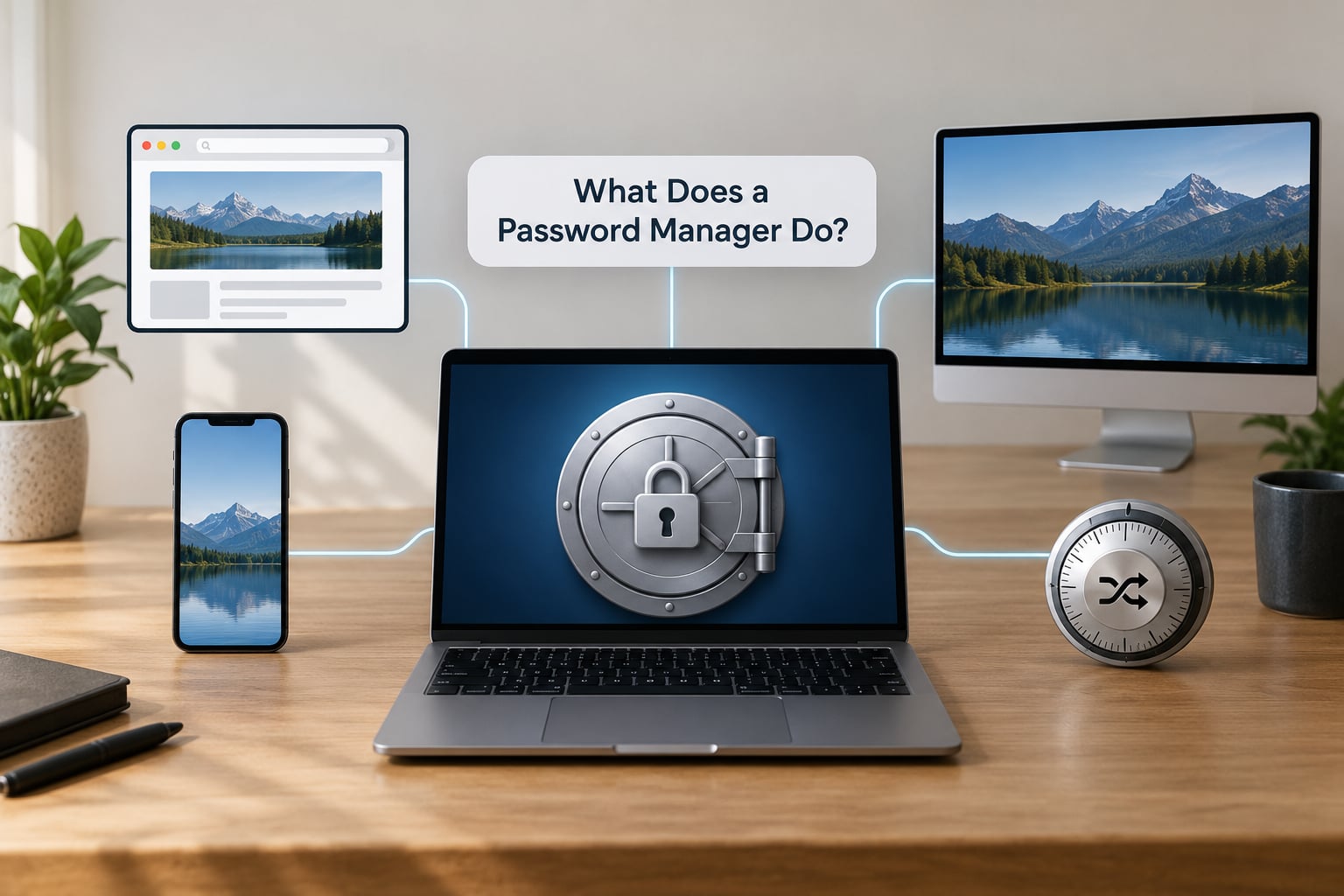
A password manager is an encrypted vault that stores your usernames and passwords behind one master password, and it types them into login forms for you.
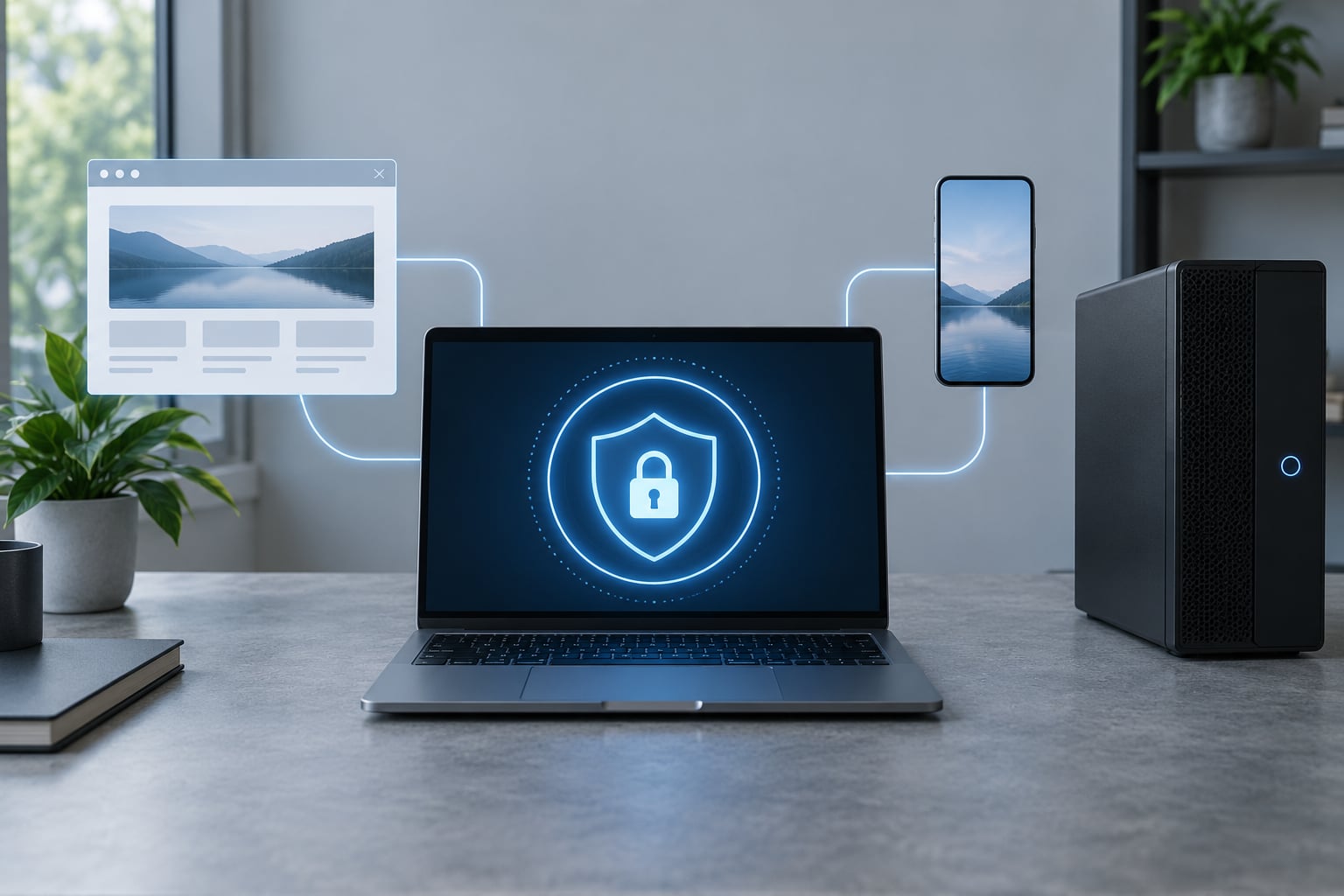
Beyond storage, a typical manager includes a password generator that produces a random string for any site, one-click autofill that fills the right credential on the right domain, a password health report that flags reused and weak entries, secure notes for things like recovery codes and tax paperwork, and an optional one-time code field for your authenticator app. Most of them sync an encrypted vault between your laptop, phone and tablet so the same login follows you.
The important detail is that the vault is the only copy you need to keep safe. Without one, your credentials are scattered across a dozen site databases you cannot audit, plus whatever you wrote on paper.
Why You Should Use a Password Manager
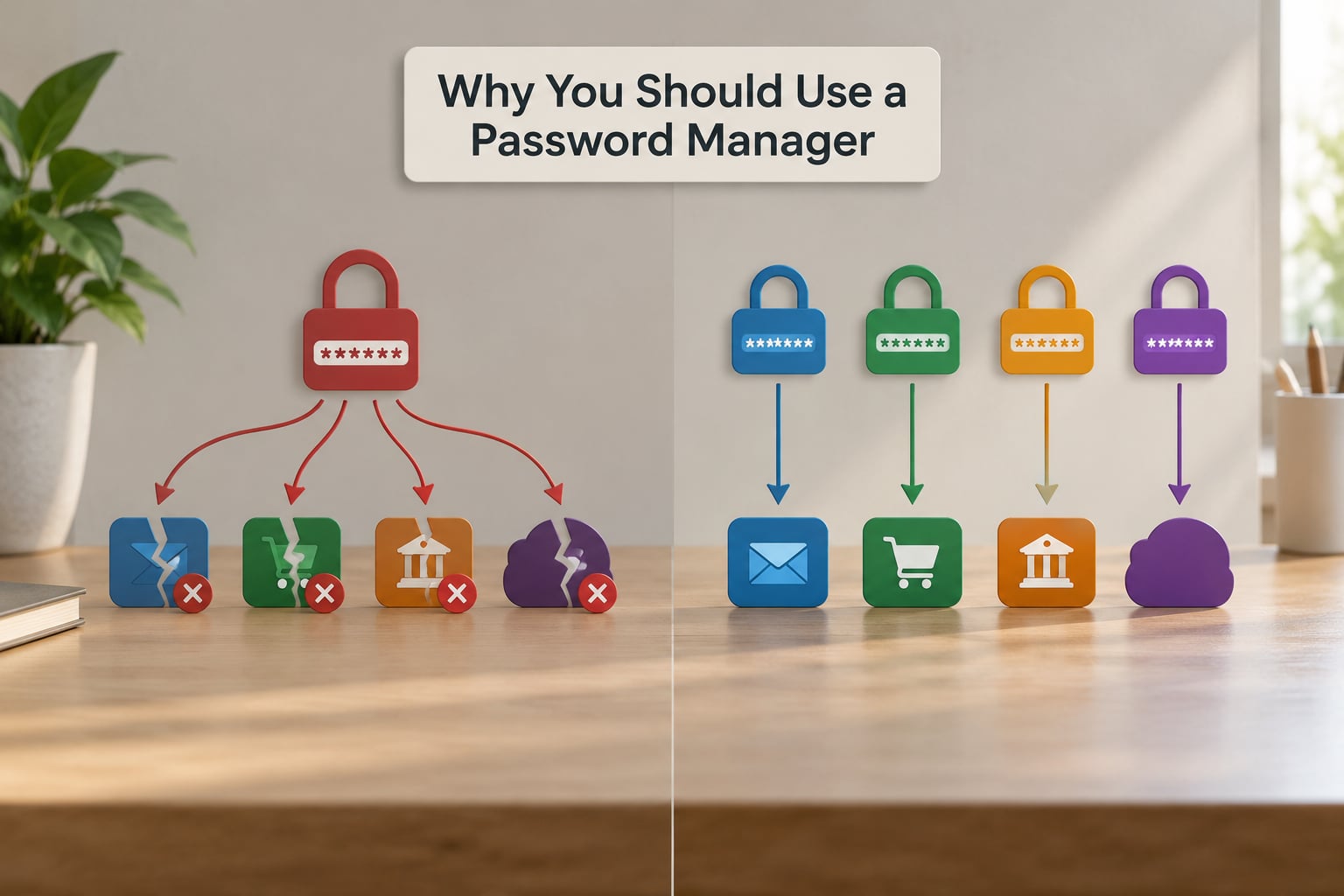
The case for a password manager is that it removes the decision. You stop judging which password is safe to reuse and start accepting the one the tool hands you.
- One breach no longer unlocks everything. A reused password across ten sites means the tenth one is already compromised the moment the first site leaks.
- You stop writing passwords down. Sticky notes and spreadsheets under the desk are readable by anyone with physical access.
- Generated passwords are genuinely random. A generator does not care about your dog’s name or the year you graduated.
- You remember one thing, not a hundred. A single master passphrase replaces every other credential in your head.
- Phishing pages get nothing. Autofill refuses to fire on a domain that does not match the saved login, so a cloned bank page gets an empty form.
- You find out about breaches early. Managers check saved addresses against known breach databases and tell you which entries to change.
- Sharing stops meaning emailing passwords. A shared vault delivers a credential to the other person without ever putting it in an inbox.
Password reuse is the quiet one
Attackers do not usually guess passwords one account at a time. They take a list of leaked email and password pairs from a breach, then replay those same pairs against every other site they can reach. That technique is called credential stuffing, and it works because the same password shows up again and again.
Unique generated passwords break the chain. A leaked password for a forum you registered on years ago becomes worthless when nothing else uses it.
Phishing depends on you typing
Most phishing kits are a pixel-perfect copy of a real login page plus a form that mails what you type to the attacker. If your password manager fills the login itself, there is nothing for you to type and nothing to steal. This holds only if you install the extension on the browser you actually use and disable the manual copy-and-paste habit for the sites you care about.
How Password Managers Protect Your Credentials
A zero-knowledge password manager never receives your passwords in readable form. The vault is encrypted on your device with a key derived from your master password, and the company stores only ciphertext that it has no way to decrypt.
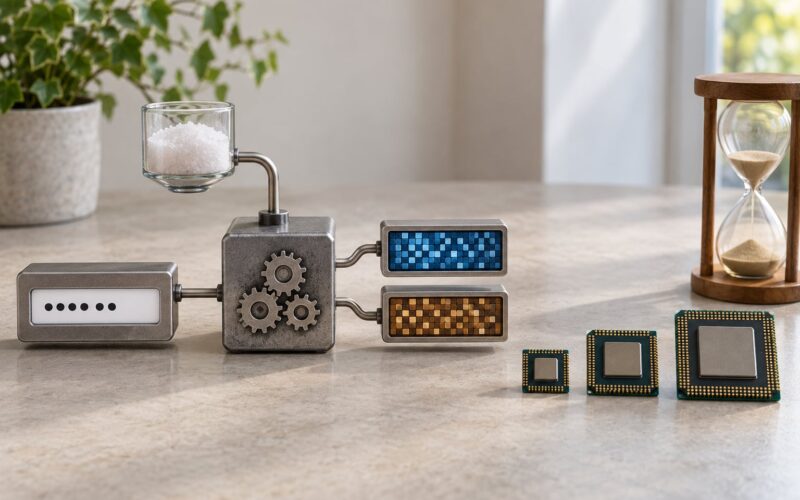
The sequence matters. Your master password never travels. Instead the manager runs it through a slow key derivation function such as Argon2 or PBKDF2, which turns it into an encryption key. That key encrypts and decrypts the vault on your own machine, so unlocking happens locally and the stored data stays opaque everywhere else.
That design is what makes a company-side breach survivable. When a vault service is compromised, the attacker gets encrypted blobs, and without your master password the blobs are just noise. HaveIBeenPwned-style checking works the same way, comparing a stored address without exposing anything you did not send it.
Here is the honest caveat. Encryption does not rescue a bad master password. If yours is Sunshine2026!, an offline attacker with a graphics card can try billions of guesses against the derived key. A passphrase of four or five unrelated words, typed once into a manager that never sends it anywhere, is a different proposition entirely. Lockout is a real failure mode too, which is why the setup step below covers recovery before anything gets migrated.
Choosing Between Browser, Device, and Standalone Managers
Three options cover almost everyone, and none of them is wrong for a beginner. They differ in who controls the vault and how far it travels.
| Criterion | Browser built-in | Operating system keychain | Standalone manager |
|---|---|---|---|
| Encryption model | Tied to your platform account | Tied to the OS login and device | Zero-knowledge, vendor-independent key |
| Portability | Follows your browser profile | Mostly device-bound, syncs through the platform | Any device with an app or extension |
| Sharing with other people | Basic, and only for a login family | Limited to the same platform | Encrypted per-recipient sharing |
| Recovery if forgotten | Account recovery email | Platform account recovery | Recovery kit or emergency contact |
| Offline access | Once the profile is unlocked | On the device | Local vault or cached file |
| Best for | Getting started with zero setup | People already invested in one platform | Families, shared accounts, long-term migration |
Browser storage has improved a lot and it is free, which is a fair reason to start. Its limits show up when you want to share a family streaming login, monitor breaches, or move between a Windows work laptop and an Android phone. Security-minded users on r/selfhosted lean the other way, running a local database file they sync themselves or hosting their own server, because they would rather not depend on a vendor’s uptime at all.
A local or self-hosted vault trades convenience for control. You get offline access and no third-party server, but sync becomes your problem and mobile setup takes real work. Users in the same communities are consistent about one point: local-only managers suit one person, and get awkward fast for multi-user households.
How to Set Up a Password Manager Safely
Set the order up front, because two of these steps are much harder to add after you have moved three hundred logins across.
- Download from the vendor’s own site or your OS app store. Avoid third-party download mirrors, which is where bundled browser extensions usually come from.
- Create a master passphrase. Use four or five unrelated words rather than a short complicated string you will be tempted to write on a sticky note.
- Turn on two-factor authentication for the vault account itself. An authenticator app beats SMS, since SIM swaps target your phone number rather than your vault.
- Save the recovery kit and set an emergency contact. Put the printed recovery code in a physical safe or a sealed envelope, not in the same drawer as your devices.
- Import what you already have. Most managers pull saved logins straight out of a browser profile; delete the browser’s copy once the import checks out.
- Fix the worst entries first. Your email, your bank, and the account that can reset all the others come before everything else.
- Check autofill on two or three sites you know well. Confirm the domain matches exactly before you save anything.
Menu names differ between browsers, desktop systems and mobile platforms, so look for the equivalent of Settings, then Security or Vault options rather than expecting one exact path everywhere.
How to Use One Without Creating New Security Risks
Migrate gradually. The first week is where most people give up, and it is worth planning around that. Users switching from manual storage consistently describe the same three friction points: the import step, mobile permission prompts, and relearning which button fills the login.
Work outward from your email account. Once that is unique and protected, a leaked password from some forgotten shopping site cannot be used to take over everything that shares it. Then do banking, then the account that issues your password resets.
Read the domain before you click autofill. Look at the address bar rather than the logo, since the logo is the easiest part of a phishing page to copy. If the saved login does not offer to fill there, that refusal is the protection working, not a bug.
Treat shared entries as shared credentials, not as a favour. A shared vault gives your partner access without either of you knowing the password, and you can revoke it in one click. The same applies at work, where keeping personal and employer credentials in separate vaults makes offboarding a one-step job.
If you think a device is compromised, do not open the vault on it. Rotate the master password and the important entries from a machine you trust, then reconnect your phone and laptop.
What Are the Main Risks and Limitations?
The honest answer is that a password manager concentrates risk instead of removing it. That is a good trade when the concentration is well protected, and a bad one when it is not.
- A weak master password. It guards everything, so treat it as the one credential that must be long, unique and never typed anywhere else.
- Phishing pages you fill by hand. Manually pasting a password into a convincing clone defeats the domain check entirely.
- Malware on your machine. No password manager protects against code that runs before the vault opens. Clipboard readers and infostealers watch what you copy and type.
- Untrusted extensions. Browser add-ons from unknown publishers can read page content and input fields.
- Lockout. A well-designed service cannot reset your master password, because resetting it would defeat the encryption.
- Awkward login flows. Sites with multi-step or unusual sign-in forms sometimes need a manual copy and paste, which is where the friction shows up.
None of these argue for skipping a manager. They argue for a strong passphrase, two-factor authentication on the vault, a printed recovery kit, and software you actually update.
Is a Password Manager Right for Everyone?
For anyone past a handful of accounts, yes. The manual alternatives are all worse in predictable ways. Paper is readable and losable, a spreadsheet is one unencrypted file away from disaster, and browser-only storage ties your security to whichever browser you happen to use.
The people who benefit most are the ones with the most shared friction: households sharing a streaming account, freelancers juggling a client login per project, and small teams that currently email passwords to each other. The same is true for anyone whose email account can reset everything else, since that single login is the crown jewel worth protecting first.
Passkeys are the visible change here. Passwordless sign-in removes the shared secret for sites that support it, and that is genuinely better. A manager is still useful as the transitional layer, since passkeys need somewhere to live and sync across your devices, and because the sites that matter to you most will keep passwords around for years.
A password manager complements multi-factor authentication rather than replacing it. The vault decides which password to hand over; the second factor proves who is asking for it. Neither does the job of the other.
If someone in your family resists the idea, start with their email and banking logins and set the recovery contact yourself. Adoption usually follows convenience, not arguments.
Frequently Asked Questions
Are password managers safe?
Yes, as long as you pick one that encrypts its vault with zero-knowledge encryption and you use a strong master password. Your credentials are decrypted on your own device, so the company stores only ciphertext. The realistic risks are a weak master password, a compromised device, or a phishing page you typed into by hand, not the encrypted vault sitting in the cloud.
What happens if a password manager is hacked?
A breach at the company usually exposes encrypted vault data rather than readable passwords, provided the service uses zero-knowledge encryption and you enabled two-factor authentication on the account. The vault is only as strong as the master password protecting it, so turn on 2FA, watch breach alerts, and be ready to rotate everything if your master password turns out to be weak.
Should I use a browser password manager or a standalone one?
Browsers now ship capable password storage and it is a fine starting point because there is nothing to install. The gaps appear when you want secure sharing with family, cross-platform support, breach monitoring, or a vault you control on your own hardware. If those matter, move to a dedicated manager and delete the browser copy after exporting.
Can password managers share passwords securely?
Yes, and this is where dedicated managers pull well ahead of browser storage. Shared vaults encrypt a copy for each recipient with their own key, so the sender never sees the recipient’s master password. That is far better than a shared spreadsheet or a password pasted into a group chat, which you then have to rotate every time someone leaves.
What if I forget my master password?
Most services cannot reset it, because a reset route would defeat the encryption. That is deliberate rather than neglect. It is exactly why you set up a recovery kit or an emergency access contact during setup. Keep the recovery code somewhere physical and separate from your devices, and assume no support agent can open the vault for you.
Do I still need two-factor authentication with a password manager?
Yes, they solve different problems. The manager handles which password gets handed over, and the second factor proves who is asking for it. Enable an authenticator app or hardware key on the vault account itself first, because losing that account without a second factor means anyone who finds your master password gets every credential in one step.
Start tonight, and start small. Pick a manager, write a five-word passphrase, turn on two-factor authentication for the vault, print the recovery kit. Then change your email password and your bank password, let the manager generate both, and stop reusing anything. Everything after that is upkeep rather than a project.