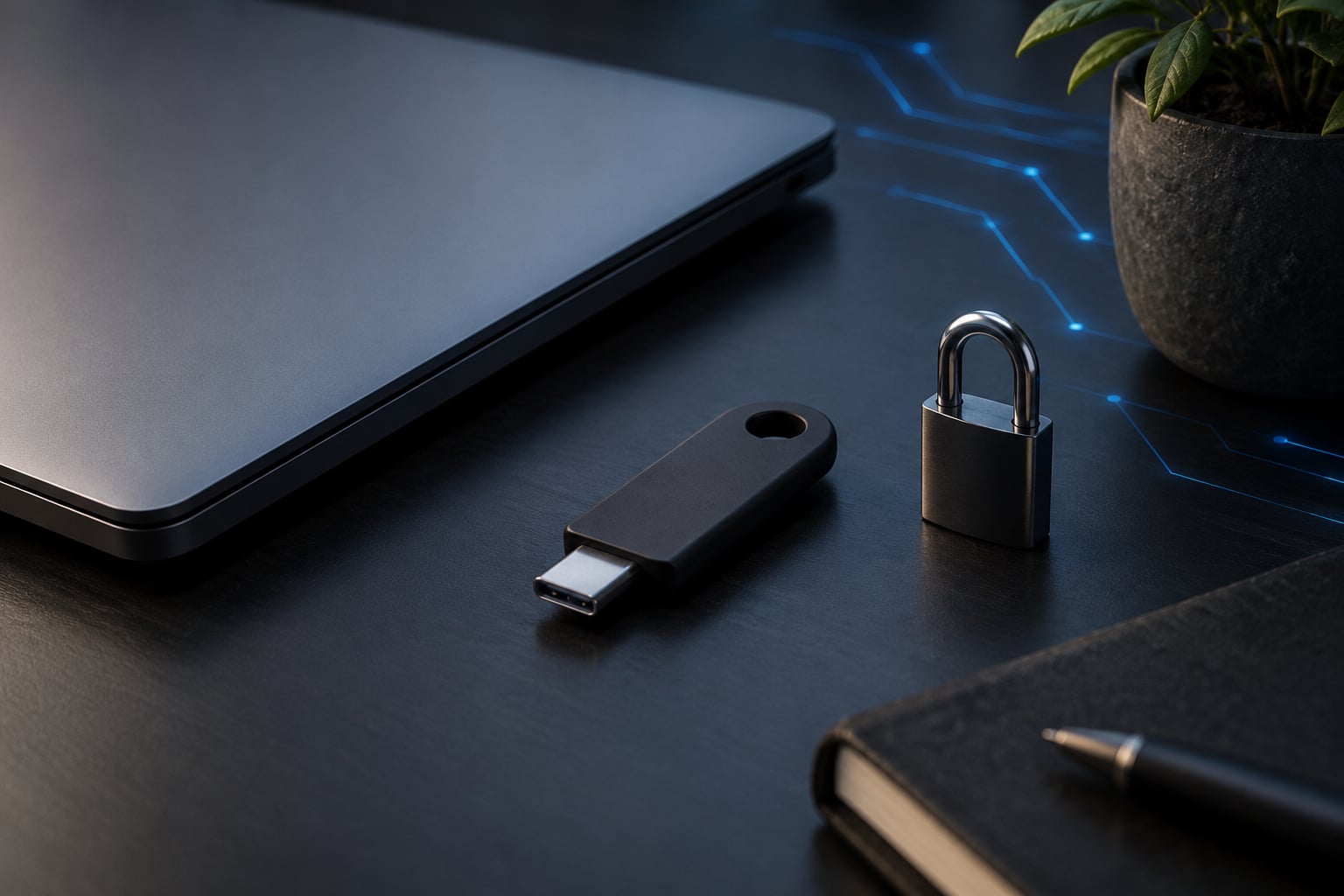
A hardware security key is a small physical device, usually a USB stick, that you plug into or tap against a machine to prove who you are during multi-factor authentication. Instead of typing a reusable password or a rotating code, the key signs a challenge with a private key that never leaves the device, so a phishing site cannot use your credential even if it steals your login page.
I have set these up on everything from a throwaway homelab box to a shared Windows workstation, and the reason they keep coming up in sysadmin circles is simple: they are the rare form of MFA where the attacker with your phone in hand still gets nothing. What follows is the systems-level version, how the flow actually works, and where the trade-offs bite.
Table of Contents
- What Are Hardware Security Keys?
- How Do Hardware Security Keys Work?
- Hardware Security Keys Explained: FIDO2 and WebAuthn
- What FIDO2 actually covers
- Why origin binding kills phishing
- FIDO U2F, the older protocol still in service
- What Problem Do They Solve Better Than Passwords?
- The backup-method paradox
- What Types of Hardware Security Keys Are Available?
- How Do You Set Up a Hardware Security Key?
- Which accounts to protect first
- How Can Organizations Deploy Hardware Security Keys?
- What Are the Limitations and Security Trade-offs?
- Frequently Asked Questions
- Are hardware security keys the same as two-factor authentication?
- Can a hardware security key be cloned or stolen and used by an attacker?
- Do hardware security keys work without a password?
- What happens if I lose my hardware security key?
- Can I use one hardware security key for multiple accounts?
- Are hardware security keys compatible with passkeys and WebAuthn?
- Conclusion
What Are Hardware Security Keys?
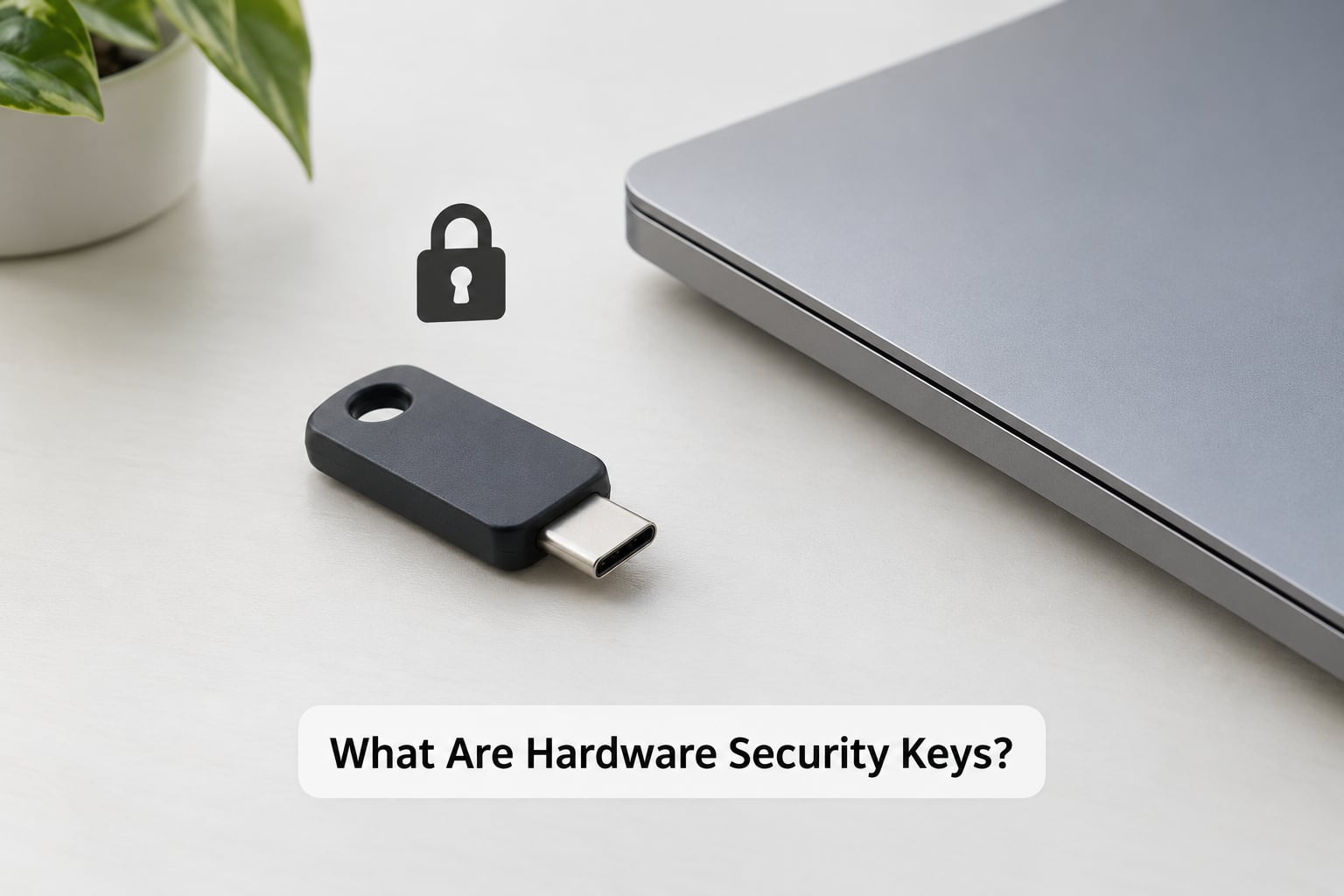
A hardware security key is a physical authenticator that holds one or more cryptographic key pairs in tamper-resistant memory and uses them to answer a challenge from a website or service. You prove possession of it by inserting it over USB or tapping it over NFC, and in most cases by touching the key itself so the site knows a human is present.
It is worth being clear about what it is not, because the search results for this topic are full of confusion on exactly this point.
- Not a USB drive. A security key may use a USB-A or USB-C connector, but it stores a private key rather than files. Plugging one into your computer gives an attacker nothing they can copy off it.
- Not an OTP token. A key like this does not generate six-digit time-based codes. There is no number to read aloud or mistype into a phishing form.
- Not a smart card reader. Some keys also emulate a PIV or OpenPGP smart card for sysadmin and signing tasks, but that is a bonus capability, not what the login flow uses.
Developers and system administrators care about them for a narrower reason than most consumer articles suggest. Once a key handles the high-value accounts on a personal or work setup, it stops being a convenience product and becomes part of your key management story.
How Do Hardware Security Keys Work?
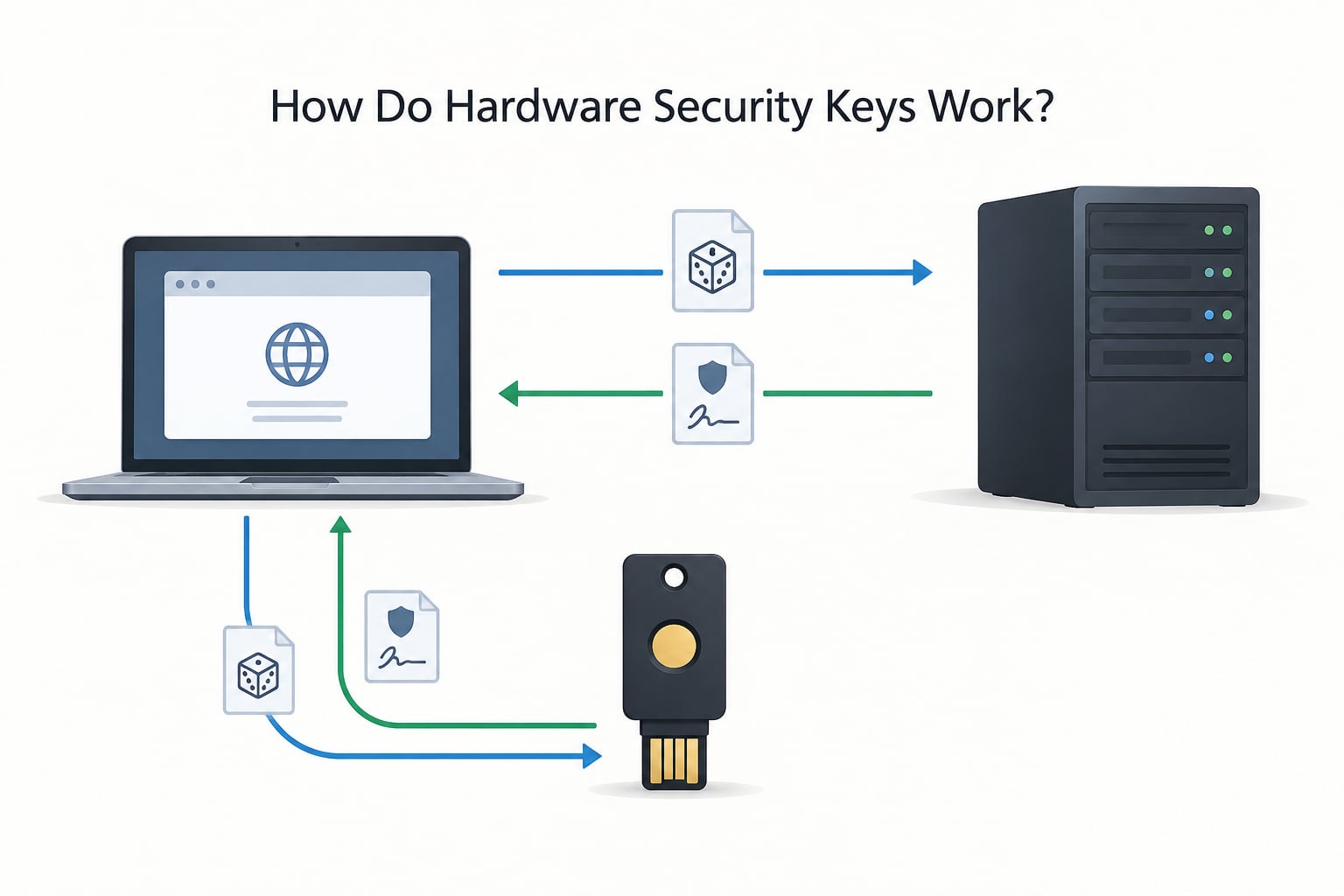
Every login is a challenge and response, and the private key that answers it stays on the key. Here is the flow in four steps.
- Registration. On the account security page of the service, you choose to add a security key. The service asks your browser to talk to the key, the key generates a key pair, and it hands back the public half. The service stores that public key against your account. The private half never travels.
- Challenge. At login, the service generates a random challenge and sends it to your browser, along with the exact domain name you are on.
- Signature. The browser forwards the challenge to the key. The key checks the domain, asks you to touch it, signs the challenge, and returns the signature plus the public key.
- Verification. The service verifies the signature against the public key it stored, and checks that the domain in the signed data matches the domain it is actually serving. A mismatch fails silently.
Because of that last check, a phishing site at lookalike-domain.com receives a challenge signed for bank.com and cannot use it. The key either refuses outright or produces a signature that will not verify, and the attacker is stuck with a password.
Hardware Security Keys Explained: FIDO2 and WebAuthn
The protocol behind the flow is FIDO2, split into two halves that get confused constantly. WebAuthn is the web API that browsers expose to websites. CTAP2 is the protocol the key speaks with the browser over USB or NFC. You never see either directly, but when you debug a registration failure, knowing which half failed tells you where to look.
What FIDO2 actually covers
FIDO2 is the successor to FIDO U2F, which is a simple first-generation protocol that only did signature assertion over USB. U2F is still supported almost everywhere and still works for most applications, as people who keep long-lived keys note. FIDO2 added origin-aware credentials, resident keys and user verification on top of it.
Why origin binding kills phishing
This is the part that separates a hardware security key from a one-time code, and it is entirely a matter of what gets signed. The signature covers the origin, so a credential registered for one site is cryptographically useless on another. Authenticator apps and SMS do not have that property, which is why codes can be typed into a convincing fake page.
Two WebAuthn credential types matter in practice. Non-discoverable credentials are tied to a specific account identifier the service supplies, so the key only works where it is expected. Discoverable credentials, also called resident keys, sit on the authenticator and can be offered by any site the user visits, which is what makes passwordless sign-in with a key possible.
FIDO U2F, the older protocol still in service
If you registered a key five years ago under U2F and it still signs in, nothing is broken. Services that treat the key as a non-discoverable credential simply pass the same challenge through. Newer registrations use FIDO2, and most authenticators speak both.
What Problem Do They Solve Better Than Passwords?
Passwords fail in predictable ways, and the table below shows where each method breaks. The short version: a key is the only option on this list that fails when you log in to the wrong domain.
| Method | What the attacker gets | Phishing site | Server-side breach |
|---|---|---|---|
| Password alone | Reusable secret | Collected and replayed | Direct exposure if hashed poorly or reused elsewhere |
| SMS code | Code, or the SIM itself | Typed straight into the fake form | Depends on the service’s account model |
| Authenticator app (TOTP) | A valid rotating code | Typed straight into the fake form | Depends on the service’s account model |
| Hardware security key | Nothing usable | Refused, domain does not match | Public keys are not secrets, so a dump is inert |
The three factors are still worth naming plainly, because the confusion is what leads people to skip MFA entirely.
| Factor | Means | Examples |
|---|---|---|
| Knowledge | Something you know | Password, PIN, security question |
| Possession | Something you have | Hardware security key, phone, smart card |
| Inherence | Something you are | Fingerprint, face match, behavioural signal |
A key satisfies possession, and usually inherence too when you use a PIN or fingerprint on it. Combined with a password it gives you two factors, and combined with nothing at all it gives you single-factor passwordless login that is still phishing-resistant.
The backup-method paradox
Here is the honest catch, and it is the one most articles skip. Nearly every service that supports security keys also insists you keep a backup method, and that method is usually TOTP or SMS. If an attacker can walk you through that fallback with a convincing phone call, the key bought you nothing.
The fix is not to refuse the fallback. It is to make the fallback harder: generate backup codes and store them offline, prefer an offline TOTP secret over SMS, and keep the recovery path on a device the attacker does not hold. Two keys registered to the same account removes most of the problem, since you can revoke one from the other.
What Types of Hardware Security Keys Are Available?
Form factor matters less than people expect, and multi-protocol support matters more for a sysadmin than for a regular user.
- USB-A keys fit older desktops and servers. Still the most common port on lab hardware and bastion hosts.
- USB-C keys cover modern laptops, tablets and phones with an adapter. This is the default choice now.
- NFC keys get tapped against a phone or tablet. Useful when you authenticate on mobile a lot, and useless if your service only offers a desktop prompt.
- Bluetooth authenticators show up mainly on phones and pair once, which removes the physical plug but also removes the proof of physical possession.
Then there is protocol capability. A FIDO2-only key does login and nothing else. A multi-protocol key can also act as a PIV smart card for SSH certificates and badge systems, hold an OpenPGP identity, and store TOTP secrets directly on-device so an authenticator app is not required.
Worth knowing for credential storage: a roaming credential lives on the key and travels with you to any machine, while a platform-bound credential stays tied to one operating system account or one phone secure element. Your phone already has a secure element and behaves much like a single-device hardware security key, which is a fair answer to anyone asking whether you need one for everyday logins.
Before buying anything, check firmware. Some keys ship with firmware that cannot be updated, which is a real trust question for a device holding your root credentials. Open-source firmware is the other option if that matters to you.
How Do You Set Up a Hardware Security Key?
Setup takes about five minutes per account. Menu names shift between services, so check the current path, but the shape is always the same.
- Sign in from a browser you trust and go to the security or two-step verification page of the account. On Google accounts this is Security, then How you sign in to Google, then Two-Step Verification.
- Add the key. Insert or tap it and touch the sensor when prompted. The service stores the public key and shows you a name for the entry.
- Name it specifically. Use something like work laptop or home desktop rather than the default, because the label is what you will be reading during recovery.
- Register a second key. Do this from a different machine or browser session if you can. Two keys on one account is the single most useful habit here.
- Generate backup codes and print or store them somewhere physical and separate from the keys.
- Test the fallback before you need it. Sign out, try the key, then try a recovery code in a private window.
Some services require a PIN on the key for user verification before it will sign anything, and that PIN is set on the key itself, not on the website. A six-digit PIN is worth setting even on a key with no fingerprint sensor.
Daily use is uneventful. Insert, touch, done. You will not use the key for most of your accounts, only the handful that can cascade into the others.
Which accounts to protect first
Work down this list, because it is ordered by how much damage a takeover causes.
- Your primary email account. Password resets for everything else start here.
- Your password manager vault. Whoever holds it holds every other credential.
- Your domain registrar and DNS provider. Takeover here means redirecting mail for an entire organisation.
- Financial and cloud infrastructure accounts, especially anything with an API key that spends money.
- Source control and CI accounts, where a stolen token can push code.
How Can Organizations Deploy Hardware Security Keys?
Rolling keys out to a team is an identity problem, not a hardware purchase problem. The sequence that tends to work starts with the identity provider, since it decides what methods are available and which are enforced.
Start with a pilot group of admins and developers, because those accounts matter most and the group is small enough to shepherd. Register two keys per person, issue the second for storage at home or in a safe, and document what happens when one is lost.
Then set policy. Most identity providers let you require a hardware-backed method for specific groups, or make a key mandatory for administrative roles while leaving app-based codes for everyone else. That split is usually the difference between a rollout people accept and one they route around.
Recovery deserves its own design. Options range from a second registered key, to a managed recovery code held by a second administrator, to an identity verification process with a human in the loop. Choose one and write it down, because a policy nobody can execute during an outage is not a policy.
Passkeys and keys can coexist. Platform passkeys are far less work for everyday users, so many teams keep them as the default and require hardware security keys for privileged roles, break-glass accounts and anyone handling regulated data. Shared and kiosk machines are the opposite case: keys win there, because a passkey left on a shared profile is a liability.
What Are the Limitations and Security Trade-offs?
None of this is free of drawbacks, and the ones below are the ones that actually bite.
- Lost keys lock you out of the primary path. If it is your only registered key and you have no second factor, recovery goes through the service’s email or support flow, which is the weakest link in the whole design.
- Support is uneven. Plenty of services still lack security key support, and browsers on older mobile systems have their own gaps. Check the service before you buy.
- Physical attacks still work on unlocked machines. A key with no PIN will sign a challenge for any site if someone else can touch it. Set the PIN.
- Multi-account use is manual. One key holds many credentials, but there is no easy UI for rotating a credential across fifty internal services. That work lands on whoever runs the identity provider.
- Firmware may be frozen. A key with non-updatable firmware cannot be patched if a flaw shows up later, which is worth weighing against keys with signed updates.
- They are a layer, not the whole stack. A hardware security key does not stop a malicious script running as you, does not help with a compromised endpoint, and does not protect a session cookie already stolen.
On durability, the honest advice from people who have used these for years: buy two, keep one on your keychain, keep one somewhere physically separate, and replace rather than repair when a connector goes intermittent. They are not supposed to be bent or sat on.
And be realistic about who needs them. If your everyday protection is platform passkeys synced across your devices plus an authenticator app on a phone nobody else can reach, you are in decent shape and a key adds ceremony rather than security. The people who genuinely need one are admins with root access, journalists and activists, and anyone whose email account is the master key to everything else.
Frequently Asked Questions
Are hardware security keys the same as two-factor authentication?
No. Two-factor authentication is the goal of using two different categories of proof, such as a password plus a code. A hardware security key is one method of providing the possession factor, and it can be that second factor or the only factor in a passwordless login. The key is what makes the second factor phishing-resistant.
Can a hardware security key be cloned or stolen and used by an attacker?
The private key is generated inside a tamper-resistant chip and never leaves it in readable form, so a copy of the flash memory does not produce a working key. Stealing the physical device gets an attacker nothing without the PIN or biometric used for user verification, and if you report it revoked the old credential stops working the moment you enrol a replacement.
Do hardware security keys work without a password?
They can. WebAuthn supports discoverable credentials, also called resident keys, that let you sign in with just the key and no typed password. Many services offer a passwordless option once a key is registered, and others keep the password as a fallback you simply stop using. The stored public key is not a secret, so a service breach does not hand over working credentials.
What happens if I lose my hardware security key?
Sign in with another method and remove the lost key from the account security page immediately, which revokes it. If it was your only registered key and you have no backup, you fall back on recovery codes, another enrolled factor, or the service’s account recovery, which is usually the weakest path you have. Registering a second key and storing it separately is what prevents this situation.
Can I use one hardware security key for multiple accounts?
Yes. A single key holds many credentials, often dozens, and the same device signs each site with a different key pair. Keeping a key on your keychain for occasional logins on shared or public machines is a common pattern. What it does not do is sync anything, so a new machine still needs the key present or a credential exported to something that is.
Are hardware security keys compatible with passkeys and WebAuthn?
Yes. A passkey is a WebAuthn credential that may live in a password manager, a phone secure element or on a key itself, so a security key acts as a hardware-bound passkey store. The authenticator side is CTAP2, and the web side is WebAuthn, which is why the same key works across sites and services that implement the standard.
Conclusion
Start with one key on your primary email account, register a second one before you think you need it, and store that second key somewhere physically separate from the first. Then generate backup codes and test the recovery path while everything still works, because the recovery flow is the part that fails under pressure.
After that, work down the list from the password manager to your registrar, and leave everyday logins to platform passkeys. Used on the right accounts, a hardware security key is the one credential in your setup that an attacker with your password and your phone still cannot use.