A rootkit is a set of malicious programs that installs deep inside an operating system — in the kernel, the boot firmware, or the hypervisor — so an attacker keeps privileged access while hiding files, processes, and network activity from the system’s own security tools. A virus corrupts things; a rootkit hides.
Most people who google this at two in the morning do not have one. In the support forums I read, the pattern is almost always the same: every scan comes back clean, nothing specific is broken, and the machine simply feels off. That combination is far more often a failing drive, a bad driver, overheating, or plain anxiety than a kernel implant. This guide covers both halves of the question honestly, including how to check and when to stop worrying.
Updated for October 2026. I write for sysadmins and home-lab builders, so the steps below name actual tools and actual commands rather than telling you to “run a rootkit scanner” and hoping for the best.
Table of Contents
- What Is a Rootkit?
- How Do Rootkits Work?
- What Are the Common Types of Rootkits?
- User-mode rootkits
- Kernel-mode rootkits
- Bootkits and firmware rootkits
- Hypervisor rootkits
- Memory-resident (fileless) implants
- What Signs Suggest a Rootkit May Be Present?
- How to Detect a Rootkit on Windows
- 1. Run Microsoft Defender Offline
- 2. Scan from rescue media or a live environment
- 3. Get one second-opinion scan from a different vendor
- 4. Check drivers and Code Integrity
- 5. Verify system files and component store
- 6. Compare against a known-good baseline
- 7. Treat a suspicious firmware finding separately
- How to detect a rootkit manually without installing more software
- How to Detect a Rootkit on Linux
- Verify packages and file integrity
- Use rkhunter and chkrootkit, and read their output carefully
- Set up integrity monitoring before you need it
- Review loaded modules, units, and persistence paths
- Check logs and the network from outside the host
- Boot a trusted live environment
- Can Antivirus or a Rootkit Scanner Detect Every Rootkit?
- What Should You Do If You Suspect a Rootkit?
- 1. Isolate before you clean
- 2. Decide whether you need the evidence
- 3. Scan from clean media
- 4. Reinstall rather than clean in place — with one exception
- 5. Rotate credentials from a clean device
- 6. Work out how they got in
- 7. Harden so the next one has to work harder
- Frequently Asked Questions
- Can a factory reset remove a rootkit?
- What is the difference between a rootkit and a Trojan?
- Are hidden files or an unfamiliar startup program proof of a rootkit?
- Why can antivirus software miss a rootkit?
- Can a rootkit infect firmware or the BIOS?
- How do I remove a suspected rootkit without making the situation worse?
- Bottom Line
What Is a Rootkit?
The key idea is the hiding, not the privilege. Malware that needs administrator rights is common. Malware that modifies the parts of the OS responsible for reporting what exists is not.
MITRE tracks this behaviour as T1014, Rootkit, in its ATT&CK matrix. The techniques listed there — process injection, rootkit-level hiding, and indicator removal on a host — are the same ones the detection steps in this article look for.
It helps to place rootkits next to the malware people confuse them with. The table below covers the three terms that get mixed up constantly, including in the search results for this query.
| Malware class | Where it lives | Hides from tools | Survives OS reinstall | Removal difficulty |
|---|---|---|---|---|
| Virus | A file or boot sector | Not really — it is a visible file with visible damage | No | Usually easy: quarantine and delete |
| Trojan | A file pretending to be something else | Not by design, though it may install a rootkit component | No | Usually easy once identified |
| Bootkit | Boot sector, MBR, or UEFI firmware | Yes — it runs before the OS loads | Often, if the write targets firmware | Hard: clean-media tools may not reach it |
| Rootkit | Kernel, user space, firmware, or hypervisor | Yes, by design — it lies to the inspector | Depends on the layer | Varies from easy to “wipe the drive and hope” |
One more thing worth stating plainly: the technique is dual-use. Software-protection dongles, anti-theft products, and some enterprise endpoint agents use rootkit-style techniques to make themselves hard to uninstall. That does not make them malware, but it does mean an unfamiliar low-level driver is not automatically proof of an attack. Context matters.
How Do Rootkits Work?
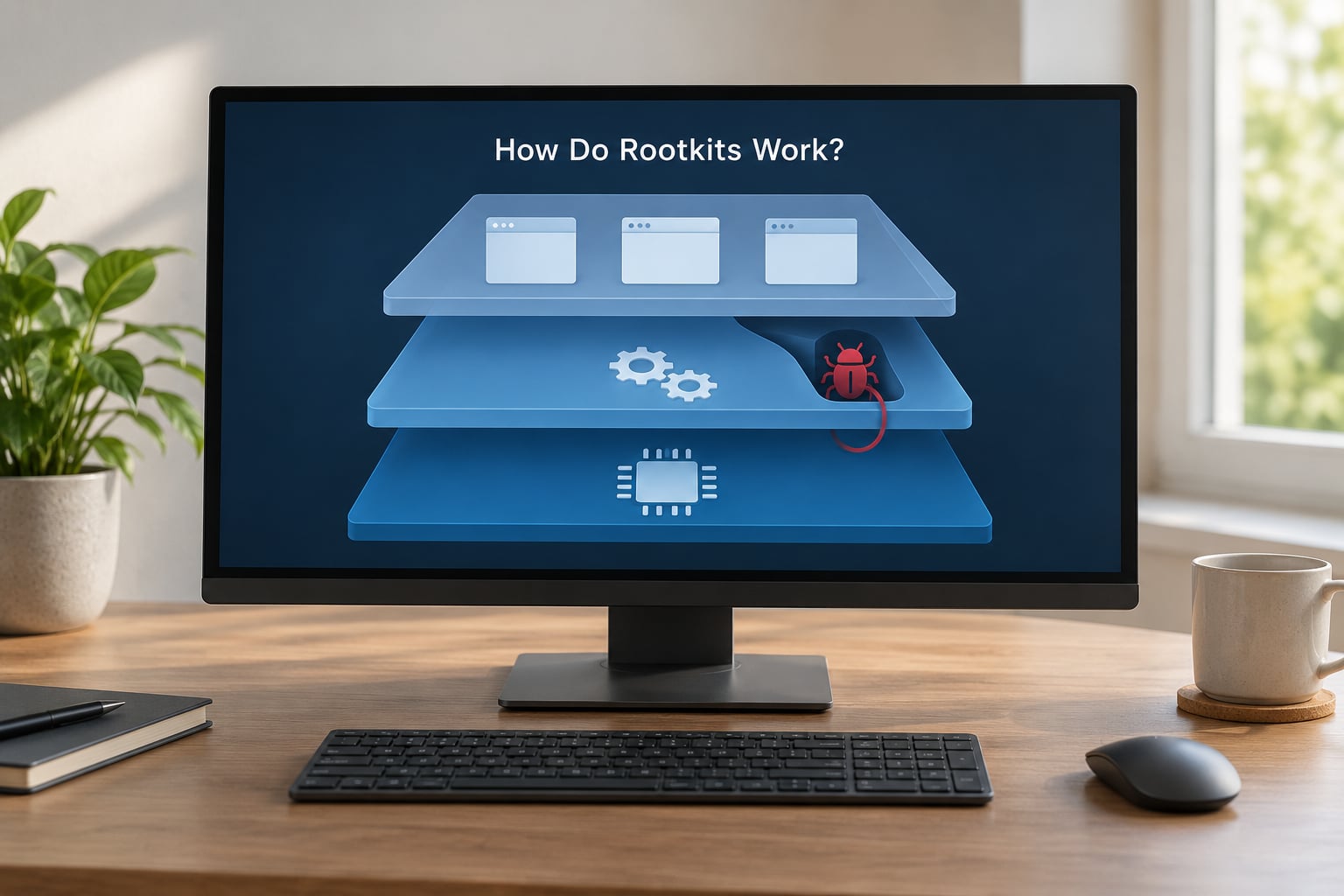
A rootkit needs elevated rights to install, which usually means the attacker already has an administrator or root foothold from a stolen password, an exploited service, or a malicious installer. Once in, it does three things: it persists, it intercepts, and it conceals.
Persistence is the boring half and the reason infections survive. The implant registers as a kernel driver, a service, a scheduled task, or an entry in the firmware so it comes back after every reboot and, usually, after every update. Deleting the original installer changes nothing because the persistence mechanism is a different object entirely.
Interception happens at the boundary the operating system uses to answer questions. A kernel-mode rootkit hooks the system call table or the I/O path, so when a scanner asks “list every process,” the hook filters the answer before the requester sees it. It can also patch the results of dir, Task Manager, or the driver enumeration APIs.
Concealment covers the details an investigator notices: process and file hiding, hiding from netstat, filtering traffic, clearing or truncating event logs, and blocking the tools that would normally find it. Some kits disable the security product outright, which is why “my antivirus turned itself off” belongs on the list of things to take seriously.
This is the core reason an on-system scan can lie. The scanner asks the operating system a question, and the operating system may be the thing that is compromised. That is why the most reliable checks in this guide run from clean media or from another machine, not from inside the possibly-compromised OS.
What Are the Common Types of Rootkits?
Classification follows the layer the implant occupies, and the layer decides both how it hides and how hard it is to find.
User-mode rootkits
These run as ordinary applications with elevated privileges and hide by patching libraries, hooking API calls in user-mode DLLs, or replacing command-line tools. They are the least capable and the easiest to catch, partly because file integrity monitoring and signature verification still work from outside. A user-mode rootkit does not survive an OS reinstall, because the reinstall overwrites everything it depends on.
Kernel-mode rootkits
A kernel-mode rootkit loads a driver into ring 0 and manipulates the system call and I/O paths. This is the classic image most people carry in their head: it can hide processes and files, intercept network traffic, and lie to tools running in user space. Detection means looking for unsigned or badly-signed drivers, tampering with the Code Integrity logs, and scanning from media the OS cannot influence.
Bootkits and firmware rootkits
A bootkit infects the boot sector, MBR, or the UEFI firmware, then loads before the operating system does. Because it runs first, the OS it starts has already been altered. This is the case that scares people on support forums, and rightly: users who suspected a bootkit and reinstalled Windows, even after zeroing the SSD, sometimes found the symptoms returned. Firmware-level remediation means reflash or replace, and sometimes a TPM clear, not another reinstall.
Hypervisor rootkits
A hypervisor rootkit installs a monitor beneath the guest OS and moves the real OS into a virtual machine. The attacker gains a layer above where most security tools run. Detection is genuinely hard, which is why they appear in incident write-ups and university research rather than in everyday troubleshooting.
Memory-resident (fileless) implants
Nothing lands on disk. The implant lives in process memory and disappears on reboot, so file scanners have nothing to match against. This type is the strongest argument for runtime checks — behaviour monitoring, memory forensics, and integrity monitoring — rather than a one-time scan.
| Type | Privilege level | Survives OS reinstall | Detection difficulty | What tends to catch it |
|---|---|---|---|---|
| User-mode | Elevated user | No | Low to moderate | Integrity monitoring, signature verification, offline scan |
| Kernel-mode | Ring 0 driver | No | Moderate | Driver signature checks, Code Integrity logs, offline scan |
| Bootkit | Pre-OS | Possibly | Moderate to high | Clean-media scan, firmware reflash |
| Firmware (UEFI) | Below the OS | Yes, on some hardware | High | Vendor firmware tools, reflash, board replacement |
| Hypervisor | Above the OS | No | High | Memory forensics, timing analysis |
| Memory-resident | Varies | No (volatile) | High | Runtime behaviour monitoring, memory dump analysis |
What Signs Suggest a Rootkit May Be Present?
Signs are not proof. Every item below has a much more common, much cheaper explanation, and that is exactly the problem — the symptom tells you something is wrong without telling you what.
- Security tools that quietly fail. Defender, antivirus, or the firewall disabled itself, an update refused to install, or a scan that always ends early.
- Unexplained driver or kernel changes. New drivers in Device Manager you did not install, or blocked drivers you cannot enable.
- System files that will not verify.
sfc /scannowrepeatedly reports unrecoverable corruption, on a system with no hardware fault. - Privileged processes you did not start. System-level processes with odd names, or a normal-sounding process running under SYSTEM that you never installed.
- Network behaviour that does not match your activity. Steady upload with the machine idle, connections to destinations you cannot account for, DNS traffic to servers you do not recognise.
- Logs with holes. Event log gaps, cleared audit trails, timestamps that jump backwards.
- Crashes and instability that start after an update or a download. Blue screens, hardware errors, and sudden performance collapse.
Here is the decision rule the support threads keep asking for, stated once: a clean scan plus no specific symptoms means you almost certainly do not have a rootkit. A scan that flags something specific, or a symptom you can reproduce, is worth chasing. Anxiety with a clean scan is not evidence, and buying another scanner to quiet it down usually costs money and adds a third opinion that agrees with the first two.
How to Detect a Rootkit on Windows
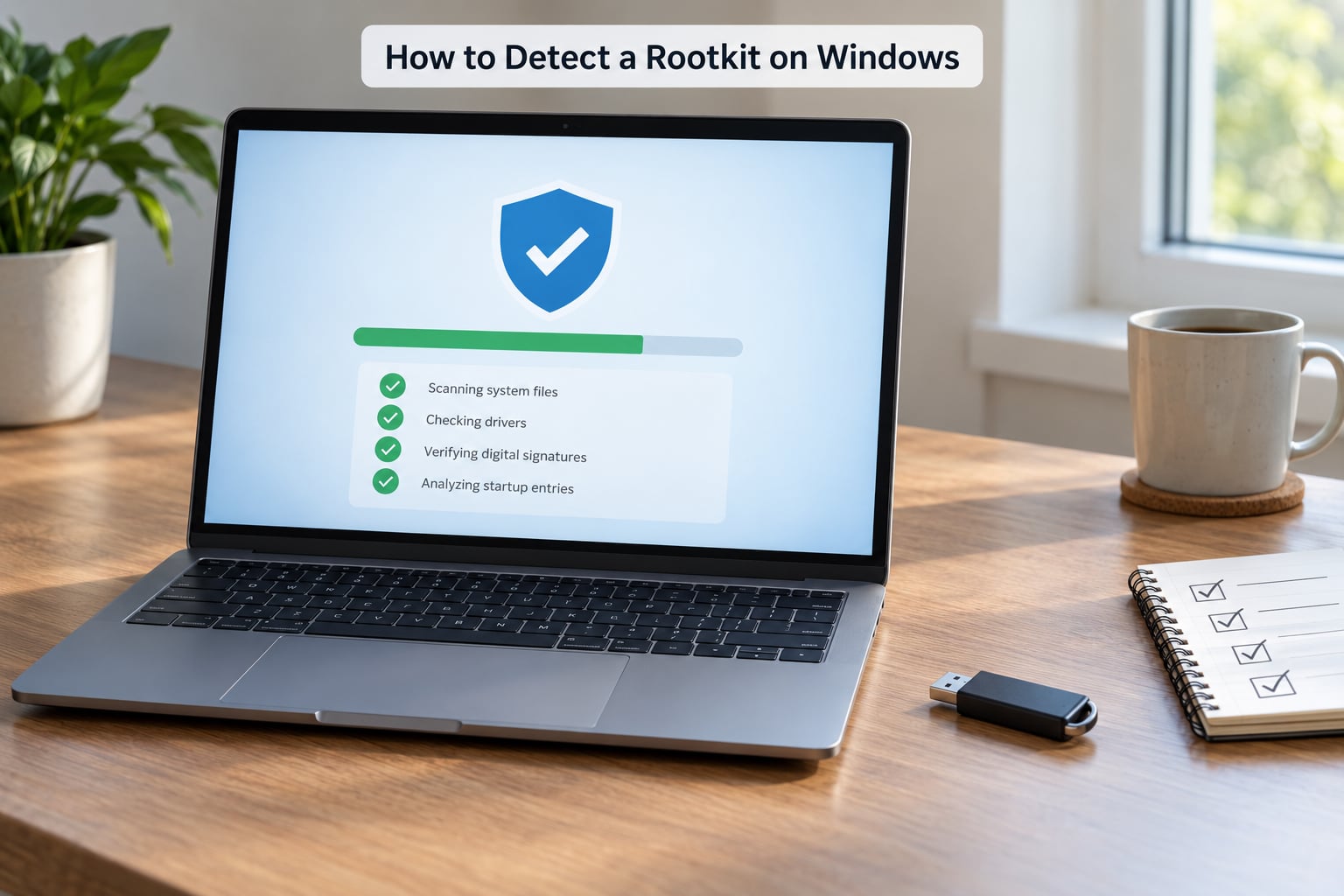
Work outside the running system wherever possible, and go in order. Steps 1 and 2 catch most real cases; the rest of the workflow is for when something specific was found or when the machine handles data worth stealing.
1. Run Microsoft Defender Offline
Windows 11 and Windows 10 ship with an offline scanner that reboots into a separate environment outside the normal OS. Settings → Privacy & security → Windows Security → Virus & threat protection → Scan options → Microsoft Defender Offline scan, or from an elevated command prompt: Microsoft Defender Offline "-FullScan" (run as Windows Defender Offline "-BootToScan" in older builds). It takes roughly 15 to 90 minutes depending on drive size, and it is the closest thing Windows ships to running from clean media.
2. Scan from rescue media or a live environment
Build a bootable USB with a trusted rescue or live Linux image on a machine you believe is clean, boot the suspect machine from it, and scan the offline Windows volume. This is the only approach that does not ask the compromised OS for its opinion. On a Linux live session you also get the option of reading the Windows partition read-only and diffing it against known-good hashes.
3. Get one second-opinion scan from a different vendor
Two independent engines catch different things, and disagreement is information. Run a full scan rather than a quick scan. Note that a second opinion confirms or denies what the first one found; it does not independently prove the machine is clean.
4. Check drivers and Code Integrity
Open an elevated PowerShell prompt and run Get-CimInstance Win32_SystemDriver to list drivers, then look at what is running and where each binary lives. Use Sysinternals Sigcheck to flag unsigned or invalidly signed drivers: sigcheck -v -s r -e *. Then read the Code Integrity operational log for blocks and failures:
Get-WinEvent -Path 'Microsoft-Windows-CodeIntegrity/Operational' -MaxEvents 50
A kernel-mode rootkit almost always leaves a driver behind, and a failed driver signature is the cheapest signal you can get without leaving the machine.
5. Verify system files and component store
From an elevated prompt, DISM /Online /Cleanup-Image /RestoreHealth followed by sfc /scannow. Repairable damage is normal after a bad update. Damage that sfc cannot repair, repeated after a restore, is the finding that moves you up the escalation ladder.
6. Compare against a known-good baseline
Do the honest version of this: on a new install of the same build, export a baseline with something like Get-FileHash over the system directories or a security tool’s integrity module, then diff it against the suspect machine. This is the only method that does not rely on a vendor’s threat database, and it is what file integrity monitoring does continuously on servers.
7. Treat a suspicious firmware finding separately
If the suspicious artefact lives in the boot chain rather than the OS, stop reinstalling. Compare firmware settings against factory defaults, reflash from the vendor’s clean image, and on modern hardware clear the TPM as part of the reset. A reinstall will not touch this layer.
How to detect a rootkit manually without installing more software
Start with what you already have: check Startup under Task Manager for entries pointing at paths you cannot place, list scheduled tasks in taskschd.msc that run as SYSTEM from temp directories, and watch netstat -ano output against the processes you recognise. Look at C:WindowsSystem32drivers and SystemRootSystem32 for files with no matching Microsoft signature, and confirm your system files have not been modified by checking sfc results. None of this is conclusive on its own — it is a triage pass before you decide to spend an evening imaging from rescue media.
How to Detect a Rootkit on Linux
On Linux you have better tools than Windows users do, and you also have the problem that most people never install them until after the incident.
Verify packages and file integrity
Debian and Ubuntu ship per-file checksums: dpkg --verify reports packages whose files have changed, which catches a great many user-mode replacements. debsums -c does the same across installed files. On RPM systems, rpm -Va verifies files, ownership, permissions, and timestamps. Anything unexpected here is worth chasing immediately, because the checksum database lives on disk and a rootkit that has modified it defeats the comparison.
Use rkhunter and chkrootkit, and read their output carefully
rkhunter --check --sk inspects for known rootkit indicators, hidden files, and suspicious kernel module signatures; chkrootkit looks for tell-tale artefacts of common Linux kits. Both are heuristics, and sysadmin training material is consistent about this: they produce false positives on perfectly healthy machines, particularly with unusual but legitimate files in /tmp, unusual account names, and packages that install their own drivers. Treat a hit as a reason to investigate that specific item, not as a verdict.
Set up integrity monitoring before you need it
AIDE and Tripwire build a cryptographic database of file hashes, permissions, and inode data, then report changes on later runs. This is the Linux answer to “how would I know if my system files changed?” — and it only works if the baseline was created on a machine you trust. Retrofitting it after a suspected compromise tells you very little.
Review loaded modules, units, and persistence paths
Run lsmod and modinfo on anything unfamiliar, and check /etc/modules and /etc/modprobe.d for autoload entries. Read the systemd unit directories — /etc/systemd/system and the user units under ~/.config/systemd/user — plus crontab -l, /etc/cron.*, and /etc/rc.local. Kernel-level persistence on Linux is most often a module or an init hook, and both are readable without special tooling.
Check logs and the network from outside the host
Compare auth.log or the journal against login records you hold elsewhere, and look for gaps. For network activity, capture traffic from the switch, router, or a span port rather than from the box itself, then compare it against what the host reports. A rootkit that hides a process but not its packets is exactly the case where an out-of-band view is the only one that shows the truth.
Boot a trusted live environment
As on Windows, the answer to “can I trust this OS to check itself” is to stop asking it. Boot a live image built on a known-good machine, mount the suspect filesystems read-only, and run the same checks from outside.
Can Antivirus or a Rootkit Scanner Detect Every Rootkit?
No, and the reason is structural rather than a quality problem. A scanner running inside the OS asks the OS to describe the system, so a rootkit that has modified that reporting layer controls the answer.
Detection tools compensate with heuristics, kernel-mode sensors, memory scanning, integrity monitoring, and offline boot environments — which is why running a scan from clean media is more informative than a fourth on-system scan. What no tool can do is prove absence. A hypervisor rootkit or a firmware implant may report nothing to any software running above it.
So read a clean result correctly: it means no known indicator was found. Combined with no symptoms, that is strong evidence you do not have a rootkit. It is not a mathematical proof, and treating it as one is what turns a routine check into a week of reinstalling.
What Should You Do If You Suspect a Rootkit?
1. Isolate before you clean
Pull the network cable or disable Wi-Fi. If the machine holds credentials, keep it offline until those credentials are rotated. Continuing to browse on a machine you believe is controlled hands your session data to whoever controls it.
2. Decide whether you need the evidence
If there is any chance of legal, insurance, or workplace reporting value, memory capture and a disk image come before cleanup. If this is a personal machine with no reporting obligation, skip it and save yourself the evening.
3. Scan from clean media
Use the rescue USB or live environment from step 2 above. A finding here is worth acting on; a clean result plus no symptoms is where most cases end.
4. Reinstall rather than clean in place — with one exception
Community advice on the support forums converges here: if something specific was found, a fresh install of the operating system is the reliable fix. In-place cleanup is worth attempting only when the finding is a single file or a single unsigned driver, you know exactly what it was, and you can verify the removal afterwards.
Two exceptions matter. If the finding is in firmware, reinstalling the OS changes nothing — reflash or replace the hardware. And if credentials were stored on the machine, a reinstall is worthless without changing passwords from a device you trust.
5. Rotate credentials from a clean device
Passwords, session cookies, browser-saved logins, SSH keys, API tokens, and any recovery codes stored locally. Assume anything unencrypted on that disk was readable by whoever held the privilege.
6. Work out how they got in
Skipping this is how the same machine gets reinfected in a week. Check remote access software, exposed services, reused passwords, old downloads, and the update history. The installer is often still sitting in the Downloads folder, and it tells you more than any rootkit scan will.
7. Harden so the next one has to work harder
Turn on Secure Boot and TPM-backed protection, enable memory integrity (Core Isolation) on Windows, keep updates automatic, remove remote access tools you no longer use, set up AIDE or Tripwire on Linux hosts, and stop running day-to-day work as an administrator. That last one is the change that breaks the easiest path to ring 0.
Frequently Asked Questions
Can a factory reset remove a rootkit?
Usually yes, if the implant lives in the operating system. A factory reset replaces the OS files, so user-mode and kernel-mode rootkits go with them. It does not touch firmware, so a UEFI or boot-chain rootkit can survive a reset and come back on the first boot. If symptoms return after a clean install on freshly set-up accounts, suspect firmware and check the vendor BIOS update path.
What is the difference between a rootkit and a Trojan?
A Trojan is any program disguised as something legitimate, and it is a delivery method. A rootkit is a capability: hiding at a low level and keeping privileged access. A Trojan can install a rootkit, and most attacks that end in a rootkit started as one, but the two words describe different things. Anti-virus products catch Trojans constantly and rootkits rarely.
Are hidden files or an unfamiliar startup program proof of a rootkit?
No. Windows marks thousands of legitimate files as hidden so users do not edit them, and plenty of startup entries come from software you installed yourself. What matters is the location, the signature, and whether the entry points somewhere you recognise. An unfamiliar startup item with a valid publisher that lives in Program Files is usually normal. The same item sitting unsigned in a temp folder is worth investigating.
Why can antivirus software miss a rootkit?
Because a scanner running on the machine asks the operating system what is present. A kernel-mode rootkit controls the answers to those questions, so the scanner is told the implant does not exist. Offline scanners, kernel sensors, integrity monitoring, and out-of-band checks work around this by looking from a different vantage point, which is why they catch things a live scan misses.
Can a rootkit infect firmware or the BIOS?
Yes. Firmware rootkits write into the UEFI or BIOS and run before the operating system loads, which is why an ordinary reinstall can leave the problem in place. Symptoms are reinstalls that never stick. Remediation means flashing clean firmware from the vendor, checking for a BIOS reset or TPM clear option, and on older hardware replacing the board.
How do I remove a suspected rootkit without making the situation worse?
Go offline first, then scan from rescue or live media built on a machine you trust. Avoid random cleanup tools that ask to install drivers, since a fake rootkit remover is a known way to deliver the thing you are trying to remove. If a specific finding is confirmed, back up data, reinstall the OS, and change every password you used on that machine from a different device.
Bottom Line
Start with Microsoft Defender Offline, then one scan from rescue media. If both are clean and you cannot point to a specific symptom, you almost certainly do not have a rootkit — stop installing scanners. If something specific turns up, reinstall the OS from clean media, rotate your passwords from another device, and if symptoms persist on a fresh install, stop reinstalling and treat the firmware as the target.