Automating file renaming with Python means writing one short script that reads a folder, builds a new name for every file that matches a rule, and renames them in a loop. It takes about twenty minutes to set up and saves an afternoon of clicking through a file dialog, and once the script exists you can re-run it on next month’s export with a single command.
This guide works with Python 3 on Windows, macOS and Linux, using only the standard library, so there is nothing to install. Every example is written to be safe: it previews the changes first, refuses to overwrite anything that already exists, and prints a before-and-after log you can read before committing.
If you want the short version, the whole workflow is four moves: list the folder with pathlib, build the new name with an f-string, print the plan, then rename once you are happy with the output. Everything below just adds the guardrails that keep a bulk rename from turning into a bad afternoon.
Table of Contents
- What You Need to Automate File Renaming With Python
- Step-by-Step
- Step 1: Inspect the Files Before Renaming Them
- Step 2: Build the New Filename With a Repeatable Rule
- Step 3: Preview the Renames Before Applying Them
- Step 4: Rename Files Safely
- Step 5: Verify the Results and Test Edge Cases
- Common Mistakes
- Frequently Asked Questions
- Is it safe to bulk rename files with Python?
- How do I automate file renaming with Python across subdirectories?
- How do I change file extensions in Python without breaking the files?
- How do I undo a bulk rename in Python?
- What happens when two files end up with the same new name?
- Should I use bash or Python to bulk rename files?
- Conclusion
What You Need to Automate File Renaming With Python

You need three things and nothing else: Python 3, a way to type text into a file, and a folder you can afford to experiment in.
Check your Python version by opening a terminal and typing python3 --version on macOS and Linux, or py --version on Windows. Anything from 3.4 upward has pathlib, which is the module this guide uses throughout. VS Code, PyCharm, a plain text editor and even notepad all work; the script is a single .py file.
Make a copy of a folder to play with rather than pointing the script at your real photo library on the first run. Ten or twenty sample files, named the way real files are named, will tell you everything you need to know.
Two things behave differently across operating systems, and both will bite you if you forget them. Windows uses backslashes in paths, so a folder like C:UsersmePictures has to be written as a raw string (r"C:UsersmePictures") or doubled ("C:\Users\me\Pictures"), otherwise Python treats U and m as escape sequences and the path breaks. And glob patterns are case-sensitive on Linux and macOS but not on Windows, so *.jpg will not match IMG_2290.JPG off Windows. Comparing path.suffix.lower() instead of the raw suffix makes your script behave the same everywhere.
Step-by-Step
Step 1: Inspect the Files Before Renaming Them
Never rename what you have not looked at. Listing the folder first tells you what is really in there, including the subfolder and the stray file with no extension that would otherwise break your counter.
from pathlib import Path

folder = Path.home() / "Pictures" / "import"

for entry in sorted(folder.iterdir()):
    kind = "dir " if entry.is_dir() else "file"
    print(f"{kind}  {entry.name}")
folder.iterdir() returns a generator of Path objects, one per entry in that folder, and nothing more. It is deliberately not recursive: a subfolder shows up as a single entry and its contents stay hidden until you ask for them with rglob("*"). The is_dir() check is what stops a later loop from trying to rename a folder as though it were a file.
Wrapping the result in sorted() matters more than it looks. Iteration order for directories is whatever the filesystem hands back, which is arbitrary, so a script that numbers files unsorted will happily produce trip_004, trip_001, trip_003 on one machine and a different order on another. Sorting first makes the numbering predictable and repeatable.
If you only care about one file type, filter in the same pass:
files = sorted(
    p for p in folder.iterdir()
    if p.is_file() and p.suffix.lower() in {".jpg", ".jpeg", ".png"}
)
print(f"{len(files)} images found")
Path.suffix gives you the extension including the dot, Path.stem gives the name without it, and Path.name gives the whole filename. Keeping those three separate is why pathlib beats splitting a filename on "." by hand, which falls apart the moment you meet report.tar.gz.
Step 2: Build the New Filename With a Repeatable Rule
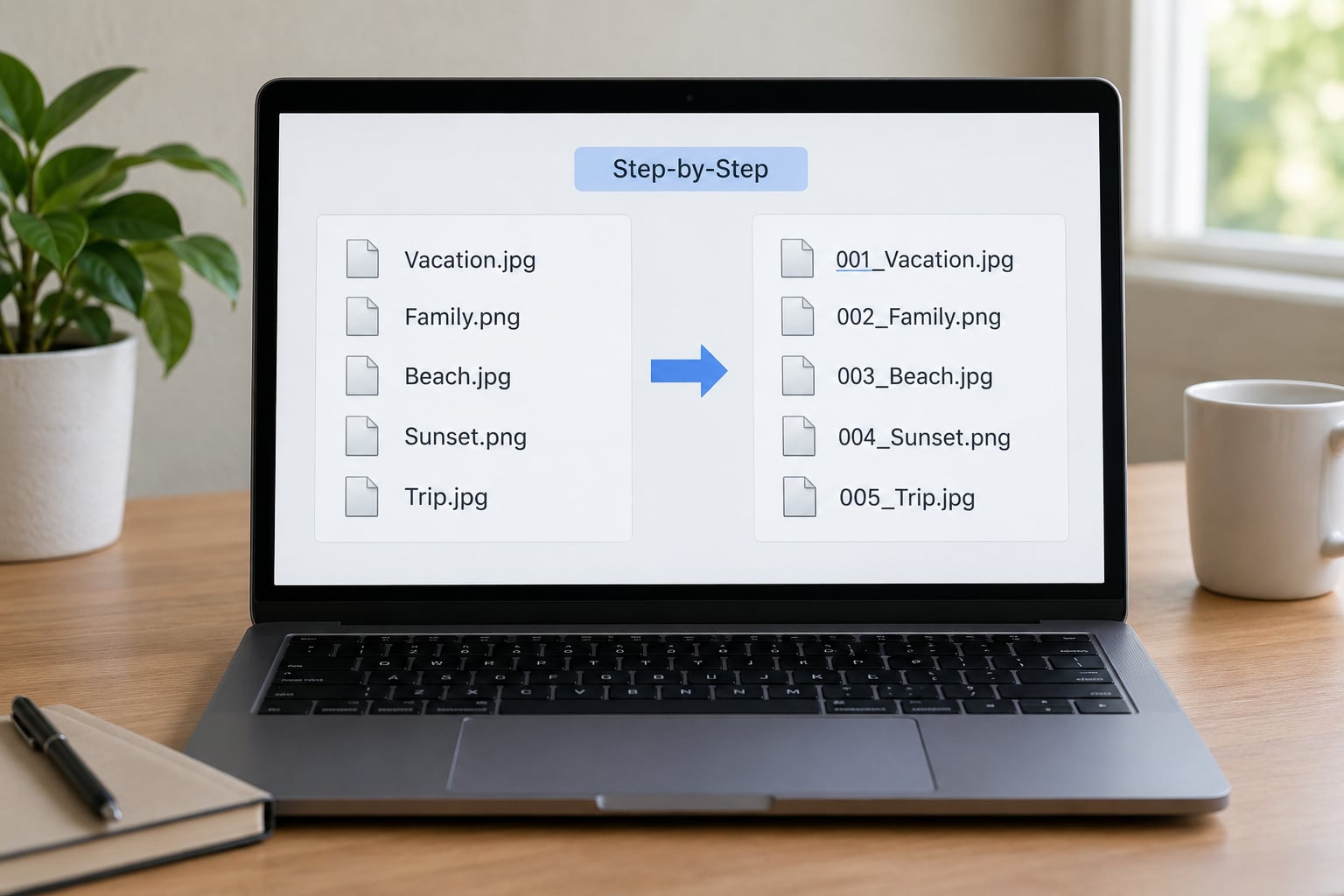
The new name should come from a rule you can state in one sentence: a counter, a date, a prefix, or a search-and-replace. Here is a counter with zero padding, so trip_1.jpg sorts sensibly next to trip_10.jpg.
for index, path in enumerate(files, start=1):
    new_name = f"trip_{index:03d}{path.suffix.lower()}"
    print(path.name, "->", new_name)
The {index:03d} format specifier pads the number with leading zeros to three digits, so the counter is 001, 002, 003. That padding is the difference between a folder that sorts correctly in your file manager and one where trip_10 lands next to trip_2.
Three other rules come up constantly, and pathlib has a method for each instead of making you concatenate strings:
- Change the extension.
path.with_suffix(".csv")returns a newPathwith the extension swapped. This never touches the filesystem; it just builds the name. - Change the name, keep the extension.
path.with_stem("statement")replaces only the part before the dot, which is safer thanwith_namewhen your originals already carry an extension. - Replace characters.
re.sub(r"[^A-Za-z0-9._-]", "_", path.stem)swaps spaces and punctuation for underscores while keeping the readable part of the name intact.
Prefixing a date from file metadata is the other recipe worth having. path.stat().st_mtime gives the last modified time as a Unix timestamp on every platform:
from datetime import datetime

stamp = datetime.fromtimestamp(path.stat().st_mtime).strftime("%Y-%m-%d")
new_name = f"{stamp}_{path.stem}{path.suffix}"
Whichever rule you pick, keep the destination path in the same folder as the original by starting from path.parent. Building Path("new_name.jpg") on its own points at your current working directory, which is not where the file lives, and you will get a FileNotFoundError for reasons that make no sense at first.
Step 3: Preview the Renames Before Applying Them
A dry run prints every proposed change and touches nothing. Make it the default in your script so you always see the plan first.
DRY_RUN = True

plan = []
claimed = {p.name for p in folder.iterdir()}

for index, path in enumerate(files, start=1):
    target = folder / f"trip_{index:03d}{path.suffix.lower()}"
    if target.exists() and target != path:
        print(f"SKIP  {path.name}: {target.name} already exists")
        continue
    if target.name in claimed and target != path:
        print(f"SKIP  {path.name}: {target.name} claimed by an earlier file")
        continue
    claimed.add(target.name)
    plan.append((path, target))

for src, dst in plan:
    print(f"{'would rename' if DRY_RUN else 'renamed'}: {src.name} -> {dst.name}")
Two separate collision checks run here, and you want both. The target.exists() check catches a new name that matches a file that was already in the folder and is not part of this batch. The claimed set catches two source files resolving to the same new name, which is the case that quietly destroys data when the second rename overwrites the first on Linux and macOS. Checking target != path stops a no-op rename from being reported as a collision with itself.
This preview is the single most valuable habit in the whole workflow. A hundred lines of output read in ten seconds will show you an off-by-one in your counter or a stray .DS_Store that got picked up by your filter, before anything on disk has changed.
Step 4: Rename Files Safely
Once the plan looks right, flip DRY_RUN to False and add the rename loop. Handle each file inside a try so one locked file does not abandon the other ninety-nine.
for src, dst in plan:
    if DRY_RUN:
        print(f"[dry run] {src.name} -> {dst.name}")
        continue
    try:
        src.rename(dst)
        print(f"renamed: {src.name} -> {dst.name}")
    except (FileExistsError, PermissionError, OSError) as exc:
        print(f"FAILED: {src.name} -> {dst.name} ({exc})")

print(f"{len(plan)} files processed")
Path.rename() is the portable call to reach for. On Windows it refuses to overwrite an existing file, and on Linux and macOS it will happily replace one, which is why the explicit target.exists() check in the previous step matters even when you already filtered for collisions.
Write the log to a file as well as the screen. One extra line gives you an undo map for free:
from datetime import datetime

log = Path("rename-log.txt")
with log.open("a", encoding="utf-8") as handle:
    handle.write(f"{datetime.now():%Y-%m-%d %H:%M:%S}n")
    for src, dst in plan:
        if not DRY_RUN:
            handle.write(f"{src}t{dst}n")
A tab-separated old-path and new-path pair per line is easy to read, easy to feed back into a script, and easy to correct by hand. That is your rollback path when the rule turns out to be wrong.
Step 5: Verify the Results and Test Edge Cases
Run the listing loop from Step 1 again after the rename. The count of files in the folder should match the count you started with, and the names should follow your rule exactly. If the numbers differ, your log is the place to look first.
Then push the edge cases through a copy of the folder before you trust the script with anything you care about:
- Multiple dots. A file called
notes.backup.pdfshould become001.pdfif you usesuffix, andnotes.backupif you strip.backup.pdfby hand. Check which one you actually want. - Spaces and Unicode. Names with spaces, accents or emoji work fine on all three platforms. If a rename raises
OSErroron Windows, it is usually a reserved character such as/ : * ? " < > |or a name ending in a full stop. - Empty folder. A folder with zero matches should print
0 images foundand exit cleanly rather than erroring on an empty sequence. - Permission problems. A file open in another program, or inside a folder you do not own, raises
PermissionError. The loop should report it and keep going. - Very long names. Most filesystems cap a path around 255 characters per component. Truncate the stem if your generated names push past that.
Make a copy of the source folder, run the whole thing against the copy, and diff the before and after listings. Once that matches what you expect, run it for real. After that, the script is safe to schedule: cron on Linux and macOS, or Task Scheduler on Windows, calling the same command on the first of every month.
Common Mistakes
Almost every bad bulk rename traces back to one of a handful of predictable errors.
Renaming from the wrong directory. If you build the destination as Path("new.jpg"), Python resolves it against wherever the terminal happens to be. Always derive the target from the source with path.parent / new_name, or path.with_stem(...) / path.with_suffix(...), so the file stays where it was.
Overwriting a file silently. On Linux and macOS, os.rename and Path.rename replace an existing destination without complaint. Windows raises FileExistsError instead. If you want replacement to be deliberate rather than accidental, os.replace documents that intent on both platforms, and your target.exists() check protects you either way.
Treating folders as files. iterdir() returns subfolders too. Filtering with p.is_file() costs one line and stops your loop from renaming a directory of photos into a numbered mess.
Generating duplicate names. When two source files produce the same target name, the second rename destroys the first on POSIX systems. Track claimed names in a set, as in Step 3, and skip anything already spoken for.
Changing extensions by accident. String replacement on the whole filename turns invoice.pdf into invoice_001.pdf.docx if your suffix variable already contains the old dot. with_suffix() replaces the existing suffix rather than appending to it.
Ignoring case and iteration order. *.jpg misses .JPG off Windows, and an unsorted loop produces numbering in a different order every time you run it. Use p.suffix.lower() and wrap everything in sorted().
Windows path strings. Backslashes trigger escape sequences, so "C:Usersme" is not what you typed. Use a raw string, or better, build the path with Path.home() / "Pictures" so the separator comes from the platform.
A few habits remove most of the remaining risk. Copy the folder first and work on the copy. Default to dry run and make turning it on a deliberate edit. Log every change with its old and new path, so you can reverse it later. And keep the script idempotent, meaning a second run on an already-renamed folder changes nothing, which makes it safe to schedule and safe to retry after a crash.
Frequently Asked Questions
Is it safe to bulk rename files with Python?
It is safe when your script previews first and refuses to overwrite. Run it in dry-run mode so it prints every old name and new name without changing anything on disk, check that listing for mistakes, then run for real. Copy the folder to a test location before the first attempt, and write a log of old and new paths so any rename can be reversed.
How do I automate file renaming with Python across subdirectories?
Use Path.rglob instead of iterdir when the files sit in nested folders. rglob(u0022*.pdfu0022) walks the whole tree below the starting folder and returns matching files, so the same preview-then-rename loop works unchanged. To keep each file in its own folder, rename path in place. To gather everything into one folder, pair the rename with shutil.move and a destination path under the parent.
How do I change file extensions in Python without breaking the files?
Use path.with_suffix(u0022.csvu0022), which replaces the existing extension rather than appending another one. That only changes the filename; it does not convert the contents, so a text file renamed to .csv still holds text. Convert the data first, then rename. On Windows use path.suffix.lower() when matching, because patterns like *.txt will not match an uppercase .TXT.
How do I undo a bulk rename in Python?
Undo needs a record, which is why a logging rename script writes the old path and new path of every file to a text file, one pair per line. To roll back, read that log and rename each new path back to its old path in reverse order. Without a log the original names are gone, so treat the log as the real safety net and always run a dry run before the live pass.
What happens when two files end up with the same new name?
On Linux and macOS the second rename silently replaces the first, so you lose a file with no error message. Windows raises FileExistsError instead. Prevent it by keeping a set of target names already claimed in this run and skipping any file whose destination is in that set. Checking whether the target already exists in the folder catches the other collision case.
Should I use bash or Python to bulk rename files?
Bash handles simple one-liners well, such as a for loop renaming every .txt file with a prefix, and it needs no interpreter setup. Python wins once you need preview before committing, collision checks, logging, rename-and-move together, or new names read from a CSV. If your rename rule involves anything conditional or based on metadata, the Python version is usually shorter than the shell equivalent.
Conclusion
The safest workflow is the same every time: list the folder and look at it, define one rule for the new name, preview the full mapping and check for collisions, run the rename on a small test batch, then verify the result before touching anything important. Every one of those steps is a few lines of code, and the script only gets useful once the dry run is in it.
Start by pointing the script at a copied directory with about twenty files in it, leave DRY_RUN = True, and read the output. When the listing looks like what you expected, flip the flag and keep the log. That is the whole habit, and it is what separates a rename script you trust from one you run with your eyes shut.