
Git merge combines two branches by creating a new commit with two parents that joins both histories, so the record of parallel work stays intact. Git rebase takes your commits and replays them on top of another branch, rewriting their hashes so your history reads as one straight line. The file contents end up the same either way; only the shape of the history differs.
The golden rule fits in a sentence: never rebase commits that already live on a shared branch. Rewriting history that somebody else has fetched is the one genuinely destructive thing in this whole discussion, and it is entirely avoidable.
Most of the confusion I see comes from treating rebase and merge as rivals. They are two tools for two different jobs, and the practical answer for 2026 is to use both: rebase your own unpushed work to keep it tidy, then merge the branch into main when it is ready.
Table of Contents
- Git Rebase vs Merge at a Glance
- How Rebase and Merge Change Commit History
- When to Use Git Rebase
- How to use interactive rebase to squash commits
- When to Use Git Merge
- Git Rebase vs Merge for Collaboration
- How to Rebase a Branch and Resolve Conflicts
- How to Merge a Branch and Handle Conflicts
- Common Rebase and Merge Mistakes
- Which Should You Choose?
- Frequently Asked Questions
- Is git rebase or git merge better for feature branches?
- Can I rebase a branch that other people have already pulled?
- Does git rebase change commit history?
- Which command is better for a shared team repository?
- How do I recover from a rebase or merge conflict?
- Should I rebase before opening a pull request?
- Conclusion
Git Rebase vs Merge at a Glance
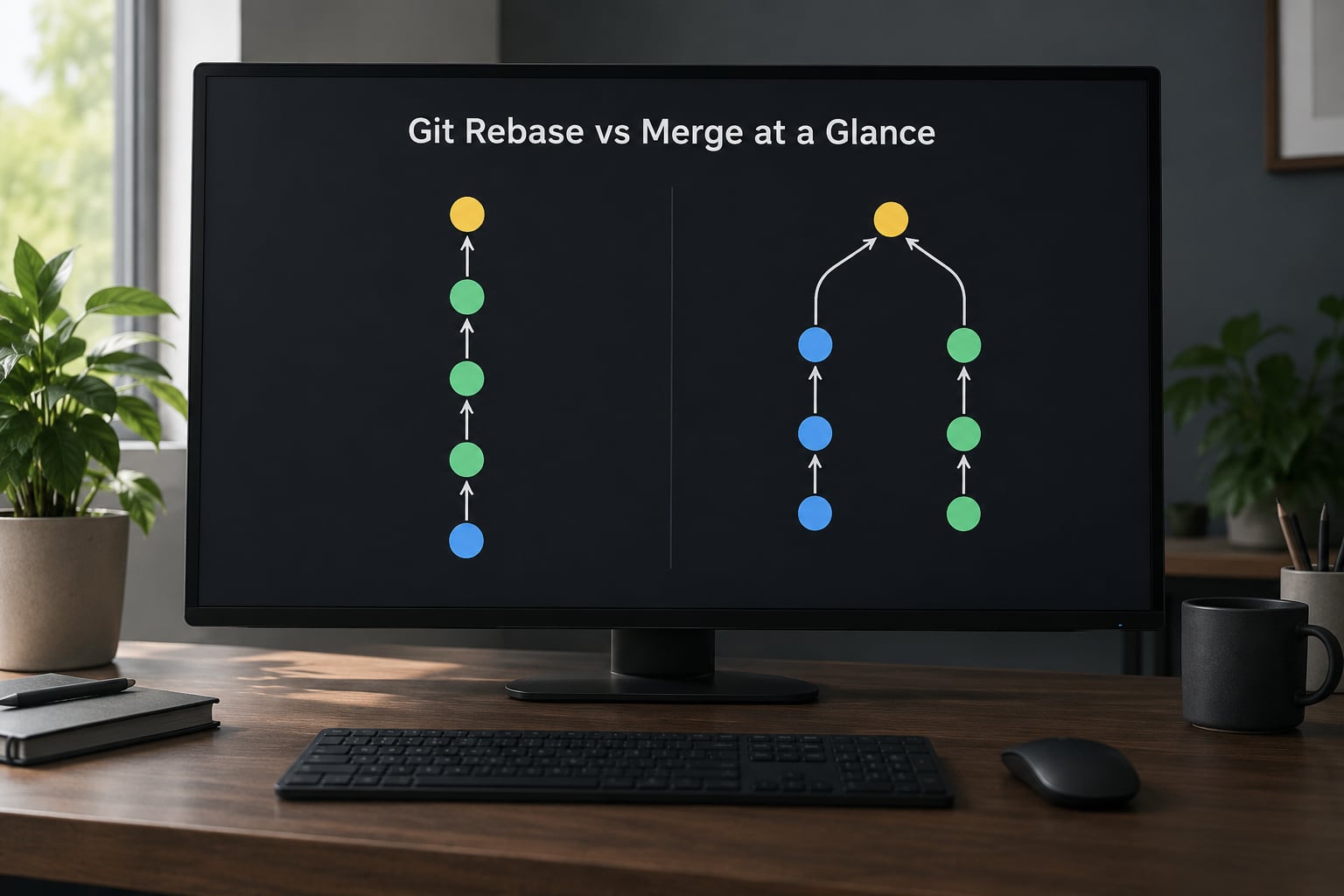
Here is the short version before the details. The rows below are the things that actually change between the two commands.
| Criterion | git merge | git rebase |
|---|---|---|
| History shape | Non-linear, branches join at a merge commit | Linear, commits stack on the target branch |
| Creates a merge commit | Yes, unless the merge fast-forwards | No |
| Your commit hashes | Unchanged | All replaced with new hashes |
| Conflicts resolved | Once, at the merge point | Potentially once per replayed commit |
| How to undo it | git reset, plus ORIG_HEAD as a fallback | git rebase –abort, then git reflog |
| Safe on a shared branch | Yes | No, never after the commits are pushed |
One row deserves emphasis. Merge conflicts happen once, between two branch tips. A rebase conflict can happen once per commit, because each commit gets replayed and can collide with the target branch separately.
How Rebase and Merge Change Commit History
Every commit in Git points at a parent. A merge commit is simply the first commit in Git’s design with two parents, which is what lets it represent two lines of work joining.
Start with this state. You branched feature from main, and both have moved on since.
* 1c2d3e  Add login form          (feature)
* 9f8e7d  Initial commit
* a1b2c3  Update README           (main)
|/
* 7d6c5b  Initial commit
Now merge. Git finds the common ancestor (the commit both branches share), computes a three-way comparison, and writes one new commit with two parents.
* 5e6f70  Merge branch 'feature'  (main)
|
| * 1c2d3e  Add login form
| * 9f8e7d  Initial commit
* | a1b2c3  Update README
|/
* 7d6c5b  Initial commit
Both lines survive, and the merge commit permanently records that the work came together at that point. That record is the reason many teams prefer merge on shared branches.
Rebase takes a different route. It takes the commits that are on feature but not on main, and reapplies them onto main one at a time as brand-new commits.
* 8b3c14  Add login form          (feature, new hash)
* a1b2c3  Update README           (main)
* 7d6c5b  Initial commit
Note the hash. 1c2d3e became 8b3c14, even though the message, author, and content are identical. Git hashes include the parent pointer, so a new parent means a new identity for every commit stacked behind it.
This is also the practical answer to “does rebase change commit history”. It changes the commits themselves, not just their display order. Anything already built on the old hashes, a teammate’s checkout, a published tag, a cherry-pick someone made last month, stops matching.
A merge commit can be made cheaply and reversed at any time with git reset --hard ORIG_HEAD. A rebase that has already been force-pushed is gone from every remote unless someone kept a reflog.
When to Use Git Rebase
Use rebase when the commits involved are yours alone and nobody else has fetched them. That is the whole condition.
- Tidying local commits before you push. Combine “fix typo” and “wip” into the feature commit they belong to.
- Updating a feature branch with the latest main.
git rebase mainreplays your work on top instead of adding a merge commit for every sync. - Producing a readable
git log. A linear log with one commit per logical change is far easier to scan, review, and bisect through. - Squashing a stack of PR branches.
git rebase --ontolets you move commits that were based on the wrong branch. - Making a long-lived branch reviewable again. Interactive rebase turns thirty commits into three.
How to use interactive rebase to squash commits
Interactive rebase opens a list of your commits and lets you rewrite them before they leave your machine.
git rebase -i HEAD~5Git opens an editor with one line per commit. Change pick to squash to merge a commit into the one above it and combine messages, or fixup to discard the second message entirely. reword changes a commit message without touching its content.
Once you are comfortable with that workflow, set pull to rebase by default so day-to-day syncing never litters merge commits into your feature branch.
git config --global pull.rebase true
git config --global rebase.autoStash true
rebase.autoStash stashes your uncommitted changes and restores them when the rebase finishes. Without it, Git refuses to start if your working tree is dirty.
When to Use Git Merge
Use merge when the branches represent real events that happened at the same time, or when other people have the branch.
A merge commit answers a question a linear log cannot: what was integrated when, and from where. If you maintain a release branch, an audit trail matters, and the merge commit is the natural place it lives.
There are two merge flavours worth knowing.
A fast-forward merge happens when the target branch has not moved since the branch point. Git just slides the pointer forward and no new commit is created. Delete the feature branch pointer with git branch -d and the history is identical to a rebase.
A squash merge collapses an entire branch into a single commit on the target. You get linear history without anyone rebasing anything, which is why most teams allow it on protected branches.
Merge is the safe default when you are unsure. It never invalidates a hash that another developer already has, and it never requires a force push.
Git Rebase vs Merge for Collaboration
The difference that matters most in a team is not aesthetic. It is who breaks when history moves.
Merge only adds commits. A teammate who pulled ten minutes ago can pull again and get everything new. Nobody’s existing work is invalidated, and nobody needs write access to history they already cloned.
Rebase replaces commits on your branch. If a teammate has already pulled your branch, their local history now points at hashes that no longer exist upstream. Their next git pull creates a set of duplicate-looking commits, and their git log starts showing your work twice.
On pull requests the same rule holds, with an extra wrinkle from the hosting platform.
| Pull request button | What Git actually does | What reviewers see |
|---|---|---|
| Create a merge commit | A true two-parent merge | Full branch history plus a merge commit |
| Squash and merge | Many commits collapse into one on main | A single tidy commit |
| Rebase and merge | Commits replayed, then fast-forwarded | Same commits, new hashes, no merge commit |
Note what rebase-and-merge does to your fork’s copy of the branch. The commits land on main with fresh hashes, so your local branch is behind and will need a reset, not just a pull.
For open source work, merge is the conventional answer because nobody controls who has cloned the repository. Rebase-and-merge on a fork has the same problem as any other rewrite.
How to Rebase a Branch and Resolve Conflicts
Fetch first so you are rebasing onto the real remote state, not a stale copy.
git checkout feature
git fetch origin
git rebase origin/main
Rebase stops at the first commit that cannot apply cleanly and shows you the conflicted files with conflict markers in the working tree.
CONFLICT (content): Merge conflict in src/login.jsOpen each file, decide what the correct result is, remove the <<<<<<<, =======, and >>>>>>> markers, then stage the result and continue.
git add src/login.js
git rebase --continue
That repeats for every conflicting commit. Two other controls matter here.
git rebase --skipdrops the commit that will not apply and moves on. Use it when the commit’s changes are already present upstream.git rebase --abortreturns you to exactly where you started, with nothing lost. Reach for it the moment a rebase gets confusing.
When the branch has been rebased before and the upstream copy was force-pushed, refresh the upstream pointer first so the rebase does not replay commits that already exist:
git fetch origin
git rebase origin/main --reapply-cherry-picks
Once the rebase finishes, your branch is ahead of the remote with rewritten commits. Update it with a force push that checks whether somebody else moved it:
git push --force-with-lease origin featureHow to Merge a Branch and Handle Conflicts
Merging is shorter because there is a single integration point.
git checkout main
git pull
git merge feature
If the merge fast-forwards, you are done. If it conflicts, Git marks the files, you resolve them the same way, then commit the merge.
git add src/login.js
git commit
Verify the result before you push.
git log --oneline --graph -10
git diff origin/main...HEAD --stat
A merge in progress shows up as git status reporting “You have unmerged paths”, and the repository keeps a MERGE_HEAD file until the commit lands. To back out, git merge --abort restores the pre-merge state.
To undo a merge you have already committed, git reset --hard ORIG_HEAD returns main to exactly where it was before the merge, because Git records the previous tip in ORIG_HEAD on every merge and rebase.
Common Rebase and Merge Mistakes
Rebasing a branch other people have pulled. Their history points at commits that no longer exist upstream. The fix is that they must reset their branch to the new upstream tip, and everything uncommitted on their side needs stashing first. There is no clean fix, which is why the golden rule exists.
Using git push --force after a rebase. Plain --force overwrites whatever is on the remote without checking. If a teammate pushed in the meantime, their commits disappear from your view. Use --force-with-lease, which refuses the push when the remote has moved since you last fetched.
Force pushing to main or a protected branch. Reserve it for rebasing your own feature branch after review feedback. Never for shared integration.
Rebasing repeatedly against a moving main. A long-lived branch that has been rebased every few days re-enters conflict resolution over and over, and you can end up fixing the same file dozens of times. Rebase once, or not at all, and let merge handle long branches.
Merging main back into your feature branch daily. Each merge adds a commit to your branch and grows the conflict surface on the next update. git pull --rebase on the feature branch avoids that entirely.
Losing work after a finished rebase. The commits are usually still in the reflog for weeks, which makes this a two-command fix:
git reflog
git reset --hard HEAD@{5}
Find the entry matching your pre-rebase HEAD@{n} and reset to it. This is the single most useful command in this entire topic, and it works for merges too.
Committing straight to main. This is a branch problem, not a rebase problem. Feature branches exist precisely so you can rebase privately before integrating.
Which Should You Choose?
Use rebase for your own work, merge for everyone else’s. Everything else follows from that.
| Situation | Recommendation | Why |
|---|---|---|
| Solo project, private repo | Rebase freely | Tidy history, no one to break |
| Small team, feature branches | Rebase locally, squash or merge into main | Linear main, stable hashes |
| Large team, shared long-lived branches | Merge commits | Nobody’s checkout is invalidated |
| Public open source contribution | Merge, or rebase and merge via the platform button | You do not control who has cloned it |
| Release branch maintenance | Merge commits | Audit trail of what went into which release |
Team-level advice from Git forums and developer communities repeats one point more than any other: mixing conventions inside a team is worse than either convention. Two developers both rebasing, one squashing and one merging, produces a history nobody can read.
Pick one, write it down, and put it where people will see it.
## Contributing

- Rebase your feature branch onto main before opening a PR.
- Force push with --force-with-lease only, never plain --force.
- Never rebase main, release/*, or any shared branch.
- PRs merge with squash unless the change is a revert.
On the platform side, protect main, allow only squash or merge commits, and require that branches be up to date before review. Those settings enforce the policy without anyone having to remember it.
Frequently Asked Questions
Is git rebase or git merge better for feature branches?
Both, in that order. Rebase your feature branch onto main while the commits are still private so the history reads cleanly, then merge the branch into main when it is ready. Rebase tidies work you own; merge records the integration for everyone else. If you only pick one habit, make it rebase before opening the pull request.
Can I rebase a branch that other people have already pulled?
You can run the command, but you should not. Rebasing rewrites commit hashes, so anyone who pulled the branch keeps commits that no longer exist upstream and will see duplicate work on their next pull. The only fix is for them to reset to the new tip. Rebase freely on branches nobody else has fetched, and use merge commits on anything shared.
Does git rebase change commit history?
Yes, it changes the commits themselves. Rebase replays each of your commits as a new object with a new parent, so every commit gets a new SHA even though the message, author, and content stay the same. That is why a rebase requires a force push and why it is unsafe on any branch other people have already pulled.
Which command is better for a shared team repository?
Merge is the better default because it only ever adds commits. Nobody’s existing checkout is invalidated, no force push is required, and the merge commit records exactly what was integrated and when. Teams that want linear history on main can still squash or rebase-and-merge through the platform buttons, which keeps the rewriting under the hosting service rather than on shared branches.
How do I recover from a rebase or merge conflict?
While a rebase is in progress, git rebase u002du002dabort returns you to the exact state you started from, and git rebase u002du002dskip drops a single unresolvable commit. If the rebase already finished, run git reflog, find the entry from before the rebase, and git reset u002du002dhard to it. For a committed merge, git reset u002du002dhard ORIG_HEAD restores the previous tip.
Should I rebase before opening a pull request?
Usually yes, if the branch is yours alone. Rebasing onto main keeps the diff focused on your change instead of including everyone else’s commits, and it avoids conflict markers in files you never touched. Skip it if the branch has been shared or force pushed by others, or if the platform offers a rebase-and-merge or squash-and-merge button that does the same job on the server side.
Conclusion
Merge records what happened. Rebase makes history read the way you wish it had happened. Neither is more correct, and the file contents are identical either way.
Start by rebasing your own feature branch onto main before you open a pull request, and use merge commits for anything other people are working on. If you break something along the way, git rebase --abort during the rebase and git reflog after it will get you back.