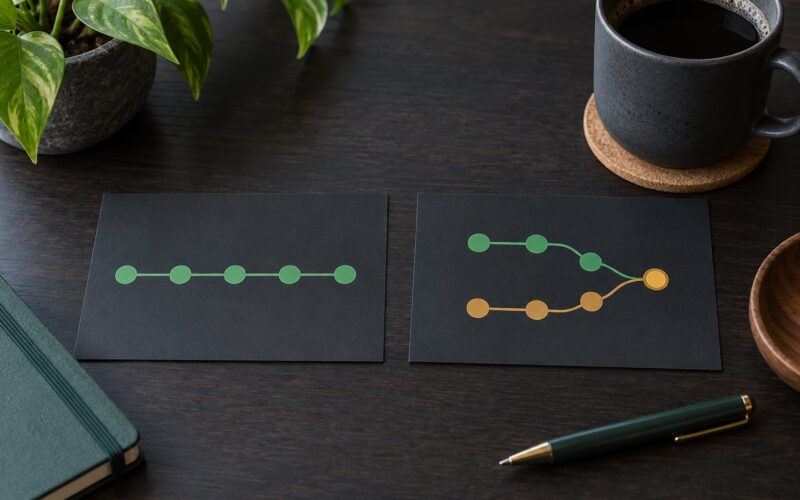
To fix a Git merge conflict, you work through four commands in order: git status to see which files broke, edit each file to remove the conflict markers and keep the code you want, git add to mark each one resolved, then git commit to finish. If you change your mind mid-way, git merge --abort puts everything back the way it was. That is the whole loop, and the rest of this guide is the detail around it.
A conflict is not a crash and it is not Git telling you that you broke something. Git stopped because it refused to guess which of two edits should win. Your job is to make that call, and most conflicts take under a minute once you know which side is yours.
This guide covers Git 2.30 and later on macOS, Linux and Windows, with the same commands working in Git Bash, PowerShell and WSL. The defaults I use throughout are merge.conflictStyle = merge and a normal three-way merge. Updated for 2026.
Table of Contents
- What You Need
- How to Fix a Git Merge Conflict Step by Step
- How to Fix a Git Merge Conflict Step 1: Check Whether a Merge Is in Progress
- How to Fix a Git Merge Conflict Step 2: Open Each Conflicted File in an Editor
- How to Fix a Git Merge Conflict Step 3: Stage the Resolved Files
- How to Fix a Git Merge Conflict Step 4: Complete the Merge Commit
- How to Fix a Git Merge Conflict Step 5: Abort or Undo an Unwanted Merge
- Which Command to Use: Conflict Type Cheat Sheet
- Common Merge Conflict Mistakes
- Deleting the Conflict Markers Without Reading the Code
- Resolving With an Empty File
- Running Commands in the Wrong Repository or Branch
- Staging Edits That Are Not Finished
- Running Reset or Abort After Valuable Local Work
- Frequently Asked Questions
- How can I resolve a merge conflict using the command line in Git?
- How do I cancel a merge conflict in Git?
- Why do ours and theirs mean the opposite during a rebase?
- How do I resolve merge conflicts for all files at once?
- What does Automatic merge failed; fix conflicts and then commit the result mean?
- How do I force merge a branch in Git?
- Conclusion
What You Need
Resolving a conflict needs very little: a terminal in the repository, an editor you trust, and about two minutes of attention.
- A terminal in the right repository. Confirm with
pwdandgit rev-parse --show-toplevelso you never stage a fix into the wrong checkout. - A clean or deliberately dirty working directory. Git will refuse to start a merge over uncommitted changes in files it needs to touch. Either commit them, stash them, or expect the merge to stop.
- An editor that shows conflict markers clearly. Any plain text editor works. A three-pane tool such as Meld or KDiff3 is faster once you know the pattern.
- Access to the branch you are merging from. You need the ability to fetch, merge, abort and push in that repository.
- Enough context to know who wrote each side.
git log --merge -- <file>tells you which commits touched a conflicted file from each side.
That last one matters more than it sounds. Most real damage in conflict resolution comes from picking the wrong side, not from wrong commands.
How to Fix a Git Merge Conflict Step by Step
The workflow below is the same whether the conflict came from git merge, git pull, git rebase, git cherry-pick or git revert. Only the final continue and abort commands change, and those are covered below.
How to Fix a Git Merge Conflict Step 1: Check Whether a Merge Is in Progress
Run git status first. It tells you the operation in progress, which files are unmerged, and the exact commands Git wants you to run next.
git statusOn branch main
You have unmerged paths.
(fix conflicts and run "git commit")
(use "git merge --abort" to abort the merge)
Unmerged paths:
(use "git add <file>" to mark resolution)
both modified: src/auth/login.js
both modified: src/config/routes.json
no changes added to commitTwo phrases matter here. Unmerged paths means Git is holding several versions of those files in its index and will not let you commit until each one is resolved. both modified means both sides changed the file.
For a list you can pipe or script, use git diff --name-only --diff-filter=U. To see the index stages behind each file, run git ls-files -u.
How to Fix a Git Merge Conflict Step 2: Open Each Conflicted File in an Editor
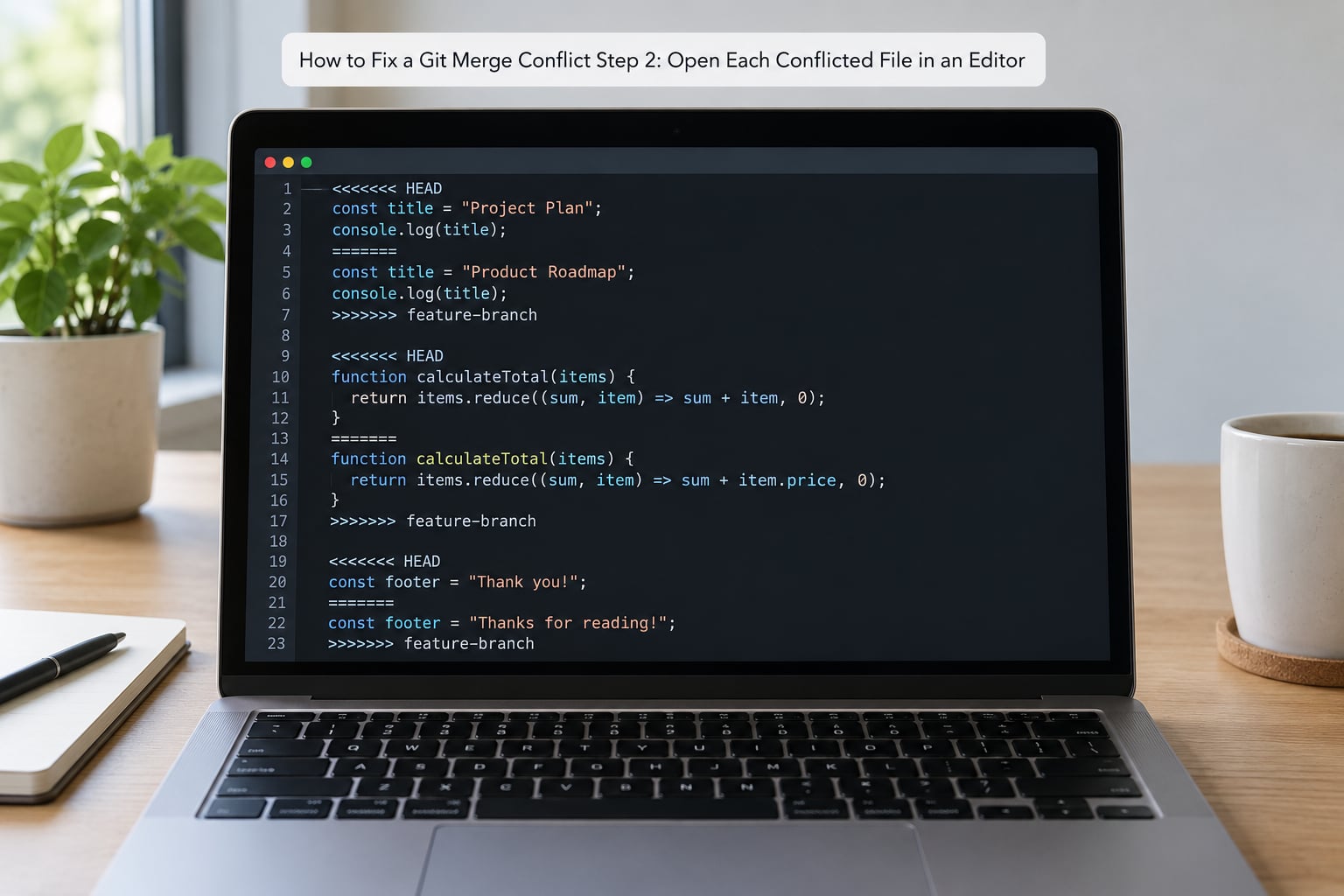
Git writes the conflict into the file itself using three markers. Here is the default layout:
<<<<<<< HEAD
  validateToken(user) {
    return user.role === 'admin';
  }
=======
  validateToken(user) {
    return user.isActive && user.role === 'admin';
  }
>>>>>>> feature/active-users
The block between <<<<<<< HEAD and ======= is yours, the branch you are currently on. The block between ======= and the closing marker is theirs, the branch coming in.
Delete the markers and keep whichever lines survive. For the example above the honest answer is usually both conditions, written as one line. If you are unsure, ask whoever wrote the other branch rather than guessing at intent.
To see the common ancestor in the middle, switch the display style. The diff3 style adds a base section, and zdiff3 shows the base only where it helps:
git config --global merge.conflictStyle zdiff3
git diff
Do this once and every future conflict reads better. You can still return two-sided conflicts with git config --global merge.conflictStyle merge.
How to Fix a Git Merge Conflict Step 3: Stage the Resolved Files
Staging is how you tell Git a file is finished. Until a conflicted path is staged, git commit refuses to run.
git add src/auth/login.js
git status
When a path disappears from the unmerged list, the resolution is recorded. Verify that with git diff --name-only --diff-filter=U, which should now print nothing.
To take one side for a whole file instead of editing by hand:
git checkout --ours src/auth/login.js
git checkout --theirs src/config/routes.json
git add src/auth/login.js src/config/routes.json
Watch out for what those commands do: they replace the entire file, not just the conflicting hunk. Anything the other branch changed outside the conflict disappears. A safe middle ground is git checkout --conflict=diff3 <file>, which restores the marked-up file so you can hand-merge instead.
How to Fix a Git Merge Conflict Step 4: Complete the Merge Commit
With every path staged, Git completes the operation itself. After a plain merge you finish with a normal commit; after a rebase, cherry-pick or revert, use that operation’s continue command instead.
git commit -m "Merge branch 'feature/active-users' into main"
git push origin main
Rebase, cherry-pick and revert use their own verbs, and each has three exits. Knowing them in advance saves the worst half hour of an interrupted rebase.
git rebase --continue      # apply the resolution and move to the next commit
git rebase --skip          # drop the commit being replayed
git rebase --abort         # return to where the rebase started

git cherry-pick --continue # resume after resolving
git cherry-pick --abort    # cancel the cherry-pick

git revert --continue      # resume an interrupted revert
Here is the trap that costs people real work. During a merge, --ours means your branch and --theirs means the incoming branch. During a rebase the labels swap: --ours is the branch being replayed onto, and --theirs is the commit being replayed. If a rebase resolution feels backwards, this is why.
You can verify the result before pushing by running the test suite and re-reading the merged region with git diff. If the same conflict reappears later, the usual cause is that you resolved but never pushed, so the other side moved while you were working.
How to Fix a Git Merge Conflict Step 5: Abort or Undo an Unwanted Merge
You can cancel a merge at any point before the commit. Git restores the pre-merge state of the working tree and index.
git merge --abortIf abort reports that it cannot reconstruct the original state, that means your working tree changed after the merge began. git reset --merge ORIG_HEAD is the gentler fallback: it resets the index and the files it needs to, while leaving unrelated local edits alone.
Keep in mind that abort discards conflict resolutions you have already made. If you spent real time on a hard file, stage what you have with git add before you abort.
Which Command to Use: Conflict Type Cheat Sheet
Not every conflict is a text conflict. Match what Git printed to the command that resolves it.
- Both modified — Git prints
CONFLICT (content). Edit the file, remove the markers, thengit addit. - Deleted by us or deleted by them — Git prints
CONFLICT (modify/delete). To keep the file, rungit add <file>. To accept the deletion, rungit rm <file>. - Both added — Git prints
CONFLICT (add/add). Two sides created the same new path, so combine the files by hand and stage the result. - Binary file — Git prints
CONFLICT (binary files). Take a side withgit checkout --theirs, or teach the format a merge driver in .gitattributes. - Rename on both sides — Git prints
CONFLICT (rename/rename). Keep one path withgit addand remove the other. - Submodule — Git prints
CONFLICT (submodule). Resolve it by staging the updated submodule pointer withgit add <submodule>. - Many files at once — Git prints a long unmerged path list. That is the bulk case, handled in the loop below.
For hundreds of conflicted files, which happens after a long rebase onto a busy branch, resolve them in one pass and review afterwards:
git diff --name-only --diff-filter=U | xargs git checkout --theirs
git diff --name-only --diff-filter=U | xargs git add
git rebase --continue
Read that loop before running it. Taking --theirs wholesale means replacing every conflicted file with the incoming version, which is only safe when your side of those files carries no unique changes.
One more automation worth knowing about: git config --global rerere.enabled true makes Git record how you resolved a conflict and replay that answer when the same conflict appears again. It pays off on long-running branches where the same file conflicts repeatedly.
Common Merge Conflict Mistakes
Almost every bad merge resolution comes from one of five habits. All of them are easy to avoid once you know what to look for.
Deleting the Conflict Markers Without Reading the Code
Searching for <<<<<<<, hitting delete, and saving throws away the reasoning behind both edits. The file now compiles and silently does the wrong thing. Read both blocks and the surrounding function before touching a single marker.
Resolving With an Empty File
Selecting all and deleting gets the conflict out of git status and leaves you with a file containing nothing. If a file should be emptied, say so deliberately and check the diff confirms it. If it should not, restore the three versions with git checkout --merge <file> and start again.
Running Commands in the Wrong Repository or Branch
A conflict on a feature branch resolved on main produces a clean-looking commit that removes the feature. Check git rev-parse --abbrev-ref HEAD and git status before you stage anything, not after. This is the cheapest mistake to prevent and the most annoying to unpick.
Staging Edits That Are Not Finished
git add means resolved, and a half-edited file with markers already deleted is the worst state to be in. Stage one file at a time and let git diff --staged show you exactly what will be committed.
Running Reset or Abort After Valuable Local Work
git reset --hard destroys uncommitted work in the working tree with no undo, and git merge --abort throws away conflict resolutions you already made. Stage or commit first, and remember that ORIG_HEAD plus git reflog can usually recover you afterwards even after a bad merge commit, which you can reverse with git revert -m 1 <hash>.
Frequently Asked Questions
How can I resolve a merge conflict using the command line in Git?
Run git status to list unmerged paths, open each one and delete the conflict markers while keeping the code you want, then run git add on each resolved file. When git diff u002du002dname-only u002du002ddiff-filter=U prints nothing, finish with git commit. Use git merge u002du002dabort at any point before the commit to return to the pre-merge state.
How do I cancel a merge conflict in Git?
Run git merge u002du002dabort while the merge is still in progress. It restores the working tree and index to their pre-merge state and clears the unmerged paths. If it cannot reconstruct the original state because you edited files after the merge started, use git reset u002du002dmerge ORIG_HEAD instead, which keeps unrelated local changes.
Why do ours and theirs mean the opposite during a rebase?
The labels describe your position, not the branch names. During a merge, ours is the branch you are on and theirs is the branch coming in. During a rebase, ours is the branch being replayed onto and theirs is the commit being replayed, so the two swap. This inversion is the most common cause of taking the wrong side and losing work.
How do I resolve merge conflicts for all files at once?
List the conflicted files with git diff u002du002dname-only u002du002ddiff-filter=U, pipe them into git checkout u002du002dours or u002du002dtheirs when taking one side wholesale is genuinely correct, then pipe the same list into git add. Continue a rebase with git rebase u002du002dcontinue. Review the result with git diff before pushing, since this replaces whole files.
What does Automatic merge failed; fix conflicts and then commit the result mean?
Git tried to combine your branch with another using a three-way merge against their common ancestor and found a region both sides changed. Rather than pick a winner, Git stopped, wrote conflict markers into the file and marked the path unmerged. The message is accurate: fix the files, stage them with git add, then commit.
How do I force merge a branch in Git?
There is no local force merge. Resolve the conflicting files, commit the merge, and push. If the server refuses because the remote moved, fetch and rebase or merge again first. A deliberate non-fast-forward push uses git push u002du002dforce-with-lease, which refuses to overwrite unseen remote commits, unlike u002du002dforce.
Conclusion
Read the markers before deleting them, decide which behaviour both branches were trying to reach, stage only files you have actually finished, and confirm with git status that no unmerged paths remain. Run your tests before you push.
If you want to avoid the next one entirely, pull before you start work, keep branches short, and set merge.conflictStyle zdiff3 so the common ancestor is visible while you decide. When the situation goes sideways, git merge --abort and ORIG_HEAD will almost always get you back to a clean state.