UEFI differs from legacy BIOS in three ways that matter day to day: it boots a 32/64-bit bootloader from a GPT disk instead of loading a 16-bit boot sector from an MBR, it supports drives and partition counts the old scheme cannot address, and it adds a verified boot chain with Secure Boot and TPM 2.0. Legacy BIOS still works on older machines, but on anything modern it is a limit rather than a choice.
I spend a lot of time in firmware setup screens, mostly on machines someone inherited or bought used, and the single most common question is whether it matters. Usually the honest answer is that boot speed is not the reason to switch. The reasons are Windows 11, drive size, security, and the fact that every new install assumes UEFI anyway.
Below is the practical version: what each one does at startup, where the storage limits come from, how to check what your own machine is doing, and when staying on legacy BIOS is genuinely the right call.
Table of Contents
- How UEFI Differs from Legacy BIOS at a Glance
- How UEFI and Legacy BIOS Handle Startup
- What an EFI System Partition actually is
- UEFI vs BIOS: Security Features
- Disk and Partition Support
- Hardware and Peripheral Compatibility
- Performance, Drivers, and Management
- Which Should You Choose?
- Frequently Asked Questions
- Is it better to boot UEFI or Legacy?
- How do I tell if my BIOS is Legacy or UEFI?
- Can you just switch from Legacy to UEFI?
- What are the disadvantages of UEFI?
- Can Windows 11 run on Legacy boot?
- Should I use MBR or GPT for UEFI?
- Conclusion
How UEFI Differs from Legacy BIOS at a Glance
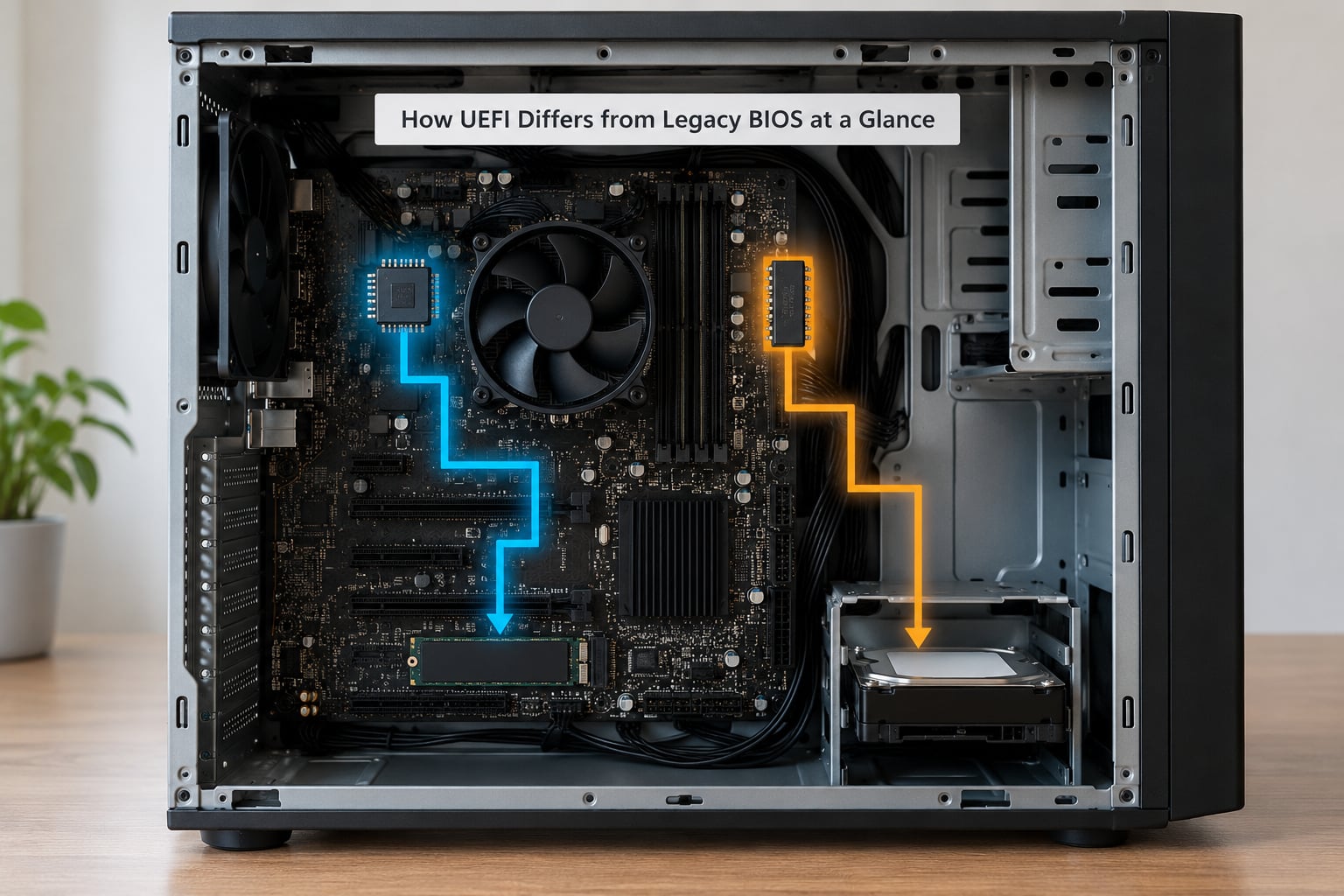
The short answer: UEFI is a completely rewritten firmware architecture, while legacy BIOS is the original IBM PC design still running on 16-bit real mode. Everything else follows from that. UEFI loads signed .efi programs from a dedicated EFI System Partition on a GPT disk. Legacy BIOS jumps to code in the first 512 bytes of an MBR disk and hands control to an operating system loader with no verification at all.
| Criterion | UEFI | Legacy BIOS |
|---|---|---|
| Firmware origin | Intel Boot Initiative (1998), standardized by the UEFI Forum (2005) | IBM PC BIOS, released 1981, barely changed since |
| CPU mode during boot | 32-bit or 64-bit protected mode | 16-bit real mode, then a switch into protected mode by the OS |
| Boot source | EFI System Partition (ESP), normally FAT32 | 512-byte master boot record on the disk |
| Partition scheme | GPT, with MBR possible in hybrid setups | MBR (protective MBR over GPT is also possible) |
| Maximum drive size | 9.4 ZB by specification, far beyond any real hardware | 2.1 TB (32-bit LBA addressing ceiling) |
| Maximum primary partitions | 128 | 4 |
| Security | Secure Boot key hierarchy, TPM 2.0, measured boot, signed capsule updates | No boot-time verification at all |
| Setup interface | Graphical, mouse-driven, often with a built-in UEFI shell | Keyboard-driven text screens, blue or grey |
| Driver model | DXE drivers loaded from the ESP | Option ROMs and INT interrupt calls |
| Network boot | HTTP and PXE with an IP stack in firmware | PXE with limited networking |
One row deserves a correction straight away. The 2.1 TB limit belongs to MBR addressing, not to legacy BIOS by nature. A BIOS machine reading a GPT disk hits exactly the same wall, because it reads the protective MBR that sits at the front of every GPT disk.
How UEFI and Legacy BIOS Handle Startup
The startup difference is where everything else becomes clear. Legacy BIOS has a short, rigid chain. UEFI has a phased one that loads drivers as it goes.
Legacy BIOS boot sequence:
- Power-on self test. The BIOS runs POST from an SPI flash chip, checks memory, then initializes devices through option ROMs.
- Read sector zero. It loads the first 512 bytes of the configured boot disk into memory at 0x7C00 using interrupt 13h.
- Check the boot signature. Bytes 510 and 511 must equal 0x55 and 0xAA. No signature, no boot.
- Jump to the boot code. Control transfers to offset 0x7C00, which is the MBR stub itself.
- Chainload the operating system loader. The stub reads the active partition, loads the volume boot record and bootmgr, and hands over.
UEFI boot sequence:
- SEC phase. A tiny piece of code, in the platform flash, sets up enough of the CPU to bring up the rest of the firmware.
- DXE phase. Driver Execution Environment drivers are discovered and run. They publish the UEFI runtime services that everything after this point uses.
- Boot Manager reads the ESP. The firmware looks for a valid .efi bootloader. With no boot entry it falls back to the removable-media path, EFIBOOTBOOTX64.EFI, which is why a generic USB stick boots on almost any UEFI machine.
That last step explains a lot of forum confusion. There is no BIOS-style list of hard drive positions to search. The firmware asks a partition table for an EFI System Partition and reads files from a FAT32 filesystem. No ESP, no UEFI boot.
What an EFI System Partition actually is
The ESP is a small FAT32 partition, typically 100 MB to 1 GB, holding the .efi bootloader, its drivers, and the boot entries. You can mount one on Linux and read the files, which makes it far less mysterious than an MBR partition table.
Users routinely ask whether the boot mode change affects their other drives. It does not. Data disks formatted as MBR stay readable after a switch to UEFI, and vice versa. The mode change applies only to the disk holding the operating system.
UEFI vs BIOS: Security Features
UEFI is the only one of the two with a security model at boot. That is the largest single difference, and the least likely to show up in a speed benchmark.
Secure Boot uses a chain of keys stored in the firmware. The Platform Key (PK) owns the Key Exchange Key database (KEK), which in turn signs the authorized signature database (db). Every bootloader and kernel is checked against db before it runs, so a modified bootloader cannot execute. Legacy BIOS has no equivalent; whatever bytes sit in the MBR run with full privilege.
TPM 2.0 is a separate chip, discrete or firmware-based as Intel PTT and AMD fTPM. It holds keys and can attest to what was measured at boot. Windows 11 requires it, alongside UEFI and Secure Boot, which is why legacy installs cannot be upgraded in place.
Measured boot records each stage into the TPM so tampering is detectable. Intel calls it Boot Guard, AMD implements it through the Platform Security Processor, and the two use the same underlying idea.
Here is the catch that catches people out. CSM, the Compatibility Support Module, disables Secure Boot on most implementations, because a legacy bootloader cannot present a signature the firmware can verify. Many OEM desktops ship with CSM enabled out of the box, which silently leaves you without a verified boot chain even though the Secure Boot toggle reads on. Forum regulars call it the most misunderstood default on the market, and they are right.
Vendor names for the same toggle are CSM, Legacy Boot, Legacy Option ROMs, or Compatibility Support. All four labels turn on the same compatibility path.
Disk and Partition Support
Storage is where the practical limits bite. UEFI pairs with GPT. Legacy BIOS pairs with MBR. The pairing is close to mandatory, and the mixed cases behave badly.
| Combination | Works? | Notes |
|---|---|---|
| UEFI + GPT | Yes | The normal, fully supported setup |
| BIOS + MBR | Yes | The classic legacy layout |
| BIOS + GPT | Partly | Reads the protective MBR and boots the first partition, but cannot see partitions 5 and beyond |
| UEFI + MBR | Sometimes | Works only with special boot entries pointing at an MBR partition; not recommended |
The 2.1 TB ceiling on MBR comes from 32-bit logical block addressing. A GPT disk uses 64-bit addressing and supports up to 128 primary partitions, which is how modern storage designs get around the old four-partition barrier.
GPT also keeps a protective MBR at the start of the disk for the benefit of ancient tools. It looks like a real MBR partition covering the disk, so a BIOS machine will happily try to boot from it and then fail to find anything useful.
Windows 11 ends the debate for new installations. It requires UEFI, Secure Boot, and TPM 2.0, and it checks all three during setup. A legacy install will not upgrade in place without reinstalling.
Hardware and Peripheral Compatibility
UEFI is stricter about one specific category of hardware: very old add-in cards that shipped their own option ROMs. A 1990s network card or SCSI controller can rely on BIOS services that UEFI simply does not implement, which is exactly why CSM exists.
USB is the other visible difference, usually in the opposite direction. An installer written to a USB stick with an MBR layout and a legacy bootloader will not appear in UEFI boot mode at all. Users see the drive listed in Explorer and conclude the machine is broken. Recreate the stick with a GPT layout and a FAT32 ESP containing EFIBOOTBOOTX64.EFI and it appears immediately.
Power management is better handled under UEFI because ACPI tables are richer and the firmware cooperates with the operating system rather than guessing. Fast Boot options that skip device initialization also exist here, and they are a common cause of USB ports that stop working after an update.
Add-in cards with an Option ROM still work on newer platforms, and network adapters now ship with UEFI-aware ROMs or with a built-in UEFI PXE option. The gap has closed a lot since CSM first appeared.
Performance, Drivers, and Management
Boot speed is the comparison most people expect and the one least worth arguing about. Forum consensus across the big hardware and support communities is consistent: moving an ordinary desktop from legacy to UEFI produces no measurable improvement in daily use. What changes is startup behavior on large memory configurations, where firmware initialization and memory training behave differently.
The bigger difference is manageability. DXE drivers are modular programs loaded from the ESP, so one can be updated, added, or disabled without replacing the whole firmware image. Capsule updates let firmware update itself as a signed blob through the operating system. Legacy BIOS images are rewritten in place, which is where the classic bricking scenario comes from.
Setup screens differ because three vendors write most PC firmware: AMI Aptio, Insyde H2O, and Phoenix SecureCore. The toggle names, menu layout, and key bindings come from that vendor, not from the UEFI specification. If your friend’s setup screen looks nothing like yours, this is why.
Advanced tools are built in. Most UEFI firmware offers a built-in shell, and a boot entry can be created pointing at a network file or a kernel directly, which is how network PXE boot and some Linux setups work without a separate bootloader stage.
Which Should You Choose?
Modern Windows and Linux desktops: UEFI, always. Legacy mode on these machines exists only as a fallback and offers nothing you would miss.
Older desktops and laptops from roughly 2012 or earlier: leave them on legacy if everything works. Converting an aging machine carries more risk than it returns.
Dual-boot Linux and Windows: UEFI, and expect to enroll keys. With Secure Boot on, GRUB2 launches through shim, a signed first stage, and you enroll your own key as a Machine Owner Key when your distribution’s signed bootloader asks. Without that step the machine simply does not boot.
Virtual machines and home labs: pick the firmware type deliberately. OVMF gives you full UEFI emulation including an ESP and Secure Boot variables, while SeaBIOS models legacy hardware. KVM, Proxmox, and VMware all expose both choices in their virtual machine settings.
Embedded, industrial, and specialist hardware: legacy BIOS is sometimes still correct. Vendor cards with old option ROMs, particular network appliances, and retro machines all depend on it.
Windows 11 upgrades: there is no choice to make. Back up, reinstall in UEFI mode with GPT.
Frequently Asked Questions
Is it better to boot UEFI or Legacy?
For any modern machine, yes. UEFI supports larger drives, more partitions, Secure Boot, TPM 2.0, and newer Windows releases. The practical reasons are compatibility and security rather than speed. Forum consensus is that pure UEFI systems rarely go back to legacy once converted. Legacy remains right only for hardware whose cards depend on old option ROMs.
How do I tell if my BIOS is Legacy or UEFI?
Three quick checks. Run msinfo32 from the Start menu and read BIOS Mode: it says UEFI or Legacy. Open an admin command prompt, run diskpart, then list disk, and check the GPT column. Finally, open bcdedit in an admin prompt: entries with winload.exe indicate legacy, path winload.efi indicates UEFI.
Can you just switch from Legacy to UEFI?
Not in one click. You must convert the boot disk from MBR to GPT and reinstall the bootloader. On Windows, suspend BitLocker first and save your recovery key, then boot into Windows PE and run mbr2gpt /validate, followed by mbr2gpt /convert. Then disable CSM, enable UEFI, and check that the machine boots. Have full recovery media ready.
What are the disadvantages of UEFI?
Three real ones. Very old add-in cards with legacy option ROMs may not initialize, and CSM is the only fix. Secure Boot blocks third-party bootloaders until you enroll your own key. And some OEM firmware implements parts of the spec poorly, with confusing toggle names and slower BIOS updates than expected. Speed is not one of the disadvantages.
Can Windows 11 run on Legacy boot?
No. Windows 11 requires UEFI firmware, Secure Boot capability, and TPM 2.0, and setup checks all three before it will install. A machine in legacy mode must be reinstalled with the boot disk converted to GPT. In-place upgrade from a legacy Windows 10 installation is blocked by the same checks.
Should I use MBR or GPT for UEFI?
GPT. It handles drives larger than 2.1 TB and up to 128 primary partitions, and it stores partition and filesystem identifiers as UUIDs so renumbered disks do not break. A UEFI system can boot from an MBR disk with manually created boot entries, but it is an unsupported arrangement that no installer produces.
Conclusion
How UEFI differs from legacy BIOS comes down to one rule: UEFI pairs with GPT, legacy BIOS pairs with MBR. Everything in the table above, from the 2.1 TB ceiling to the four-partition limit, follows from the partition scheme, and everything from Secure Boot to signed updates follows from UEFI being written as a modern architecture rather than a 16-bit inheritance.
Before changing anything, run msinfo32 and check the boot mode, then check whether BitLocker or device encryption is active and save that recovery key. Those two steps take five minutes and prevent nearly every conversion failure people describe online. If a machine already works and nothing needs Windows 11, there is no urgency. If it does need Windows 11, a 3 TB NVMe drive, or a clean security posture, convert once and stay there.