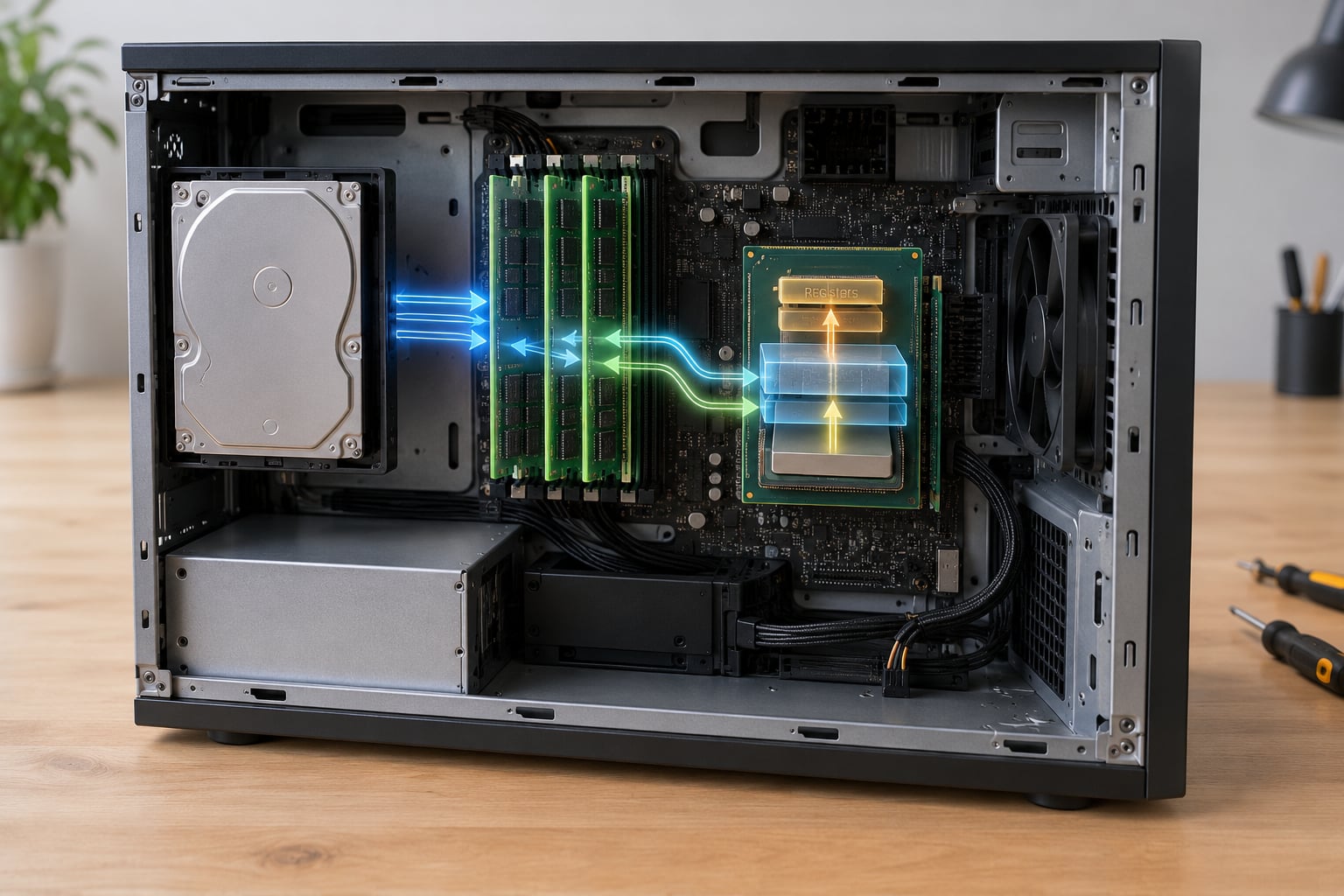
Computer memory is the working space a machine uses to hold the instructions and data it needs right now. Data sits in layers, from tiny registers inside the CPU up through cache and main memory (RAM) to storage. When you run a program, the CPU pulls what it needs from the fastest layer that has it.
This is a guide about silicon, not about psychology. If you searched for how memory works in a computer explained simply, you are in the right place, and nothing below touches human recall.
One analogy holds the whole thing together. Think of a chef working at a counter. An ingredient in the chef’s hand is a register. The counter within arm’s reach is L1 cache. The back shelf is L2 and L3. The prep table in the middle of the kitchen is RAM. The storeroom down the hall is your SSD or hard drive. Everything gets slower the further from the chef’s hands you go, and smaller the closer in.
Table of Contents
- How Memory Works in a Computer at a Glance
- What Is Computer Memory?
- How Data Becomes Bits, Bytes, and Binary Numbers
- How Memory Works in a Computer Explained Simply
- What Are Memory Addresses and Why Do They Matter?
- What Happens When a Program Runs?
- RAM, ROM, Cache, and Registers: What Is the Difference?
- How the CPU Uses Registers and Cache
- Is cache faster than RAM? Yes, and here is why
- What Is Virtual Memory?
- Why Does Computer Performance Depend on Memory?
- How Memory Errors and Corruption Are Detected
- Frequently Asked Questions
- Is RAM the same as memory?
- What is the difference between a bit, a byte and a word?
- Does more RAM always make a computer faster?
- What happens when RAM is full?
- What are L1, L2 and L3 cache?
- Why is my RAM showing as cached in Task Manager?
- Conclusion
How Memory Works in a Computer at a Glance
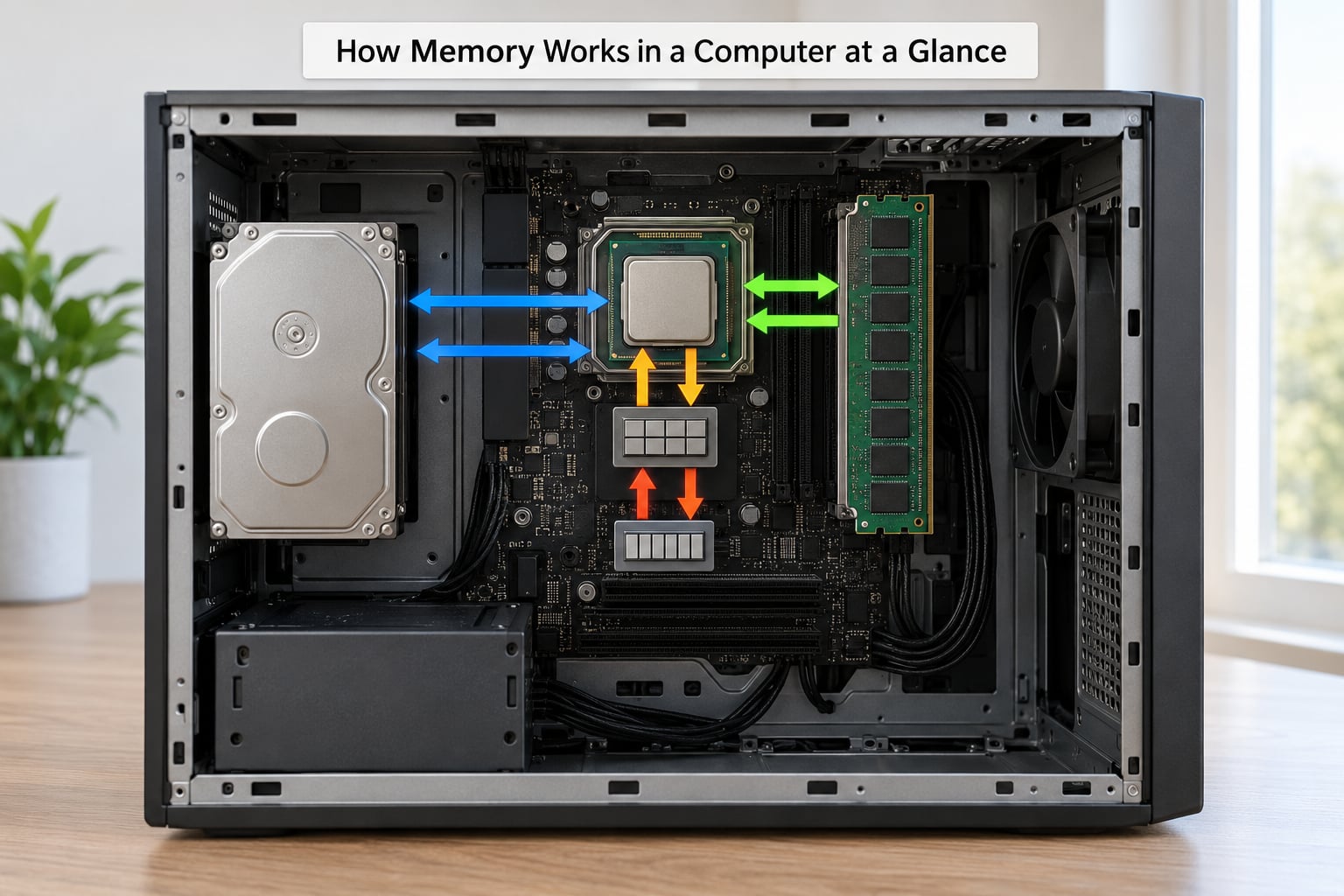
Here is the whole journey in four steps, before any detail.
- A program asks for a value. The code says something like total = price * quantity, which means it needs two numbers from somewhere.
- The CPU looks in the fastest place first. It checks its registers, then L1, L2 and L3 cache, in that order.
- On a cache miss, the data comes from RAM. A miss costs a few hundred nanoseconds instead of a fraction of one, which is why it matters.
- If the program is not loaded yet, the operating system copies it from storage into RAM first. Storage never runs a program directly.
| Location | Where it lives | Typical size | Speed, roughly | Keeps data when power is off? |
|---|---|---|---|---|
| Registers | Inside the CPU | Dozens to hundreds of bytes | Sub-nanosecond | No |
| L1 cache | On the CPU die | Around 64 KB per core | About 1 nanosecond | No |
| L2 cache | On the CPU die | Around 1 to 2 MB per core | About 3 to 5 nanoseconds | No |
| L3 cache | On die or beside it | Often 8 to 64 MB shared | About 10 to 20 nanoseconds | No |
| RAM | DIMM slots on the motherboard | 8 GB to 128 GB | About 60 to 100 nanoseconds | No |
| NVMe SSD | Storage device | 256 GB to 4 TB | Tens to hundreds of microseconds | Yes |
| Hard drive | Storage device | 1 TB to 20 TB | Several milliseconds | Yes |
A nanosecond is a billionth of a second. The gap between L1 and RAM is roughly a hundredfold, and the gap between RAM and a hard drive is closer to a hundred thousandfold. That spread is the whole story of why computers are fast and why they sometimes are not.
What Is Computer Memory?
Memory is the ability of a computing system to represent, store and retrieve data while it is working. In practice it means a numbered workspace where a value can be written to a location and read back from that same location later, with no moving parts involved in the read itself.
Storage and memory get confused constantly, so the contrast is worth stating plainly.
| Memory (RAM) | Storage (SSD or hard drive) | |
|---|---|---|
| Keeps data after power off | No | Yes |
| Typical size today | 8 GB to 128 GB | 256 GB to 20 TB |
| Access time | Nanoseconds | Microseconds on an SSD, milliseconds on a hard drive |
| What it holds | Programs currently running, open files, working data | The operating system, installed programs, your files |
| Cost per gigabyte | Higher | Lower |
Both are needed because they trade against each other. Fast memory is expensive per gigabyte, so computers ship with plenty of slow, cheap storage and a smaller pool of fast memory that the operating system moves data into on demand.
One more clarification, because searches for this question pull up a lot of neuroscience: nothing here describes how people remember. Computer memory has no opinion about meaning, no forgetting curve and no emotional weighting. It is a workspace, and that is all.
How Data Becomes Bits, Bytes, and Binary Numbers
Every piece of data inside a computer is a number, and every number is stored in binary, which means only two digits: 0 and 1. A single binary digit is a bit. Eight bits grouped together make a byte, and a byte is the smallest unit most systems can address directly.
Decimal to binary is just repeated division by two, read upwards. The number 13 works out like this: 13 divided by 2 is 6 remainder 1, 6 divided by 2 is 3 remainder 0, 3 divided by 2 is 1 remainder 1, 1 divided by 2 is 0 remainder 1. Read the remainders from the bottom up and you get 1101. Check it by place value: 8 + 4 + 0 + 1 equals 13.
Characters work the same way. An encoding table such as ASCII assigns a number to each symbol, and UTF-8 extends that to cover the world’s writing systems. The capital letter A is 65 in ASCII, which is 01000001 in binary, which is one byte. The letter A in a UTF-8 encoded word takes exactly one byte, while a character outside the ASCII range can take two, three or four.
Larger units just bundle bytes: a kilobyte is 1024 bytes, a megabyte is about a million, a gigabyte is about a billion. Memory sizing uses these binary steps even though storage marketing tends to round to decimal steps, which is why a drive labelled 1 TB shows slightly under a terabyte in your operating system.
How does hardware hold a bit? A transistor in the millions forms a switch, and the pattern of switches on or off stands for the pattern of ones and zeroes. In DRAM, the form each cell takes is a tiny capacitor that stores charge for a 1 and no charge for a 0. Because charge leaks, the memory controller has to refresh every cell thousands of times a second to top it up, which is why DRAM is called dynamic and why it loses everything when power is cut.
SRAM, used for cache, stores a bit with a small group of transistors arranged to hold its state as long as power stays on. No refreshing is needed, which makes it far faster and far more expensive per bit. Two small capacitors and a switch for each bit is a fair description of the cost, and it is why a chip full of SRAM holds a tiny fraction of the data a DRAM chip of the same size can hold.
How Memory Works in a Computer Explained Simply
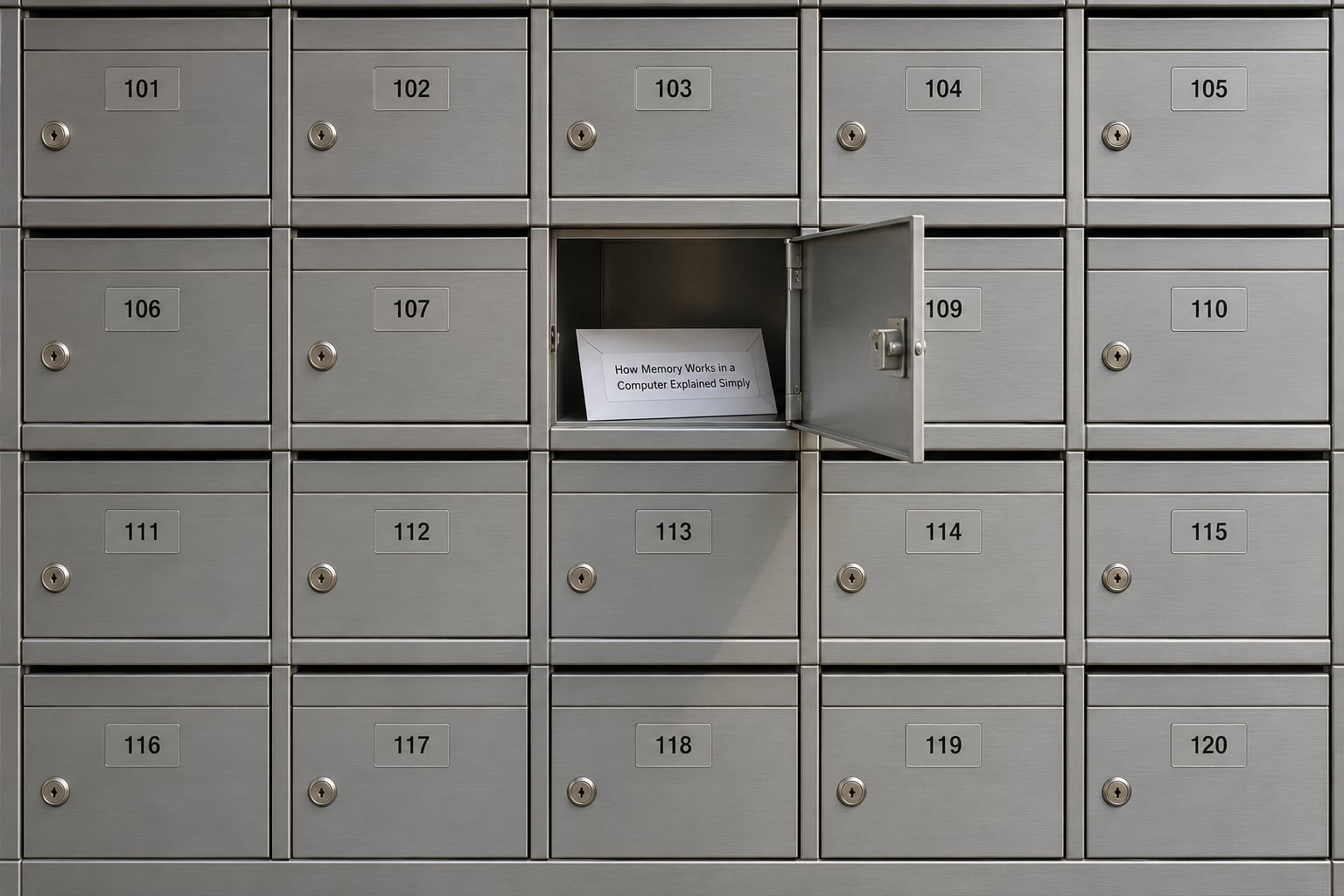
Here is the mental model worth keeping. Memory is a very large row of numbered boxes. Each box holds a small value. The number is the address, and the contents are the data. The processor does not care what is in a box, only which box it is in and what value comes out.
Imagine a wall of mailboxes in an apartment building. Every box has a number painted on the door. If you want something from box 4092, you go to box 4092. You never have to check boxes 1 through 4091 first, and that is exactly the point of the word random access in RAM. The name means the access time is the same no matter which cell you want, not that it is random.
Now watch a short program run. A variable called quantity gets the value 3 written into some address, say 1048600. Later, code reads that same address and gets 3 back. Then it writes 5 there instead, and any later read returns 5. Writing to an address changes the machine’s state, and reading it reveals that state.
That is the whole trick. Hardware does not understand quantity or price. Those names exist in the source code and are translated into addresses before anything runs. What the processor executes is a stream of instructions plus the addresses of the values those instructions touch.
What Are Memory Addresses and Why Do They Matter?
An address is the number that names one location. A pointer is simply a value stored in memory that happens to be an address, which is how one part of a program can find another part without hardcoding a location.
Most systems today are byte-addressable, meaning the smallest addressable unit is a single byte, and each consecutive byte sits at the next address up. A 16 GB module therefore contains 16 billion or so addressable locations, and a program is handed a range of those addresses rather than the physical chips behind them.
The processor puts an address on the address bus, and the memory controller turns that into a physical location, sends back the value over the data bus, and the CPU reads it into a register. Doing that for RAM is measured in tens of nanoseconds, so the entire design effort of the last few decades has gone into avoiding it.
A 64-bit CPU can work with 64-bit addresses, which allows a theoretical address space of roughly 18 quintillion bytes per process. Real machines use a small slice of that, and 48-bit virtual addresses are more common in practice than the full 64.
What Happens When a Program Runs?
You double-click an icon, and here is the path the data takes. It is a simplified model, because operating systems and languages organise memory in different ways, but the shape holds almost everywhere.
- The operating system asks the storage device for the executable file. The loader reads the file and copies the code and initial data into RAM, and control transfers to the program’s entry point.
- The program asks the operating system for memory. Local variables and function call bookkeeping usually land on the stack, which grows and shrinks automatically. Larger, longer-lived allocations usually go to the heap, which a memory manager tracks on the program’s behalf.
- The CPU fetches an instruction, which may require reading a value, and repeats this thousands of times a second per core. Between fetches, the cache quietly keeps recently touched instructions and data close at hand.
- The program allocates and frees memory as it runs. Modern languages with garbage collection leave some of this to a collector that identifies unreachable objects and reclaims them.
- You close the window. The operating system tears down the address space, releases the pages, and the RAM the program was using becomes available to whatever runs next.
Two things are worth separating. Loading a program into RAM is a one-time copy, while running it is a constant back-and-forth between the CPU and memory. Understanding which one you are looking at explains why launch times correlate with storage speed, and why steady-state performance correlates with memory speed instead.
RAM, ROM, Cache, and Registers: What Is the Difference?
These four get used interchangeably in conversation, but they differ on every dimension that matters.
| Type | Where it sits | Speed | Volatile? | Typical use | Software manages it? |
|---|---|---|---|---|---|
| Registers | CPU core | Fastest available | Yes | Holding values an instruction is working on right now | No, the compiler decides |
| Cache | On or beside the CPU | Very fast | Yes | Recently and soon-to-be-used instructions and data | No, the hardware does it |
| RAM | Motherboard DIMM slots | Fast | Yes | Everything currently running | Yes, via the operating system |
| ROM | A chip on the motherboard | Slow by comparison | No | Firmware: the boot instructions, UEFI or its BIOS predecessor | No, only for firmware updates |
ROM is the odd one out because it is non-volatile and the operating system does not manage it. Your machine’s firmware lives in ROM, and it runs before any operating system is loaded. A power-on self-test, the POST, happens at this stage: the firmware checks that the basic hardware is present and can be talked to, then hands over to the bootloader.
Note that “read only” is now a description of intent rather than a physical fact. Firmware chips today are flash memory that can be rewritten, which is how a motherboard gets a bug fix.
How the CPU Uses Registers and Cache
The CPU is fast enough that waiting for RAM would be a waste of nearly all of its time. Registers and cache exist to keep that from happening, and the price is paid in capacity rather than in correctness.
A register holds a value the CPU is working on immediately: an operand, an address, an accumulator. There are only a small number of them, which is why compilers work hard to decide what stays in registers. Move an operand out to RAM to make room, and you have added a round trip for no reason.
Cache is a copy of recently used data kept closer to the CPU. A cache hit means the CPU found what it needed without going to RAM. A cache miss means it had to go to RAM, and a well-chosen layout aims to make misses rare.
Is cache faster than RAM? Yes, and here is why
| Level | Typical size | Typical latency | Shared with |
|---|---|---|---|
| L1 | Around 64 KB per core | About 1 nanosecond | Nothing, split into instruction and data halves |
| L2 | Around 1 to 2 MB per core | About 3 to 5 nanoseconds | Usually one core |
| L3 | Often 8 to 64 MB | About 10 to 20 nanoseconds | All cores on the package |
Cache works on a simple premise about how programs behave. Temporal locality means code and data tend to be touched again soon after first use, so keeping the last copy pays off. Spatial locality means that if you use one address you will probably use its neighbours soon, so fetching a small block around it is efficient. Together these are why the principle behind cache is usually reduced to keeping what was used recently near the CPU.
That is also the answer to the question readers ask most often, which is why cache exists at all when RAM is already fast. Capacity and latency trade against each other, and no single technology wins both. Cache buys latency with expensive, small cells. RAM buys capacity with cheap, slower, leaky ones. Each level exists to absorb the requests the level above would otherwise have to make to a slower tier.
What Is Virtual Memory?
Virtual memory is an abstraction that gives each running process its own address space, so the program can be written as though it has the entire address range to itself. In practice the operating system’s memory management unit maps each process’s addresses onto physical RAM as it runs, and the program never learns the physical locations.
That indirection buys three things. Programs are isolated from each other, so one crashing or misbehaving process does not corrupt another’s memory. The operating system can move things around as capacity changes. And a process can be given more address space than the machine physically has, backed by a page file or swap area on storage.
When RAM runs short, the operating system pages out memory that has not been touched recently and writes it to storage, then brings it back when it is needed. Accessing a page that has been paged out costs an order of magnitude more than a RAM access, because storage is measured in microseconds where RAM is measured in nanoseconds.
When a workload touches so many pages that nearly every access requires a round trip to storage, the system is said to be thrashing. Everything crawls, the cursor becomes a spinning wheel, and clicking a window produces no visible response for seconds. This is the specific failure people describe as a computer running out of memory, and it is the reason a machine with too little memory feels broken rather than merely slow.
Why Does Computer Performance Depend on Memory?
Almost all of a computer’s speed comes from how quickly it can move the right data to the processor. Three properties decide how well that happens.
Latency is the wait for a single answer. It is why a cache hit beats a RAM read beats a disk read, and why latency matters more than raw throughput for a processor that needs the next instruction immediately.
Bandwidth is how much data moves per second, which matters for bursts: streaming video, decompression, and anything that fills large buffers at once. Dual-channel memory exists to double this figure without changing latency, and it is the cheapest memory upgrade a desktop owner can make.
Capacity decides whether you need storage at all during normal work. If the programs you use fit comfortably in RAM with room to spare, the machine is answering from memory the whole time. Fill RAM to the brim and every extra allocation costs a page-out, then a page-in, then a page-out again.
Data locality is the quiet fourth factor. A program that walks through its data in order lets the cache and the storage controller keep reading ahead, while a program that jumps randomly forces fresh reads more often. Same hardware, same instructions, very different speed.
Two situations are worth recognising on sight. First, a working set that does not fit in cache: every pass over the data goes to RAM or storage, and the pattern is predictable in the fact that it will not improve on its own. Second, RAM at sustained high usage with the machine still slow, which points to storage being the real bottleneck rather than memory capacity.
How Memory Errors and Corruption Are Detected
Hardware can misbehave. A cell can fail, a voltage can droop, radiation can flip a bit, and a cosmic ray that changes a single bit in an instruction is not a hypothetical. A flipped bit turns one byte into another byte, which can be a wrong number or a crash.
Several mechanisms catch this, and they differ in how much they can do about it.
Parity stores one extra bit alongside each byte so a single-bit error shows up as a mismatch. It detects the error but cannot fix it. Modern systems use a stronger form, SECDED, where extra bits identify both the bad bit and where it was, so a correctable error is repaired silently.
ECC, or error-correcting code, is that extra logic built into the memory itself. Servers and workstations use ECC RAM for this reason: a machine that quietly returns a wrong answer is worse than one that stops, and ECC turns a crash into a logged event.
Checksums work a level up. The CPU, storage controller or network card computes a value over a block of data and stores it alongside; when the data is read back, a mismatch signals corruption. The operating system also runs its own memory tests at start-up, and these are genuinely useful for catching a dying module.
None of this makes faults impossible. Correctable memory can be overwhelmed, a checksum cannot tell you which copy is the correct one, and uncorrectable errors still happen. Detection buys you a clean, early signal, not immunity.
Frequently Asked Questions
Is RAM the same as memory?
RAM is one physical form of computer memory and is normally what people mean when they say a computer has 16 GB of memory. Memory is the wider concept: it also covers CPU registers, cache, ROM, flash storage and virtual memory. When a spec sheet lists memory size, it is almost always listing RAM capacity.
What is the difference between a bit, a byte and a word?
A bit stores one binary digit, either 0 or 1. A byte is eight bits and is the unit most systems address directly. A word is the number of bits a processor naturally handles in one operation, such as 32 or 64 on a typical CPU. So a 64-bit machine moves 64-bit words while still addressing memory one byte at a time.
Does more RAM always make a computer faster?
No. Extra RAM helps when the system is paging, when a workload outgrows its current working set, or when you want to run more things at once. If your programs already fit comfortably, additional capacity changes almost nothing. Speed comes from faster memory, more channels and better cache behaviour, not from a larger number alone.
What happens when RAM is full?
When RAM cannot satisfy a request, the operating system moves less-active pages to a page file or swap area on storage, and pages them back in when they are needed. Because storage is far slower than RAM, heavy paging makes everything feel slow and can produce the spinning cursor. This state is usually called thrashing.
What are L1, L2 and L3 cache?
They are tiers of very fast on-CPU memory, each larger and slower than the last. L1 is split into separate instruction and data halves and sits closest to the execution units. L2 is usually per-core, and L3 is larger and shared across all cores on the package. A hit in a higher tier costs the processor far less time than a miss that reaches RAM.
Why is my RAM showing as cached in Task Manager?
Cached memory is data the system has loaded and is keeping around because it expects to need it again. Freeing it costs CPU time and, if you touch that data a moment later, forces a fresh read from storage. It is not wasted memory the way a scareware popup implies, and the operating system reclaims it under pressure without complaint.
Conclusion
Memory is an addressable workspace, the CPU reaches values through addresses, and speed comes from keeping the right data as close to the processor as possible. Registers, cache, RAM and storage are one ladder, not four competing technologies.
Start by getting the four units straight: a bit is one binary digit, a byte is eight of them, a memory address names one byte, and RAM is the main working store where running programs live. Once those four click, everything else in this guide is detail you can look up when you need it.