A Makefile is a plain-text file that tells the make program how to build a project: which files each output depends on, and which command produces it. The makefile basics for developers come down to three parts on every rule, a target, its prerequisites, and a recipe. Once you can read those three parts, you can read almost any Makefile on GitHub.
I write Makefiles for small C and C++ projects, and the same forty lines cover most of what I need: compile every source to an object file, link them, and give me one command to clean up afterward. This guide builds up to that starter file, then covers the parts tutorials tend to skip, like automatic variables, header dependencies, and why a target sometimes rebuilds when nothing changed.
Table of Contents
- What Is a Makefile and Why Should Developers Use One?
- Makefile Basics: Targets, Prerequisites, and Recipes
- How to Write Your First Basic Makefile
- Makefile basics for developers: your first steps
- What Are Makefile Variables and How Do They Work?
- Shell dollars and make dollars are different things
- How Do Pattern Rules Help With Larger Projects?
- How Do You Build Multiple Files and Directories?
- How Do You Clean, Rebuild, and Avoid Common Make Mistakes?
- Should You Use Make or a Heavier Build System?
- Frequently Asked Questions
- What is the difference between a Makefile and a shell script?
- Should I use Make or CMake for a new C or C++ project?
- Why does my Makefile rebuild everything every single time?
- How do I make a header change recompile the right object files?
- How do I use Make on Windows?
- Do I still need a Makefile if my IDE already builds my project?
- Conclusion
What Is a Makefile and Why Should Developers Use One?
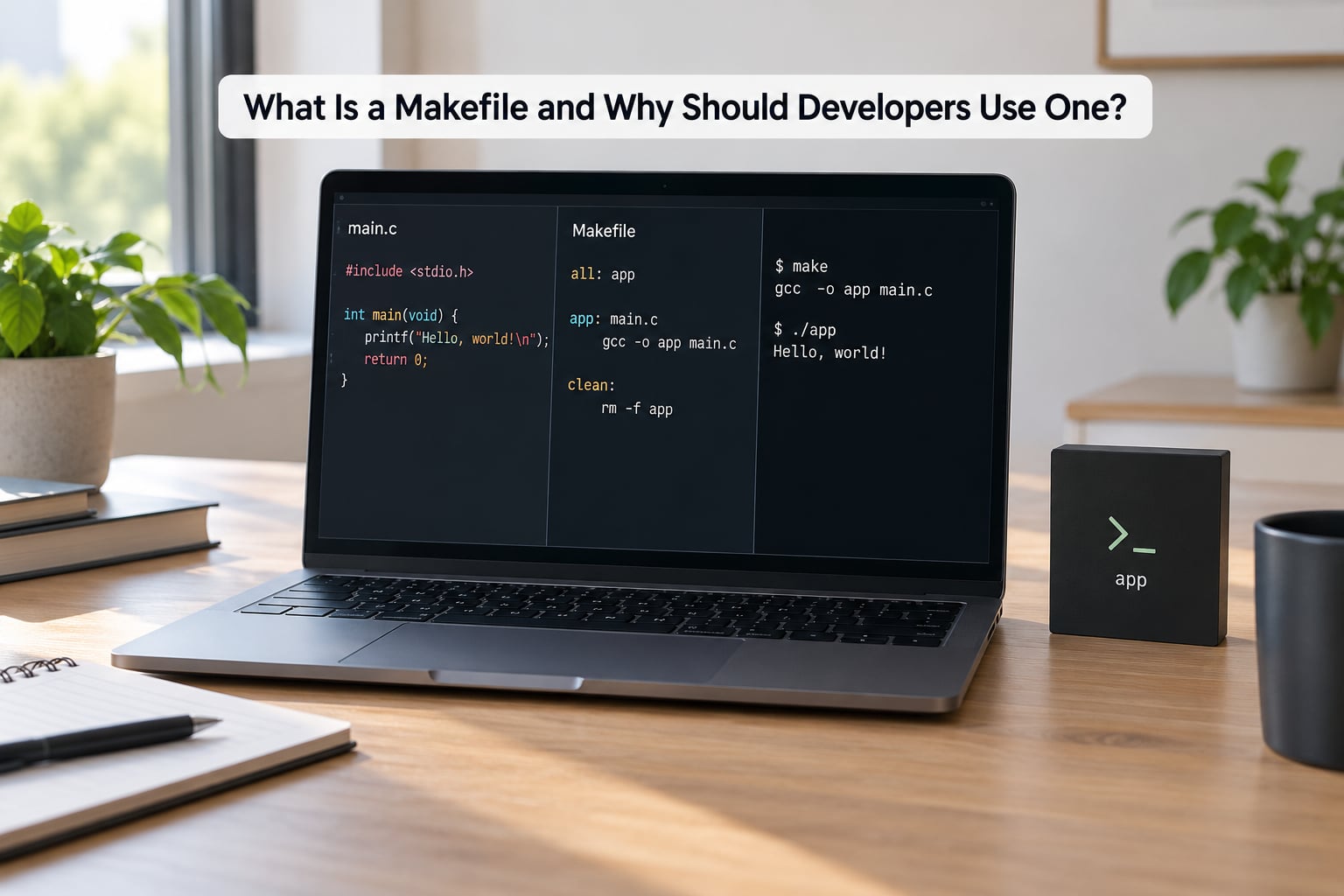
A Makefile is a plain-text file, usually named Makefile, that describes how to build a project as a list of rules. Each rule names a target, the files that target needs, and the shell commands that produce it. The make tool compares timestamps and runs only the commands whose targets are out of date.
Manual compilation stops being fun the moment a project has more than a couple of files. Adding one source means editing a command like g++ -O2 -std=c++17 -Iinclude src/main.cpp src/util.cpp -o app, and the odds of someone on your team typing it exactly right, in the right order, every time, are poor. A Makefile turns that fragile command into a reproducible instruction that also documents the process.
Three things follow from that. Every developer on the team gets the same build with one word, make, no IDE required. Changing one header recompiles only the object files that include it, which is the whole point of an incremental build. And the build steps live in a reviewable file instead of in someone’s shell history.
A Makefile is not a shell script, and the difference matters. A shell script runs top to bottom every time you invoke it, even when nothing changed. A Makefile describes a dependency graph, and make walks it comparing file modification times, running a recipe only when its target is missing or older than something it needs. If you have ever rebuilt a large project from scratch because the script had no idea what was already done, that is the gap.
You do not need C or C++ to benefit. Make is useful for any task that produces artifacts from sources: building a Go binary, running a test suite, generating documentation, spinning up a Docker image, or chaining a few dozen lint and format commands that would otherwise live in someone’s notes app.
Makefile Basics: Targets, Prerequisites, and Recipes
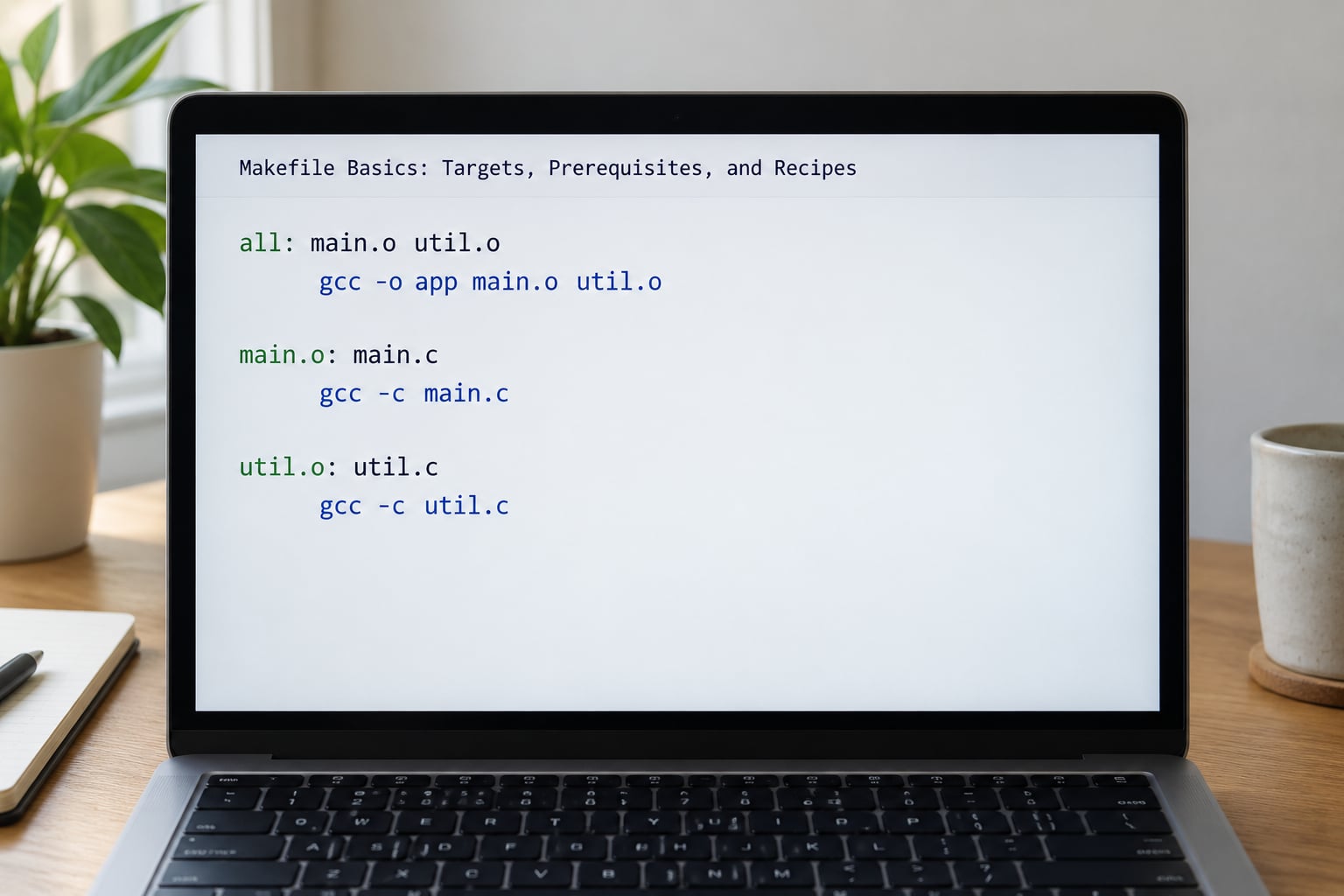
Every Makefile rule has three parts. The target is the output you want. The prerequisites are the files it needs. The recipe is the command that creates the target, and each recipe line must start with a tab character.
app: main.o util.o
	gcc -o app main.o util.o

main.o: main.c util.h
	gcc -c main.c

util.o: util.c util.h
	gcc -c util.c
Read the first rule out loud as a sentence: to build app, I need main.o and util.o; to build main.o, I need main.c and util.h, and I compile it. That phrasing is the whole mental model. Everything else in make is a variation on it.
The tab requirement catches nearly every beginner. Recipe lines must be indented with a real tab, not spaces, and most editors have a setting that silently inserts spaces instead. When the indentation is wrong, make stops with missing separator, which sounds like a syntax problem but is really a whitespace problem. Turn on visible whitespace in your editor, or if you genuinely cannot type tabs, add .RECIPEPREFIX = > near the top of the file and indent with that character instead.
Here is how make decides whether to run a recipe. For the target you asked for, make looks at its prerequisites. If the target file does not exist, the recipe runs. If any prerequisite is newer than the target, the recipe runs. If every prerequisite is older than the target, make prints make: 'app' is up to date. and does nothing.
Running plain make with no argument builds the first target in the file. That is why all is conventionally placed at the top: it becomes the default goal, and the concrete outputs sit underneath it.
all: app

app: main.o util.o
	gcc -o app main.o util.o

main.o: main.c util.h
	gcc -c main.c

util.o: util.c util.h
	gcc -c util.c

.PHONY: all
Read that as a sentence: when I run make, it builds all, which needs app, which needs the two object files, and each object file needs its source and its header. A target may list several prerequisites separated by spaces, and prerequisites can themselves be targets, which is what turns a Makefile into a dependency graph.
How to Write Your First Basic Makefile
Get make installed first, because everything else happens in a terminal. On Linux it ships with the standard toolchain, and on macOS the Xcode command line tools provide it. Windows developers have the most options, and the WSL route is the least surprising.
| Platform | Command | Notes |
|---|---|---|
| Debian or Ubuntu | sudo apt install build-essential | Pulls in make plus gcc |
| Fedora or RHEL | sudo dnf install make | Often already present |
| Arch | sudo pacman -S make | In the base group |
| macOS | xcode-select --install | Command line tools only, no full Xcode |
| Windows with WSL | wsl --install -d Ubuntu | Then install build-essential inside the distro |
| Windows with Chocolatey | choco install make | Uses the GNU make binary in a Windows shell |
| Visual Studio prompt | nmake /f Makefile | NMAKE, a different tool with different syntax |
Check it worked with make --version. If you see a GNU make version, everything in this guide applies. The examples below assume a Unix-like shell, which is where the tab and path conventions are least surprising.
Makefile basics for developers: your first steps
Start in a fresh directory. Create a folder, drop a main.c inside it, and open an editor called Makefile in the same directory. Start with the smallest rule that proves the toolchain works:
CC = gcc
CFLAGS = -Wall -Wextra -O2

app: main.c
	$(CC) $(CFLAGS) -o app main.c

clean:
	rm -f app

.PHONY: clean
Run make and then ./app. The first run prints the command it executed, because make echoes recipes by default. Run make a second time and you should see make: 'app' is up to date. That message is the incremental build doing its job, and seeing it once early saves hours of confusion later.
Add the CC variable before you add more files. When someone reports that the build breaks on their machine, the first question is which compiler they have, and CC answers it in one place.
From here you can grow the file one step at a time: add sources, split the compile step from the link step, and finally move the generated files into a build directory. Each step is described below.
What Are Makefile Variables and How Do They Work?
Variables let you define a value once and reuse it. In make they use three flavors, and the difference between the two common ones trips up most people the first time they see it.
| Syntax | Name | Behaviour |
|---|---|---|
VAR = value | Recursive | Stores the text as typed. The right side is expanded every time the variable is used, so it can reference other variables defined later. |
VAR := value | Simply expanded | Expands the right side once, at the point of definition. The stored value is fixed from then on. |
VAR ?= value | Conditional | Sets the value only if it has not been set already, so an environment variable wins. |
VAR += value | Append | Adds to whatever the variable already holds. |
override VAR = value | Forced | Beats a value passed on the command line, which normally takes precedence. |
The recursive flavor is why CFLAGS = -Iinclude -D$(DEBUG_MODE) keeps working after you define DEBUG_MODE further down the file, while CFLAGS := -Iinclude -D$(DEBUG_MODE) captures whatever DEBUG_MODE was at that moment, which is nothing if it comes later. For flags that reference other variables, = is usually what you want. For paths and constants, := is clearer because it fails early when something is undefined.
Most variables belong near the top of the file, before the rules that use them. Command line values override anything the Makefile sets, so you can build a debug variant without editing the file:
make CFLAGS="-Wall -Wextra -O0 -g"Shell dollars and make dollars are different things
This trips up anyone arriving from bash. Make expands $(VAR) and ${VAR} itself before the shell ever sees the line. A bare $VAR is not a make variable at all. To hand a dollar sign to the shell, for instance to print an environment variable inside a recipe, you escape it:
build:
	echo "target is $@"
	echo "cwd is $$(pwd)"
The first $@ is expanded by make into the target name. The doubled dollar sign collapses to a single $ that the shell then expands as its own variable.
How Do Pattern Rules Help With Larger Projects?
A pattern rule defines a recipe for a whole family of files at once. The percent sign is a wildcard that matches any text, so one rule can replace twenty near-identical rules.
%.o: %.c
	gcc -c $< -o $@
That single rule says: to turn any .c file into an object file of the same name, compile it. When make needs util.o and finds no explicit rule, it looks for a pattern rule whose target pattern matches, substitutes the matched text into the prerequisites, and runs the recipe.
The recipe above uses two automatic variables. Inside any recipe, make sets these for you:
| Variable | Holds | Example value |
|---|---|---|
$@ | The target being built | util.o |
$< | The first prerequisite | util.c |
$^ | All prerequisites, space separated | main.c util.h |
$? | Prerequisites newer than the target | util.h |
$* | The stem in a pattern rule | util |
Reach for a pattern rule when the same command shape applies across many files, which in a C project means every .c to .o step. Skip it when the commands genuinely differ, or when a project is small enough that three explicit rules are clearer to read than a wildcard. Readability beats cleverness in a file other people have to maintain at 5pm on a release day.
How Do You Build Multiple Files and Directories?
A realistic project keeps sources, headers, and generated files in separate places. Object files scattered next to the sources they came from are the first thing that turns annoying. The layout below is the one I start from for any C or C++ project with more than three files.
project/
  Makefile
  include/
    util.h
  src/
    main.c
    util.c
  build/
    main.o
    util.o
    project
The Makefile that builds it does four things: create the build directory, compile each source into it, link the objects, and offer a clean target. Header dependencies are handled automatically by the compiler instead of being listed by hand.
CC      = gcc
CFLAGS  = -Wall -Wextra -O2
SRCDIR  = src
OBJDIR  = build
TARGET  = $(OBJDIR)/project

SOURCES = $(wildcard $(SRCDIR)/*.c)
OBJECTS = $(patsubst $(SRCDIR)/%.c,$(OBJDIR)/%.o,$(SOURCES))
DEPS    = $(OBJECTS:.o=.d)

.PHONY: all clean run

all: $(TARGET)

$(TARGET): $(OBJECTS)
	$(CC) $(CFLAGS) -o $@ $^

$(OBJDIR)/%.o: $(SRCDIR)/%.c
	mkdir -p $(OBJDIR)
	$(CC) $(CFLAGS) -MMD -MP -c $< -o $@

clean:
	rm -rf $(OBJDIR)

run: $(TARGET)
	./$(TARGET)

-include $(DEPS)
Each line earns its place. $(wildcard ...) expands to a list of every .c file in src, and $(patsubst ...) rewrites that list into matching .o paths inside build, which is what you would write by hand otherwise. The pattern rule creates the build directory before each compile, so a fresh clone builds without a separate setup step.
The -MMD -MP flags tell the compiler to write a .d file next to each object listing the headers that file included. The -include $(DEPS) line at the bottom pulls those lists back in, and the leading hyphen means a missing .d file is not an error on the first run. Now editing util.h recompiles exactly the objects that include it, which is the single biggest payoff of a real Makefile.
Two commands cover most daily use: make builds, and make clean wipes the build directory. Add make run if you want a one-word launch.
How Do You Clean, Rebuild, and Avoid Common Make Mistakes?
The clean target removes generated files so the next build starts fresh. It must be declared phony, because make decides whether to run a recipe by looking for a file with the target’s name, and a file called clean on disk would convince make to skip the recipe entirely.
.PHONY: clean all run test

clean:
	rm -rf $(OBJDIR)
Phony targets are for names that are not files. all, clean, test, and run are all phony, and listing them near the top of the file is the clearest habit to build.
Most beginner failures fall into a handful of shapes:
| Symptom | Cause | Fix |
|---|---|---|
missing separator | Recipe line indented with spaces instead of a tab | Re-indent with a real tab, or set .RECIPEPREFIX |
| Rebuilds every single time | No file with the target’s name is ever created | Add the target to .PHONY |
No rule to make target 'x' | Filename typo, or a prerequisite that is not in the directory | Check the path and the spelling against ls |
| Header change recompiles nothing | Header missing from the prerequisite list | Add -MMD -MP and -include |
Circular dep <- dep dependency dropped | Two targets list each other as prerequisites | Break the loop; there is no valid build order |
Nothing to be done for 'all' | all is not the first target, so it is never the goal | Move it to the top of the file |
| Works for me, fails for you | Hardcoded paths or a compiler name that differs per machine | Move both into variables, override from the command line |
When a rule is not doing what you expect, stop guessing and ask make what it plans to do. make -n prints the commands without running them, which is the fastest way to expand a variable and see its real value. make -d dumps the full decision log including every timestamp comparison, make -B forces an unconditional rebuild, make -j8 runs independent jobs in parallel, and make -s silences the echoed commands. make -p dumps the database of variables and built-in rules, which answers most remaining questions about implicit behaviour.
Parallel builds deserve one warning. make -j only helps when prerequisites are declared honestly, because make has no way to know that two unrelated-looking targets write the same generated header.
Should You Use Make or a Heavier Build System?
Make is still worth learning, because it is the layer every other tool sits on and it teaches dependency thinking. Past a certain project size, though, plain Make stops scaling and you want something that searches for you.
| Tool | Best for | The trade-off |
|---|---|---|
| Make | Small to mid C and C++ projects, embedded builds, task automation | You maintain the dependency list yourself |
| Ninja | Fast incremental builds on large projects | You usually do not hand-write it; a generator emits it |
| CMake | Cross-platform C and C++ with many compilers and IDE integration | A configuration step before the real build |
| Meson or SCons | Cleaner syntax, Python-flavoured logic | Smaller ecosystem than CMake |
| Bazel | Very large monorepos, hermetic reproducible builds | Heavy rules and a steep first week |
| Task runners | Go, JavaScript, Python projects with no compiled artifacts | They do not model file dependencies the way make does |
My rule of thumb: a few dozen files in one or two languages means Make is faster to get right than anything else. Once the project spans several toolchains and needs to build on three operating systems, CMake earns its setup cost. And a Makefile still has a place even then, as the entry point CI calls, because every one of those systems ultimately hands the work back to make.
Frequently Asked Questions
What is the difference between a Makefile and a shell script?
A shell script runs every command every time you invoke it. A Makefile describes relationships between targets and prerequisites, and make checks file timestamps first, running only the recipes whose targets are missing or older than something they need. That skip-if-unchanged behaviour is the whole difference, and it is why make is dramatically faster on repeat builds.
Should I use Make or CMake for a new C or C++ project?
For a single-platform project with one compiler and maybe a few dozen files, plain Make is faster to set up and far easier for a new teammate to read. Choose CMake once you need several compilers, several platforms, or IDE integration. Many teams use both, with CMake generating the build files and a small Makefile acting as the single command CI runs.
Why does my Makefile rebuild everything every single time?
Make runs a recipe when it cannot find a file with the target’s name, or when a prerequisite is newer. If your target is something like all or test, no such file ever appears, so make rebuilds on every run. Declare those names with .PHONY so make runs the recipe deliberately instead of consulting the filesystem, and the repeated work stops.
How do I make a header change recompile the right object files?
Add -MMD -MP to your compile flags so the compiler writes a .d file beside each object listing its included headers, then pull those files in with -include u0026#036;(DEPS). Make now sees every header as a prerequisite of the objects that use it, so editing util.h recompiles exactly those files and nothing else. Listing headers by hand works but goes stale immediately.
How do I use Make on Windows?
WSL is the smoothest path: install a distribution, then install build-essential inside it, and the same Makefile and the same tab rules apply as on Linux. Chocolatey can also install the GNU make binary, though path handling is fussier. NMAKE ships with Visual Studio and is a different tool with different syntax, so tutorials written for GNU make will not transfer to it.
Do I still need a Makefile if my IDE already builds my project?
You need one for anyone without that IDE, and that includes CI, containers, and new team members. Editors also have their own file listing that quietly diverges from your real source layout, while a Makefile tests the dependency graph every run. Keep the Makefile small and correct, then point your IDE’s build task at it so there is a single source of truth.
Conclusion
Makefile basics for developers are genuinely small: a target, its prerequisites, and a tab-indented recipe, plus the timestamp check that decides whether the recipe runs. Everything in a real project, pattern rules, automatic variables, phony targets, generated dependency files, is a way to avoid writing those three parts by hand more often than necessary.
Do one thing first. Create a directory, write a five-line Makefile with a single target and one prerequisite, run make, then run it again and read the up-to-date message. That loop is the whole skill, and the rest of this guide is just about not repeating yourself.