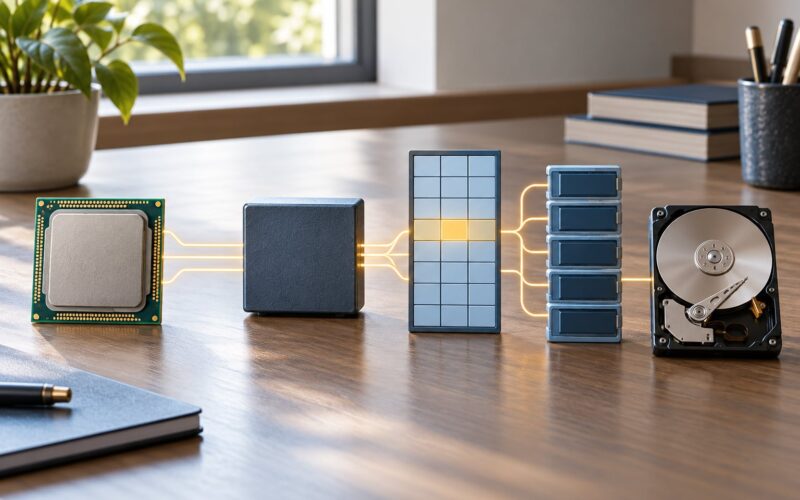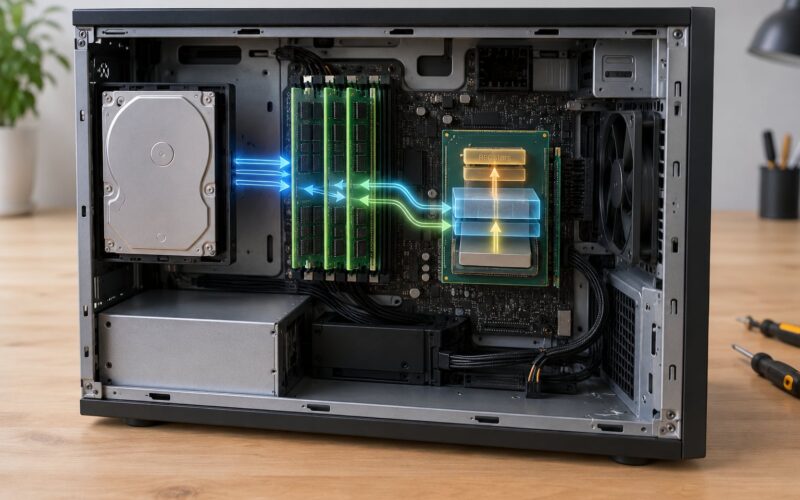
Virtual memory is a memory management technique where the operating system gives each program its own large, continuous block of addresses, backed by real RAM where possible and by storage when it is not. In short: every program gets to behave as if it owns the whole address space, even on a machine with far less physical memory installed.
This guide is the version I wish someone had handed me years ago, when a laptop full of browser tabs started stuttering and I had no idea what a page file was. No assembly, no kernel internals. Just enough of the machinery to explain the behaviour you actually notice.
A useful picture before we get technical: think of your desk as RAM and a filing cabinet in the hallway as storage. The things you use constantly sit on the desk. The rest go into the cabinet, and you walk out to fetch them when needed. Fast to reach, not instant, and you would never call the cabinet extra desk space. Virtual memory works the same way, and understanding that one distinction prevents most of the confusion people have with this topic.
One more thing to clear up before we go further, because it is the single most repeated correction in tech support forums: virtual memory is not extra RAM. It is a mapping scheme that lets programs use storage as a slow extension of memory, and it costs you speed every time it happens.
Updated for 2026. The mechanisms described here are the same on Windows, Linux and macOS; only the names and the settings differ.
Table of Contents
- What Is Virtual Memory?
- How Virtual Memory Works
- Virtual Addresses, Physical Memory, and Page Tables
- What Happens During a Page Fault?
- Paging, Swapping, and the Page Cache
- Can Virtual Memory Be Larger Than Installed RAM?
- How Virtual Memory Affects Performance
- Virtual Memory in Windows and Linux
- Common Virtual Memory Misunderstandings
- Frequently Asked Questions
- Can you explain virtual memory in a simple way?
- What is the difference between paging and swapping?
- How much virtual memory should I set for 8GB of RAM?
- Is swap memory slower than RAM?
- Which is better, a swap file or a swap partition?
- Why do I get an out of memory error when RAM is still free?
- Conclusion
What Is Virtual Memory?
Virtual memory is the trick that lets your computer run programs that need more memory than the RAM you installed, and lets several programs each think they have that memory to themselves.
Every program works with addresses that are not real. Those virtual addresses are translated, on the fly, into physical addresses where your RAM actually lives. When the translation says a page is not currently in RAM, the operating system moves it in from storage and carries on. The program never notices the difference, which is exactly the point.
It helps to separate four things that people routinely use interchangeably:
- Physical memory (RAM) is the fast, volatile hardware in your machine. It forgets everything when you power off.
- Virtual memory is the abstraction: the address space a program sees, and the mapping rules behind it.
- Paging is the mechanism for moving pages between RAM and storage as needed.
- Swap or the page file is the actual reserved space on a drive where those pages are held.
Swap is the storage that backs virtual memory. It is not the same thing as virtual memory, and treating them as one word is where most forum arguments go wrong.
Operating systems adopted virtual memory for a practical reason. Programs became larger and more numerous than any fixed amount of RAM could serve at once, and without a mapping layer every program had to be sized to fit the whole machine. With it, each program gets a private, isolated address space, multitasking stays stable, and a program that overruns its share of memory causes a slowdown rather than taking the whole system down.
How Virtual Memory Works
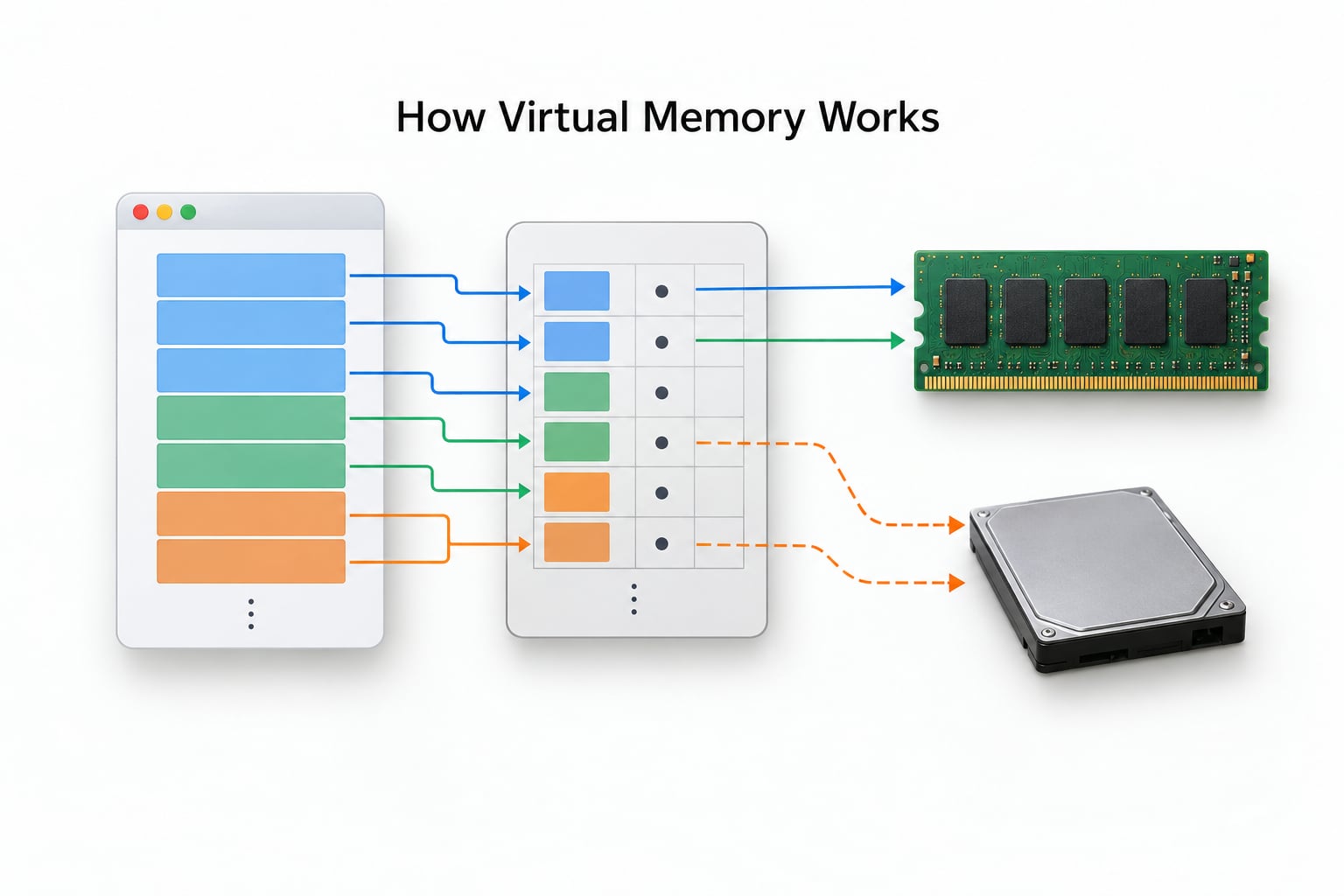
The whole thing runs on hardware called the memory management unit, or MMU, which sits between the CPU and memory. It is a small piece of silicon that does one job extremely fast: turning a virtual address into a physical address.
Here is the sequence, step by step, the first time your program touches a page it has never used.
- The program asks for memory. It requests a block of virtual addresses, say starting at address 0x4000, and the operating system reserves that range in the program’s address space. On most current systems the unit of reservation is a 4 KB page.
- The OS marks the pages as not present. There is deliberately no physical memory behind them yet. This lazy approach is called demand paging, and it means startup only pays for the code that actually runs.
- The program issues an instruction that touches one of those addresses. The CPU generates the virtual address and passes it to the MMU.
- The MMU looks up the page table. The page table is a table the operating system maintains saying, for this virtual page, either “present in physical frame 231” or “not present”. A small cache of recent lookups, the TLB, makes this fast enough to be invisible.
- A page fault is raised if the page is not present. The CPU stops this instruction and hands control to the operating system. Nothing is broken. This is a normal, designed event.
- The OS loads the page, updates the table, and retries. The page is read from the page file or swap (or from a file on disk) into a free physical frame, the page table entry is updated to say present, and the instruction restarts as if nothing had happened.
A worked example makes the numbers click. Say a program is written to read a value at virtual address 0x4A20. The MMU divides that into a page number and an offset: page 0x4, offset 0xA20. It looks page 0x4 up in the page table and finds it currently lives at physical frame 0x9C, so the real RAM address is 0x9CA20.
Ten milliseconds later, memory pressure forces that page out to swap and a different page takes frame 0x9C. The program does not know, does not need to know, and its next access to 0x4A20 gets translated to whatever frame holds it then. The mapping is allowed to change underneath the program at any time, and that is the whole trick.
Virtual Addresses, Physical Memory, and Page Tables
Virtual memory works because addresses are split into two independent worlds. A virtual address is what the program sees and generates. A physical address is a real location in RAM. The page table is the mapping between them, and the MMU is what consults it.
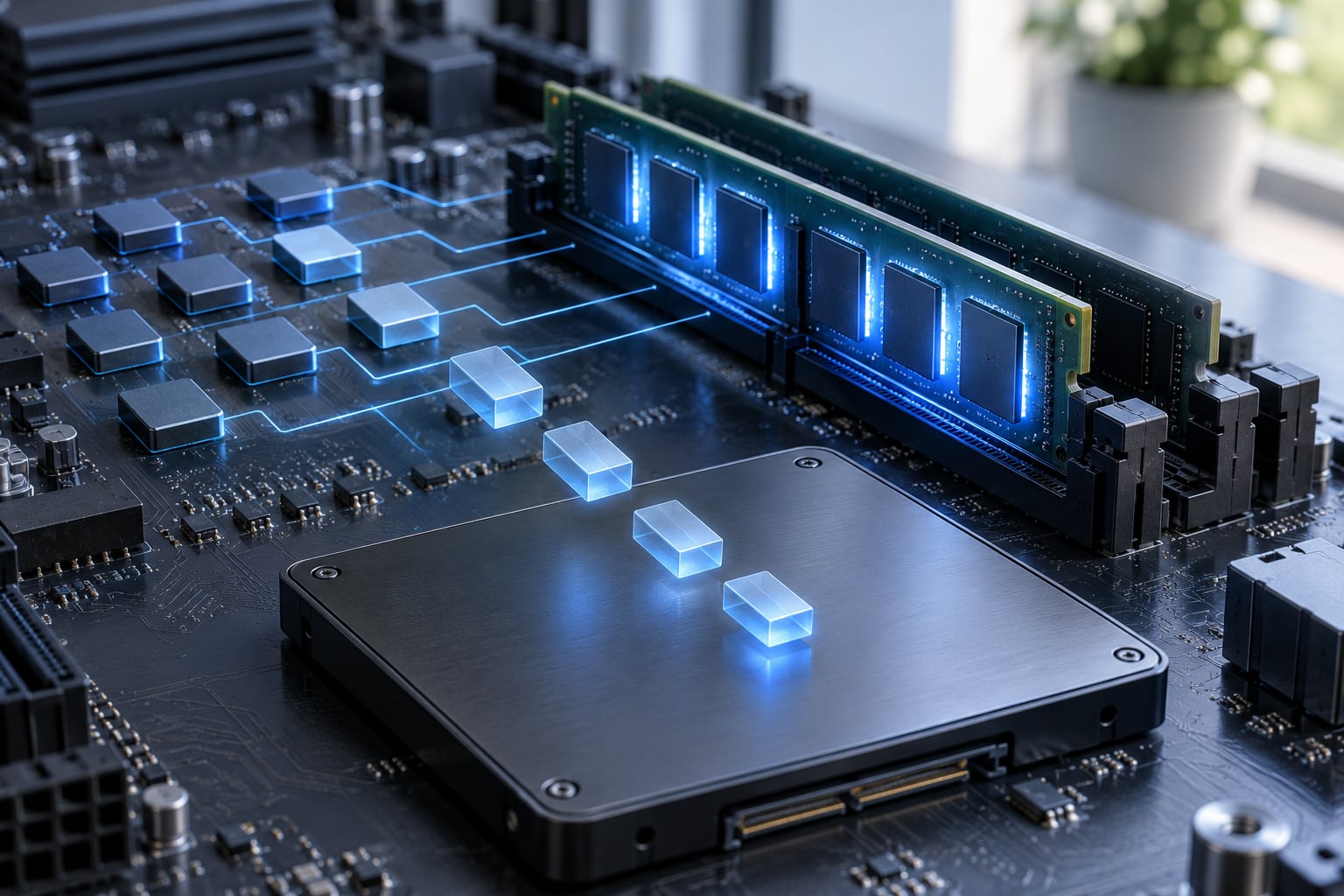
Memory is handled in fixed-size blocks. A block in the program’s address space is a page, usually 4 KB on desktop operating systems. A matching-size slot in physical RAM is a page frame. One page maps to one page frame, or to no frame at all if the page is currently on disk.
So a page table entry essentially says one of three things: this page is present in frame N, this page is not present at all, or this page is present but write-protected because it is shared read-only. The last case is why two copies of the same program can share one physical copy of the code instead of loading it twice.
This is where the isolation comes from. Each process gets its own page tables, so its address 0x4000 is a completely different piece of memory from another process’s 0x4000. There is no need for any two programs to agree on where anything lives, and one program cannot read another’s memory by guessing an address. This sticking point comes up constantly in systems programming forums, and the answer really is that simple: two processes can both load code at the same virtual address because each one has its own translation.
On a 32-bit processor, every process gets roughly 4 GB of virtual address space, which is why 32-bit Windows machines could struggle to run anything demanding no matter how much RAM you added. On 64-bit hardware the number is enormous in comparison, which is one reason a program can be handed an address space far larger than any machine in existence could ever back.
What Happens During a Page Fault?
A page fault is the CPU’s way of saying: the program just used an address whose page is not in RAM right now, so I have paused this instruction and asked the operating system to sort it out.
There are two kinds. A valid fault is routine: the address belongs to a page the program legitimately owns, and the OS simply needs to fetch it from the page file, a mapped file, or swap. A demand-zero fault is the everyday case, where a brand new page is handed to the program and the OS clears it first so the program cannot read whatever leftovers were in that frame.
An invalid fault is the other story: the address is not mapped to anything the program is allowed to touch. That is a bug in the program, and on Linux it surfaces as a segmentation fault, on Windows as an access violation. This is the fault that gets reported as a crash, and confusing it with the routine kind causes a lot of unnecessary worry.
The recovery path for a valid fault is short. The OS finds a free page frame or evicts one that has not been used recently, reads the page in from disk, updates the page table entry to point at the new frame with the right permissions, and signals the CPU to retry the faulting instruction. Because the instruction restarts from the beginning rather than continuing mid-way, the program never has to handle the gap itself.
Not every page fault means something went wrong, and a machine can produce thousands of them per second while running perfectly. A useful distinction for beginners: a program generating faults because it is starting up or scrolling through new data is normal, and a program faulting on the same address repeatedly is a bug.
Paging, Swapping, and the Page Cache
When RAM is full, the operating system has to choose a page to evict. Real systems approximate a few simple strategies, and knowing them helps when tools print a column of numbers.
- FIFO evicts the page that arrived in RAM longest ago. Simple, and it can perform badly, because a page that has been useful for hours gets thrown out while a fresh page is still being read.
- LRU (least recently used) evicts the page untouched for the longest time, which matches how real workloads behave. It is expensive to track exactly, so systems approximate it with clocks, reference bits or recently-used bits.
- OPT evicts the page needed furthest in the future. It produces the best possible hit rate and is impossible to implement, since you cannot know the future, which is why it only shows up in textbooks.
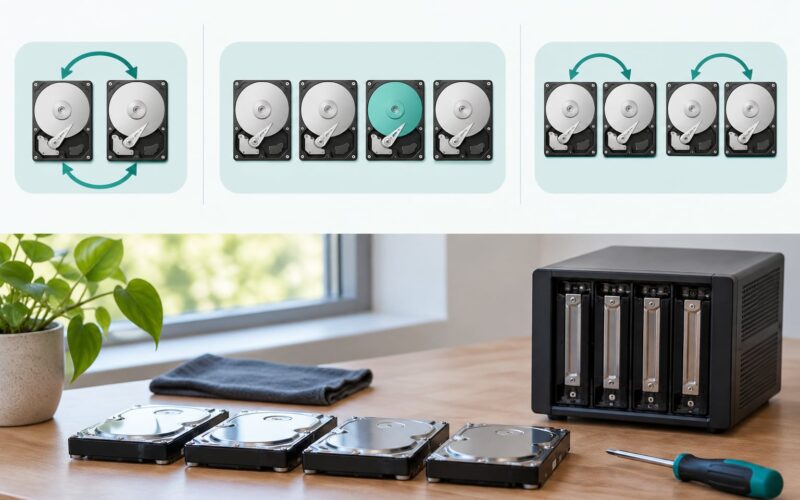
Paging and swapping are related but distinct. Paging moves individual pages, continuously, under the program’s feet, and the program keeps running. Swapping in the older sense means suspending an entire process, saving its whole memory image, and pulling it back later. Modern Windows and Linux rely on paging, not on whole-process swapping, though the word survives in the setting names.
Not all pages are created equal, and this is where beginners get confused by what the page file actually contains. Anonymous pages are program data and heap that have no other home, so they can only live in RAM or swap. File-backed pages are a copy of something already on disk, such as a program binary or a data file, and the operating system can just discard them and read them again later. That is why the file cache does not count against you the way a program’s private data does.
The practical consequence: on Linux, a machine with plenty of free disk space and no swap can still be slow, and a machine with generous swap that never touches it is fine. Swap is insurance against spikes, not a performance feature.
Can Virtual Memory Be Larger Than Installed RAM?
Yes, in address space. No, in useful speed. A 64-bit machine can hand a program more virtual address space than you have disk to back, and most of it will never be touched, because pages only need real memory when they are actually used.
Here is the distinction that trips people up. Your computer might have 16 GB of RAM and a 48 GB page file, giving roughly 64 GB of address space. That number is a ceiling, not a capability. A page that lives only in the page file is sitting on a drive, and every access to it goes through storage latency instead of nanosecond-scale RAM latency.
Worked example. You have 16 GB of RAM, and a game is using 14 GB while a browser and video call take another 5 GB. The OS needs 19 GB of pages active. Roughly 14 GB sits in RAM, and about 5 GB has to be fetched from or written to the page file. Those 5 GB will run, but they will stutter, because you are now waiting on the drive.
The same example explains the confusing out-of-memory errors people report with plenty of free RAM showing. The limiting resource may not be physical memory at all. It can be the commit limit, the per-process address space, or a single allocation too large for the system to map, none of which show up in the memory column you were looking at.
How Virtual Memory Affects Performance
When your working set fits comfortably in RAM, virtual memory is nearly free. The page tables are consulted, the mapping is found valid, and the instruction proceeds at full speed. This is the state most machines sit in most of the time, which is why the feature feels invisible when it works.
When it does not fit, every page you touch that is not resident becomes a storage read. The cost is not subtle, because the gap between RAM and even a fast NVMe SSD is enormous.
| Storage type | Typical transfer speed | Random access latency | Role in virtual memory |
|---|---|---|---|
| DDR5 RAM | Around 50 GB/s bandwidth | Tens of nanoseconds | Where pages live when everything is working |
| NVMe SSD | Roughly 3-7 GB/s | Microseconds | Page file or swap on a modern laptop or desktop |
| SATA SSD | Around 500 MB/s | Microseconds, higher under load | Acceptable, noticeably slower than NVMe |
| Hard disk drive | 100-200 MB/s sequential | Tens of milliseconds | Severe stutter if pages live here |
That table is the whole performance argument. A page read from RAM is roughly a thousand times faster than one read from an SSD, and tens of thousands of times faster than one from a spinning disk. Moving the page file to a faster drive is the only real lever you have; making it bigger buys you nothing on its own.
The failure state has a name: thrashing. A program keeps requesting pages, the OS keeps evicting pages that are about to be needed again, and the system spends nearly all of its time shuttling data instead of running instructions. The symptoms are recognisable: stutter, a spinning disk light that never stops, a mouse cursor that lags behind the screen, and fans running hard for no visible reason.
On Windows, Task Manager splits memory into in use, available, cached and committed. The “cached” bucket is why people see 90 percent in use with nothing slow. Those pages are spare RAM holding file contents the system is ready to hand back instantly, and they are not a problem. The columns that matter when hunting a stall are committed, peak committed and the hard faults count in the Processes column, which is the closest thing Windows gives you to a live page fault reading.
Linux gives you the same information more directly. free -h shows total, used, available and swap. vmstat 1 prints a si and so column for swap in and swap out; steady non-zero values in those columns mean you are thrashing. On macOS, Activity Monitor reports memory pressure, and it is the pressure figure, not the raw used figure, that tells you whether the machine is in trouble.
Virtual Memory in Windows and Linux
Same mechanism, different vocabulary. This trips up people who switch between operating systems, and even Windows itself uses two words for one thing.
| Concept | Windows | Linux | macOS |
|---|---|---|---|
| Storage backing virtual memory | Page file (also called paging file) | Swap, held in a swap partition or a swapfile | Dynamic swap files managed by the system |
| Automatic sizing | System managed, enabled by default | Usually no swap until you create it, on most desktop distributions | Automatic |
| Memory-backed compressed swap | Not applicable | zram, zswap | Compressed swap in RAM |
| Check usage | Task Manager, Resource Monitor | free -h, vmstat, swapon –show | Activity Monitor, memory pressure |
On Windows 10 and 11, the page file is on by default and system managed, and the honest advice is to leave it that way. If you want to see the current setting, search for View advanced system settings, open Advanced, then Performance and Settings, then the Advanced tab, then Virtual memory and Change. The dialog shows whether the page file is automatic and how much of the drive is currently reserved.
If you insist on setting it yourself, set the initial and maximum size to the same value. A large gap between the two lets the file grow continuously, and repeated growth on a traditional drive fragments it. And never choose the “No paging file” option. Plenty of people do it to reclaim disk space, and the results are crashes, failed updates and machines that will not boot, because core Windows components expect somewhere to write memory dumps and large commits.
Sizing guidance, which deliberately does not use the old multiplier rule:
| Installed RAM | Recommended page file | Notes |
|---|---|---|
| 8 GB | System managed, minimum 8-16 GB | Light multitasking; keep the file system managed |
| 16 GB | System managed, minimum 16-24 GB | Set to the same as RAM if you enable hibernation |
| 32 GB | System managed, or 16-32 GB fixed | Video editors and VMs benefit from a real file |
| 64 GB | System managed, or 16-32 GB fixed | A multi-terabyte file helps nothing |
The rule you will still read everywhere, that the page file should be one and a half to two and a half times your RAM, comes from an era of 64 MB and 128 MB machines. Experienced administrators in the Spiceworks community push back on it hard for exactly that reason. What matters now is the commit limit, not a fixed ratio, and the system-managed setting gets that right on its own.
On Linux, swap is usually absent on a fresh desktop install, which is why an out-of-memory kill on a memory spike catches people out. To add a swapfile without touching a partition, create an empty file, format it with mkswap, enable it with swapon, and confirm with free -h. The useful refinement for a laptop is zram: a compressed block device held in RAM itself, which avoids a hard crash during a spike and still costs far less than swapping to disk. A swap partition is simply a dedicated area rather than a file, which is slightly tidier on an SSD that has its own over-provisioning area, but the speed difference is minor on modern hardware.
Regardless of platform, put virtual memory on your fastest available drive, and if you have a choice, an NVMe SSD rather than a secondary hard disk. One more note for servers: sustained swapping on a cloud instance burns root volume IOPS and shows up as throttling long before it shows up as a user-facing speed problem.
Common Virtual Memory Misunderstandings
Four beliefs come up so often that they deserve flat verdicts rather than nuance.
Virtual memory gives you extra RAM. False. It gives you address space, and address space backed by storage is slow. If a program needs more fast memory than you have installed, the fix is more RAM, not a larger page file. This is the most repeated correction in every tech support forum, and it is right every time.
Deleting a large file frees up RAM. False, and this one is genuinely counter-intuitive. File data is already cached in RAM, which is why “available” memory in Task Manager looks low while your applications are fine. Closing the program that wrote the file, or letting the cache settle, is what changes things, and the space comes back on its own.
Disabling swap makes a computer faster. False, and dangerous. It can produce a small win on a desktop that never approaches its memory limit, at the cost of hard out-of-memory kills, failed updates and unbootable systems. Linux users have a legitimate variant of this argument: many run a permanent zram device, which is compressed RAM-backed swap and can genuinely be faster than disk swap, but that is not the same as having no swap at all.
A page fault means something is broken. False. Routine page faults are how demand paging works, and a busy system generates them constantly. Only invalid faults signal a problem, and the symptom of those is a crash or an access violation rather than any normal user-visible behaviour.
Two more that catch people out. A page file bigger than the maximum you configured is usually not a bug: Windows grows a system-managed file to match commit demand, and the configured value is treated as a floor. And the low-memory warning appearing while Task Manager shows RAM available is almost always about commit charge, the total memory the system has promised to applications, which is a separate limit from the physical memory in the memory column.
Frequently Asked Questions
Can you explain virtual memory in a simple way?
Your computer reserves a block of disk space, called a page file on Windows or swap on Linux. Programs are told they have their own large memory space, and the operating system quietly moves pieces between RAM and that reserved disk space as needed. RAM stays fast, and the disk acts as overflow storage.
What is the difference between paging and swapping?
Paging moves individual pages, or small blocks, in and out of RAM continuously while a program keeps running. Swapping in the older sense means suspending a whole program, saving its entire memory image, and restoring it later. Modern Windows and Linux use paging, not whole-process swapping, though the word swapping survives in the setting names.
How much virtual memory should I set for 8GB of RAM?
Leave the page file on system managed, which is the default on Windows 10 and 11, and let the operating size work. If you want a floor, 8 to 16 GB is plenty for browsing, office work and light multitasking. The old advice to set it at 1.5 to 2.5 times your RAM came from the 64 MB machine era and does not apply today.
Is swap memory slower than RAM?
Yes, by a wide margin. RAM reads take nanoseconds, an NVMe SSD takes microseconds, and a hard disk takes milliseconds. A page that has been swapped out is therefore orders of magnitude slower to reach than one that stayed in RAM. If your machine depends heavily on swap, the fix is more physical memory, not a bigger swap file.
Which is better, a swap file or a swap partition?
A swapfile is easier and is what most people should use, since it needs no repartitioning and can be created on any Linux system in a few commands. A swap partition is a dedicated area, which is marginally tidier on an SSD with its own reserved space, but the speed difference on modern hardware is small. Neither is a substitute for enough RAM.
Why do I get an out of memory error when RAM is still free?
The physical memory figure is often not the limit that was hit. A per-process address space cap, the system commit limit, or a single allocation too large to map can all fail while RAM sits half idle. On Windows, compare the committed and peak committed columns in Task Manager rather than the in-use number, which also includes harmless cached data.
Conclusion
The model to carry away is small: every program works in its own private address space, the memory management unit translates those addresses through page tables, and any page that is not sitting in RAM gets fetched from the page file or swap before the instruction retries. That is virtual memory, and it is what keeps multitasking stable.
When a computer feels slow, check three things in order. First, available memory and memory pressure, not the in-use number, since cached pages are harmless. Second, the page fault or hard fault activity, which tells you whether the stall is memory-related at all. Third, whether the page file or swap sits on a fast drive, since swapping to a hard disk is the single most expensive mistake in this whole area.
And if you take one correction from this guide, make it this one: virtual memory gives your programs room to keep running, but it does not give them speed. Storage is a safety net, not extra RAM.