A corrupted boot loader in Linux almost always means GRUB cannot find its own modules or the kernel it was told to load. The fix takes 30 to 90 minutes: boot official rescue media, confirm whether your firmware is UEFI or legacy BIOS, mount the installed root filesystem, reinstall the boot loader from a chroot, then reboot and check. Your files are not the problem, so nothing here formats a disk.
What breaks GRUB is almost always something external: a failed kernel update that deleted a running module directory, a Windows install that overwrote the MBR or rewrote the UEFI boot order, a repartition that changed a UUID, or firmware settings flipped to legacy mode. Find which one before you type a single command.
This guide covers GRUB 2 and systemd-boot on x86, assumes you can reach a live environment, and spells out the BIOS and UEFI branches separately. Those two paths use different commands, and running the wrong one is the single most common way people fail twice.
Table of Contents
- What You Need
- How to Fix a Corrupted Boot Loader in Linux Step by Step
- 1. Create Bootable Linux Rescue Media
- 2. Before You Fix a Corrupted Boot Loader in Linux, Confirm the Failure
- 3. Mount the Linux Filesystem and Boot Partition
- 4. Repair GRUB on a UEFI System
- 5. Repair GRUB on a Legacy BIOS System
- 6. Repair systemd-boot or Restore a Missing Boot Entry
- 7. Reboot Safely and Verify the Repair
- Common Mistakes
- Running a BIOS command on a UEFI install
- Targeting a partition instead of the whole disk
- Forgetting the EFI System Partition mount
- Repairing the live USB instead of the installed disk
- Losing the bind mounts after chroot
- Misreading kernel damage as boot loader damage
- Disabling Secure Boot when you did not need to
- Frequently Asked Questions
- Can I recover a Linux installation with a corrupted boot loader without formatting the disk?
- How do I know whether my Linux computer uses UEFI or legacy BIOS?
- Can I reinstall GRUB from a live Linux USB drive?
- Why do all my GRUB boot entries disappear after a kernel update?
- Do I need to disable Secure Boot to repair GRUB or systemd-boot?
- Conclusion
What You Need
Six things, and only one of them is hard to get: a spare USB drive of 2 GB or more. Everything else you likely already have.
- A spare USB drive. Its contents are erased. A second stick is worth having if the first refuses to boot.
- The official installation ISO for your installed distribution. Match the release family you already run. Rescue media from a different distro is fine for the mount-and-chroot steps, but matching removes a variable.
- The checksum file published alongside that ISO, plus a way to compare it.
- Your firmware mode. UEFI or legacy BIOS. Do not guess it. Section 2 shows how to read it off the disk layout in under a minute.
- Access to your backups for anything irreplaceable in your home directory. Not because repair touches data, but because firmware changes can hide a second disk.
- Your distribution’s recovery documentation for the boot loader you actually use.
Commands differ between distributions more than most guides admit. Translate them before you run anything.
| Task | Debian, Ubuntu, Mint, Kali | Fedora, RHEL, CentOS | Arch, Manjaro |
|---|---|---|---|
| Install GRUB to BIOS MBR | grub-install /dev/sdX | grub2-install /dev/sdX | grub-install /dev/sdX |
| Install GRUB to UEFI | grub-install –target=x86_64-efi –efi-directory=/boot/efi | grub2-install –target=x86_64-efi –efi-directory=/boot/efi | grub-install –target=x86_64-efi –efi-directory=/boot/efi |
| Regenerate config | update-grub | grub2-mkconfig -o /boot/grub2/grub.cfg | grub-mkconfig -o /boot/grub/grub.cfg |
| Rebuild initramfs | update-initramfs -c -k all | dracut –regenerate-all –force | mkinitcpio -P |
| Config file | /etc/default/grub | /etc/default/grub | /etc/default/grub |
Run the bind mounts and chroot commands as root with sudo in front, and open a root terminal on the live desktop if you prefer.
How to Fix a Corrupted Boot Loader in Linux Step by Step
The seven steps below are the sequence. Steps 4 and 5 branch: run the one that matches your firmware mode, never both.
1. Create Bootable Linux Rescue Media
Download the ISO from your distribution’s official site, then check the checksum before writing it.
On the Linux machine you are repairing, or another computer:
sha256sum linux-image.isoCompare that against the checksum the distribution published. On Windows, certutil -hashfile linux-image.iso SHA256 prints the same value. Write the ISO to the USB drive, not the partition, and confirm the device path first with lsblk so you pick the 8 GB stick and not your 2 TB drive.
lsblk -d -o NAME,SIZE,MODEL,TRAN
# then, with the USB plugged in
sudo dd if=linux-image.iso of=/dev/sdX bs=4M status=progress conv=fsync
Rufus, balenaEtcher and Ventoy all do the same job with a window that shows progress. Use whatever you have, then confirm it works.
Plug the USB in and restart. The machine will probably still prefer the internal drive, because firmware boot order rarely puts removable media first. Use the one-time boot menu instead: F12 on Dell and Lenovo, F11 on HP, F8 on Asus, Escape on some Acer and Gigabyte models, or Option (or F12) on older Macs.
You will know you are running from USB when the live session mounts no internal partition automatically, lsblk shows your internal disk alongside the USB device, and the desktop looks nothing like your installed system. Check the device list:
lsblk -fIf the internal disk shows two or more partitions already mounted at / and /boot while booted from USB, you booted from the wrong thing. Stop and use the boot menu again.
Some laptops only boot removable media when the USB is in a specific port, usually one of the blue USB 3 ports, and a few older models need USB storage or legacy USB support enabled in firmware. If the stick is invisible in the boot menu at all, test it on another machine before suspecting the ISO.
Keep two rescue sticks if you can. One is enough for a routine repair, and a second costs a few minutes when a machine’s firmware decides not to boot the first one you tried.
2. Before You Fix a Corrupted Boot Loader in Linux, Confirm the Failure
Write down the exact text you see. The wording tells you which stage failed, and that determines which repair path is correct.
The boot chain has six stages, and each failure looks different.
- Firmware selects a boot target and loads it.
- Boot loader (GRUB or systemd-boot) reads its configuration.
- Kernel loads from
vmlinuz. - Initramfs runs and finds the root filesystem.
- Root filesystem mounts and systemd starts.
- Services and login manager come up.
Match your message to a stage:
| What you see | Likely cause | Go to |
|---|---|---|
| No bootable device, or firmware lists no drives | Boot order changed, or firmware mode changed to CSM or legacy | Step 2 checks, then Step 4 or 5 |
| Windows Boot Manager instead of GRUB | Windows rewrote UEFI NVRAM entries and boot order | Step 4, then efibootmgr |
| grub rescue> prompt | GRUB loaded but cannot read grub.cfg or its modules | Step 3 and Step 4 |
| file ‘/boot/grub/i386-pc/normal.mod’ not found | BIOS-target GRUB on a UEFI layout, or missing module directory | Step 4, check firmware mode first |
| error: unknown filesystem | Wrong prefix, or the module for that filesystem is missing | Step 3, confirm the mount |
| error: you need to load the kernel first | GRUB works, the menu did not hand off to a kernel | Step 4, regenerate config |
| no working init found, kernel panic – not syncing | Kernel loaded but initramfs or root UUID is wrong | Step 3 fstab check, rebuild initramfs |
| Missing or full boot partition | Old kernels filled it, so the new one was never written | Step 3, then delete old kernels |
Now decide UEFI versus legacy BIOS from the layout.
lsblk -o NAME,SIZE,FSTYPE,PARTTYPENAME,MOUNTPOINT
blkid
findmnt /boot/efi
You have UEFI if you see a partition of type EFI System (usually vfat, often 512 MB) and a GPT disk. You have legacy BIOS with an MBR disk, no EFI partition, and a 1 MB partition of type BIOS boot.
GRUB also names partitions differently at its own prompt. Translate before you panic:
| Partition scheme | GRUB rescue name | lsblk name |
|---|---|---|
| MBR / msdos | (hd0,msdos1) | /dev/sda1 |
| GPT | (hd0,gpt1) | /dev/sda1 |
| NVMe, first disk | (hd0,gpt2) | /dev/nvme0n1p2 |
| Second SATA disk | (hd1,gpt2) | /dev/sdb2 |
At the grub rescue> prompt, ls prints these names and ls (hd0,msdos1)/ tests one. If you want to try recovering without the full procedure, insmod normal then normal sometimes drops you straight into the menu, and if it does not, set prefix=(hd0,gpt2)/boot/grub then insmod normal is the manual version. It is worth two minutes and it is the fix when nothing was actually corrupted.
In a VirtualBox or KVM guest the names shift again: the disk is /dev/vda with partitions /dev/vda1, so the same commands need /dev/vda instead of /dev/sda. Copy-pasted commands from someone else’s bare-metal machine are the usual cause of a first attempt failing on a VM.
If the machine will not reach firmware at all and you suspect the boot loader was truly overwritten, a Super Grub2 Disk is a small rescue ISO that boots independently and can either chainload your existing GRUB config or boot a kernel by hand. It is worth having written to a spare stick alongside the distribution ISO.
3. Mount the Linux Filesystem and Boot Partition
Mount your installed root, not the live system. This is the step where mistakes are most expensive, so identify by filesystem label and size rather than by guessing.
lsblk -f
sudo mkdir -p /mnt
sudo mount /dev/sdX2 /mnt
ls /mnt
A populated /mnt showing bin, etc, usr and home means root is correct. If it is nearly empty, you mounted the wrong partition: unmount and try the next one.
Mount a separate boot partition if you have one. The tell is a /mnt/boot directory that contains only lost+found or is empty, while a /mnt/boot/grub directory would hold your menu.
sudo mount /dev/sdX1 /mnt/boot
# or, on a UEFI install where the ESP sits at /boot/efi
sudo mount /dev/sdX1 /mnt/boot/efi
Bind the virtual filesystems so the installed system’s tools can talk to the live kernel. Skipping these is why grub-install sometimes fails with a confusing error about efivars.
for i in /dev /dev/pts /proc /sys; do sudo mount --bind $i /mnt$i; done
sudo mount --bind /sys/firmware/efi/efivars /mnt/sys/firmware/efi/efivars
The efivars bind mount matters only on UEFI. It fails harmlessly on a BIOS system because that path does not exist there.
Enter the chroot and prove you are inside the installed system.
sudo chroot /mnt
cat /etc/os-release
ls /boot
# Debian and Ubuntu
mount | grep ' / '
# Fedora
cat /etc/fstab
If /etc/os-release names your installed distribution rather than the live ISO, the chroot is right. If it names the live media, unmount and recheck.
On an encrypted root the root filesystem is a layer above the partitions, so unlock and mount it before the chroot. The name you pass to cryptsetup luksOpen is the name the initramfs expects, and it comes from /etc/crypttab.
grep luks /mnt/etc/crypttab
sudo cryptsetup luksOpen /dev/sdX3 vg0-root
sudo mount /dev/mapper/vg0-root /mnt
If /dev/mapper/ lists a mapper name that does not match crypttab, that mismatch is your boot failure. Correct the file in the mounted root before you continue.
Read /etc/fstab now, before you repair anything. Check that every UUID= matches a real partition from blkid. Stale UUIDs after a clone or resize are a frequent cause of the kernel panic that follows an otherwise clean repair, and you can fix them here while the chroot is open.
4. Repair GRUB on a UEFI System
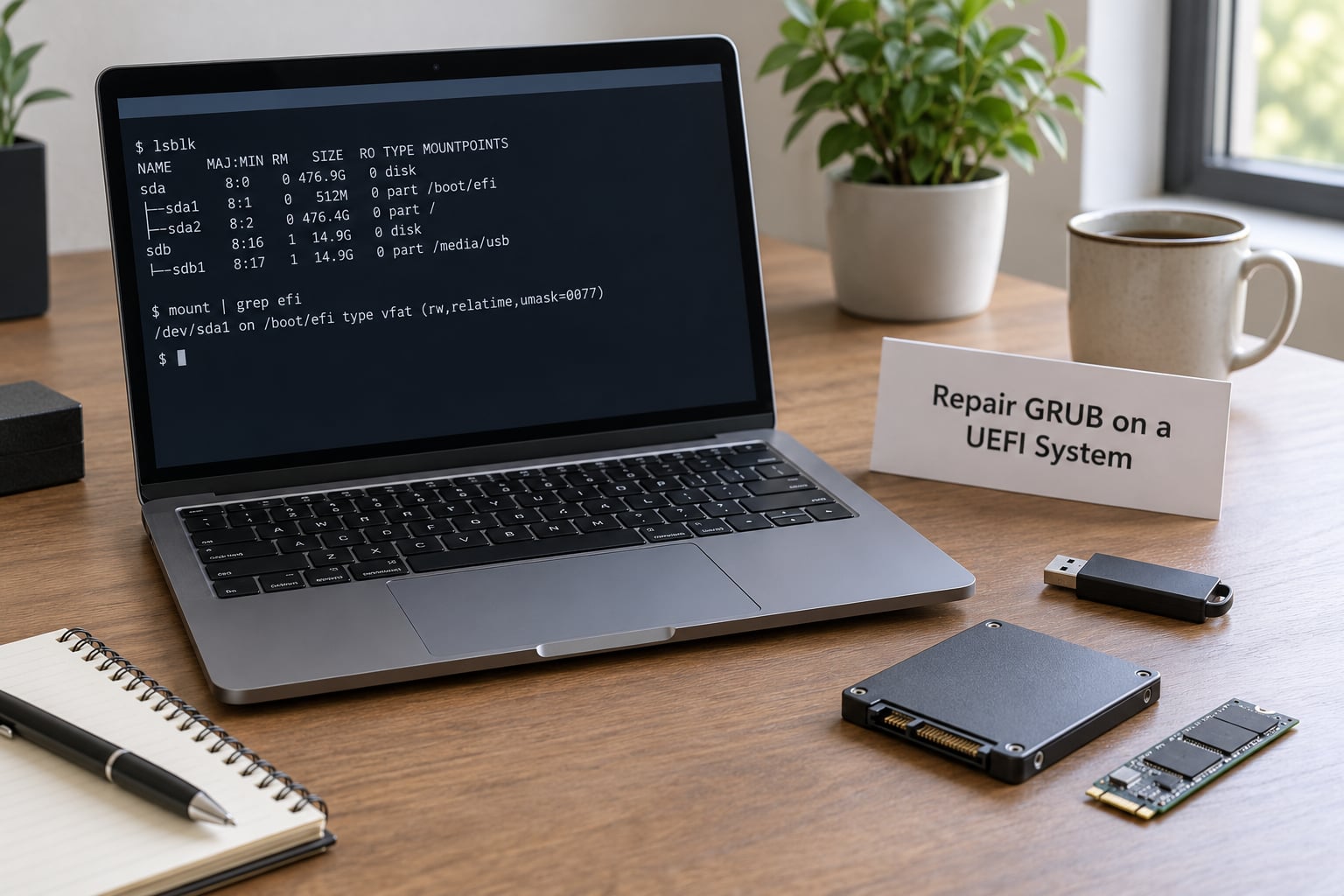
On UEFI, reinstall GRUB with an explicit EFI target and point it at wherever you mounted the EFI System Partition.
# ESP mounted at /boot/efi (Debian, Ubuntu, Arch, Fedora)
grub-install --target=x86_64-efi --efi-directory=/boot/efi --bootloader-id=ubuntu
grub-install --target=x86_64-efi --efi-directory=/boot/efi --removable
update-grub
If your ESP is mounted at /boot instead, change --efi-directory to /boot and leave it. Installing into a directory that holds your kernels and initramfs instead of into a FAT filesystem creates files the firmware cannot read, and you get the same missing-file error back.
On Fedora and RHEL the binary is grub2-install and the config lives at /boot/grub2/grub.cfg. Adjust the bootloader-id to fedora to match what the distribution expects.
Verify before you leave the chroot.
ls /boot/efi/EFI/ubuntu
efibootmgr -v
grep menuentry /boot/grub/grub.cfg | head
ls -l /boot/vmlinuz* /boot/initrd.img*
You want to see grubx64.efi and shimx64.efi in the EFI directory, an entry in the NVRAM list pointing at EFIubuntugrubx64.efi, and menu entries with real kernel paths in grub.cfg. If efibootmgr shows no entry pointing at your bootloader, create one:
efibootmgr -c -d /dev/sdX -p /EFI/ubuntu/grubx64.efi -L "ubuntu"
efibootmgr -o 0001,0002
The second command sets boot order. Check it with efibootmgr and make sure your Linux entry comes before the Windows Boot Manager entry, otherwise Windows boots straight through every time.
Regenerate the config again if the menu still looks wrong after a bootloader reinstall. On Secure Boot systems, shimx64.efi must come first in the ESP because it is the signed binary the firmware trusts; if your grub-install overwrote it, reinstall the shim package for your distribution before rebooting.
5. Repair GRUB on a Legacy BIOS System
On legacy BIOS, GRUB’s first stage lives in the master boot record of the physical disk, so the target is the whole disk.
grub-install /dev/sdX
grub-install /dev/nvme0n1
update-grub
Targeting a partition such as /dev/sda1 installs core code into the wrong place and the machine still lands in the bootloader after power on. For a GPT disk in legacy mode, you also need a BIOS boot partition of type BIOS boot or about 1 MB unallocated between the MBR and the first partition.
On an NVMe drive, the disk is /dev/nvme0n1 while its partitions are /dev/nvme0n1p1, /dev/nvme0n1p2. Passing /dev/nvme0n11 by accident is a common and unwelcome mistake.
Check the result inside the chroot.
ls /boot/grub/i386-pc/ | head
ls /boot/grub/x86_64-efi/ 2>/dev/null | head
grep menuentry /boot/grub/grub.cfg | head
The module directory should match your firmware mode: i386-pc for legacy BIOS, x86_64-efi for UEFI. If the firmware is in CSM or legacy mode while your disk was partitioned as GPT for UEFI, change the firmware setting to UEFI-only and reboot back into rescue. The error file '/boot/grub/i386-pc/normal.mod' not found is that mismatch, and no amount of reinstalling fixes it while the setting is wrong.
6. Repair systemd-boot or Restore a Missing Boot Entry
Two different problems look similar here. A missing menu entry in a working systemd-boot is a file problem. A broken systemd-boot itself is an installer problem.
Confirm which loader you have before running anything:
ls /boot/loader/entries
ls /boot/efi/EFI/systemd
ls /boot/grub
bootctl status 2>/dev/null | head
If /boot/loader/entries exists and /boot/grub does not, you have systemd-boot. Do not run grub-install on it. The two loaders do not coexist, and installing GRUB over systemd-boot replaces the entry the firmware relies on.
To restore systemd-boot binaries and install a fresh entry for the running kernel:
bootctl install
kernel-install add "$(uname -r)" /boot/vmlinuz-$(uname -r)
bootctl list
Entry files live in /boot/loader/entries and are named after the machine ID, for example /etc/machine-id mapped to a 32-character hex name. Entries for a deleted machine ID stop matching and vanish from the menu, which looks identical to boot loader damage.
cat /etc/machine-id
cat /boot/loader/loader.conf
ls -l /boot/efi/EFI/systemd/
If loader.conf points at an ESP location that does not match where you actually mounted it, edit it so esp or root resolves, then re-run bootctl install. Arch, Pop!_OS and Fedora use systemd-boot, and their packages rebuild these paths automatically.
On a Raspberry Pi the EFI target is aarch64-efi rather than x86_64-efi, the boot files live on the FAT boot partition with the firmware copied as boot.bin and kernel8.img, and there is no grub-install in play at all. A Pi that no longer enumerates its kernel files needs its firmware files restored rather than a boot loader reinstall.
7. Reboot Safely and Verify the Repair
Leave the chroot cleanly, unmount every bind mount in reverse order, then remove the USB before you reboot.
exit
umount /mnt/sys/firmware/efi/efivars
umount /mnt/sys /mnt/proc /mnt/dev/pts /mnt/dev
umount /mnt/boot/efi
umount /mnt/boot
umount /mnt
sync
sudo reboot
Unmounting while the chroot is still open or in the wrong order leaves the filesystem busy, which is harmless but confusing. Now pull the USB drive out, because firmware that prefers removable media will boot rescue again instead of your installation.
Verify in this order:
- The menu appears and lists your distribution and kernel version.
- The kernel version matches the newest package you installed, not an older one.
- The initramfs loads with no errors.
- Windows appears in the menu if you dual boot, and it still boots when selected.
- Secure Boot is still enforced if you left it on.
uname -r
ls -l /boot
grep menuentry /boot/grub/grub.cfg | head
efibootmgr
If the menu is blank or the same error returns, go back to rescue media rather than trying variations blindly. Work through three checks: is the ESP mounted at the path you passed to --efi-directory, does /etc/fstab still list the correct UUIDs, and is there space in the boot partition? That last one is easy to miss.
There is a point where further attempts stop being productive. If two clean passes from rescue media produce identical failures, the problem is no longer the boot loader: the root filesystem may be unreadable, or the firmware cannot address the disk at all. At that point, mount what you can read from rescue media and copy your home directory out before deciding on anything heavier.
df -h /boot /boot/efi
ls -lh /boot | sort -k5 -h | tail
# Debian and Ubuntu
dpkg -l 'linux-image-*' | grep ^ii
# Fedora
rpm -q kernel
A full boot partition silently kills the newest kernel while older ones keep working. Remove packages you no longer need, then rebuild the initramfs so its modules match what is left.
To add Windows back into a GRUB menu, enable os-prober and regenerate:
grep -i os-prober /etc/default/grub
printf 'GRUB_DISABLE_OS_PROBER=falsen' >> /etc/default/grub
update-grub
Then confirm the Windows entry appears in the regenerated grub.cfg. If it does not, run os-prober by hand from the installed system to see its error, which is usually a fast-boot or hibernated Windows that has not shut down cleanly.
If the live USB will not boot at all on that machine and you only have Windows available, you can still make it startable: boot Windows, open an elevated command prompt, run bcdboot pointed at the EFI directory on the EFI System Partition to rewrite the NVRAM entry, or use bcdedit /enum firmware to see what entries Windows knows about. Boot-repair style tools built on Super Grub2 Disk do the same job with a menu. None of that repairs GRUB itself, but it restores the machine to a state where rescue media will boot.
If you deleted the Linux partition to give Windows more room and now want the machine back the other way, do the inverse from a Windows command prompt: bootrec /fixmbr and bootrec /fixboot rebuild the Windows bootloader so it boots, then repair GRUB from rescue media.
And if a menu entry appears but the newest kernel panics, try an older one from the Advanced options entry before assuming the worst. Booting a working kernel gives you a shell to rebuild the initramfs from inside a working system instead of from rescue media.
Common Mistakes
Almost every repeat failure comes from one of these seven.
Running a BIOS command on a UEFI install
grub-install /dev/sda on a UEFI system writes core code to an MBR the firmware will never read. Nothing changes on the next boot. Use the --target=x86_64-efi form from Step 4, and check efibootmgr -v before you reboot.
Targeting a partition instead of the whole disk
In legacy BIOS mode, GRUB goes on /dev/sda, never /dev/sda1. This mistake is also why some guides warn against copying commands with sdX placeholders: run lsblk -o NAME,SIZE,MODEL and type the real device name yourself.
Forgetting the EFI System Partition mount
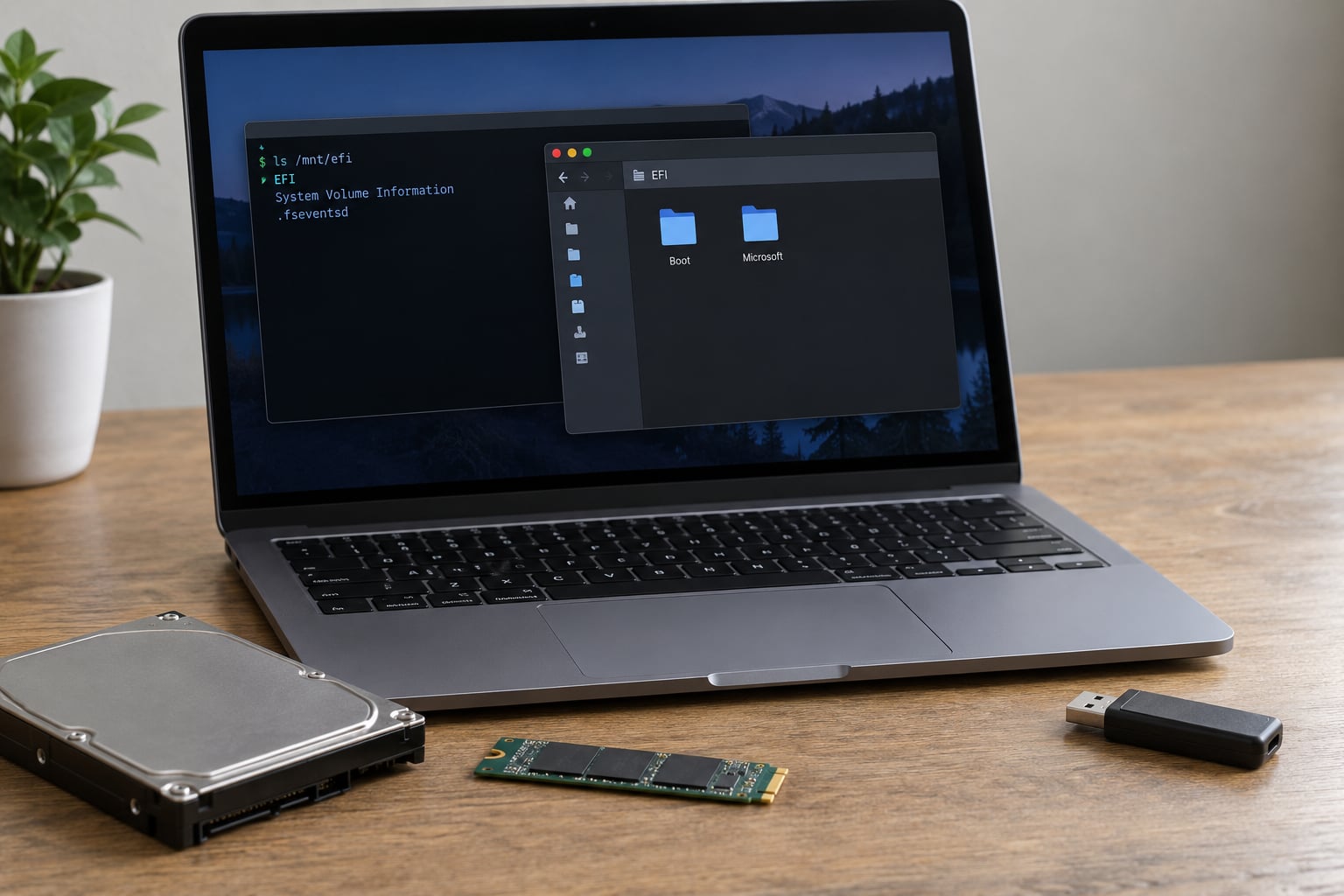
If you skip mount /dev/sdX1 /mnt/boot/efi, GRUB installs into an empty directory on your root filesystem. The result is a firmware-level failure that looks like nothing was fixed at all. Mount the ESP, then verify with ls /mnt/boot/efi/EFI before installing.
Repairing the live USB instead of the installed disk
Running update-grub from the live session rebuilds the live media’s menu, which nobody will ever boot. Run it inside the chroot, and confirm with cat /etc/os-release first.
Losing the bind mounts after chroot
If you chroot, run one command, then drop out and chroot again, the mounts are still fine, but if you umount too early or reboot from inside the chroot, you get write errors on /dev or /proc. Do the whole repair in one session and exit before unmounting.
Misreading kernel damage as boot loader damage
An initramfs that does not match its kernel produces no working init found or a kernel panic after GRUB has already done its job perfectly. That is not a boot loader fault. Rebuild the image with update-initramfs -c -k all, dracut --regenerate-all --force, or mkinitcpio -P for your distribution.
Disabling Secure Boot when you did not need to
Turning off Secure Boot fixes nothing about a damaged boot loader, and it leaves unsigned kernels unable to boot afterwards. Keep it on. If firmware refuses to load grubx64.efi, the real problem is a missing or overwritten shimx64.efi in the ESP, not the signature policy.
Three habits prevent most of this. Make a rescue USB and keep it with the machine. Copy /boot/grub and /etc/default/grub to a backup partition before any repartitioning. And change one thing per reboot, so you know which edit mattered.
One more category gets mistaken for boot loader damage: firmware and storage settings. If a machine only fails to boot since a BIOS update, look at three things before reinstalling anything.
- Intel RST or RAID mode. If the controller is in RST or RAID mode, Linux and GRUB see no disk at all until you switch it to AHCI. That switch makes Windows unbootable, so plan for both sides.
- NVMe support. Very old BIOS builds and some older GRUB installations cannot address NVMe drives at all. The symptom is a firmware message that no bootable device exists.
- Encryption name mismatches. On a LUKS system, a
crypttabname that no longer matches what the initramfs expects stops the boot before the root filesystem is ever opened. Rebuild the initramfs after fixing the name.
None of those are fixed by running grub-install again, which is exactly why they are worth ruling out before you start.
Frequently Asked Questions
Can I recover a Linux installation with a corrupted boot loader without formatting the disk?
Yes. Every step in this guide writes to the boot loader and boot partition, never to your home directory. A damaged GRUB is a damaged program, not damaged data. Reinstalling it, regenerating the config, and recreating the UEFI entry are all reversible and all leave files intact. Back up your home directory first as a precaution, but a full reinstall is almost never required.
How do I know whether my Linux computer uses UEFI or legacy BIOS?
Two quick checks settle it. In firmware setup, a UEFI machine lists boot entries by name and shows a boot mode toggle with CSM or Legacy options. From any booted Linux, run lsblk -o NAME,FSTYPE,PARTTYPENAME and look for a partition of type EFI System on a GPT disk, which means UEFI. A BIOS boot partition and an msdos scheme mean legacy BIOS.
Can I reinstall GRUB from a live Linux USB drive?
That is the standard repair path and it works on any machine that can boot USB media. Boot the live environment, mount your installed root filesystem, bind mount /dev, /proc and /sys, enter chroot, then run grub-install followed by update-grub. Matching your firmware mode matters: UEFI needs the target=x86_64-efi form, legacy BIOS needs the whole-disk form.
Why do all my GRUB boot entries disappear after a kernel update?
Usually the new kernel was never installed properly, so grub.cfg was regenerated against a kernel that is not there. A full boot partition causes the same symptom: the new image is never written. Check df -h /boot, remove old kernels, then run update-grub again. On encrypted systems, a crypttab or fstab name mismatch can stop the update from completing too.
Do I need to disable Secure Boot to repair GRUB or systemd-boot?
No. Keep it enabled unless your distribution’s documentation specifically tells you otherwise. Secure Boot rejects unsigned boot loaders, so if firmware refuses grubx64.efi the fix is to restore shimx64.efi, the signed first-stage loader, into the EFI System Partition. Disabling Secure Boot hides the problem and leaves you unable to boot any kernel that is not self-signed.
Conclusion
The safe sequence is short: boot official rescue media, identify whether the firmware is UEFI or legacy BIOS, mount the installed root filesystem along with its boot and EFI partitions, repair only the installed boot loader, then reboot and verify the kernel that loads. Change one thing per reboot so you learn what worked.
Partition layouts and package names differ enough between distributions that the commands here should be translated, not copied blindly. When your layout is unusual, an encrypted root with LUKS and LVM, a Btrfs subvolume, or a NAS-style machine, follow your distribution’s own recovery documentation for the specifics, and keep a prepared rescue USB nearby.