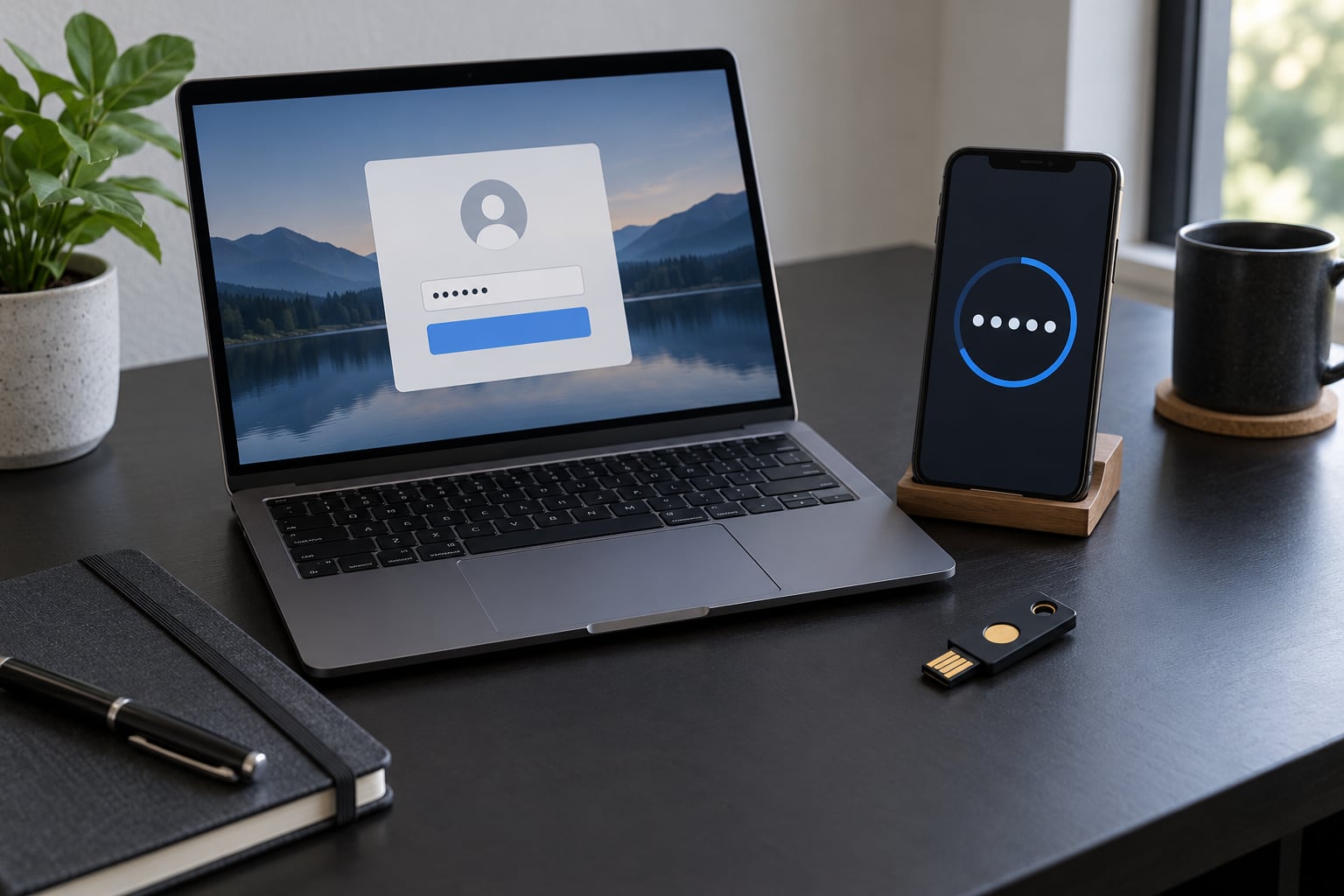
What is two factor authentication and how it works? It is a login rule that demands two separate proofs of identity before access is granted: usually your password, plus a short code from your phone, a tap on a security key, or a fingerprint scan. The password alone is one proof, and the second one has to come from a different category of evidence than the password does.
That second requirement is the whole point. A stolen password by itself is no longer enough to walk into your email, your bank or your cloud console, which kills the cheapest and most common account-takeover method there is. Almost every service you use now calls it 2FA, and some call the same thing two-step verification, so expect both labels in account settings.
This guide walks through the login flow, the factor categories, the methods you can pick from, how to set one up, what each attack looks like, and what to do the morning you wake up without your phone. If you take one action from it, turn on the strongest method your most important account offers and save the backup codes somewhere offline.
Table of Contents
- What Is Two-Factor Authentication?
- Why two independent categories beat one strong one
- How Does Two-Factor Authentication Work?
- The login flow, step by step
- What Are the Three Authentication Factor Categories?
- Something you know
- Something you have
- Something you are
- Which Two-Factor Authentication Methods Are Common?
- Authenticator apps
- Hardware security keys
- SMS codes
- Push notifications
- Passkeys
- Email codes and backup codes
- How Do You Set Up Two-Factor Authentication?
- How Does Two-Factor Authentication Stop Common Attacks?
- Password reuse and credential stuffing
- Stolen breach databases
- Phishing
- SIM swapping
- Push fatigue
- What Should You Do If You Lose Access to Your Second Factor?
- Frequently Asked Questions
- What is two factor authentication and how does it work?
- Do two passwords count as two-factor authentication?
- Is SMS two-factor authentication secure?
- Does two-factor authentication stop phishing?
- What happens to two-factor authentication if I lose my phone?
- Do I still need two-factor authentication if I use a passkey?
- Conclusion
What Is Two-Factor Authentication?
Two-factor authentication (2FA) is a control that requires two pieces of evidence from different categories before a service lets you in. The first is nearly always something you know, your password. The second is something you have or something you are, and it has to be something an attacker who only has your password cannot produce.
The debit card comparison works well here. Your PIN alone would be a single factor, which is why a stolen PIN is dangerous on its own. A stolen card needs a PIN as well, and the cardholder has to be something the thief does not have. Password plus a code from your own phone plays the same role: the password is the PIN, and the phone is the card.
Two-factor authentication is also the smallest subset of multi-factor authentication. 2FA means exactly two factors; MFA means two or more, and organisations often enforce three, like a password, a security key and a fingerprint. People use the terms interchangeably, and for a personal account the practical difference is close to nil.
What 2FA is not is a longer password. Adding a capital letter and a number to the same password keeps it in the same category, still something you know, and it stays vulnerable to the same guessing attacks. Two passwords of the same kind are one factor with extra typing.
Why two independent categories beat one strong one
The reason categories matter is that each is defeated by a different kind of attack. Passwords fall to reuse, breaches and guessing. Codes and keys fall to interception, malware and social engineering. Fingerprints fall to coercion and fake fingers. When you require two categories, an attacker has to beat both of them at once, and most attackers go for the easiest one available.
How Does Two-Factor Authentication Work?
The mechanics are the same on nearly every site. The server checks the first factor, then issues a second challenge that only a registered device or enrolled secret can answer, then opens a session if both answers pass.
The login flow, step by step
- You submit your first factor. Username and password go to the authentication server over an encrypted connection.
- The server validates it. If the credentials fail, nothing else happens. This is where rate limiting and lockout after repeated failures live.
- A second challenge is created. The server asks for a one-time code, sends a push, or issues a challenge for a security key to sign.
- You answer on a trusted device. The code is typed in, the tap is approved, or the key touches the reader and signs the challenge.
- The server confirms and opens a session. Both factors passed, so a session token is issued and you are in. Recovery codes enter here as a stand-in for the missing device.
For an authenticator app, the code itself is generated on your device from a shared secret created at enrolment, usually by scanning a QR code. The server stores the same secret and computes the same value. Time-based one-time passwords rotate roughly every 30 seconds, so a code observed once is worthless a minute later.
For a security key, nothing is typed. The server sends a challenge, the key signs it with a private key that never leaves the device, and the server checks the signature against the public key it registered earlier. Because the key only signs what the server actually asked for, a fake login page gets a signature for the wrong address and the attempt fails.
| Step | Where it happens | What can go wrong |
|---|---|---|
| Password submitted | Your browser to the site, over HTTPS | Keystroke logging, a fake page that harvests the password |
| Credentials validated | The site authentication server | Credential stuffing with pairs from an old breach |
| Second challenge issued | Server to your device, or server to you as a prompt | SIM swap moving the challenge to an attacker-controlled number |
| Second factor answered | Your authenticator, key, or biometric sensor | Malware reading notifications, an approval you gave without reading it |
| Session issued | Server, token stored in the browser | Session theft that skips the login page entirely |
What Are the Three Authentication Factor Categories?
There are three categories, and a factor only counts when it belongs to one of them. Something you know, something you have, something you are. Real deployments combine a knowledge factor with a possession or inherence factor, because knowledge is the easiest to steal and reuse.
Something you know
Passwords, PINs, passphrases, and answers to security questions. This is the category attackers have the most of, because breach databases are cheap to buy and reuse is rampant. Security questions are weak in practice too, since the answers are often public or guessable.
Something you have
A phone running an authenticator app, a hardware security key, a smart card, a one-time code sent by text or email, or a printed backup code. Possession is the category that blocks a pure password attack, since the item itself is what the attacker lacks.
Something you are
Fingerprint, face scan, iris scan, voiceprint, and behavioural signals such as your typing pattern. Inherence factors are convenient because they need no extra hardware, but they need local hardware to read the signal, which is why phones now hold a secure element for it.
| Scheme | Number of factors | Typical example | Stolen password enough? |
|---|---|---|---|
| Single-factor authentication | One | Password only | Yes |
| Two-factor authentication | Two, from different categories | Password plus authenticator code | No |
| Multi-factor authentication | Two or more, often three | Password plus security key plus fingerprint | No |
Two passwords, or a password and its own security question, sit in the same category. By the usual definition that is single-factor authentication with extra steps, and no reputable auditor counts it as 2FA.
Which Two-Factor Authentication Methods Are Common?
Most accounts offer three or four of these. They differ less in security than people expect, and much more in how well they stand up to a convincing login page.
Authenticator apps
An app on your phone generates time-based one-time passwords from a secret it shares with the site. Codes work with no network, no phone call and no email, which makes them the sensible default for almost everyone. The main risk is malware that reads the screen or the notification, and the main annoyance is losing the phone.
Hardware security keys
A small key that plugs into USB or taps over near-field communication, implementing the FIDO2 and U2F standards. It is the strongest practical option for high-value accounts because it is bound to the real site address, so a phishing page cannot use it. The tradeoff is cost and the fact that you need the key before you can enrol it.
SMS codes
A code texted to your number. Better than nothing, weaker than everything else on this list, because text messages travel over a network that has been abused for interception, and a SIM swap or a convincing social engineering call to your carrier redirects them to a new SIM. Keep it as a fallback only.
Push notifications
A notification arrives on your phone and you approve it. Convenient, and the approval is the weakness: an attacker who already has your password can spam prompts until one gets approved by accident. Number matching, where the number you see in the prompt must match the number shown on the page you are logging into, makes that attack much harder.
Passkeys
A passkey stores a key pair in your device or password manager and signs the login challenge directly, so there is no code to steal and no secret to intercept. You authenticate locally with a face or fingerprint. It solves several 2FA problems at once and is gradually replacing codes on major services, but adoption is still uneven, so keep 2FA on as the fallback.
Email codes and backup codes
Email codes are possession factors in name only, since a compromised email account defeats both halves at once. Backup codes are different: single-use codes the service gives you at enrolment, each good once, and they are the safety net for every method above.
| Method | Factor category | Phishing-resistant | Works offline | Best fit |
|---|---|---|---|---|
| Authenticator app | Something you have | Partly, codes can be phished | Yes | Default choice for most accounts |
| Hardware security key | Something you have | Yes | Yes | Email, banking, admin, root accounts |
| Passkey | Something you have plus you are | Yes | Yes | Everyday logins where the site supports it |
| Push approval | Something you have | No, if number matching is off | No | Convenience, with number matching turned on |
| SMS code | Something you have | No | No | Fallback when nothing else is offered |
| Email code | Something you have | No | No | Lowest bar, weakest real protection |
| Backup code | Something you have | No | Yes | Recovery, not daily use |
People in security communities tend to rank these in the same order, with hardware keys and passkeys at the top and SMS at the bottom. Experienced users on forums like r/cybersecurity_help and r/AskNetsec usually recommend registering at least two methods on an account rather than relying on one.
How Do You Set Up Two-Factor Authentication?
Start with your primary email account. It is the recovery root for everything else, since password resets on other services send a link there, and an attacker who owns your inbox owns the rest of your accounts. Banking, your password manager and any admin console come next.
Menu labels and positions move between versions, so treat the paths below as landmarks rather than exact clicks. Look for a security or sign-in section in account settings, then a two-step verification, two-factor or login verification option.
- Open security settings. Google calls it two-step verification, Microsoft calls it two-step verification under security info, and GitHub calls it two-factor authentication under password and authentication.
- Choose the strongest method offered. Passkey or security key first if the list includes one, authenticator app next, SMS last.
- Enrol it carefully. Scan the QR code with the authenticator app while you are on the account page itself, then confirm the test code immediately. Enrolling on a device issued by an employer stores codes against the work account, which then become awkward to remove.
- Save the backup codes offline. Print them or write them on paper and keep them somewhere other than the same phone or laptop. Each one works once.
- Add a second method. A second authenticator device or an extra security key means one lost phone is not a lockout.
- Test it on a private window. Sign out, sign back in, and confirm you can complete the second step without surprises.
- Check where your recovery contact sits. Make sure it is not the same phone number that receives your codes.
Menu names do shift, sometimes within a year, so if a setting is not where you expect it, search the account help centre for the term the service uses now rather than trusting an old screenshot.
One habit worth building now: when you enable 2FA anywhere, write down which method you chose in your password manager notes. Six months later, that note is the difference between a two-minute fix and a recovery request.
How Does Two-Factor Authentication Stop Common Attacks?
2FA is not a shield against every attack. It is very good at one thing: making a stolen password useless on its own, which covers the large majority of opportunistic takeover.
Password reuse and credential stuffing
Attackers take username and password pairs from one breach and replay them across hundreds of sites through automated scripts. No script gets past a second factor, because each site has a different challenge the script cannot answer. This is where 2FA does the most work for the least effort.
Stolen breach databases
A company publishes a customer table and the hashes or plaintext passwords go with it. A second factor turns that leak from a finished attack into an incomplete one.
Phishing
Fake login pages collect a password and then relay it to the real site, and a code typed into the fake page reaches the attacker live. Codes and pushes are phishable this way. Security keys and passkeys are not, because the key refuses to sign a challenge for a domain it was not registered to, which is why phishing resistance is the property to look for rather than the number of digits in a code.
SIM swapping
A carrier is convinced to move a number to a new SIM, and any texted code follows it. SMS 2FA is defeated by this and nothing else in your setup will help, since the second factor is now in the wrong hands. Authenticator apps and keys are untouched by it.
Push fatigue
When an attacker holds your password, they can trigger a push request every few seconds and wait for a distracted tap. The defence is number matching, which shows the number in the prompt next to the number on the site, and it is refusing the request rather than approving it.
| Attack | What it needs | Blocked by | Not blocked by |
|---|---|---|---|
| Credential stuffing | A leaked password | Any second factor | Nothing, but the attack fails outright |
| Password reuse | One breached account | Any second factor on the target site | A second factor on the site that was breached |
| SIM swap | Social engineering the carrier | Authenticator app, security key, passkey | SMS codes, voice calls |
| Phishing page | A convincing fake site | Security key, passkey with number matching | SMS codes, typed OTP codes, plain push |
| Notification approval | One careless tap | Number matching, refusing unknown prompts | Plain push approval |
| Session theft | A stolen cookie or token | Short sessions, device binding | Adding a second factor at login |
Two-factor authentication also stops nothing on its own. A session cookie stolen from an already-authenticated browser skips the login page completely, and a compromised device can read prompts before you do. Treat 2FA as one layer, not the whole stack.
What Should You Do If You Lose Access to Your Second Factor?
This is the part most explainers skip, and it is where the real support tickets come from. Work through the options in this order and stop at the first one that works.
- Use a backup code. Each single-use code you saved at enrolment gets you straight in. Most services let you enter one on the same screen as the code box.
- Check for another enrolled factor. Many accounts keep a second key, a desktop app, or a second phone you forgot about. Look in the security settings for a remove or manage list.
- Check trusted devices. A browser you previously approved may still have a session and let you add a new factor without the old one.
- Check cloud backup or sync. Some authenticator apps now offer encrypted sync across devices, and a signed-in laptop or tablet may already hold the codes.
- Use the service recovery flow. Vendor flows ask for identity verification, other trusted contacts, or a wait period, then let you replace the factor. Expect delays of days rather than minutes.
- Ask your administrator for work accounts. If the account was enrolled on a company device, the administrator may hold the reset path.
Do not search for a bypass. Searching for one is how people end up on fake recovery sites run by the same people who are trying to take the account. Never hand a recovery code to anyone, including someone who calls claiming to be from the service, and never approve a push prompt you did not start. Real support will not ask you to read a code aloud or to disable your second factor.
One more trap worth naming: support portals sit behind the same 2FA gate, so if the account is locked you may not be able to reach the page you need to unlock it. That is another reason the email account goes first, since you can still receive the recovery messages for everything else.
Before you close this tab, take two minutes and confirm three things: your email account has 2FA on, you can find the backup codes, and you know which phone or key holds the second factor for your bank and your password manager.
Frequently Asked Questions
What is two factor authentication and how does it work?
Two factor authentication asks for two proofs of identity before granting access: a password, plus a code from an authenticator app, a tap on a security key, or a biometric scan. The server checks the password first, then issues a second challenge that only your enrolled device or key can answer. A session is created only when both pass, which means a stolen password alone is not enough to log in.
Do two passwords count as two-factor authentication?
No. A password and a security question answer are both something you know, so they belong to the same category. Real two-factor authentication requires factors from different categories, usually something you know plus something you have or something you are. Two passwords of the same kind count as a single factor, which is why auditors and most security teams do not treat them as 2FA at all.
Is SMS two-factor authentication secure?
SMS is the weakest common method and should be a fallback, not a first choice. Text messages travel over a network that has been abused for interception, carrier staff can be socially engineered into moving your number to a new SIM, and a fake login page can relay a texted code to an attacker. An authenticator app, a passkey or a hardware security key removes that dependency on the mobile network entirely.
Does two-factor authentication stop phishing?
Not on its own. A convincing fake page can collect your password and then forward a texted or authenticator code to the real site, so codes and push approvals are still phishable. Security keys and passkeys are phishing-resistant because the key only signs challenges for the address it was registered to. Adding a second factor helps most against password theft, not against a targeted page built to defeat it.
What happens to two-factor authentication if I lose my phone?
Use a backup code first, since each one you saved at enrolment works once. Next check whether a second factor or a trusted browser session is still enrolled, then whether an encrypted sync in your authenticator app already holds your codes. Failing those, use the service recovery flow, which usually asks for identity verification and can take days. Losing the phone should never lock you out, but only if you saved backup codes.
Do I still need two-factor authentication if I use a passkey?
On services that support passkeys properly, the passkey replaces the second factor rather than adding to it, because it is itself a possession and inherence proof. Keeping the old 2FA option enabled is still sensible for a while, since adoption is uneven and some sign-in paths have not been migrated. If your most important services still rely on codes, 2FA plus a security key is the strongest practical combination.
Conclusion
What is two factor authentication and how it works in one line: it makes the service ask for proof from a second category before it hands over a session, so a leaked password stops being a finished attack. Pick the strongest method your account offers, a security key or passkey where those exist and an authenticator app everywhere else, and treat SMS as the fallback it is.
Do the first one now, on your email account, and print the backup codes before you close the browser. Then repeat it for your bank, your password manager and any admin console you touch.