The best terminal setup for Windows developers is Windows Terminal with PowerShell 7, a Nerd Font like Cascadia Code, and the Oh My Posh or Starship prompt. Add WSL2 profiles if you need Linux tooling, and pick up fzf, ripgrep and lazygit on top. That combination is free, updates itself, and stays fast.
A terminal setup is really a stack of five layers: the terminal emulator, the shell, the prompt, the font, and the CLI tools you install. Get the layers in the right order and each one stops fighting the others.
Developers spend most of the working day in this window, so the difference between a laggy default console and a tuned setup is felt hundreds of times a week. This guide walks each layer on Windows 11 with current Windows Terminal, using settings.json rather than the defaults.json file that older tutorials still push.
Table of Contents
- Best Terminal Setup for Windows Developers at a Glance
- Which Terminal Emulator Should You Use?
- Windows Terminal or Another Terminal Emulator?
- PowerShell 7, Windows PowerShell, or WSL?
- What Shell Features Improve Daily Development?
- How Should You Configure Fonts, Colors, and Profiles?
- How Do Tabs, Panes, and Workspaces Help Developers?
- How Do You Set Up Git, SSH, Docker, and Node Workflows?
- Which Keyboard Shortcuts and Productivity Features Matter Most?
- How Do You Troubleshoot Common Terminal Problems?
- Which Terminal Setup Should You Choose?
- For native Windows administration and scripting
- For full-stack work across Windows and Linux
- For backend development
- For remote SSH-heavy work
- For maximum rendering speed
- Frequently Asked Questions
- What is the best terminal program for Windows?
- Do I need a third-party terminal emulator on Windows?
- Can I use Oh My Zsh on Windows?
- Is PowerShell 7 or Nushell better for Windows developers?
- Is WSL necessary for development on Windows?
- Should Windows developers use winget, Scoop or Chocolatey?
Best Terminal Setup for Windows Developers at a Glance
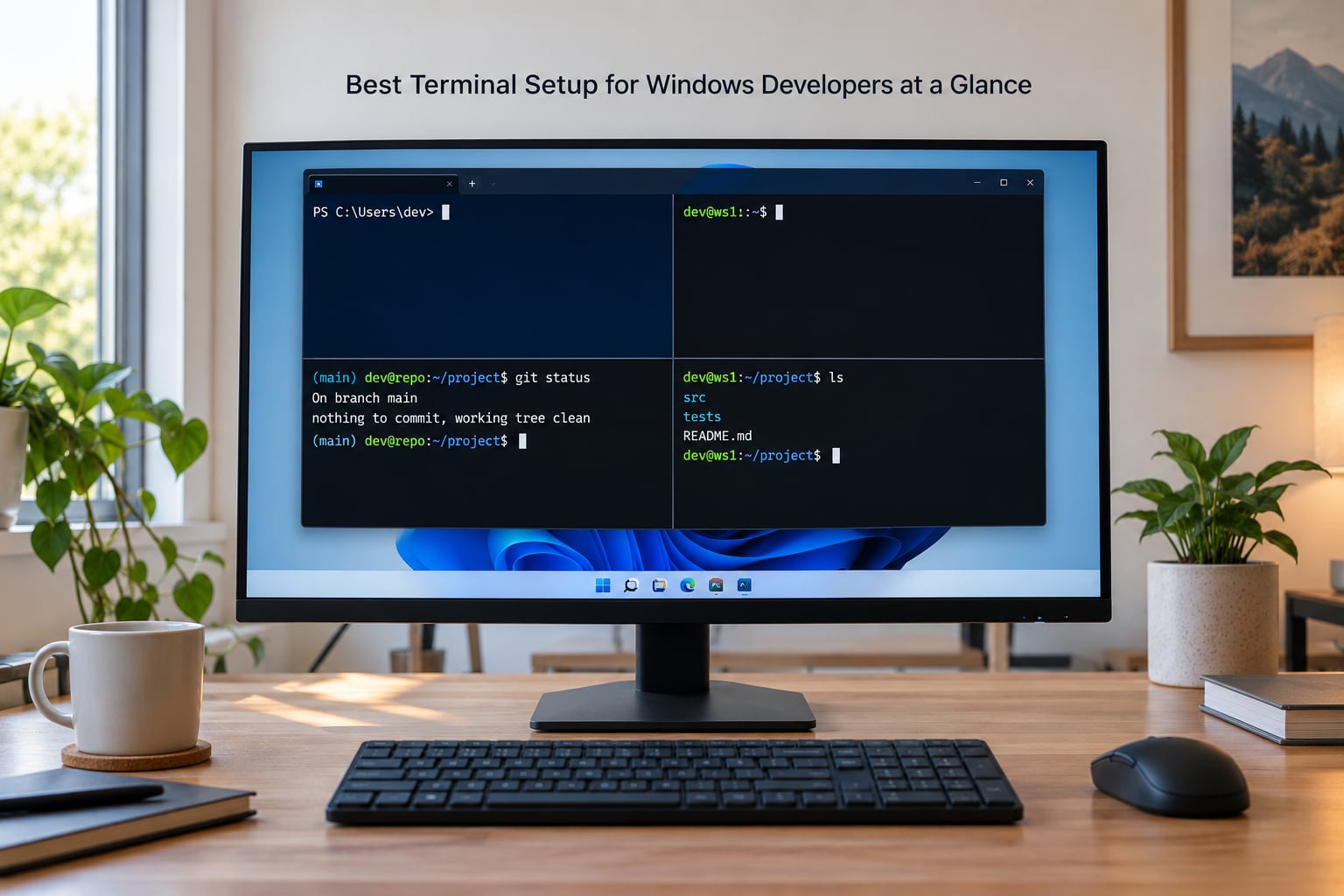
Here is the short version. Every row is one layer of the stack, and you can mix them freely as long as the emulator supports the shell underneath it.
| Layer | Best default | Runner-up | Best for |
|---|---|---|---|
| Terminal emulator | Windows Terminal | WezTerm | Most developers, Windows 11 |
| Windows shell | PowerShell 7 | Nushell | Scripting, cloud CLIs, admin work |
| Linux shell | WSL2 with Ubuntu | Git Bash / MSYS2 | Rust, Go, containers, Node back ends |
| Prompt | Oh My Posh | Starship | One shell vs. every shell at once |
| Font | Cascadia Code | JetBrains Mono | Icons, ligatures, long sessions |
| Package manager | Scoop (user-level tools) | winget (system apps) | Fast CLI installs, no admin prompts |
| Core tooling | fzf, ripgrep, fd, zoxide | lazygit, gh, delta, jq | Search, navigation, Git and JSON work |
Which Terminal Emulator Should You Use?
Use Windows Terminal unless you have a specific reason not to. It is the only emulator most Windows developers need, because it runs every shell you care about side by side in one window.
The confusion starts with words. The terminal emulator is the window that draws text, handles tabs, panes and scrollback. The shell is the interpreter that reads what you type. conhost.exe is the old console host that shipped with Windows and that most people still mean when they say “the terminal”.
Windows Terminal replaced that bare console host with a tabbed, GPU-rendered app that can host PowerShell 5.1, PowerShell 7, cmd, WSL distributions, Git Bash and Nushell in the same window. You switch between them with tabs or split panes, not by launching a different program.
Here is how I would route it. On native Windows administration work, Windows Terminal with PowerShell 7 covers everything. For WSL-based Linux development, Windows Terminal again, with a profile per distribution. For remote work over SSH, Windows Terminal with a reusable profile that runs ssh on open. And on an older machine or locked-down corporate image where Windows Terminal cannot be installed, conhost plus PowerShell 7 is the fallback that still works.
Third-party emulators earn their place on one of two grounds: measurably faster rendering on high-refresh displays, or configuration you cannot express in Windows Terminal. Otherwise they add a second thing to maintain.
Windows Terminal or Another Terminal Emulator?
Windows Terminal wins on integration and ease of setup, and loses on raw speed and scripting depth. This comparison covers the six options Windows developers actually argue about.
| Emulator | Tabs and panes | Rendering | Config format | Good at | Weak at |
|---|---|---|---|---|---|
| Windows Terminal | Tabs, splits, duplicate pane | GPU accelerated | JSON (settings.json) | Running every Windows shell at once, WSL profiles | Deep scripting, native theme picker is limited |
| WezTerm | Tabs, splits, workspace search | GPU accelerated | Lua | Keyboard-driven power use and SSH muxing | Lua learning curve, heavier install |
| Ghostty | Tabs and splits | GPU accelerated, built for speed | Simple key-value config | Lowest input latency | Newer, smaller feature set than the others |
| Alacritty | Tabs and splits, a scrollable tab bar in recent builds | GPU accelerated | TOML | Minimalism and speed, pair with tmux | No rich built-in workflows |
| Warp | Tabs and splits | GPU accelerated | GUI settings plus YAML | Block-based command history, sharing workflows | Account sign-in for some features, telemetry concerns |
| Cmder | Tabbed, Git Bash based | CPU rendered | GUI and batch scripts | Drop-in Git Bash with tabs for older setups | Slower on heavy output, dated look |
Alacritty is the one that shows up most often in performance threads. The recurring verdict from people who tried WezTerm, kitty and Alacritty in the same week is that Alacritty feels the fastest to type in, and that adding tmux on top handles window splitting. That is a fair summary of the tradeoff: bare speed, minimal built-in conveniences, and you assemble the rest.
WezTerm is the pick when you want to drive everything from the keyboard. Its Lua config can bind keys to launch SSH sessions, change colour schemes and split panes without touching the mouse, and it ships with a searchable workspace pane.
Ghostty is the one to watch. It grew out of the Linux terminal world and has been the subject of a lot of rendering work aimed at input latency rather than features. If latency is the thing you notice, it is worth a weekend test before you commit.
Warp replaces the linear scrollback with blocks you can click, search and share. Several people in Windows terminal threads call out paywalls and telemetry as the reason they stopped using it, so treat it as an experiment rather than the safe default.
My practical recommendation: start on Windows Terminal because it runs your Windows shells and your WSL shells together, and only move if a specific thing frustrates you every day. Migration is cheap because your shell config travels with you, not the emulator.
PowerShell 7, Windows PowerShell, or WSL?
PowerShell 7 is the right default shell for Windows work, WSL2 covers Linux tooling, and Windows PowerShell 5.1 stays only because some system modules still need it.
| Shell | Runs on | Strength | Weakness | Use it when |
|---|---|---|---|---|
| PowerShell 7 (pwsh) | Windows, macOS, Linux | Cross-platform, fast, object pipeline | Syntax differs from 5.1 and from bash | Day-to-day Windows development and scripting |
| Windows PowerShell 5.1 | Windows only | Maximum module compatibility | Slow startup, .NET Framework only | A legacy admin module refuses to load in 7 |
| WSL2 with a Linux distro | Windows kernel | Full Linux userland, fast filesystem in the distro | Path interop, duplicate tooling both sides | Docker, Go, Rust, Python packaging, servers |
| Git Bash / MSYS2 | Windows | Real bash, POSIX tools, no VM needed | Path translation quirks, no real package manager | Shell scripts that must run unchanged on Linux |
| Nushell | Cross-platform | Structured data as a first-class type | Smaller script ecosystem, different idioms | You want tables and JSON without piping through jq |
| cmd.exe | Windows only | Everywhere it has ever existed | No scripting worth the name | Nothing, except legacy batch files |
Install PowerShell 7 with winget install Microsoft.PowerShell, then set it as the default profile in Windows Terminal so every new tab opens where you work. Keep a 5.1 tab around for registry and ADSI admin work; a lot of enterprise modules simply have not been ported.
The most common source of frustration is starting in 5.1 without knowing it. The default profile on a fresh install is often still labelled “Windows PowerShell”. Check the tab title before you conclude that PowerShell itself is slow.
Nushell is the newer option and it is genuinely different: variables, JSON and command output are structured, so you filter without parsing text. A common pairing among Windows terminal regulars is Windows Terminal with Nushell installed through winget as the default shell. It is a good second profile to try, but keep PowerShell 7 as your working default until you are comfortable rewriting the scripts you use daily.
For a Linux-first developer who deliberately does not want WSL2, Git Bash is a poor base and MSYS2 is a much better one. The path people describe goes like this: start on Git Bash after a new Windows laptop, then move to MSYS2 for its package manager while staying native. MSYS2 gives you pacman and a real build environment, at the cost of understanding how MSYS paths map to Windows paths.
What Shell Features Improve Daily Development?
The features that actually save time are history search, fuzzy finding, fast navigation, and a Git UI. Everything else is decoration. These are the ones I would install before touching the colour scheme.
Line editing and history. PowerShell 7 ships with PSReadLine, which gives you multi-line editing, syntax colouring and a history search bound to a key. On bash, install fzf and zoxide: zoxide remembers every directory you have visited and gives you a two-key jump, which replaces cd muscle memory entirely.
Find and view. ripgrep (rg) searches file contents recursively in milliseconds and respects .gitignore. fd finds files by pattern faster than dir. bat shows files with syntax highlighting and line numbers, and it pages gracefully instead of dumping 4000 lines into scrollback.
Git. lazygit gives you a full TUI for staging, branching, rebasing and resolving conflicts without memorising flags. gh handles pull requests, issues and CI runs from the command line. delta renders diffs with syntax highlighting and a side-by-side view, which makes code review dramatically easier.
Data. jq is still the answer for filtering JSON, and it works fine in both PowerShell and WSL once jq is installed natively.
Installing that list takes one line in PowerShell 7:
scoop install ripgrep fd bat jq delta lazygit gh fzf zoxide eza
Scoop installs to your user directory with no admin prompt, which is why it is the better fit for CLI tooling. winget is the better tool for installed applications because it is the catalog Windows ships with, and Chocolatey is worth knowing about only when a package is missing from both. The question of which one to use comes up again in the FAQ below.
One thing to avoid: putting secrets directly into your profile file or into a command argument. Keep them in a .env file that is git-ignored, and load it at the start of a session. Command history is plain text and survives longer than you expect.
How Should You Configure Fonts, Colors, and Profiles?
Start with the font, because every other visual change depends on it. Open Settings, choose your default profile, and set the font face to a Nerd Font patched monospace: Cascadia Code, Fira Code, or JetBrains Mono all ship the Powerline and Nerd Font glyphs that the prompt needs.
If your prompt shows empty boxes instead of icons, this is the cause nine times out of ten. The font is not patched, or the profile is using a different font than the one you set. Everything in the profile section inherits from profiles.defaults, so setting the font there fixes every profile at once.
Here is a settings.json fragment that covers the settings worth touching. Open it with the Settings menu, then “Open JSON file”. Note that defaults.json and profiles.json no longer ship with the app; one merged settings.json replaced them, which is why so many older guides send you editing files that are not there.
{
  "profiles": {
    "defaults": {
      "font": { "face": "Cascadia Code", "size": 12 },
      "colorScheme": "One Half Dark",
      "opacity": 95,
      "useAcrylic": true,
      "cursorShape": "bar",
      "historySize": 10000,
      "snapOnInput": true,
      "padding": "8"
    },
    "list": [
      {
        "name": "PowerShell 7",
        "commandline": "pwsh.exe",
        "startingDirectory": "%USERPROFILE%\source",
        "icon": "ms-appx:///ProfileIcons/pwsh.colorful.ico",
        "tabColor": "#4C6EF5"
      }
    ]
  }
}
Set historySize higher than the default when you run AI coding agents or long build commands. Scrolling back through output to find the actual error is one of the most common time sinks, and a deeper buffer removes it.
Turn acrylic down to around 95 percent opacity rather than fully transparent. Fully transparent text on a busy desktop wallpaper is genuinely hard to read, and it is the setting people flip once and then never touch again.
Add a startingDirectory per profile so your PowerShell tab opens in your source folder and your WSL tab opens in your Linux project path. Add a tabColor to production logs and containers so you can tell panes apart at a glance.
How Do Tabs, Panes, and Workspaces Help Developers?
Tabs are for switching between contexts, panes are for watching two things at once. Most people misuse panes and then complain that their terminal is cramped.
A workable arrangement: one tab for editing and Git, one pane for the app or server you are running, one pane for the test watcher. That is a three-pane workspace and it stays readable. Beyond four panes on a laptop screen, you are reading nothing.
Named profiles are what make this stick. Create profiles called Server, Client, SSH, Admin and Docker, each with its own command line and starting directory, then launch them from the Command Palette instead of clicking. An SSH profile is the clearest win: set the command line to ssh user@host and the tab opens a remote session every time with the same font and colour scheme.
The Command Palette searches every action by name, including actions you did not know existed. Duplicate Tab and Duplicate Pane give you a second instance of the same shell in the same directory, which beats retyping a cd.
How Do You Set Up Git, SSH, Docker, and Node Workflows?
The terminal is the interface for all four, so wiring it up properly is mostly a matter of putting the tools where every shell can see them.
Git. Install it with winget install Git.Git, then set delta as your pager and diff tool:
git config --global core.pager delta
git config --global interactive.diffFilter delta
git config --global credential.helper manager
SSH. Generate a key with ssh-keygen -t ed25519 -C "[email protected]" and add the public key to your host. On Windows the ssh-agent service is off by default; if ssh-add reports that the agent is not running, enable and start it from an elevated PowerShell with Get-Service ssh-agent | Set-Service -StartupType Automatic followed by Start-Service ssh-agent.
Docker. Docker Desktop installs docker on the Windows PATH, and WSL2 is dramatically faster than the Windows daemon for builds. If you mostly build images, point your dev profile at WSL and let the Docker CLI talk to the Desktop engine from inside the distro.
Node. Install a version manager rather than a bare MSI. On Windows, Volta or fnm handle version pinning per project, and both work from PowerShell and WSL. The payoff is a package.json that pins the Node version your CI uses, with no PATH juggling.
Whatever you install, do it once and let every shell inherit it. When a command works in one profile and not another, you have hit the classic PATH duplication problem covered in the troubleshooting table below.
Which Keyboard Shortcuts and Productivity Features Matter Most?
Memorize about eight of these and you will never reach for the mouse again in a normal session.
- Ctrl+Shift+E — split the pane into two, side by side.
- Ctrl+Shift+O — split the pane into two, stacked.
- Alt+Shift+Left / Right / Up / Down — resize the current pane.
- Ctrl+Shift+W — close the pane; the tab closes with the last one.
- Ctrl+Shift+C / Ctrl+Shift+V — copy and paste, which avoid the old console selection behaviour.
- Ctrl+Shift+F — search the whole scrollback buffer.
- Ctrl+Shift+Page Up/Down — scroll one buffer page without the mouse.
- Ctrl+Shift+Space — open the Command Palette.
Two features beyond the shortcuts are worth enabling. Set a large scrollback buffer, since the searchable buffer is only useful if there is something to search. And create one elevated profile for the rare admin task rather than running the whole terminal as administrator, which is a habit worth breaking.
PowerShell users should also learn Up Arrow twice for history search by prefix, and Ctrl+R to reverse-search through PSReadLine history. Those two cover most of what a fuzzy finder does for you.
How Do You Troubleshoot Common Terminal Problems?
Nearly every broken Windows terminal I have seen comes down to one of six causes. Find the row that matches your symptom and fix that line first.
| Symptom | Likely cause | Fix |
|---|---|---|
| Prompt icons show as empty boxes | Font is not a patched Nerd Font, or the profile uses a different font | Set the font in profiles.defaults so every profile inherits it |
| Garbled characters or mojibake | Console encoding is not UTF-8 | In PowerShell 7, set the output encoding to UTF-8 in your profile |
| Command works in one tab, not another | Duplicate or stale PATH entries from mixing 5.1, 7 and MSYS2 | Inspect $env:PATH in each shell and remove inherited duplicates |
| Shell startup is noticeably slow | Years of accumulated profile hacks and module auto-loading | Time the startup, comment out modules you do not use, prune the profile |
| WSL cannot see a Windows file or vice versa | Drilling into /mnt/c from Linux is slow by design | Keep the project inside the Linux filesystem, not the Windows mount |
| Scripts fail with an execution policy error | PowerShell blocks unsigned local scripts | Use RemoteSigned for the CurrentUser scope rather than unrestricted |
One more that catches people: a slow terminal is usually a slow shell, not a slow emulator. Run Measure-Command { $PROFILE | Out-Null } or simply time a fresh tab. If a profile takes over a second, that is your answer regardless of which emulator you run.
Which Terminal Setup Should You Choose?
The best terminal setup for Windows developers depends on what you run, not on which emulator is fastest. Pick by workload and you will not have to revisit it for years.
For native Windows administration and scripting
Windows Terminal with PowerShell 7, Oh My Posh, Cascadia Code, Scoop for CLI tools and winget for applications. Add a Windows PowerShell 5.1 profile for legacy modules and one elevated profile for the rare admin task.
For full-stack work across Windows and Linux
The same Windows Terminal window with a PowerShell 7 profile and a WSL2 profile side by side. Keep projects inside the Linux filesystem for anything with a build step, and use the Windows side for Visual Studio, SQL Server Management Studio and cloud CLIs.
For backend development
WSL2 as the primary profile, Docker Desktop for containers, lazygit and delta for Git, and fzf plus ripgrep for navigation. Add a second SSH profile for cloud instances and you have everything without leaving the keyboard.
For remote SSH-heavy work
WezTerm with a Lua config that binds keys to hosts, or Windows Terminal with named SSH profiles if you prefer a GUI. Either way, raise the scrollback buffer and use tmux on the remote host so a dropped connection does not kill your session.
For maximum rendering speed
Ghostty or Alacritty, paired with tmux for window management. Give up a little built-in polish and you get the lowest input latency of the options here, which is the whole reason to switch.
Frequently Asked Questions
What is the best terminal program for Windows?
Windows Terminal is the best default for most Windows developers in 2026. It runs PowerShell 5.1, PowerShell 7, cmd, WSL distributions, Git Bash and Nushell in one tabbed window with GPU rendering, and its settings.json holds font, colour and profile options in a single file. A third-party emulator only makes sense if you want lower input latency or Lua-level configuration.
Do I need a third-party terminal emulator on Windows?
Usually not. Windows Terminal handles tabs, split panes, a searchable scrollback buffer, per-profile appearance and WSL integration without configuration files beyond a short settings.json. Move to WezTerm, Ghostty or Alacritty when a specific thing bothers you daily, such as rendering latency on a high-refresh display or the need to bind every action to a key from a Lua config.
Can I use Oh My Zsh on Windows?
Technically yes, through WSL or Git Bash, but it is the wrong tool here. Oh My Zsh is a bash plugin framework, and it adds noticeable startup time on Windows because of filesystem overhead. Use Oh My Posh for PowerShell or Starship for any shell; both render Powerlevel10k-style prompts, install in seconds, and run across PowerShell, Nushell and bash from one config.
Is PowerShell 7 or Nushell better for Windows developers?
PowerShell 7 is the safer default. It is the most widely scripted language on Windows, it cross-platforms cleanly, and every Microsoft admin tool documents it first. Nushell is better when you work with structured data, because command output, JSON and variables are all typed and filterable without piping through jq. Keep PowerShell 7 as your default and add Nushell as a second profile.
Is WSL necessary for development on Windows?
No. Native Windows tooling covers most work in 2026, and staying native avoids path interop friction and duplicated tooling on both sides. Reach for WSL2 when a build step is Unix-only, when you run containers with heavy disk IO, or when you need a Linux runtime such as Go or Rust toolchains exactly as CI has it.
Should Windows developers use winget, Scoop or Chocolatey?
Use all three for different jobs. winget is the catalog Windows ships with and is the best choice for installed applications. Scoop installs command line tools into your user directory with no admin prompt, which makes it the fastest choice for developer CLIs. Keep Chocolatey for the occasional package that exists nowhere else, and avoid running all three against the same tool at once.
Start where the payoff is immediate: install Windows Terminal if you have not already, set PowerShell 7 as the default profile, and pick a patched Nerd Font. That takes ten minutes and fixes the two problems almost every developer hits first, wrong glyphs and an outdated shell.
Then run one line, scoop install ripgrep fd bat fzf zoxide delta lazygit gh, and leave the colour scheme alone for a week. Once the tools are muscle memory, tune the prompt and the layout. Doing it in that order means you are not spending an evening making things look nice while the actual tooling stays slow.