Dual booting Linux and Windows is safe when you back up first, match UEFI modes, and understand which partition you are touching. The real damage almost always comes from a skipped backup and a wrong partition choice, not from Linux itself. Budget about an hour for a modern laptop, and expect the cautious version to take longer.
Windows is the aggressor in this arrangement, not Linux. Long-time dual booters point out that a Windows major update can rewrite the EFI System Partition and leave GRUB unable to boot, while nothing in the Linux install ever breaks Windows on its own. Work through the steps below in order and you will end up with a boot menu that shows both systems and a way back if something goes sideways.
Everything here applies to Windows 10 and Windows 11 on UEFI hardware, which is what nearly every laptop and desktop sold in the last decade uses. If your machine still boots through a legacy BIOS, jump to step 2 first, because the rules differ.
Table of Contents
- What You Need
- Step-by-Step: How to Dual Boot Linux and Windows Safely
- 1. Back Up Windows and Important Files First
- 2. Check Your UEFI or BIOS and Secure Boot Settings
- 3. Shrink the Windows Partition Safely
- 4. Create Bootable Linux Installation Media
- 5. Partition the Disk and Install Linux
- 6. Configure GRUB and Choose the Default OS
- 7. Test Both Operating Systems and the Recovery Options
- Common Mistakes
- Installing Linux in the wrong firmware mode
- Deleting the wrong partition
- Leaving Windows Fast Startup on
- Disabling Secure Boot without thinking about BitLocker
- Creating a second EFI System Partition
- A Windows update removed GRUB
- Pointing the bootloader at the USB drive
- Forgetting the bootloader target on a multi-drive setup
- Frequently Asked Questions
- Can I dual boot Linux and Windows without losing data?
- Is it better to put Linux on a separate drive?
- Should I disable Secure Boot before installing Linux?
- Will Windows BitLocker interfere with a Linux dual boot?
- How do I choose which operating system starts by default?
- Can I access Windows files from Linux and Linux files from Windows?
- Conclusion
What You Need
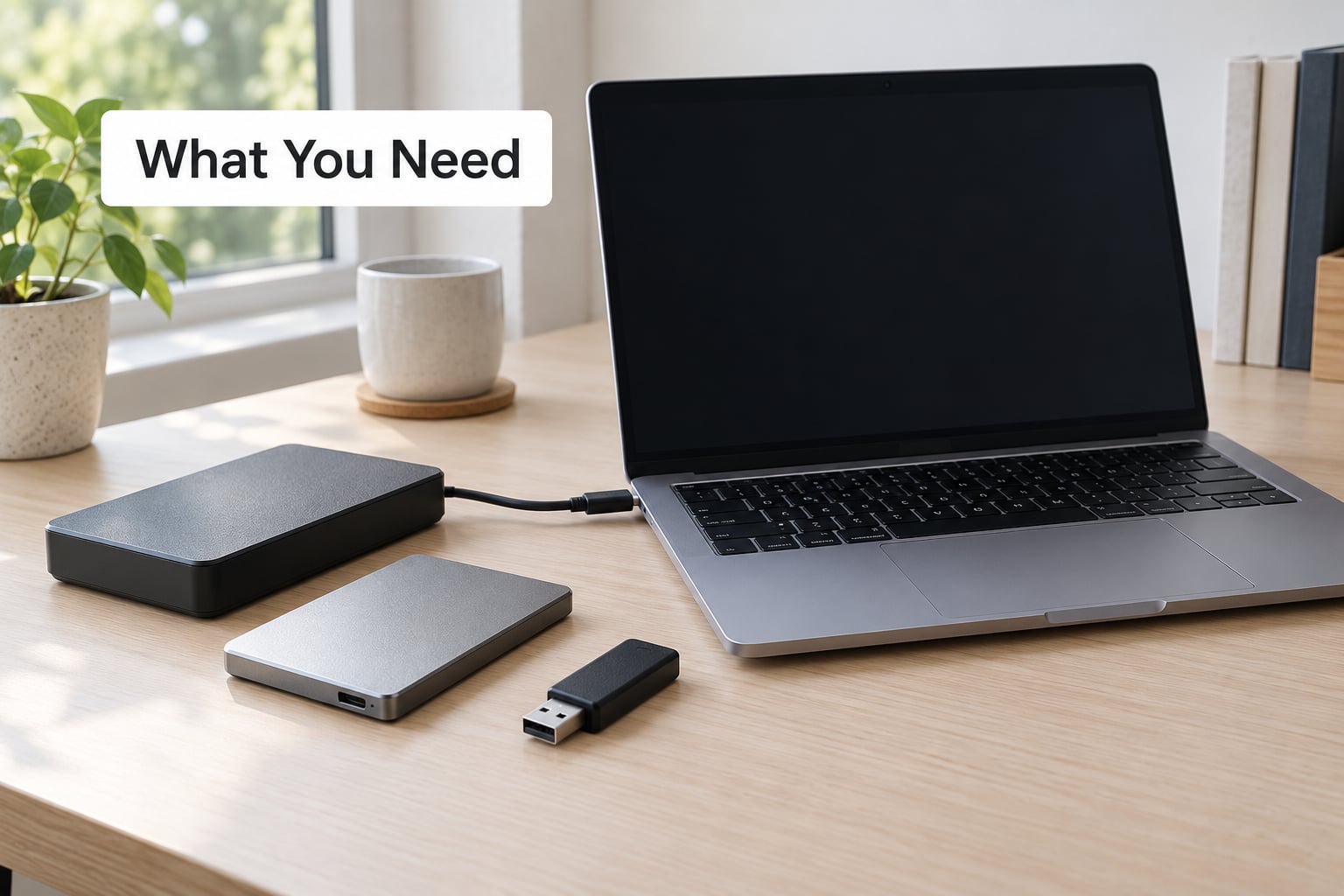
You need a working Windows install, an empty 8 GB or larger USB drive, and a second place to store your files before anything else happens.
- Free disk space. 50 GB is a comfortable minimum for the Linux partition, 100 GB if you plan to run container images, virtual machines, or a large development toolchain.
- A tested backup. A full system image plus copies of your user files, stored somewhere other than the internal drive. A backup on the same disk you are about to repartition is not a backup.
- An 8 GB+ USB drive. It gets erased. Pull anything off it first.
- The Linux ISO image and a way to verify it.
- Your BitLocker recovery key, if Windows device encryption or BitLocker is on. Save it to a different device or print it.
- AC power. A laptop that sleeps halfway through a resize or install can leave you with a mess.
Before touching partitions, it is worth asking whether dual boot is the right tool. If you only need a terminal and some scripting, a virtual machine or WSL2 costs you nothing in disk juggling and cannot break your boot menu.
| Approach | Best for | What it costs you |
|---|---|---|
| Dual boot | Full hardware access, gaming on Windows, native performance | Partition juggling, boot menu maintenance, two systems to patch |
| Virtual machine | Trying a distro, safe experimentation, snapshots | Nested virtualization limits, less than native performance |
| WSL2 | Linux tooling inside Windows, no partition changes at all | Not a real bootloader, some kernel and hardware work needs real Linux |
| Live USB only | Rescuing files from a machine that will not boot | Nothing persists between sessions unless you save to a drive |
Here is the other decision that shapes everything else.
| Criterion | Same drive, two partitions | Separate drive for Linux |
|---|---|---|
| Disk space usage | Fully efficient, no second drive wasted | You may need to add or swap a physical drive |
| Recovery risk | Shared EFI System Partition, so a bad Windows update can affect Linux | Linux bootloader can live on its own disk, easier to isolate |
| Portability | Stuck in this machine | Move the whole setup to another PC more easily |
| Resizing later | Growing Linux means touching the Windows partition | Replace or resize the second drive on its own |
| Install complexity | Simpler, most installers offer an alongside option | You often pick the bootloader device by hand |
| Laptop restore button | Can break if the bootloader is written at the start of the disk | Usually unaffected |
For a first attempt, the same drive with a shrunk Windows partition is the path of least resistance. Choose the separate drive when you want to move Linux to another machine later, or when the laptop has an OEM restore button you care about.
Step-by-Step: How to Dual Boot Linux and Windows Safely
1. Back Up Windows and Important Files First
Make the backup, then open one file from it to prove it works. A backup you have never restored is a hope, not a plan.
For a full system image, Windows has a built-in path: search for Control Panel, open Backup and Restore (Windows 7), then choose Create a system image from the left side. Save the image to an external drive, not to a network share, because a network share cannot hold the recovery environment.
For your personal files, a cloud sync or a second external drive works fine. Copy the Documents, Desktop, Downloads, and any project directories that would hurt to lose.
Now handle encryption, which is the step most guides skip. Open Settings, then Privacy and security, then Device encryption, or search for BitLocker in the Start menu. Save the recovery key to your Microsoft account or a printed copy before you touch anything.
Suspend protection while you work. Run manage-bde -protectors -disable C: in an elevated Command Prompt, and re-enable it with manage-bde -protectors -enable C: when you are finished. If you change the EFI System Partition layout, BitLocker can ask for that recovery key at boot, so having it saved is what turns a locked screen into a five-second fix.
2. Check Your UEFI or BIOS and Secure Boot Settings
You are looking for one thing above all: Linux must be installed in the same firmware mode as Windows. UEFI alongside UEFI, or legacy BIOS alongside legacy BIOS. Mixing the two is the single most common cause of an installer that will not boot.
Find the firmware mode with msinfo32 in Windows. Look at BIOS Mode in the System Summary window. If it says UEFI, boot Windows itself from the UEFI path, and install Linux in UEFI mode too.
Then enter the firmware setup. On most machines that is a key press during power-on, commonly Delete, F2, F10, or F12, and some laptops have a dedicated setup key. Check your manufacturer’s manual for the exact combination.
Inside the setup, note four things.
- Boot mode. UEFI, not Legacy/CSM. If Legacy Boot or CSM is enabled, disabling it may be part of the job.
- Secure Boot. You can keep it on. Mainstream distributions ship signed shims, so Ubuntu, Linux Mint, and Fedora install with Secure Boot enabled and prompt you to enroll a Machine Owner Key if a third-party driver needs it.
- Fast Boot in firmware. Disable it. It is not the same setting as Windows Fast Startup, and it skips USB boot device checks.
- Boot order. The Windows Boot Manager entry stays first by default, which is fine because GRUB will take over later.
If you turn Secure Boot off instead, understand the consequence: on a machine with device encryption, switching it off can trigger a BitLocker recovery prompt at the next boot. That is why keeping Secure Boot on is the calmer choice when you can.
3. Shrink the Windows Partition Safely
Shrink from Windows, not from a Linux live session. Windows knows how to move its own boundary, and doing it in GParted means Windows can be hibernated underneath you.
First turn off Fast Startup, which leaves NTFS in a hibernated state that Linux refuses to mount. Search for cmd, right-click Command Prompt, choose Run as administrator, then run:
powercfg -h off
You can also do it through the GUI: Control Panel > Hardware and Sound > Power Options > Choose what the power buttons do > Change settings that are currently unavailable, then uncheck Turn on fast startup.
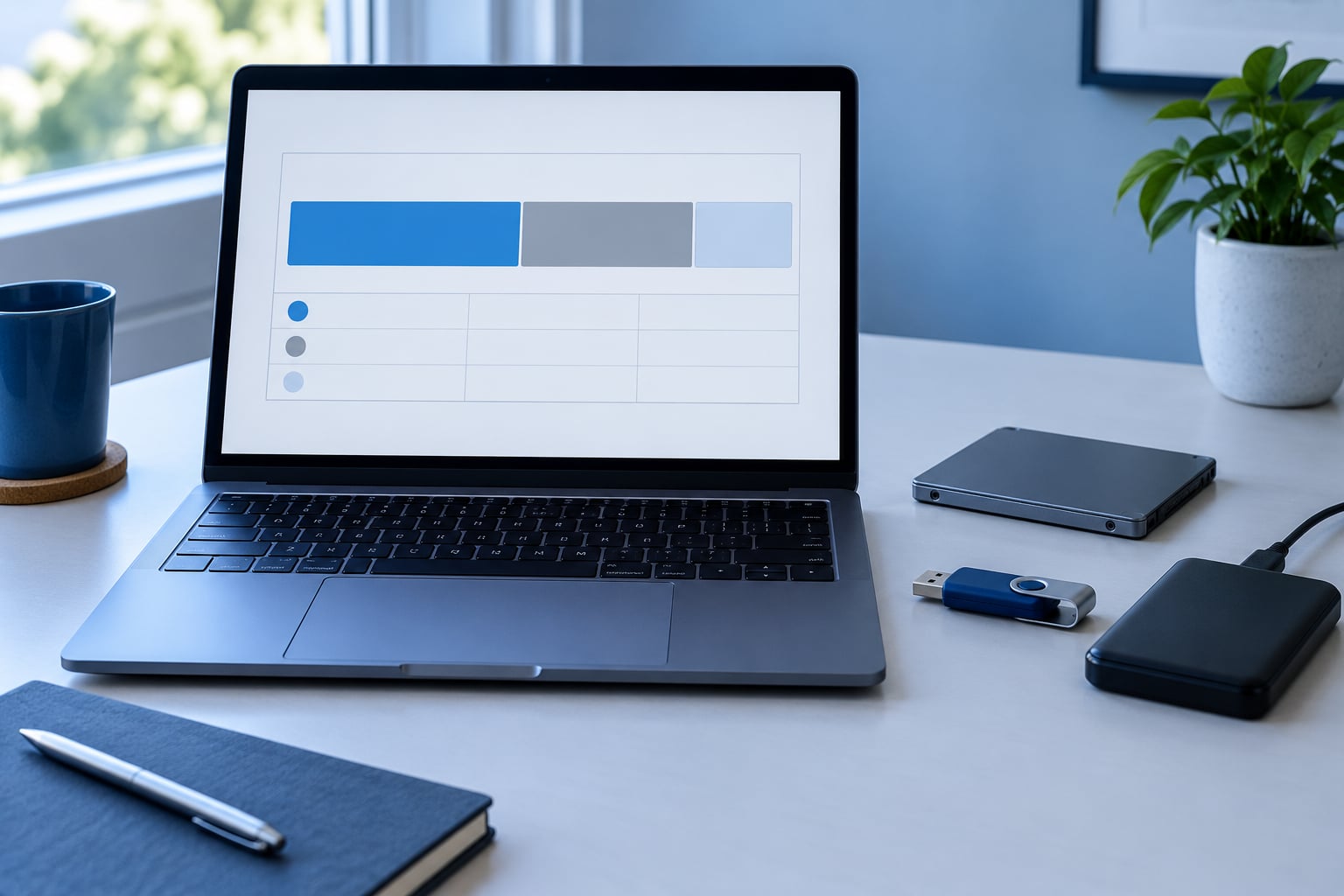
Now open diskmgmt.msc. Right-click the Windows volume, choose Shrink Volume, and wait while Windows queries how much it can reclaim. Enter the amount you want, in megabytes. A 50 GB request is 51200.
The important detail: Windows will not shrink past unmovable files sitting at the end of the volume, such as the hibernation file and pagefile. If it offers far less than you asked for, that is why. Disabling hibernation in the previous step is what frees that space.
You should see a new unallocated block. Leave it alone and do not format it. The Linux installer will claim it.
4. Create Bootable Linux Installation Media
Download the ISO from the distribution’s own site, then verify it when the project publishes checksums. This matters: a truncated download writes an installer that fails halfway through partitioning.
Insert the USB drive and open Rufus, which works on Windows. Choose the drive, select the ISO you downloaded, and set the partition scheme to GPT with target system UEFI (non-CSM) for a UEFI machine. That pairing must match your existing Windows install or the installer will build the wrong bootloader.
Click Start, accept the prompt about writing only to the USB device, and wait. When Rufus finishes, reboot.
To boot from the USB, open the one-time boot menu with F12, F11, or Esc during power-on and pick the USB device. Some firmware setups require you to place the USB first in the boot order instead.
Start in Try or live mode, not the installer. From the live desktop you can confirm the installer sees your Wi-Fi, your keyboard layout, and your disk. If Wi-Fi is missing, that is a driver problem you solve with an update before partitioning, not after.
5. Partition the Disk and Install Linux
Live mode gives you a desktop and a terminal. Open a terminal and run lsblk -f to see what the installer sees. Note which partition holds Windows and which is the unallocated block you just created.
Many distributions, including Ubuntu and Linux Mint, offer an Install alongside option that shrinks an existing volume and creates the Linux partitions for you. That is the lowest-risk route. Arch-style installers such as archinstall show raw manual partitioning instead, which is where beginners get stuck.
For manual partitioning, here is the layout. You can put the bootloader on the same drive as Windows, which is the usual choice.
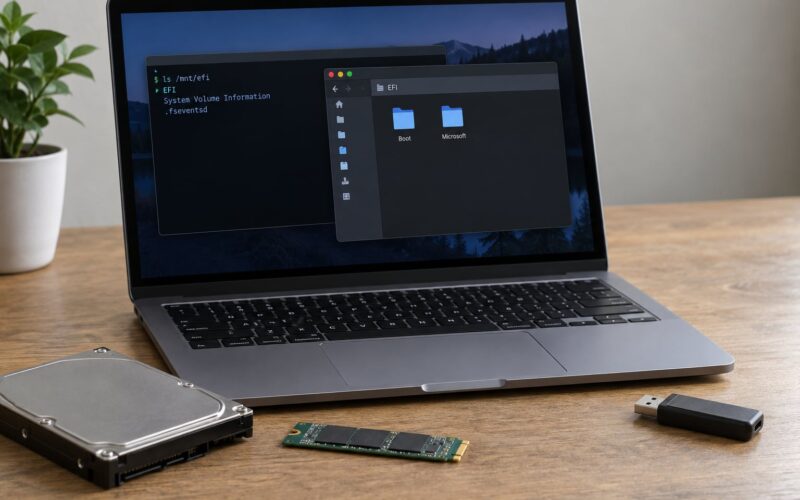
- EFI System Partition. Usually 512 MB to 1 GB, formatted FAT32, mounted at
/boot/efi. Point the installer at the existing one rather than creating a second, because two ESPs on one disk confuse the firmware. - Root. ext4, mounted at
/, taking the rest of the unallocated space. 50 GB minimum. - Swap. With 8 GB or more of RAM you can use a swap file instead of a partition, and on many systems you can skip swap entirely.
If your machine uses legacy BIOS, the bootloader goes to the MBR of the disk instead of an EFI partition, and the disk table should be GPT with a BIOS boot partition, or MBR if you are matching an older install.
Set the timezone during install, and if Windows is set to local time, Linux will look several hours off later. That is fixable after install.
6. Configure GRUB and Choose the Default OS
GRUB is the bootloader the Linux install adds, and it should list both operating systems once the install finishes. Reboot, pull the USB, and check.
To make Windows the default, open a terminal in Linux and edit /etc/default/grub. Set GRUB_DEFAULT=0 if Windows is the first entry in the menu, and adjust GRUB_TIMEOUT to control how many seconds the menu waits. Five seconds is plenty. Run sudo update-grub afterwards to apply it.
GRUB sometimes does not appear at all, and the fix is usually in the firmware. Enter setup and confirm the boot order lists the Linux drive’s bootloader or ubuntu entry, or that the Windows Boot Manager is present and points at the hard drive rather than the USB.
When Windows boots first and GRUB never shows, the most common cause is a Windows install that wrote its own boot manager over the shared EFI partition. The recovery runbook below handles that case.
7. Test Both Operating Systems and the Recovery Options
Before you close the laptop, walk through this list. It is the step most walkthroughs of how to dual boot Linux and Windows safely skip, and five minutes now saves an evening later.
- Boot Windows. Confirm it starts normally and that no BitLocker recovery screen appears.
- Boot Linux. Confirm the kernel boots to a graphical desktop.
- Check networking and audio. Wired, Wi-Fi, speakers, microphone, webcam.
- Install proprietary drivers. Use the distribution’s driver manager for NVIDIA and similar hardware.
- Run updates. Then reboot into both systems again, because kernel and bootloader updates can change the boot chain.
- Test shared files. Open a Windows folder from Linux and confirm writes work.
- Make a second USB. A rescue stick with your distribution’s live image is your safety net.
Two known quirks are worth planning for. If the clock jumps by hours when you switch systems, you are seeing the UTC versus local time mismatch. And if a Windows major update lands while dual booting, it can rewrite the ESP and remove GRUB from the boot sequence, which is a recovery exercise, not a reinstall.
Sharing files works with one shared NTFS partition that both systems read and write, or by mounting the Windows volumes from Linux. NTFS is the common denominator; ext4 volumes stay invisible to Windows without extra drivers. Mount the Windows partition read-only in Linux if you only need to copy files off it.
Common Mistakes
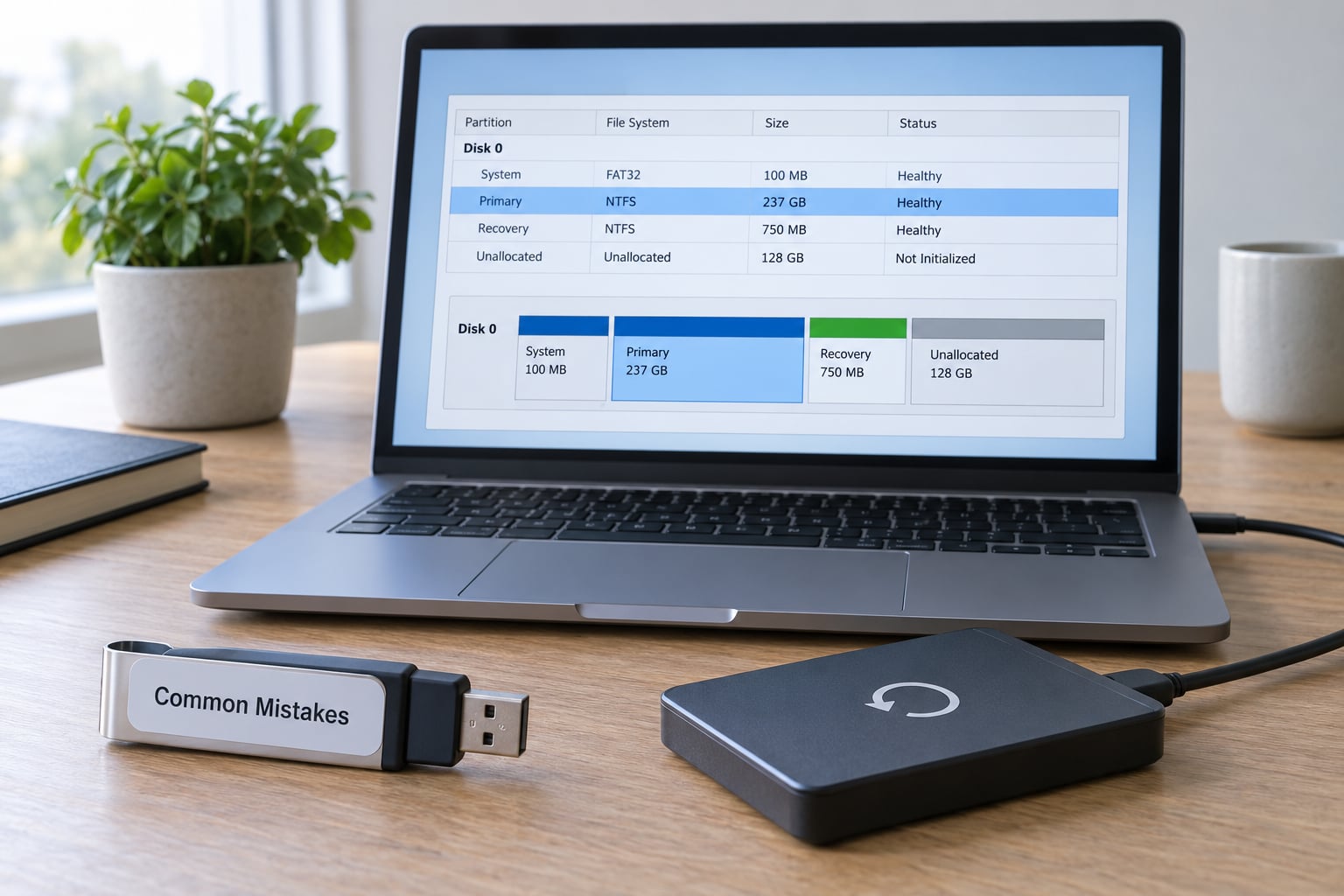
Most of these are recoverable. The two that are not, skipping the backup and deleting the wrong partition, are the reason for the ordering of the steps above.
Installing Linux in the wrong firmware mode
What happened: The installer wrote a legacy bootloader onto a UEFI system, or the reverse. Result is a machine that boots to nothing useful.
Fix: Reboot from the USB and reinstall with the partition scheme set to match Windows, GPT plus UEFI for a modern machine. Reinstalling Linux is cheap; the Windows partition is untouched.
Deleting the wrong partition
What happened: Someone selected erase disk in the installer, or deleted the Windows volumes instead of the unallocated space.
Fix: Restore from the system image made in step 1. This is the whole reason that step exists.
Leaving Windows Fast Startup on
What happened: NTFS is left hibernated, so Linux mounts the Windows partition read-only or refuses to touch it, with a message about a hibernated state.
Fix: Boot Windows, run powercfg -h off as administrator, and reboot. Keep Fast Startup off permanently, because it reintroduces the problem every time.
Disabling Secure Boot without thinking about BitLocker
What happened: Firmware security settings changed, and the next boot demanded a BitLocker recovery key.
Fix: Enter the saved recovery key. Better still, turn Secure Boot back on and let the distribution use its signed shim, enrolling a Machine Owner Key only if a driver needs one.
Creating a second EFI System Partition
What happened: The installer made its own ESP instead of using the existing one, and the firmware boots whichever it finds first.
Fix: Reinstall and explicitly select the existing FAT32 partition as the mount point at /boot/efi.
A Windows update removed GRUB
What happened: A major Windows build rewrote the shared EFI partition. The computer boots straight into Windows and the menu is gone.
Fix: Boot the Linux live USB, mount your root partition, chroot into it, and reinstall GRUB to the disk’s EFI directory. From a live session, open a terminal and work through it:
lsblk -f — identify the Linux root partition by its ext4 label
sudo mount /dev/sdXn /mnt — your root partition
sudo mount /dev/sdXn /mnt/boot/efi — your existing EFI System Partition
sudo mount --bind /dev /mnt/dev
sudo mount --bind /dev/pts /mnt/dev/pts
sudo mount --bind /proc /mnt/proc
sudo mount --bind /sys /mnt/sys
sudo chroot /mnt
grub-install --target=x86_64-efi --efi-directory=/boot/efi --bootloader-id=ubuntu
update-grub
exit then sudo umount -R /mnt and reboot
Substitute your own partition names from the lsblk -f output. The Linux Mint installation guide documents the same command sequence and is worth keeping open during the repair.
Pointing the bootloader at the USB drive
What happened: The bootloader was written to the removable drive, so the machine stops booting once the USB is pulled.
Fix: Reinstall GRUB from a live session with the internal disk as the target, and confirm the drive order in firmware setup.
Forgetting the bootloader target on a multi-drive setup
What happened: With Linux on a second drive, the installer’s alongside option does not exist, and picking the wrong drive for the bootloader leaves neither system able to start.
Fix: In manual partitioning, set the EFI directory to the partition on the drive whose firmware entry you want to control, usually the internal drive.
Frequently Asked Questions
Can I dual boot Linux and Windows without losing data?
Yes, if you resize rather than delete. Shrinking the Windows partition from Disk Management touches only the free space at the end of the volume and leaves your files untouched. Data loss comes from choosing erase disk in the installer, or deleting the wrong partition by hand. Back up first, shrink second, and never format a partition holding your files.
Is it better to put Linux on a separate drive?
For a first install, the same drive is simpler because most installers offer an alongside option. A separate drive pays off when you want to move the Linux install to another machine, when a shared EFI partition worries you, or when your laptop has an OEM restore button. The cost is buying or freeing a second drive and pointing the bootloader at the right device by hand.
Should I disable Secure Boot before installing Linux?
Usually not. Ubuntu, Linux Mint, and Fedora ship signed shims, so they install with Secure Boot enabled. If a third-party driver needs enrolling, the installer handles the Machine Owner Key prompt. Turning Secure Boot off also risks a BitLocker recovery prompt at the next boot on an encrypted machine, so leave it on unless a specific driver forces the issue.
Will Windows BitLocker interfere with a Linux dual boot?
It can, in two ways. Changing the EFI System Partition layout can make Windows ask for the recovery key at boot, and switching Secure Boot off can trigger the same prompt. Both are handled by saving your recovery key before you begin and suspending protection with manage-bde -protectors -disable C: for the duration of the install.
How do I choose which operating system starts by default?
GRUB picks the first entry in its menu. Edit /etc/default/grub, set GRUB_DEFAULT to the index of the entry you want, change GRUB_TIMEOUT to control how long the menu waits, then run sudo update-grub. If the menu never appears, check the boot device order in firmware setup, since Windows may be listed first and GRUB never gets a chance to run.
Can I access Windows files from Linux and Linux files from Windows?
Yes. Linux can mount NTFS partitions from the Files application or from the terminal, though the Windows partition is best kept read-only unless Windows Fast Startup is off. Windows cannot read ext4 natively, so for a shared folder, create an NTFS partition that both systems mount. Avoid storing anything in the Linux root partition that you need from Windows.
Conclusion
Start with a verified backup and a saved BitLocker recovery key. Confirm your firmware mode with msinfo32, turn off Windows Fast Startup with powercfg -h off, then shrink the Windows partition rather than deleting anything.
Build the bootable USB, boot into live mode, and check the disk layout with lsblk -f before the installer touches it. If a later Windows update takes the boot menu away, the recovery runbook above puts GRUB back in about ten minutes. That is a normal Saturday, not a disaster.
This guide was written for 2026. Menu names in Windows and firmware setup screens shift between versions, so confirm the paths on your own machine before partitioning.