Passing a GPU through to a virtual machine means giving one VM direct control of a physical graphics card, so the guest loads real drivers and gets close to bare-metal speed instead of a software-rendered virtual display. It takes about an hour the first time and a couple of hours of reboot cycles after that.
The catch is that the GPU leaves the host entirely while the VM runs. The hypervisor’s VFIO framework unloads the host driver, binds the card to the vfio-pci driver so nothing on the host touches it, then hands that PCI device to the guest, which loads its own driver as if it were real hardware.
Most guides bury this in forum archaeology. People literally describe opening fifty browser tabs before it clicks. This page consolidates the whole path: what your hardware needs, how to verify each step from the host, how to configure Proxmox, KVM, Unraid, VMware, Hyper-V and VirtualBox, and what to do when Windows greets you with Code 43.
I have walked through this on Ryzen APUs, Intel NUCs and dual-card desktops, and the order of operations matters more than any single setting. Enable IOMMU first, verify it, isolate the group, bind the driver, attach the device, install guest drivers. Skip a stage and the next one gives you a misleading error.
Table of Contents
- What You Need Before You Pass Through a GPU
- Step-by-Step: How to Pass Through a GPU to a Virtual Machine
- Frequently Asked Questions
- Can I pass through a GPU to any virtual machine?
- Does GPU passthrough work on a laptop with integrated graphics?
- Will passing through a GPU stop the host from using it?
- Is physical GPU passthrough faster than a virtual GPU?
- Can I pass through one of two GPUs to a virtual machine?
- Which hypervisors support GPU passthrough?
What You Need Before You Pass Through a GPU
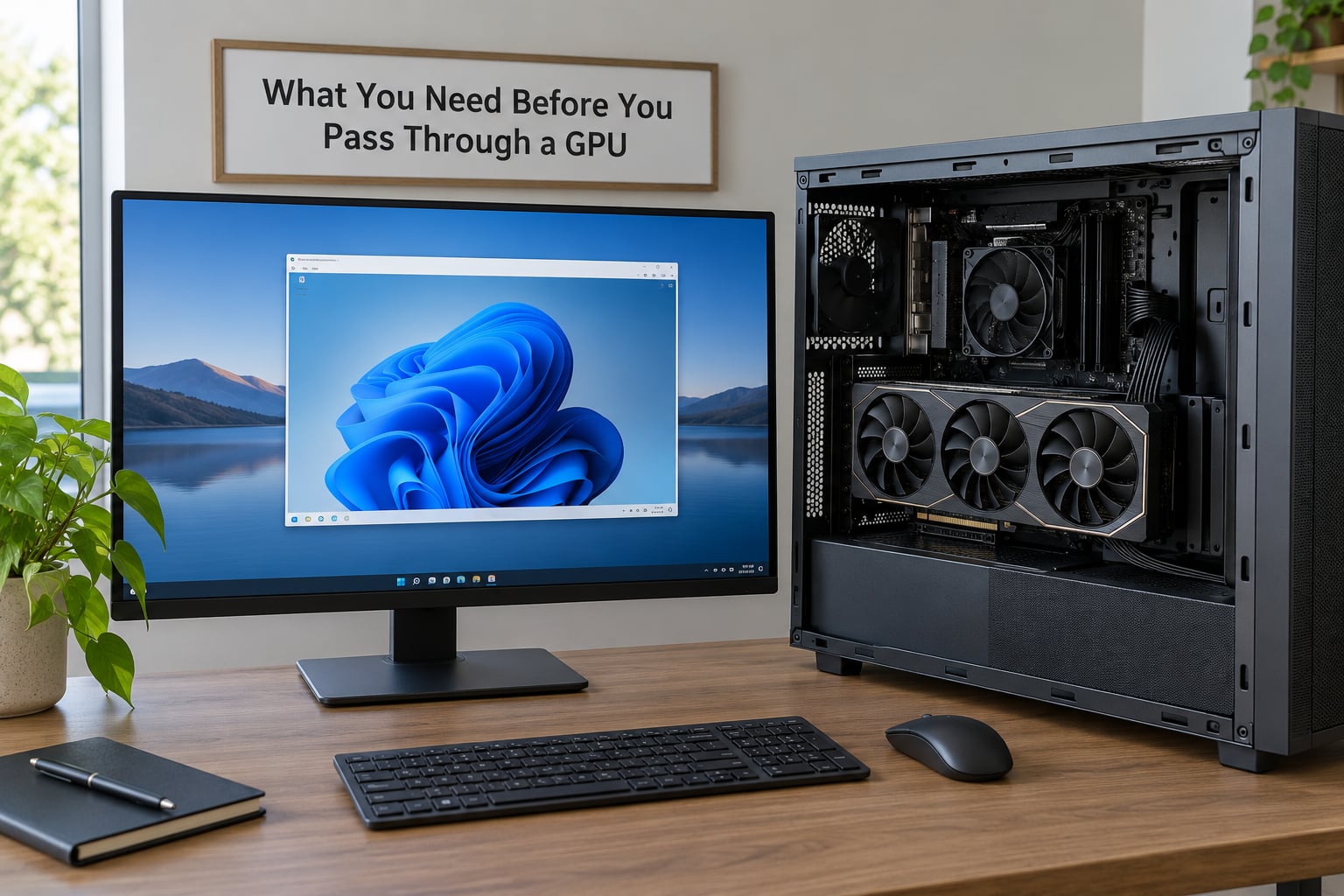
Start with the hardware list, because a laptop with no second display path is a dead end and no amount of tuning fixes it. Everything below has to be true before you change a single setting in the hypervisor.
- A CPU with hardware IOMMU support. Intel needs VT-d, AMD needs AMD-Vi. Most desktop chips from the last decade have it; laptop chips often have it disabled by the firmware.
- A motherboard that exposes IOMMU and, ideally, a UEFI BIOS. The setting is labelled VT-d, IOMMU, AMD-Vi or IOMMU depending on the vendor, and it is sometimes tucked under an obscure menu name.
- A discrete GPU you are willing to give up for the duration. A dedicated card means a card with its own VRAM on a PCIe slot.
- A second display path for the host. Integrated graphics, a second discrete card, or a headless server with remote access software. A host with no display after you take its only GPU is a host you can only reach by physically plugging in a monitor.
- A free PCIe slot and, ideally, one IOMMU group per GPU. Slots that share an upstream bridge with a SATA controller or NIC land everything in one group, and nothing can be assigned from it.
- UEFI-capable GPU firmware. Modern cards boot in UEFI mode out of the box. Older cards may only have a legacy option ROM, which the OVMF firmware cannot use.
- Host and guest drivers that are allowed to coexist. Host drivers are what you remove; guest drivers are what you install inside the VM.
- A backup of the host configuration. You will reboot several times with no GUI. Keep a second terminal session or a phone photo of the BIOS screen.
Integrated graphics is worth separating from the discrete card properly. An iGPU such as the Radeon Vega in a Ryzen APU or the UHD/Iris graphics on Intel desktop parts can drive the host display perfectly well, which is exactly why single-GPU passthrough setups work. You are not giving up performance on the host console, you are giving up the ability to use that one card in both places at once.
Software GPU alternatives exist too. VirtualBox and some cloud platforms expose a virtual or software renderer, and vGPU or SR-IOV can split one physical card into several virtual ones. Neither is the same as passthrough: you get no direct driver access, lower throughput and no compute support, but you keep the card available to the host. Pick passthrough for gaming, CUDA, transcoding or machine learning. Pick a virtual GPU when you just need a desktop to render.
Also decide what your VM is for, because it changes the guest driver step. A Windows 11 gaming guest needs the vendor game driver, not the Studio or Data Center branch, and anti-cheat titles may still refuse to launch in any virtual machine. A transcoding server needs the vendor driver for Linux and nothing exotic. A macOS guest needs a specific driver branch most people get wrong the first time.
Step-by-Step: How to Pass Through a GPU to a Virtual Machine
How to Prepare the Host and Enable IOMMU
The IOMMU is the hardware translator that gives the guest controlled access to the card’s memory. Without it there is no safe way to hand a device to a VM, so this is a gate: nothing downstream works until it passes.
First, check that your CPU advertises the feature. On Linux:
lscpu | grep -i virtualization
An Intel CPU should show vmx and a vtd flag. On AMD, look for svm and the IOMMU line further down. A CPU that shows nothing useful here cannot do passthrough, full stop.
Next, enable it in firmware. Reboot into the BIOS and find the setting: Intel boards call it VT-d or VT-x Extensions, AMD boards call it AMD-Vi or IOMMU. While you are in there, make three more changes:
- Disable CSM / Legacy Boot. Legacy boot mode does not hand devices to the hypervisor properly, and leaving it on causes failures that look like driver problems.
- Enable Above 4G Decoding. Most modern GPUs need it, and some firmware hides it when CSM is enabled.
- Set integrated graphics to Primary if you have an iGPU. This is the single most common fix for Code 43 on single-card builds, and it is worth doing even on a two-card system.
Install the host in UEFI mode, not legacy. If your host was installed years ago in legacy mode, this is the step that turns an afternoon into a weekend.
Now confirm from the host. Reboot into your hypervisor and run:
dmesg | grep -e DMAR -e IOMMU
You are looking for lines that say IOMMU enabled and, on Intel, Interrupt remapping enabled. If the output is empty, the firmware setting did not take, or the initramfs image predates the change. Check that the kernel command line carries the flag:
cat /proc/cmdline
It should include intel_iommu=on on Intel or amd_iommu=on on AMD. Add it permanently in your bootloader configuration. On a Debian or Ubuntu host that is /etc/default/grub and the GRUB_CMDLINE_LINUX_DEFAULT line, followed by update-grub.
GRUB_CMDLINE_LINUX_DEFAULT="quiet amd_iommu=on pcie_acs_override=downstream"
The pcie_acs_override=downstream parameter is a convenience that splits IOMMU groups more finely. Proxmox ships it in its kernel already. Treat it as a fallback: if your groups are already isolated, leave it out.
How to Isolate the GPU From the Host
Isolation is the step people skip and then spend a day debugging. You need the GPU, its HDMI audio function and its USB controller sitting alone in an IOMMU group, with no SATA controller or onboard NIC sharing the slot.
Find the card and its PCI addresses:
lspci -nn | grep -Ei 'vga|display|3d|nvidia|amd'
A discrete card normally shows up twice: an entry such as 01:00.0 VGA compatible controller and an audio entry at 01:00.1. Note both addresses. On NVIDIA you may also see a third entry for the USB controller.
Now check the IOMMU groups:
find /sys/kernel/iommu_groups/ -type l | sort -V
Or, for a readable view on Proxmox:
pvesh get /nodes/$(hostname)/hardware/pci --output json
Read the listing like this: find the group number next to your GPU’s address and check every other device in that same group. If the group holds only the video function, the audio function and the USB controller, you are done. If it also holds a SATA controller or a NIC, either move the card to a different PCIe slot or add the ACS override to your kernel command line and reboot to see if the groups split.
Check whether the card’s firmware is UEFI-capable while you are here. The rom-parser tool answers this definitively, and legacy option ROMs fail in confusing ways:
rom-parser /sys/bus/pci/devices/0000:01:00.0/rom
A UEFI-capable ROM reports an offset near 0x1000. A legacy ROM reports the classic legacy boot structure offset instead. If the ROM is legacy, pass the card with x-vga=on and expect limits, or use SeaBIOS instead of OVMF.
Finally, make sure the host will not grab the card after you take it. That means the host keeps its display on integrated graphics or a second card, and it means blacklisting the vendor driver in the next stage.
How to Assign the GPU to a Virtual Machine With Host Settings
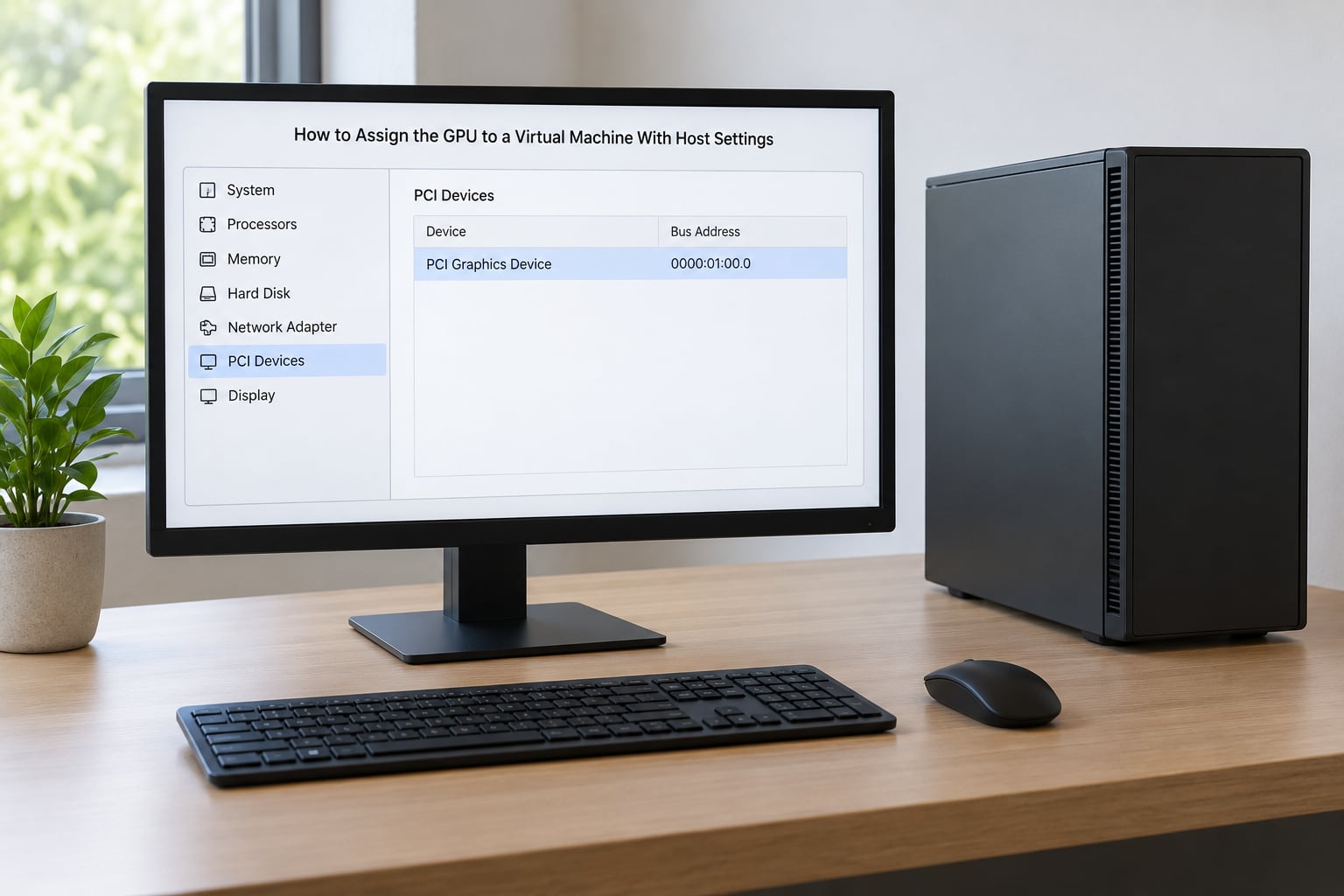
Bind the card to vfio-pci before you attach it. Create a module configuration file so the binding survives reboots and initramfs updates:
# /etc/modprobe.d/vfio.conf
options vfio-pci ids=10de:1f82,10de:10f9,10de:1aeb
softdep nvidia pre: vfio-pci
Use the real device IDs from your lspci -nn output. The softdep line stops the NVIDIA driver loading first on reboot; the AMD equivalent is softdep amdgpu pre: vfio-pci. Then hide the host drivers and rebuild the initramfs image:
# /etc/modprobe.d/blacklist
blacklist nouveau
blacklist nvidia
blacklist nvidia-drm
blacklist nvidia-modeset
blacklist amdgpu
blacklist radeon
blacklist i915

# optional, older boards that lack interrupt remapping
options kvm ignore_msrs=1 report_ignored_msrs=0

update-initramfs -u
Reboot, then verify the binding worked:
lspci -nnk | grep -A3 '01:00.0'
You want to see Kernel driver in use: vfio-pci. If it still shows nvidia or amdgpu, the blacklist did not take effect. Check lsmod | grep -E 'nvidia|amdgpu|nouveau', and remember that an initramfs image loaded before your change will override everything.
Proxmox VE
Proxmox is KVM underneath, so the configuration is a handful of qm set calls. With the VM stopped and the ID as an example:
qm set 100 -machine q35
qm set 100 -bios ovmf
qm set 100 -hostpci0 01:00,pcie=1,x-vga=on
qm set 100 -hostpci1 01:00.1,pcie=1
qm set 100 -vga none
qm set 100 -cpu host
The pcie=1 flag switches to a PCIe device rather than legacy PCI, which is required on q35. x-vga=on promotes the card to primary so the guest firmware initialises it rather than the virtual adapter. Add the audio function on its own line so HDMI sound works. If you dumped the ROM earlier, append romfile=/etc/pve/qemu-server/vbios.bin to the first hostpci line.
Use OVMF firmware, not SeaBIOS, unless your card has a legacy-only ROM. Keep the display type as none once the physical card is the primary GPU. Setting -vga none while the card is not marked primary leaves the guest with no display path at all, which shows up as an unchangeable low resolution and broken input.
KVM and virt-manager
In virt-manager, open the VM, go to Hardware, Add New Hardware, choose PCI Device, and select your graphics card. In the XML it looks like this:
<devices>
  <hostdev mode='subsystem' type='pci'>
    <source>
      <address domain='0x0000' bus='0x01' slot='0x00' function='0x0'/>
    </source>
    <rom bar='on' file='/var/lib/libvirt/vbios.bin'/>
  </hostdev>
  <hostdev mode='subsystem' type='pci'>
    <source>
      <address domain='0x0000' bus='0x01' slot='0x00' function='0x1'/>
    </source>
  </hostdev>
</devices>
Set the machine type to q35 in the VM’s Overview pane, and if you edit XML by hand, remember it lives at /etc/libvirt/qemu/vms/<vm-name>.xml. On a plain Debian or Ubuntu host with KVM, the same XML works after virsh define and virsh start.
Unraid
Unraid does most of this for you. Put the addresses in /boot/config/vfio-pci.cfg:
0000:01:00.0
0000:01:00.1
Give the VM a raw GPU assignment, set the display mode to a physical passthrough option rather than a virtual adapter, and make sure the array boot flash is not the GPU itself.
VMware ESXi and vSphere
ESXi calls it DirectPath I/O. Power down the VM, go to the host’s Configure tab, mark the GPU’s passthrough as Enabled in Hardware, reboot the host, then add the physical device to the VM’s hardware under PCI devices. In the .vmx file the setting is svga.present = "FALSE" with pciPassthru entries, and on Workstation or Fusion for desktop it is a single checkbox on the VM settings page.
Hyper-V
Hyper-V calls it Discrete Device Assignment. Shut down the host partition, open Device Manager on the host, disable the GPU on the adapter you want to hand over, then from PowerShell:
Set-VMDevice -VMName "MyVM" -VMDeviceId <adapter id> -CpuGroupID 0
To hand the device back, remove it from the VM and re-enable it on the host.
VirtualBox
VirtualBox cannot do PCI device passthrough. Its 3D acceleration checkbox only exposes a virtual GPU for basic desktop rendering, never a physical card. If your workflow lives in VirtualBox, the realistic paths are a Hyper-V host, a VMware host, or a bare-metal KVM install.
Whichever platform you are on, verify before installing drivers. In a Linux guest, lspci -nn | grep -Ei 'vga|display|3d|nvidia|amd' should show your physical card and an audio function. If it instead shows a QXL or virtio device as the only display entry, the passthrough did not attach and you are looking at the virtual adapter.
How to Install the Guest GPU Driver and Test It
Host drivers and guest drivers are separate programs for the same card. Host drivers are now blacklisted and bound to vfio-pci. What the guest needs is the vendor’s own display driver, installed from inside the VM, as if it were bare metal.
For a Linux guest, install the closed or open driver package that matches your card, then check:
lspci -nnk | grep -A3 'VGA compatible controller'
On NVIDIA you can go straight to the proof:
nvidia-smi
A working passthrough prints the GPU name, driver version, memory total and utilisation at zero. On AMD, rocminfo or vainfo confirms the same thing for compute and video work.
For a Windows guest, let Windows install its generic display driver first, boot the VM, then run the vendor installer. Windows often needs one more reboot after the driver lands before the resolution unlocks. Verify in Device Manager that the device is not showing a warning triangle, then confirm in dxdiag or NVIDIA Control Panel that the card is recognised as physical hardware. Some setups also need phys-bits=host in the kernel command line before the guest sees the card’s full memory.
Then run something real. A 3D benchmark, a transcode job or a small CUDA sample proves far more than a screenshot of Device Manager.
Common GPU Passthrough Mistakes and How to Fix Them
Nearly every failed setup lands on one of these. Match your symptom, apply the fix, then test again.
Windows shows Code 43. The device appears in Device Manager but is disabled. This is the driver refusing to run, and the usual causes are hypervisor detection, Resizable BAR still switched on in firmware, or the iGPU not set as primary. Modern NVIDIA drivers detect they are in a VM through the hypervisor vendor ID and refuse to load; spoofing that ID works, and recent drivers have removed the need for most of the older workarounds, so check what your driver version actually requires before chasing a 2017 forum fix. Turn Resizable BAR and Smart Access Memory off in the firmware, set the iGPU as primary display, and confirm the card is bound to vfio-pci.
Black screen at VM boot, or only a software renderer. Remove the virtual display adapter entirely, then re-add it briefly to get console access for installation. Removing QXL and SPICE, and temporarily dropping USB passthrough, fixes a surprising share of black screens. If the guest boots to a blank screen, the firmware may be SeaBIOS when it should be OVMF. Check that the guest log shows the card’s ROM being read at boot.
Code 12 or BAR 3 can’t reserve. The guest cannot map the card’s full memory, usually with 24GB or more of VRAM. Set the CPU type to host, add phys-bits=host, and if needed raise the OVMF PCI memory window to 65536, 131072 or 262144 in the VM’s machine settings until the guest stops complaining. Some older Kepler cards additionally need the max-ram-below-4g option.
The VM still shows a virtual display adapter alongside the real card. This confuses everyone. The passthrough GPU and the hypervisor’s default VGA are two separate devices, and the guest sometimes prefers the virtual one. Set the display type to none, confirm the physical card is marked primary, and disconnect the console display adapter once the guest drivers are installed and you are connecting by remote desktop.
Failed to assign device: Operation not permitted. Your IOMMU group holds more than the GPU. Move the card to a different slot or add the ACS override to the kernel command line and reboot.
The GPU does not come back after the VM shuts down. The card has not reset cleanly and the host driver will not reinitialise it. A full host reboot fixes it every time, and automating that is better than fighting it. On NVIDIA, the host GPU device with a vendor ID of 1b00 is the usual culprit; script the rebind with the vfio-pci and nvidia unbind or bind sequence in a shutdown hook.
HDMI audio crackles or is missing. Add enable_msi=1 to the hostpci line for the audio function. If there is still no sound, the audio function may not be attached at all, which you can see in lspci output inside the guest.
An AMD card fails to reset on the next VM start. Some Navi cards have a documented reset bug that needs the vendor-reset kernel module. Load it and add it to your initramfs. Community reports on stability are mixed, so test cold boots.
Before you declare victory, run this short checklist: the host booted with its own display; lspci -nnk shows vfio-pci in use; the guest sees the physical card and not a virtual adapter; a monitor plugged into the card’s port shows the guest’s display; the vendor diagnostic tool runs inside the guest; and after shutting the VM down, the host still has a working display.
Frequently Asked Questions
Can I pass through a GPU to any virtual machine?
No. The VM must support PCI device passthrough, run on a machine with IOMMU enabled, and use firmware that can initialise the card. Proxmox, Unraid, KVM with libvirt, VMware ESXi and Hyper-V all support it. VirtualBox does not offer PCI passthrough at all. Linux containers cannot see a passed-through GPU either, since they share the host kernel rather than running their own driver.
Does GPU passthrough work on a laptop with integrated graphics?
Rarely, and for two reasons. Many laptop firmware layers hide or disable VT-d and AMD-Vi entirely, and laptops usually route the discrete GPU through the integrated one, which puts both in the same IOMMU group. If the laptop does expose a separable group and you are willing to run the host headless, it can work, but expect the ACS override and a lot of reboots. A desktop with an iGPU is a much easier first build.
Will passing through a GPU stop the host from using it?
Yes, for as long as the VM is running. The card is bound to vfio-pci so no host driver touches it, which is exactly why passthrough performs well. If you need it back afterwards, shut the VM down and rebind the card to the host driver; a scripted shutdown hook can automate that. With two GPUs, or one GPU plus an iGPU driving the console, the host stays usable the whole time.
Is physical GPU passthrough faster than a virtual GPU?
Substantially. A virtual GPU renders through an emulated or software path and is poor at 3D, encoding and compute work. Passthrough gives the guest the real driver and the real memory bandwidth, so gaming, CUDA and hardware transcoding all run at close to bare-metal rates. The virtual option wins on one point only: flexibility, since one card can serve several VMs at once and remains available to the host.
Can I pass through one of two GPUs to a virtual machine?
Yes, and this is the easiest configuration there is. Bind only the card you want to hand over to vfio-pci, leave the other card’s driver loaded, and attach just the one PCI address to the VM. Make sure the host’s primary display is the card you are keeping, or use the integrated GPU. Two cards in one IOMMU group would block the assignment, so check the group listing before you start.
Which hypervisors support GPU passthrough?
Proxmox VE and KVM with libvirt or virt-manager support it natively through VFIO. VMware calls it DirectPath I/O, and it is available on ESXi, vSphere, Workstation and Fusion. Microsoft Hyper-V supports it as Discrete Device Assignment. Unraid handles it through its own configuration file. Oracle VirtualBox does not support PCI passthrough, only virtual 3D acceleration for a software renderer.
Do it in this order tonight: boot into the BIOS, enable VT-d or AMD-Vi, turn off CSM, turn on Above 4G decoding, and set the iGPU as primary if you have one. Save and reboot, then run dmesg | grep -e DMAR -e IOMMU on the host. If you see IOMMU enabled and interrupt remapping enabled, the hard part is behind you and everything from there is configuration.
Then check your IOMMU groups before you change anything else. An unisolated group is the cause of most failed attempts, and moving the card to another PCIe slot is a two-minute fix that saves an evening. Everything after that is binding the driver, attaching the device and installing guest drivers.
Two honest limits before you commit. A VM with a passed-through GPU cannot be live-migrated, so keep one VM per card rather than planning a pool. And if you want one GPU shared across several VMs, passthrough is the wrong tool; look at vGPU or SR-IOV instead.