If you run guest operating systems on your own machine for development work, VMware Workstation Pro is usually the faster of the two, and since November 2024 it has been free for personal and commercial use. Oracle VirtualBox stays open source, handles legacy and unusual guests better, and keeps working on hosts where Workstation has given up. Pick by workload, not by brand.
That is the whole argument in a sentence. When developers search for virtualbox vs vmware workstation for developers, the details are where the two tools actually diverge: how fast a virtual disk feels under a build, what happens when Hyper-V is already switched on, whether your CI scripts can drive the hypervisor from the command line, and what licence terms your employer actually has to satisfy.
I have run both side by side long enough to know the difference is not always where people expect it. On a light Linux guest running a build server script, the gap is close to nothing. On a Windows 11 guest doing heavy compilation with 3D rendering, it is obvious within a minute of boot.
Table of Contents
- VirtualBox vs VMware Workstation for Developers at a Glance
- VirtualBox vs VMware Workstation for Developers: Core Platform Differences
- Host and guest operating system coverage
- Disk formats and why they matter for CI
- Command line automation: VBoxManage against vmrun
- Performance and Resource Control
- Where the speed difference shows up in virtualbox vs vmware workstation for developers
- Snapshots, Clones, and Disposable Development Environments
- Networking, Containers, and USB Devices
- Containers change the calculus
- USB devices: where embedded work diverges
- Windows and Linux Development Workflows
- Hyper-V, WSL2 and Docker Desktop coexistence
- Licensing, Cost, and Commercial Use
- Which Should You Choose?
- Pick VirtualBox if:
- Pick VMware Workstation Pro if:
- Pick neither if:
- Frequently Asked Questions
- Is VirtualBox slower than VMware Workstation for development?
- Is VMware Workstation better than VirtualBox for Docker and Kubernetes development?
- Which virtual machine is better for Linux kernel development and debugging?
- Can I move a VirtualBox virtual machine to VMware Workstation?
- Can developers use VirtualBox or VMware Workstation commercially?
- Conclusion: Start With Your Development Workflow
VirtualBox vs VMware Workstation for Developers at a Glance
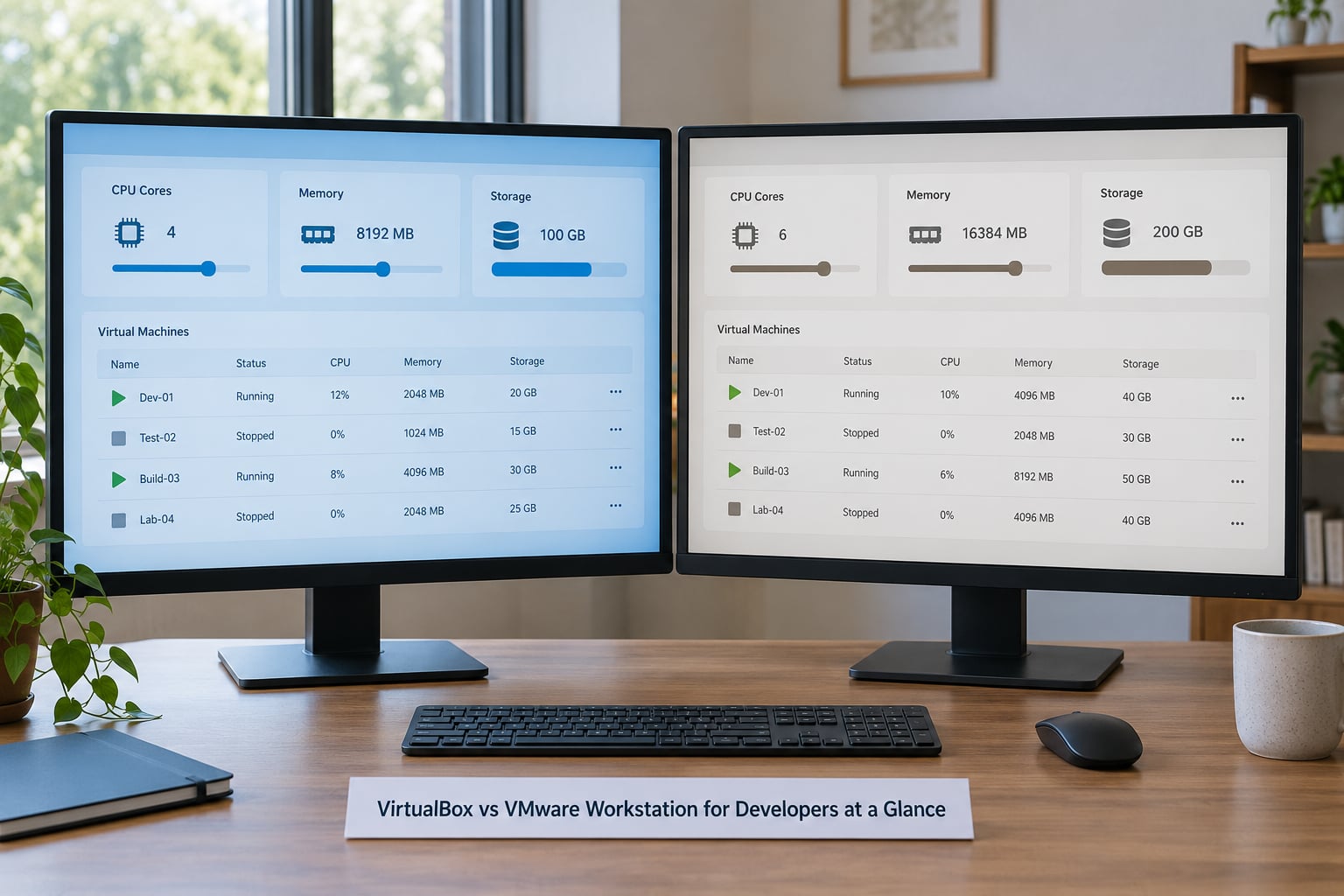
The table below is the one I keep coming back to. It covers the criteria that change decisions in day-to-day development, not the marketing features.
| Criterion | Oracle VirtualBox | VMware Workstation Pro |
|---|---|---|
| Licence basis | Base package GPL; Extension Pack under PUEL | Proprietary; free for personal and commercial use since November 2024 |
| Hypervisor type | Type-2 | Type-2 |
| Host OS | Windows, Linux, macOS on Intel | Windows, Linux; no Apple Silicon build for Workstation |
| Guest OS reach | Broad legacy coverage including old Windows and OS/2 | Modern Windows and Linux; older guests need hardware version 19 or lower |
| Disk formats | VDI native, reads and writes VMDK, VHD, HDD | VMDK native, reads VDI and VHD, exports OVA/OVF |
| Snapshots | Multi-level tree, stored as delta files | Multi-level tree, plus scheduled AutoProtect |
| Clones | Full and linked clones, Linked Clone wizard | Full clone and linked clone |
| USB passthrough | USB 2.0 and 3.0 with filters; less stable for some devices | USB 3.2 with smoother reconnect behaviour |
| Shared folders | Host path shares via Guest Additions | Host path shares via VMware Tools |
| Guest additions | Guest Additions ISO | VMware Tools, with open-vm-tools as the Linux alternative |
| Networking editor | Built-in Virtual Network Editor | Built-in virtual network editor, VLAN support |
| 3D acceleration | Basic; weakest area for GUI and render testing | DirectX 11 and OpenGL support, hardware version 22 |
| CPU and RAM per VM | Up to 128 vCPUs, large RAM ceilings | Up to 32 vCPUs per VM in most releases |
| Command line | VBoxManage | vmrun |
| Best fit | Legacy guests, cross-platform experimentation, offline auditing | Fast disks, Windows stacks, CI-driven VM lifecycle |
Two rows in there catch people out. The vCPU ceiling difference is real: if your lab needs a 64-core VM for a large parallel build, VirtualBox lets you and Workstation may not. And the host OS row is not symmetric, which matters more on Macs than it does on Windows.
VirtualBox vs VMware Workstation for Developers: Core Platform Differences
Both products are Type-2 hypervisors. They install as an ordinary application on top of your host operating system, then use the CPU’s hardware virtualisation extensions, VT-x on Intel and AMD-V on AMD, to hand a guest its own virtual CPUs, RAM, disk and network adapter. Neither one is a bare-metal hypervisor like Hyper-V’s underlying platform or KVM, and that single fact explains most of the practical differences you will run into.
Because the host OS stays in charge of scheduling, a Type-2 hypervisor inherits the host’s own quirks. Memory pressure, power management, and a hypervisor platform already running underneath all show up directly in guest behaviour. Neither product can hide from that.
Host and guest operating system coverage
VirtualBox still ships builds for Linux, Windows and Intel Macs. Workstation Pro ships for Windows and Linux, and Broadcom has not produced an Apple Silicon version of Workstation; Mac users are pointed toward VMware Fusion Pro, which is a separate product with its own licensing terms. If you develop on a modern Mac, this single fact can end the comparison before it starts.
Guest coverage runs the opposite direction. VirtualBox is remarkably tolerant of old operating systems, which is why it survives in university labs and archival work. Workstation has moved to hardware version 22 for modern guests, and very old guests such as Windows XP or Server 2012 need an older hardware version that newer Workstation releases handle less comfortably. That regression is a recurring theme in r/vmware threads.
Disk formats and why they matter for CI
VirtualBox writes VDI natively and imports VMDK and VHD. Workstation writes VMDK natively and exports clean OVF and OVA packages that other hypervisors import without complaint. For a team that packages a golden image for testers or colleagues, that export path is the difference between a two-minute step and an afternoon.
Command line automation: VBoxManage against vmrun
Both tools give you a full scripting surface, and both are genuinely capable once you learn them.
VBoxManage snapshot "dev-db" take "pre-migration"
VBoxManage modifyvm "dev-db" --memory 8192 --cpus 4
VBoxManage controlvm "dev-db" poweroff
vmrun -T ws snapshot "dev-db" take "pre-migration"
vmrun setGuestIPAddress "dev-db" -wait
vmrun stop "dev-db" hardThe practical difference is ecosystem depth rather than raw function. Vagrant ships a large body of VirtualBox boxes out of the box, Packer has first-party builders for both, and most CI documentation you will find assumes VirtualBox because it needs no licence discussion. If your pipeline already provisions with Vagrant, that alone can settle the question.
Performance and Resource Control
VMware is faster on storage-heavy and graphics-heavy work, and the gap widens as the guest does more at once. A widely cited 2026 benchmark put Workstation’s NVMe throughput at roughly three times VirtualBox’s, with a larger relative gap on 3D workloads; treat those specific multiples as one lab’s result rather than a promise, since they depend entirely on the storage controller and guest configuration.
Why the difference exists is architectural. Workstation offers an NVMe controller option and paravirtualised SCSI, which avoid the expensive path of emulating an older disk interface for every block. VirtualBox’s disk stack is competent but not tuned the same way, and a build that writes tens of thousands of small files will feel the gap long before a compile that reads mostly cached data.
Where the speed difference shows up in virtualbox vs vmware workstation for developers
On CPU-bound work the two are closer. Users on r/vmware generally agree VMware pulls ahead, but usually in the single-digit percentage range, which is below the noise floor for most day-to-day tasks. Memory allocation is generous in both; VirtualBox simply allows higher ceilings per VM.
Graphics is where the gap is least subtle. Workstation’s DirectX and OpenGL support makes GUI testing, browser automation and rendering work feel native, while VirtualBox’s basic 3D support can leave a desktop looking flat or a WebGL canvas struggling. If you write front-end tests that render real pages, that difference will cost you more time than any disk benchmark.
For a light developer VM, the honest answer is that the difference is often negligible. Users in r/homelab threads say plain VirtualBox and VMware Player are effectively interchangeable for home lab work, and they are right for that use.
Snapshots, Clones, and Disposable Development Environments
Both products support multi-level snapshot trees, and both store changes as delta files rather than rewriting the base image. That makes the common workflow, snapshot before a risky migration, run the test, roll back, identical on either platform. AutoProtect, which takes scheduled snapshots on a timer, is the one feature here that only VMware offers out of the box, and it quietly protects long-lived test environments overnight.
Clones are where the developer workflow differs most. Both offer full clones, which duplicate everything and are simple but slow on large images. Both also offer linked clones that reference a read-only parent, which is the correct choice for CI-style throwaway environments: you get a fresh writable disk in seconds and discard it afterwards without bloating the parent. VirtualBox exposes linked clones through an explicit wizard, while VMware surfaces the same feature as a clone type in the wizard, and both handle the pattern well once you stop pointing linked clones at snapshots you later delete.
Linked clones are the right answer for database testing, upgrade rehearsal, malware analysis sandboxes and repeatable onboarding environments. The failure mode to know about is the same on both: the parent must stay intact, and a long chain of nested snapshots quietly eats disk space while the parent image is untouched.
Networking, Containers, and USB Devices
Both products cover the three modes you actually use: NAT for outbound traffic with no LAN presence, bridged for a guest that needs its own address on your network, and host-only for a private segment between host and guests. Both include a graphical network editor for defining adapters, DHCP ranges and port forwarding rules, and both let you add virtual adapters without a reboot.
VMware pulls ahead on multi-segment and VLAN work, which matters when you are reproducing a three-tier application topology rather than a single client and server pair. VirtualBox covers the simpler cases without friction and is the tool most tutorials assume.
Containers change the calculus
If your stack runs on Docker Desktop or WSL2, the host hypervisor matters less than it used to, because the container runtime replaces much of what the VM was doing. You still need a guest for kernel modules, systemd services, or testing on a different distribution, but for a Node or Python service you may not need a VM at all. This shift is quietly eroding the case for either product in day-to-day web development.
USB devices: where embedded work diverges
Both tools support USB passthrough and both are awkward about it. Passthrough is a claim on a device, only one guest can hold it at a time, and a device that is claimed when you shut the VM down can leave the host unable to see it. VMware’s USB 3.2 handling generally reconnects more gracefully, and users in r/embedded and r/PLC forums lean that way for serial adapters and logic analysers.
VirtualBox’s filter driver gives finer control, and that granularity is genuinely useful when you need a specific composite device to enumerate correctly. The trade is stability: community reports of devices that enumerate once and then vanish are more common there.
Windows and Linux Development Workflows
On a Windows host running Windows 11 guests for Visual Studio and SQL Server work, Workstation is the smoother experience. Faster disks, better graphics, and shared folders that behave. VirtualBox does the job, but if your day is compiling and debugging in the guest you will feel the storage difference within the first hour.
On Linux hosts the gap narrows. systemd services, a shell, and a compiler produce identical results on either hypervisor, and CPU-bound scores sit close together. The one recurring Linux-specific problem is the display server: on a GNOME session running Wayland, users in r/wayland report VirtualBox segfaulting and Workstation failing with a DISPLAY variable error. Both work best on an X11 session, which means choosing a session at log-in rather than a hypervisor.
Hyper-V, WSL2 and Docker Desktop coexistence
This is the single most common developer complaint thread, and it explains more real-world performance difference than any benchmark. On Windows 10 and 11, Hyper-V and the Windows Hypervisor Platform are often already enabled by WSL2 or Docker Desktop. When they are, VirtualBox drops to a slower compatibility path, and nested virtualisation stops working.
The usual fix is to turn the Windows hypervisor off at boot:
bcdedit /set hypervisorlaunchtype offReboot, and VirtualBox runs at full speed again. The cost is that WSL2 and Docker Desktop stop working until you set it back to auto. Developers who need both a fast VirtualBox and WSL2 usually keep Hyper-V on and accept VMware’s behaviour, or run the VM workloads on a separate Linux host. r/virtualization threads are full of people discovering this the hard way.
Licensing, Cost, and Commercial Use
Two separate questions hide inside “can I use this at work”, and confusing them causes real trouble.
The first is VirtualBox’s split licence. The base package is GPL and fine for commercial use. The Extension Pack, which contains the USB 2.0 and 3.0 filters, RDP, VirtualBox webservice, NVMe and PXE boot modules, is licensed under the PUEL, and the PUEL terms prohibit commercial use. A company deploying Guest Additions with the Extension Pack attached to those features needs to look at that licence rather than assume the GPL covers it.
The second is Workstation Pro. Broadcom made it free for personal and commercial use in November 2024, which removed the old annual subscription. It is still proprietary software with terms Broadcom can change, and downloads run through a Broadcom account portal that adds friction to a first run. Plenty of developers describe that account step as the moment they kept VirtualBox instead.
My practical advice: read the current terms yourself at the time you deploy, and keep VirtualBox installed as a hedge. Both tools run side by side without a driver conflict, so an image you verify on one can be booted on the other. Several developers on Reddit do exactly that as a portability check.
Which Should You Choose?
The choice depends less on benchmark charts than on what your week looks like. Here is how the decision breaks down.
Pick VirtualBox if:
- You provision VMs with Vagrant. The box ecosystem is far larger, most boxes need no extra plugin, and existing scripts keep working unchanged.
- You need legacy or unusual guests. Old Windows releases, Server 2012 and non-mainstream operating systems are VirtualBox’s home turf.
- Licence review matters to you. The GPL base package is unambiguous, and you avoid a proprietary licence that a vendor can revise.
- Your host is an Intel Mac. Workstation has no macOS build at all.
- You want per-VM CPU ceilings above 32. VirtualBox allows more.
Pick VMware Workstation Pro if:
- Disk speed matters. Build trees, package installs and database files all feel faster.
- You develop Windows stacks on Windows. Shared folders, graphics and suspend behaviour are more polished.
- You render or test GUIs. DirectX and OpenGL support is the strongest of the two.
- You attach USB devices. Serial adapters and debug probes reconnect more reliably.
- Hyper-V is already on and staying on. You avoid the bcdedit juggling entirely.
Pick neither if:
- Your workload is containers. Docker Desktop, WSL2 or a lightweight Linux VM removes the need for a desktop hypervisor.
- You run a server lab. KVM on Linux or Proxmox VE gives you snapshots, templates and multi-node orchestration that neither desktop tool offers.
- You need nested virtualisation for testing. A bare-metal KVM host handles it cleanly.
Frequently Asked Questions
Is VirtualBox slower than VMware Workstation for development?
Usually yes, and most visibly on storage. NVMe controller emulation and paravirtualised SCSI in Workstation make a measurable difference on build trees and package installs. On CPU-bound work the gap is single-digit percentages and often below the noise floor. For a light Linux guest running scripts, most developers report no meaningful difference at all.
Is VMware Workstation better than VirtualBox for Docker and Kubernetes development?
Neither is really a Docker tool. Docker Desktop and WSL2 handle containers on the host, and a VM is only needed for kernel modules, systemd services or testing another distribution. If a VM is involved anyway, Workstation runs guests faster, but keep in mind that enabling Hyper-V for Docker Desktop changes the host environment both tools have to work within.
Which virtual machine is better for Linux kernel development and debugging?
Both work, and the deciding factor is the host. On a Windows host, Workstation avoids the Hyper-V conflict that forces VirtualBox users to disable the Windows hypervisor, which matters when you need nested virtualisation for testing. On a Linux host, KVM is the better answer overall. Run the guest on X11 rather than Wayland, which is where most Linux host problems come from.
Can I move a VirtualBox virtual machine to VMware Workstation?
Yes, with export and import rather than file copying. Export the VM as OVA or OVF from VirtualBox, then import it in Workstation. Remove or reinstall guest additions afterwards, since VirtualBox Guest Additions will not carry over and shared folders need VMware Tools installed in the guest. Exporting linked clones is not supported, so take a full clone first if the VM depends on one.
Can developers use VirtualBox or VMware Workstation commercially?
VirtualBox’s GPL base package is fine for commercial work, but its Extension Pack is licensed under the PUEL, which restricts commercial use. Workstation Pro has been free for personal and commercial use since November 2024. Both licences changed terms at some point, so read the current terms before deploying either in a company environment.
Conclusion: Start With Your Development Workflow
VirtualBox vs VMware Workstation for developers comes down to what you are running and who is paying. Workstation is faster, better with USB and graphics, and free for commercial use since November 2024. VirtualBox is open source, keeps legacy guests alive, and owns the Vagrant box ecosystem.
Before downloading either, write down four things: which guest operating systems you actually need, which features you will lean on such as USB, snapshots or multi-adapter networking, what your licence status is, and which physical devices must reach the guest. Answer those and the choice usually makes itself.