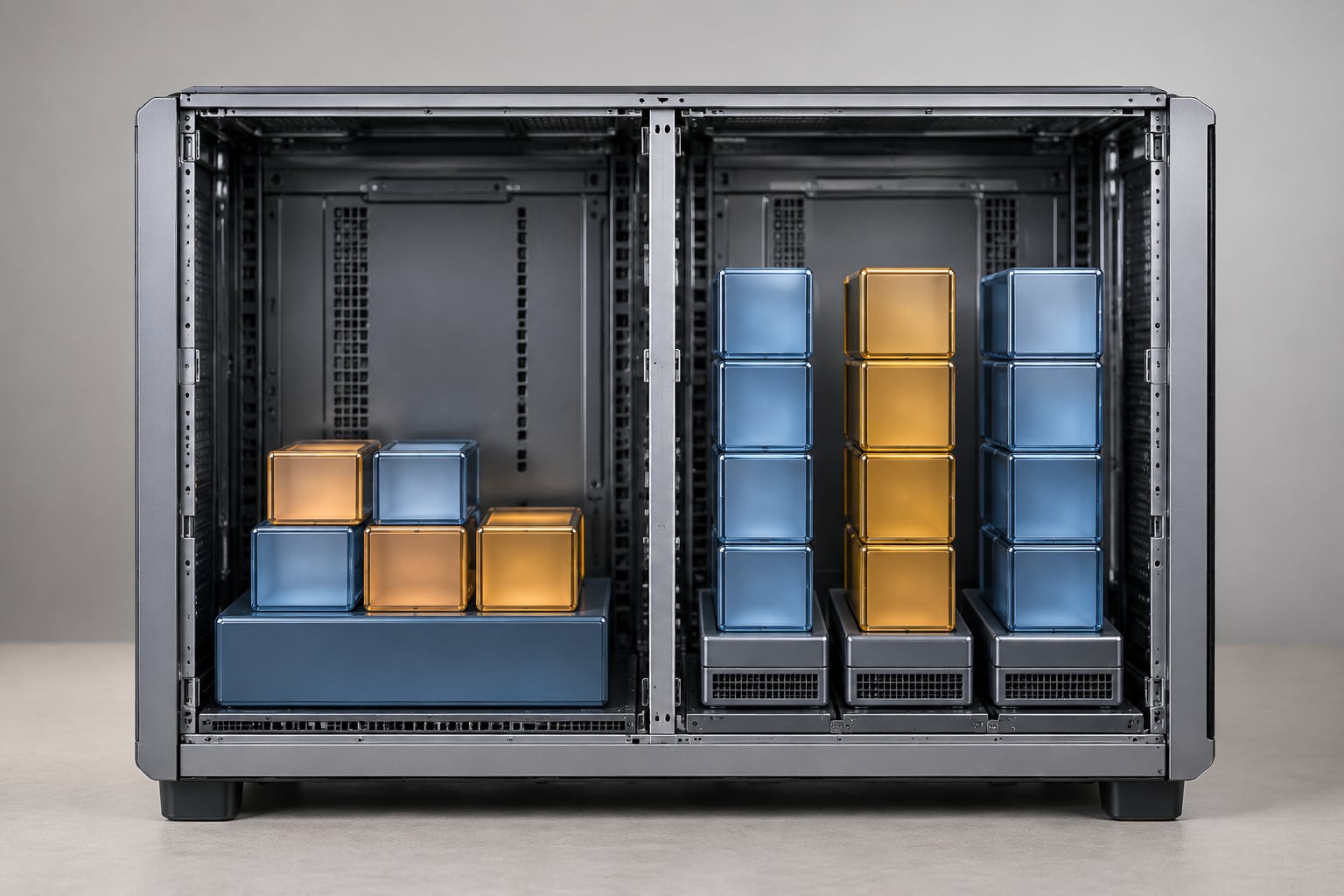
If you take one thing away from this docker vs virtual machine explained guide, it is this: a Docker container is an isolated process that shares your host’s kernel, while a virtual machine is a fully simulated computer that boots its own guest operating system and kernel. That single difference drives everything else you will compare here, from startup time to security boundaries.
Most real setups do not pick one. Cloud platforms run containers inside virtual machines, Kubernetes nodes are virtual machines that then schedule containers onto them, and home labs usually run both side by side on Proxmox. So the useful question is not “which is better” but “which isolation level does this particular workload need.”
One more thing worth knowing before the details: Docker is a packaging tool and runtime, not the only way to run containers. Kubernetes talks to runtimes such as containerd and CRI-O directly, and rootless engines like Podman do the same job with a different command line. Keep that in mind as you read, because “Docker vs VM” is really shorthand for “OS-level isolation vs hardware-level isolation.”
Table of Contents
- Docker vs Virtual Machine Explained at a Glance
- What Is the Core Difference?
- How Docker and Virtual Machines Work
- Performance and Resource Usage
- Isolation and Security
- Networking and Service Communication
- Portability and Compatibility
- Which One Is Easier to Operate?
- Which Should You Choose?
- Frequently Asked Questions
- Conclusion: Pick the Isolation Level You Need
Docker vs Virtual Machine Explained at a Glance
Here is the whole comparison on one page. The two columns below describe a typical Linux container and a typical hypervisor-based VM.
| Criterion | Docker container | Virtual machine |
|---|---|---|
| What is virtualized | An OS environment: filesystem, libraries, process view | Hardware: CPU, RAM, disk, network card |
| Kernel | Shares the host kernel | Runs its own guest kernel |
| Isolation level | Process and namespace level | Full machine boundary, separate kernel |
| Startup time | Typically well under one second | Seconds to minutes, depending on the OS |
| Idle memory | Often single-digit to a few hundred MB | Usually 1 GB or more per instance |
| Unit of distribution | Container image, often a few MB | Disk image or template, often tens of GB |
| Density on one host | Dozens to hundreds of workloads | A handful, CPU and RAM permitting |
| Different guest OS on same host | Not possible without another kernel layer | Yes, side by side |
| Networking | Bridge, overlay networks, per-container virtual interfaces | Virtual NICs on a virtual switch, often a public or private address |
| Snapshots and clones | Cheap image layers, instant | Snapshot files, usually seconds to copy |
| Weakest point | A kernel escape reaches the host | Hypervisor and management plane |
| Best fit | Microservices, CI/CD jobs, CLI tools, stateless APIs | Legacy apps, mixed kernels, untrusted code, specialized hardware |
What Is the Core Difference?
A container packages an application with everything it needs except the kernel: its libraries, its runtime, its configuration and its files live in layered image filesystems that get mounted together when the container starts. The container runtime then hands the process its own view of the machine through kernel features.
A virtual machine does something heavier. A hypervisor, which is software that sits on the physical hardware, fakes a complete computer: a virtual CPU, a block of RAM, a virtual disk and a virtual network card. On top of that fake machine you install a full operating system with its own kernel, its own drivers and its own userland, and then you install your software inside it.
Here is a concrete example. Say your team ships a Python API with 14 dependencies and writes a 12-line Dockerfile that copies the source and runs gunicorn. You push that image to a registry, and a CI job on a Linux runner starts a container from it. The runner’s kernel boots once and stays booted; the container just gets a filesystem and a process namespace.
Now suppose that same team also runs a Windows-only line-of-business application on an older Windows Server release. That one needs its own kernel and its own drivers, so it gets a Hyper-V or VMware VM with a 60 GB disk image instead. Nobody is being wasteful; the workloads are different in kind.
Docker vs virtual machine explained: what actually changes
The one-line summary that keeps circulating in developer communities is “containers are processes, VMs are servers,” and it is more useful than the apartment-and-house analogy most explainers reach for. A container is a process with restricted sightlines. A VM is a small server, and it pays the full cost of booting an operating system before your application does anything useful.
That difference also explains the most common misunderstanding. People see “Docker virtualizes the OS” on a diagram and then read “containers share the host kernel” and assume one of them is wrong. Both are right in different senses. Docker virtualizes the operating-system environment around your process: filesystem, mounts, network stack, hostname, users. It does not virtualize the kernel, because the host kernel is still the one executing every syscall.
How Docker and Virtual Machines Work
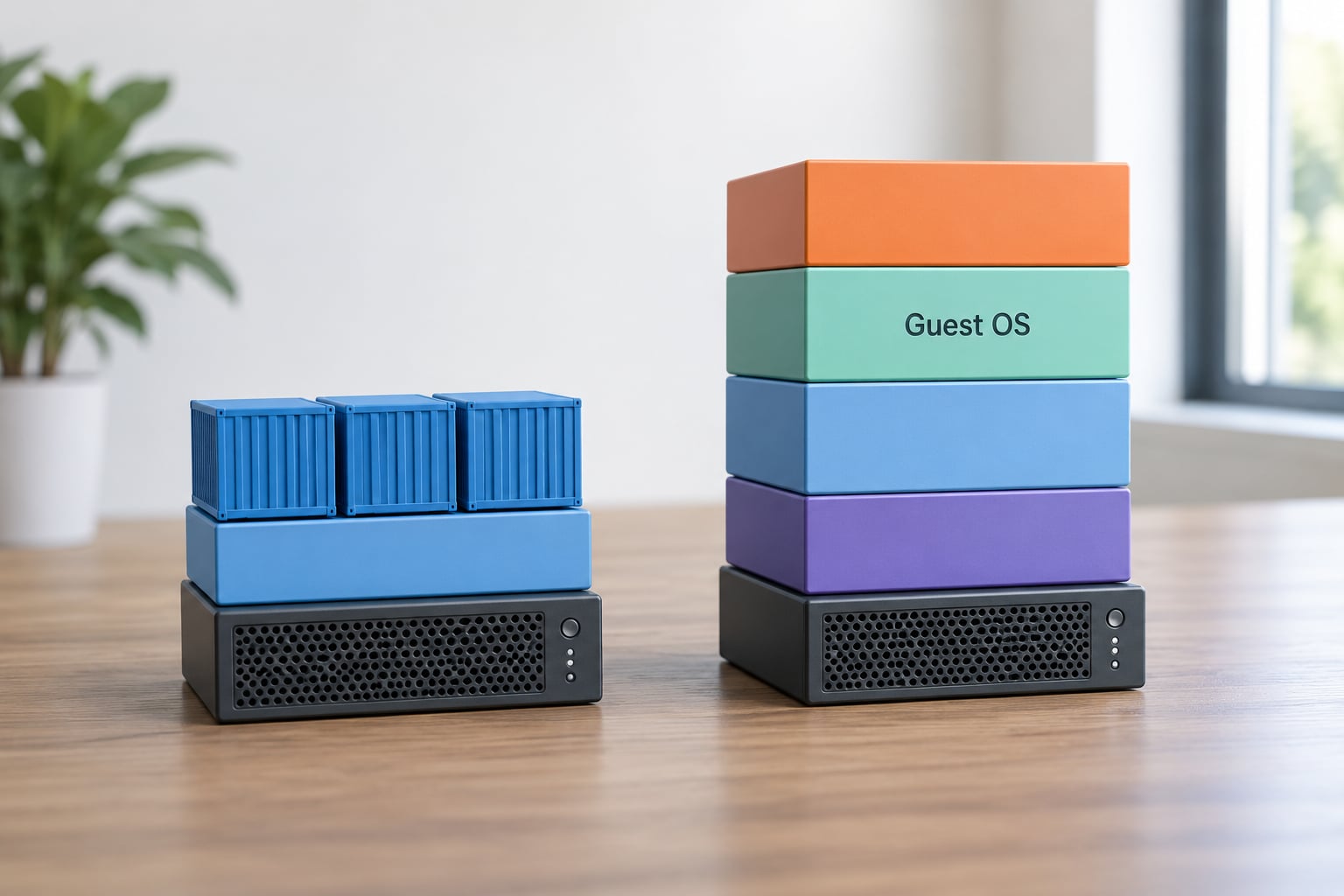
The container stack, bottom to top
At the bottom sits the host kernel, the only real kernel involved. Above it, the container runtime (runc or crun) sets up isolation using Linux kernel primitives and then starts your process.
- Namespaces give the process a private view. The PID namespace means it sees its own process as PID 1, the mount namespace hides host directories, the network namespace gives it its own interface and ports, and UTS and user namespaces cover hostname and UID mapping.
- Control groups (cgroups) do the metering. cgroups v2 sets CPU shares, memory ceilings and I/O limits for the container, which is how you keep one service from starving its neighbours.
- Overlay filesystem stacks image layers into one directory. Each build step in a Dockerfile becomes a layer, and the container writes into a scratch layer on top that disappears when the container stops.
- Capabilities and seccomp drop most Linux privileges by default, so a process gets a narrow slice of kernel authority rather than full root.
The virtual machine stack, bottom to top
Here the hypervisor owns the hardware. A Type 1 hypervisor such as ESXi, KVM, Hyper-V in server mode or Proxmox’s KVM runs directly on bare metal. A Type 2 hypervisor such as VirtualBox or Desktop Hyper-V installs on top of an existing host OS and borrows its drivers for hardware access.
- Virtual CPU and virtual timers are presented to each guest, so the guest kernel schedules against hardware that only appears to be real.
- Virtual disk is usually a file on the host, in formats such as qcow2 or VHDX, that the guest formats as a normal filesystem.
- Virtual NIC attaches to a virtual switch or bridge, which is how a VM gets a routable address on your LAN or in a cloud network.
- Guest OS and its own kernel sit on top, complete with its own module loading, its own userland and its own update cycle.
The practical consequence: the VM stack is deeper, which is exactly why a VM can run a different operating system than the host and a container cannot.
Performance and Resource Usage
Containers win on startup because there is nothing to boot. A container from a small image is usually running in a few hundred milliseconds, because the work is limited to setting up namespaces, applying cgroup limits and exec’ing the entrypoint. A VM has to run a bootloader, a kernel and a userland before your service starts, so even a minimal Linux guest lands in the tens of seconds range and a full desktop OS takes far longer.
Memory follows from that architecture. A container’s overhead is the runtime shim plus whatever the application itself uses, so an idle microservice commonly sits in the tens of megabytes. A VM has to keep a kernel, drivers, system services and a filesystem cache resident, so a barely-used guest usually still accounts for a gigabyte or more of host RAM.
Storage tells the same story. Container images are built from layers and are commonly measured in megabytes for slim base images such as Alpine, while a usable VM disk runs into tens of gigabytes once an operating system is installed. Backups, clones and CI artifact storage all inherit those numbers.
Density is where this compounds. On a 64 GB host you might run fifty small containers or eight VMs, and that ratio changes how you plan capacity. Snapshot cost flips too: a new container from a cached image is instant, while a VM clone means copying or copying-on-write a large disk file.
Where VMs stay competitive is heavyweight work. Anything that needs its own kernel, a specific driver, a GPU passed through, or a strict memory reservation for a database behaves more predictably in a VM, because there is no shared-kernel contention to reason about. Containers are not faster at compute; they win at density and at the cost of starting, stopping and scheduling thousands of units.
Isolation and Security
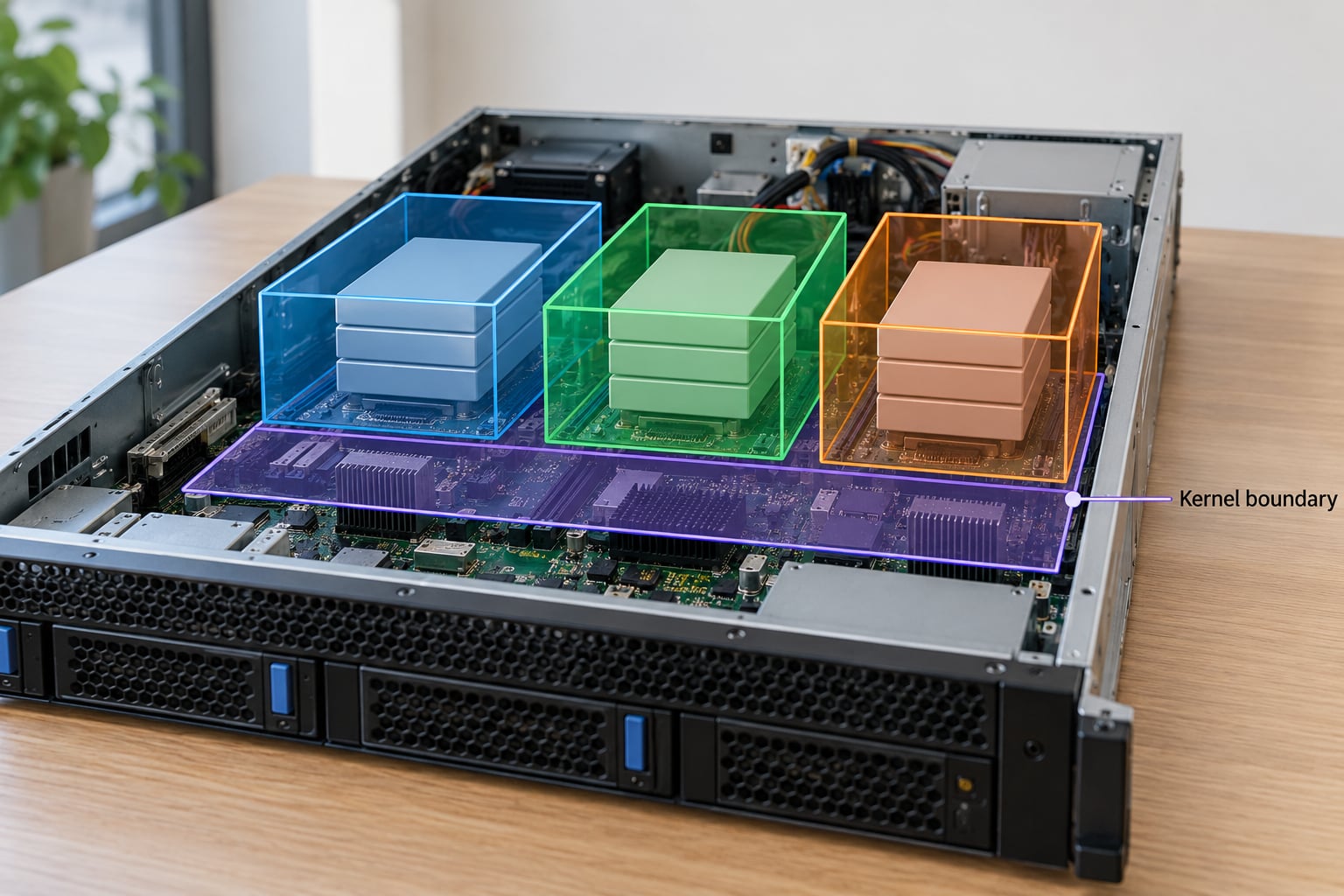
Both technologies isolate running code from each other. They draw that boundary in different places, and the honest answer is that neither is inherently secure. A container’s boundary is the kernel’s namespace and capability system; a VM’s boundary is the hypervisor’s hardware emulation.
For containers, the shared kernel is both the efficiency source and the risk. An attacker with a kernel exploit inside the container is attacking the same kernel the host uses, so a successful escape lands on the host rather than in a neighbouring VM. Harden it by running rootless, dropping capabilities, applying seccomp and AppArmor or SELinux profiles, and only pulling images from registries you trust.
For VMs, the guest kernel is separate, so a guest compromise stays inside the guest unless the attacker also escapes the hypervisor. That boundary is stronger and it costs more, in RAM, in storage and in management overhead. It is still not a blank cheque: management interfaces, exposed services and backup paths remain real attack surfaces.
When a container boundary is not enough, teams reach for hybrid runtimes. gVisor adds a userspace kernel layer between the container and the host. Kata Containers runs each container inside a lightweight VM. Firecracker, the microVM technology AWS uses for serverless compute, boots a real VM in well under a second and strips it to almost nothing. LXC and LXD are system containers: a lightweight VM architecture that shares a kernel by design and often gives a better isolation-to-overhead ratio than plain OCI containers for home lab use.
Networking and Service Communication
Containers default to bridge networking. Each container gets its own virtual interface on a Linux bridge, outbound traffic is translated with NAT, and the app is published to the host with a port mapping. Compose builds a private network for a stack of services and gives them DNS names, so a frontend container can reach a database container by service name. Under Kubernetes, an overlay network such as Flannel or Cilium flattens that across nodes, and network policies start to look like firewall rules.
Virtual machines work at the network card level instead. Each VM attaches a virtual NIC to a virtual switch, and the hypervisor or the cloud fabric gives it an address. A bridge, a NAT setup, an internal network or a public-facing load balancer all sit above that. Service discovery is usually DNS or a mesh outside the guest.
The practical differences are about address management and policy. Getting a VM onto a physical LAN segment is a familiar, well-trodden path. Doing the same with a container requires either macvlan or IPAM (IP address management) in your orchestrator. The upside runs the other way: container networking gives you per-workload DNS, service-to-service naming and fast policy changes that VMs typically need extra software to match.
One caution for beginners: port mapping hides which ports are open. A VM on its own IP is discoverable and scannable; a container behind a bridge is invisible until you publish it. That is convenient and it is a security decision you are making quietly.
Portability and Compatibility
An image built once runs the same way in a laptop, a CI runner and a production cluster, provided the kernel underneath is compatible. That is the promise, and the catch is right there: compatible kernel, compatible architecture. A Linux container needs a Linux host, or a host running a Linux compatibility layer such as WSL2 or a Docker Desktop-managed VM.
There is an irony worth naming. Docker Desktop on Windows and macOS runs Linux containers inside a lightweight VM, because those operating systems have no kernel that can host a Linux container directly. So when a beginner runs their first container on a Mac, a virtual machine is already doing the work underneath, exactly the thing being compared.
Windows containers exist, but they need a Windows host or a Windows VM and they run Windows base images only. You cannot run a Windows container on a Linux kernel without something like a full Windows VM, which erases the density advantage.
VMs travel differently. A template or a golden image is copied, cloned or snapshotted, and it carries its own OS, so it can land on any compatible hypervisor regardless of what the host runs. That portability is heavier but far wider: different kernels, different guest operating systems, a preinstalled toolchain. Architecture still matters, though, because an image built for x86 will not run on ARM without emulation or a multi-arch build.
Which One Is Easier to Operate?
Day-to-day, containers tend to be cheaper to operate. Docker Compose brings up a whole stack with one file, and a container that misbehaves is replaced rather than repaired. Patching usually means pulling a new image and redeploying, which is fast because the artifact is immutable by design.
Orchestration is where containers separate themselves decisively. Docker Swarm is built in and adequate for small clusters. Kubernetes schedules containers across nodes, restarts failed pods and rolls updates with minimal fuss, and it is the default answer for anything past a handful of services. At that scale you are managing a declarative desired state rather than a list of servers.
VMs are more comfortable for teams that think in servers. Backups are whole-system snapshots. Hardware access is straightforward, which matters for disks, network cards and GPUs. Patching is a familiar patch cycle, though it is slower and the blast radius of a mistake is bigger, since a bad kernel update takes down every guest using that kernel.
Observability differs too. A container’s logs are whatever the process wrote to stdout, which is easy to collect but can lose context if an application writes poorly. VM-level telemetry tends to be richer because the whole OS is there to report on, and some tools that expect a full operating system simply will not work in a container.
Failure recovery tells the clearest story. A crashed container restarts and returns to a known state in seconds. A crashed VM may need a filesystem check, a service restart or a snapshot rollback, and you find out about it later because nothing pings a shut-down OS. That difference is why stateless services moved to containers first.
Which Should You Choose?
Choose Docker when the workload is stateless, Linux-based and expected to scale quickly: microservices behind a load balancer, short-lived CI/CD jobs, command-line tools packaged with their dependencies, or internal APIs that just need to start fast and stay small. If the app was written in the last decade and runs on Linux, containers are the low-friction option.
Choose a virtual machine when you need a different kernel, full operating-system compatibility, or a boundary strong enough for code you do not control. That covers legacy applications, Windows Server workloads, kernel drivers, hardened multi-tenant hosting, and anything needing GPU or specialized hardware passthrough. Compliance regimes that ask for a documented machine-level boundary are easier to satisfy with VMs.
For a home lab, the rule of thumb that keeps coming out of self-hosting communities is simple: if it can be containerized, containerize it to save RAM; if it genuinely needs a full operating system, virtualize it. Proxmox users typically run LXC containers for Linux services and reserve full VMs for Windows, gaming, or anything needing custom kernel modules. Running containers on bare metal Linux instead of inside a VM is fine for a single-trusted-workload setup, and worth a VM boundary when you are running other people’s code.
Frequently Asked Questions
Can Docker containers run inside virtual machines?
Yes, and that is the normal arrangement in cloud environments. AWS, Google Cloud and Azure all run containers on virtual machines, and Kubernetes nodes are usually VMs or dedicated servers that host containers. A VM adds a kernel boundary underneath the container boundary, which buys stronger isolation and easier capacity planning, at the cost of some memory and a little startup latency. Home labs on Proxmox do the same thing with LXC or KVM guests.
Is Kubernetes a container or a virtual machine?
It is neither. Kubernetes is an orchestration system that schedules containers across machines. Those machines, called nodes, are usually virtual machines or bare-metal servers running a Linux OS. Each node runs a container runtime such as containerd or CRI-O, and Kubernetes places pods on those nodes. When people say they run Kubernetes on virtual machines, they mean the VMs are the worker machines.
Are Docker containers more secure than virtual machines?
Virtual machines generally offer the stronger boundary, because each one runs its own kernel and a hypervisor escape is the only route out. Containers share the host kernel, so a kernel vulnerability can be used to reach the host. That gap narrows with rootless mode, dropped capabilities, seccomp and MAC profiles, and with hybrid runtimes such as gVisor or Kata Containers. Neither option is safe by default; both need hardening.
Do containers need the same operating system as the host?
They need the same kernel, which is a related but different requirement. A container image built for Debian runs on any Linux host with a compatible kernel, regardless of whether the host itself is Ubuntu or Fedora. What it cannot do is run a different kernel, so a Windows container needs a Windows host or a Windows VM, and a Linux container needs Linux or a Linux compatibility layer such as WSL2.
Can Docker replace virtual machines for every application?
No. Containers cannot replace VMs where you need a different kernel, kernel drivers, GPU passthrough, strict multi-tenant boundaries, or full operating-system independence from the host. In practice most environments run both: VMs provide the isolated, operating-system-complete substrate, and containers on top give fast, dense, reproducible deployments. Decide per workload rather than picking a platform-wide winner.
Conclusion: Pick the Isolation Level You Need
Start by asking three questions: does the workload need its own kernel, how strong does the isolation boundary have to be, and what is orchestrating it. Answer those and the choice usually makes itself. Docker vs virtual machine explained is really a question of isolation level: containers give you dense, fast, reproducible processes on a shared kernel, and VMs give you a separate machine with its own operating system.
Then build both where it pays. Run containers on VMs in the cloud, run LXC containers and full VMs side by side on a home lab, and reserve the heavyweight isolation for code you do not trust or operating systems you cannot replace. That hybrid arrangement is where most mature setups landed, and it is a perfectly reasonable answer rather than a compromise.