Folder sharing between a host and its virtual machine is a hypervisor feature, not an operating system feature, so the steps depend entirely on the platform you run. VirtualBox uses Guest Additions and the vboxsf driver, VMware Workstation and Player use VMware Tools and hgfs, Hyper-V relies on Enhanced Session Mode or a plain SMB share, and QEMU/KVM uses virtiofs or 9p. Jump to the section for your hypervisor and follow it top to bottom.
A shared folder gives both sides one set of files instead of two copies, so you can edit source code in your host editor and run it in the guest, drop ISO images into a lab VM, and pull logs back out without rebuilding anything. Whole setup takes about ten minutes per platform, most of it waiting for guest tools to install.
Quick jump list:
- Oracle VirtualBox (Windows or Linux host, any guest)
- VMware Workstation or Player (Windows or Linux host, Windows or Linux guest)
- Hyper-V on Windows 11 (Windows guest, or Linux over SMB)
- Verify the share and fix permission errors
Table of Contents
- What You Need
- Step-by-Step: How to Share a Folder Between Host and Virtual Machine
- Common Mistakes
- Frequently Asked Questions
- How to send files from host to virtual machine?
- How to copy between VM and host?
- How to share a folder with a VirtualBox guest?
- How do I share folders from the host to the virtual machine in Hyper-V?
- Why is my VirtualBox shared folder empty?
- Can I make a shared folder read-only, and is exposing a host folder risky?
- Conclusion
What You Need
Six things, and only one of them is a surprise: the guest tools package. That package installs a kernel driver in the guest, and without the driver there is no share no matter how carefully you configured the hypervisor.
- A hypervisor with the VM already created. VirtualBox, VMware Workstation or Player, Hyper-V, or QEMU/KVM with virt-manager.
- The guest tools for your platform: VirtualBox Guest Additions, VMware Tools, or nothing in the Hyper-V case.
- A folder on the host that already exists. Creating it inside the share dialog works on some platforms and fails silently on others.
- A decision about permissions. Which guest user gets write access, and what user ID files will carry on the host.
- Administrator rights on both sides. Installing guest tools needs admin on the guest, and creating an SMB share needs admin on the host.
- For a Linux guest on Hyper-V: cifs-utils installed in the guest, since there is no equivalent of Guest Additions to do it for you.
Two terms to keep straight, because every troubleshooting step below depends on them. The host is the physical machine that runs the hypervisor, and the guest is the operating system running inside the virtual machine. Your host files stay on the host disk; the guest just gets a window onto that path.
Updated October 2026. Steps were written against VirtualBox 7.x, VMware Workstation Player 17.x, Hyper-V on Windows 11, and QEMU 8.x with virt-manager. Menu names in VirtualBox 6.x and VMware 16.x differ slightly, mostly around where the shared folder settings live.
Step-by-Step: How to Share a Folder Between Host and Virtual Machine
The workflow is the same everywhere: install the guest tools, define the host folder in the hypervisor, pick a mount point in the guest, then fix the permissions so your normal user can write to it. Only the middle two steps change per platform.
How to Share a Folder Between Host and Virtual Machine in Oracle VirtualBox
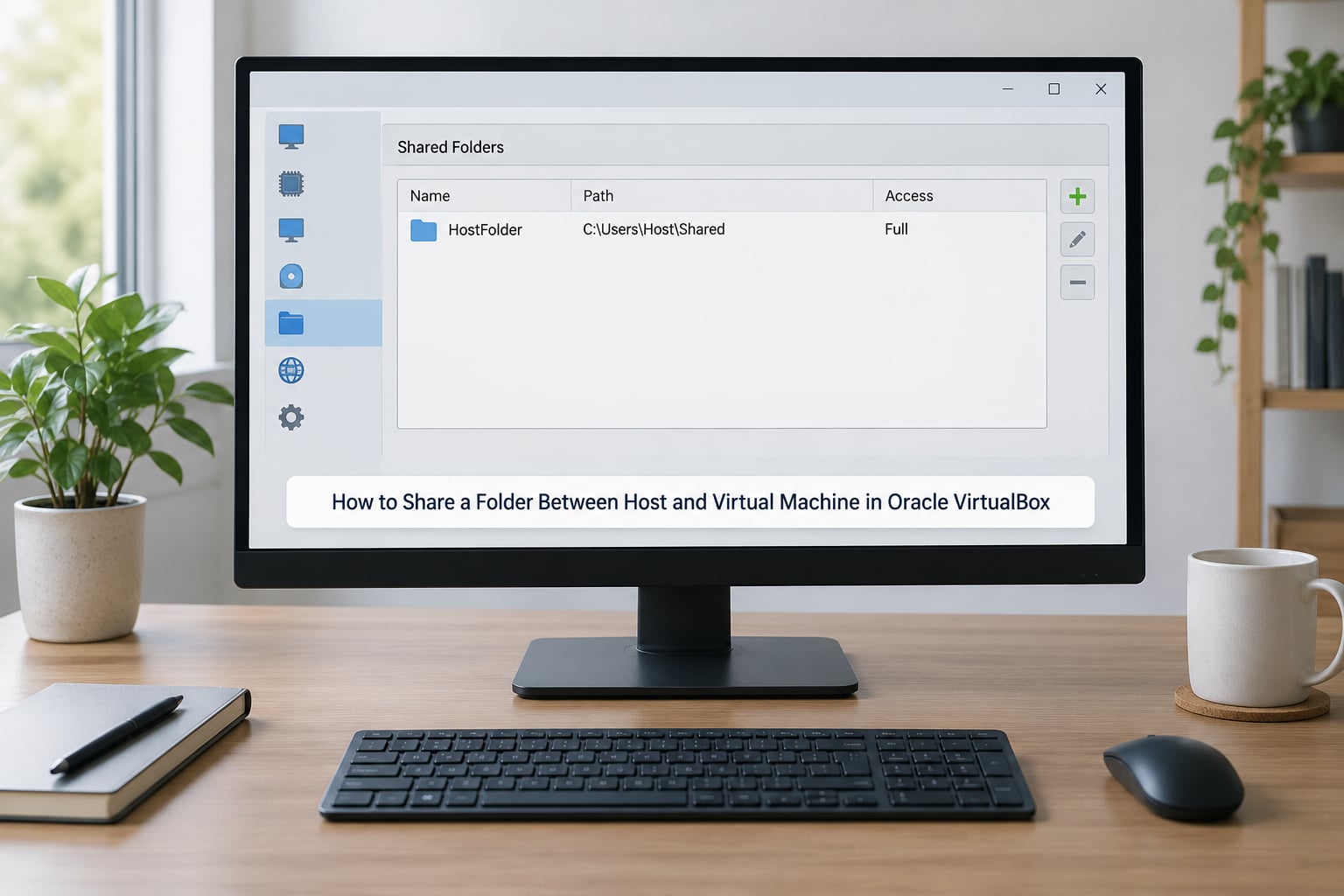
This is the most common setup and the most commonly documented, but the popular guides skip the two steps that actually decide whether it works. Do them in this order on a Windows 11 host with an Ubuntu or Debian guest; the Linux host and Windows guest case is noted at the end.
1. Install VirtualBox Guest Additions in the guest
Boot the guest, then in the VirtualBox window choose Devices > Insert Guest Additions CD Image. In the guest, a CD icon appears, or the autorun prompt fires. On Ubuntu and Debian, open a terminal and run:
sudo apt install ./VBox_GA_*.isoIf the ISO did not mount on its own, run the installer manually from the mounted image:
sudo sh /media/$USER/VBoxLinuxAdditions/VBoxLinuxAdditions.runThen reboot the guest. On a Windows guest, run VBoxWindowsAdditions.exe from the mounted CD instead and let the installer restart the machine when it asks.
2. Create the host folder
Make a plain folder such as C:Usersyoushared and put something in it so you can tell later whether it mounted empty. Keep the path short and avoid spaces if you can; spaces work but they do make the fstab line later fussy.
3. Define the share in VirtualBox
With the VM running, open Devices > Shared Folders, or go through Machine > Settings > Shared Folders with the VM powered off. Click Add a new share and set three things:
- Folder name: shared
- Folder path: C:Usersyoushared
- Options: leave Read-only unchecked, tick Auto-mount and Make Permanent
The share then shows up in the guest at /media/sf_shared. On a Windows guest it appears as a drive letter in This PC.
4. Fix permissions in a Linux guest
This is the step that stops most people. The share mounts as root with a special owner, so your normal user can open it and get nothing. Add your user to the vboxsf group:
sudo usermod -aG vboxsf $USERThen log out and back in, or reboot the guest. Opening a new terminal is not enough, because group membership is read at login. Confirm it worked:
id | grep vboxsfIf you see vboxsf in the output, you have access. Users on the Arch Linux forums report a related wrinkle: the mount point itself sometimes lacks the execute bit, and chmod 775 /media clears it.
5. Make the mount permanent with fstab
The Make Permanent checkbox is widely reported to not survive a reboot, which is why so many people lose their share every time they restart. Open /etc/fstab and add a line with your own numeric user and group IDs:
shared /media/sf_shared vboxsf rw,uid=1000,gid=1000 0 0Test it before you reboot:
sudo mount -aSetting uid and gid here is what stops the reverse problem later, where the guest writes files the host account cannot open.
Command line alternative
You can create the share from the host without touching the GUI. Power the VM off and run this on the host:
vboxmanage sharedfolder add "shared" --hostpath "C:Usersyoushared"In the guest, mount it by hand if Auto-mount did not run:
sudo mkdir -p /mnt/shared
sudo mount -t vboxsf shared /mnt/shared
Quick recipe, Windows host and Linux guest: Guest Additions, share path C:Usersyoushared, mount at /media/sf_shared, usermod -aG vboxsf $USER, fstab line. Quick recipe, Linux host and Windows guest: same Guest Additions install, then the share shows up as a drive letter and Windows handles permissions through the sharing dialog instead of the vboxsf group.
How to Share a Folder in VMware Workstation or Player
VMware is the smoother path on Windows hosts and the rougher one on Linux guests, and the difference is hgfs, the host-guest file system driver that ships inside VMware Tools. Free Player supports shared folders the same way Workstation Pro does.
1. Install VMware Tools in the guest
With the guest running, choose VM > Install VMware Tools from the menu bar. On a Linux guest the image mounts by itself; run the bundled installer:
sudo ./vmware-tools-distrib/install.plOn Debian and Ubuntu, the package route is usually cleaner:
sudo apt install open-vm-tools open-vm-tools-desktopRestart the guest afterward. If the install seems to hang for a minute with no progress bar, that is normal on Linux guests and it is not your machine stalling.
2. Enable the share in the settings
Power the VM off. Open VM > Settings > Options > Shared Folders, choose Always enabled, then Add…. Give it a name, browse to the host folder, and leave Read-only off. Power the VM back on.
3. Find the share in the guest
The mount point is /mnt/hgfs/<sharename>. On a Windows guest the folder appears under This PC > \vmware-hostShared Folders.
4. Fix an empty mount on a Linux guest
If /mnt/hgfs is empty but the share is defined, mount the whole host filesystem yourself:
sudo mkdir -p /mnt/hgfs
sudo vmhgfs-fuse .host:/ /mnt/hgfs -o allow_other -o uid=1000 -o gid=1000
Make that permanent too:
.host:/ /mnt/hgfs fuse.vmhgfs-fuse allow_other,uid=1000,gid=1000,defaults 0 0The same path works in reverse. People who edit Windows files on a Linux host and run them on Windows ask this question constantly, and hgfs handles both directions identically.
How to Share a Folder in Hyper-V
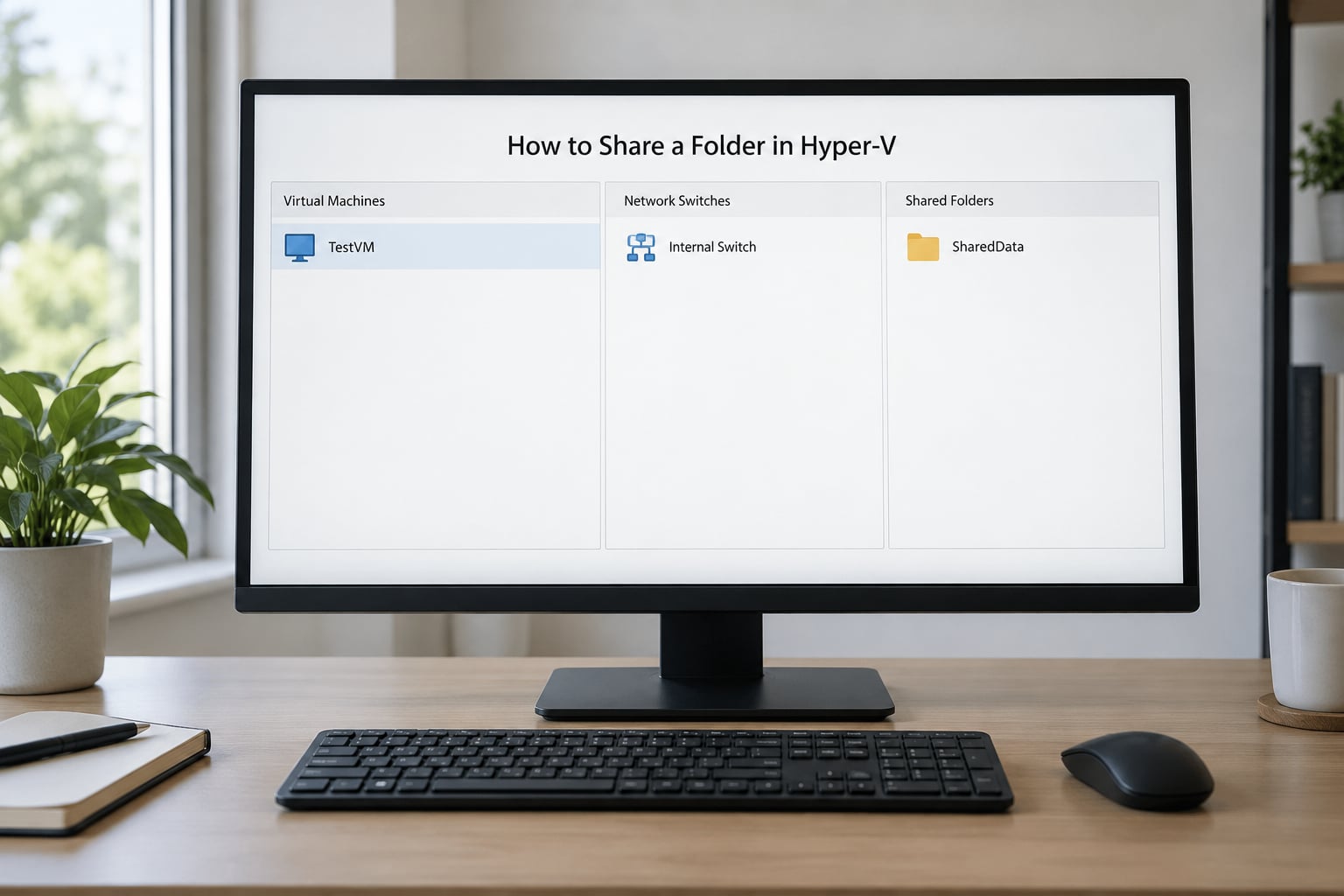
Hyper-V has no VirtualBox-style shared folder feature, and that is the single biggest source of confusion for people moving over from the other two. With a Windows guest, use Enhanced Session Mode. With a Linux guest or any edition without that mode, the answer is a normal network share over the internal switch.
Windows guest: Enhanced Session Mode
Both host and guest need Windows Pro, Enterprise or Education, and the guest needs to be a full desktop installation. Shut the VM down, then check the support from PowerShell on the host:
Get-VMHostSupportedEnhancedSessionMode
Get-VMSupportedEnhancedSessionMode -VMName YourVM
Enable it on the VM, then connect through VMConnect and choose Show > Enhanced Session Mode instead of the basic session. Inside the guest, open This PC and you will see the host’s redirected drives, normally labelled as redirected drives such as C on HOST-NAME. You can copy files both ways for the life of that session, and the redirection disappears when you close the session. That session-only behaviour is expected, not a bug.
Linux guest: SMB share over the internal switch
Create a folder on the host, share it, open the firewall port, then mount it in the guest. Create C:share on the host, then use Properties > Sharing > Advanced Sharing to add a user with read and write access. Set the host’s network profile to Private, or Windows Firewall will block the connection and the guest will hang on the mount with no useful error.
New-NetFirewallRule -DisplayName "SMB 445" -Direction Inbound -Protocol TCP -LocalPort 445 -Action Allow -Profile PrivateIn the guest, install the client and mount the share. Use the host’s IP address on the internal switch, not its LAN address, since the internal switch has no route to the outside:
sudo apt install cifs-utils
sudo mkdir -p /mnt/share
sudo mount -t cifs //10.0.20.1/share /mnt/share -o username=YourUser,vers=3.0
Keep it after reboot with an fstab entry:
//10.0.20.1/share /mnt/share cifs credentials=/root/.smbcred,vers=3.0,uid=1000,gid=1000 0 0If you run QEMU/KVM
virt-manager has the equivalent dialog: open the VM, choose Add Hardware > Filesystem, pick Directory type, set the source to the host path and give it a mount tag. In the guest it appears wherever you mounted that tag, usually /mnt/share. Older setups use the 9p protocol instead, mounted by hand:
sudo mount -t 9p -o trans=virtio,version=9p2000.L hostshare /mnt/shareHow to Verify and Troubleshoot Shared-Folder Access
Verify in this order and you will find the break within a minute. First, confirm the guest side actually has a driver: lsmod | grep -E "vboxsf|vmhgfs|virtiofs|9pnet". Nothing there means the guest tools never installed, and no amount of hypervisor configuration will help.
Then confirm the mount exists. findmnt vboxsf and df -h show whether the filesystem is mounted and whether it has space, which distinguishes a missing mount from a mounted but empty one. A mount that shows zero bytes used is the sign of a mount that failed silently.
Next, test the whole path with a file rather than a folder. Create a text file inside the share from the guest, switch to the host and confirm it appears there. Then create one on the host and confirm the guest sees it. If the guest can write but the host cannot read the new file, you have a UID mismatch, and the uid and gid options on your fstab line fix it.
Two more checks worth knowing. If the mount is stale after you changed the share in the hypervisor, unmount it and remount rather than guessing: sudo umount /media/sf_shared followed by sudo mount -t vboxsf shared /media/sf_shared. And if symlinks inside the share resolve back into the guest and break, that is expected behaviour with VirtualBox shares; switch to copies in this scenario, or put the project in the guest and share only the data.
Common Mistakes
Every one of these comes up repeatedly in VirtualBox, Linux and virtualization forum threads, and every one has a fix you can apply in under a minute.
- Guest tools were never installed in the guest. The share is defined and the folder is empty or missing. Install Guest Additions or VMware Tools inside the guest, then reboot it.
- Added the user to the vboxsf group but never logged out. The advice on r/linuxquestions and askubuntu is consistent here: you must log out and back in, or reboot. A new terminal keeps your old group list. Verify with
id | grep vboxsf. - Trusting the Make Permanent checkbox. Many guides document it failing to persist the mount across reboots, which is why an fstab entry is the reliable route.
- Leaving read-only enabled. The guest can read everything and writes fail with a permissions error that looks like a driver problem. Clear the box and remount read-write.
- Expecting Hyper-V to behave like VirtualBox. There is no shared folder dialog. Windows guests use Enhanced Session Mode, and Linux guests need the SMB route over the internal switch. Users on r/virtualization describe this as the biggest surprise when switching hypervisors.
- The mount point exists but the drive is empty. That is a failed mount, not a missing folder. Check
df -h, then unmount and remount. - Host cannot see guest-created files. The guest wrote them as its own numeric user ID. Set uid and gid in the fstab line to your host account’s numbers.
- Sharing a drive letter or path that no longer exists. If the host folder is moved or the drive is not mounted, the share silently points at nothing. Re-point it at a real path.
- Assuming the share is safe. Anything mounted into the guest is readable by anyone with admin in the guest. Do not point a shared folder at SSH keys or credential stores when the guest is a throwaway analysis machine.
That last point deserves one more sentence because it is easy to miss. A shared folder is not a one-way pipe; it is a live window onto a host directory with the permissions of the account that opened it. If the guest is untrusted, copy files in with an ISO image instead, or use a read-only share, which every platform here supports.
Frequently Asked Questions
How to send files from host to virtual machine?
Three ways, in order of convenience. Enable a shared folder on the hypervisor, so both sides read and write the same files with no copying: VirtualBox uses Guest Additions, VMware uses VMware Tools, Hyper-V needs Enhanced Session Mode or an SMB share. For one-off transfers use drag and drop. For large installers or anything the guest must keep, build an ISO image.
How to copy between VM and host?
A shared folder already is the answer, because it works in both directions. Drop a file into the share on either side and it appears on the other immediately, with no clipboard involved. For a single quick file, drag and drop is faster to set up and works once Guest Additions or VMware Tools are installed, though large files transfer slowly that way.
How to share a folder with a VirtualBox guest?
Install VirtualBox Guest Additions from Devices then Insert Guest Additions CD Image, reboot the guest, then open Machine then Settings then Shared Folders and add the host path. Tick Auto-mount. The folder appears in the guest at /media/sf_sharname. In a Linux guest run sudo usermod -aG vboxsf youruser and log out and back in so the group takes effect.
How do I share folders from the host to the virtual machine in Hyper-V?
For a Windows guest, enable Enhanced Session Mode: confirm support with Get-VMSupportedEnhancedSessionMode, then connect through VMConnect and choose Show then Enhanced Session Mode. Host drives appear as redirected drives for the length of that session. Hyper-V has no shared folder dialog, so Linux guests need an SMB share on the host over the internal switch, mounted in the guest with mount -t cifs.
Why is my VirtualBox shared folder empty?
Nearly always Guest Additions is missing in the guest, so no vboxsf driver exists to mount the host path. Install the Guest Additions CD image and reboot. If the driver is present but the folder is still empty, check df -h for a zero-byte filesystem, which means the mount failed silently, then unmount and remount by hand with mount -t vboxsf sharename /media/sf_sharename.
Can I make a shared folder read-only, and is exposing a host folder risky?
Yes to both. Every platform here has a read-only option, in the share dialog and again as ro in the fstab mount options, so the guest can read but not change or delete your files. The risk is that a read-write share gives anyone with admin in the guest full access to that host directory, so keep SSH keys and credential stores out of shares mounted into untrusted or disposable guests.
Conclusion
Start by installing the guest tools inside the guest, because that single step explains most failed shares, then add the host folder in your hypervisor’s settings and check it at the mount path: /media/sf_<name> on VirtualBox, /mnt/hgfs on VMware. On a Linux guest, add your user to the vboxsf group and log out, because that step is the difference between an empty folder and a working one.
For VMware and Hyper-V, follow the sections above rather than adapting VirtualBox steps, since the mechanisms are genuinely different: hgfs on VMware, Enhanced Session Mode or SMB on Hyper-V, virtiofs or 9p on QEMU/KVM. Once a share works and you find yourself rebuilding ISOs anyway, move to a network share for large data sets, or attach a virtual disk for anything the guest should own outright.