To back up a virtual machine properly, power it off cleanly or take a quiesced snapshot through the hypervisor, then copy the virtual disk together with its configuration files to storage on a different machine, and finish by restoring that copy in isolation to prove it boots. That whole chain matters, because a backup you never restored is just a hope.
A virtual machine is not really a machine. On VirtualBox it is a folder with a .vdi disk and an .vmx config, on ESXi it is a set of .vmdk files in a datastore, on Hyper-V it is a .vhdx plus an XML configuration blob. Delete that folder and every service it ran is gone, and so is the hours of driver and software configuration that went into it.
That is the part people get wrong. A snapshot is a rollback point living on the same disk as the original, and it disappears with the same failure the backup was supposed to survive. The VirtualBox community is blunt about this: the only bulletproof way to back up a VM is to shut it down first, and exporting an appliance is fine for moving a VM between machines, not as a faithful bit-for-bit copy.
Table of Contents
- What You Need
- Step-by-Step: How to Back Up a Virtual Machine Properly
- Plan the Backup Scope and Destination
- Stop Writes or Create a Consistent Snapshot
- Capture the Virtual Disk and VM Configuration
- Verify the Backup Files
- Copy the Backup Off the Hypervisor Host
- Test Restoration on an Isolated Network
- Automate and Retain Multiple Recovery Points
- Common Mistakes
- How to Backup a Virtual Machine Properly on VMware, Hyper-V, and VirtualBox
- Frequently Asked Questions
- How often should I back up a virtual machine?
- Are VMware snapshots a substitute for backups?
- Can I restore a VM backup to a different hypervisor?
- Should I back up a virtual machine while it is running?
- How do I verify that a virtual-machine backup is usable?
- Should VM backups be encrypted?
- Conclusion
What You Need
Gather these before you start. Missing one mid-way is how a backup job turns into a two-day recovery exercise.
- The hypervisor and version. Write down whether the guest runs on VirtualBox, VMware Workstation or Fusion, ESXi, Hyper-V, or Proxmox VE, and the exact version. Menu paths move between releases.
- Administrative access to the host, not just to the guest. Export and snapshot operations are refused without it.
- The ability to stop writes. That means either guest credentials for a clean shutdown or quiesce, or permission to pause the VM.
- Free space on the source datastore for the snapshot or export. A full 8 TB disk exported to OVA needs roughly that much again, temporarily.
- A destination that is not the source host. A different physical machine, a NAS, or object storage. Not another folder on the same box.
- A capture method, either the hypervisor’s own export or checkpoint workflow, or a backup tool that talks to its API.
- Optional encryption. Worth it the moment a backup leaves the building or lands on shared NAS space.
Step-by-Step: How to Back Up a Virtual Machine Properly
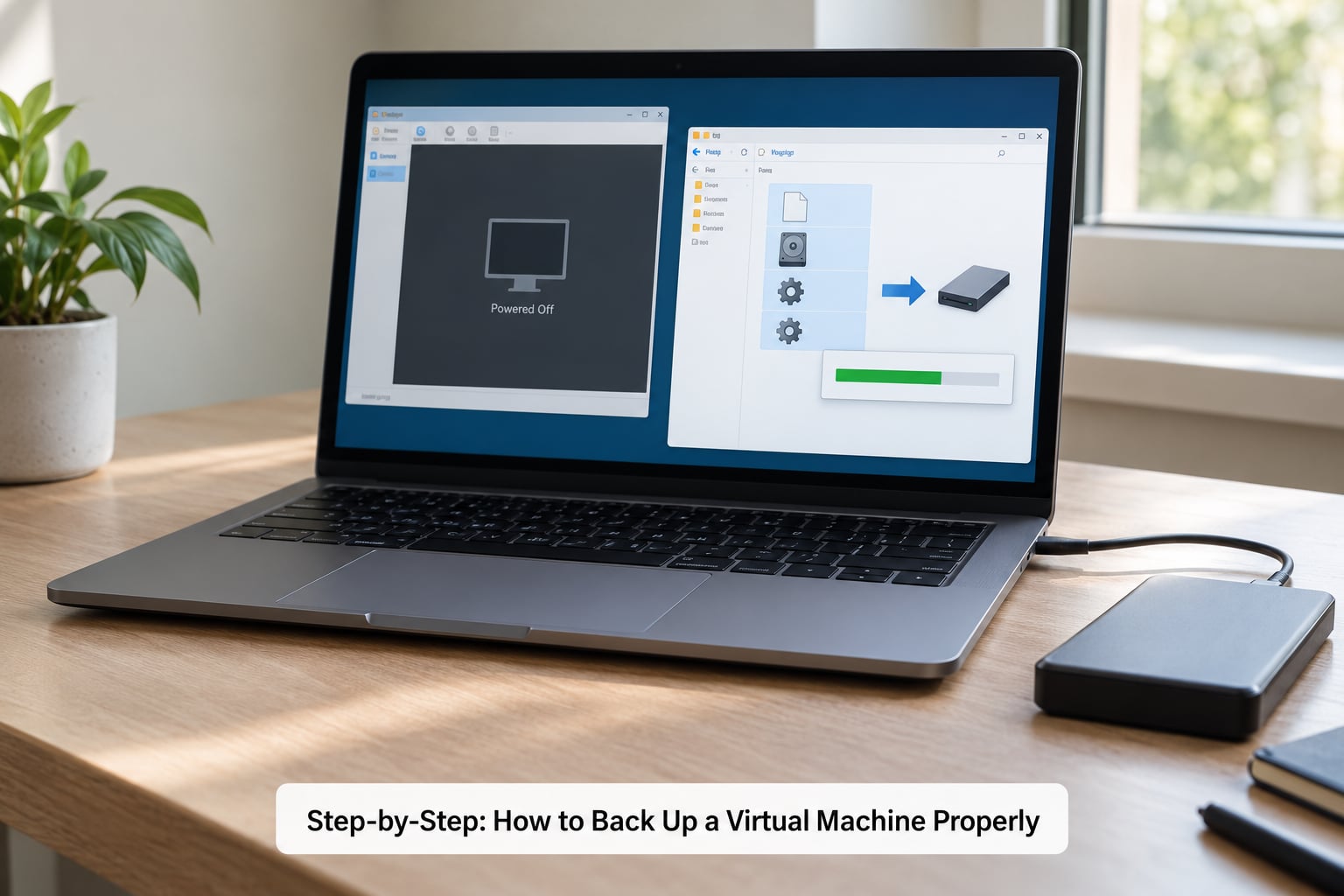
Plan the Backup Scope and Destination
Decide what is in scope before you touch anything. For most home labs and dev sandboxes, the answer is every VM folder plus its configuration, not just the disk images.
Inventory the guest operating system, provisioned and actual disk size, memory, CPU count, network adapters and MAC addresses, and any synthetic hardware the guest depends on. Note whether the guest runs a database, a mail server, or anything else where a half-written transaction matters.
Then pick the window. A 300 GB VM that changes during business hours needs either a short downtime window with a cold copy, or a quiesced snapshot from a backup tool that can capture application-consistent state while it runs.
Stop Writes or Create a Consistent Snapshot
This is the step that decides whether the backup is usable. A VM that is actively writing to its disk produces a copy with blocks from two different moments in time stitched together, which often boots and then quietly fails under load.
Three options, in descending order of safety: shut the guest down cleanly from inside the OS and wait for the hypervisor to release the disk files; suspend the VM and then copy, since a suspended VM has no in-flight writes; or quiesce the guest through the hypervisor, which freezes the filesystem and applications, takes the capture, and thaws the guest.
Quiesce on Windows guests goes through the Volume Shadow Copy Service, which is why backup agents installed in the guest usually improve consistency on Hyper-V. On Linux guests without an agent, expect crash-consistent state instead: the filesystem is intact, the last few seconds of writes may not be.
Capture the Virtual Disk and VM Configuration
Now create the artifact. Use the hypervisor’s own workflow rather than a file manager drag, because the tools know which files must travel together and in what state.
Configuration files are the commonly forgotten half. Copy the VMX, VMXF, VBOX, and the guest addition or template files for VMware, the VMX and the .vbox-adjacent XML for VirtualBox, the VM configuration and checkpoints for Hyper-V, and the qemu-server.conf entry plus disk images for Proxmox. A disk image with no config gives you bytes without a machine.
For VirtualBox, File > Export Appliance writes a portable OVF directory or a single OVA file with the disk baked in. For Proxmox, vzdump on the host or the GUI snapshot with the vzdump mode selected produces a compressed archive plus a config file.
Verify the Backup Files
A copy finishing without an error means bytes moved, not that the backup works. Check the artifact before you delete anything.
- Compare the exported file size against the sum of the disk files it replaced. A truncated archive shows up here immediately.
- Open the configuration file in a text editor and confirm it parses and still lists the expected disks, NICs and memory values.
- Run a checksum or hash where your tooling supports one, and store the value next to the backup so you can detect silent corruption later.
- Ask the host to re-inventory the copied files. On Proxmox, listing the storage shows whether the archive landed intact.
Copy the Backup Off the Hypervisor Host
Move the artifact to storage on different physical hardware. Ransomware that reaches the hypervisor will encrypt anything it can write to, including backups that sit in the same datastore, and a host disk failure takes a same-host copy with it.
Preserve timestamps and permissions with rsync -a or rsync -aP if you want progress and resumability. Never overwrite the last known-good copy; write to a new dated directory and prune older ones only after the new one passes verification.
A workable pattern for a self-hoster is a full shutdown-and-copy on a weekly schedule plus more frequent snapshot-based incrementals, mirrored to a NAS and then offsite. It follows the same shape as any database backup policy, just with much bigger files.
Test Restoration on an Isolated Network
Restore a duplicate with networking disabled. Boot it, confirm the guest comes up, check that the services start and the data is where you left it, and write down how long the whole restore took.
That number is your real recovery time objective. People guess wildly. Measure it instead.
Restore into a network that cannot reach production, because a restored duplicate with the same name and IP as the live machine will fight for DHCP and may duplicate mail, DNS, or licensing traffic the moment it boots.
Automate and Retain Multiple Recovery Points
One large copy is a fallback, not a strategy. Schedule several recovery points and keep the ones you might actually want.
Keep daily snapshots for a week, weekly for a month, monthly for a year. That shape lets you survive a bad deploy on Tuesday and a slow corruption discovered in March. Add immutable or object-locked storage for at least the oldest copy so a compromised host credential cannot rewrite history.
Monitor for failed jobs. A backup that silently stopped three weeks ago is the failure mode that hurts most, because it is invisible until you need it. Alert on job failure and on the absence of a successful run, not just on errors that happen.
Common Mistakes
These five account for nearly every bad restore people report. Each has a straightforward fix.
| Mistake | What goes wrong | Fix |
|---|---|---|
| Copying the folder of a running VM | Blocks from different instants combine into a disk that may mount and then fail under use | Shut the guest down, suspend it, or quiesce it first |
| Backing up only the disk image | No config means no NICs, no memory size, no machine identity on restore | Copy configuration files alongside every disk |
| Storing the backup on the same host | Host failure or ransomware takes out the copy too | Second copy on separate hardware, plus one offsite |
| Treating a snapshot as the backup | Snapshots live on the source disk and consume space until consolidated | Use snapshots for rollback only; copy the files for recovery |
| Declaring success without restoring | Truncated or inconsistent artifacts are discovered during an outage | Restore a duplicate in isolation on a schedule |
Two more worth naming. Long snapshot chains quietly degrade datastore performance and eat free space, so consolidate or discard them on a schedule rather than letting them pile up. And large disks make full copies impractical, which is exactly what incremental capture exists to solve — the small Hyper-V developer image wants hourly backups, and a multi-terabyte mail server needs a different tool.
How to Backup a Virtual Machine Properly on VMware, Hyper-V, and VirtualBox
The workflow above is identical everywhere; only the commands differ. Exact menu wording shifts between versions, so confirm against the release you actually run.
VirtualBox. Shut the guest down or suspend it, then use File > Export Appliance and save as OVA for one portable file, or OVF for a directory you can copy. For a raw copy with no conversion, VBoxManage snapshot "VMname" take "before-backup" --pause then copy the VM folder including Snapshots/. Note the maintainer caveat: exporting adjusts some guest settings, so keep a cold folder copy as your archival master.
VMware Workstation or Fusion. Power off or suspend, then copy the entire VM directory with the VMX and the VMDKs together. To capture state while running, vmrun -T ws suspend "path/VM.vmx" soft, copy the folder, then resume. On ESXi, a shutdown followed by a vmkfstools clone or a Datastore Browser copy to another datastore is the equivalent, and esxcli or PowerCLI Get-VM | Export-VM is often cleaner from a script.
Hyper-V. PowerShell is the direct route: Export-VM -Name "VMname" -Destination "D:VMbackupsVMname" -VHDFormat VHDX. It writes a folder holding the VHDX files and the VM configuration. Note that Hyper-V Manager puts the Export command under the VM’s context menu on the host, not inside the guest.
Proxmox VE. Select the VM, then Snapshot with mode vzdump, or run vzdump 100 --mode snapshot --storage backup --compress zstd on the host for a scriptable version. The result is a compressed archive you can restore from the Storage content view.
Whatever you use, prefer the platform’s native export or checkpoint tool over dragging files from a file manager. The native path knows about delta disks, snapshot chains and lock files that a manual copy does not.
Frequently Asked Questions
How often should I back up a virtual machine?
Match the schedule to how fast the data changes and how much work a day of lost writes would cost. For most home lab and dev VMs, a daily capture plus a weekly off-host copy is plenty. Anything holding production data wants multiple recovery points a day through a tool that supports incremental capture. Keep the schedule written down, and alert on a missed run rather than trusting that it happened.
Are VMware snapshots a substitute for backups?
No. A snapshot is a rollback point on the same datastore as the original VM. If the host fails, the datastore is corrupted, or ransomware reaches the hypervisor, the snapshot goes with it. Snapshots are also not long-term storage: chains grow, consume free space and slow the datastore until they are consolidated. Use snapshots for short rollback windows and real copies for recovery.
Can I restore a VM backup to a different hypervisor?
Sometimes, with conversion. Virtual disk formats differ, so a VMDK generally has to be converted or cloned into VHDX, VDI or QCOW2, and the machine’s firmware and hardware model have to match the target hypervisor. CPU and chipset differences cause boot failures on drivers. Build this into the plan deliberately and test a cross-platform restore, because it is not a same-night emergency move.
Should I back up a virtual machine while it is running?
Only if the capture tool quiesces the guest first. A cold copy, a suspend, or an application-consistent snapshot all produce a consistent image. Copying the files of a running VM produces a disk whose blocks come from different instants, which can mount cleanly and then corrupt data later. If you cannot stop the guest, put a backup agent inside it or use a tool that calls the hypervisor’s quiesce API.
How do I verify that a virtual-machine backup is usable?
Check the artifact, then restore it. Confirm the file size matches the disks it replaced, open the configuration file and check it still lists the expected disks and adapters, and record a checksum. Then restore a duplicate with networking disabled, boot it, verify the services and data, and write down the elapsed time. That measured number is your real recovery time objective.
Should VM backups be encrypted?
Encrypt them once they leave the host or sit on shared NAS space, since a VM image contains every credential, key and database the guest ever stored. Enable encryption at rest in your backup target or with your backup tool, and keep the recovery key somewhere separate from the backup itself. Encrypting before transfer adds CPU cost on large images, so encrypt at rest when the destination is already trusted infrastructure.
Conclusion
Three things to do first, in this order. Pick a capture method that stops writes or quiesces the guest, copy the result to storage on different hardware, and restore one duplicate with networking disabled to see it boot.
Everything after that — retention schedules, incremental runs, encryption, offsite mirrors — only pays off once those three work. Start with them and the rest is tuning.