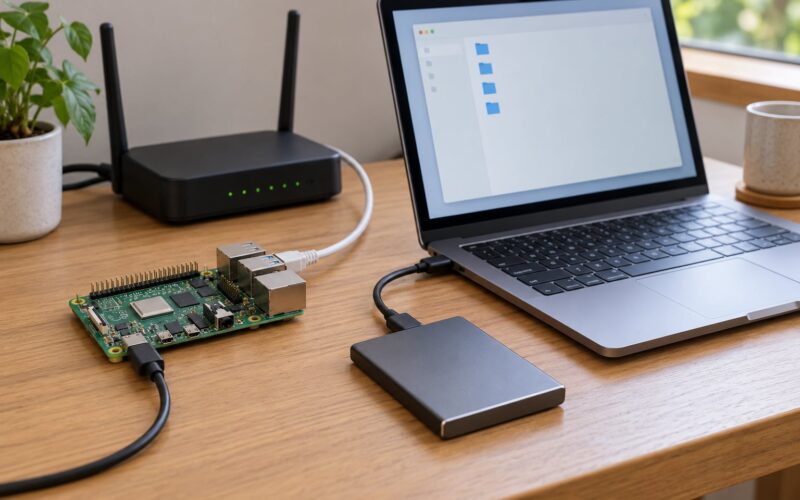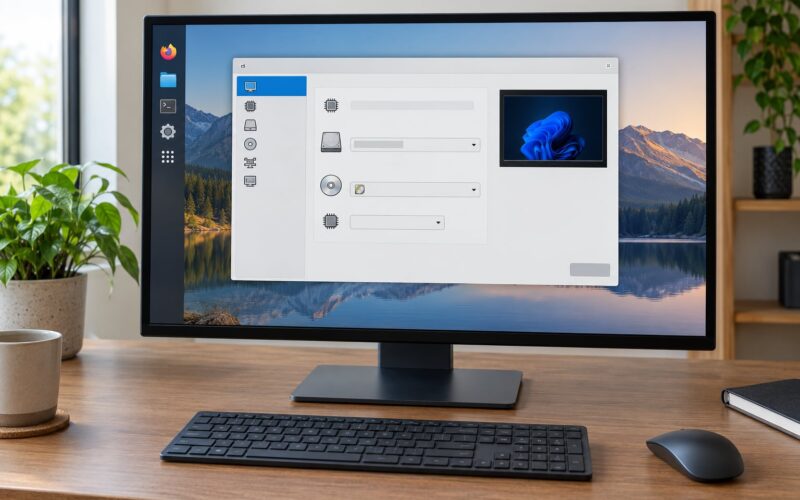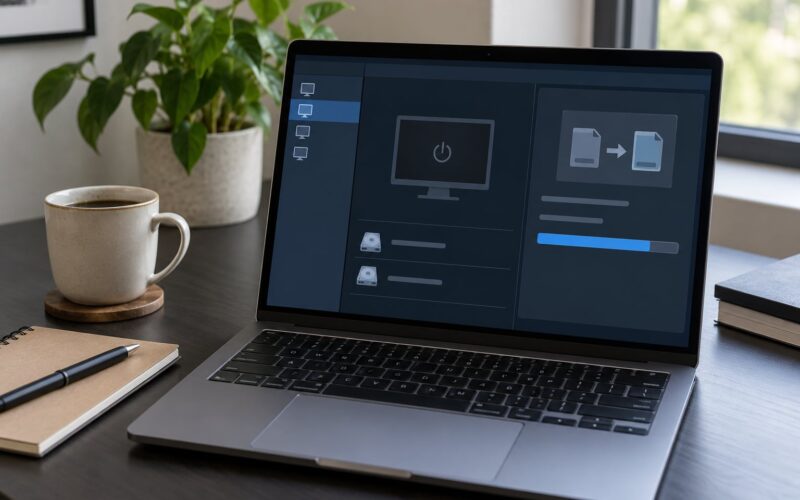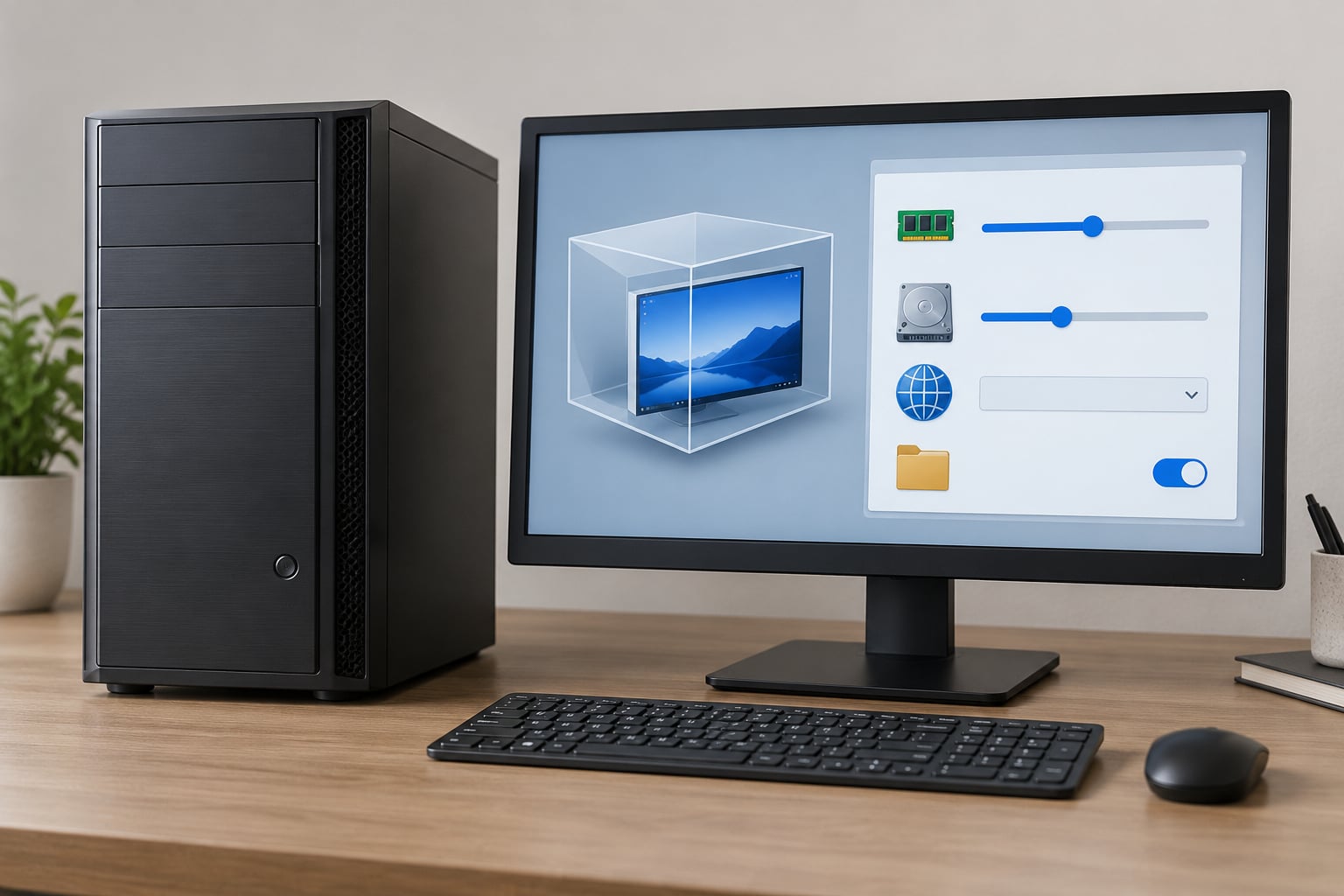
How to run old Windows software in a virtual machine means installing a legacy version of Windows inside a virtual machine on your modern PC, then launching the old program inside that isolated guest system. It takes about 30 to 60 minutes the first time, works for anything from Windows 95 software to Windows XP line-of-business tools, and gives you a rollback point when the application misbehaves.
The idea is simple. A hypervisor on your PC hands a slice of your real processor, memory and disk to a second computer that only exists inside a window. You install Windows 7 or XP there, install your old program in that guest, and the host system stays untouched. That isolation is the whole point: legacy applications stopped receiving security patches years ago, so a bug in one should not be able to walk out through your network.
Two things a virtual machine cannot fix are worth knowing before you start. Software with a 16-bit DOS installer will not run inside a 64-bit Windows guest at all, because Windows dropped 16-bit support, and hardware-bound programs like SCADA or industrial HMI tools that need a specific PCI or ISA card may need the real card passed through or a physical machine kept alive. For everything else, this method works.
Table of Contents
- What You Need
- How to Run Old Windows Software in a Virtual Machine: Step-by-Step
- Choose the Guest Windows Version and Virtual Machine Type
- Create and Configure the Virtual Machine
- Install the Guest Operating System and Service Tools
- How to Run Old Windows Software: Install and Test the Application
- Share Files Safely and Create a Snapshot
- Verify Isolation, Networking, and Data Handling
- Common Mistakes
- Frequently Asked Questions
- Can VirtualBox run 32-bit software on a 64-bit Windows virtual machine?
- What is the safest Windows version to use for old software?
- Why does an old Windows installer fail during setup?
- How do I get files from my computer into the virtual machine?
- Can old software damage the host if it runs in VirtualBox?
- Should I let a legacy virtual machine connect to the internet?
- Conclusion
What You Need
Start by confirming hardware virtualization is switched on in your BIOS or UEFI. On Intel chips the setting is called Intel VT-x, on AMD it is AMD-V, and on many laptops it sits under Security or CPU Configuration. If VirtualBox opens a VM and hangs at the boot screen, this is the first thing to check. Task Manager’s Performance tab shows the status under Virtualization as Enabled or Disabled.
Give the guest real resources, not leftovers. A Windows XP or Windows 7 guest is happy with 2 GB of RAM and a 40 GB dynamically allocated virtual disk, and running two guests at once means 4 GB free on the host. Reserve roughly 60 GB of free disk space for the VM folder plus one shared-folder area you control.
For the hypervisor itself, VirtualBox 7.x on Windows 10 or 11 is the smoothest route, and it is what the rest of this walkthrough uses. Menu names are specific to VirtualBox 7.x, where the top-level menus are File, Machine, View, Input, Devices and Help. VMware Workstation handles awkward old hardware slightly more gracefully, and Hyper-V ships with Windows 11 Pro and Enterprise, but every one of them follows the same shape.
You also need an ISO image of the guest Windows version, and it should come from a source you trust. Verify the checksum Microsoft publishes for the ISO before mounting it. Then find the application’s own installer, ideally the 32-bit one, and any runtimes it depends on, such as Visual C++ redistributables, .NET Framework 3.5 or a 16-bit helper. A missing runtime is the most common reason an otherwise working legacy install fails on first launch.
Finally, decide how you will license the guest OS. Using a product key you already own for personal use is fine; the moment you copy an ISO from a warez forum you are running unlicensed software on your own machine. If your only copy of Windows XP is the dead machine in the cupboard, the legal route is to convert that installation into a virtual disk with a disk-to-disk conversion tool rather than downloading a fresh image.
How to Run Old Windows Software in a Virtual Machine: Step-by-Step
Choose the Guest Windows Version and Virtual Machine Type
Pick the guest Windows version by reading what the program’s own documentation or installer demands, not by guessing. A 2003-era accounting package wants Windows XP or Server 2003, a Windows 95 CD-ROM game wants Windows 95 or 98 SE, and a Windows 7-era utility runs fine on Windows 7. Installing a newer guest than the app expects often breaks it, because old installers probe for APIs that were removed.
Architecture matters more than people expect. A 32-bit legacy application cannot install on a 64-bit Windows 10 or 11 host, which is why support forums keep filling up with Micro/WIN V4.0, RSLinx Classic and FactoryTalk View questions. Running it means a 32-bit guest, and a 64-bit hypervisor host is perfectly happy running a 32-bit guest, so this costs you nothing but guest RAM.
Give one application one clean guest. Programs that behave badly tend to behave badly predictably, and a fresh VM gives you a known starting point instead of a machine carrying three previous experiments, their orphaned registry entries and their conflicting drivers.
Create and Configure the Virtual Machine
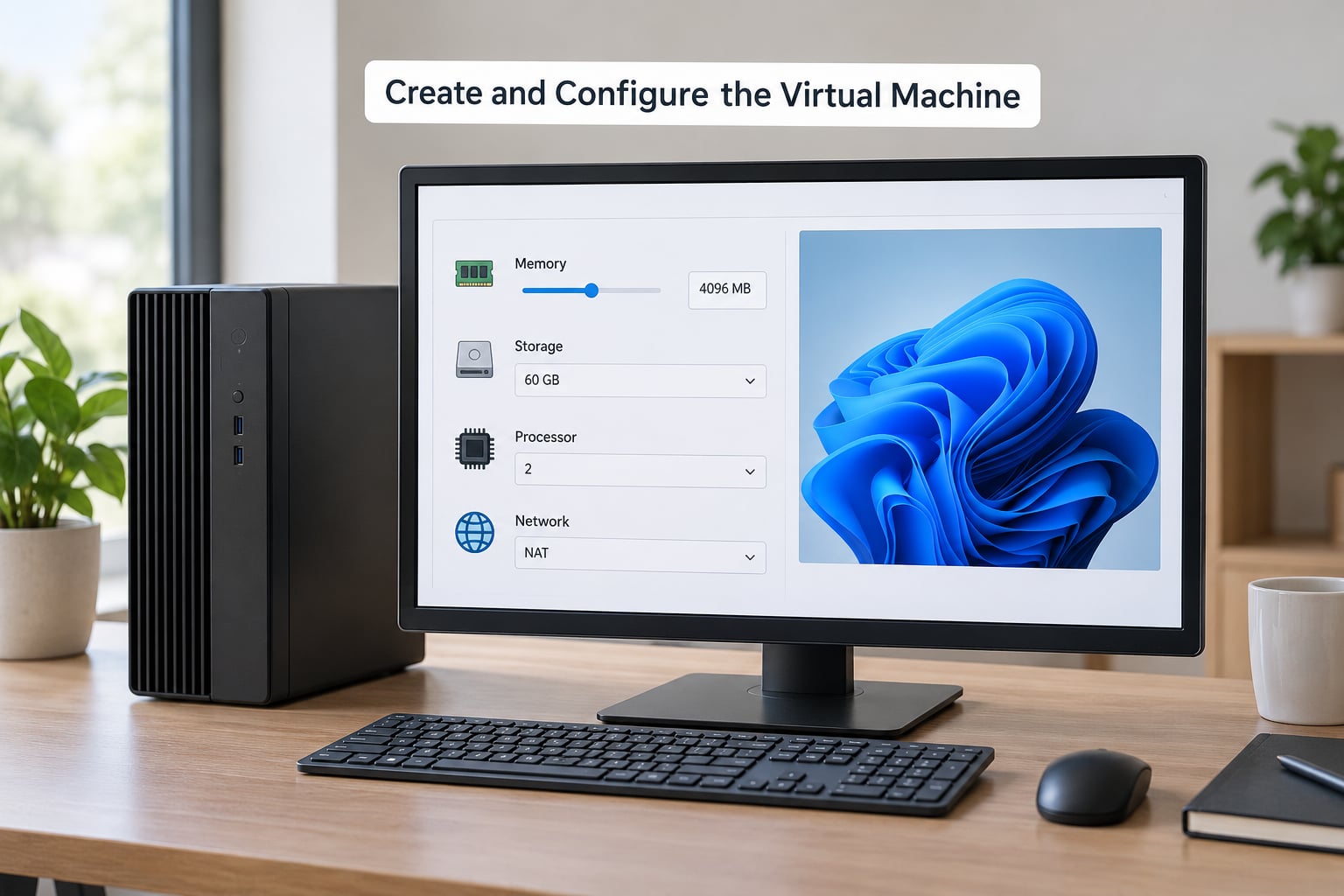
In VirtualBox select Machine, then New. Give the machine a name that says what is inside it, set Type to Windows, and pick the exact version from the dropdown, such as Windows XP or Windows 7. Memory goes in the next box, and 2048 MB suits XP and Windows 7 comfortably. Leave 2 to 4 CPU cores for a single-application guest.
For the disk choose Create a virtual hard disk now, then VDI format and Dynamically allocated. Dynamic allocation means the file grows only as the guest writes to it, which is the right choice when a single guest has to hold the OS, the old application and your data. Set the location deliberately, on a drive you can back up, instead of accepting the default under your user profile.
Disk controller is the setting that decides whether a 9x-era guest installs cleanly. Windows 98 and Windows 95 predate SATA and AHCI, so their installers routinely fail to find a hard disk. After finishing the wizard, open Settings, then Storage, and change the controller type to IDE for Windows 9x guests while SATA or NVMe works fine for XP and 7. The same panel is where you attach the ISO in the next step.
On the network panel, NAT is the default and it is the setting you want for untrusted legacy software. NAT sends guest traffic out through the host’s connection while the guest has no direct route to your local network, so a worm in a 1998 application cannot scan your NAS or your smart TV. Bridged networking puts the guest directly on your LAN as its own device with its own IP address, which is occasionally necessary for a program that phones home to a local server, and much riskier for anything else.
Install the Guest Operating System and Service Tools
Attach the Windows ISO before first boot. Select the VM, open Settings, click Storage, then the empty optical drive icon next to the controller, and choose Disk for choosing a virtual optical disk. Point it at your Windows ISO and confirm. With the VM selected, hit Start and confirm the prompt to boot from the optical disc.
The guest installer takes over from there. Windows XP asks you to press F8 to set up disk partitions, so press F8, create a primary partition with setup’s own tool, and let it install. Windows 7 and later handle partitioning automatically. Watch the field where the installer asks whether you want 32-bit or 64-bit components, and pick 32-bit when your application is 32-bit.
Once the guest reaches its desktop, install the integration drivers before anything else. Mount the VirtualBox Guest Additions ISO from Devices, then Optical Discs, then Choose a Disk File, run the setup inside the guest, and reboot it. Done correctly, the guest gets a virtual CD drive, a sensible screen resolution and a working time sync, and shared folders become available later.
Three checks confirm a healthy guest: the screen resizes when you drag the window edge, the clock updates to your host’s time after a reboot, and the Sound panel shows a working device. If the display driver refuses Guest Additions, install without extras and switch the VM graphics controller to VBoxVGA in Settings, Display.
How to Run Old Windows Software: Install and Test the Application
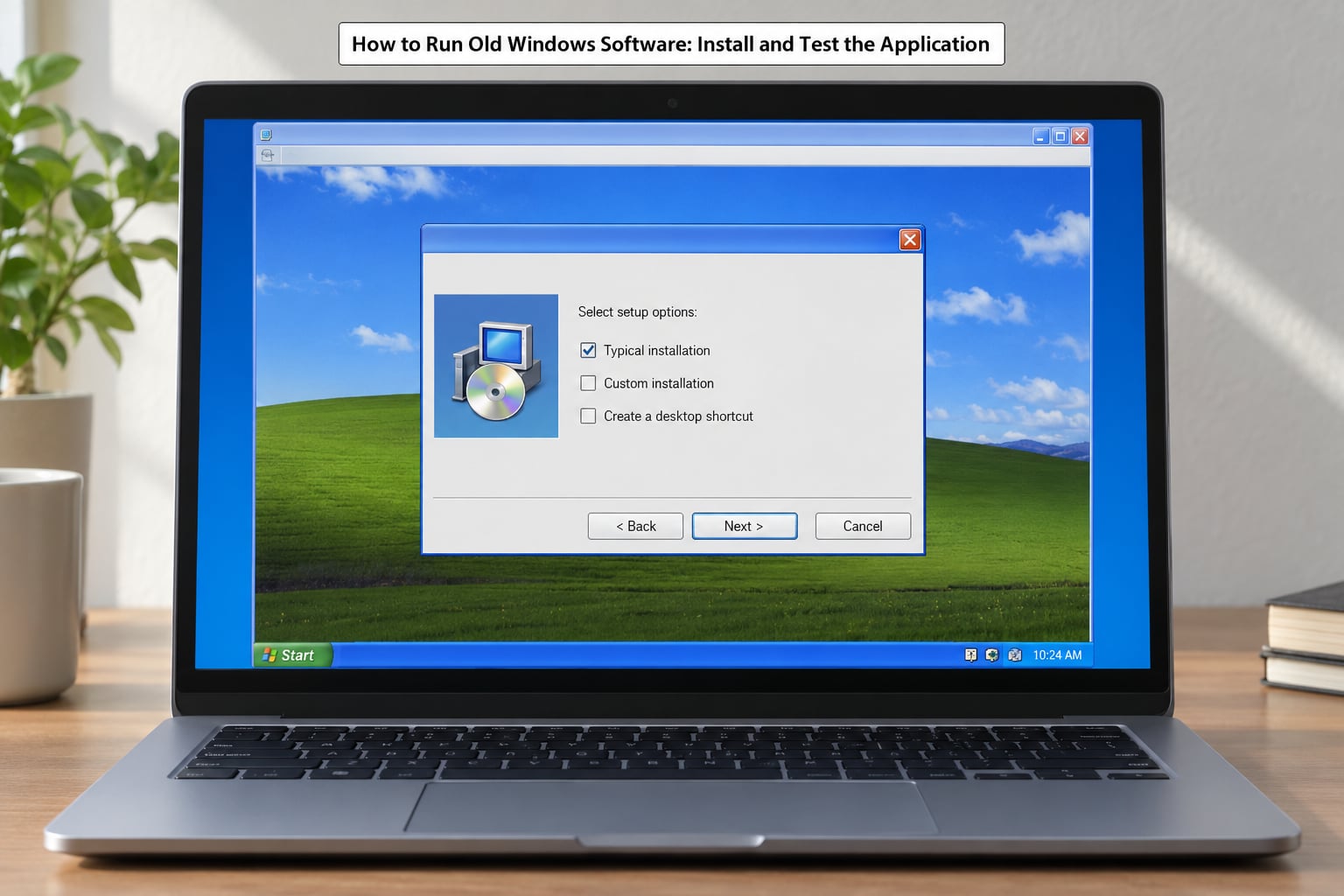
Get the installer into the guest without opening it on the host first. Scan it, then attach it as a second virtual disc: Devices, Optical Discs, Choose a Disk File, and pick the setup executable or ISO. Mounting an image read-only means even if the application is hostile, it cannot rewrite its own files. If you have a physical disc, use it via USB passthrough instead.
Run the installer and read every checkbox before you click Next. Legacy setups routinely offer bundled toolbars, driver updaters and analytics, and unticking them saves hours of arguing with a 2003-era detection routine. Install only the components the program actually needs, then reboot the guest if the setup asks, because half of these installers write pending registry changes.
When something breaks, write down the exact error text before trying anything else. A generic crash on launch means different things depending on whether the failure is a missing runtime, a missing 32-bit dependency, an old licence dongle driver, or a genuine application bug, and the wording tells you which. The clean way to separate an application fault from a virtual machine fault is to test the same installer in a second clean guest with no shared folders and networking off. If it fails identically in the clean guest, the virtual machine is innocent.
Share Files Safely and Create a Snapshot
Shared folders are the feature that turns a sandbox into a usable workstation. Open the VM’s Settings, then Shared Folders, click the plus icon, and set a folder name and host path. Choose Read-only unless the application genuinely needs to write back, tick Auto-mount and let the guest assign the drive letter, then start the VM and open the new drive in the guest’s File Explorer or Explorer.exe on XP.
Every shared folder is a doorway into your host. Point the path at a single folder you created for this purpose, not at your Documents folder, and keep other drives out of it. If Guest Additions is missing or refused to install, virtual CD and DVD images and USB passthrough cover most file-transfer needs without sharing a folder at all.
Snapshot before you take any risk. Select the VM and choose Machine, then Snapshots, then Take Snapshot. Name this one Clean Baseline and never delete it, because it is the state you return to when an installer half-writes itself or a document opens with a macro payload. Repeat the habit every session: snapshot, then install, then run.
Rollback is one click in the same panel. Selecting a snapshot and choosing Revert throws away everything that happened after it, which makes trying three different installs of the same broken program cheap. When a guest turns out to be past saving, take one final snapshot to preserve the state before you start experimenting, so the mess is recoverable.
Verify Isolation, Networking, and Data Handling
Walk through the isolation settings once, deliberately, before you trust the machine. Open Settings, then Shared Folders, and confirm exactly one host folder is exposed and that it is read-only if that suits the task. Open Input or Devices settings and set the clipboard to Disabled if you are testing a file of unknown origin. Under USB, remove any filters you added by accident, since a filter silently captures every matching device on the host.
Leave networking at NAT and, for a first test, disconnect it entirely. In VirtualBox, the network adapter’s cable can simply be unplugged from the status bar or the adapter page, which means the guest believes it has a network card with no link. Most legacy applications need the internet exactly once, during installation, and nowhere near as often as people assume afterwards.
Handle data crossing the boundary deliberately. Scan anything in the shared folder before the guest touches it, export results to a separate folder rather than the shared one, and scan again on the host before opening a file the guest wrote. Guest-to-host file exchange is the single most realistic way a legacy application causes damage on a modern machine.
One performance note belongs here. On Windows 11, Hyper-V switches itself on automatically and its presence slows VirtualBox and VMware noticeably, a friction point people on r/virtualization and r/HyperV hit repeatedly. If the guest feels sluggish but nothing is wrong with it, check Windows Features for the Microsoft Hyper-V platform and turn it off, then reboot the host and remeasure.
Common Mistakes
The installer will not launch at all. A 16-bit DOS installer cannot run inside a 64-bit Windows guest, because Windows removed 16-bit support years ago. There is no settings tweak for this. Use a 32-bit guest and an emulator such as DOSBox, or keep an old 32-bit Windows machine alive and run the application there.
Windows 98 dies at the partitioning screen. The installer cannot see the disk because it predates SATA. Set the controller type to IDE under Settings, Storage, create the virtual disk as IDE as well, and boot from the optical drive only.
Errors like 0xc000007b, or yellow question marks in Device Manager. This is a bitness mismatch or a missing runtime. Install the application’s dependency packs inside the guest, and confirm the guest itself is 32-bit if the program is 32-bit.
No network inside the guest. Check the adapter is attached and set to NAT, then confirm the guest has not been left with a disconnected cable. On Windows 11 24H2 hosts, existing Windows XP Hyper-V guests are a documented casualty: the guest loses networking after the host update, and the fix that works is switching the VM to the legacy network adapter in the Hyper-V VM settings.
Everything got slower after a Windows update. That is almost always the Hyper-V platform turning itself on underneath VirtualBox or VMware. Disable the Microsoft Hyper-V platform under Windows Features and reboot.
The shared folder is missing in the guest. Guest Additions either is not installed or the folder was created without auto-mount. Reinstall Guest Additions, reboot the guest, and check the network drive letter in Explorer. Read-only folders also disappear entirely if the host path has moved or been renamed.
Guest Additions refuses to install the driver. The guest kernel rejects the unsigned driver under Driver Signature Enforcement. Boot the guest, disable enforcement from the recovery menu, and reinstall, or accept a smaller display resolution and skip the driver entirely.
The activation question. You do not strictly need an activated guest OS to run an old application, but Windows XP and earlier will nag, some programs check the OS build, and activation servers for retired releases are gone in some regions. Use a license you own, and accept that a virtual machine is a second copy that needs its own entitlement under the licence terms.
The VM suddenly refuses to start or storage errors appear. Snapshots consume space rapidly, and a full host disk corrupts virtual disks. Check the drive holding the VM folder for free space, and export or discard snapshots you no longer need.
A window opens blank or the program hangs on splash. Missing Visual C++ redistributable, .NET 3.5, or a licence service that assumes a dongle is present. Install runtimes inside the guest one at a time, and check the program’s own log folder for the last entry before the hang.
Two habits prevent most of this. Snapshot before every install, and never share a folder broader than the one directory the application needs. Back up the VM folder itself, or export an appliance from File, Export Virtual Appliance, so a corrupted virtual disk is an inconvenience rather than a lost evening.
Frequently Asked Questions
Can VirtualBox run 32-bit software on a 64-bit Windows virtual machine?
No. A 32-bit guest installs the 32-bit variant of Windows, which is exactly what the application needs. The 64-bit setting on your host computer does not matter, since a hypervisor runs guests of either bitness on the same processor. Create the VM as Windows XP or Windows 7, choose the 32-bit option during setup, and the old program installs normally.
What is the safest Windows version to use for old software?
Match the guest to the application rather than picking one universal version. Windows 7 works well for software from the Vista and 7 era, Windows XP SP3 handles most line-of-business tools from the 2000s, and Windows 98 SE suits 1990s titles. Safety comes from isolation and snapshots, not from the version itself, so isolate whichever guest the program needs.
Why does an old Windows installer fail during setup?
Four causes cover most failures. The installer is 16-bit and cannot run in a 64-bit guest. Windows 9x cannot see a SATA disk and needs the IDE controller type. A required runtime or 32-bit component is missing. Or the guest lacks enough memory or disk. Check the error text before changing anything, because each cause has a completely different fix.
How do I get files from my computer into the virtual machine?
Use a shared folder. Add it under the VM’s Settings, Shared Folders, tick Auto-mount, then open the new drive letter inside the guest. Keep the host path pointing at one dedicated folder and read-only where possible. If Guest Additions will not install, attach the file as a virtual CD image instead, which needs no driver at all.
Can old software damage the host if it runs in VirtualBox?
Rarely, and that is the point of the sandbox, but the boundary has doors in it. Shared folders, clipboard sharing, drag and drop and USB passthrough all let data cross from the guest to your real files. Keep those narrow, scan files before and after they move, and you have a genuinely useful isolation layer instead of a decorative one.
Should I let a legacy virtual machine connect to the internet?
Only when the application needs it, which is usually once during installation. Set the adapter to NAT rather than bridged so the guest cannot reach your local network, and disconnect the cable entirely for offline testing. An unpatched Windows XP guest on a public network is an open door, so keep it offline by default and reconnect deliberately.
Conclusion
Start with three things. Confirm whether your program is 32-bit, because that decides your guest OS, and check whether its installer is 16-bit DOS, because that decides whether a virtual machine is the right tool at all. Then create the guest, keep the network adapter on NAT, and take a Clean Baseline snapshot before you install anything or open a single file from the old program.
Everything after that is ordinary work: install, test, and revert to the snapshot when a variant misbehaves. VirtualBox makes the risky part reversible, which is why the method holds up for software that has not been updated since the 2000s.