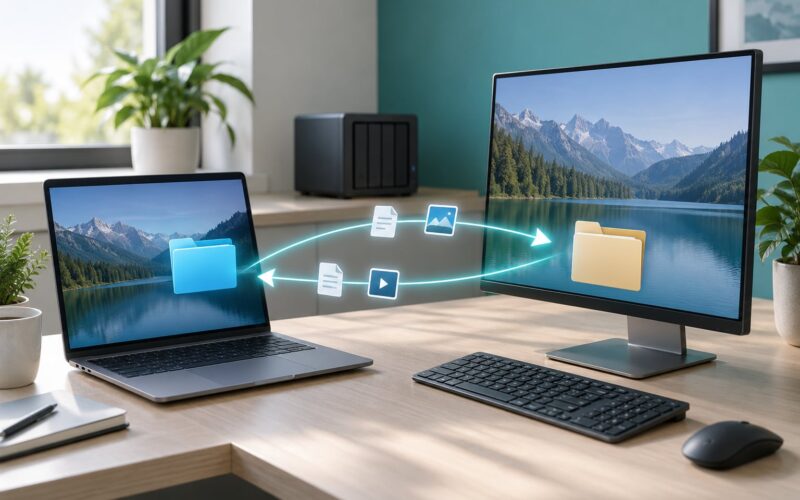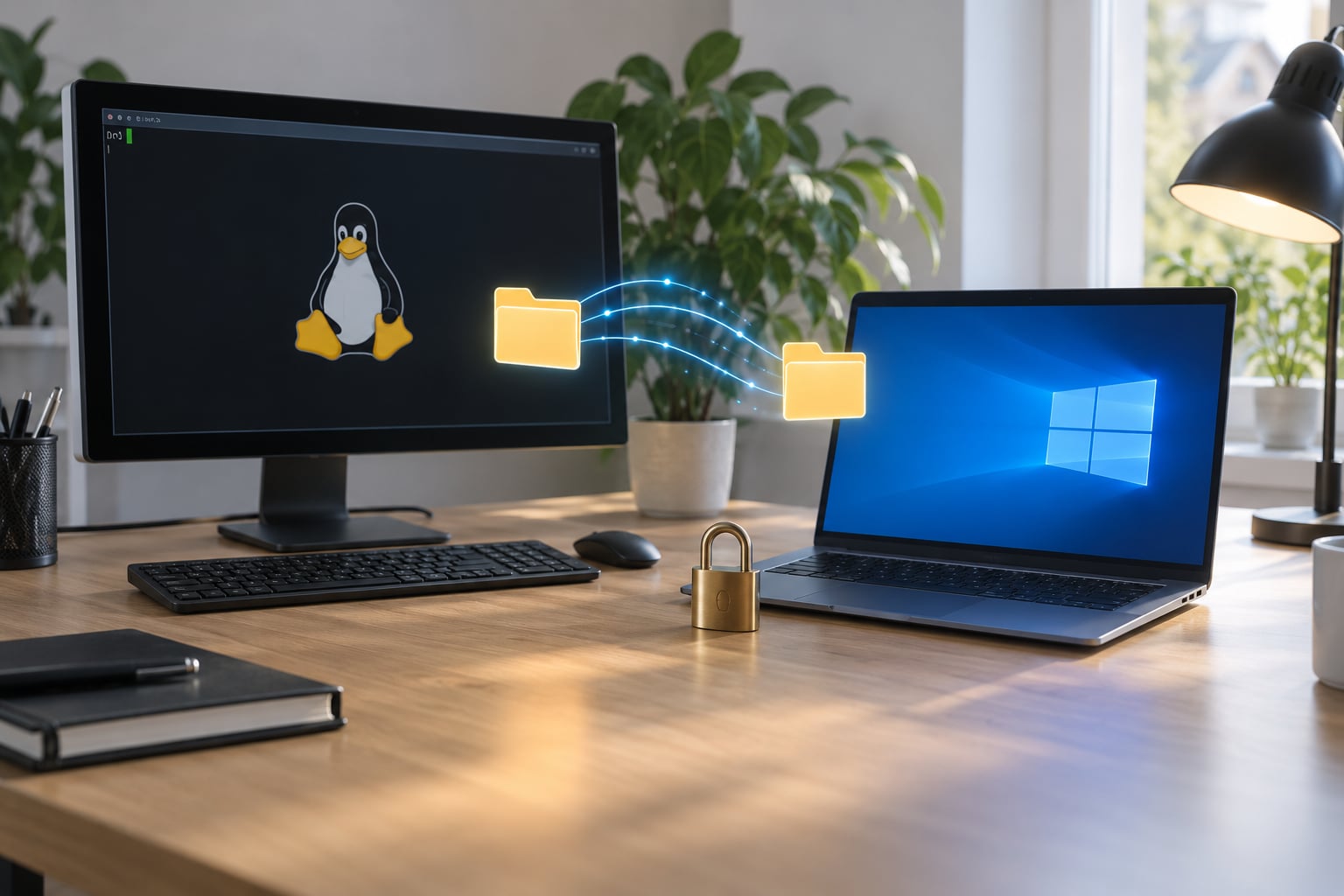
To sync folders between Linux and Windows you need third-party synchronization software running on both machines, because neither operating system ships a built-in tool that reaches across to the other. The one I would set up first is Syncthing: install it on each computer, paste one device ID into the other, share a folder, and changes then flow both ways in the background. Budget about 15 minutes per machine.
This guide covers the Syncthing setup end to end, then the two other methods worth knowing — an SMB network share and rsync over SSH — plus the problems that actually stop people halfway through, like permission errors and filename case mismatches.
One thing to settle before you start: synchronization is not backup. A sync tool mirrors deletions in both directions, so a file you empty the recycle bin for disappears everywhere. Turn on file versioning in the steps below.
Table of Contents
- What You Need You need two computers, one running Linux and one running Windows, plus Syncthing installed on both. Everything else is already on the machine. A writable folder on each side. Give it at least as much free space as the data you are moving, because the first sync copies everything and neither machine streams a partial folder. Admin rights on both machines. You will install software and approve a firewall prompt on each. Both machines online for the first sync. After that they only need to be online at the same time to exchange changes. Firewall access for two ports. Port 8384 is the web interface, and it only ever listens on localhost. Port 22000 is the data connection between devices, and that is the one your firewall has to allow. If the two computers sit on different networks or behind different routers, you also need either port forwarding on one side or a static address. That part comes later; pair them on the same LAN first so you can prove the setup works. Step-by-Step
- Install Syncthing on Linux
- Install Syncthing on Windows
- Connect the Linux and Windows Devices
- Add and Synchronize the Shared Folder
- Common Mistakes
- Alternative Methods: Shared Folders and rsync
- Frequently Asked Questions
- Do both computers need to be online at the same time to sync folders?
- Does Syncthing work over the internet, not just on a home network?
- What happens to files I delete, and is syncing the same as backup?
- How do I sync a very large folder tree without it taking forever?
- Do Linux and Windows filenames cause problems when syncing?
- What are the key differences between rsync and Syncthing?
- Conclusion
What You Need
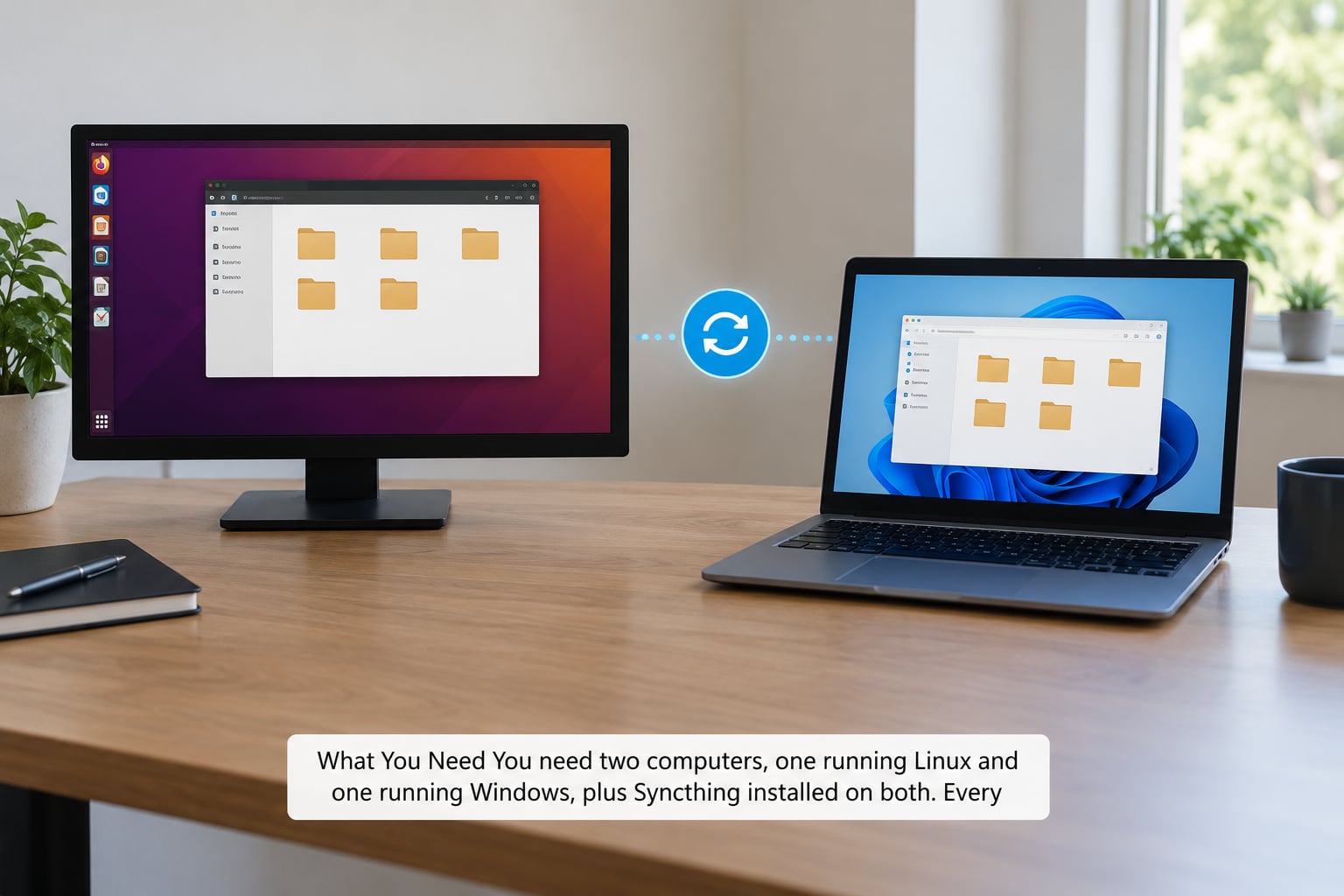
You need two computers, one running Linux and one running Windows, plus Syncthing installed on both. Everything else is already on the machine.
- A writable folder on each side. Give it at least as much free space as the data you are moving, because the first sync copies everything and neither machine streams a partial folder.
- Admin rights on both machines. You will install software and approve a firewall prompt on each.
- Both machines online for the first sync. After that they only need to be online at the same time to exchange changes.
- Firewall access for two ports. Port 8384 is the web interface, and it only ever listens on localhost. Port 22000 is the data connection between devices, and that is the one your firewall has to allow.
If the two computers sit on different networks or behind different routers, you also need either port forwarding on one side or a static address. That part comes later; pair them on the same LAN first so you can prove the setup works.
Step-by-Step
Install Syncthing on Linux
On Ubuntu or Debian, install from the Syncthing repository so you get a current version instead of the aging one in the distro archive.
sudo mkdir -p /etc/apt/keyrings
sudo curl -1sLf "https://apt.syncthing.net/syncthing-archive-keyring.gpg" -o /etc/apt/keyrings/syncthing-archive-keyring.gpg
echo "deb [signed-by=/etc/apt/keyrings/syncthing-archive-keyring.gpg] https://apt.syncthing.net/ syncthing stable" | sudo tee /etc/apt/sources.list.d/syncthing.list
sudo apt update
sudo apt install syncthing
Start it as your own user, not root, so the files it writes stay owned by you:
syncthing
The web interface opens at http://localhost:8384. If it does not open automatically, copy that address into a browser on the same machine.
To make it start on boot for your user account, enable the user service:
systemctl --user enable --now syncthing@$USER.service
On a headless Linux server with no session to log into, that user service stops at logout. Turn on lingering once and the daemon keeps running after you disconnect:
sudo loginctl enable-linger $USER
Arch users can install the syncthing package from the AUR, and anyone else can use the Flatpak or the tarball. The web interface behaves the same either way, so every step below applies unchanged.
Install Syncthing on Windows
Download the official desktop executable from the Syncthing website, or pick a community front-end. SyncTrayzor wraps Syncthing with a Windows tray icon and is the one most people land on; Syncthing-GTK is the other common option. All of them run the same core and produce the same web interface.
Run the executable and let it create its configuration. The first launch opens the same http://localhost:8384 address in your default browser.
Windows Defender Firewall will ask which networks may allow the app. Tick Private networks and leave Public unticked, then confirm. That prompt governs the sync traffic on port 22000. If you dismiss it without choosing, Syncthing cannot reach anything on your LAN.
Settings and your device identity are written to %LOCALAPPDATA%Syncthingconfig.xml, alongside the key files in the same folder. That identity is your device ID, so back up that folder if this machine is hard to reinstall.
Connect the Linux and Windows Devices
On Linux, open the web interface and go to Actions → Show ID. That long string starting with a dash and letter combination is the Linux device ID. It is a public key, not a password, so copying it into a chat or a ticket is fine, and forum users post theirs all the time.
On Windows, click Actions → Add Remote Device, paste the Linux ID into the Device ID box, and give it a name you will recognize later. Ticking Introducer is only useful when you have three or more devices, because it lets that device share folders with others without you adding each pair by hand.
Click Add. Within a few seconds the device list on both machines shows the other one as Connected, with up and down transfer rates that sit near zero when nothing is moving. If it stays on Paused or shows an error, stop here and fix connectivity — sharing a folder with an unpaired device is the most common dead end.
Add and Synchronize the Shared Folder
On either machine, choose Add Folder. Give it a Folder ID, which is a short label you invent — docs or code are fine — and point the Path at the folder you want mirrored. The folder ID has to match on both sides; it is how the two halves find each other.
The Folder Type decides which way changes flow:
- Send & Receive is two-way. Edits on either machine appear on the other.
- Send Only treats this machine as the source. Local deletions are not pushed, which suits an archive you do not want mirrored back.
- Receive Only accepts incoming files but keeps local changes from travelling out. Useful for a machine you only consume from.
Tick Share with devices and select the other machine. On that second machine a prompt appears immediately asking whether to accept the folder; choose Add there and pick a path, which does not have to match the first machine’s path or name.
Now test with a throwaway file. Create test-sync.txt with a line of text in the shared folder on Linux. Within seconds it appears on Windows with identical content and timestamps. That single file confirms pairing, folder acceptance and firewall rules all at once.
Before you move anything you care about, open the folder’s Edit → File Versioning panel and switch on Simple versioning. Deleted and overwritten files then get renamed with a timestamp and date suffix instead of vanishing, and you can restore one from the folder’s Versions tab. For a folder holding client documents or years of notes, this is the difference between a bad afternoon and a lost week.
Common Mistakes
The other device shows as disconnected. Almost always the firewall or the network. Confirm the remote device says Connected on both sides, then check that port 22000 is allowed on Private networks for both machines. Test from the Linux side with nc -vz windows-ip 22000. Two devices that pair fine on the LAN and then fail the next morning usually mean one of the two laptops woke on a different network or a VPN moved its routes.
The folder never appears on the second machine. Two causes cover nearly every case. Either you forgot to tick Share with devices on the first machine, or the second machine silently declined the prompt. Open the folder’s sharing list on the source machine and confirm the other device is listed; then toggle sharing off and on to re-trigger the prompt.
Files keep coming back with a “sync-conflict” name. Two machines changed the same file before they could talk. Syncthing keeps both versions so nothing is lost, but conflict files are a sign you are editing the same synced folder while it is offline — a shared folder in an offline folder, or a directory synced into a cloud drive. Open the conflict copy, merge it manually, delete it, and let the clean version win.
Permission denied right after a file arrives on Linux. Windows has no POSIX mode bits, so a synced file often lands as rw-r--r-- with your user as owner, which is fine for documents and a problem for scripts or repositories. If you need the executable bit, you cannot rely on Syncthing to carry it from NTFS. Re-apply it locally, or use an ignore pattern so code trees stay out of the sync entirely.
Everything fails on a NAS with an ownership warning. Owners and permissions on TrueNAS and Synology shares get rewritten on arrival because the filesystem underneath uses different rules. Set the shared folder to Send Only or Receive Only on the NAS so it stops fighting the two machines, and accept that mode metadata does not travel across operating systems.
Both folders contain the same name in different case. ext4 and most Linux filesystems treat Report.pdf and report.pdf as two different files; NTFS does not. Sync one into the other and the second becomes a conflict copy or vanishes into an overwrite. Rename to a single case convention before syncing a tree that was built on Windows.
Something was deleted and now it is gone everywhere. That is how a two-way sync is supposed to behave, and it is why versioning matters. If you have not enabled it, check the other machine’s .stversions folder before you panic — if versioning was ever on, the old copies may be sitting there under timestamped names.
The first sync crawls. A large library means hashing every block on both machines before a single byte moves, and that scan can take longer than the transfer. Leave both machines on mains power, wired if you have the choice, and let it run. Ignore .git, node_modules and build caches with an ignore pattern, and a lot of that time disappears.
One more worth stating plainly: mv moves a folder within one filesystem, it does not sync it between machines. If you want a move to propagate, let Syncthing do it or use rsync with --remove-source-files.
Alternative Methods: Shared Folders and rsync
SMB network share. This is the right pick for one managed workstation on a LAN, where a single authoritative copy should live and nobody wants two. Share a folder from Linux with Samba and map it in Windows as a network drive.
[shared]
    path = /srv/shared
    read only = no
    valid users = youruser
Then open File Explorer on Windows, type \linux-hostshared in the address bar, and map it to a drive letter. Access is governed by Linux user accounts, not Windows ones, so permissions confusion is the usual failure. Samba problems cluster around guest access, the client protocol version negotiated with modern Windows builds, and port 445 being blocked. Keep SMB inside the LAN and behind real accounts; it is not a protocol to expose to the internet.
rsync over SSH. This is the right pick for scheduled, scriptable, one-direction or mirrored syncing, especially onto a server. It moves only changed blocks and needs no resident daemon on the sender.
rsync -avz --delete /home/you/docs/ user@linux-host:/srv/docs/
rsync -avz --progress user@windows-host:/data/docs/ /home/you/docs/
--delete mirrors deletions, which makes the destination an exact copy. Use --remove-source-files instead if you want a move rather than a copy. On Windows, rsync needs a layer: WSL is the least fuss today, cwRsync is a native service build, Cygwin gives you a full Unix environment, and DeltaCopy is an old GUI wrapper many long-time users still run.
The gap between the two tools is straightforward. Syncthing runs continuously in the background and reconciles from either end, but you tune less and control less. rsync does nothing until you run it, either by hand or from cron, a systemd timer or Task Scheduler — and every byte of behavior is explicit in the command.
One-time transfer. If you are not keeping the folders in step and only need to move data once, skip both. scp -r from Linux, or WinSCP on Windows, is the shortest path and it fails loudly if something goes wrong.
A NAS in the middle. Run Syncthing on a Synology or QNAP box, or use the vendor’s own sync app, and let the NAS be the hub both machines talk to. This is the standard setup for people syncing more than two devices, and for keeping one offsite copy at a relative’s house. None of that offsite copy is a backup unless snapshots are also running — see the versioning notes above.
Frequently Asked Questions
Do both computers need to be online at the same time to sync folders?
No. Syncthing keeps a database of every change it has seen, so each machine works alone while it is offline and reconciles the next time both are connected. The only exception is the very first pairing, where the two devices have to find each other on the network before any folder can be shared. Large numbers of small file changes made while a laptop was offline will take a while to catch up, but nothing is lost.
Does Syncthing work over the internet, not just on a home network?
Yes, and it is a normal use case. Both devices find each other through public discovery servers, and if a direct connection fails they fall back to a relay. No port forwarding is strictly required. If you would rather not use the public discovery servers, give each device a static IP or a hostname and enable local discovery on your LAN, then forward port 22000 on one side only.
What happens to files I delete, and is syncing the same as backup?
A delete on one machine propagates to every connected device, so two-way sync alone will destroy a file everywhere. Enable File Versioning on the folder first, and deleted or replaced files are kept with a timestamp suffix that you can restore from the Versions tab. Treat sync as a way of having one copy everywhere, and run real backups on top of it if the data would hurt to lose.
How do I sync a very large folder tree without it taking forever?
Expect a slow first pass. Both machines hash the whole tree before transferring anything, so hours of scanning on a photo library is normal even over gigabit LAN. Use ignore patterns to skip .git, node_modules, caches and build output, and run the first sync on mains power with the machines wired rather than on Wi-Fi. A short filename in the folder is the simplest check that it is still working.
Do Linux and Windows filenames cause problems when syncing?
They can. Linux filesystems are case-sensitive, so Report.pdf and report.pdf are two files on Linux and one on Windows. Windows also reserves characters such as colon, asterisk and question mark, and trailing periods or spaces. Syncing a tree that was built on Windows into a case-sensitive filesystem is the most likely way to get duplicate or conflicting copies, so normalise names before the first sync.
What are the key differences between rsync and Syncthing?
Syncthing is continuous and peer-to-peer. It runs in the background on both machines, syncs in both directions by default, and handles reconnection, retries and versioning for you. rsync is a one-shot command. You choose the direction, you schedule it, and it transfers only changed blocks, which makes it lighter and easier to script for servers. Many people use both: rsync for scripted server work, Syncthing for everyday machines.
Conclusion
Install Syncthing on both machines, pair them with the device ID from Actions → Show ID, share one small folder, and confirm it works by dropping a test-sync.txt in on Linux and watching it appear on Windows. That takes about fifteen minutes and tells you whether the firewall and the pairing are sound before any real data is involved.
Then turn on file versioning before you sync anything you would miss, and keep a real backup running alongside it. Reach for an SMB share when one machine should own the only copy, and for rsync over SSH when you want a scheduled job with the direction spelled out in the command. Update for 2026: these tools and their default settings change, so check the Syncthing docs if a menu label here does not match what you see.