The 2-1 backup rule explained for home users comes down to this: keep two extra copies of your important files, so you have three in total, and store one of those copies somewhere other than the device the files live on. Your computer is copy one. A second copy sits on a drive or in a cloud account. A third copy stays somewhere physically separate, so a fire, a theft, or ransomware cannot reach all three at once.
Most people stop at one. They install a sync tool, watch the little folder appear in their cloud drive, and assume everything is handled. That single setup covers a failed laptop and nothing else. A full drive, a house fire, or malware that encrypts everything it can see will take that copy too.
Below is a plain setup you can finish in an afternoon: pick what matters, put a copy in two more places, and prove the copies actually open. No jargon, no vendor pitch.
Table of Contents
- What the 2-1 Backup Rule Means
- What about files that already live in someone else’s cloud?
- What counts as a different place
- Why Home Users Need Multiple Backup Copies
- Hardware failure
- Fire, flood, and theft
- Ransomware and other malware
- Accidental deletion and bad updates
- The quiet failure
- How to Build a 2-1 Backup Strategy
- Layer one: automatic local backup
- Layer two: cloud backup for the offsite copy
- Layer three: the offline copy
- Phones
- What to Back Up for Home Users
- The irreplaceable pile
- The recreatable pile
- The awkward middle
- Where to Keep the Second Backup
- How to Keep the Second Backup Separate and Safe
- Backup and sync are not the same thing
- Keep credentials separate
- Use retention that survives a delayed attack
- The 3-2-1-1-0 extension, briefly
- How Often Should You Back Up Your Files?
- How to Test and Restore a Backup
- A simple recovery checklist to keep somewhere
- Frequently Asked Questions
- Is the 2-1 backup rule the same as the 3-2-1 backup rule?
- How often should a home user back up important files?
- Is an external hard drive enough for the 2-1 backup rule?
- Does cloud synchronization count as a backup?
- What is the best affordable backup setup for a home computer?
- Conclusion
What the 2-1 Backup Rule Means
The rule is a checklist of three numbers, and each one answers a separate question about how exposed your files are.
- Two backup copies beyond the original. The file on your laptop does not count as a backup. If you overwrite it or the disk dies, it is gone. You need two more copies of the same data.
- Two different places to put them. Two copies on the same physical machine are one copy. The whole point is that a single failure cannot take both.
- One copy off the device. Storing copy three at a relative’s house, in a safe deposit box, or in an encrypted cloud account puts distance between your files and whatever happens in your house.
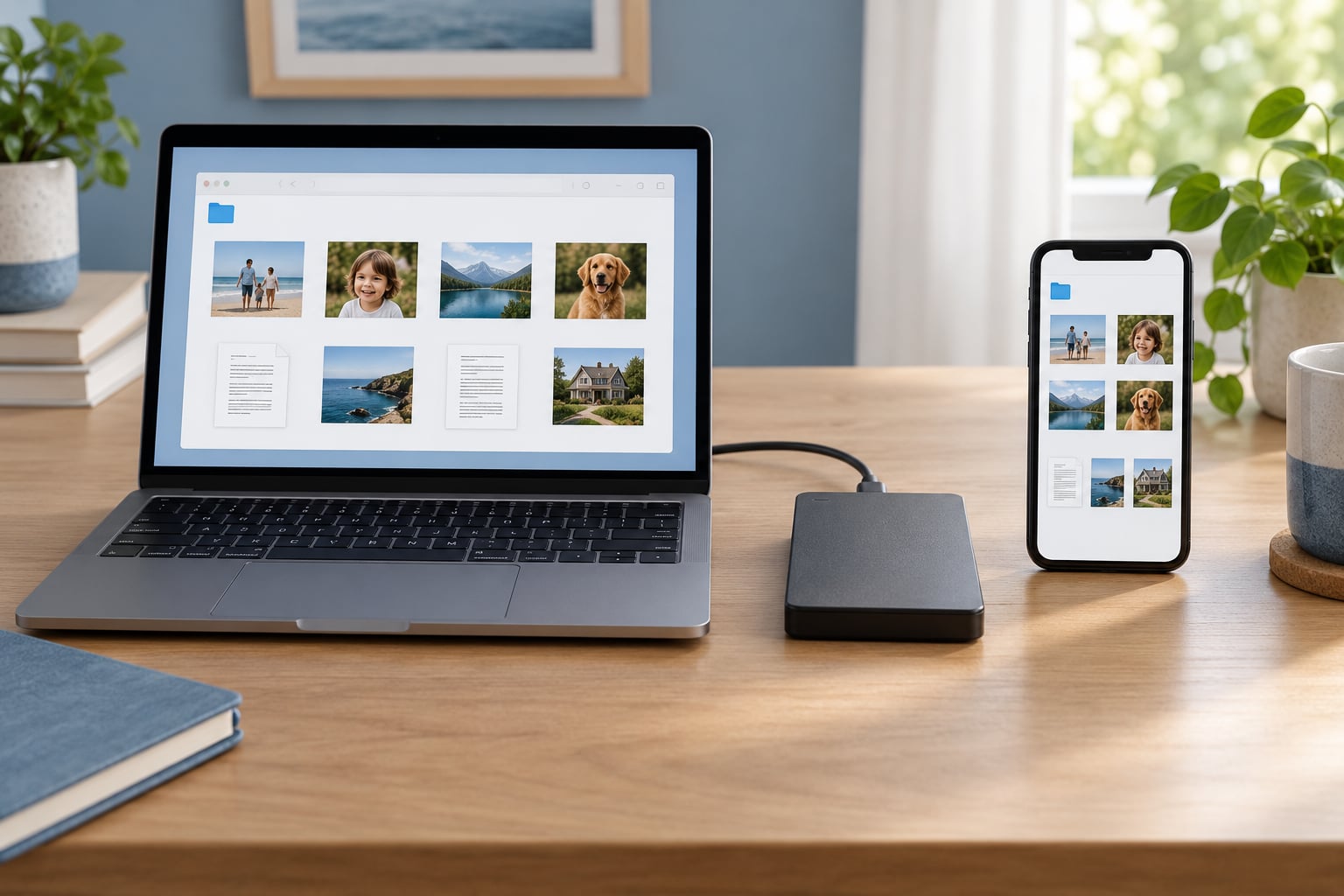
A concrete home example: family photos live in a folder on the desktop PC. Copy two is an external drive you plug in weekly. Copy three is the same folder synced to a cloud account you have never needed to open from that PC. Three copies, two locations, one of them not in your house.
Some searches for this rule land on the better-known 3-2-1 version, which counts your original in the total: three copies, two media types, one offsite. Both names point at the same setup. The 2-1 framing just makes the arithmetic easier to remember, two backups plus the original.
What about files that already live in someone else’s cloud?
Photos in Google Photos or iCloud, documents in Microsoft 365, and files in Dropbox are already stored off your machine, so you have a working copy plus a provider copy. That is two. What is missing is a copy you control, which is why exporting those libraries to a drive you own matters more than most people expect.
What counts as a different place
A second folder on the same internal drive does not qualify. A second internal drive in the same case is closer, since a dead power supply or failed board can take both, but it protects you against a single failing disk. Cloud storage and a drive in a different building are genuinely separate.
Why Home Users Need Multiple Backup Copies
The argument for doing nothing extra is that failures are rare. They are not that rare, and they do not arrive one at a time.
Hardware failure
Consumer drives and laptop drives both fail without warning, and the usual pattern is a click, a directory that will not open, or a screen that never comes back. When a drive dies, the file count on your PC drops in a single afternoon.
Fire, flood, and theft
These are the events that destroy every device in the room at once. A backup plugged into the same power strip protects you from nothing here. This is the scenario the offsite copy exists for, and it is the one that insurance adjusters see most often.
Ransomware and other malware
Modern ransomware looks for synced folders and mapped drives before it finishes encrypting. If your cloud folder is mounted as a drive letter on the PC, the malware often encrypts the synced copies too, because sync pushes every change back to the provider. An offline or disconnected copy survives this.
Accidental deletion and bad updates
This one needs no villain. A folder dragged to the wrong place, an emptied recycle bin, a project folder overwritten during a tidy-up. File history and versioned backups turn a moment of panic into a two-minute recovery.
The quiet failure
Backups break without breaking. A cloud plan quietly stops uploading when its quota fills, a scheduled task is disabled by an update, or an external drive fails quietly and the tool keeps reporting success. That is why verification has its own section further down.
How to Build a 2-1 Backup Strategy
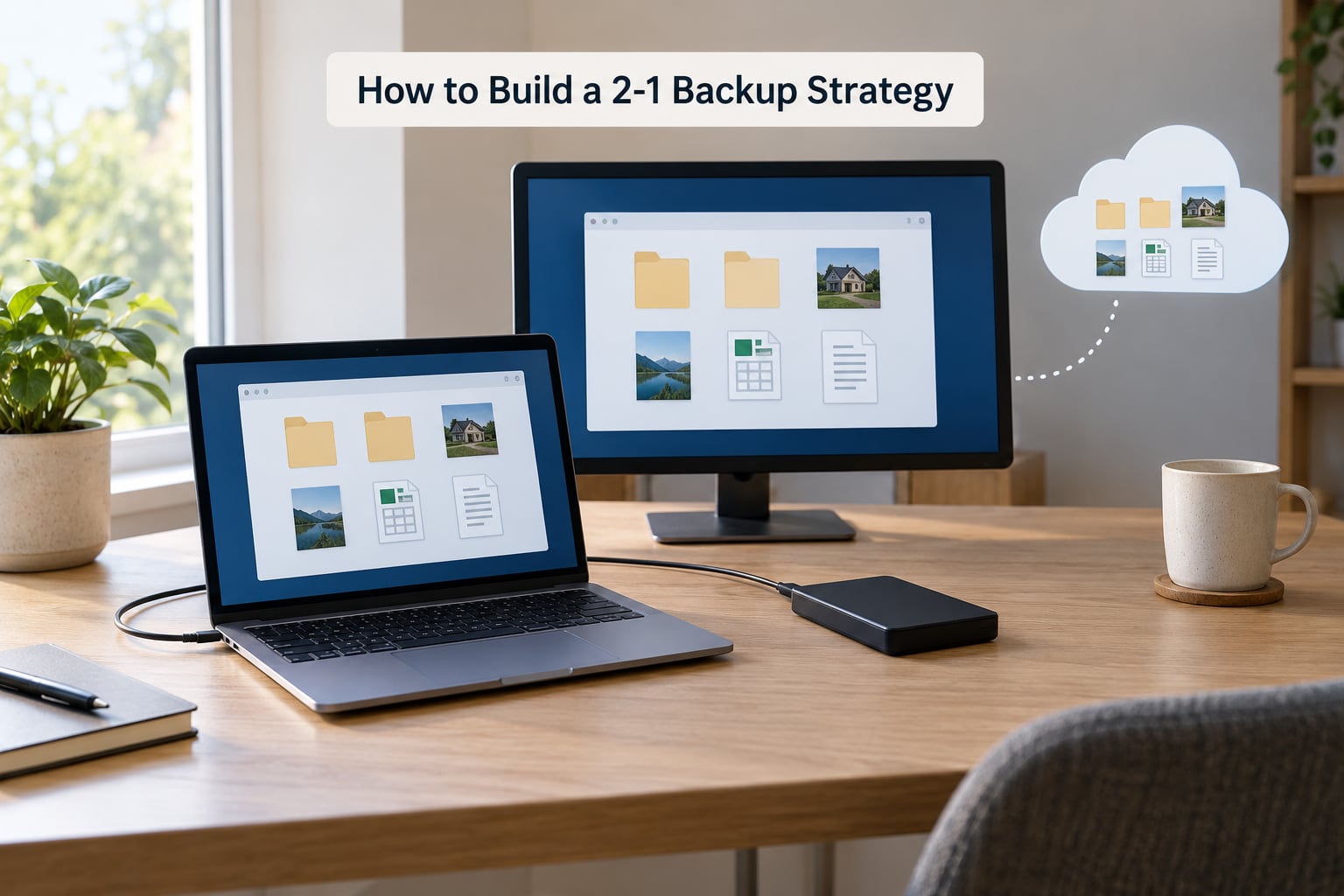
Build this in layers. Most people need a daily local copy for deletions and a cloud copy for whole-house loss, plus one periodic offline copy for the worst case.
Layer one: automatic local backup
On Windows 10 and 11, search for File History, open Control Panel, then File History, then Add a drive. Choose an external drive with enough room, turn on Keep forever for deleted files, and set the frequency under Advanced settings. File History keeps successive versions of a file, which is what rescues you from a bad edit.
On macOS, open Time Machine from System Settings, then Back Up, then Time Machine options. Pick an external drive and let it run. On Apple silicon, Apple also offers a signed system image, which is worth turning on if the machine holds work files you cannot recreate.
On Linux, Déjà Dup ships with most desktops and handles scheduled backups to an external drive or a network location. Restic or Borg are better if you want versioning and encryption, and both run on a timer through cron or systemd.
Layer two: cloud backup for the offsite copy
Set up automatic backup, not sync, to a cloud provider. The distinction is covered below and it matters. Choose a plan sized above your real library, because many services stop uploading rather than delete when you hit the ceiling.
Layer three: the offline copy
This is the one people skip. Once a month, copy your important folder to a second drive and store it away from the PC, at another address or in a safe. Forum readers describe exactly this habit, rotating a drive between a dock and a relative’s place, and it costs nothing more than the drive.
Phones
Enable photo sync on the phone, then verify it actually appears on your computer or cloud account. Confirm the year of your oldest photo in the destination library, not just that the folder is present.
What to Back Up for Home Users
The useful exercise is sorting your data into two piles. One pile cannot be recreated. The other can.
The irreplaceable pile
Family photos and videos, scanned documents, tax records, insurance policies, birth certificates and their scans, home inventory lists, correspondence with your insurer or employer, and any creative work you have made. Also the exported archive from your photo account, the password manager vault, and encryption keys for anything you have encrypted yourself.
Mail deserves a note. Mail stored in Outlook or Thunderbird on your PC lives in a local profile folder, and it disappears with the profile unless you export it or back it up directly. Mail already synced to the provider’s servers is a different situation.
The recreatable pile
Streaming libraries, downloaded installers you can fetch again, operating system files, application installers, build caches, and temporary folders. Backing up gigabytes of these wastes time and tells you nothing about your real risk. Skipping them is what keeps a home setup fast enough that you actually keep it running.
The awkward middle
Application settings, browser profiles, and project files that a program can regenerate usually do not need backing up. Custom presets, plugin configurations, and anything a reinstall cannot recreate do.
Where to Keep the Second Backup
Your offsite copy has to sit somewhere. These are the four realistic choices for a household, and the differences are less about capacity than about whether the copy will still be there when you need it.
| Option | Typical capacity | Convenience | Cost pattern | Main risk |
|---|---|---|---|---|
| External drive on a schedule | 1 TB to 8 TB | Fast restores, plug and forget | One-time purchase, replaced every few years | Stays in the house, so fire and theft still reach it |
| Network-attached storage | 4 TB and up, expandable | Automatic, visible to every device at home | Higher up front, runs constantly | One household, one house, one power supply |
| Cloud backup service | Whatever you pay for | Always on, restores anywhere | Recurring monthly or annual fee | Quota stops syncing, and slow full restores |
| Offline media | Drive sized to your archive | Manual, so it is often forgotten | One-time purchase for one or two drives | Forgotten, and it holds the oldest version of your files |
If you cannot decide: an external drive for local copies, cloud for the copy that leaves the house. Add offline storage once your archive grows past what one drive holds.
For anyone weighing a NAS, the honest answer is that it is excellent if you have several computers, a large photo library, or a home lab, and unnecessary if you have one laptop and one desktop. A network-attached box also needs its own backup, or it is just one more thing to lose.
How to Keep the Second Backup Separate and Safe
Separation has two layers. Logical separation means no single set of credentials or one malware process can destroy everything. Physical separation means no single fire, flood, or theft can reach everything.
Backup and sync are not the same thing
This is the single most common misunderstanding among home users, so it is worth a table.
| Behaviour | Backup | Cloud sync |
|---|---|---|
| When you delete a file | Keeps previous versions for a set period | Deletes on every device, including the cloud copy |
| When ransomware encrypts files | Restores from a clean copy | Encrypts the synced cloud copy too |
| When you overwrite a document | Older version is retained | New version replaces the old one everywhere |
| When the provider is down | Local copies still work | Folders stop updating on every device |
Sync mirrors changes, including the ones you did not want. It does not know the difference between a file you removed on purpose and one ransomware just renamed. Keep a sync folder if it makes life easier, and keep a real backup running alongside it.
Keep credentials separate
Backups taken from a machine you use every day carry that machine’s logged-in sessions. Store the offline copy encrypted, with a password that is not stored on the same computer.
Use retention that survives a delayed attack
Some ransomware sits dormant for weeks before activating, so a backup with a very short retention window can already be encrypted by the time you need it. Keep a month or more of versions.
The 3-2-1-1-0 extension, briefly
The modern version adds two digits. One extra copy that cannot be changed or deleted by anyone who reaches the network, which is what a locked or offline copy provides. And zero errors, meaning you verify backups automatically rather than assuming. For a household, that translates into one offline drive in a drawer and a monthly restore test.
How Often Should You Back Up Your Files?
Frequency should match how much you would regret losing since the last copy.
- Documents and mail: once a day automatically. The cost is small and the loss window is small.
- Photo and video libraries: after every shoot, holiday, or phone swap. Continuous photo backup handles this if you keep it switched on.
- Home server and network storage: continuously, because the snapshot format only helps if snapshots run often.
- Full offline copy: monthly, plus immediately before a major change such as a system upgrade or a hardware swap.
Two numbers help when you are deciding how much effort a file deserves. RPO is how much data you are willing to lose, measured in time: one day for a photo library, one hour for a business invoice run. RTO is how long you are willing to wait before you are working again, measured in hours or days. A weekend-old family photo archive has a long recovery time and a low loss tolerance, which is exactly the case for three copies.
How to Test and Restore a Backup
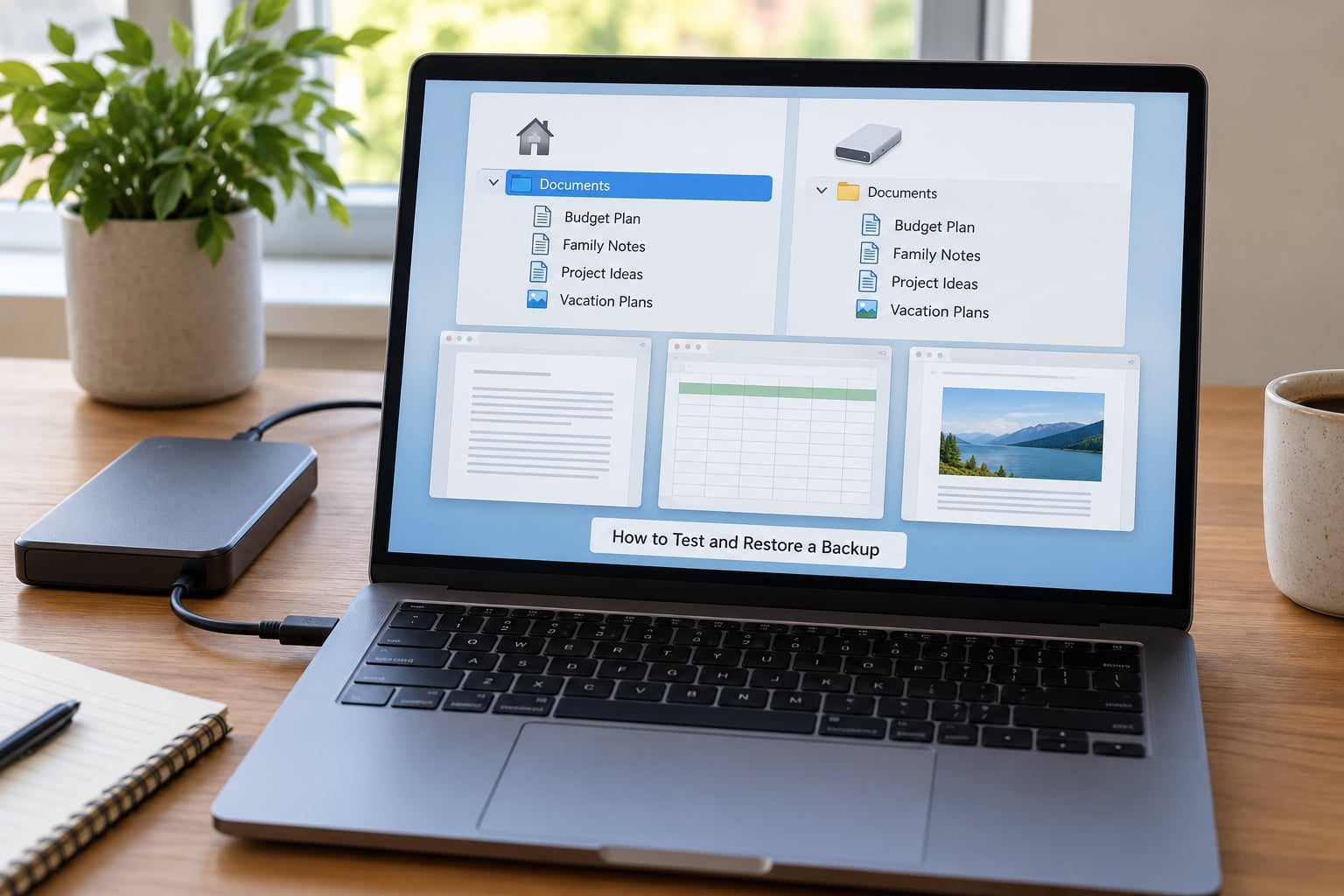
A backup you have never restored from is a hope, not a backup. Testing takes about twenty minutes once you know what to look at, and it catches the failures that produce no error messages at all.
- Compare counts. Open your source folder and your backup folder side by side. Check the item count in the parent folder on each, not just that a folder of the same name exists.
- Check the date range. Sort by date and look at the newest and oldest files. This catches the common failure where a tool has been reporting success for months but stopped uploading in the past.
- Open real files. Double-click several documents and play a short video. Zero-byte files are the classic sign of an interrupted backup that reported success anyway.
- Restore to a new location. Pull a folder back to a temporary folder on your desktop rather than overwriting anything. Restoring in place can mask problems.
- Try it from a different device. A cloud restore is only proven if you can download it and open it on another machine.
A simple recovery checklist to keep somewhere
When a failure does happen, the decisions you make in the first ten minutes matter. Write this list down.
- Note the date and time of the failure, and stop using the affected machine if malware is suspected.
- Decide whether you are restoring a few files or the whole system, then pick the copy that is furthest from the failure.
- Restore to a clean location, verify the restored files open, then move them into place.
- If a drive is making clicking or grinding noises, stop using it and hand it to a recovery service rather than powering it on again.
Aim to test a small restore every month and a complete one every few months. Record the date and the outcome, because a written test is the only evidence that a backup worked before you needed it.
Frequently Asked Questions
Is the 2-1 backup rule the same as the 3-2-1 backup rule?
Yes. The 2-1 framing counts two backup copies plus the original on your device, giving three in total, with at least one copy stored away from that device. The 3-2-1 version counts the original inside the three and adds a requirement that the copies sit on different kinds of storage. Both produce the same home setup: a working copy, a local backup, and an offsite copy.
How often should a home user back up important files?
Run a daily automatic backup for documents and mail, keep automatic photo backup switched on so new pictures are captured as they are taken, and refresh an offline copy once a month. Add an extra run before any big change, such as a system upgrade or a hardware swap. The right schedule is the one that keeps your loss window smaller than how long it takes to recreate the file.
Is an external hard drive enough for the 2-1 backup rule?
Only on its own. A drive attached to your computer gives you one extra copy, and it sits in the same room as the original, so a fire, flood, or theft takes both. Use it as your fast local copy, then add a second copy somewhere else. Storing that second drive at another address turns a single drive into a complete setup, and costs nothing beyond the hardware.
Does cloud synchronization count as a backup?
Not by itself. Sync mirrors every change in both directions, so a deletion or a ransomware encryption on one device reaches the synced copy too. It also keeps only the current version, with little history to fall back on. Use sync for convenience across devices and run a separate backup alongside it. Providers that offer file history or versioned backup are doing something different from plain folder sync.
What is the best affordable backup setup for a home computer?
An external drive for scheduled local backups with file history, plus an automatic cloud backup plan for the offsite copy, and a second drive stored elsewhere for a monthly offline refresh. That covers deletions, ransomware, and whole-house loss without a network-attached box. If your archive outgrows one drive, expand the cloud side or add a second drive before buying storage hardware.
Conclusion
The rule itself takes about ten minutes to satisfy: two backup copies beyond the one on your device, kept in two places, with one of them away from your house. The work that actually protects you is the boring part afterwards, keeping the schedule running and testing a restore every month or two.
Start with the files that cannot be recreated. Family photos, scans, records, and your exported photo library. Get a second copy off that machine first, because a synced folder you have never checked is the riskiest kind of reassurance. Once those are safe, add the offline drive in a drawer and write the restore checklist where you will find it in a panic.