Short answer first: format internal Windows drives as NTFS, format a USB drive or SD card that travels between Windows and a Mac as exFAT, and keep FAT32 for older hardware or when every single file stays under 4 GB. That is the whole NTFS vs exFAT vs FAT32 decision in three lines.
The rest is detail, and the detail is where the mistakes happen. People format a 64 GB flash drive as FAT32, discover the 4 GB ceiling during a Windows image copy, and reformat. Others pick exFAT for everything, then wonder why a camera or a console cannot see the card.
The choice decides four practical things: the largest file you can store, which computers can write to the volume, whether files carry permissions and encryption, and how much you stand to lose if power drops mid-write. Two of those four you cannot undo without formatting again.
Table of Contents
- NTFS vs exFAT vs FAT32 at a Glance
- What Is NTFS and When Does It Win?
- What NTFS adds that the others cannot
- Where NTFS loses
- What Is exFAT and When Does It Win?
- Why exFAT is the default answer for removable media
- Where exFAT loses
- What Is FAT32 and When Does It Still Make Sense?
- The 4 GB ceiling explained
- When FAT32 still makes sense in 2026
- How File-System Compatibility Affects Your Choice
- Windows
- macOS
- Linux
- Consoles, cameras, phones, TVs and car stereos
- File Size and Volume Limits Compared
- Data Protection, Permissions, and Recovery Compared
- Journaling
- Permissions, encryption and compression
- When a drive will not mount
- NTFS vs exFAT vs FAT32: Which One Performs Better?
- Where each one has an edge
- What actually moves the numbers
- Which Should You Choose?
- NTFS vs exFAT vs FAT32 which to use, by scenario
- How to format each format
- Frequently Asked Questions
- Is exFAT better than NTFS for a USB drive?
- Can Linux read an NTFS drive?
- Why can I not move a file larger than 4 GB to a FAT32 drive?
- Can macOS write to an NTFS-formatted USB drive?
- Does exFAT protect files when a drive is unplugged unsafely?
- Should I format a new flash drive as exFAT or FAT32?
- Bottom Line: Start With the Device You Need to Support
NTFS vs exFAT vs FAT32 at a Glance
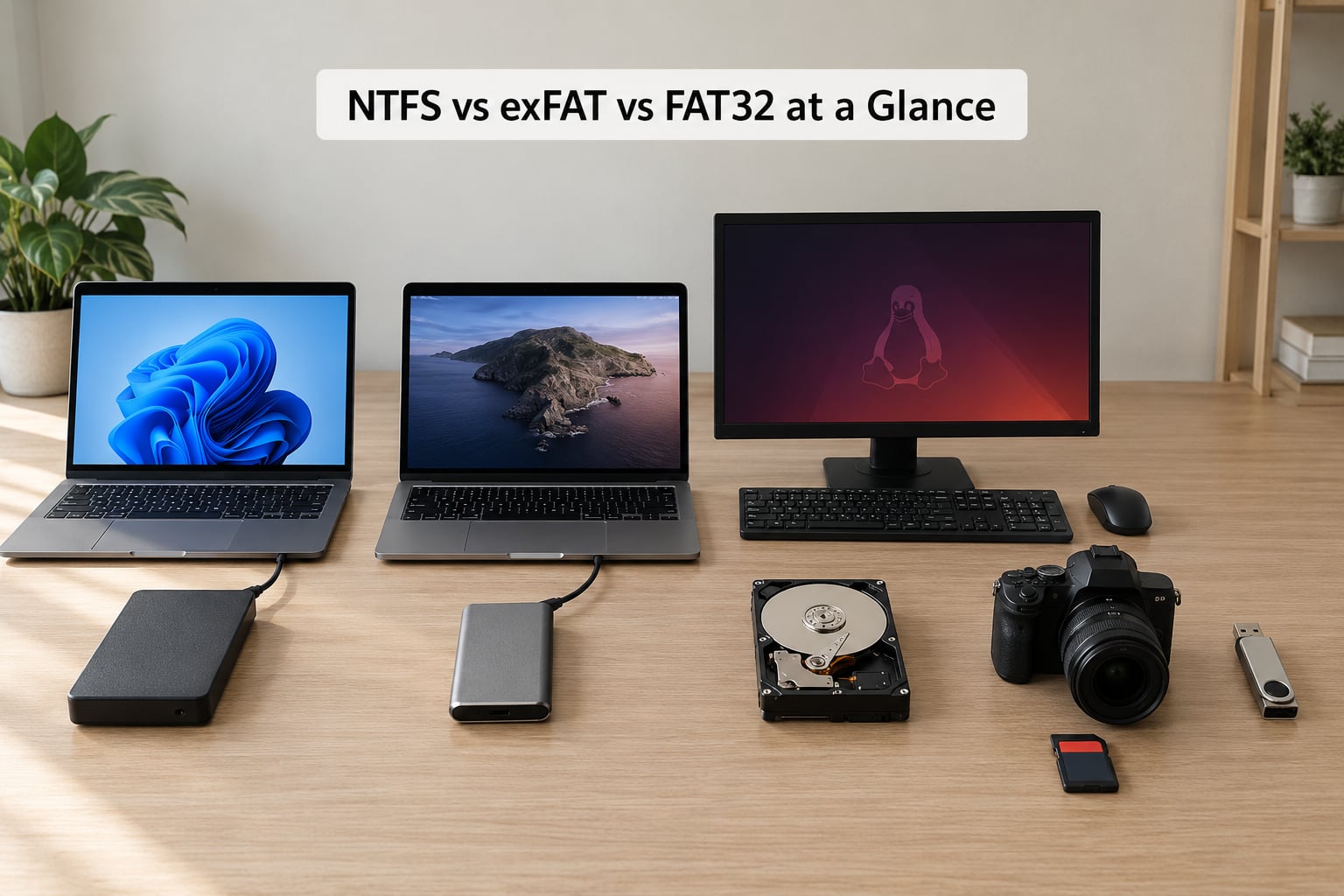
| Feature | NTFS | exFAT | FAT32 |
|---|---|---|---|
| Maximum single file size | No practical limit (16 EB theoretical) | No practical limit (16 EB theoretical) | 4 GB hard ceiling |
| Maximum volume size | 256 TB theoretical | 128 PB in Windows tooling | 2 TB theoretical; Windows tool caps at 32 GB |
| Windows read and write | Native | Native | Native |
| macOS read and write | Read only unless third-party driver | Native both ways | Native both ways |
| Linux read and write | Native driver plus FUSE tools | Native via exfatprogs | Native |
| Journaling | Yes | No | No |
| File permissions and EFS encryption | Yes | No | No |
| NTFS compression and shadow copies | Yes | No | No |
| Consoles, TVs, cameras, car stereos | Rarely | Commonly documented | Very widely supported |
| Best for | Windows internal drives, backup disks | Shared removable drives, SDXC cards | UEFI boot media, legacy devices, small cards |
NTFS is the safe, capable choice for anything that stays plugged into a Windows machine. It protects data through a journal, carries real permissions and encryption, and has no file-size ceiling worth worrying about.
exFAT is the practical middle ground. Windows and macOS both read and write it natively, files can be enormous, and cameras and consoles usually recognise it.
FAT32 is the compatibility layer of last resort. Almost anything reads it, but a single file above 4 GB is impossible and there is no journal to clean up after a crash.
What Is NTFS and When Does It Win?
NTFS, the New Technology File System, arrived with Windows NT in 1993 and has been the default on Windows ever since. It organises files with a Master File Table, a structured index of metadata rather than a bare allocation table.
The journal is the piece ordinary users notice only when it works. NTFS writes a log of in-progress metadata changes first, so a crash or power cut leaves a replayable record instead of a broken file table. Recover after a hard shutdown usually means waiting, not paying a recovery bill.
What NTFS adds that the others cannot
- Per-file and per-folder access control lists, so shared and multi-user machines stay separated.
- EFS, per-file encryption that travels with the file rather than sitting on the volume.
- Transparent NTFS compression on files that compress well, such as text, images and archives.
- Hard links, symbolic links and shadow copies for system restore and file history.
- Large cluster support with a large-file (4 KB cluster) allocation unit for multi-terabyte volumes.
Where NTFS loses
macOS mounts an NTFS volume read only by default. You can copy files off it, but every write fails, and there is no first-party Apple driver that changes that. Drivers from Paragon NTFS or Tuxera add write support, which is a fine choice if you own the drive and control the machines.
Linux reads and writes NTFS well, but through drivers rather than a built-in file system of its own. The FUSE option ntfs-3g shows up in mount listings as fuseblk, and permissions are simulated, so Linux ownership maps roughly onto Windows read-only and read-write flags rather than full ACLs.
Consoles, TVs, cameras and car stereos rarely mount NTFS. A Windows-only external drive does not care about any of that, which is exactly where NTFS wins.
What Is exFAT and When Does It Win?
exFAT, the Extended File Allocation Table, is Microsoft’s 2006 redesign of the FAT family for flash storage. It keeps the simple allocation-table design that hardware loves and replaces the 32-bit file-size fields that trapped FAT32.
That single change is why exFAT exists. Files get 64-bit size fields, so the 4 GB wall disappears, and the allocation table scales across very large volumes without the overhead that NTFS carries.
Why exFAT is the default answer for removable media
Windows and macOS both read and write exFAT with no extra software. That is the whole reason it became the shipping format on large SD cards and the default for most external drive makers.
- No 4 GB limit, so disk images, video project files and archives copy across without splitting.
- Low write overhead, which suits flash memory and cheap USB controllers.
- No permissions, no encryption and no compression, so no driver conflicts when the drive moves between machines.
- The SD Association specifies exFAT as the file system for SDXC and SD Ultra Capacity cards of 64 GB and above.
Where exFAT loses
There is no journal. exFAT keeps a small table marking which volume regions are in use, and if that metadata is being rewritten when power disappears, the volume can come back damaged rather than merely dirty.
Users on photography and backup forums report copy errors and surprise mount failures on exFAT volumes that were pulled out mid-write. In practice the failure is rare and usually recoverable with a repair pass, but it happens more often than on NTFS.
When ntfs vs exfat vs fat32 questions come from someone who owns exactly one drive and moves it between two platforms, exFAT is the answer that needs no caveats.
What Is FAT32 and When Does It Still Make Sense?
FAT32 is the 1996 revision of the File Allocation Table family, the format carried by every cheap flash drive and SD card for two decades. It stores a linked list of allocation units and reads that list to find every file.
Its simplicity is why it runs on hardware that has no operating system at all. A camera, an older television, a car stereo and a UEFI firmware routine can all read FAT32 because they only need to follow a table.
The 4 GB ceiling explained
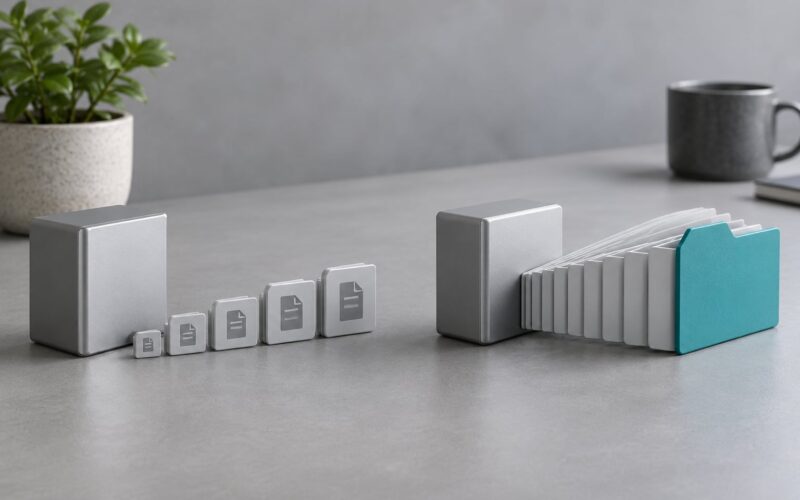
FAT32 records file length in a 32-bit field. The largest value that field can hold is 4,294,967,295 bytes, which is 4 GB minus one byte. A file that needs one more byte does not fit, and no amount of extra space on the volume changes that.
The limit applies to individual files only. A FAT32 volume can hold thousands of 3 GB files without complaint, which is why it still suits archives of photos, documents and short clips.
When FAT32 still makes sense in 2026
- UEFI boot media: firmware specifications require a FAT32 EFI System Partition for Windows installation media.
- Cameras and older camcorders with built-in storage below 32 GB.
- Smart TVs, media sticks and streaming boxes that document FAT32 support and nothing else.
- Diagnostic and recovery drives that must mount on a machine with no drivers installed.
- Anything a locked-down corporate or school machine will let you format.
Windows Explorer refuses to create a FAT32 volume above 32 GB. The diskpart command and third-party tools can build a larger one, but a 256 GB FAT32 volume with no journal is not a choice I would make for data worth keeping.
How File-System Compatibility Affects Your Choice
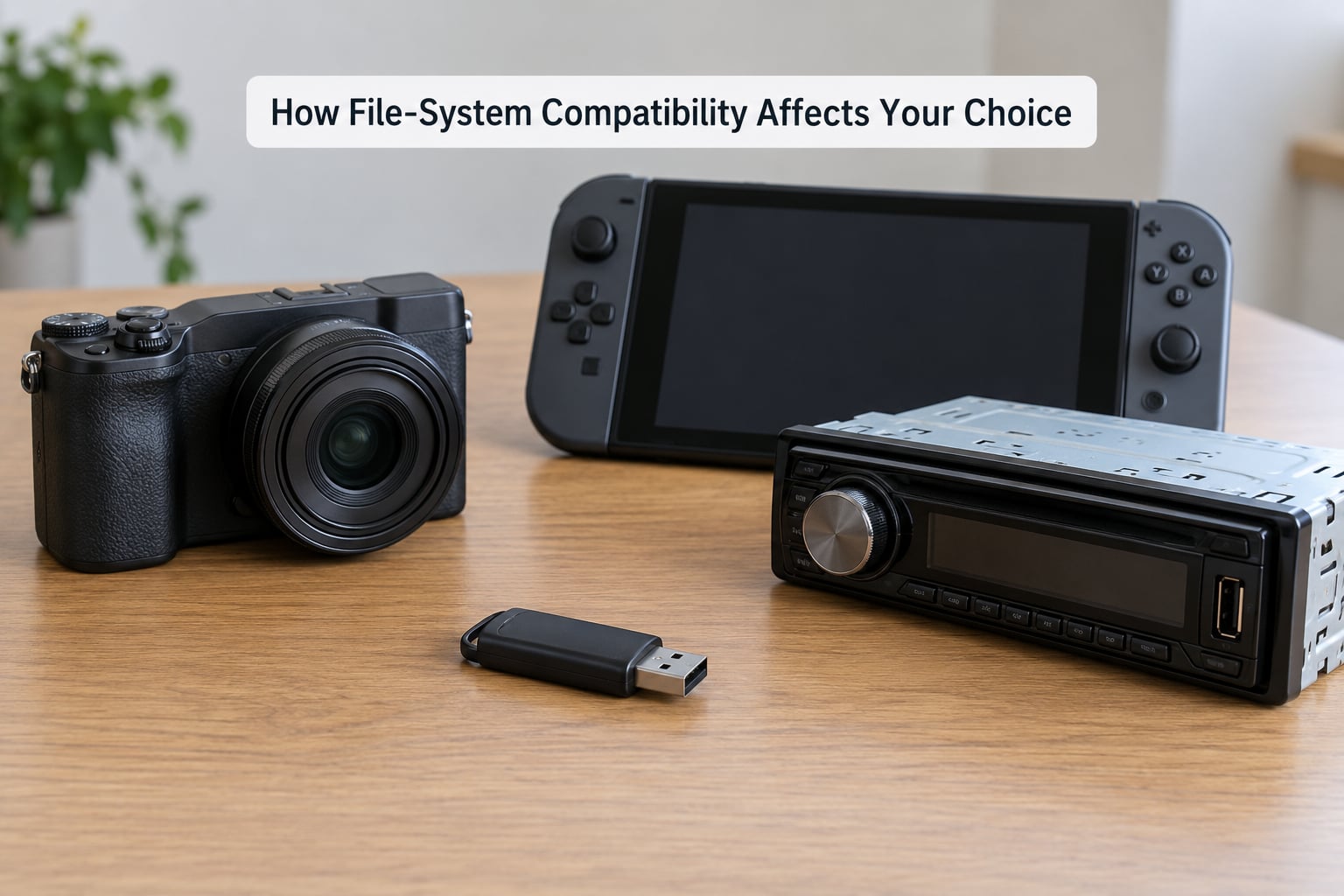
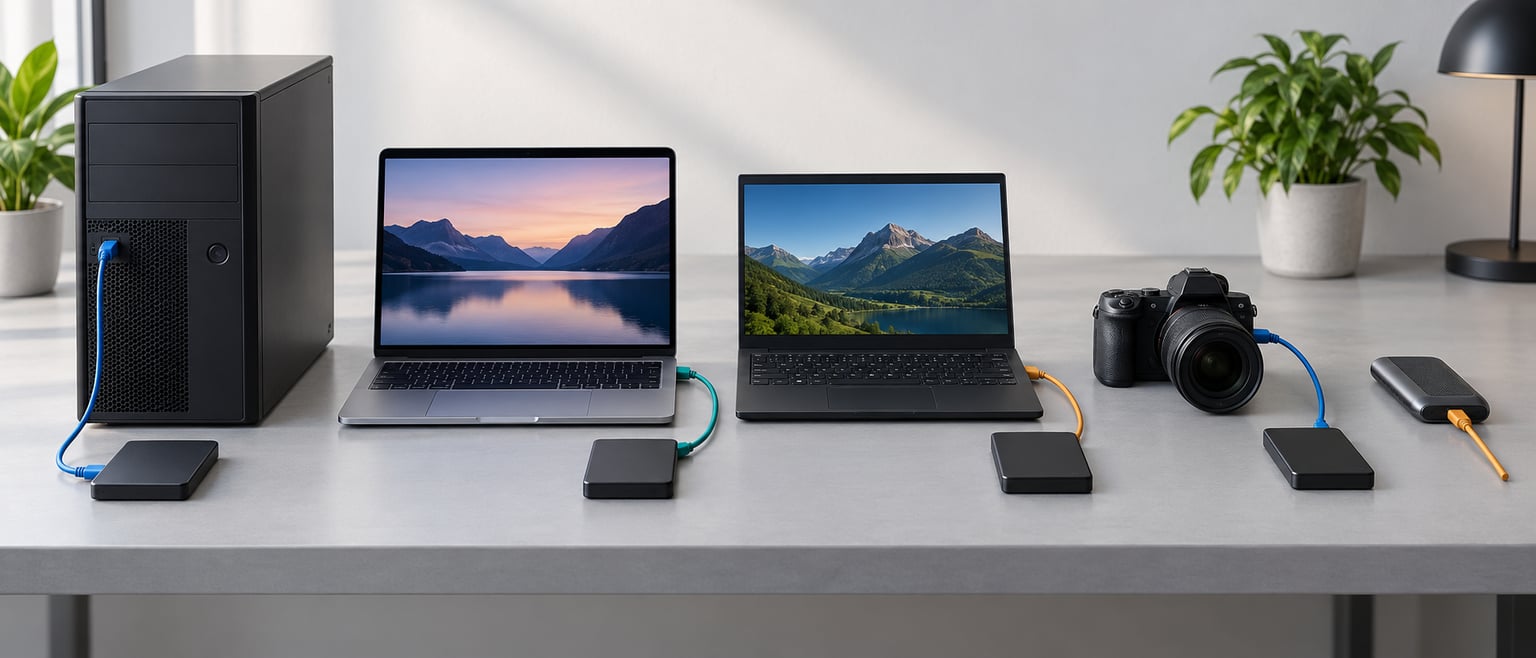
Compatibility has three layers, and mixing them up causes most of the bad advice online. Can a device read the volume, can it write to it, and can it apply ownership and permissions to what it writes? Treat those separately and the decision gets much easier.
Windows
All three formats mount read and write with no extra software. Right-click a drive in Explorer, choose Format, and Windows offers exFAT, NTFS and FAT32 for removable media, with FAT32 limited to 32 GB volumes.
macOS
exFAT and FAT32 are fully supported in both directions through Disk Utility. NTFS is read only until you install a commercial driver. That single fact decides the format for most shared drives.
Linux
FAT32 and exFAT mount natively; exFAT needs the exfatprogs package on most distributions. NTFS has two real options: ntfs-3g, the long-standing FUSE driver that appears as fuseblk, and ntfs3, the in-kernel driver that has handled read and write since Linux 5.9 and is the default on current Ubuntu and Fedora releases.
Both fine-tune cleanly on external disks and refuse clean unmount while a FUSE mount is in use, which can leave a volume looking mounted after a crash. For a Linux-only machine, ext4 beats all three; pick NTFS only when Windows must read the same volume.
To mount an NTFS drive at boot, add a line to /etc/fstab keyed on the volume UUID rather than the device path, so the entry still works when the drive letter moves.
Consoles, cameras, phones, TVs and car stereos
Handheld gaming PCs that run Windows handle all three formats. Steam Deck storage is documented as exFAT and ext4, with NTFS read access rather than write, so card readers on that device want exFAT. Older consoles are stricter still, and many document a per-file size cap on top of the format requirement.
Phones with Android or iOS mount exFAT and FAT32 for removable storage. Digital cameras built after the SDXC switch expect exFAT on 64 GB cards. Car stereos and dash cameras tend to be the most conservative devices in your house, so check the manual before formatting.
If you need NTFS security and Mac compatibility on one drive, format two partitions: NTFS for the Windows side, exFAT for the shared side. That works on a single flash drive and costs nothing.
File Size and Volume Limits Compared
| Limit | NTFS | exFAT | FAT32 |
|---|---|---|---|
| Largest single file | No practical limit | No practical limit | 4 GB (4,294,967,295 bytes) |
| Largest volume | 256 TB | 128 PB via Windows tools | 2 TB |
| Cluster size range | 4 KB and up with large-file support | 32 KB upward | 512 bytes to 64 KB |
| Common real-world use | TeraByte-scale drives and SSDs | Flash drives, SDXC cards, portable SSDs | Cameras, boot media, drives under 32 GB |
Cluster size, also called the allocation unit, is the smallest block the file system hands out. Small clusters waste less space on tiny files; large clusters reduce the bookkeeping overhead that matters on flash media.
That is why exFAT volumes usually format with 32 KB clusters by default and FAT32 sticks to smaller values. It also explains why a volume of millions of tiny files can fill up faster than its advertised capacity.
Two practical notes on the FAT32 wall. First, splitting a large file into parts before copying works on any format, and 7-Zip will do it from the right-click menu. Second, converting an existing FAT32 volume to NTFS from an elevated command prompt takes seconds and keeps the data: convert X: /fs:ntfs.
The reverse direction is the risky one. There is no supported in-place conversion from exFAT or NTFS to FAT32, so the sequence is back up, verify the backup, format, restore.
Data Protection, Permissions, and Recovery Compared
This is the section most comparisons skip, and it is the one that decides whether you lose a folder or lose an afternoon.
Journaling
NTFS logs metadata changes before applying them, so an unclean shutdown produces a short replay on the next mount. exFAT and FAT32 write directly, so an interrupted write leaves the volume marked dirty and can leave the allocation structures inconsistent.
Both non-journalling formats carry a dirty bit. Windows checks it when the volume is next mounted and offers a scan; that scan repairs most cases, which is why an exFAT drive usually recovers after a yanked cable. Damage happens when the interruption lands in the middle of rewriting the table itself.
Permissions, encryption and compression
NTFS alone offers access control lists, EFS per-file encryption and transparent compression. On exFAT and FAT32, Linux can emulate ownership through mount options, but that is a local convenience rather than stored security, and Windows treats every file as equally accessible.
For a drive that travels between machines, missing permissions are a feature. For a shared workstation drive, a backup disk or a machine with several accounts, the difference decides whether one user can read another user’s files.
When a drive will not mount
A drive that Disk Management reports as RAW has lost its partition metadata, and the file system format is no longer readable. Chkdsk repairs a volume that still has its structures; fsck does the same job on Linux; neither recovers files from a volume whose file system is unreadable.
Read the SMART data before anything else. A drive reporting reallocated sectors is failing hardware, and no file system choice changes that outcome. No format in this article replaces a backup, and only NTFS reduces the damage from an unexpected power cut.
NTFS vs exFAT vs FAT32: Which One Performs Better?
Performance differences between these three are small on modern hardware, and the popular claim that NTFS is fastest on flash comes from a 2013 test on USB 2.0 hardware. On a USB 3.2 flash drive or an NVMe external SSD, the controller and the interface set the ceiling, and the file system changes very little.
Where each one has an edge
NTFS is the heaviest of the three. Its metadata writes cost more per operation, and mount plus dismount on a large volume takes noticeably longer than the alternatives. On high file counts it pays that cost back, because the structured index scales better than a linked allocation table.
exFAT sits in the middle. It handles millions of small files more gracefully than FAT32 and stays cheaper than NTFS. On flash media its 32 KB default cluster means fewer metadata writes, which flash controllers like.
FAT32 is the fastest for short bursts of small work and the slowest to scale. Its linked table grows with the file count, and a directory with tens of thousands of entries can take noticeable time to enumerate.
What actually moves the numbers
Interface generation first, then media quality, then the transfer mode of the host controller. A slow USB 2.0 stick formatted NTFS will lose to the same stick formatted exFAT every time, and both lose to a USB 3.2 drive in either format.
Operating system caching confounds any home benchmark. Windows writes to its cache and reports completion before the flush, so measured copy speeds say more about buffer size than about the file system.
Which Should You Choose?
NTFS vs exFAT vs FAT32 which to use, by scenario
- Windows system drive or internal SSD: NTFS. The Windows installer expects it and nothing else works.
- External drive only ever plugged into Windows: NTFS, for journaling, permissions and no file-size ceiling.
- One drive shared between Windows and a Mac: exFAT, the only option with native read and write on both.
- Files larger than 4 GB: NTFS or exFAT. FAT32 cannot hold them.
- USB stick under 32 GB that must reach a TV, camera or console: FAT32, after checking the device manual.
- SD or SDXC card in a camera, phone or handheld PC: exFAT for 64 GB and above, FAT32 below that.
- UEFI boot media: FAT32, because firmware requires it.
- Linux box with no Windows in the picture: ext4, not any of these three.
- Shared Windows and Linux partition on one machine: NTFS with ntfs3, or a separate ext4 partition for Linux data.
- Backup or archive drive: NTFS on Windows, ext4 on Linux, because both journal and neither caps file size.
How to format each format
In Windows, right-click the volume in File Explorer and choose Format. For volumes above 32 GB that need FAT32, open an elevated command prompt and use diskpart: select the disk by number, select the partition, clean, create partition primary, format fs=fat32 quick. The equivalent for exFAT and NTFS is format fs=exfat quick or format fs=ntfs quick.
On macOS, Disk Utility’s Erase dialog handles exFAT and FAT32. From a terminal, diskutil list shows identifiers and diskutil eraseDisk exFAT Name GPT /dev/disk2 formats one.
On Linux, sudo mkfs.exfat /dev/sdX1 and sudo mkfs.vfat -F 32 /dev/sdX1 cover exFAT and FAT32, while NTFS needs ntfs-3g or ntfsfix installed before formatting. Check the target device carefully; a mistyped identifier erases the wrong disk.
Frequently Asked Questions
Is exFAT better than NTFS for a USB drive?
For a drive that moves between Windows and a Mac, yes, exFAT wins because both systems read and write it natively while macOS mounts NTFS read only. If only Windows ever touches the drive, NTFS is better: it journals metadata, supports permissions and encryption, and has no 4 GB limit to trip over.
Can Linux read an NTFS drive?
Yes, and it can usually write as well. Current kernels ship the ntfs3 driver with read and write support, and the older ntfs-3g FUSE driver remains widely used. Both mount volumes cleanly, though file ownership on NTFS is mapped from Windows permissions rather than stored the way ext4 stores it.
Why can I not move a file larger than 4 GB to a FAT32 drive?
FAT32 stores the length of each file in a 32-bit field, and the largest value that field holds is 4,294,967,295 bytes. A larger file cannot be described, so the copy fails even when the volume has plenty of free space. Format the drive as exFAT or NTFS instead, or split the file into parts first.
Can macOS write to an NTFS-formatted USB drive?
Not with the built-in driver. macOS mounts NTFS volumes read only, so you can copy files off but not onto them. Commercial drivers such as Paragon NTFS and Tuxera add write access if you control the drive. To avoid extra software, format shared drives as exFAT, which macOS and Windows both handle natively.
Does exFAT protect files when a drive is unplugged unsafely?
Not the way NTFS does. exFAT has no journal, so it logs nothing to replay after a power cut or a yanked cable. The volume is flagged dirty and Windows usually repairs it on the next mount, and damage becomes likely only when the interruption lands inside a table rewrite. Always use safe eject and eject before unplugging.
Should I format a new flash drive as exFAT or FAT32?
Pick exFAT unless you know a device needs FAT32. exFAT removes the 4 GB file ceiling and still works on Windows, macOS, Linux, most phones, cameras and SDXC cards. Choose FAT32 for UEFI boot media, legacy cameras and TVs, or consoles whose manual names FAT32 specifically, and keep it for capacities under 32 GB.
Bottom Line: Start With the Device You Need to Support
Pick the format from the least capable device in the chain. If a Windows-only machine owns the drive, NTFS gives you journaling, permissions and encryption with no size ceiling. If the drive passes between Windows and a Mac, exFAT is the only format both write natively, and it has no 4 GB problem.
FAT32 earns its place for UEFI boot media, cameras, older televisions and consoles that document nothing else, and for small cards holding files under 4 GB. Check the device manual before formatting, because that manual, not the file system, decides what works.