To create a systemd timer instead of cron, you write two files that share the same base name in /etc/systemd/system: a .service unit with Type=oneshot and an ExecStart line that runs your command, and a .timer unit that carries the schedule. Then you reload systemd and enable the timer in one command. The whole thing takes about ten minutes, and you do not have to install a scheduling daemon.
Cron gives you a schedule and nothing else. Output goes to a mailbox nobody opens, there are no dependencies to declare, and a job that fails on a machine that was off for the weekend simply never runs. A timer gives you the same schedule plus journal logging, ordering, resource limits, and a catch-up run when the machine boots back up.
This guide covers Debian and Ubuntu, RHEL, Rocky, Fedora, Arch and anything else that runs systemd as PID 1. The commands are the same everywhere; only the paths for user units move.
Table of Contents
- What You Need
- Step-by-Step: Create a systemd Timer Instead of cron
- Step 1: Check That systemd Is Running and Pick the Right Scope
- Step 2: Create a Service Unit for the Command
- Step 3: Create a systemd Timer Unit That Fires on Your Schedule
- Step 4: Reload systemd and Enable the Timer
- Step 5: Test and Verify the Scheduled Job
- Step 6: Migrate an Existing cron Job
- Bonus: Running the Timer as a Normal User
- Common systemd Timer Mistakes and Fixes
- systemd Timer vs cron: When to Use Each
- Frequently Asked Questions
- Can a systemd timer run a command that was previously in cron?
- How do I convert a cron expression to a systemd timer schedule?
- Why is my systemd timer not running the service?
- What does Persistent=true do after a machine has been powered off?
- Should the timer and service run as root or as a regular user?
- Can one systemd timer run multiple commands?
- Conclusion
What You Need
Almost nothing. If systemd is running, you need root access to write system units, a text editor, and the command or script you want to schedule.
Root access, or a normal login plus sudo, comes from the admin on that box. If you are on your own machine, your user account already has sudo on Debian and Ubuntu by default.
You also want to know whether the job belongs to root or to a person. A backup that writes to /var/backups is a system job. A sync tool that runs under your own account belongs in a user unit, and that path has one extra trap you will read about below.
Check that systemd is there before you write anything:
systemctl --version
ps -p 1 -o comm=
If the second command prints systemd, you are fine. If it prints init or busybox, this is a container or an Alpine image running OpenRC, and timers are not available. Install cron and keep using it.
Step-by-Step: Create a systemd Timer Instead of cron
The whole procedure in five moves: write the service, write the timer, reload, enable, verify. Here is the short form first, then each step in detail.
- Create
/etc/systemd/system/backup.servicewithType=oneshotand anExecStartline pointing at your script. - Create
/etc/systemd/system/backup.timerwith anOnCalendar=schedule andPersistent=true. - Run
systemctl daemon-reloadso systemd reads the new files. - Run
systemctl enable --now backup.timerto start it and make it survive reboot. - Confirm it with
systemctl list-timersandjournalctl -u backup.service.
Step 1: Check That systemd Is Running and Pick the Right Scope
You already ran ps -p 1 -o comm= above. If it printed systemd, decide on the scope before you write anything, because the file location and every command afterwards change with it.
A system timer lives in /etc/systemd/system/, is managed with plain systemctl, and usually runs as root. A user timer lives in ~/.config/systemd/user/, is managed with systemctl --user, and runs as you.
Most people start with a system timer because it is the direct replacement for /etc/crontab. If your old cron entry ran as a normal user, build a user timer instead.
Step 2: Create a Service Unit for the Command
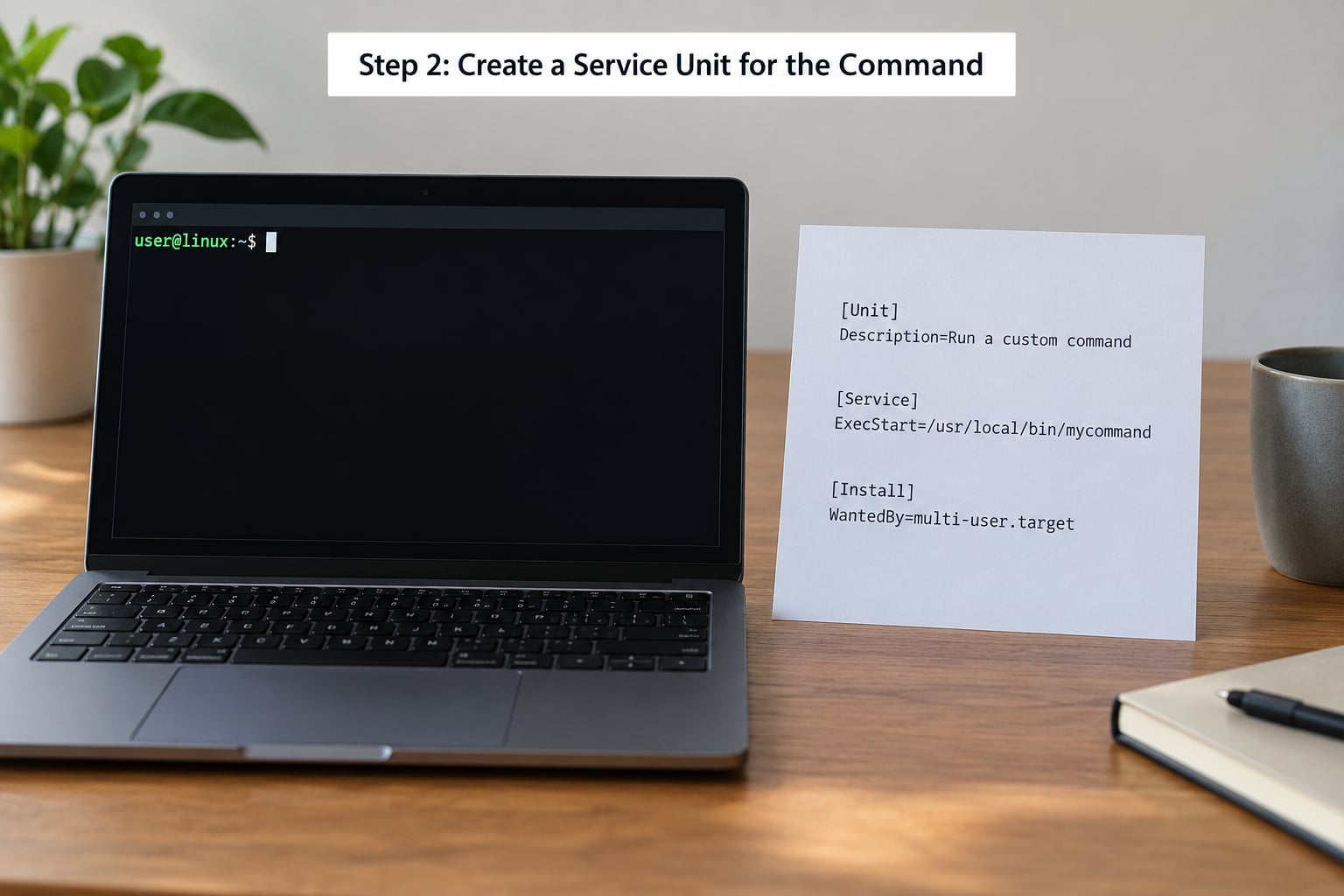
A timer never does work itself. It activates a service, and the service is where your command lives. The timer file and the service file must have the same base name, so backup.timer activates backup.service.
[Unit]
Description=Nightly backup to /var/backups
After=network-online.target
Wants=network-online.target

[Service]
Type=oneshot
User=root
WorkingDirectory=/var/backups
ExecStart=/usr/local/bin/backup.sh
StandardOutput=journal
StandardError=journal
Save it as /etc/systemd/system/backup.service. A few lines here cause most of the trouble later, so they are worth reading rather than pasting.
Type=oneshot tells systemd the process exits on its own and is considered done when it exits. Without it, systemd expects a long-running process and will mark the service as failed the moment your script returns.
ExecStart needs an absolute path to the script. Cron made you specify absolute paths too, and this is the same rule for the same reason: there is no shell and no working directory you can count on. Make the script executable with chmod +x /usr/local/bin/backup.sh, or call the interpreter directly.
After=network-online.target is the dependency control cron never gave you. Anything that reaches the network should wait for it, otherwise the job runs at 02:00 while the interface is still negotiating.
StandardOutput=journal is what turns a job that fails silently into a job you can read with journalctl. It is the default in most cases, but stating it costs nothing and makes the intent obvious to whoever inherits the box.
One escaping rule catches everybody eventually: systemd treats % as a specifier character inside ExecStart. A path containing a percent sign must be written as %%. Paths with spaces need quoting.
Step 3: Create a systemd Timer Unit That Fires on Your Schedule
Now the .timer file. This is where the schedule lives, and it is much smaller than the service:
[Unit]
Description=Run the nightly backup

[Timer]
OnCalendar=*-*-* 02:00:00
Persistent=true
RandomizedDelaySec=300
Unit=backup.service

[Install]
WantedBy=timers.target
Save it as /etc/systemd/system/backup.timer. Three lines do the work.
OnCalendar= takes a calendar expression in the order DayOfWeek Year-Month-Day Hour:Minute:Second. Note the unusual field order, day of week first. Wildcards work, so *-*-* 02:00:00 is every day at 02:00 and Mon *-*-* 09:00 is every Monday morning.
Persistent=true means a run that was missed while the machine was off happens once as soon as it boots. Set it if a skipped backup matters. Leave it off for something idempotent, so you do not get an unexpected run at 09:00 on a Monday that you did not plan for.
WantedBy=timers.target is what makes systemctl enable work. Without it, enabling the timer does nothing and this becomes the reason the timer never fires.
RandomizedDelaySec=300 spreads the trigger over five minutes. On a single machine it is irrelevant. On a few hundred boxes all running the same timer, it is the difference between a staggered start and every host hitting the same mirror on the same second.
Two other schedule types exist and neither has a cron equivalent. OnUnitActiveSec=15min runs the service every fifteen minutes measured from the last activation, which cron cannot do at all. OnBootSec=1min runs it one minute after boot, useful for a health check that should not wait for a nightly window. OnUnitInactiveSec= waits for the service to finish first, so runs never overlap.
Validate an expression before you commit to it:
systemd-analyze calendar "Mon *-*-* 09:00"It prints the next few fire times, or complains if the expression is malformed. Cheaper than debugging a timer that never fires.
Step 4: Reload systemd and Enable the Timer
systemd caches unit files in memory. A new file it has not read is invisible, and this is the single most common reason a timer looks correct and never runs.
sudo systemctl daemon-reload
sudo systemctl enable --now backup.timer
daemon-reload re-reads every unit file. enable --now creates the symlink that starts the timer at boot and starts it immediately. If you split it into enable and then start, you get the same result, just with a window where the timer is enabled and not running.
The Unit=backup.service line is optional because the name matches, but keeping it makes the link explicit and stops a copy-paste job from silently activating the wrong service.
Check the outcome straight away:
systemctl status backup.timer
systemctl list-timers
A healthy timer shows an ACTIVE value of waiting and a Trigger: line. list-timers gives you every timer on the box with its next run time in the NEXT column, which is the fastest way to confirm the schedule you wrote is the schedule you meant.
Step 5: Test and Verify the Scheduled Job
A scheduled timer that fires at 02:00 gives you slow feedback. Do not wait for it. Start the service by hand and read the journal:
sudo systemctl start backup.service
sudo journalctl -u backup.service -n 50 --no-pager
echo $?
If it worked, the last line is 0. If not, systemd prints exit-code and the exact error, which is more useful than a silent mailbox nobody opens.
The journal is also searchable later. journalctl -u backup.service --since today and journalctl -u backup.service -p err are the two I use most.
To get an alert when something fails, add an OnFailure= line to the service:
[Unit]
OnFailure=backup-alert@%n.service
The %n expands to the failed unit name. That is the closest thing timers have to cron’s MAILTO, except the alert unit is your code rather than a mail spool.
Step 6: Migrate an Existing cron Job
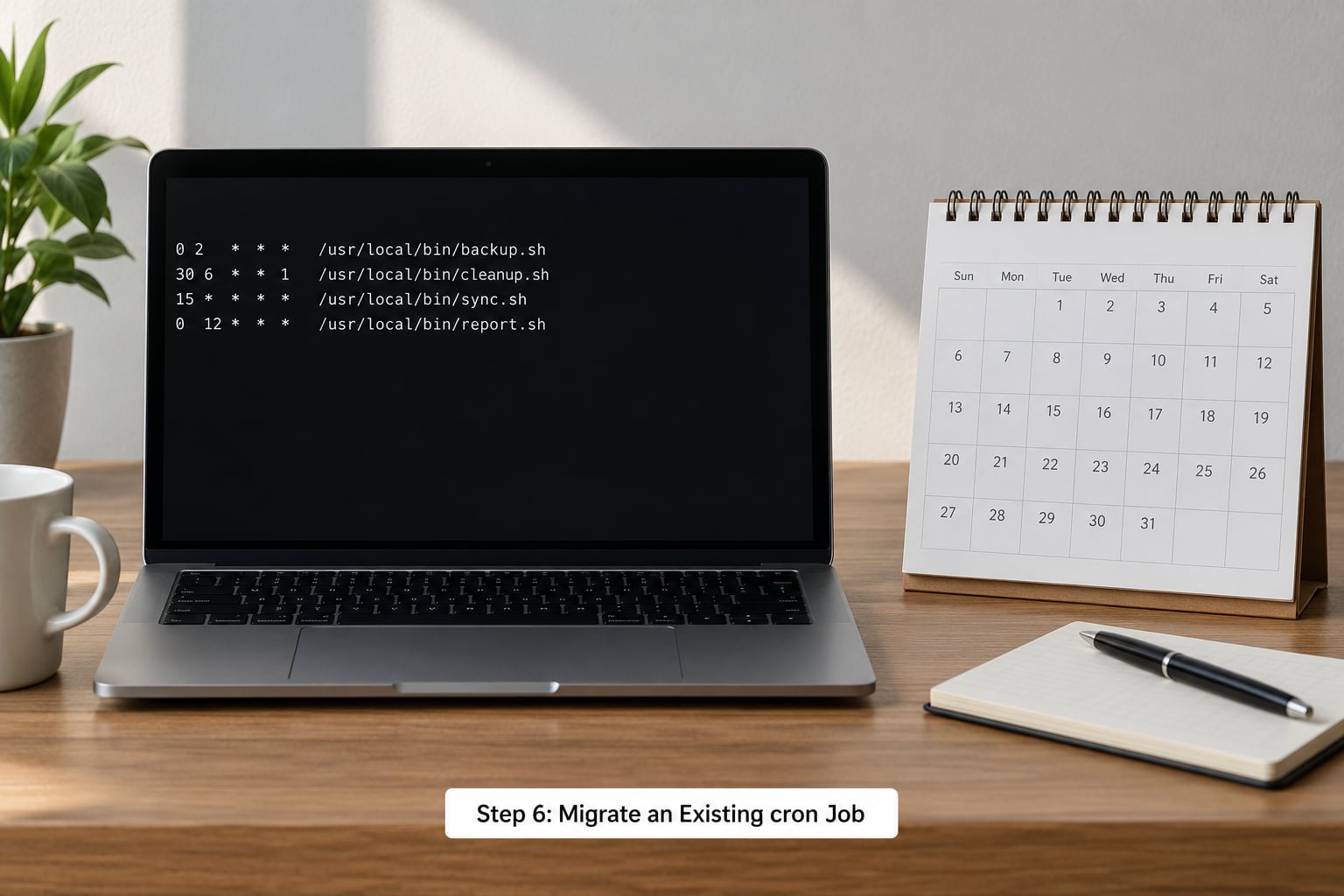
Migrating means two things: translating the schedule, and making sure the old job stops. Run them in that order and you never have two copies of the same script firing.
| cron entry | OnCalendar value | Plain English |
|---|---|---|
* * * * * | *-*-* *:*:00 | Every minute |
*/5 * * * * | *-*-* *:0/5:00 | Every five minutes |
0 2 * * * | *-*-* 02:00:00 | Daily at 02:00 |
0 2 * * 0 | Sun *-*-* 02:00:00 | Weekly, Sunday 02:00 |
0 6 1 * * | *-*-01 06:00:00 | Monthly on the 1st at 06:00 |
*/15 9-17 * * 1-5 | Mon..Fri *-*-* 09..17:00/15:00 | Weekdays, every 15 min from 09:00 to 17:00 |
Two things trip people up in that table. The day-of-week field comes first in OnCalendar, and day names are the first three letters with no zero. A range of weekdays is written Mon..Fri, with two dots, not a hyphen.
Sub-minute is not a cron concept at all. If your old entry ran * * * * * and you actually want every thirty seconds, write OnUnitActiveSec=30s instead of translating anything.
Now list what you have, one line at a time:
crontab -l
ls /etc/cron.d/
For each line, build the pair of units, test it by hand with systemctl start, and only then remove the cron line. Because the check is cheap, migrating one line at a time takes an afternoon rather than a weekend, and you always know which entry broke if something stops running.
Once every job has moved over and behaves, you can drop the cron package entirely on a box where nothing else depends on it. Keep the crontab file until you are satisfied, then decide.
If something goes wrong and you want the old behaviour back, the rollback is short: sudo systemctl disable --now backup.timer, restore the line with crontab, and reload the cron daemon. Nothing about the timer breaks the script it calls.
Bonus: Running the Timer as a Normal User
If the job belonged to a user’s crontab, put the files in ~/.config/systemd/user/ instead and add --user to every command:
systemctl --user daemon-reload
systemctl --user enable --now backup.timer
loginctl enable-linger $USER
systemctl --user list-timers
That last line is the trap people hit most often. Without lingering, the user manager stops at logout and the timer stops with it, which looks exactly like a broken schedule. loginctl enable-linger keeps the manager alive with no login session. It needs a one-time administrative action.
Common systemd Timer Mistakes and Fixes
The timer is enabled but never fires. Two causes cover nearly every case. Run systemctl daemon-reload and confirm the .timer and .service names match exactly. A backup.timer will not activate backup_job.service unless you added an explicit Unit= line.
No Persistent=, WantedBy= or any line. A missing WantedBy=timers.target in the [Install] section makes enable a no-op that still prints no error. systemctl is-enabled backup.timer tells you the truth.
The service runs but the output is missing. cron mailed the output to a local mailbox. A timer writes to the journal, so read it with journalctl -u backup.service -n 50. If the job genuinely needs email, wire up OnFailure= and stop expecting a mailbox.
It fails only on the timer, not by hand. Environment variables. cron gives every job a minimal PATH that you have learned to distrust; systemd gives the service the system manager environment instead. Set Environment= lines or an EnvironmentFile= in the unit, and use absolute paths in ExecStart.
Two runs at once. A slow job that overlaps its own next window can run twice. Add OnUnitInactiveSec= instead of OnUnitActiveSec=, so the next run is scheduled after the previous one finishes.
Timer active, service failed silently. systemctl list-timers only reports scheduling. The timer can be perfectly healthy while the service exits non-zero every night. Check systemctl --failed and the journal for the service.
Missed runs do not come back. That is what Persistent=true is for. It applies to calendar timers only; monotonic timers cannot catch up because they measure from boot.
Before any of this, run systemd-analyze verify /etc/systemd/system/backup.timer. It flags typos in directives, wrong section names and missing files.
systemd Timer vs cron: When to Use Each
| Job | cron | systemd timer |
|---|---|---|
| Setup | One line in crontab -e | Two unit files |
| Output | Local mailbox, rarely read | journald, queryable by unit |
| Missed run while host was off | Skipped | Catch-up with Persistent=true |
| Frequency floor | One minute | Seconds, or OnUnitActiveSec |
| Dependencies | None | After=, Requires=, OnFailure= |
| Resource limits | External wrapper needed | MemoryMax=, CPUQuota= in the unit |
| Non-root jobs | One crontab per user | User units plus lingering |
| Present on the machine | Often not, on minimal images | Always, if systemd is PID 1 |
Cron still wins on one thing: a one-line job is genuinely one line. If the schedule is the entire requirement and nothing ever reads the output, cron is less machinery. That is a smaller set of cases than it used to be, since most distributions now ship their own maintenance jobs as timers.
Check what you already have before writing anything new:
systemctl list-timers --allOn a Debian or Ubuntu server you will normally find logrotate.timer and apt-daily.timer. On RHEL or Fedora, dnf-automatic.timer and man-db.timer. Patching and log rotation are already covered, and a hand-rolled timer that duplicates one of them is just a second source of surprise.
Switch when the job matters enough that you would want to know it failed. Backups, certificate checks, database vacuum, disk usage alerts, fleet health checks. Keep cron for the trivia.
Frequently Asked Questions
Can a systemd timer run a command that was previously in cron?
Yes, and this is the standard migration path. A timer activates a service, and a service runs any ordinary command or script through ExecStart. If it ran under cron, it runs under a timer unchanged. Give ExecStart an absolute path, since neither cron nor systemd sets a working directory for you. Test with systemctl start name.service before you remove the crontab line.
How do I convert a cron expression to a systemd timer schedule?
Put the schedule into OnCalendar in the timer unit, remembering that the field order is DayOfWeek Year-Month-Day Hour:Minute:Second, so day of week comes first. Every five minutes becomes OnCalendar=*-*-* *:0/5:00 and daily at 02:00 becomes OnCalendar=*-*-* 02:00:00. Weekday ranges use two dots, Mon..Fri. Check your work with systemd-analyze calendar before enabling.
Why is my systemd timer not running the service?
Work down this list: run systemctl daemon-reload after creating the files, confirm the .timer and .service base names match, and confirm the timer unit has WantedBy=timers.target in its [Install] section. Then check systemctl status name.timer shows waiting, and read journalctl -u name.service for the real exit code. A healthy timer with a failing service is common and the timer output will not show it.
What does Persistent=true do after a machine has been powered off?
It fires the service once, as soon as the machine boots, if a scheduled run was missed while it was powered down. A nightly backup set for 02:00 that never ran on a server which was off at 02:00 runs at the next boot instead of waiting for the following night. It applies to calendar timers using OnCalendar. Monotonic timers cannot catch up because they measure from boot.
Should the timer and service run as root or as a regular user?
Match what the job did under cron. System units in /etc/systemd/system run as root by default and you can pin it with User= in the service. For a job that belongs to a person, use a user unit in ~/.config/systemd/user, manage it with systemctl u002du002duser, and run loginctl enable-linger once so the timer survives logout. Running more than it needs to is the usual mistake here.
Can one systemd timer run multiple commands?
Not directly. A timer activates exactly one service unit. The clean approach is to put several commands in one script and call that script from a single ExecStart. If you want separate logging and separate exit codes, create one service and one timer per command instead, which costs a few more lines and keeps failures readable in the journal.
Conclusion
Start with one job that already hurts you when it fails. Write the .service with Type=oneshot and an absolute ExecStart, write the matching .timer with OnCalendar and Persistent=true, then run systemctl daemon-reload followed by systemctl enable --now.
Verify before you trust it. systemctl list-timers shows the next run, and journalctl -u name.service shows the output of the run you triggered by hand. Once that feels normal, move the next cron entry across.