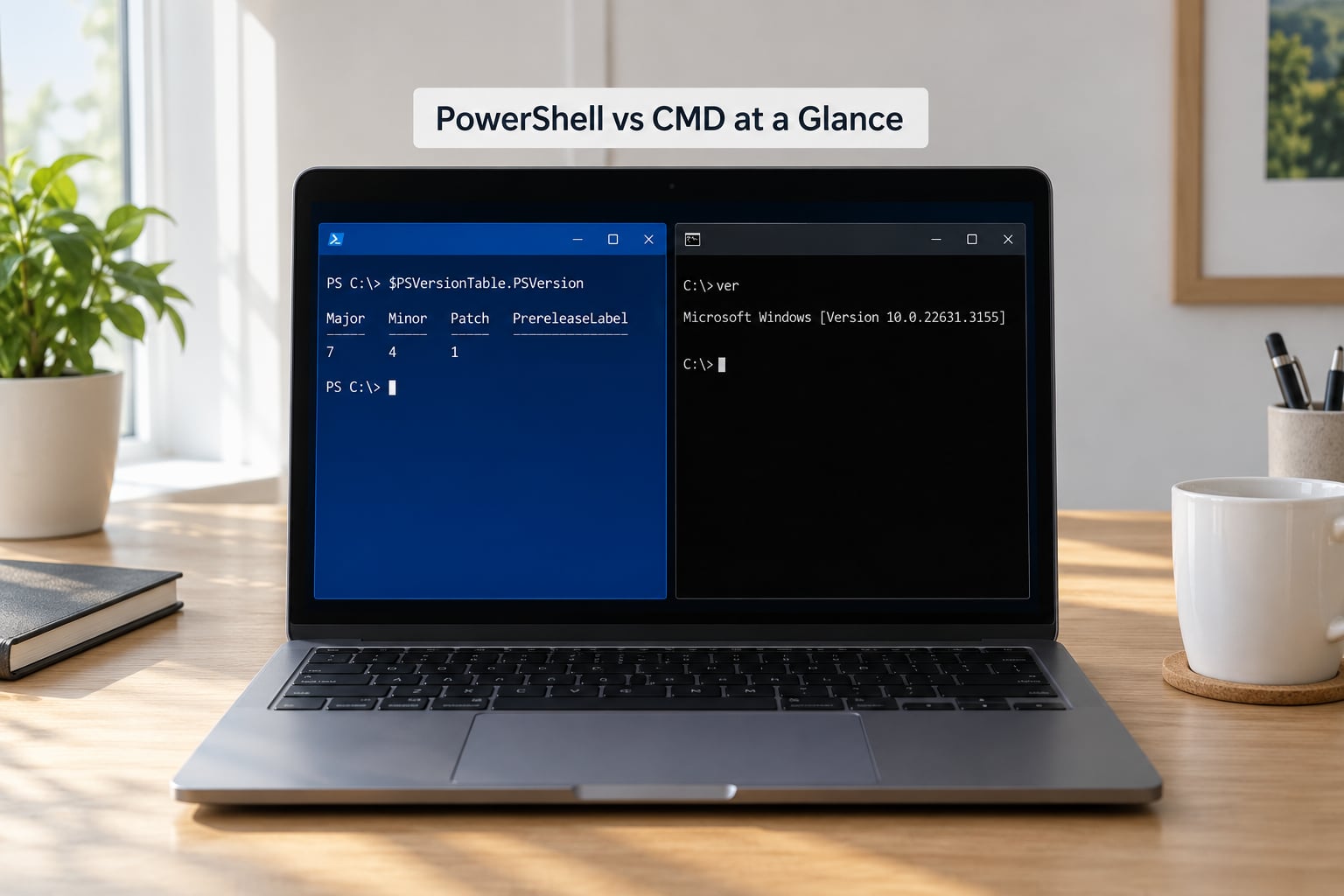
PowerShell vs CMD comes down to what travels between commands. Command Prompt (cmd.exe) is the text-based interpreter Windows inherited from MS-DOS, so every value you want has to be parsed by hand. PowerShell is a .NET-based automation shell that passes structured objects down a pipeline. Use CMD for quick legacy checks; use PowerShell for anything you repeat, schedule, or run across many machines.
Both ship with Windows and both can start notepad.exe, so the gap only shows up once you do real work. That is when the object model, the scripting language, and the admin tooling start to matter.
Table of Contents
- PowerShell vs CMD at a Glance
- What Is Command Prompt?
- What Is PowerShell?
- Windows PowerShell 5.1 vs PowerShell 7 (pwsh)
- Syntax and Command Design
- How PowerShell vs CMD Handle Data
- Automation and Scripting Capabilities
- Execution Policy: Why a .ps1 File Refuses to Run
- Compatibility and Administration
- Why Security Teams Watch PowerShell Closely
- Performance, Features, and Everyday Use
- Which Should You Choose?
- Frequently Asked Questions
- Is PowerShell better than CMD?
- Can I run Command Prompt commands in PowerShell?
- Why does PowerShell use objects instead of text?
- Is CMD still useful on modern Windows?
- Should developers learn PowerShell or stick with CMD?
- Can I use both PowerShell and Command Prompt on the same computer?
- Conclusion
PowerShell vs CMD at a Glance
| Criterion | Command Prompt (cmd.exe) | PowerShell |
|---|---|---|
| Lineage | MS-DOS command interpreter, extended by Microsoft | Released in 2003 as a replacement layer over .NET |
| Built on | Win32 executables and text streams | .NET runtime (Framework in 5.1, .NET in 7+) |
| Output model | Plain text lines | .NET objects with properties and methods |
| Pipeline | Text only, awkward to filter | Object pipeline with Select, Where, Sort |
| Command style | Short built-ins: dir, del, copy, taskkill | Verb-Noun cmdlets: Get-ChildItem, Remove-Item |
| Parameters | Prefix flags such as /f and /s | Named parameters such as -Force and -Recurse |
| Variables | Percent-delimited batch variables | Dollar-prefixed variables, objects, script blocks |
| Script format | .bat or .cmd batch file | .ps1 script file |
| Error handling | Exit codes and IF ERRORLEVEL | Exceptions with try, catch, finally |
| Help | Bare help text, often thin | Get-Help with examples and parameter detail |
| Remote work | Not built in | Invoke-Command and Enter-PSSession |
| Platforms | Windows only | Windows, macOS, and Linux from PowerShell 7 |
| Open source | No | PowerShell 7 (pwsh) is open source on GitHub |
Read the table as a pattern rather than a checklist. CMD is a thin text passthrough that launches programs; PowerShell is a runtime that loads .NET libraries, formats objects, and ships modules for Windows administration, Azure, and Microsoft 365.
What Is Command Prompt?
Command Prompt is cmd.exe, the shell Windows has shipped with since the NT era. It reads a line of text, splits it into a program name and arguments, runs the program, and prints whatever text the program writes to standard output. That is the whole model, and it explains almost every quirk people notice.
Basic navigation and file work look like this:
cd C:Usersyouproject
dir *.log
copy report.txt backup.txt
del /q temp.txt
ipconfig /all
taskkill /IM notepad.exe /F
Because the interpreter is text all the way down, extracting a single field means writing fragile text processing. Sort with sort, then findstr, then eyeball the line. There is no way to ask the output for a property, because there is no property. There is just a line of characters.
CMD still feels familiar for a practical reason: almost every third-party Windows tool prints CMD-style text. Support scripts from older vendors assume a chkdsk or a netsh call in a batch file, and plenty of installers still hardcode cmd /c when they launch a setup step. Practitioners on r/sysadmin describe being handed a maintenance window and a machine where only CMD was provisioned, and just getting on with it.
What Is PowerShell?
PowerShell is Microsoft’s automation shell, built on the .NET runtime and released in 2003. Instead of printing text, its commands (cmdlets) return .NET objects, and a pipe operator passes those objects from one command to the next. That design is why Get-Process can be sorted and filtered by real properties while tasklist output has to be scraped.
Get-ChildItem -Path C:Usersyouproject -Filter *.log
Get-Process | Sort-Object CPU -Descending | Select-Object -First 5
Get-Help Get-ChildItem -Examples
Everything you can do in CMD, PowerShell can do, because it simply launches the same executables. What it adds is a language: real functions, loops, reusable modules, try/catch error handling, a profile file that loads your own functions at startup, and a help system that documents parameters properly. Modules extend it further, and the PowerShell Gallery distributes thousands of them for services like Azure, VMware, and Microsoft 365.
Windows PowerShell 5.1 vs PowerShell 7 (pwsh)
This is where most confusion comes from, and it is worth being precise. Windows PowerShell 5.1 is the version that ships with Windows and runs on the .NET Framework. PowerShell 7, installed separately and launched as pwsh, runs on modern .NET and is the open source, cross-platform edition.
| Edition | Windows PowerShell 5.1 | PowerShell 7 (pwsh) |
|---|---|---|
| Runtime | .NET Framework 4.x | .NET (Core) 6, 7, 8, 9 |
| Executable | powershell.exe | pwsh.exe |
| Install | Present on every Windows install | Separate download or package manager |
| Platforms | Windows only | Windows, macOS, Linux |
| Legacy modules | Broadest support, including older snap-ins | Many old snap-ins unavailable |
| Default on Windows | Yes, for the Windows PowerShell entry | Optional |
The practical rule: scripts you write today should target PowerShell 7 and above. Scripts you have to run on locked-down or older machines, especially ones that call legacy administration modules, still need 5.1.
Syntax and Command Design
CMD commands take prefixed flags. PowerShell commands take named parameters, and long option names are the norm rather than the exception. This is why a PowerShell command looks wordy at first glance but reads clearly once you know the pattern.
:: CMD
del /f /q "C:Tempbuild.log"
dir /a:h /s "C:Usersyou"

:: PowerShell
Remove-Item -Path "C:Tempbuild.log" -Force
Get-ChildItem -Path "C:Usersyou" -Force -Recurse
PowerShell also layers an alias system over the cmdlets, which is where beginners get burned. ls, cp, mv, rm, and cat all exist, and on Windows some of them shadow the CMD names with different behaviour. rm in PowerShell maps to Remove-Item and does not prompt you the way del does in some configurations, which surprises people used to CMD’s confirmation question. Learn the full cmdlet names for anything destructive.
Here is the equivalency mapping you will use most:
| Task | CMD | PowerShell |
|---|---|---|
| List directory | dir | Get-ChildItem |
| Change directory | cd | Set-Location |
| Delete | del | Remove-Item |
| Rename | ren | Rename-Item |
| Copy / move | copy / move | Copy-Item / Move-Item |
| View a file | type | Get-Content |
| Running processes | tasklist | Get-Process |
| Stop a process | taskkill | Stop-Process |
| Network config | ipconfig | Get-NetIPAddress |
| Shut down | shutdown /s | Stop-Computer |
| Read a file | findstr | Select-String |
| Hardware and OS inventory | wmic (deprecated) | Get-CimInstance |
How PowerShell vs CMD Handle Data
This is the difference that pays off most, and it is invisible until you try to filter something. In CMD, output is a flat block of text and the pipe only carries characters forward:
:: CMD: find the lines, then read them with your eyes
systeminfo | findstr "OS Name"
In PowerShell the pipe carries objects. Each one has named properties, so you select and sort on the actual field rather than on a column position:
Get-Process | Where-Object CPU -gt 50 | Select-Object Name, Id, CPU
Get-Service | Where-Object Status -eq 'Stopped'
Get-ChildItem *.csv | Import-Csv | Sort-Object LastWriteTime | Export-Csv report.csv
That last line is the payoff. A batch script that exports a report usually needs several stages of intermediate text files, and it breaks the moment a name contains a space. The PowerShell version keeps data in memory as typed objects, so it exports directly to CSV or JSON and survives the awkward data.
Automation and Scripting Capabilities
A batch file is a list of command lines with a few control structures bolted on. The language has no functions, no real variables, no error handling, and no ability to call external code. It is fine for a setup step and painful for anything you maintain.
@echo off
for %%f in (*.log) do del "%%f"
The equivalent PowerShell script is one line, and it is a pipeline rather than a loop:
Get-ChildItem -Path . -Filter *.log | Remove-Item
Scaling that up is where the two diverge sharply. PowerShell gives you functions you can name, reuse, and unit test; proper exception handling with try/catch so a failed step stops the run instead of printing an error and continuing; scope for variables; and remote execution, so Invoke-Command runs a block against fifty remote machines and returns real objects you can aggregate. PowerShell 7 also runs on Linux and macOS, which means a script written on a Windows laptop can be the same script your CI pipeline runs on a build agent.
Forum consensus in r/PowerShell threads matches that: people keep CMD around for compatibility checks, but do real automation in PowerShell because colleagues can read and reproduce it. The learning curve is real, though. The language is closer to a scripting language than to a command line, and that is exactly what makes it maintainable.
Execution Policy: Why a .ps1 File Refuses to Run
Run a downloaded script and Windows may refuse it with an execution policy error. This is the single most common beginner blocker, and it is a security setting rather than a broken install. The execution policy controls whether scripts from remote locations may run unsigned, and the usual cause is that the file carries a Mark-of-the-Web flag from being downloaded.
Get-ExecutionPolicy -List
RemoteSigned is the sensible setting for most machines: local scripts run, downloaded scripts must be signed. Setting it to Unrestricted to make an error go away is the wrong move on a work machine. If you must run one downloaded script, right-click it in Explorer, choose Properties, tick Unblock at the bottom, and run it again. On managed corporate machines the policy is usually locked by group policy, and that is by design.
Compatibility and Administration
PowerShell covers essentially everything CMD does, because an executable that prints text does not care which shell launched it. A few differences still trip people up. A CMD command with a pipe or a redirect has to be handed back to the shell explicitly:
cmd /c "findstr /s /i error *.log > hits.txt"
Start-Process notepad.exe -ArgumentList "C:Tempnotes.txt"
Going the other way works too. From CMD you can call PowerShell inline with powershell -Command "Get-Date", which is a common pattern in scheduled tasks and installers. The rule of thumb: if a command contains a pipe, an ampersand, or a redirect, wrap it in cmd /c.
For administration, PowerShell is far ahead. wmic is deprecated and slowly disappearing from Windows, while its replacement Get-CimInstance is actively developed and returns structured data rather than formatted text. Service control, event logs, scheduled tasks, registry work, and certificate management all have first-class cmdlets, and Microsoft 365 and Azure administration is module-driven rather than GUI-driven.
Why Security Teams Watch PowerShell Closely
Because attackers use it too. PowerShell ships with Windows, can run in memory without writing a file to disk, downloads code on demand, and produces far less log noise than a compiled tool would. Defenders watch for it because legitimate administration and malicious activity can look identical on the surface.
Practical habits help. Constrained Language Mode restricts what a session can do, and it is worth knowing about if you hit errors that say a cmdlet type is not allowed. Logging script block text catches commands that never touch disk. And if your own security tooling flags a script you wrote, that is a false positive worth reporting to your team rather than switching to CMD to avoid the alert.
Performance, Features, and Everyday Use
CMD starts faster and uses less memory. That is a real difference and it matters on a slow remote desktop session or an old laptop, but it is measured in fractions of a second for ordinary commands. Nobody picks a shell for speed.
Day to day, PowerShell wins on the small things. Tab completion extends to parameter names and file paths, and Get-Help returns working examples instead of a page of flags. Command history is searchable with a reverse search. Output is formatted in a table you can copy, though PowerShell’s default wide formatting does word-wrap in a narrow window, which is a common complaint compared with CMD’s compact output. You can force plain output with Format-Table or Out-String, or set the width in your profile.
CMD stays pleasant for a handful of things: a quick ping loop while diagnosing a network, running a vendor tool that expects a raw console, and pasting a support command you were given verbatim. The editor matters too. PowerShell ISE is the built-in editor and is feature-poor and effectively retired for new work; VS Code with the PowerShell extension gives you syntax highlighting, debugging, and linting that ISE never had. Windows Terminal lets you keep CMD, Windows PowerShell, and PowerShell 7 as separate tabs on one window.
Which Should You Choose?
Learn PowerShell if you administer Windows, deploy software, work in security, or script anything. It is a career asset for the simple reason that its output can be handed to another tool, and colleagues can read what you wrote. The forums are full of people who standardised on it and now avoid hand-running the repetitive work entirely.
Keep CMD for the jobs it still wins. Legacy batch files you have to run. Vendor installers that hardcode cmd /c. Support documentation that hands you a netsh or ipconfig line. Quick connectivity checks. And for learning command line fundamentals, CMD is a smaller surface, which makes it a reasonable first stop before PowerShell.
Use both, because that is what experienced Windows developers actually do. Set PowerShell as your default profile in Windows Terminal, and switch to a CMD tab when a legacy tool needs it. In VS Code, the integrated terminal is selected from the profile menu in the top-right corner, so switching shells is a click rather than a new window.
If you have an existing .bat file to port, work through it one line at a time. Translate for loops into pipelines, replace set with variables, swap IF ERRORLEVEL for try/catch, and test each stage before moving on. Migrating the whole file at once is how people end up with a script that runs and silently does nothing.
Frequently Asked Questions
Is PowerShell better than CMD?
For almost all modern work, yes. PowerShell returns objects you can filter, sort, and export, and it has a real scripting language with error handling, functions, and remote execution. CMD is faster to start and prints compact text, which is why it still suits quick checks and legacy tools. The honest version: PowerShell is the better shell, CMD is the more compatible one.
Can I run Command Prompt commands in PowerShell?
Almost always, yes. PowerShell launches any executable CMD could launch, so ipconfig, netsh, ping, and chkdsk all work unchanged. The exceptions are commands that use CMD pipe, redirect, or ampersand syntax, which PowerShell parses differently. Wrap those in cmd /c followed by the quoted command and they behave exactly as they would in Command Prompt.
Why does PowerShell use objects instead of text?
Because text parsing is where shell scripts break. With objects, you can ask a process for its CPU time or a file for its LastWriteTime as a named property instead of counting columns in a formatted line. That makes filtering, sorting, and exporting to CSV or JSON reliable, and it means the next command in the pipeline receives typed data rather than a string it has to re-parse.
Is CMD still useful on modern Windows?
Yes, and it is not going anywhere soon. It is built into every copy of Windows, it is what many older installers and vendor tools invoke internally, and plenty of support documentation still hands you CMD commands verbatim. CMD is also a reasonable teaching shell because it has a small command set. Keep it in a terminal tab for compatibility work rather than planning your automation around it.
Should developers learn PowerShell or stick with CMD?
Learn PowerShell if you work on Windows at all, even lightly. Build and release scripts, environment setup, container and cloud administration, and CI steps all run in PowerShell on Windows agents by default. CMD knowledge is still useful for reading older scripts and vendor docs, but it is not where new tooling is going. Learn the cmdlets and the pipeline, not just the aliases.
Can I use both PowerShell and Command Prompt on the same computer?
Yes, and that is the normal setup. Windows PowerShell 5.1 and CMD ship with Windows, and PowerShell 7 installs alongside as pwsh. Windows Terminal can host all three as tabs, and VS Code lets you pick the profile for the integrated terminal from the profile menu. PowerShell also launches CMD on demand with cmd /c whenever a legacy tool needs it.
Conclusion
Start with PowerShell for anything new: it gives you objects, a real language, and modules that cover Windows administration end to end. Keep CMD installed and one tab away for legacy batch files, vendor installers, and the support commands that arrive as text. Learn to move between them, and the choice stops being a decision you have to make at all.