If you have ever pressed the power button on a Linux laptop and watched a dark screen full of text scroll past before the desktop appeared, GRUB was the program arranging most of that. GRUB explained for beginners comes down to one idea: it is the menu and loader that sits between your computer’s firmware and the Linux kernel, and it decides which operating system starts.
Everything else follows from that. Once you know what GRUB does, the menu that appeared at boot, the files under /boot, and the error messages you may have seen on forums all stop being mysterious.
This guide covers the boot sequence step by step, how to read the menu without breaking anything, where the configuration files live, and what to check first when a boot goes wrong. No experience assumed beyond being able to open a terminal.
Table of Contents
- What Is GRUB and Why Does Linux Use It?
- What Happens During a Linux Boot?
- How Does GRUB Load Linux?
- How to Read a GRUB Menu
- GRUB Explained for Beginners: Key Terms at a Glance
- GRUB Explained for Beginners: Choosing a Safe Entry
- Which GRUB Commands Are Safe to Run?
- Where Does GRUB Store Its Files?
- Why Does Editing grub.cfg Usually Get Overwritten?
- How Do You Change the Default Boot or Timeout?
- What Is GRUB Recovery Mode Used For?
- How Do You Troubleshoot Common GRUB Boot Problems?
- Frequently Asked Questions
- Is GRUB the same thing as UEFI?
- Do I need GRUB to boot a Linux computer?
- Why did my Linux distribution update change or remove GRUB menu entries?
- Can I disable GRUB Secure Boot or reinstall GRUB safely?
- Will installing GRUB remove my Windows bootloader?
- Conclusion: Start With the Normal Boot Entry
What Is GRUB and Why Does Linux Use It?
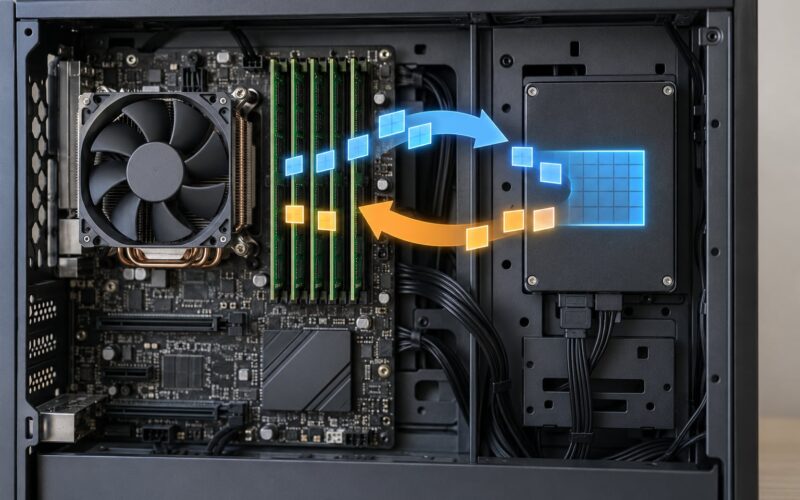
GRUB, short for GNU GRand Unified Bootloader, is the bootloader program on Linux systems. It runs after BIOS or UEFI firmware and before the Linux kernel, loading the kernel and initrd into memory and then handing control over to it.
Without a bootloader, firmware would have no way to know which kernel to start. Every distro family made slightly different assumptions about that, so a machine with two operating systems usually could not offer a menu. GRUB solved that by putting a small program with a readable menu in front of the whole process.
It also gives you somewhere to land when things go wrong. Because the menu appears before the kernel loads, you can pick an older kernel, boot into recovery mode, or edit boot parameters from the menu itself. That is why most GRUB advice you find online starts with the menu rather than a terminal.
One boundary is worth stating early, because it causes a lot of confusion. GRUB hands control to the kernel and then stops existing for the rest of the session. Mounting filesystems, starting services, and logging you in belong to the init system, normally systemd. If someone asks whether a problem is a GRUB problem, the honest test is whether the problem happens before or after the kernel starts.
What Happens During a Linux Boot?
Here is the sequence in order, from the moment you press power to the moment a login screen appears.
- Firmware starts. The BIOS or UEFI chip on your motherboard initialises hardware, checks its own configuration, and looks for something to boot.
- Firmware finds a boot entry. On older machines it reads the master boot record (MBR). On modern machines it reads the EFI System Partition (ESP), a small FAT32 partition holding files rather than a single fixed location.
- GRUB’s early stages run. A tiny first stage loads a slightly larger second stage, which then loads the main GRUB program with its full menu and scripting support.
- GRUB reads its configuration. It loads
grub.cfg, which lists every kernel, every other operating system, and the timeout. - You pick an entry. The menu counts down, or takes the highlighted default if you touch nothing.
- GRUB loads the kernel and initrd. It copies the compressed kernel image (usually
vmlinuz) and the initial RAM disk (initrd) into memory and starts the kernel with your chosen parameters. - init takes over. The kernel mounts the root filesystem, unpacks the initrd, runs
systemdas PID 1, and starts services until it reaches a display manager or a login prompt.
Stage one and stage two deserve a word, because the 446-byte question comes up constantly on Stack Overflow and forum threads. The MBR is 512 bytes, and the last 66 bytes hold the partition table and signature, leaving 446 bytes for code. That is not enough room for a bootloader with menus and scripting, so the 446 bytes do the bare minimum: find and load the next stage, often called stage 1.5, which lives in the gap between the MBR and the first partition. From there stage two, the real GRUB, takes over. Nothing clever is happening. It is a chain of small loaders, each one big enough to find the next.
On UEFI systems this staging is much simpler. The firmware reads an EFI executable straight from the ESP, so there is no 446-byte puzzle and no stage 1.5.
How Does GRUB Load Linux?
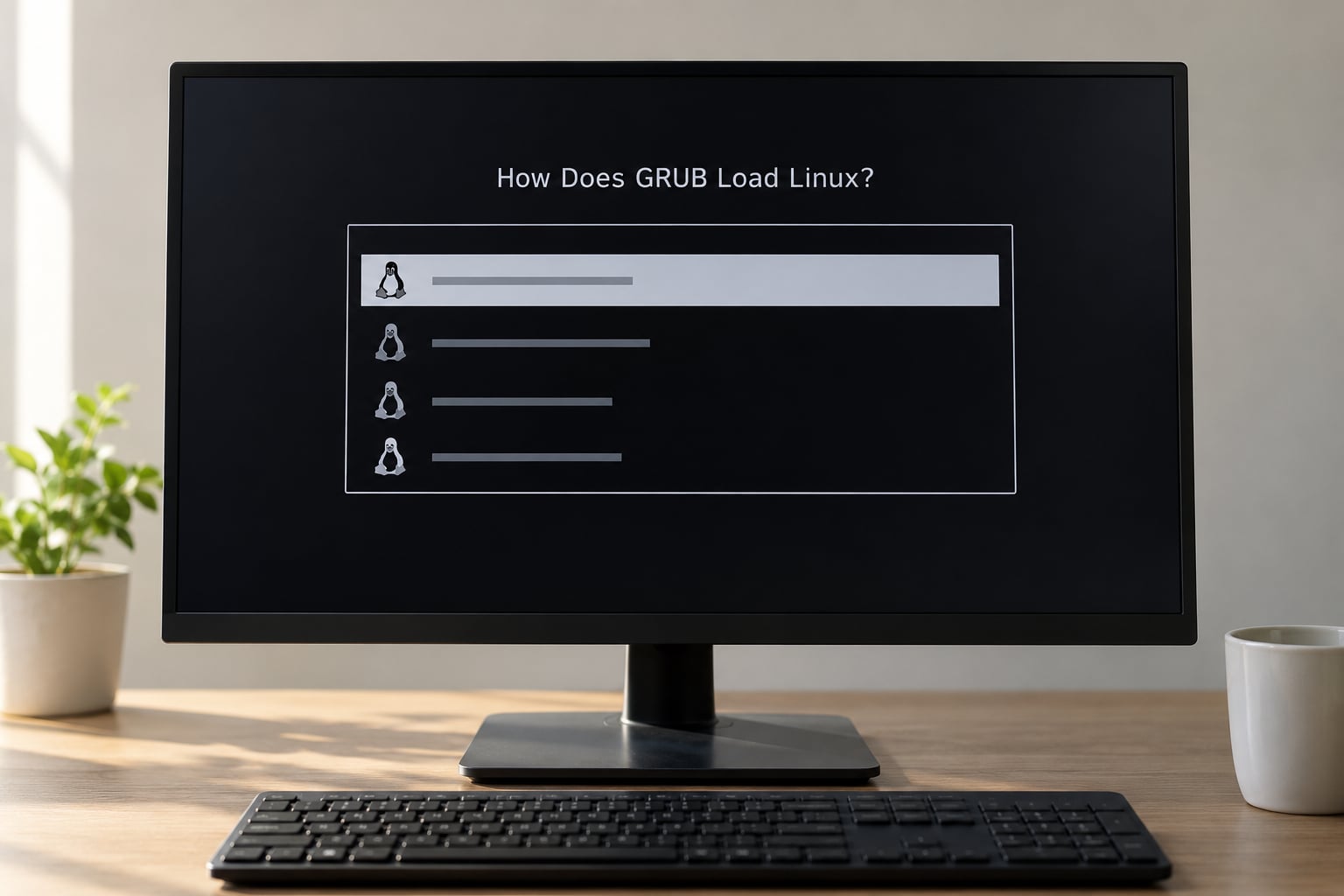
Each Linux menu entry in grub.cfg is a small script. It sets which device and partition it is booting from, points at a kernel file and an initrd file, and passes a string of boot parameters to the kernel.
The kernel image is the compressed Linux kernel itself. The initrd is a small filesystem image, usually an archive or an old-style cpio archive, that the kernel unpacks in memory before it can mount the real root filesystem. Without it, most drivers for your storage controller and your keyboard would be missing at the moment the kernel needs them.
Once the kernel is running, GRUB is finished. It does not mount anything, start a service, or handle login. If a problem happens after the kernel message “Starting systemd” appears, looking at GRUB configuration will waste your time.
That said, you can edit what GRUB hands to the kernel. Pressing e on a menu entry opens that entry’s script in a small editor, and you can add parameters such as nomodeset (skip graphics driver loading, useful for a black screen after a driver update), single (boot to a single-user root shell), or quiet and debug to control message verbosity. These edits last for that boot only, which makes them the safest way to test a change.
How to Read a GRUB Menu
The default GRUB menu is a dark screen with a list of entries and a countdown timer. The highlighted line is the one that will boot if you press nothing.
Up and down arrows move the selection. Enter boots it. Tab within a submenu jumps between fields, which matters when you are editing an entry. The Advanced options entry opens a submenu containing every installed kernel version plus recovery entries, which is where you go if the newest kernel is the problem.
Two keys catch people out. Holding Shift during power-on reveals a menu that is normally hidden, which happens when GRUB_TIMEOUT_STYLE=hidden is set or a distribution hides the menu for a cleaner boot. And Esc at the right moment drops you into the GRUB command line, a minimal shell where you can type commands directly.
Submenus are worth understanding. With GRUB_DISABLE_SUBMENU turned off, every kernel version and its recovery entry are tucked inside an “Advanced options” submenu, which keeps the top-level list short. Beginners sometimes assume entries are missing when they are simply one level down.
GRUB Explained for Beginners: Key Terms at a Glance
Nearly every confusing forum answer on this topic uses these words without defining them. Here is the short version.
| Term | What it actually means |
|---|---|
| GRUB | GNU GRand Unified Bootloader, the program that shows the boot menu and loads the kernel |
| UEFI | Unified Extensible Firmware Interface, the modern replacement for BIOS that reads boot files from a partition |
| ESP | EFI System Partition, the FAT32 partition where UEFI firmware looks for bootloaders |
| MBR | Master Boot Record, the first sector of a disk, 446 bytes of which hold the first stage bootloader on legacy BIOS systems |
| Kernel | The Linux kernel itself, loaded from a compressed image file usually named vmlinuz |
| initrd | Initial RAM disk, a temporary filesystem the kernel unpacks before it can mount the real one |
| Root filesystem | The partition holding your installed Linux system, mounted at / once boot finishes |
| Boot entry | One choice in the GRUB menu, a small script naming a kernel, an initrd, and boot parameters |
| GRUB directory | The folder holding grub.cfg and supporting files, usually /boot/grub or /boot/grub2 |
| Recovery mode | A menu entry that boots a minimal environment for repairing filesystems and reconfiguring packages |
GRUB Explained for Beginners: Choosing a Safe Entry
On most systems the top-level entry is the newest kernel that booted successfully, which is almost always the one you want. The Advanced options submenu lists older kernels, and those are your fallback when a new kernel update breaks graphics or wireless hardware.
Two rules keep you out of trouble. Never boot the oldest kernel listed as your daily driver, since it will miss security updates and may lack drivers for your hardware. And never treat a recovery entry as equivalent to the normal entry, because recovery mode starts a stripped-down system with no graphical desktop. Use it when the normal boot fails, not to browse the web.
Worth noticing: if a kernel update went badly, the old kernel usually stays in the menu for a reason. Distributions keep a few around so you have somewhere to boot from, and that list shrinking to a single entry after an update is a warning sign worth taking seriously.
Which GRUB Commands Are Safe to Run?
Everything in this list only reads information. None of it modifies the bootloader or your partitions, so you can run them on a working system without any preparation.
uname -r– prints the running kernel version.lsblk -f– lists block devices with their filesystems, so you can tell a root partition from an ESP by its type label.findmnt /bootorfindmnt /boot/efi– shows what is actually mounted where on this machine right now.efibootmgr– lists UEFI boot entries and their order. Needs root, because it reads and writes firmware boot variables, but listing is non-destructive.grub-install --help– prints usage information and exits without touching anything.grep menuentry /boot/grub/grub.cfg– lists the menu entries GRUB will actually show.
Commands that write, such as update-grub, grub2-mkconfig, grub-install, or anything with set root= typed into a GRUB prompt, change what boots next. Before running one, write down the exact entry that currently works and make a copy of grub.cfg to a directory outside /boot.
If you want to practise risky commands safely, boot a live USB first. That gives you a working Linux environment that changes nothing on your installed system, which is the standard advice for anyone reinstalling GRUB.
Where Does GRUB Store Its Files?
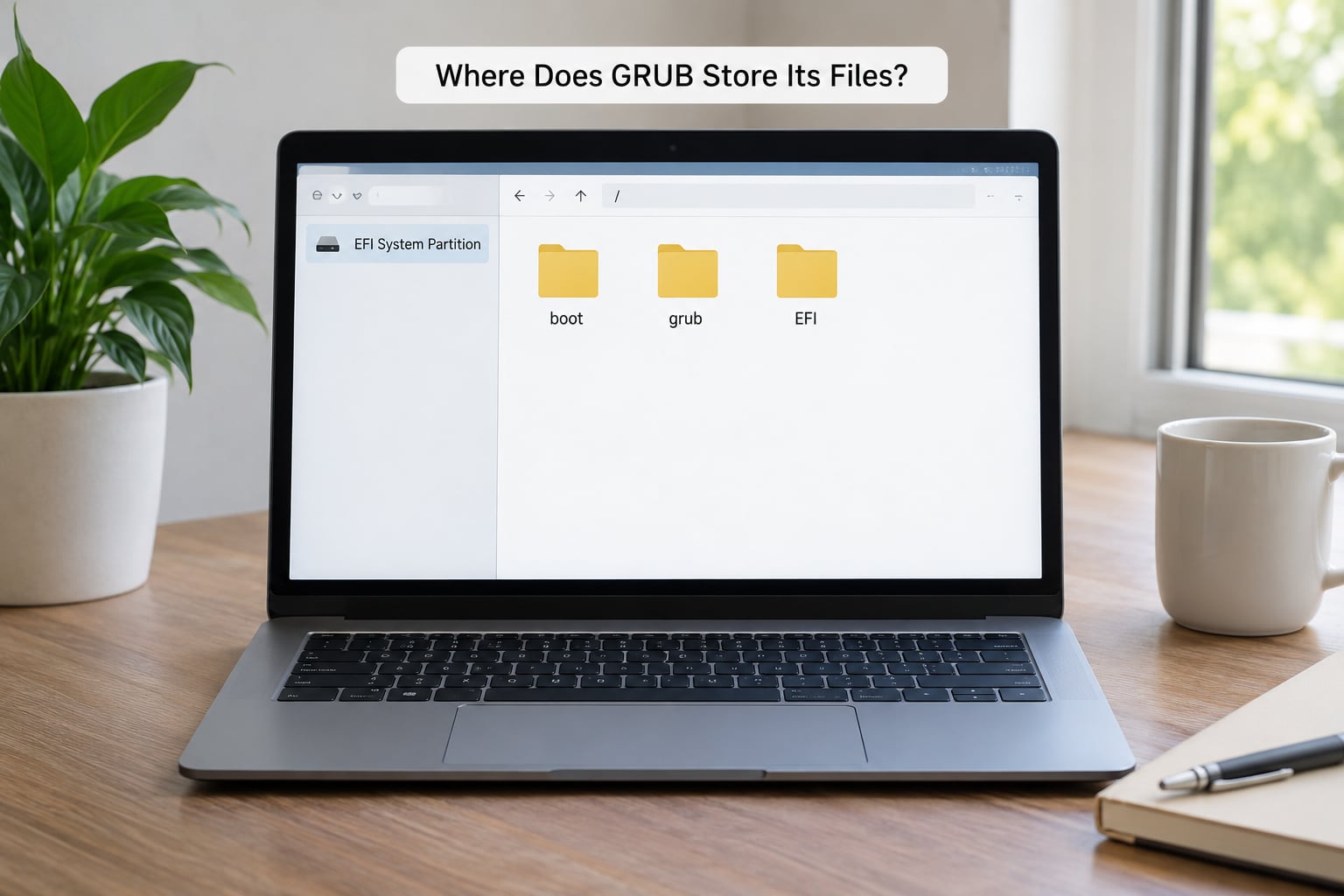
On most desktop and laptop Linux systems the files live under /boot. You will typically find /boot/grub or /boot/grub2 containing grub.cfg, alongside the kernel and initrd files such as vmlinuz-<version> and initrd.img-<version>.
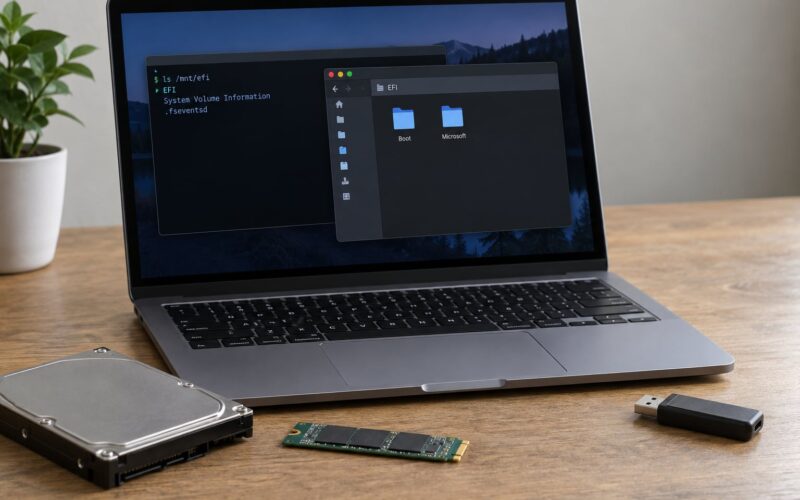
For a UEFI system, the EFI binaries usually sit on a separate partition mounted at /boot/efi. You may find EFI/ folders there with a directory per vendor and bootloader, often including a grubx64.efi file. Some systems mount that partition at /boot directly, so the layout varies more than documentation usually admits.
The naming differences trip people up. Debian and Ubuntu use /etc/default/grub and the grub-mkconfig tooling; Fedora, RHEL, and their relatives use the same /etc/default/grub file but historically lived under /boot/grub2. Arch and several others keep /etc/grub.d scripts in a slightly different arrangement. If a path in a tutorial does not exist, check what your distribution actually installed rather than assuming your install is broken.
One filesystem caveat matters. On many systems /boot is its own small partition, so a full root filesystem does not stop GRUB from loading. If you see the machine hang with a message about /boot being full, that is a different failure from a broken bootloader even though both can look like a dead boot.
Why Does Editing grub.cfg Usually Get Overwritten?
Because grub.cfg is generated output, not a source file. It gets rebuilt every time a kernel is installed, a kernel is removed, or your distribution runs its update command. Hand edits survive until the next rebuild and then vanish, which is why people report that their fix “worked for a week”.
The two files you actually edit are /etc/default/grub, which holds simple key=value settings like the timeout and default entry, and the scripts in /etc/grub.d, which decide how menu entries are produced. A file called 40_custom is the usual place to add entries that the generator would not create on its own, such as a memory test.
Before changing anything, back up both. Copy /etc/default/grub to /etc/default/grub.bak and grub.cfg to your home directory. If a change produces a machine that will not boot, you can still reach the drive from a live USB and restore them.
How Do You Change the Default Boot or Timeout?
Open /etc/default/grub with root privileges and adjust these keys:
GRUB_DEFAULT– which entry boots by default. Set it to a number for a position in the menu, to a saved entry identifier, or tosavedwhen combined withGRUB_SAVEDEFAULTso the system remembers your last choice.GRUB_TIMEOUT– seconds on the menu.0skips the menu and boots the default immediately.GRUB_TIMEOUT_STYLE–menualways shows the menu,hiddenshows it only when an arrow key is pressed.GRUB_SAVEDEFAULT–trueboots whichever entry you used last.
Then regenerate the configuration with the command your distribution uses. Debian and Ubuntu run sudo update-grub. Fedora and RHEL run sudo grub2-mkconfig -o /boot/grub2/grub.cfg, and on some of those systems the output path is /boot/grub/grub.cfg instead, so read the command your own release prints rather than guessing.
Numbers in GRUB_DEFAULT are zero-based and can be defeated by submenus, which is a common reason a “correct” number boots the wrong thing. When in doubt, boot once and watch which entry the menu highlights.
What Is GRUB Recovery Mode Used For?
Recovery mode boots a minimal Linux environment instead of your normal system. You get a root shell, most of your disk tools, and none of your desktop. It exists for jobs that need to happen before the full system starts.
Typical uses include repairing a filesystem that will not mount cleanly, reconfiguring a broken graphics driver, re-installing packages after a failed update, freeing space on a full root filesystem, or resetting a forgotten password. The environment is deliberately minimal, so a command that works in your normal terminal may not be installed in recovery.
The rule that saves people from a bad afternoon: back up before you use it. Recovery mode is where beginners run fsck and mount operations by copying advice from a forum post written for a different disk layout. Know which partition you are working on, and confirm it with lsblk before running anything that writes.
How Do You Troubleshoot Common GRUB Boot Problems?
The menu disappeared. Most often it is hidden rather than broken. Hold Shift while powering on, or set GRUB_TIMEOUT_STYLE=menu and GRUB_TIMEOUT=5, then regenerate. Windows Fast Boot can also skip the menu entirely because it hibernates the machine instead of shutting it down; turning Fast Boot off in the Windows power options fixes that.
You see a grub rescue prompt. GRUB loaded but could not find the file it was told to read. On modern installs this usually means a partition was renumbered or the filesystem UUID changed. At the prompt, ls lists what GRUB can see, and you can inspect partitions until you find the one holding grub. If you see no partitions at all, the storage controller driver is loaded but the disk is not readable, which points at Secure Boot or a hardware layer rather than GRUB.
Windows booted straight into itself and GRUB is nowhere. A Windows install or major update rewrote the boot order in UEFI firmware, or overwrote the ESP. Check efibootmgr for a Linux entry, put it first, and reboot. If the entry is gone, boot a live USB, mount your root and ESP, bind-mount /dev, /proc, /sys and /run, chroot in, and reinstall with grub-install followed by your distribution’s config regeneration command.
The screen goes black after selecting a kernel. Select an older kernel from Advanced options to confirm the hardware is fine, then boot the newer one and press e to append nomodeset. If that works, the change belongs in GRUB_CMDLINE_LINUX in /etc/default/grub, followed by a regeneration.
UEFI refuses to start the bootloader. Secure Boot only runs signed bootloaders. Either use a distribution-signed bootloader, which every mainstream one installs by default, or disable Secure Boot in firmware and accept the trade-off in tamper protection.
Entries look stale after an update. Running the regeneration command again usually fixes it, since something interrupted the automatic run. It also tells you whether your /boot partition is full, which stops the generator from completing.
You want GRUB gone. Removing it means telling the firmware what to boot instead. On a UEFI machine, delete the GRUB entry with efibootmgr and place the Windows Boot Manager first. On a legacy BIOS machine, overwrite the MBR from a live Windows environment with bootrec /mbr and rebuild the boot records with bootrec /fixmbr and bootrec /fixboot. Doing this from the wrong disk is how people end up with a machine that boots nothing at all, so read the partition layout first.
Frequently Asked Questions
Is GRUB the same thing as UEFI?
No. UEFI is firmware baked into the motherboard; it is the first thing that runs when you press power. GRUB is a program stored on a disk that UEFI or BIOS loads afterwards. Think of UEFI as the property manager deciding which tenant to hand the keys to, and GRUB as the tenant at the door who decides which room you get. On modern systems UEFI loads GRUB as a file.
Do I need GRUB to boot a Linux computer?
No, but most Linux distributions install it by default because it makes life easier. Some setups use systemd-boot instead, and rEFInd is another option that presents a graphical menu. Without any bootloader, the firmware must be pointed directly at a kernel, which limits you to one kernel version and one operating system with no menu to fall back on. That single-kernel restriction is why people rarely choose a bootloader-free setup outside of specialist systems.
Why did my Linux distribution update change or remove GRUB menu entries?
grub.cfg is generated output, so every kernel install, kernel removal, or bootloader update rewrites it from scratch. A new kernel adds an entry and usually keeps the previous ones, so you should see more entries rather than fewer. If entries disappeared, the most common causes are a full /boot partition that stopped the generator from finishing, a failed update that was rolled back, or a firmware boot order change that sends you to another operating system before GRUB is consulted.
Can I disable GRUB Secure Boot or reinstall GRUB safely?
Secure Boot is a UEFI firmware feature, not a GRUB setting, so you turn it off in the firmware setup rather than in a config file. Disabling it is usually safe to try, but it reduces tamper protection and some distributions will refuse to boot their own kernels without signed ones. Reinstalling GRUB is safer from a live USB than from the installed system, because the live environment changes nothing on your disk until you commit the commands.
Will installing GRUB remove my Windows bootloader?
Usually not on a UEFI machine. Both operating systems get their own bootloader directory on the EFI System Partition, and GRUB chainloads the Windows Boot Manager rather than replacing it. The exceptions are a legacy BIOS machine where GRUB overwrites the MBR code area, and any install that reformats the EFI System Partition and destroys its contents.
Conclusion: Start With the Normal Boot Entry
GRUB is the menu and the loader between your firmware and Linux. It reads its configuration, lets you choose a kernel or another operating system, and then hands control to the kernel and steps out of the way. Once systemd starts, nothing you change in GRUB will affect the running system.
For your first session, write down the exact menu entry that currently boots your system, and take a copy of /etc/default/grub and grub.cfg somewhere safe. Then make one small change at a time and test with a live USB nearby if you are changing anything structural.
Everything else, unhiding the menu, changing the timeout, booting an older kernel, adding parameters like nomodeset, can wait until you know what your current working setup looks like. That is the one fact worth having before you touch a bootloader.