
For most developers shipping web, backend, data and DevOps software, WSL 2 is the better choice in 2026: it installs in minutes, runs a real Linux kernel, handles Docker and GPU workloads, and never asks you to reboot. A full Linux install wins when your work touches the kernel, drivers, USB or serial hardware, or when you want production parity with the servers your code runs on.
If you are weighing wsl vs full linux install for developers, that split matters more than it used to. Advice written a few years ago painted WSL as a toy, and those threads still rank. WSL 2 has changed a lot since then, and most of the old complaints about slowness turned out to be one fixable mistake: keeping your project files on the Windows side instead of inside the Linux filesystem.
Table of Contents
- WSL vs Full Linux Install for Developers at a Glance
- What Is WSL and What Is a Full Linux Install?
- WSL 1 versus WSL 2
- What a full Linux install means
- Performance and Development Speed
- Where WSL 2 slows down
- Where a full install runs ahead
- Linux Compatibility and System Support
- systemd works, but you turn it on
- Learning Linux itself
- Filesystem, Networking, and Windows Integration
- The two rules that keep WSL 2 fast
- Containers, Dev Tools, and Project Workflows
- Languages, servers and editors
- Hardware, Graphics, and Low-Level Access
- Setup, Maintenance, and Reliability
- Day-to-day reliability
- Corporate laptops
- WSL vs Full Linux Install for Developers by Use Case
- Backend, API and full-stack web developers
- Frontend and cross-platform app developers
- Data, ML and AI developers
- DevOps, infrastructure and security engineers
- Kernel, driver and embedded developers
- Students and complete beginners
- Which Should You Choose?
- Frequently Asked Questions
- Is WSL 2 good enough for development?
- Is WSL 2 slower than a full Linux install?
- Can I use Docker in WSL 2?
- Does WSL 2 support systemd services?
- Can you do kernel development in WSL 2?
- Should my project live in /mnt/c or the Linux home directory?
- Conclusion
WSL vs Full Linux Install for Developers at a Glance
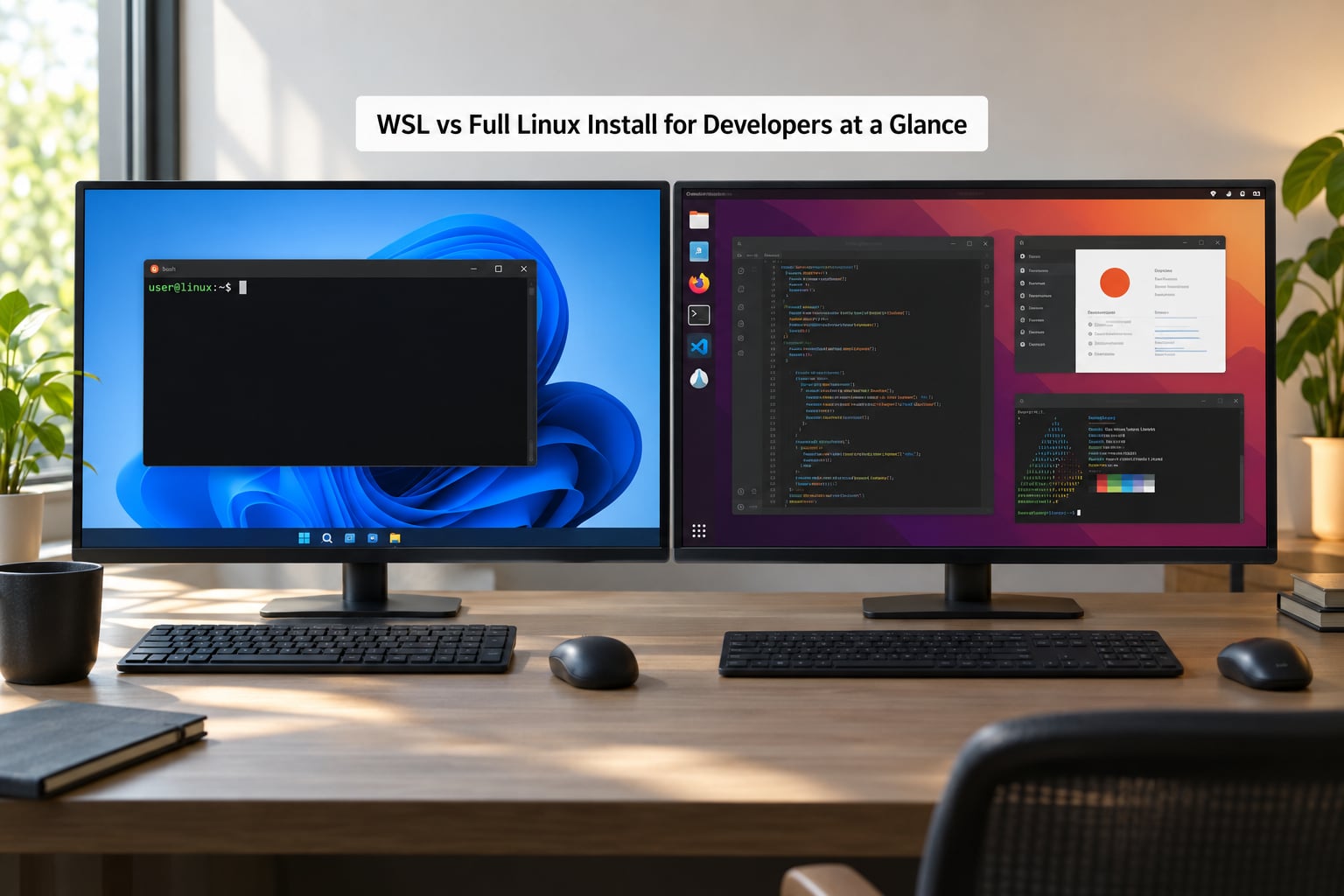
This table compares the three setups developers actually consider: WSL 2 running inside Windows, a full Linux install on the same machine, and a virtual machine. The differences come down to hardware access, performance overhead and how much maintenance you want to own.
| Criterion | WSL 2 | Full Linux Install | Virtual Machine |
|---|---|---|---|
| Setup time | Minutes, one command | An evening, plus partitioning | About an hour |
| Switching between Windows and Linux | Instant, side by side | Reboot every time | Instant, in a window |
| File I/O speed | Near-native inside ext4, slow on /mnt/c | Native everywhere | Good, with virtio and a shared folder |
| Docker and containers | Excellent with Docker Desktop or Engine | Native Engine, no layer | Workable, extra overhead |
| GPU and CUDA | Passthrough of the Windows driver | Native driver install | Needs passthrough configuration |
| USB, serial, PCI devices | Limited: usbipd only, serial via /dev/ttyS | Full, the machine is Linux | Configured passthrough |
| Kernel modules and drivers | No, the kernel is Microsoft’s | Yes, this is the main reason | Yes, inside the guest |
| Linux GUI apps | Works through WSLg, scaling is rough | Native desktop | Works through the host |
| systemd services | Yes, after you enable it | Yes, always on | Yes |
| Learning Linux fundamentals | Partial, Windows is still underneath | Complete | Good, isolated |
| Maintenance | Windows Update never touches it | Bootloaders, Secure Boot, BitLocker | Snapshot and reset |
| Best for | Windows-centric app development | Kernel, embedded, infrastructure, learning | Isolated testing and odd hardware |
What Is WSL and What Is a Full Linux Install?
WSL, short for Windows Subsystem for Linux, is a Microsoft feature that runs a real Linux distribution, with its own user space, package manager and filesystem, inside Windows. You get a bash or zsh prompt, apt, and Linux binaries, all while your Windows apps stay open in the background.
WSL 1 versus WSL 2
WSL 1 translated Linux system calls into Windows ones. It was fast for file access and partial for anything needing real Linux kernel behaviour, like containers or a normal systemd service tree. WSL 2 replaced that with a genuine Linux kernel running inside a lightweight virtual machine managed by Windows, with your distribution stored in an ext4 virtual disk.
WSLg adds a display layer, so Linux GUI applications open in Windows windows. That is genuinely useful for a GTK tool or a quick code editor, though scaling is still not what you get on a real desktop.
What a full Linux install means
A full install means Linux owns the hardware. You shrink a Windows partition or use a spare drive, install Ubuntu or Fedora, and pick the operating system at the bootloader. Booting into Linux takes seconds because the kernel loads the real drivers for your GPU, network card and everything else.
That direct control is the whole trade. Native Linux gives you the kernel, the drivers and the devices. WSL gives you convenience, and a Linux user space that shares the machine with Windows.
Performance and Development Speed

WSL 2 running real code is close to native. The gap that matters is not CPU or memory, it is disk. A published benchmark that keeps circulating in developer threads ran the same Docker Compose test suite three ways and reported roughly 10 seconds on native Ubuntu, roughly 12 seconds inside WSL 2 with the project on ext4, and roughly 120 seconds with the project on an NTFS share from Windows.
That twelve-fold difference is the single most repeated complaint on developer forums, and it is entirely self-inflicted. Files under /mnt/c travel across the Windows filesystem layer on every read and write. Keep the repository in your Linux home directory and the difference mostly disappears.
Where WSL 2 slows down
Heavy parallel compilation on huge codebases, builds that hammer the disk with tens of thousands of small files, and container workloads that start many containers at once all feel the hypervisor and translation layer. Large monorepo type checks and test suites that write temp files constantly show it too, though the gap is a fraction of what the old forum posts describe.
Where a full install runs ahead
Native Linux skips the hypervisor entirely, and it manages swap and page cache the way it was designed to. On a laptop with 16 GB of memory, a Windows host plus WSL 2 plus your editor plus six containers gets tight. Booting straight into Linux hands the whole machine to the workload.
Startup is another honest difference. WSL 2 is ready in a second or two. A dual boot adds thirty to ninety seconds before your terminal exists, and you pay that on every switch.
Linux Compatibility and System Support
Compatibility is about the kernel, and this is where the two setups part company. WSL 2 uses Microsoft’s own kernel build, which tracks upstream closely and runs most workloads unchanged, but it is not the same kernel you would install on bare metal, and it is not yours to modify.
That rules out kernel module development, custom drivers, out-of-tree patches and anything that needs a specific kernel version. It also rules out some low-level debugging tools that expect direct hardware access. A full Linux install has no such ceiling, which is why kernel and driver work happens there and nowhere else.
systemd works, but you turn it on
WSL 2 can run systemd once you enable it in the distribution configuration and restart. Out of the box it is off, which is why so many developers first meet WSL with a Docker daemon that behaves strangely. Enable it early and most service management problems go away.
systemd running inside WSL is still not a Linux boot. Services start when the distribution starts, not when a machine boots, and the lifecycle differs in ways that matter if you are testing something rather than just using it.
Learning Linux itself
If the goal is understanding Linux rather than shipping on it, a full install teaches more. Disk partitioning, package conflicts, boot loaders and permission errors all become part of the lesson. On WSL 2 those topics stay abstract because Windows quietly handles the hardware layer. Plenty of people on beginner forums have landed on the same conclusion, that WSL is a convenience layer and not a substitute for the real thing.
Filesystem, Networking, and Windows Integration
This is where WSL 2 is hard to beat. Your Linux home directory is reachable from Explorer at the \wsl$ path, and a Windows editor can open files in a Linux repo directly. Ports on localhost work in both directions without configuring anything, which is the reverse of the usual virtual machine story. Running a dev server in WSL and hitting it from a browser on Windows needs no tunneling.
A full install gets this right in the other direction. Windows and Linux see different files, different ports and different path conventions. Sharing code usually means a network share, an external drive formatted in a filesystem both can read, or a Git remote.
The two rules that keep WSL 2 fast
First, keep projects inside the Linux filesystem, not on /mnt/c. Second, watch line endings and permissions: files edited on Windows and read in Linux pick up carriage returns, and permission bits on a Linux home directory mean something different from a Windows file.
One more WSL 2 quirk worth knowing: the WSL 2 virtual machine stops when no distribution is running, and its IP can change on restart. Anything hard-coded to a WSL IP address will eventually point at nothing.
Containers, Dev Tools, and Project Workflows
Docker is the most common reason developers pick WSL, and the choice is usually right. Docker Desktop with WSL integration runs its engine inside a managed distribution, so Linux containers behave normally and compose files work from either side of the Windows line.
You can also skip Docker Desktop and install Docker Engine directly inside your WSL distribution, which removes a layer and is the setup many experienced developers prefer. The benchmark numbers above come from that kind of workload: with the project on ext4, container performance lands close to native. On an NTFS share it falls off a cliff.
A full install runs Docker Engine natively, with no extra layer, and that matters if your containers are part of the production topology you are replicating.
Languages, servers and editors
Node, Python, Ruby on Rails, Go, Rust, Java and .NET all run well on WSL 2, and language servers, formatters and debuggers work in VS Code through the WSL extension. Databases such as PostgreSQL, MySQL and Redis run normally as services. Where you notice a difference is in production parity: if your deployment target is a Linux server, a native Linux laptop matches file permissions, case sensitivity and system libraries more closely.
A full desktop also wins on GUI-heavy Linux tooling, editors like Emacs or JetBrains IDEs, and anything with unusual windowing behaviour. WSLg handles simple apps and struggles with scaling and some OpenGL work.
Hardware, Graphics, and Low-Level Access
WSL 2 gives you a GPU through the Windows driver, which is why local model runners and CUDA toolkits work inside it at all. That is enough for training experiments, inference and most containerized GPU workloads. A full install talks to the hardware directly and needs no translation, which is why driver-level and VRAM-heavy work is more predictable there.
USB is where WSL 2 gets thin. Passing a device through requires the usbipd-win utility and a manual attach-and-share process per device, and it is not transparent. Serial ports map to the host’s COM ports through /dev/ttyS entries, which works for a console but not for a smooth embedded flashing workflow.
A full Linux install treats a USB serial adapter, a logic analyzer or an SPI programmer as what it is: a device with a driver. Packet capture, network namespaces, custom firewall rules and kernel modules all behave normally too.
This is the clearest exclusion zone. If your work involves flashing firmware, writing a driver, tracing packets at low level or reading raw hardware registers, WSL 2 is the wrong tool and no amount of tuning changes that.
Setup, Maintenance, and Reliability
Setup is WSL 2’s headline. One command installs it, a second installs your distribution, and there is no partitioning and no reboot. A full install asks you to resize a partition or dedicate a drive, choose a bootloader layout, and decide how Secure Boot and BitLocker should behave.
That last part is where dual boot develops a reputation it partly deserves. Windows updates can change boot order, Secure Boot can reject an unsigned kernel or an outdated bootloader, and BitLocker recovery prompts can appear after firmware changes. Community advice on repairing an unbootable Linux install after an update is one of the most common reasons people move back to WSL.
Day-to-day reliability
Windows Update leaves WSL 2 alone. A full install needs its own update path, occasional rescue media and a backup plan, because a failed kernel update can leave you booting into a menu you cannot use.
Disk usage also differs. WSL 2 keeps a virtual disk that grows and rarely shrinks, so exports and imports are worth learning. A full install gives you ordinary partitions and ordinary tools like rsync, Timeshift and snapshot-capable filesystems.
Corporate laptops
Managed work machines often forbid repartitioning, rebooting at will or loading another bootloader, and device management may wipe an unmanaged OS. In that environment WSL 2 is usually the only option on the table, and plenty of professional developers work this way.
On cost, Linux itself is free and the Windows licence is something you already hold. That rarely decides the question, but it does mean a spare external SSD with a full Linux install is a cheap way to get real parity for testing.
WSL vs Full Linux Install for Developers by Use Case
Here is where the general answer splits into a specific one. The right setup depends less on your job title than on whether your code talks to hardware and whether your deploy target is a Linux server.
Backend, API and full-stack web developers
WSL 2. Multiple developers in web and Ruby communities run WSL 2 full time without dual boot and report no problems, which matches what you see in practice once projects live inside ext4. Containers, language servers and localhost forwarding all work, and you keep your Windows tooling.
Frontend and cross-platform app developers
WSL 2, unless you build Linux desktop applications. Browsers, bundlers and Electron packaging run fine, and Windows keeps its value for design tools and testing on multiple platforms.
Data, ML and AI developers
WSL 2 for most work, including CUDA toolkits and local model runners. Community setups of WSL 2 running Docker and a local model server are common and stable. Move to a full install if your workloads saturate VRAM or you are training at scale.
DevOps, infrastructure and security engineers
A full Linux install if you administer the servers you deploy to. Reading a shell script that behaves differently on your laptop than in production is a bad way to learn. A virtual machine is a reasonable middle ground for reproducing a specific environment.
Kernel, driver and embedded developers
A full Linux install, with no exceptions. You need the real kernel, real drivers and real device access. WSL 2 cannot do this work at all.
Students and complete beginners
WSL 2 to start, because setup friction stops people. Move to a full install once you want to learn how Linux actually boots and manages hardware.
Which Should You Choose?
Choose WSL 2 if your work runs inside a language runtime, your deploy target is a Linux server you can reproduce closely enough, and you value keeping Windows applications open. Choose a full Linux install if any of these are true: you write kernel code or drivers, you flash hardware, you need USB or serial devices without friction, you administer the servers you deploy to, or you are learning Linux fundamentals on purpose.
Five questions settle it. Do you need direct hardware access? Do you run builds that hammer the disk for long stretches? Do you need to match a Linux production environment closely? Does your employer control the machine? Will you keep Windows-specific tools open all day? Two or more yes answers for hardware, kernel or parity point to a full install; mostly no points to WSL 2.
There is a third answer that fits a lot of people, and it is the one most guides skip. Use WSL 2 for daily work and put a full Linux install on a spare external SSD for testing and for the work WSL 2 cannot do. You can boot it only when you need it, and your main machine stays set up the way you like it.
One practical warning: if your machine has average specifications, avoid running Windows, WSL 2 and a full virtual machine at the same time. Pick one environment and let it have the memory and cores.
Frequently Asked Questions
Is WSL 2 good enough for development?
Yes. WSL 2 runs the standard Linux toolchain, compilers, databases, containers and most application frameworks, and it is what many professional web developers use full time. It is particularly good when you need Windows applications alongside Linux, such as a browser, a design tool or Visual Studio. The main requirement is keeping your project files inside the Linux filesystem rather than on the Windows drive.
Is WSL 2 slower than a full Linux install?
For code inside the Linux filesystem, only slightly, because a real Linux kernel runs under a lightweight hypervisor. The slowdown becomes real in two situations: projects stored on the Windows drive under /mnt/c, where file I/O can be many times slower, and workloads that saturate memory or disk, where the extra layer costs you. On native Linux you also skip the boot delay of a dual boot.
Can I use Docker in WSL 2?
Yes, and it is the most common reason developers choose it. You can use Docker Desktop with its WSL integration, which manages the engine for you, or install Docker Engine directly inside your distribution for fewer layers. A widely cited benchmark ran the same compose test suite in about 10 seconds on native Ubuntu, about 12 seconds in WSL 2 on ext4, and roughly 120 seconds when the project sat on a Windows NTFS share.
Does WSL 2 support systemd services?
It does, once you enable it in the distribution configuration and restart WSL. That makes databases, local APIs and Docker behave the way they do on a Linux server. It is still not identical to a normal Linux boot: services start with the distribution rather than with the machine, and the lifecycle differs in ways that matter when you are testing service management itself rather than using it.
Can you do kernel development in WSL 2?
No. WSL 2 runs Microsoft’s kernel build, which is not the one you would install on bare metal and cannot be patched with your own modules. Kernel work, custom drivers, firmware flashing, packet capture at low level and USB or serial device work all need a full Linux install or a virtual machine. For ordinary application, container and GPU development, WSL 2 is entirely sufficient.
Should my project live in /mnt/c or the Linux home directory?
The Linux home directory, always. Files under /mnt/c cross the Windows filesystem layer on every read and write, which is why builds and test suites crawl there. This is the root cause of most WSL 2 speed complaints in developer forums. You can still open those files from Windows through the wsl$ path, so you keep editor integration without paying the I/O penalty.
Conclusion
WSL vs full Linux install for developers comes down to hardware and parity. If your work lives in a language runtime, in containers or on a GPU, WSL 2 in 2026 is faster to set up, easier to live with and close enough to native that you will not notice the difference once your projects sit inside the Linux filesystem. If your work touches the kernel, drivers, USB hardware or the exact behaviour of your production servers, a full Linux install is the only honest answer.
Start by moving your highest-priority project into WSL 2’s own filesystem, enabling systemd, and running your real build for a week. If nothing hurts, you have your answer. If you hit a wall on hardware access or sustained performance, put a full install on a spare drive and keep WSL 2 for everything else.