
If you only install a handful, install these: Python, ESLint, GitLens, Prettier, Docker, Remote Development, Debugpy, Error Lens, Live Share, Markdown All in One, REST Client and Settings Sync. That is the core of the VS Code extensions every developer should know list, covering language support, code history, formatting, containers, remote work and API testing without loading your editor with fifty add-ons nobody asked for.
A VS Code extension is a package published to the Visual Studio Marketplace that adds a language feature, an editor command or an external integration to the editor. You install one from the Extensions view with Ctrl+Shift+X, and most of them are configured through settings.json.
The trap is volume. r/vscode threads about a suddenly sluggish editor almost always come back to the same answer: it is slow when many extensions are active and the project is large, and fewer extensions means faster. My own rule is twelve to twenty, chosen on purpose, with anything beyond that earning its place first. Everything below is current for 2026, and each entry names the exact marketplace ID and publisher so you can search for it directly instead of trusting a listicle’s spelling.
Table of Contents
- VS Code Extensions Every Developer Should Know at a Glance
- 1. Python by Microsoft for dependable Python editing
- 2. ESLint for consistent JavaScript and TypeScript quality
- 3. GitLens for understanding code history
- 4. Prettier for reliable code formatting
- 5. Docker for building and testing containers in VS Code
- 6. Remote Development for editing code on remote machines
- 7. Debugpy for reliable Python debugging
- Where Debugpy fits in a VS Code extensions setup
- 8. Error Lens for seeing problems directly in the code
- 9. Live Share for collaborative editing and debugging
- 10. Markdown All in One for technical documentation
- 11. REST Client for testing APIs without leaving VS Code
- 12. Settings Sync for keeping editor configuration portable
- Frequently Asked Questions
- Which VS Code extensions should a beginner install first?
- How do I choose extensions for a specific programming language?
- Are VS Code extensions safe, and should I check permissions?
- How can I prevent extensions from slowing down VS Code?
- Can I sync VS Code extensions and settings across computers?
- How do I disable or remove an extension that is causing problems?
- Conclusion: Build a Small, Purpose-Driven Extension Setup
VS Code Extensions Every Developer Should Know at a Glance
Here is the whole list in one table. The problem column is the useful one, because an extension earns its slot by removing a specific annoyance from your day.
| Extension | What it does | Best for | Problem it solves |
|---|---|---|---|
| Python (Microsoft) | IntelliSense, linting, debugging, Jupyter | Python and data work | No completion or debugger without an external IDE |
| ESLint (Microsoft) | Lints JavaScript and TypeScript as you type | JS, TS, React, Node | Errors that only surface in CI |
| GitLens (GitKraken) | Commit history, blame, branch comparison | Anyone working in a shared repo | Guessing who changed a line and why |
| Prettier (Prettier) | Formats code on save | Every team with shared style rules | Formatting fights in review comments |
| Docker (Microsoft) | Browse images, containers and logs | Backend and DevOps | Juggling a CLI beside the editor |
| Remote Development (Microsoft) | SSH, WSL and Dev Containers | Linux servers and remote boxes | Editing files over a laggy file share |
| Debugpy (Microsoft) | Debug protocol for Python | Python | Print-statement debugging |
| Error Lens (Alexander) | Shows diagnostics on the line itself | Anyone with a large error list | Hunting through the Problems panel |
| Live Share (Microsoft) | Shared editing and follow mode | Pairing and mentoring | Screen sharing for a two-line fix |
| Markdown All in One (Yu Zhang) | Preview, outline, TOC, shortcuts | Docs, READMEs, changelogs | Hand-maintained tables of contents |
| REST Client (Huachao Mao) | Sends HTTP requests from a file | API and backend work | Copy-pasting curl into a terminal |
| Settings Sync (Microsoft) | Syncs settings and extensions | Anyone on more than one machine | Rebuilding an editor from scratch |
1. Python by Microsoft for dependable Python editing
Search the marketplace ID ms-python.python. It is the single biggest reason VS Code can replace a full Python IDE, because it bundles IntelliSense and autocomplete, linting with Pylint and Flake8, debugging through Debugpy, environment and virtual environment selection, and a Jupyter notebook runner into one install.
The part people miss is interpreter switching. Open the Command Palette, run Python: Select Interpreter, and every autocomplete result, lint error and breakpoint updates to match that environment. For a script that reads a CSV, start typing csv.DictReader and the argument list appears inline, so you never leave the file to check a signature.
Give it about a minute on a fresh repo before you judge it. The first run builds an index of the installed packages, and completion feels broken until that finishes.
2. ESLint for consistent JavaScript and TypeScript quality
The ID is dbaeumer.vscode-eslint. It runs ESLint on every keystroke and underlines problems in the editor, which means a mistake surfaces while you are still typing rather than in a pull request three hours later. An unused const response = await fetch(url) gets a grey squiggle the moment you stop typing the variable name.
It reads your project’s own rules, so the version in your eslint.config.js or .eslintrc is the one that runs. That matters more than it sounds: if the team config extends plugin:@typescript-eslint/recommended, your editor highlights the same rule violations your CI will reject, no separate npm run lint needed.
One real gotcha. If Prettier and ESLint both enforce formatting, they can fight over the same line. Set ESLint to defer to Prettier rather than configuring both independently.
3. GitLens for understanding code history
Marketplace ID gitkraken.gitlens. GitLens puts the commit that last touched a line directly beside it, so a line that looks innocent in isolation carries its history with it. Click the blame annotation and you get the author, the date and the commit message without opening a terminal.
The search beyond blame is where it earns the slot. You can pick a file and walk its full history, then compare two branches side by side to see exactly what diverged before a merge. The file history view for a config file answers the question you actually have: who set that timeout from 30 to 300, and was it part of a fix for a specific incident?
Turn off the inline annotation if it gets noisy on churn-heavy files, or set it to show only the author and date. Some people also enable the maximized commit graph from the command palette to see branch structure without leaving the editor.
4. Prettier for reliable code formatting
ID esbenp.prettier-vscode. Prettier is the extension reviewers in r/Frontend describe as basically necessary at this point, because it removes an entire category of review comment: indentation, wrapping and trailing commas.
The three settings that matter are short, and you will want them in settings.json:
"editor.formatOnSave": true,
"editor.defaultFormatter": "esbenp.prettier-vscode",
"[python]": { "editor.defaultFormatter": "charliermarsh.ruff" }
Set editor.defaultFormatter and formatting becomes deterministic. Without it, save re-uses whatever formatter last formatted that file, which on a mixed-language repo produces inconsistent results that look like Prettier is broken.
Prettier and ESLint overlap on style. Keep Prettier for formatting and let ESLint handle rules only, otherwise the two tools rewrite the same line and your diffs fill with noise nobody asked for.
5. Docker for building and testing containers in VS Code
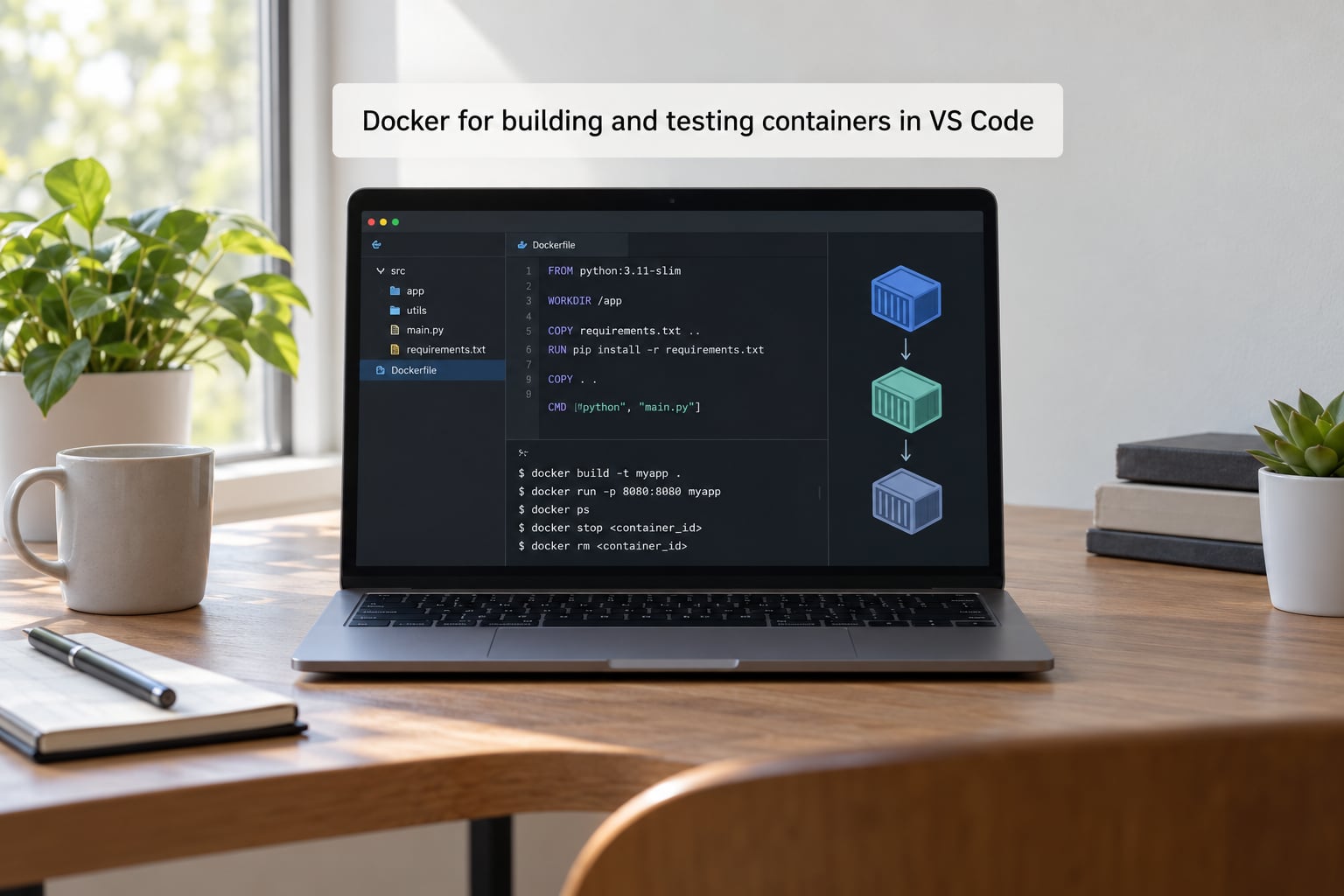
Marketplace ID ms-vscode-remote.remote-containers is the one that opens a folder inside a container; the separate view and management extension is ms-azuretools.vscode-docker. Between them you get a sidebar for images, containers, volumes and networks, Dockerfile syntax support with build-stage highlighting, log streaming, and a terminal already attached to the container.
A concrete workflow: you have written a service that needs Postgres, and you do not want to install Postgres on your laptop. Start the container, open VS Code’s integrated terminal and run docker compose up -d, then attach VS Code to that container and edit the service source inside it. Dependencies match the image, so the bug you chase locally behaves like the bug you chase in production.
Docker has a history of breaking with newer VS Code builds, and remote container work is where most people first notice it. If the extension goes quiet, check the Output panel under Docker before assuming your compose file is wrong.
6. Remote Development for editing code on remote machines
ID ms-vscode-remote.remote-ssh. This family of extensions moves where the editor runs: the UI stays on your laptop while the files, terminal, debugger and language servers live on a Linux server, a WSL distribution or a dev container.
That change matters more than it first appears. On a remote machine the extensions you install are the remote ones, so your language server runs on hardware that actually has the dependencies. Opening a folder over SSH directly, by contrast, means every file read crosses the network and autocomplete stutters on anything large.
Pick one and commit to it: Remote – SSH for servers, WSL for Windows development on Linux tooling, or Dev Containers when a project ships a .devcontainer folder. Running several at once is where setups get confusing, and the badge in the status bar tells you which one is currently active.
7. Debugpy for reliable Python debugging
Where Debugpy fits in a VS Code extensions setup
ID ms-python.debugpy. The Python extension ships it as a dependency, which is why it often works before you install anything, but knowing it by name matters when you want to debug on a remote host, inside a container or against a subprocess.
The mechanics are the ones you already know from any IDE. Click the gutter to set a breakpoint, F5 to start, F10 to step over, F11 to step into, and hover any variable to see its current value. Locals, watch expressions and the call stack all sit in the sidebar, and the debug console takes expressions you want evaluated in the running process.
Where it replaces print debugging: a loop that should total 42 and returns 0. Set a breakpoint inside the loop, watch the accumulator in the Debug panel across 20 iterations, and you can see the iteration where it stops incrementing instead of scrolling through console output.
One thing worth configuring early is justMyCode. Without it the debugger steps into library internals and you lose most of your morning the first time you hit a dependency frame.
8. Error Lens for seeing problems directly in the code
ID usernamehw.errorlens. Error Lens takes diagnostics that would normally sit in the Problems panel and renders them at the end of the offending line, severity shown in red or yellow at the relevant position. You stop reading a list and start reading your file.
For a TypeScript file with a bad property name, the line reads const user = await getUser(id) // Property 'nam' does not exist, so the error is visible in the same scroll position as the code that caused it. The Problems panel remains, and for a file with 40 errors you still want the panel, but for the everyday three-errors-of-a-type case the inline view wins.
Settings are worth a look if it feels busy: errorLens.enabledDiagnosticLevels lets you show only errors, or errors and warnings, and errorLens.fontSize keeps the annotation from shouting louder than the code.
9. Live Share for collaborative editing and debugging
ID ms-vscode.liveshare. Live Share lets one person open a shared editing session so another can type, navigate and start a debugging session against the same state, in their own VS Code window with their own settings.
The use case is smaller than people expect. A junior developer hits a failing test; instead of a screen share where the mentor cannot scroll or type, they start a Live Share session and the mentor steps through the stack, changes a line and watches the test rerun. Follow mode covers the passive half: you watch a cursor move without being able to interfere.
It needs a Microsoft or GitHub account sign-in, which is the part some organizations object to. Check your policy before installing it on a work machine, and note that each participant can share a terminal with full access to your shell.
10. Markdown All in One for technical documentation
ID yzhang.markdown-all-in-one. Markdown ships in VS Code, but this extension adds the parts you would otherwise do by hand: keyboard shortcuts for toggling bold, italic, headings and lists, automatic table of contents generation from your heading levels, list numbering, and an outline view that works across the whole workspace.
The concrete example is documenting an API endpoint in a README. You write the heading structure once, run the TOC command, and the linked table of contents inserts itself. When you add a DELETE /sessions/{id} section later, the outline updates and the TOC regenerates rather than going stale.
Pair it with the built-in preview, opened with Ctrl+Shift+V. The preview updates as you type and the extension handles the fiddly parts: math blocks, footnotes, task list checkboxes and reference-style links all render correctly without a plugin.
11. REST Client for testing APIs without leaving VS Code
ID humao.rest-client. You write HTTP requests in a plain text file, click a Send CodeLens link above the request, and the response appears in a side pane with status, headers, body and timing. No terminal, no browser tab, no Postman.
A request file looks like this:
### Create a session
POST https://api.example.com/sessions
Content-Type: application/json

{"email": "[email protected]"}
Because requests live in a file committed next to the code, they become documentation. A new teammate clones the repo and has working examples for every endpoint, including the 401 response when a token is missing, because someone wrote that case down once.
Two useful extras: environment variables and a variable {{token}} syntax so you are not pasting secrets into a file, and the ability to save a response and generate code from it. Thunder Client is the common alternative, with a fuller GUI for building requests interactively, but REST Client wins when you want the requests under version control.
12. Settings Sync for keeping editor configuration portable
Settings Sync is a built-in VS Code feature from Microsoft, with a companion extension ID ms-settings-sync. Turn it on from the gear icon, sign in with a Microsoft or GitHub account, and it carries your settings, keybindings, snippets, extensions and user tasks between machines.
The moment it pays for itself is a new laptop. Without it you spend an evening reinstalling your keybindings and re-tuning your editor; with it, sign in and the setup is identical, down to the theme and the extension set.
Two cautions. First, workspace-level configuration, the contents of a project’s .vscode/settings.json, is deliberately not synced, because those settings belong to the repo rather than to you. Second, sync sends your settings to your account provider, so check what your organization allows before enabling it on a work machine, and review the extensions list, since some of them send code off-machine.
Frequently Asked Questions
Which VS Code extensions should a beginner install first?
Install four in this order and you cover most of the ground: Python if you write Python, ESLint for JavaScript and TypeScript, GitLens for history, and Prettier for formatting. Add Error Lens fifth, because it is free, tiny and makes the other four more useful. Resist installing a bundle of twenty on day one. Every extra extension adds activation work at startup, and you will not know which one is causing a problem until the list is short enough to bisect.
How do I choose extensions for a specific programming language?
Start from the official extension published by the language’s team, since it bundles completion, linting and debugging rather than adding them one at a time. Then add exactly one community tool for the framework you use, such as a router or component extension. Check the marketplace page for the publisher name, the install count and the last updated date before installing anything outside the official set.
Are VS Code extensions safe, and should I check permissions?
Extensions run with the same privileges as the editor and can read every file you open, so yes, check. Look at the publisher, the install count, the last updated date and the open issue count before trusting one. Give AI extensions particular attention, because many send code fragments to a remote service for completion, and some organisations block them outright. If a machine handles client or production data, confirm the policy first.
How can I prevent extensions from slowing down VS Code?
Run code –status from a terminal to see how long the extension host takes to start and which extensions activate on startup. Disable extensions for languages you no longer write, and use workspace-scoped installs so a shared repo’s recommendations do not load in every project. If a specific extension misbehaves, disable it from the Extensions view and restart. Prune language extensions you stopped using, which are the most common cause of a slow start.
Can I sync VS Code extensions and settings across computers?
Yes, with the built-in Settings Sync feature, using the companion extension ID ms-settings-sync. Sign in from the gear icon with a Microsoft or GitHub account and it carries settings, keybindings, snippets, extensions and user tasks to your other machines. Workspace-level settings inside a project folder are not synced, since those belong to the repository. On a work machine, check whether your organisation permits syncing at all.
How do I disable or remove an extension that is causing problems?
Open the Extensions view with Ctrl+Shift+X, find the extension and use the gear icon to disable it, which keeps it installed but stops it loading. To remove it entirely, choose Uninstall. Restart the editor afterward so the change takes effect. For a workspace-specific problem, right-click the extension and choose Disable in this Workspace, which is the fix for a slow repo someone else configured.
Conclusion: Build a Small, Purpose-Driven Extension Setup
Install in this order: the official language extension for whatever you write most, then one formatter, then one linter, then GitLens, then anything role-specific like Docker or Remote Development. That is roughly five to seven extensions and covers nearly everything on this list. Everything after that should solve a problem you have actually hit.
Two habits keep the setup healthy. Run code --status a few times a month and look at the extension host startup time, and disable anything you have not touched in a quarter. Before you install, spend thirty seconds on the marketplace page checking the publisher, the install count and the last updated date, since abandoned extensions are the ones that break on a new VS Code release.
There is one extra check for AI and code completion tools: find out whether they send your code to a remote service, and whether your organisation allows it. That one question has decided more installs on work machines than any other consideration on this page.