The only way to know whether your backups actually work is to restore them and use what comes back. A green tick, a success email, or a job log full of zeroes proves a copy finished, not that the data is complete, uncorrupted, or reachable inside your recovery time.
That is the whole idea behind how to test if your backups actually work: you pick representative data, restore it somewhere isolated, open the files, and time the operation. Do it on a schedule and your recovery plan stops being a guess. Most people running backup software have never done it, and the ones who have usually found something on the first try.
Table of Contents
- What You Need
- Step-by-Step: How to Test If Your Backups Actually Work
- 1. Inventory the backups and define recovery requirements
- 2. Confirm that jobs ran without hidden errors
- 3. Test backup integrity before restoring
- 4. Restore a representative sample into isolation
- 5. Perform a full disaster-recovery rehearsal
- 6. Document, automate, and retest the results
- Common Mistakes
- Frequently Asked Questions
- How often should I test whether my backups actually work?
- Are snapshots enough if they complete without errors?
- How do I verify that restored files are identical to the originals?
- Where should I perform backup restore tests safely?
- How often should I run a full disaster-recovery test?
- What should I do if an old backup fails to restore?
- Conclusion
What You Need

Roughly half an hour of quiet time, and less gear than most people expect. You do not need a second data centre. You need somewhere safe to put a restored copy that is not your live location.
- Access to the backup catalog and the source systems, so you can see what restore points exist, what their labels claim, and when each job last ran.
- An isolated restore target: a scratch VM, a throwaway container, a dedicated NAS share, or a test folder on a separate disk. Never the original path.
- Free space for the restored data, ideally more than the size of the dataset you are testing. Restores fail halfway when disk runs out, and that failure teaches you nothing useful.
- Known-good test data: files you can identify and compare against, from more than one point in time.
- Integrity tooling — checksums, the verify command your backup tool already ships, or a dry-run diff against the source.
- A way to read logs and monitor alerts, plus the credentials and encryption keys the backup depends on.
- A notebook. The written record is what turns a restore into evidence.
Step-by-Step: How to Test If Your Backups Actually Work
Work through these in order. Each one is cheap, and each one catches a different failure class that the one above it cannot see.
1. Inventory the backups and define recovery requirements
List every protected system, where each copy lives, how long it is kept, who owns it, and what would happen if it disappeared today. Then write down your recovery point objective (the newest data you can live without) and your recovery time objective (how long you can afford to be down).
Choose your test sample from that inventory, not at random. Pull a few files from different months, in different formats, including something you rarely touch — a large database export, a project directory, a photo archive. Picking the one small document everyone opens daily proves almost nothing.
Pass criteria: you can name the restore point by label and date, and you have written down an RTO you intend to prove.
2. Confirm that jobs ran without hidden errors
Check job history rather than the dashboard summary. Look at completion time, bytes transferred, files processed, exit status, and whether any warnings were swallowed. A job that copied 400,000 files and skipped one directory containing your entire photo archive still reports success.
Zero exit codes and matching file counts are necessary but not sufficient. They prove the software finished reading the source and writing to the destination. They say nothing about whether what it wrote can be read back.
Pass criteria: every job you rely on has a recent, error-free entry, and you have compared the file count against the source rather than trusting the number on screen.
3. Test backup integrity before restoring
Run the integrity check your tool provides, then confirm it against the source. Users of Arq, for example, recommend running its validation routine periodically because it recalculates the checksums of your files, compares them to the stored data, and replaces anything that fails — the r/DataHoarder community has pushed this advice repeatedly for exactly that reason.
Understand what you are running. A quick consistency check validates metadata and the repository structure in seconds. A full media scan reads every block and catches bit rot, which takes hours. A deep inspection may also verify application-level signatures. ZFS users should treat zfs scrub as the media-level answer; restic users run restic check with --read-data when they want the blobs read back rather than just the index verified.
Pass criteria: every stored object matches its source hash, or the tool has repaired and re-verified what did not.
4. Restore a representative sample into isolation
Restore into the scratch target you set up, never over production data. This is the safety rule people skip, and skipping it is how a routine test turns into an incident.
Check the things a job status cannot tell you. Are the historical versions actually there, or only the newest one? Did permissions, ownership, timestamps and ACLs survive? Do the restored files open, or do some decrypt to zero bytes? Compare against your known-good source with a checksum diff or a dry-run comparison rather than an ls.
This is also where app-consistency shows up. A database file restored from a hot copy may exist, may even mount, and still refuse to start or be missing recent transactions. If a practitioner on r/sysadmin tells you counting rows is weak, they are right — it is a smoke test, not a proof. Start the service, run a real query, then tear the container down.
Pass criteria: the sample matches the source byte-for-byte, opens in its application, and metadata survived.
5. Perform a full disaster-recovery rehearsal
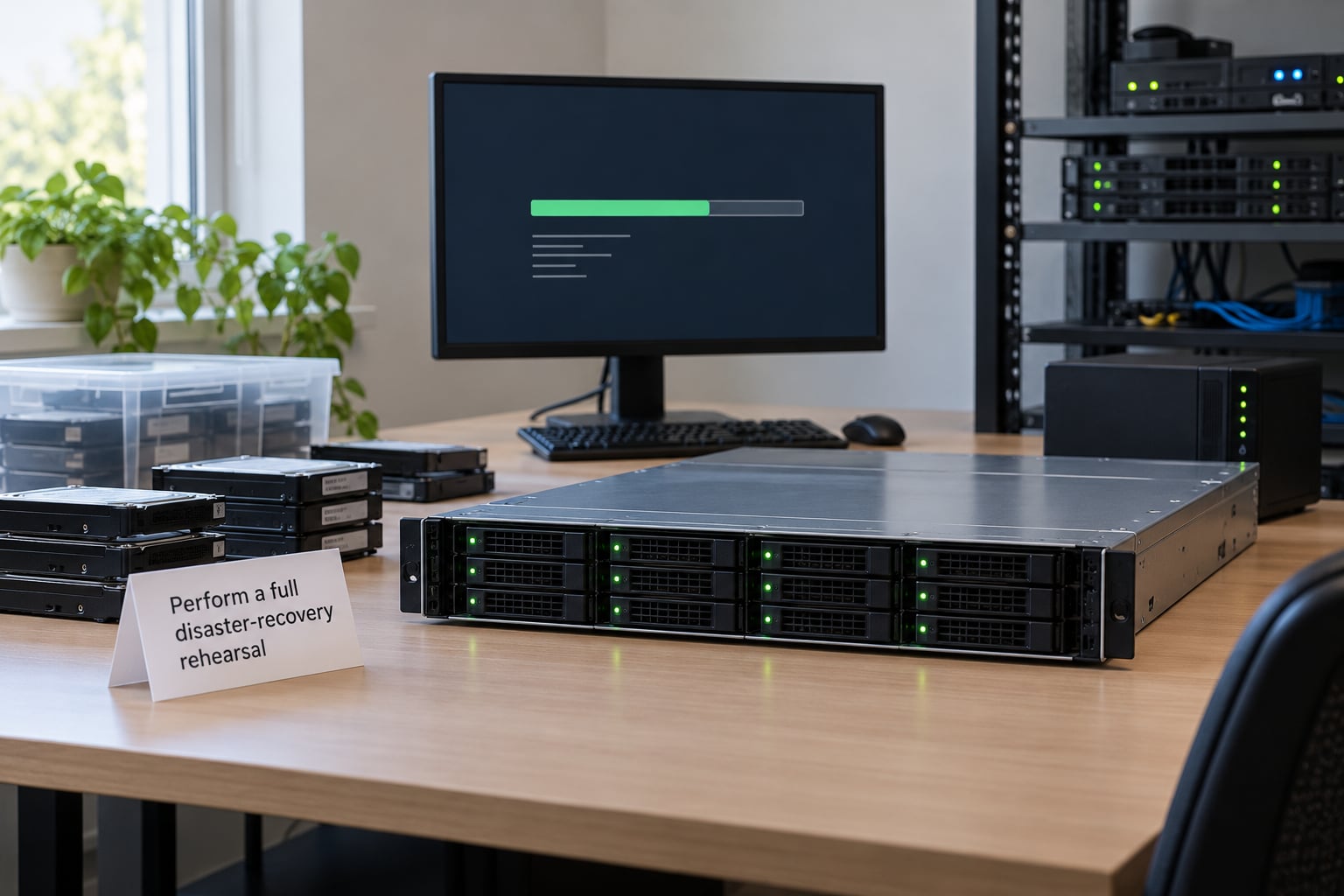
For anything you would be upset to lose, stop at file level. Boot a clean recovery target from the backup itself, restore dependencies and data in the order a real disaster would force, and run a clock.
The number that surprises people is rarely the storage. A Veeam Certified Engineer documented a case in the Veeam community forums where a 64 MB file restore took an hour and a half, purely because the target sat in a new VLAN with no firewall openings; the restore silently fell back off the proxy path, and once the network rules were added the same job finished in seconds. Large cloud restores are bandwidth-bound in the same way — pulling a terabyte over a 100 Mbps link is roughly a day of transfer, and nothing in the dashboard mentions it.
Write down every manual step you had to invent, every credential you could not find, and every error you talked past. Those are the real output of the drill.
Pass criteria: measured recovery time sits inside your stated RTO, and the run was completed without undocumented improvisation.
6. Document, automate, and retest the results
Write a short record every time: scope, backup set and label used, test data chosen, checks performed, elapsed time, pass or fail, defects found, corrective action, and who signed it off. Fifteen minutes of writing turns an anecdote into something an auditor or an insurer will accept.
Then automate the cheap tier. A daily integrity check, a weekly random-file restore into a scratch VM, an alert when either fails. Full rehearsals stay manual and stay scheduled — quarterly for a home lab, twice a year for anything business-critical.
Pass criteria: a named person gets an alert when a test fails, and the first automated test runs the day after you set it up.
Common Mistakes
Almost every restore test that goes wrong goes wrong the same way. These are the seven I see repeatedly.
Trusting the success notification. A green tick means the software finished copying, nothing more. Fix: treat every completed job as an untested hypothesis until a restore has confirmed it.
Restoring to the original location. It feels efficient and it is the fastest way to destroy good live data. Fix: build a permanent scratch target — a small VM and a test share cost almost nothing and remove the temptation.
Testing one tiny, always-used file. Recent, small, and already in page cache. It will restore even when everything else is broken. Fix: choose files from old restore points, mixed formats, and sizes that actually take time to move.
Ignoring permissions, ownership and dependencies. The files arrive, nobody can read them, or the service cannot reach its database. Fix: restore metadata as part of the test and start the application, not just the file.
Never measuring the time. Without a number you have no idea whether you meet your RTO. Fix: run a clock from first click to working system, and record it.
Calling a snapshot a backup. Snapshots share the failure domain of the machine they live on. The same account with ransomware access can usually delete them. Fix: treat snapshots as a fast restore point, and keep at least one immutable or offsite copy you cannot reach from production credentials.
Postponing the retest after any change. New storage, new credentials, a new VLAN, a repository migration, a restored password manager. Every one of those can break a previously working restore path. Fix: re-run the drill within a week of any configuration change to the backup or the network it depends on.
Frequently Asked Questions
How often should I test whether my backups actually work?
Match the cadence to what the data is worth. Run an automated integrity check daily and a random-file restore into an isolated target weekly. Do a full system or VM boot test quarterly, and a complete disaster-recovery rehearsal twice a year for anything business-critical. After any change to storage, credentials or network rules, retest immediately. The point is that failures are discovered on a Tuesday, not during an outage.
Are snapshots enough if they complete without errors?
No. A snapshot is a copy on the same storage stack as the original, usually reachable by the same credentials, and often deletable by the same account an attacker would use first. It is useful for fast rollback, not for recovery. Keep at least one copy that production credentials cannot delete, ideally immutable or offsite, and test restoring from that copy specifically.
How do I verify that restored files are identical to the originals?
Compare hashes rather than sizes or timestamps. Run a checksum tool on the source files and on the restored copies and diff the output. Most backup tools can also verify against the data they stored: Arq recalculates source checksums and compares them to its backup data, restic offers check with the read-data flag to read blobs back, and rsync users can run a dry-run diff against the source. Do it on a sample that includes older restore points.
Where should I perform backup restore tests safely?
Anywhere that is not your live location. A scratch virtual machine, a throwaway container, a dedicated NAS share, or a test folder on a separate disk all work. The isolation matters most for databases and for anything with credentials, because a careless restore can overwrite live data or replay a stale state. Keep the target disconnected from production storage and delete it after the test.
How often should I run a full disaster-recovery test?
Twice a year for business-critical systems, at minimum, and quarterly for a home lab where the systems are simpler. A full test means booting from the backup into a clean target and timing the recovery, not just pulling files back. Doing it on a schedule is what lets you state a real RTO with evidence, and it is how you discover that a restore path depends on a firewall rule, a key or a person who has since left.
What should I do if an old backup fails to restore?
Work out whether the data is gone or the path is broken. Restore from a newer restore point to the same isolated target; if that succeeds, the repository and credentials are fine and the problem is specific to the older backup. Check retention policy and pruning, then verify the integrity of that snapshot with your tool’s read-back check. If only the old points fail, suspect media degradation or a repository problem, and act before you need the point you just lost.
Conclusion
Start today, not during your next planning meeting. Pick one dataset you would genuinely miss, restore it to an isolated target, open the files, check the metadata, and write down how long it took.
That single timed restore is the baseline. Repeat it on a schedule, automate the cheap checks, and you will have answered the only question that matters: whether your backups actually work.