If you run a home server, the drive question is really two questions: which drive holds your bulk data, and which drive holds the operating system and everything that runs on it. The short version is that hard drives win on capacity per dollar and solid state drives win on responsiveness. Most homelabs end up with both.
I’ve built and rebuilt enough small servers to know where the argument goes wrong. People compare headline transfer speeds, buy the fastest flash drive they can find, then wonder why a 40 GB file still takes four minutes to copy. That almost always comes down to the network link, not the drive.
This guide breaks hdd vs ssd for a home server down by the workloads that actually run in your box: containers, virtual machines, databases, media libraries, backups and archives. You’ll get the latency-versus-throughput picture, the noise and power trade, and a plain recommendation for where to spend a limited storage budget.
Table of Contents
- hdd vs ssd for a home server at a Glance
- Which drive is faster for a home server?
- How hdd vs ssd for a home server specs translate into daily use
- Why a fast drive does not fix a slow network
- Is an SSD more reliable for a home server?
- How much noise and power do HDDs and SSDs use?
- What storage capacity is best for a home server?
- Which drive is best for databases, VMs, and media servers?
- Can you use HDDs and SSDs together in a home server?
- How do HDD and SSD costs compare?
- Which Should You Choose?
- Frequently Asked Questions
- Should I use HDD or SSD for a home server?
- Is HDD still worth it for bulk storage?
- What are the downsides of using an SSD instead of a HDD?
- Is an SSD more reliable for a home server?
- Can I use an SSD as cache on my NAS?
- Will an SSD make my Plex or Jellyfin server faster?
hdd vs ssd for a home server at a Glance
| Criterion | Hard drive (HDD) | Solid state drive (SSD) |
|---|---|---|
| Access latency | Roughly 8-12 ms for a seek | Around 0.05-0.1 ms |
| Random I/O | Limited by seek time, roughly 100-200 IOPS per drive | Tens of thousands of IOPS on SATA, far more on NVMe |
| Sequential throughput | 90-250 MB/s depending on class | 500 MB/s on SATA, 2-7 GB/s on NVMe |
| Noise | Typical platter and head noise, 20-35 dB idle | Silent, no moving parts |
| Idle power | Often 4-8 W per drive just spinning | Under 1 W for most SATA models |
| Capacity per bay | High, 4 TB to 24 TB and beyond | Lower for the same spend, though 2 TB and 4 TB SATA models exist |
| Cost per terabyte | Low, the deciding factor for bulk storage | High, several times the cost per terabyte |
| Shock and vibration tolerance | Fragile while spinning, needs careful mounting | No moving parts, tolerant of rough handling |
| Endurance limit | None in the flash sense, but mechanical wear and motor load | Finite TBW rating; consumer drives lack power-loss protection |
| Best fit | Media, archives, backup targets, surveillance recording | OS, applications, containers, VMs, databases |
One row deserves emphasis: noise. A spinning disk near your desk is the single most common complaint about home servers, and no amount of software tuning removes it.
Which drive is faster for a home server?
The SSD is faster, but the gap that matters is not the one on the box. Throughput is how fast a drive moves a large file in one direction. Latency is how long it waits before it starts. A home server spends most of its time waiting, not streaming, so latency is what you feel.
Booting from a hard drive usually takes 40 to 90 seconds because the system chases thousands of small files scattered across platters. The same boot from a SATA SSD typically finishes in 15 to 30 seconds, and from NVMe in under 15. Container stacks and virtual machines show the same pattern: they read small files constantly, so they scale with random I/O rather than with advertised MB/s.
Databases are the clearest case. A PostgreSQL or MySQL instance doing thousands of small reads will run an order of magnitude better on flash than on a spindle, because every transaction is a seek. Media streaming is the opposite: reading a 40 GB remux is a purely sequential job, and a modern CMR drive saturates nearly any network link on its own.
How hdd vs ssd for a home server specs translate into daily use
Specs on a datasheet describe two different jobs. Sequential speed matters for backup windows, seeding, and archiving. Random performance matters for everything interactive. Judge a drive against the workload you actually run, not against the highest number on the spec sheet.
File serving over a network lands somewhere in between. Once a client pulls a large file, the network becomes the bottleneck, and the drive type hardly matters. The exception is the first load of a photo library or a share listing, where metadata reads dominate and flash wins clearly.
Why a fast drive does not fix a slow network
This is the number one reason people think their new SSD did nothing. A gigabit network tops out at 125 MB/s in theory and lands near 100-115 MB/s in practice once protocol overhead, encryption and client limits are accounted for. A single modern hard drive already exceeds that.
| Network link | Theoretical ceiling | Realistic transfer speed | Storage needed to fill it |
|---|---|---|---|
| 1GbE | 125 MB/s | 100-115 MB/s | Two or three mirrored drives |
| 2.5GbE | 312 MB/s | 200-280 MB/s | A fast SATA SSD or a RAID array |
| 10GbE | 1,250 MB/s | 900-1,150 MB/s | NVMe or a multi-disk array |
So if you are on gigabit and a single file takes minutes, no drive swap fixes it. Look at the switch port, the cable, and the client first.
Is an SSD more reliable for a home server?
Neither drive type is reliable in the sense of never failing. What differs is the failure mode and how much warning you get.
An SSD fails without warning, usually all at once, because flash cells wear out silently. The positive side is that there is no head crash, no grinding noise, and no risk from a bumped enclosure. A hard drive often gives you SMART reallocated-sector counts and rising pending sectors before it dies, but it can also fail instantly from a mechanical fault, which is what catches people out.
Always-on use changes the math. On the Raspberry Pi forums, posters describe hard drives that ran fine for years and then started failing rapidly past the three-year mark, while SSDs flattened into a predictable curve. Multiple r/DataHoarder threads make the same observation in different words: cold bulk storage suits spinning disks, but nobody treats either type as immortal.
Two caveats matter more than the drive type. First, consumer SSDs often lack power-loss protection, so a brownout during a write can corrupt the data or even the drive’s internal mapping. forum.proxmox.com users running ZFS are explicit about this and recommend enterprise SATA SSDs with power-loss protection for everything that is not bulk data. Second, write endurance is finite, and heavy metadata churn plus download clients can eat TBW faster than people expect.
Neither point changes the recommendation. Back up your data somewhere else, run a UPS so shutdowns are clean, treat RAID as uptime rather than safety, and both drive types behave.
How much noise and power do HDDs and SSDs use?
Solid state drives produce no noise at all, no vibration, and no heat to speak of. A single 3.5-inch hard drive idles around 20-35 dB and produces a faint buzz during seeks that is audible in a quiet room from a couple of metres away. Stack four of them and the noise compounds.
Power follows the same pattern. An idle spinning drive commonly draws 4-8 W, and eight drives in an array can add 30-60 W of pure idle overhead around the clock. An idle SATA SSD usually sits under 1 W. That gap matters for a box running 24/7 in a living space or a small cupboard, and it also reduces the cooling you need.
If your server lives next to where you work or sleep, budget for flash on the hot tier. If it sits in a garage or closet, the noise argument mostly disappears and capacity should win.
What storage capacity is best for a home server?
Bulk storage is where hard drives still dominate, and it is not close. You can put far more terabytes into the same number of bays for the same money, which matters when you are building a media library, a backup target or an archive of family photos. Solid state makes more sense when your whole working set fits comfortably in 1-2 TB.
Drive class matters more than brand. CMR drives write tracks independently and behave predictably in arrays; SMR drives overlap tracks, which makes sustained writes crawl and RAID rebuilds take many times longer than expected. For a server, stick to CMR. NAS-rated drives add vibration compensation and longer warranty terms, which is worth it in a multi-bay box. Enterprise drives add power-loss protection and higher endurance ratings.
Plan around bay count too. Consumers and small form factor boards cap out at two or four drives, so pick a capacity you can live with rather than a smaller drive you will replace twice. Leave roughly 20 percent headroom for growth, and remember that usable capacity falls when you reserve space for parity or snapshots.
Which drive is best for databases, VMs, and media servers?
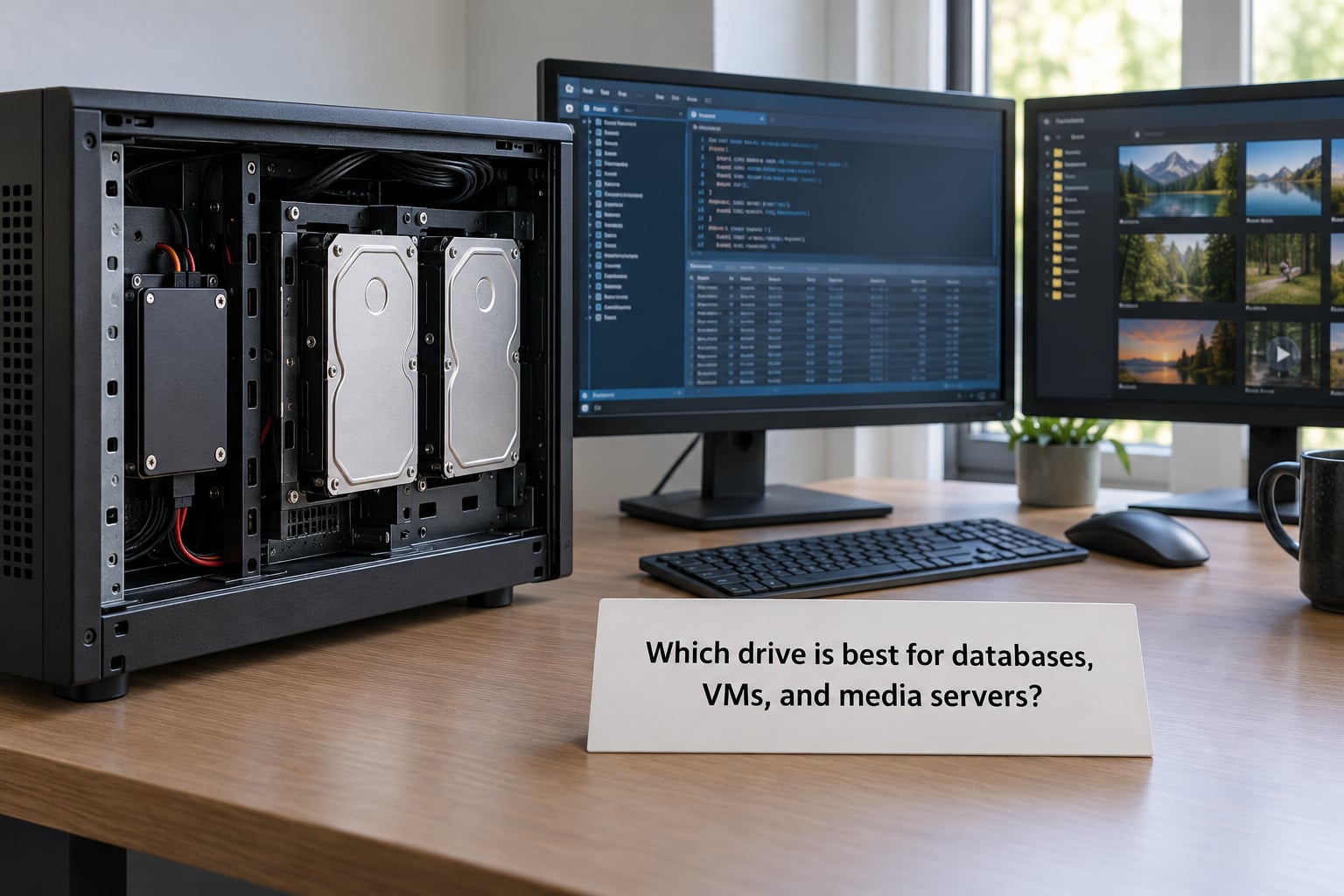
Match the drive to the workload. Databases, virtual machines and container stacks all live on flash because they hammer small files. Media libraries, archives and backup targets live on hard drives because they read and write sequentially and nobody cares whether the first second of a backup takes longer.
- Media server (Plex or Jellyfin): one modest SSD for the OS and metadata, hard drives for the library. Direct play streams straight off the hard drive and never touches flash.
- Virtualization host (Proxmox, Hyper-V): put VMs on NVMe where you can, since each VM boot and each snapshot is heavy random I/O. Keep ISO libraries and backups on hard drives.
- Container and app stacks (Docker, databases): put everything under /var/lib/docker and your database data directories on the SSD. Logs and image layers generate constant small writes, which is where endurance gets spent.
- Backup or scratch target: hard drives, in pairs mirrored if you can afford the bays. Write endurance is irrelevant for sequential dumps, and the capacity math is much better.
- Surveillance recorder: a high-endurance drive or SSD rated for always-on sequential writes. Plain desktop drives are a poor match for 24/7 recording.
If your server only serves files and media and you never run services, the honest answer is that you do not need much flash at all. A small drive for the OS is still worth having, but you can skip the fast cache tier entirely.
Can you use HDDs and SSDs together in a home server?
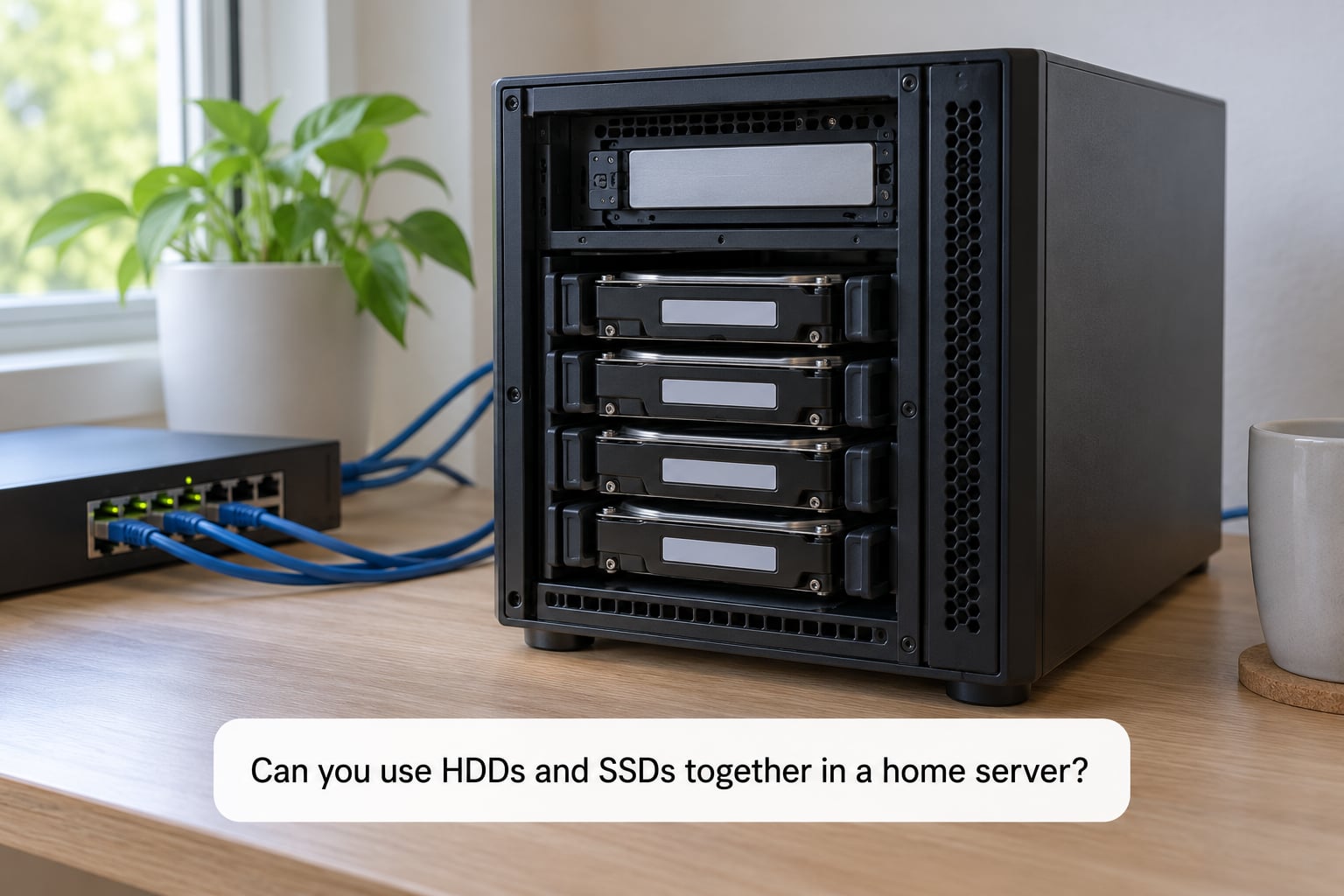
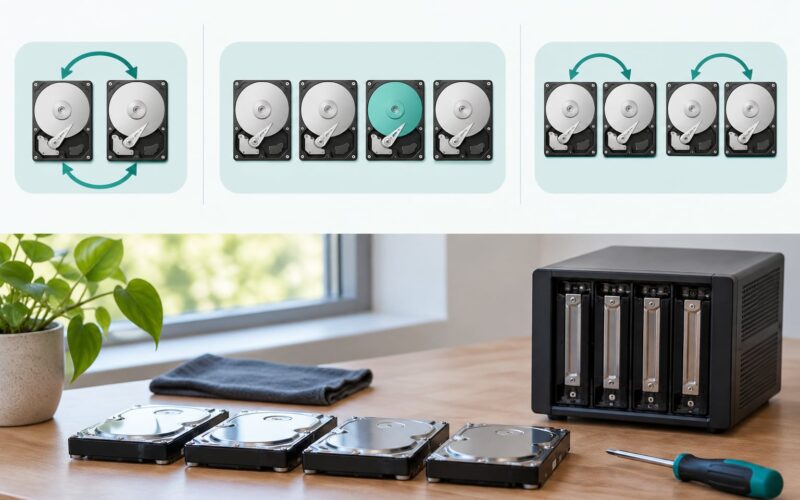
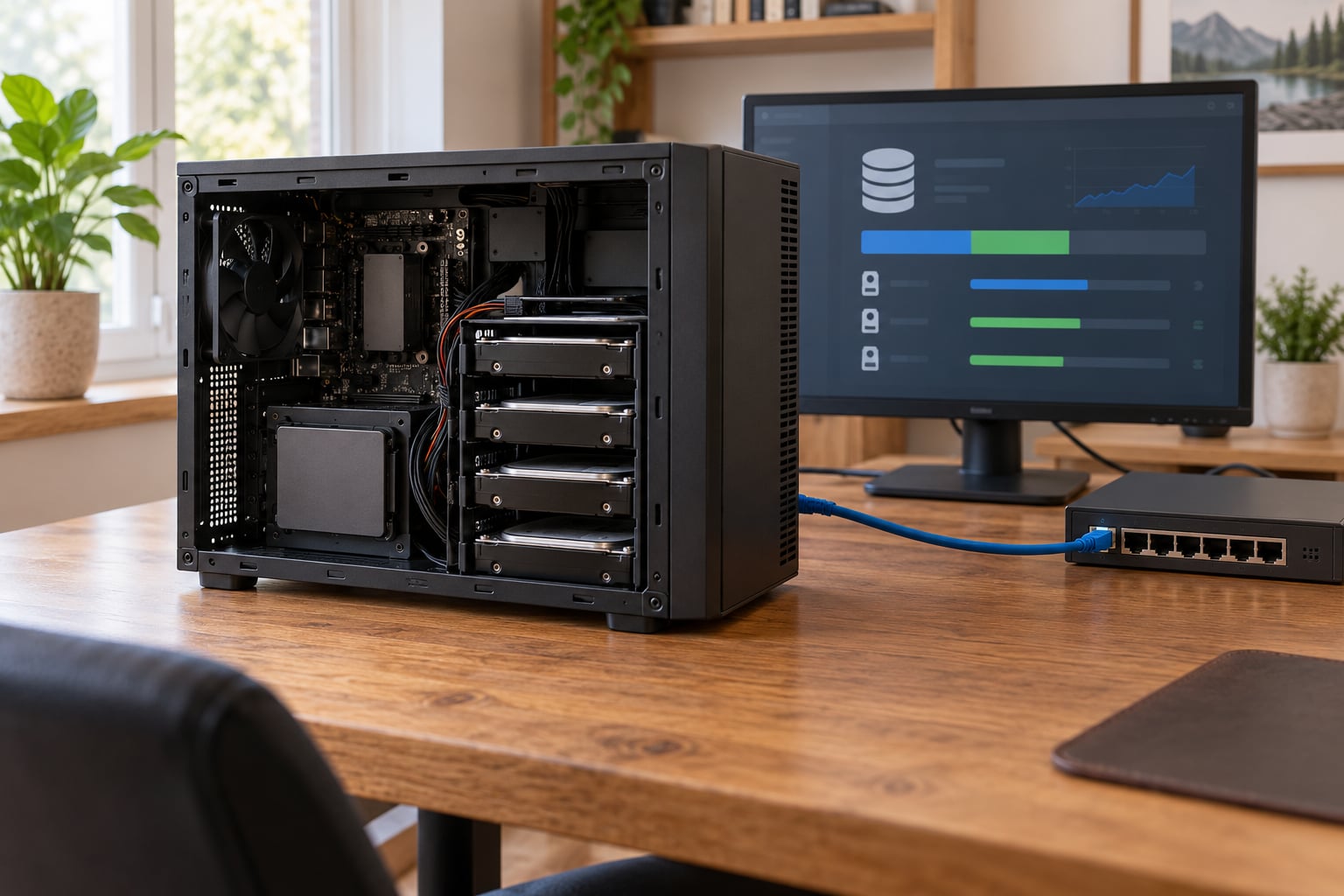
Yes, and this is the layout most home servers should end up with. Put the OS, applications and anything latency-sensitive on a single SSD, then fill the remaining bays with CMR hard drives for bulk data. It is the cheapest meaningful upgrade available and it fixes most of the sluggishness people complain about.
A step further is a read cache pool, where the NAS platform puts frequently accessed data on flash and writes through to the array. This works well for photo libraries and share browsing, and it does almost nothing for streaming a large file, since that data is read once. One warning: some NAS models silently disable write caching unless the cache pool has at least two SSDs, so check your model’s requirements before buying a single drive for it.
Endurance is easier to reason about than people expect. A 1 TB consumer SSD rated at 600 TBW survives roughly 600 TB of writes, and a database tier or container host might write 20-100 GB a day, which puts it in the years range rather than months. Write-heavy corners are worth isolating though: keeping download client data and container logs on the hard drives rather than the system SSD leaves the flash tier doing light work it can handle indefinitely.
Cache also raises the stakes on power. Deferred writes need a UPS, and an SSD without power-loss protection is the wrong choice for a write cache. With a cache in play, plug the box into a UPS and set it to shut down cleanly on battery.
On the filesystem side, make sure discard or TRIM is enabled for SSDs in arrays, otherwise the drive never learns which blocks are free and write performance degrades over time. ZFS and Btrfs scrubs are a good fit for detecting bit rot on the data drives, and running a monthly scrub is cheap insurance. Keep backups for each tier separate, since a cache failure should never be able to take the archive with it.
How do HDD and SSD costs compare?
Compare total cost, not the price on the label. A hard drive costs far less per terabyte, and for sequential workloads that difference is the whole decision. Flash earns its premium only when latency converts into something you notice: faster application response, snappier VM boots, shorter backup windows.
Two costs hide outside the drive price. Endurance ratings matter for write-heavy workloads, so a database tier or download client running on consumer flash can shorten service life. And power is a running cost, so a six-drive array in a home setup adds up over years of continuous operation in a way that a quiet SSD box does not.
A practical split for most homelabs: one SSD between 500 GB and 1 TB for the system and app tier, and hard drives for everything else. That keeps the flash spend a modest slice of the build while capturing nearly all the benefit.
Which Should You Choose?
Choose a solid state drive when the server runs services, when silence matters, or when your whole dataset is small enough to live on flash. Choose hard drives when you are storing media, archives or backups and you want the most terabytes per bay. For anything else, run a hybrid: system and applications on flash, bulk data on spinning disks.
Add enterprise or NAS-class drives where the workload justifies them. Power-loss protection matters for write caches and ZFS, high-endurance ratings matter for continuous recording, and NAS-rated CMR drives matter as soon as you have more than two bays in vibration-prone housing.
Already running a hard-drive-only server? Add the flash in this order: shut the server down cleanly, add the SSD, create a small system partition and install the OS onto it, mount your existing data volumes read-only first to confirm everything is present, then convert them back to read-write. Verify with a full backup before you start, and move the services over one at a time rather than all at once.
Frequently Asked Questions
Should I use HDD or SSD for a home server?
Use an SSD for the operating system, applications, containers, virtual machines and databases, and use HDDs for media, archives and backup targets. Most home servers run both: one small flash drive for the system tier, hard drives for bulk storage. Go all-flash only when your dataset is small or silence is a hard requirement.
Is HDD still worth it for bulk storage?
Yes, for capacity. Hard drives still deliver far more terabytes per bay and per dollar than flash, and for sequential work like backups, archiving and media streaming they are hard to beat. Spinning disks have not become obsolete for bulk storage; they have simply stopped being the right choice for the interactive tier.
What are the downsides of using an SSD instead of a HDD?
Capacity is the main one: flash costs several times more per terabyte, so large media libraries and backups get expensive fast. Consumer SSDs also have finite write endurance and often no power-loss protection, which matters for write caches, and unused flash does not help if your dataset is larger than the drive.
Is an SSD more reliable for a home server?
It is less likely to fail mechanically, since there are no moving parts, and it survives knocks and vibration better. But it can fail suddenly as flash cells wear out, and consumer models may not survive a power cut mid-write. Neither drive type is a backup, so keep copies on separate hardware.
Can I use an SSD as cache on my NAS?
Yes, as a read cache pool it speeds up metadata-heavy work such as photo libraries and share browsing. It helps far less with large streaming, since that data is read once. Check whether your model requires two SSDs before enabling write caching, and pair any write cache with a UPS and a drive that has power-loss protection.
Will an SSD make my Plex or Jellyfin server faster?
Only for the parts that are not streaming. Thumbnails, library scans and the interface load from small files, so an SSD for the OS and metadata tier makes those noticeably snappier. The actual video stream reads sequentially from a hard drive and is limited by your network link, so a faster drive will not speed up playback.
Start with one modest SSD for the operating system and your services. That single change removes most of the sluggishness people blame on their hard drives, costs a fraction of an all-flash build, and leaves every remaining bay doing the job flash is bad at: holding a lot of data cheaply.