SSDs slow down over time because their flash cells degrade, spare capacity shrinks, and write amplification climbs, and a nearly full drive, disabled TRIM, background maintenance, weak hardware or stale firmware can make it worse without any permanent damage. Most of the time the fix is free and takes twenty minutes.
That last sentence matters, because the first reaction on a support forum is always “the drive is dying.” Usually it is not. A drive that boots in 45 seconds instead of 9, writes a video at 200 MB/s instead of 1,200 MB/s, or drops to a crawl after three gigabytes of copying has almost always changed state, not condition.
Table of Contents
- Why Does My SSD Slow Down Over Time?
- Normal SSD Wear and Write Amplification
- Common Reasons an SSD Loses Speed
- How to Tell Whether the Slowdown Is Normal
- How to Test SSD Speed in Windows and Linux
- Why Does My SSD Slow Down Over Time After Months?
- How to Fix an SSD That Has Slowed Down
- SSD Cleanup, TRIM, and Defragmentation
- Does an SSD Need Replacing If It Slows Down?
- Frequently Asked Questions
- Do SSDs get slower over time?
- Why is my SSD suddenly getting slower?
- Why is my SSD slowing down when it’s full?
- How often should you TRIM my SSD?
- What are the signs of a failing SSD?
- What to Check First
Why Does My SSD Slow Down Over Time?
Five things account for most slowdowns: an SLC cache that ran out, write amplification from garbage collection, a drive with no free space, TRIM that never runs, and heat. NAND wear itself is the slowest-moving of those causes and usually shows up as a small sustained-write decline near the end of a drive’s rated life, not as the dramatic drop people describe.
The table below maps what you are seeing to the likely cause and the fix. Start at the symptom that matches yours.
| Symptom | Likely cause | First move |
|---|---|---|
| Fine for months, then a sudden permanent drop | Firmware update, OS upgrade, or BIOS change | Check free space and SMART data first |
| Fast until you copy a few GB, then crawls | SLC cache exhausted, often QLC or DRAM-less | Test with one large file versus many small ones |
| Slow after the drive got fairly full | No over-provisioning, write amplification spikes | Free up 10–20% and retest |
| Slow from day one, never matched the spec | QLC native speed, wrong PCIe link, or fake capacity | Benchmark and verify real capacity |
| Sluggish over months, Task Manager shows 100% active time | Background process, indexer, antivirus, cloud sync | Resource Monitor sorted by Total |
| Hot to the touch and slow during big transfers | Thermal throttling | Add airflow or an M.2 heatsink |
| External drive fast, then slow on another port | USB bridge chip, UASP not negotiated, enclosure heat | Swap cable and port, bypass the enclosure |
Normal SSD Wear and Write Amplification
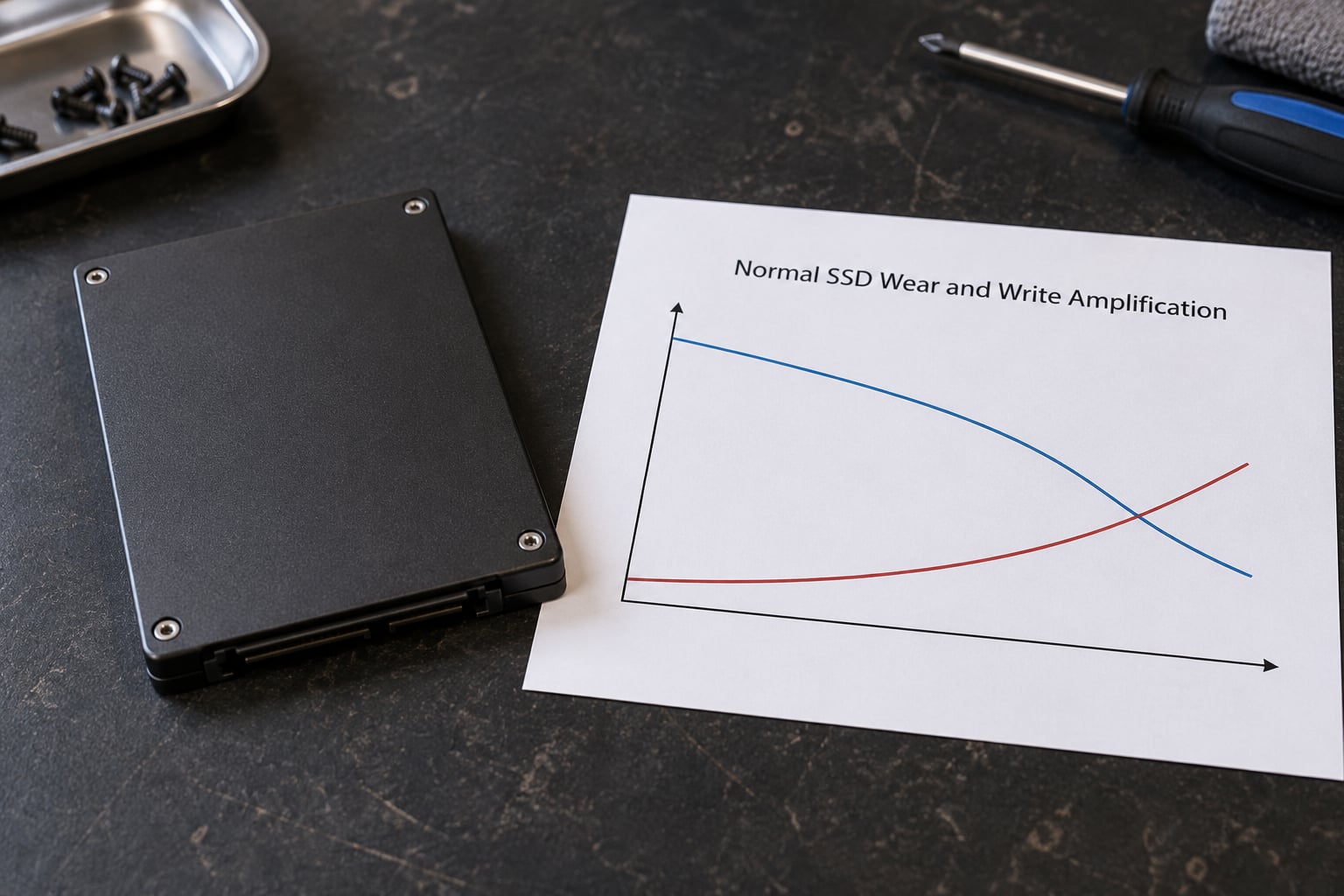
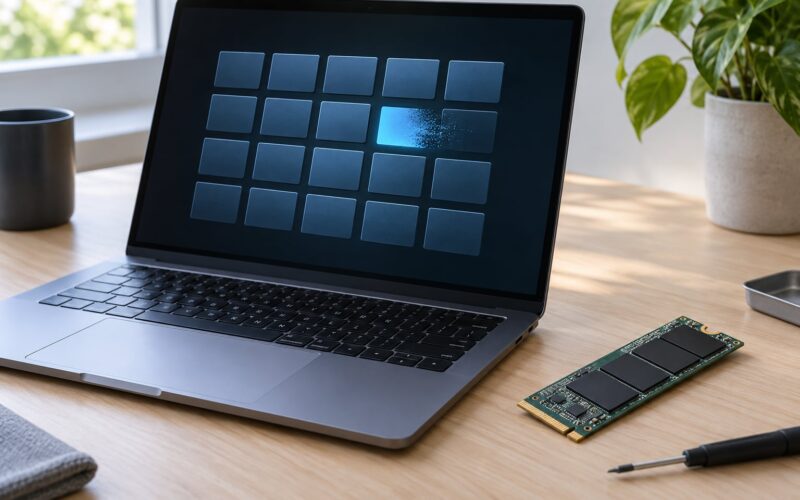
NAND flash cannot overwrite data in place. The controller has to erase a whole block before it can write new data into it, and the fastest blocks wear out first, so the drive constantly moves hot, frequently written data onto cold blocks. That work is called wear leveling.
Garbage collection is the other half. Deleting a file does not clear a block; it marks it invalid. The controller then has to read every valid page out of that block, copy it into a fresh block, and erase the original. Each kilobyte you wrote can cost several kilobytes of internal writes, and the ratio is the write amplification factor.
Over time, as spare blocks run out, garbage collection gets harder and has to run more often and more aggressively. That is the mechanism behind “my SSD slows down over time.”
| What you see | Cause | Reversible? | Severity |
|---|---|---|---|
| Write speed dips after 1–5 GB, recovers after idle time | SLC cache filling and draining | Yes, partly | Low |
| Write speed dips and never recovers in the same session | Cache exhaustion plus garbage collection backlog | Yes, with free space | Medium |
| Gradual 5–15% decline over two to three years | Fewer spare blocks, more wear leveling work | No, but it is normal | Low |
| Sudden drop the same day a firmware or OS update ran | Changed driver, power plan, or drive translation layer | Yes | Medium |
| Errors, disappearing files, then a sudden total failure | Dying NAND or controller | No | Critical |
Common Reasons an SSD Loses Speed
1. The drive is too full. Controllers rely on spare blocks as working space. When free space falls below roughly 10–20%, garbage collection has nowhere cheap to copy into and every write gets more expensive. On Windows, check free space in Settings, System, Storage. Keep 20% free on a 500GB drive and 10% on a 1TB or larger one.
2. Sustained writes exhaust the SLC cache. A portion of the NAND runs as single-bit cells so writes land fast. That cache is finite. Once it is full, the drive writes at native speed, which on a QLC drive can be a fraction of the advertised number. The forum pattern is consistent: fast on day one, a crawl after a fixed amount of data.
3. TRIM is disabled or never runs. On Windows 10 and 11, open Command Prompt as administrator and run fsutil behavior query DisableDeleteNotify. A result of DisableDeleteNotify = 0 means TRIM is on; a value of 1 means it is off. On Linux, check systemctl status fstrim.timer, and on macOS run sudo trimforce enable.
4. Fast Startup quietly skips TRIM. This is the one that catches people. When Windows hibernates the session at shutdown instead of a full boot, the filesystem state is restored rather than remounted, so TRIM never issues. On a laptop that is only ever shut down and never cold-booted, TRIM can be absent for months. Disable Fast Startup in Settings, System, Power, then choose Shut down rather than Sleep.
5. Background software is eating the queue. Task Manager showing 100% active time with no obvious process usually means indexing, antivirus on-access scanning, cloud sync or a game download is saturating the queue. Sort by Total in Resource Monitor to find it.
6. Heat. Controllers start throttling around 70–80°C. A laptop M.2 slot sitting under the GPU is a classic case, and a bare NVMe drive without a heatsink in a desktop will do the same under a sustained transfer.
7. Stale firmware or the wrong driver. Vendor firmware revisions often rework cache and garbage collection behaviour. Use the manufacturer’s tool, such as Samsung Magician, Crucial Storage Executive, Western Digital Dashboard, Kingston SSD Manager or Intel Memory and Storage Tool, rather than a third-party flasher.
8. Cable, port and enclosure problems. A USB-C cable that only carries USB 2.0 speeds, or an enclosure whose bridge chip drops UASP, will look exactly like a slow drive. Swap the cable and port before you blame the SSD.
How to Tell Whether the Slowdown Is Normal
You need a baseline, and most people never took one. If the drive came new, run CrystalDiskMark now and save the result; the first number you capture is your reference, even if it is not the number you wanted.
Then separate gradual from sudden. A slow change spread over a couple of years, with writes maybe 10–20% below the original, is normal wear. A collapse in a day, right after an update, means look for a configuration change first.
On Windows, CrystalDiskInfo reads the SMART attributes that matter. On Linux, sudo smartctl -a /dev/nvme0 gives the same data, and nvme smart-log /dev/nvme0 shows NVMe-specific fields.
| Attribute | Healthy value | Warning sign | What it means |
|---|---|---|---|
| Percentage Used (NVMe) / Media Wearout Indicator (SATA) | Under 10% | Above 80% | Share of rated write endurance consumed |
| Total Host Writes / Data Units Written | Rising steadily | Far above the TBW rating for its age | Total data written since new |
| Reallocated Sector Count | 0 | Any growth | Blocks replaced after failure |
| Media and Data Integrity Errors | 0 | Any growth | Unrecoverable read errors |
| Unsafe Shutdowns | Low | Large jumps | Power loss or forced resets |
One percentage is not a verdict. A healthy drive can show high percentages used after heavy write work, and a lower percentage with growing media errors is a worse situation. Read the error attributes alongside the wear figure.
How to Test SSD Speed in Windows and Linux
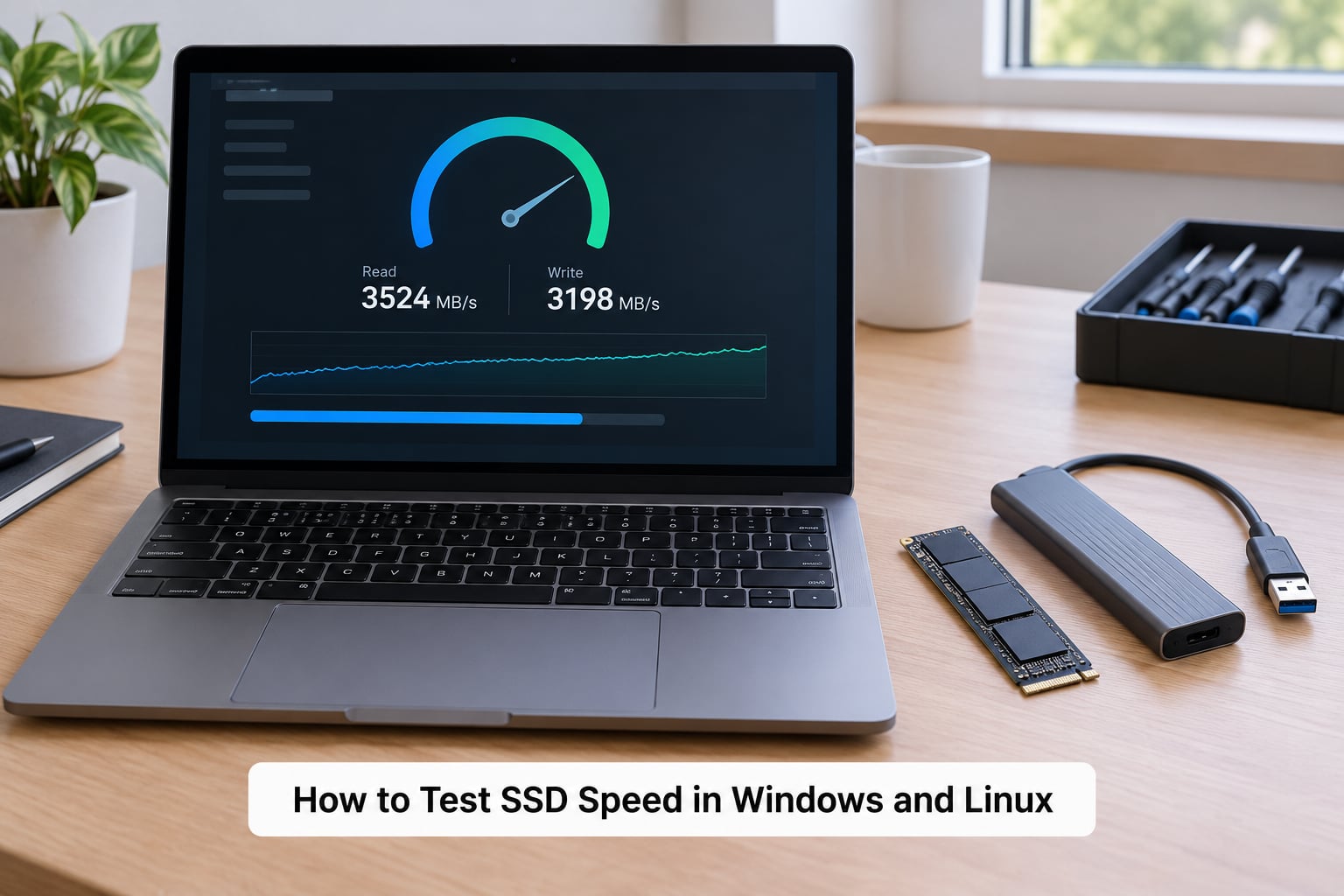
Work through this in order and stop as soon as the numbers make sense. On Windows, run CrystalDiskMark for sequential read and write, then copy a single large 4GB file and note the throughput. Next, copy a folder of several thousand small files and compare. A large ratio between the two is the cache signature. On Linux, fio --name=seqwrite --rw=write --bs=1M --size=2G --direct=1 --filename=/mnt/testfile gives a comparable number.
Check identification and free space with Get-Volume on Windows or df -h and lsblk on Linux, check TRIM as shown earlier, then read SMART or NVMe health. Temperature, where the drive exposes it, shows up in CrystalDiskInfo or through sensors on Linux.
What is concerning: write speed far below the native figure for the drive type, any non-zero media error count, a free-space percentage under 10, or temperatures above 80°C during a transfer. What a benchmark cannot prove: that the controller is faulty. A slow benchmark on a hot drive only proves the drive was hot.
Why Does My SSD Slow Down Over Time After Months?
Over months, the answer is usually a combination: fewer spare blocks from wear, a lower free-space percentage as data accumulates, and more garbage collection work per write. Add a workload change, such as a project that now writes many small files instead of one large one, and the drive looks like it regressed when the workload simply got harder. Compare the same test you ran at month one. If the drive was also slow the day you bought it, that is a different branch entirely.
How to Fix an SSD That Has Slowed Down
Back up first. None of these steps should lose data, but a backup takes ten minutes and removes the argument.
- Free up space to 10–20%. Confirm with WizTree or Windows Storage settings, then retest. If speed returns, you are done.
- Verify TRIM. On Windows run
fsutil behavior query DisableDeleteNotify. If it reports 1, enable it, and turn off Fast Startup. - Update firmware with the vendor tool. Confirm afterwards with a fresh benchmark.
- Check write caching in Device Manager, Disk drives, your SSD, Properties, Hardware Policies. Leave “Enable write caching” on unless you are prepared for data loss on power failure.
- Close background writers. Pause cloud sync, downloads and indexers, then retest.
- Improve cooling. Move the M.2 slot off the GPU, add a heatsink, clear dust.
- Reseat or replace a loose cable, and try another port. Success looks like the same drive at full speed in a different slot.
- Consider a secure erase only as a last resort, and only after a full backup. Vendor tools such as Samsung Magician or Crucial Storage Executive handle this properly; it wipes the drive.
SSD Cleanup, TRIM, and Defragmentation
Windows runs TRIM weekly by default through the Optimize Drives tool, and Linux uses the fstrim timer. You do not need to trigger it manually, and you certainly do not need to schedule a traditional defrag. Fragmenting an SSD adds writes and buys nothing, because there are no read heads to seek.
Two more myths worth dropping: disabling TRIM does not save meaningful power, and filling the drive to 100% is fine because “digital storage does not care.” The controller cares a great deal. Aggressive cleanup utilities fall into the same trap: they generate writes to tidy things up, which is the opposite of what you want.
Does an SSD Need Replacing If It Slows Down?
Usually no. Performance loss from cache, free space, TRIM and heat is fully recoverable, and buying a new drive before checking free space and firmware is the most common expensive mistake in this whole thread.
Replace the drive when SMART or NVMe health shows growing media or data integrity errors, when the controller reports unsafe shutdowns repeatedly, when performance never recovers after a secure erase with plenty of free space, or when the drive drops out of the system entirely. Sustained throttling that a heatsink cannot fix is also a good reason to move to a cooler drive or add airflow.
One rule above all others: back up before any destructive test, including secure erase.
Frequently Asked Questions
Do SSDs get slower over time?
A little, and normally in a predictable way. NAND cells wear with each program and erase cycle, so spare blocks shrink and the controller spends more work on wear leveling and garbage collection. Expect a gradual decline of perhaps 10-20% in sustained write speed across years, not a cliff. Sudden drops point to cache, free space, heat, firmware or a background process rather than to wear.
Why is my SSD suddenly getting slower?
Check what changed in the last few weeks: a Windows or BIOS update, a firmware flash, a new application, or a drive that crept past 90% full. Confirm free space and run a SMART or NVMe health check, then re-test. If the slowdown began right after an update, roll back or reinstall the storage driver before blaming the drive.
Why is my SSD slowing down when it’s full?
Controllers need spare blocks as working room for garbage collection. When the drive is nearly full, live data has to be copied into fuller blocks before they can be erased, which multiplies internal writes and collapses throughput. Freeing 10-20% of the capacity is usually enough to bring sustained write speed back to its cached level.
How often should you TRIM my SSD?
Windows issues TRIM roughly weekly through the Optimize Drives utility, and Linux ships with an fstrim timer enabled. You do not need to run it by hand. The exception worth knowing: if Fast Startup is enabled and the machine is only ever shut down rather than cold-booted, TRIM can stop running entirely. Check with fsutil behavior query DisableDeleteNotify on Windows.
What are the signs of a failing SSD?
Watch for growing media and data integrity error counts, any increase in reallocated sectors, repeated unsafe shutdowns, files that will not copy, and errors appearing in system logs. Falling capacity and long stretches of unresponsiveness are also worth taking seriously. Speed loss on its own is not a failure sign. Back up immediately if error counters start moving.
What to Check First
If you do one thing today, back up the drive. Then check free space, read the SMART or NVMe health data, and confirm the slowdown reproduces on the same test you ran before.
From there: review temperatures during a transfer, look for background writers in Resource Monitor, and run the Windows or Linux checks above. It is completely normal for sustained speed to vary between runs while everyday responsiveness stays perfectly stable.