
A cron job is a command or script that the cron daemon runs for you on a schedule you set, so backups, log cleanup and uptime checks keep working after you close the terminal. These cron job examples for beginners are copy-ready: each one shows the crontab line, explains what the five time fields mean, and tells you how to confirm the job actually ran.
Table of Contents
- Cron Job Examples for Beginners at a Glance
- 1. Run a Command Every Five Minutes
- 2. Run a Backup Every Day at 2:00 AM
- 3. Run a Task Only on Weekdays
- 4. Run a Command on the First Day of Each Month
- 5. Pass Environment Variables to a Script
- 6. Run a Python or PHP Script Automatically
- 7. Check an HTTP Endpoint and Log Failures
- 8. Delete Old Logs Automatically
- 9. Check Disk Space and Send an Alert
- 10. Run a Shell Script With Absolute Paths and Logging
- Frequently Asked Questions
- How do I edit a cron job on Linux?
- What do the five fields in a crontab entry mean?
- Why is my cron job not running?
- Why should scripts use absolute paths in cron?
- How do I stop a long cron job from running more than once?
- Conclusion
Cron Job Examples for Beginners at a Glance
| Schedule | Task | Command pattern | Best use case |
|---|---|---|---|
| */5 * * * * | Quick health check | script path, output to log | Uptime probe, disk poll |
| 0 2 * * * | Nightly database backup | absolute path to backup script | Backups before the workday starts |
| 30 6 * * 1-5 | Weekday-only report | absolute path, append to log | Business-hours jobs that skip weekends |
| 0 3 1 * * | Monthly maintenance | absolute path, append to log | Monthly report or housekeeping |
| KEY=value above the entry | Pass configuration to a script | variable block, then the entry | API keys, database names, paths |
| 0 */4 * * * | Interpreted script run | full interpreter path plus script | Python or PHP automation |
| */15 * * * * | HTTP endpoint check | curl inside a script, log failures | Website and API uptime monitoring |
| 0 4 * * * | Remove old log files | find with -mtime and -delete | Keeping disks from filling up |
| 0 6 * * * | Disk space check | df plus threshold in a script | Servers, VPS boxes, home labs |
| 0 1 * * * with flock | Long production script | lock file, redirection, log path | Jobs that take minutes to finish |
1. Run a Command Every Five Minutes
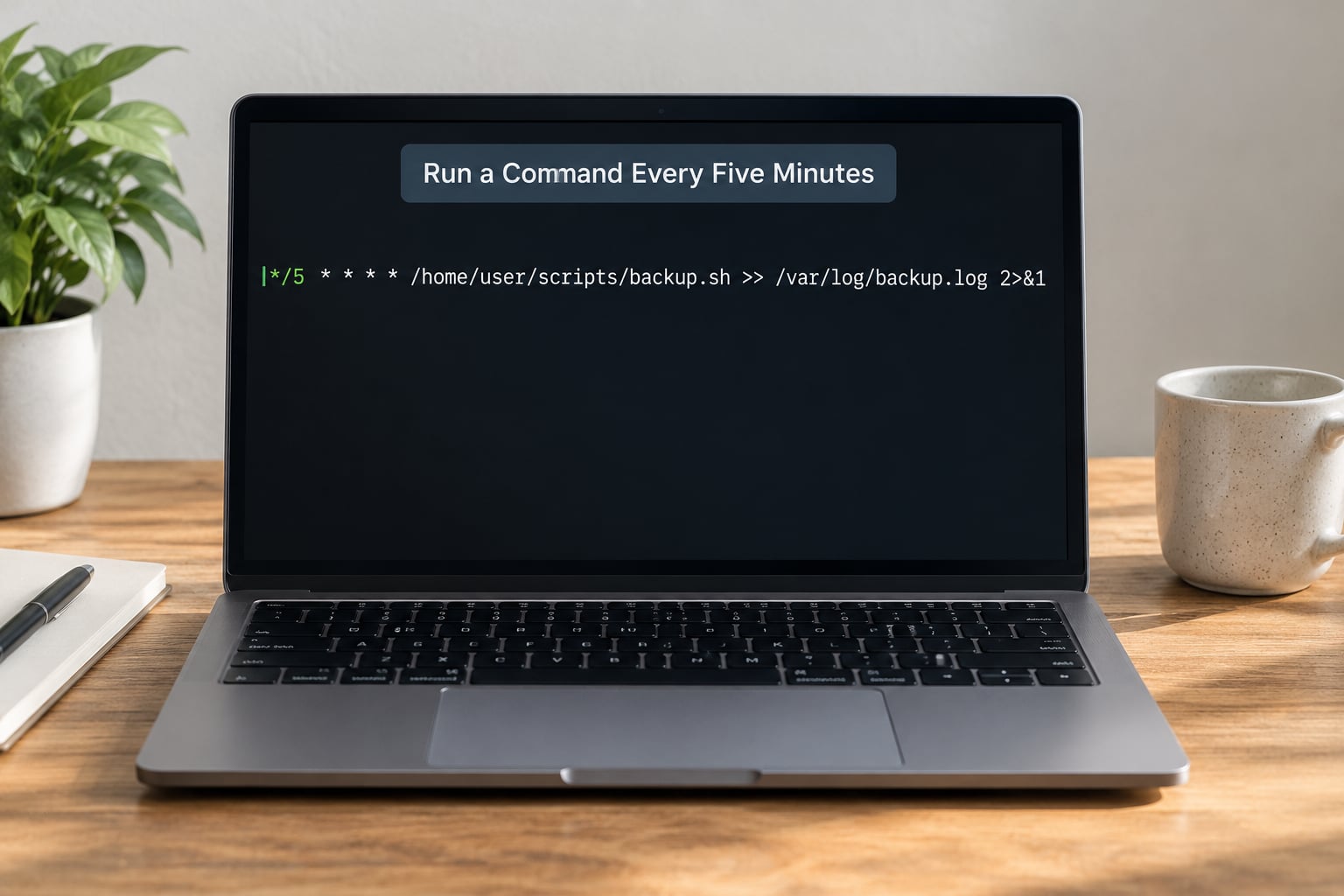
The */5 you keep seeing in cron examples means “every fifth minute”. In the minute field it matches 0, 5, 10, 15 and so on, all the way to 55, which gives you twelve runs an hour.
Edit your crontab, drop in one line, save, and cron picks it up on the next minute check:
crontab -e
*/5 * * * * /usr/local/bin/check-site.sh >> /var/log/cron-check.log 2>&1
Two details do most of the work here. /usr/local/bin/check-site.sh is an absolute path, which means the entry still works no matter where cron decides the working directory is, and >> /var/log/cron-check.log 2>&1 sends both normal output and errors into a log file instead of emailing you on every single run.
Verify it fired by reading the cron log:
sudo grep CRON /var/log/syslog | tail -n 5
journalctl -u cron -n 20
If the entry does not show up, the crontab probably was not saved. Run crontab -l to print what is actually stored.
2. Run a Backup Every Day at 2:00 AM
A daily backup at 2:00 AM is the classic first cron job. 0 2 * * * reads as minute zero, hour two, every day of the month, every month, every day of the week.
0 2 * * * /usr/local/bin/backup-db.sh >> /var/log/backup.log 2>&1Point that line at a wrapper script rather than at a long inline command. The wrapper holds the real logic, gets its own shebang, and can be tested by hand:
#!/bin/bash
# /usr/local/bin/backup-db.sh
mysqldump -u backup mydb > /var/backups/mydb-$(date +%F).sql
gzip /var/backups/mydb-$(date +%F).sql
sudo chmod +x /usr/local/bin/backup-db.sh
/usr/local/bin/backup-db.shRun it manually once. If it works in your shell and not in cron, you almost always have a relative path or a missing PATH entry, and that is covered in example 5.
3. Run a Task Only on Weekdays
The fifth field takes a day of the week where 0 and 7 are Sunday, 1 is Monday and 6 is Saturday. The range 1-5 therefore means Monday through Friday:
30 6 * * 1-5 /usr/local/bin/morning-report.sh >> /var/log/report.log 2>&1That job wakes at 6:30 in the morning, runs on weekdays, and stays quiet on Saturday and Sunday. To do the opposite and run once a week instead, name a single day rather than a range:
0 9 * * 1 /usr/local/bin/weekly-digest.sh >> /var/log/weekly.log 2>&1Commas let you combine days without writing them out one entry per day:
0 9 * * 1,3,5 /usr/local/bin/alternate-days.sh4. Run a Command on the First Day of Each Month
A 1 in the day-of-month field means the first day of every month, which is when monthly invoices, usage reports and housekeeping jobs usually run:
0 3 1 * * /usr/local/bin/monthly-report.sh >> /var/log/monthly.log 2>&1The month field accepts names or numbers, 1 to 12. Use it to run something only during business months:
0 3 1 1,4,7,10 * /usr/local/bin/quarterly-report.shHere is the rule that catches most beginners: when both the day-of-month and the day-of-week fields are restricted, cron runs the job when either one matches, not both. So 0 3 1 * 1 fires on the first of the month and on every Monday in that month. Add a day-of-month wildcard when you want a single trigger:
0 3 * * 1 /usr/local/bin/monday-only.sh5. Pass Environment Variables to a Script
Cron starts every job with a deliberately small environment. You get HOME, LOGNAME, PATH (often just /usr/bin:/bin) and SHELL. Anything you exported in your interactive shell is simply not there, which is why a script that works fine by hand fails at 3 AM.
The fix is to declare the variables at the top of the crontab, above the entries that use them:
BACKUP_DIR=/srv/backups
DB_USER=reporting
API_TOKEN=abc123

0 2 * * * /usr/local/bin/backup-db.sh >> /var/log/backup.log 2>&1
Inside the script, read them normally:
#!/bin/bash
: "${BACKUP_DIR:?BACKUP_DIR not set}"
echo "$DB_USER" >> /var/log/backup.log
Test with the same values before you schedule anything. BACKUP_DIR=/srv/backups ./backup-db.sh proves the script logic; then schedule it and check the log for the missing-variable message if it dies.
6. Run a Python or PHP Script Automatically
Never rely on a bare python or php in cron. Use the full path to the interpreter, which you can find with which python3 or command -v php:
0 */4 * * * /usr/bin/python3 /home/anna/scripts/report.py >> /var/log/report.log 2>&1
*/10 * * * * /usr/bin/php /var/www/html/cron/cleanup.php >> /var/log/cleanup.log 2>&1
Three problems show up here repeatedly. Shebang lines only matter for scripts you execute directly, and once you call the interpreter explicitly they are optional. File permissions still apply to the script file, so chmod +x /home/anna/scripts/report.py or chmod 644 both work when Python is doing the reading.
The third problem is Python itself. Virtual environments do not activate under cron, so an entry that needs packages installed in a venv has to call that venv’s interpreter, for example /home/anna/venv/bin/python.
7. Check an HTTP Endpoint and Log Failures
A cheap uptime monitor is four lines of shell wrapped in a crontab entry. Create /usr/local/bin/uptime-check.sh:
#!/bin/bash
url="https://example.com"
code=$(curl -s -o /dev/null -w "%{http_code}" --max-time 10 "$url")
if [ "$code" != "200" ]; then
  echo "$(date) $url returned $code" >> /var/log/uptime-alerts.log
fi
sudo chmod +x /usr/local/bin/uptime-check.sh
*/15 * * * * /usr/local/bin/uptime-check.sh >> /var/log/uptime.log 2>&1--max-time stops curl from hanging when a host accepts the connection but never answers. Only failed checks write to the alert log, so a healthy site produces no noise at all, which is exactly what you want from a job that runs ninety-six times a day.
8. Delete Old Logs Automatically
The -mtime flag matches files last modified more than N days ago. This keeps thirty days of logs and removes everything older:
0 4 * * * find /var/log/myapp -type f -name "*.log" -mtime +30 -delete 2>&1 | tee -a /var/log/log-cleanup.logTest the selection with -print before you add -delete. This prints the exact list without touching a single file:
find /var/log/myapp -type f -name "*.log" -mtime +30 -printRead that list carefully. A mistyped path plus -delete is a genuinely bad afternoon, so I keep the dry run as a habit even after years of running the job.
9. Check Disk Space and Send an Alert
Reading a number out of df inside a crontab line gets ugly fast. Put the comparison in a script and let cron do nothing but start it:
#!/bin/bash
# /usr/local/bin/disk-alert.sh
usage=$(df -P / | awk 'NR==2 {gsub("%","",$5); print $5}')
if [ "$usage" -gt 85 ]; then
  echo "$(date) root filesystem at ${usage}%" >> /var/log/disk-alerts.log
fi
0 6 * * * /usr/local/bin/disk-alert.sh >> /var/log/disk.log 2>&1The alert should fire when a filesystem crosses your threshold, not every time the script runs. That way the log stays empty on healthy days and the one line that appears is a real signal you can act on.
10. Run a Shell Script With Absolute Paths and Logging
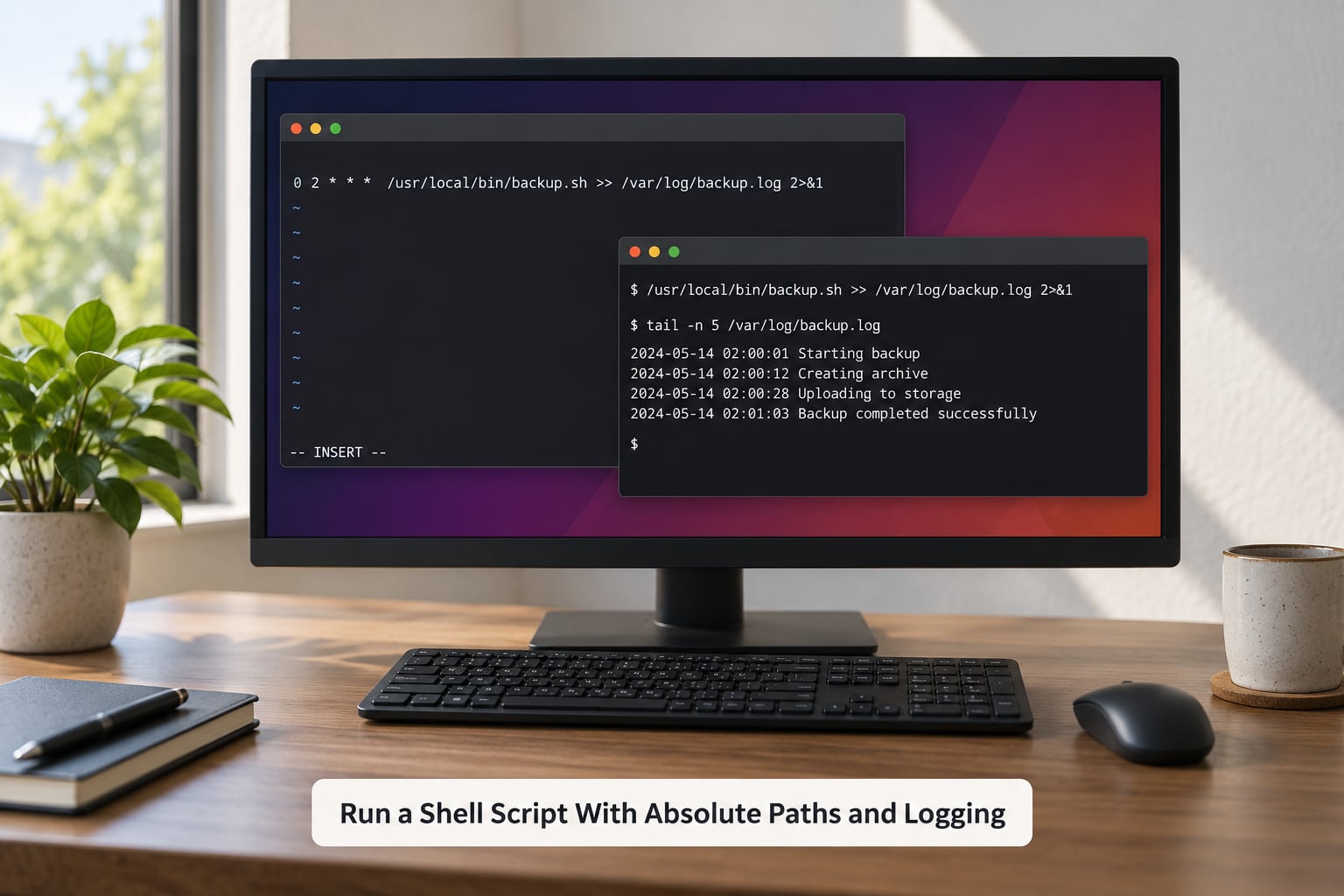
This is the entry shape I use on any server that matters. Absolute script path, a lock file so a slow run cannot start twice, unique log file, and both streams captured:
0 1 * * * flock -n /tmp/nightly.lock /usr/local/bin/nightly-report.sh >> /var/log/nightly/$(date +%F).log 2>&1Note the escaped percent sign. Inside a crontab, % is treated as a newline, so a date format like %F has to be written %F or the line breaks. It is one of those silent failures that only shows up at midnight.
flock -n exits immediately if the lock is already held, which is the simple way to stop a job that takes twenty minutes from overlapping itself. The script itself should start with #!/bin/bash and be marked executable with chmod +x.
Confirm the whole chain works the morning after:
ls -lt /var/log/nightly/
tail -n 20 /var/log/nightly/$(date +%F).log
Frequently Asked Questions
How do I edit a cron job on Linux?
Run crontab -e in your terminal. It opens your user crontab in the editor your EDITOR variable points to, usually nano or vi. Add one entry per line and save; cron picks up changes automatically. Use crontab -l to print what is currently scheduled and crontab -r to delete the whole file, so back it up first. To edit another user’s jobs, run sudo crontab -u username -e.
What do the five fields in a crontab entry mean?
In order they are minute, hour, day of month, month, and day of week, followed by the command. Each accepts an asterisk for every value, a range with a hyphen, a comma-separated list, or a slash step like */5. Day of week runs 0 to 6 with both 0 and 7 meaning Sunday. When day of month and day of week are both restricted, cron runs the job when either one matches.
Why is my cron job not running?
Check five things in order. First, run crontab -l and confirm the line was actually saved. Second, run the command by hand from a clean shell to catch missing PATH entries. Third, look for the job in the logs with grep CRON /var/log/syslog or journalctl -u cron. Fourth, check permissions and absolute paths, since cron runs as your user from your home directory. A common fifth cause is a stray percent sign in the command.
Why should scripts use absolute paths in cron?
Cron runs each job with the home directory as the working directory, not the directory your script lives in. Any relative path in your script therefore points somewhere unexpected and the job fails with a file-not-found error. Absolute paths for the script, the interpreter, and every file the script touches remove the guesswork. The same rule applies to the shebang line and to any binary the script calls.
How do I stop a long cron job from running more than once?
Wrap the command in flock so a second run exits immediately if the first is still holding the lock: flock -n /tmp/job.lock /usr/local/bin/long-job.sh. Without the -n flag the second run waits for the lock instead of exiting. Adding a check inside the script using the PID file in /var/run works too, but flock is one line and needs nothing extra installed.
Conclusion
Start with one job: a daily log cleanup or a 15-minute uptime check, both of which are easy to verify and impossible to break anything with. Once you are comfortable reading the cron log and redirecting output, add the nightly backup, then move anything that needs real logic into a script under /usr/local/bin.
Two habits cover most of the pain beginners hit. Run the command manually before scheduling it, and read the log the next morning.