An SSH session drops for one of two reasons, and they have opposite fixes. If the connection is being cut by an idle timer somewhere along the path, set ServerAliveInterval in your client config. If your work is dying when you log out, run it inside tmux or detach it with nohup. Most people need both, and the whole fix takes about five minutes once you know which one you have.
So if you searched how to keep an SSH session alive and found a dozen different answers, that is why. This guide walks through the client settings first, then the tools that protect long-running work, then the places on the network where the connection dies without telling you.
Updated for 2026. Commands and paths are for OpenSSH 8.x and later on Linux, macOS, BSD and Windows PowerShell unless I say otherwise.
Table of Contents
- What You Need
- Step-by-Step: How to Keep an SSH Session Alive
- How to Configure SSH Keepalive Options
- Use autossh for Automatic Reconnection
- Keep Programs Running with tmux or screen
- Check Server and Network Timeouts
- Common Mistakes When Trying to Keep an SSH Session Alive
- Verify the Session Stays Connected
- Frequently Asked Questions
- Does disconnecting an SSH session kill the processes I was running?
- What is the difference between ServerAliveInterval and ClientAliveInterval?
- How do I keep my PuTTY session active?
- How do I reattach a tmux session after my connection drops?
- Does an SSH session survive my laptop going to sleep?
- What ServerAliveInterval value should I use?
- Conclusion
What You Need
You need an OpenSSH client, which is already present on Linux, macOS and Windows 10 and later. Check with ssh -V.
You also need to know which of the two problems you actually have. If the connection drops on a timer while you sit still, that is an idle timeout. If it drops at random while you are typing, something in the network path is dropping it. If your job dies the moment you log out, the connection was fine and the process was not protected.
- An SSH client with an editable config file, at
~/.ssh/config(C:Usersyourname.sshconfigon Windows). - A terminal multiplexer such as tmux or screen for interactive work, if you can install packages on the remote box.
- Server access to sshd_config only if client-side settings do not fix it. Most people never need this.
- A way to check the server’s logs when a client fix does not hold, since the server usually says why it closed the connection.
Step-by-Step: How to Keep an SSH Session Alive
Work through these in order. Each step assumes the previous one is in place, because the later steps rarely help if keepalives are still wrong.
- Set client keepalives so the idle timers on the path stop firing.
- Add autossh or SSH multiplexing if your network drops the connection outright.
- Run long work inside tmux so a disconnect costs you nothing.
- Check the server and the network path only if the first step did not hold.
- Verify the fix, using the checks at the end of this section.
How to Configure SSH Keepalive Options
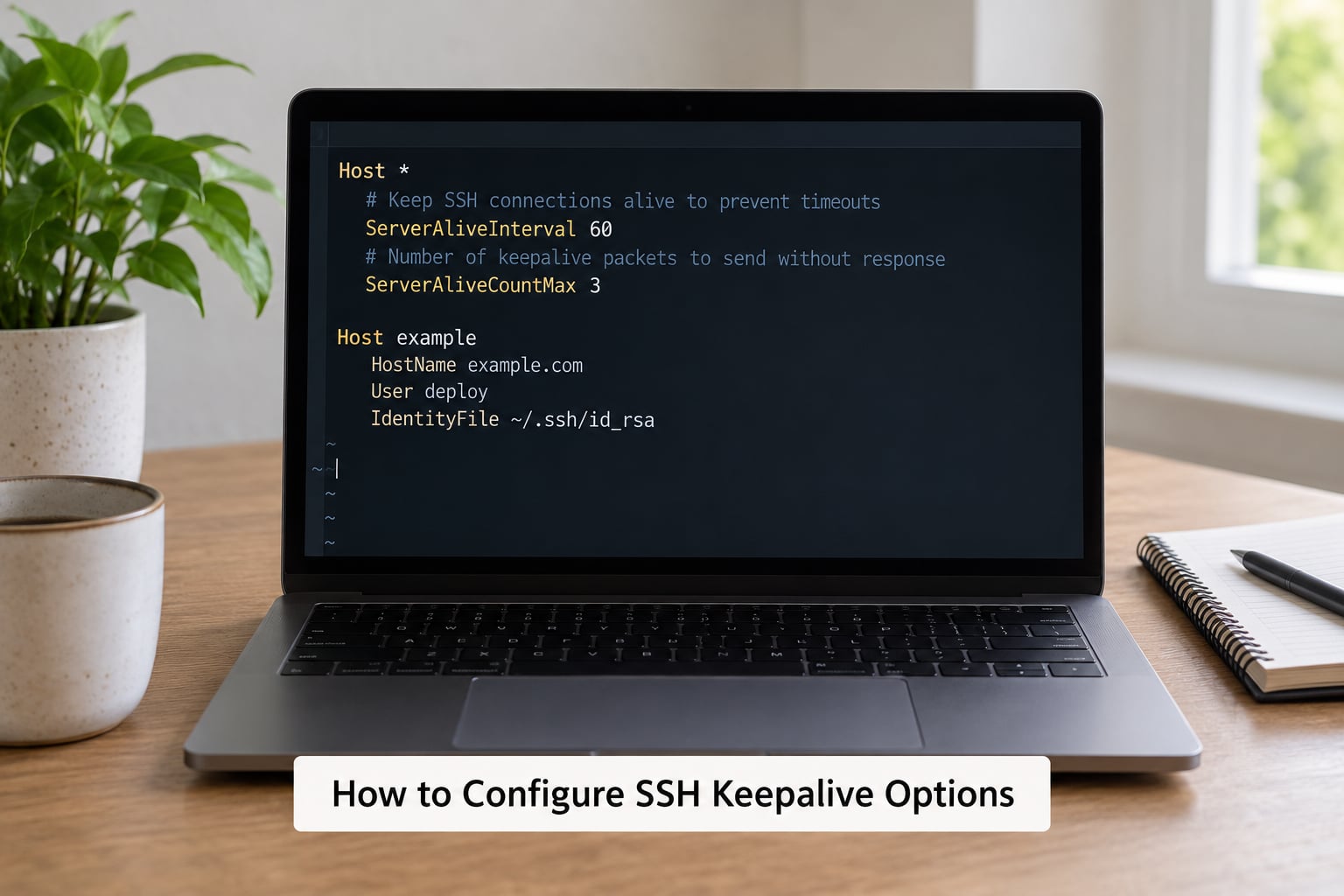
ServerAliveInterval is the number of seconds of silence after which your client sends an encrypted keepalive request to the server. ServerAliveCountMax is how many of those requests can go unanswered before the client gives up and closes the connection. Multiply them and you get the number that matters: 60 seconds times 3 gives up after 180 seconds of a dead network.
Both default to 0, which means keepalives are off entirely. That is why a default SSH session dies quietly on a NAT router after half an hour or so.
# ~/.ssh/config  (Windows: C:Usersyourname.sshconfig)
Host *
    # Send a keepalive request after 60 seconds of no traffic
    ServerAliveInterval 60
    # Tolerate 3 unanswered requests, then disconnect (60 x 3 = 180s)
    ServerAliveCountMax 3
    # Use TCP-level keepalives too. Default is yes, but many networks drop them.
    TCPKeepAlive yes
Lock the file down, or OpenSSH will ignore it:
chmod 700 ~/.ssh
chmod 600 ~/.ssh/config
Prefer a one-shot command with no config file, or you want to test before committing:
ssh -o ServerAliveInterval=60 -o ServerAliveCountMax=3 user@hostPick an interval shorter than the shortest idle timer on your path. Corporate firewalls and cloud NAT tables commonly expire idle state after 5 to 15 minutes, so 30 to 60 seconds is the range most people land on. There is a cost: a keepalive every 30 seconds on a metered mobile connection is real data, and on a laptop it competes with sleep.
Keepalives cannot rescue a path that is already dead. They keep timers from expiring, and they detect a dead link within 180 seconds in the example above. They do not bridge a dropped WiFi association or a server that rebooted.
Use autossh for Automatic Reconnection
autossh is a small wrapper that restarts ssh when the connection dies. It solves a different problem than keepalives: reconnects after a real drop rather than preventing a timeout.
# Debian and Ubuntu
sudo apt install autossh
# Fedora and RHEL
sudo dnf install autossh
# macOS
brew install autossh
# Start a session that restarts itself, forwarding X11 and SOCKS as you would normally
autossh -M 0 -N -R 8080:localhost:80 user@host
# Restart when the connection drops, but exit after one good reconnect so it
# does not loop forever against a dead server
autossh -M 0 -o ServerAliveInterval=30 -o ServerAliveCountMax=2 -o ExitOnForwardFailure=yes
-N -L 5432:localhost:5432 user@host-M 0 disables autossh’s own monitoring port and leaves the decision to SSH’s keepalive settings. -N means no remote command, only port forwarding.
Check that it is doing its job:
ps -ef | grep autossh
pgrep -af autossh
Restart a forward after the connection comes back with autossh -R 8080 -N user@host. Autossh will not reconnect after a server reboot unless the host key is unchanged; a changed key stops it on purpose, so read the message before forcing it.
Keep Programs Running with tmux or screen
Keepalives keep the connection open. They do not keep your work alive, because when the connection dies the shell receives a hangup signal and takes its children with it. A multiplexer fixes that by holding the shell in a session on the server that does not depend on your window.
# Start a named session
tmux new -s build

# Detach without stopping anything: press Ctrl+B, release, then press D
# Reconnect later
tmux ls
tmux attach -t build

# Clean up when finished
tmux kill-session -t build
Inside tmux, a status bar shows your sessions at the bottom. Split panes with Ctrl+B then % for side by side, and switch between them with the arrow keys. If you only want one thing running, name the session after it.
screen works the same way with different keys:
screen -S build
# Detach: press Ctrl+A, release, then press D
screen -ls
screen -r build
exit
For a single command rather than a whole session, nohup is enough. Redirect the output, or it dies with the terminal:
nohup ./migrate.sh > /var/log/migrate.log 2>&1 &
disown %1          # bash: drop it from the job table
setsid ./migrate.sh > /var/log/migrate.log 2>&1 &   # new session, no controlling terminal
You cannot get output back on a nohup job, which is why tmux wins for anything interactive. If you cannot install packages on the server, nohup and setsid are built in and always available.
For jobs that should survive a reboot, use systemd rather than fighting the shell:
# Quick and disposable, re-parented away from your session
systemd-run --scope --unit=migrate ./migrate.sh

# Or a real unit in /etc/systemd/system/migrate.service
[Unit]
Description=Migration job

[Service]
ExecStart=/opt/migrate.sh
Restart=on-failure
RestartSec=30

[Install]
WantedBy=multi-user.target
Check Server and Network Timeouts

If keepalives are set and the session still dies on a schedule, something with a shorter timer is on the path. Every router, NAT table, stateful firewall, VPN concentrator and cloud load balancer keeps its own idle timer, and none of them know about each other. The session lives exactly as long as the shortest one.
On the server, ClientAliveInterval in /etc/ssh/sshd_config is not an idle timeout. It is a dead-connection detector: sshd sends a probe after that many seconds of silence and drops the session after ClientAliveCountMax unanswered probes. Set it if you want sshd to reclaim sessions from machines that vanished without closing the socket, but it will never be what fixes an idle timeout.
# /etc/ssh/sshd_config
ClientAliveInterval 300
ClientAliveCountMax 2
Changing server settings needs root and a reload, so treat it as a last resort:
sudo sshd -t          # check the syntax first
sudo systemctl reload sshd
Raising idle limits weakens your protection against abandoned sessions, which is a real security control on a shared box. Fix the client first.
To find what is actually killing the connection, read both ends. On the server:
sudo journalctl -u ssh | tail -50
sudo grep 'Timeout|Disconnected|Received disconnect' /var/log/auth.log
# Client side, verbose
ssh -vvv user@host
# Then, in another terminal on the client
ss -tnp | grep ':22'The strings tell you who ended it. Broken pipe or Connection reset by peer on the client means something in between sent an RST or the path vanished, which usually points at a firewall or NAT timer. Connection to host closed by remote host means sshd decided to end it. Timeout, client not responding in the server log confirms sshd was waiting on a client that had already gone.
Through a jump host, put the keepalive settings on the final Host entry in your config, not the Host * block above it, because the first matching value wins:
Host bastion
    ServerAliveInterval 60
    ServerAliveCountMax 3

Host target
    ProxyJump bastion
    ServerAliveInterval 60
    ServerAliveCountMax 3
Common Mistakes When Trying to Keep an SSH Session Alive
- Setting the interval to 5 seconds. It works and it is wasteful: roughly 17,000 keepalive probes a day per connection, and some middleboxes flag that pattern.
- Confusing TCP keepalives with SSH keepalives.
TCPKeepAliveuses kernel probes with a default idle of roughly two hours, so it almost never fires before a NAT timer does.ServerAliveIntervalis the setting that matters. - Editing the wrong sshd file. Ubuntu and Debian ship a
/etc/ssh/sshd_config.d/directory that is included by the main file and can override it. Check both. - Running
tmux attachwith no session name. With several sessions, attach needs-t, and a brand new session needstmux new -s namefirst. - Expecting autossh to survive a server reboot. It reconnects, but not if the host key changed or the service is not up yet. Give it a moment and check the host key before forcing it.
- Leaving a frozen terminal open. After a network blip the window often accepts nothing. Press
~then.and press Enter to get your local shell back, or runpkill -f sshfrom a second terminal. - Leaving
ControlPersistsockets behind. Multiplexing keeps a background master connection after you log out, which accumulates on long-lived machines. List them withss -lnp | grep sshand close them withssh -O exit host.
Verify the Session Stays Connected
Open a session, leave the remote shell idle for longer than the interval you set, and confirm three things afterwards.
# 1. The client process is still there
ps -ef | grep '[s]sh user@host'

# 2. The socket is still established
ss -tnp | grep ':22'

# 3. Your work is still running, inside tmux
tmux ls
tmux attach -t build
Then test a real disconnect rather than only a timeout. Suspend WiFi for a minute, or tunnel through a host you can restart, then reattach and check the job’s output. If it survived, the setup is doing what you wanted. If it died, the job was never in tmux and the connection fix was never the issue.
For repeated logins, put the values in ~/.ssh/config once and let every new session inherit them, including VS Code Remote-SSH, which reads the same file.
Frequently Asked Questions
Does disconnecting an SSH session kill the processes I was running?
Usually yes. When your shell exits, the pseudo-terminal closes and the kernel sends a hangup signal to the foreground process group, which takes your job with it. Jobs started with nohup, inside tmux or screen, or as a systemd unit ignore that signal and keep running. Before logging out on a server you cannot see, check with ps -ef and look for a process whose parent is 1, which means it was already re-parented and is safe.
What is the difference between ServerAliveInterval and ClientAliveInterval?
Both send periodic probes over an idle connection, but they run on opposite ends. ServerAliveInterval is a client setting in ~/.ssh/config and keeps NAT and firewall state tables from expiring. ClientAliveInterval is a server setting in /etc/ssh/sshd_config and detects a client that has vanished so the server can reclaim the slot. Neither one is an idle limit that logs idle users out on its own.
How do I keep my PuTTY session active?
Open PuTTY, load your saved session, go to Connection, and set Sending keepalive packets every to 30 seconds. PuTTY has no config file, so this has to be set per session unless you change the default settings. PuTTY also sends a null command to the server periodically, which is not the same thing as the SSH-level probe. On MobaXterm, use Session settings, then Advanced SSH settings, where the same keepalive options are exposed.
How do I reattach a tmux session after my connection drops?
Log back in to the server and run tmux ls to list what is running, then tmux attach -t name to reattach to the session you want. If a session is already attached somewhere else, tmux tells you and you can take it over with tmux attach -d -t name. With no sessions listed, nothing was running inside tmux and you need to start one with tmux new -s name next time.
Does an SSH session survive my laptop going to sleep?
No. Sleep suspends the network adapter, the TCP connection dies, and when the machine wakes there is no session to return to. Anything running in a plain shell is already gone by then. Anything inside tmux, started with nohup, or running as a systemd unit survives and waits for you. On macOS and Linux you can also disable sleep for a cable connection with caffeinate on macOS or systemd-inhibit on Linux.
What ServerAliveInterval value should I use?
Set it lower than the shortest idle timer on your network path. Home routers and most cloud NAT tables sit somewhere between 5 and 15 minutes, so 30 to 60 seconds is the usual answer, with ServerAliveCountMax at 3 giving roughly three minutes before the client admits the link is dead. Going much below 30 seconds wastes data and can trip traffic shaping on locked-down corporate networks.
Conclusion
Start with the client. Put ServerAliveInterval 60 and ServerAliveCountMax 3 in ~/.ssh/config, which covers most dropouts on home, office and cloud networks, then add autossh if your connection genuinely breaks.
Next, run anything worth keeping inside tmux. That is the part that protects your work, and it is the part most people skip until they lose a long build. Check the server logs and the network path only when the client settings do not hold, since ClientAliveInterval will not fix an idle timeout no matter how you set it.